


 Video Converter Ultimate
 Perakam Skrin
 Pembaikan Video
 Muat Turun Selamat
MOV to MP3 - 4 Kaedah Terbaik untuk Mengekstrak Fail MP3 dari MOV dengan Kemudahan
Sekiranya anda ingin mengekstrak fail muzik latar dari video, bagaimana cara menukar MOV ke MP3 dengan kualiti yang asli? MOV adalah format video yang sering digunakan untuk kebanyakan peranti, anda dapat mengetahui lebih lanjut mengenai 4 cara paling berkesan untuk mengekstrak fail MP3 dari MOV dengan mudah. Cukup pilih kaedah yang dikehendaki mengikut keperluan anda sekarang.

Bahagian 1: 5 Kaedah Terbaik untuk Menukar MOV ke MP3 dengan Kemudahan
Kaedah 1: Cara Menukar MOV ke MP3 Dalam Talian
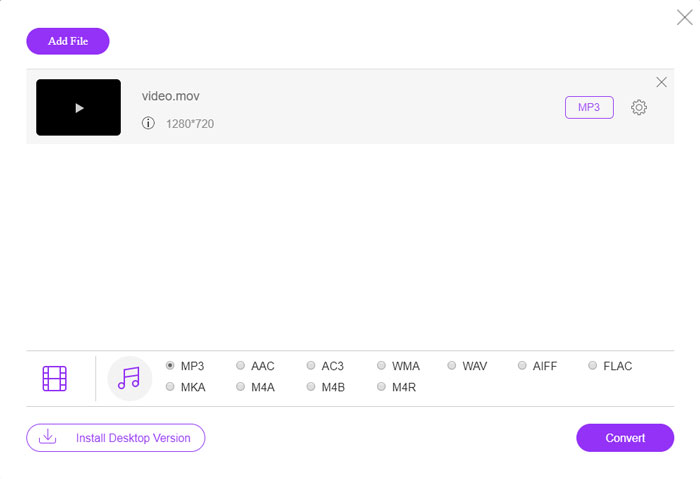
FVC Penukar Video Dalam Talian Percuma ialah penukar MOV ke MP3 dalam talian serba boleh yang membolehkan anda menukar kebanyakan fail video/audio, melaraskan tetapan audio dan video, malah melakukan penukaran yang stabil dan selamat tanpa sebarang tera air atau had saiz.
Langkah 1. Pergi ke penukar video dalam talian pada mana-mana pelayar web, anda boleh klik butang Add Files to Convert untuk memuatkan fail MOV yang ingin anda tukar. Ia memerlukan pemasangan program PKG terlebih dahulu.

Langkah 2. Sebaik sahaja anda mengimport fail MOV, anda boleh memilih MP3 daripada menu Audio dalam antara muka pengguna. Selain itu, anda juga boleh melaraskan tetapan seperti kadar pensampelan, saluran audio dan lain-lain lagi.

Langkah 3. Selepas itu, anda boleh klik butang Convert untuk menukar MOV kepada MP3. Ia hanya mengambil beberapa saat untuk mendapatkan video yang dikehendaki. Kemudian anda boleh memuat turun fail MP3 ke komputer anda atau berkongsi ke laman web media sosial.
Kaedah 2: Cara Menghidupkan MOV ke MP3 pada Windows
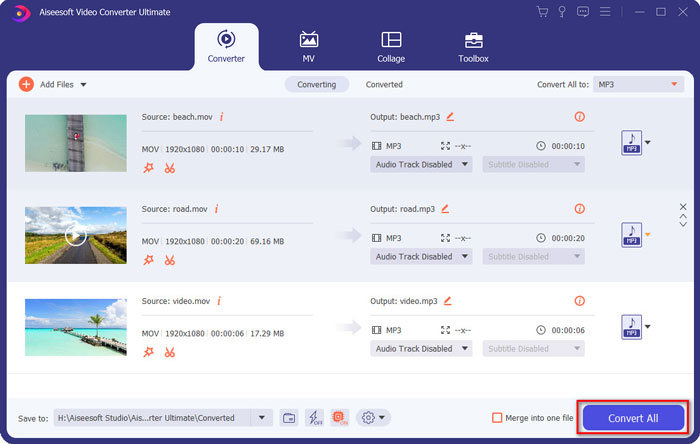
Apabila anda ingin mengubah MOV menjadi MP3 dengan kualiti asli pada Windows dan Mac, FVC Video Converter Ultimate adalah penukar MOV ke MP3 yang diinginkan untuk mentranskodkan sebahagian besar format video, mengubah tetapan audio / video, mengedit fail output atau bahkan menerapkan berbilang penapis video dengan senang.
- 1. Tukarkan MOV ke MP3, WAV, WMA dan lain-lain yang lain dengan kualiti asal.
- 2. Tweak codec video, kadar sampel, kadar bit audio dan tetapan audio yang lain.
- 3. Sediakan ciri penyuntingan video, seperti klip, trim, menggabungkan MOV dan sapukan penapis.
- 4. Percepatan perkakasan canggih untuk menukar fail video dengan kelajuan pantas 70x.
Langkah 1. Muat turun dan pasang penukar MOV ke MP3, kemudian anda boleh lancarkan program pada komputer anda. Klik pilihan Add Files untuk memuatkan fail MP4 atau seret video terus ke dalam program.
Muat Turun PercumaUntuk Windows 7 atau lebih baharuMuat Turun Selamat
Muat Turun PercumaUntuk MacOS 10.7 atau lebih baharuMuat Turun Selamat

Langkah 2. Sebaik sahaja anda mengimport video MP4, anda boleh memilih menu Audio dan pilih MP3 sebagai format keluaran. Selepas itu, anda boleh melaraskan tetapan profil, seperti bitrate, kadar pensampelan dan lain-lain.

Langkah 3. Pilih folder destinasi untuk fail yang telah ditukar. Kemudian anda boleh klik butang Convert All pada antara muka utama untuk mula menukar MOV ke MP3 pada komputer anda mengikut keperluan anda.
Kaedah 3: Cara Menukar MOV ke MP3 di Android
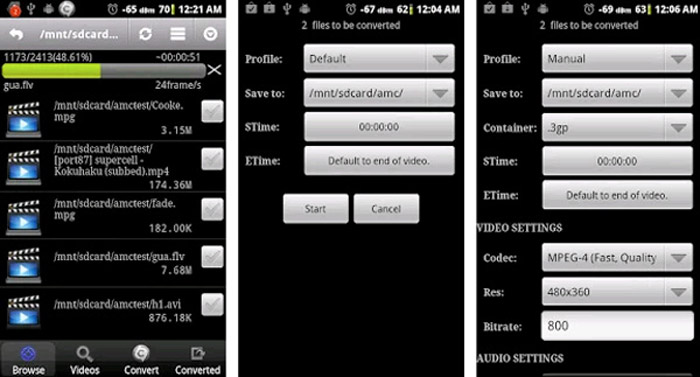
Sekiranya anda mempunyai beberapa fail MOV pada perangkat Android anda, anda tidak perlu memindahkan video ke komputer, Video Converter Android adalah aplikasi penukar MOV ke MP3 sederhana yang disyorkan yang mengubah video MOV menjadi audio yang diinginkan dalam beberapa klik.
Langkah 1. Sebaik sahaja anda memasang penukar MP3, anda boleh buka aplikasi untuk menyemak imbas dan menambah fail MOV daripada Galeri Android anda. Kemudian anda boleh ketik pada ikon Refresh di bahagian atas.
Langkah 2. Kemudian anda boleh memilih STime dan ETime untuk memotong muzik latar daripada fail MOV dan melaraskan kadar pensampelan serta tetapan lain sebelum penukaran.
Langkah 3. Selepas itu, anda boleh pergi ke tab Convert dan pilih MP3 sebagai format keluaran daripada senarai codec. Klik butang Start untuk meneruskan proses penukaran MOV ke MP3.
Kaedah 4: Cara Menukar MOV ke MP3 di iOS
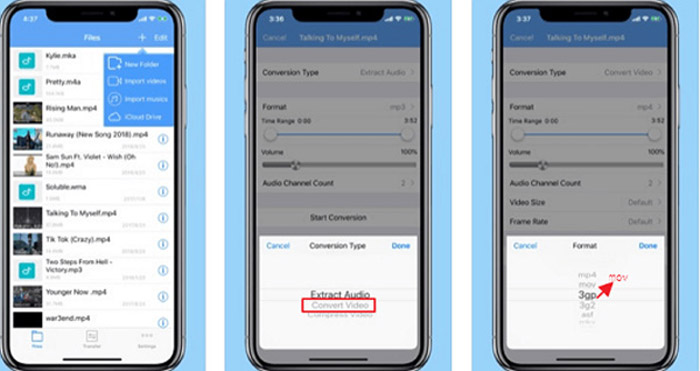
Media Converter adalah aplikasi penukar MOV ke MP3 untuk iPhone dan iPad anda. Ia mempunyai pemain media terbina dalam yang membolehkan anda memainkan sebahagian besar format video dan audio. Selain itu, anda juga boleh memampatkan fail audio dengan zip dan RAR dengan mudah.
Langkah 1. Jika anda sudah memasang penukar MOV ke MP3, anda boleh lancarkan program pada peranti iOS anda. Sebaik sahaja anda memuatkan fail MOV, anda boleh ketik pilihan Extract Audio.
Langkah 2. Pilih MOV sebagai format input dan fail MP3 sebagai format keluaran. Kemudian anda boleh melaraskan tetapan audio, seperti kadar pensampelan dan lain-lain lagi mengikut keperluan anda.
Langkah 3. Selepas itu, anda boleh klik butang Convert untuk mula menukar MOV ke MP3. Apabila anda memperoleh fail yang dikehendaki, anda boleh eksport fail MP3 yang telah ditukar ke peranti anda daripada Photos mengikut keperluan.
Bahagian 2: Soalan Lazim mengenai Menukar MOV ke MP3 pada Win / Mac
1. Adakah Terdapat Kaedah Serbaguna untuk Menukar MOV ke MP3 untuk Semua Peranti?
Pemain Media VLC lebih daripada pemain media. Anda juga boleh menukar MOV ke MP3 di komputer dan telefon pintar anda. Selain itu, anda juga boleh mengubah tetapan yang berbeza dan mengedit video dengan beberapa ciri penyuntingan asas. Tetapi anda harus menggunakan penukar video profesional untuk mendapatkan hasil yang berpuas hati.
2. Manakah Format Output Terbaik, MP3 atau WAV untuk Menukar MOV?
Apabila anda menukar MOV ke MP3, anda boleh menggunakan format audio untuk kebanyakan peranti. Untuk mengekstrak fail audio dari komputer atau pemain media lain yang serasi, anda boleh memilih audio WAV sebagai format output sebagai keperluan anda.
3. Bagaimana Memilih Penukar MOV ke MP3 yang Diinginkan?
Sekiranya anda hanya perlu memilih penukar MOV ke MP3 dalam talian, anda harus memberi perhatian khusus kepada batasan ukuran, tanda air, pendaftaran akaun dan banyak lagi sebelum penukaran. FVC Free Online Video Converter adalah alat serbaguna yang mengekstrak fail audio tanpa batasan.
Kesimpulannya
Untuk mengekstrak MP3 dari video MOV, anda boleh mengetahui lebih lanjut mengenai 4 penukar MOV ke MP3 terbaik dari artikel tersebut. Sama ada anda perlu melakukan transkod video ke MP3 di komputer, atau menukar fail MOV dengan mudah pada peranti iOS / Android anda, anda boleh memilih penyelesaian yang diinginkan sesuai dengan keperluan anda dari artikel tersebut.
-
 Cara Menukar Fail Muzik OGG Anda ke MP3 di Desktop dan Dalam Talian
 Bagaimana cara menukar fail OGG anda ke dalam format MP3 untuk didengarkan di komputer atau peranti mudah alih? Di sini kami kongsikan 5 cara termudah untuk melakukannya di desktop atau dalam talian.
-
 Cara Menukar MP4 ke MP3 di Windows / Mac / iPhone / Android / Online
 Sekiranya anda ingin mengekstrak audio MP3 dari video MP4, anda boleh menyemak artikel ini dan mendapatkan 8 penyelesaian. Terdapat kaedah dalam talian dan luar talian untuk menukar MP4 ke MP3 di telefon atau komputer anda dengan mudah.
-
 Cara Memampatkan Fail MOV pada Windows, Mac, iPhone dan Android
 Artikel ini menunjukkan cara memampatkan video QuickTime MOV pada telefon atau komputer anda secara terperinci. Sekiranya video MOV anda terlalu besar untuk dihantar, dikongsi atau disimpan, anda boleh mendapatkan 4 penyelesaian yang boleh dilaksanakan di sini.
