


 Video Converter Ultimate
 Perakam Skrin
 Pembaikan Video
 Muat Turun Selamat
Penukar VLC ke MP4: Alat Terpantas dan Sempurna Yang Perlu Anda Ketahui
Pemain Media VLC bukan sekadar pemain media biasa untuk menonton filem dan mendengar lagu, kerana ia jauh lebih serba boleh daripada yang anda sangkakan. Jika anda peminat VLC, besar kemungkinan anda mempunyai banyak filem yang disimpan dalam pustakanya. Tahukah anda bahawa anda sebenarnya boleh menggunakan VLC untuk menukar video anda kepada format lain seperti MP4? Jadi, jika anda pernah terfikir untuk menukar filem atau video ini dalam format VLC ke MP4 supaya anda boleh menontonnya pada telefon atau peranti mudah alih yang lain, maka anda memang bernasib baik! Post ini akan mengajar anda proses penukaran yang paling pantas dan paling mudah yang boleh anda lakukan pada komputer. Jadi, tanpa berlengah lagi, teruskan membaca keseluruhan kandungan di bawah untuk mempelajarinya dengan segera!

Bahagian 1. Cara Terpantas untuk Menukar Fail VLC kepada MP4
Jika anda sedang mencari perisian hebat yang mengendalikan penukaran video dengan amat baik tanpa mengorbankan kualiti, maka tidak perlu mencari lagi kerana kami perkenalkan anda kepada FVC Video Converter Ultimate ini. Penukar hebat ini bukan sahaja menukar video VLC kepada pelbagai format seperti MP4, MKV, WMA, AVI, MOV dan banyak lagi dengan pantas, malah ia melakukannya tanpa sebarang kehilangan kualiti imej. Selain itu, kelajuannya sangat tinggi, sehingga 120x lebih pantas, kerana ia disertakan dengan sokongan pemecutan perkakasan.
Tetapi tunggu, ada lagi! Penukar VLC ke MP4 ini juga berfungsi sebagai editor video terkemuka. Editor membolehkan anda memangkas, memotong, memutar, menambah tera air, dan banyak suntingan lain yang anda tahu. Selain itu, ia dilengkapi dengan ciri utama yang anda tidak mahu ketinggalan. Ciri yang akan membantu anda membuat kolaj video yang menakjubkan dengan klip, foto dan lagu anda! Sementara itu, mari beralih ke proses penukaran pantas yang dibawakan kepada anda oleh FVC melalui langkah di bawah.
Langkah 1. Mari mulakan dengan memuat turun perisian ini ke komputer anda. Anda boleh menggunakan butang Muat Turun di bawah mengikut sistem peranti anda. Ya, anda boleh menukar VLC ke MP4 pada Mac atau Windows dengan perisian ini.
Muat Turun PercumaUntuk Windows 7 atau lebih baharuMuat Turun Selamat
Muat Turun PercumaUntuk MacOS 10.7 atau lebih baharuMuat Turun Selamat
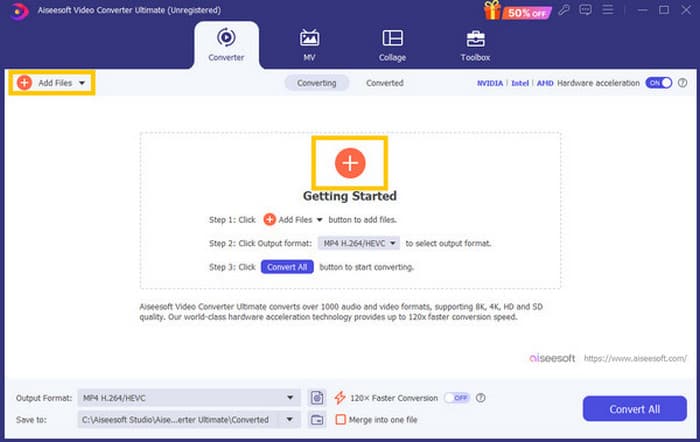
Langkah 2. Selepas perolehan, lancarkan perisian dan mula mengimport semua fail VLC yang perlu anda tukar. Hanya klik butang Tambah berwarna merah di tengah ruang kerja atau butang Add Files di bahagian atas kanan.
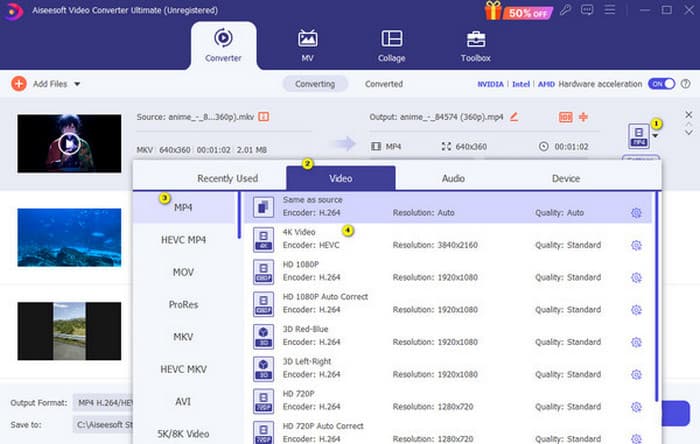
Langkah 3. Selepas pengimportan fail secara pukal, kini masanya untuk menukar format output kepada MP4. Untuk berbuat demikian, klik butang segi tiga terbalik di bahagian hujung setiap fail. Kemudian, pergi ke Video>Pilih MP4>Pilih Encoder.
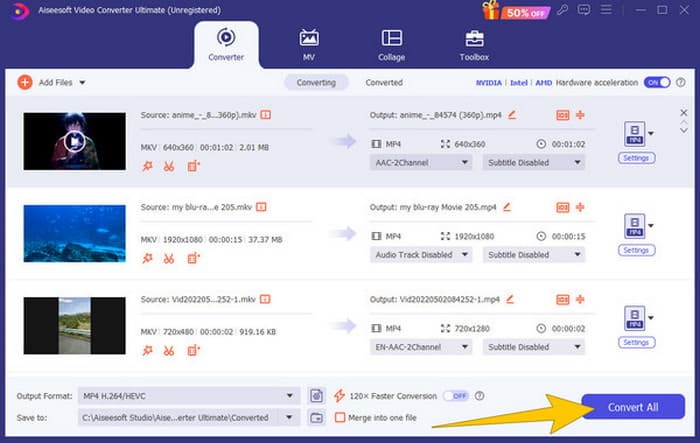
Langkah 4. Semudah itu, kini anda boleh menekan butang Convert All untuk memulakan proses penukaran ultra pantas.
Kelebihan
- Perisian pelbagai fungsi yang baik untuk menukar, mengedit dan mencipta fail video.
- Ia menawarkan versi percubaan percuma yang memberikan anda kuasa penukaran yang sama.
- Ia membenarkan penukaran fail VLC pukal.
- Tukar fail VLC anda kepada 120x lebih pantas.
- Pelbagai format input dan output disokong.
Keburukan
- Anda perlu membeli langganan untuk ciri lanjutan.
Bahagian 2. Langkah Lengkap untuk Menukar Fail kepada MP4 dalam VLC
Memandangkan anda sedang bekerja dengan fail VLC, ia sememangnya pilihan yang baik untuk menukarnya menggunakan VLC itu sendiri. Walau bagaimanapun, tidak seperti penukar VLC kepada MP4 sebelumnya, VLC mungkin agak mencabar untuk dikendalikan apabila ia berkaitan dengan penukaran. Inilah sebabnya kami menjadikan proses lebih mudah untuk diikuti dengan langkah komprehensif yang kami sediakan di bawah.
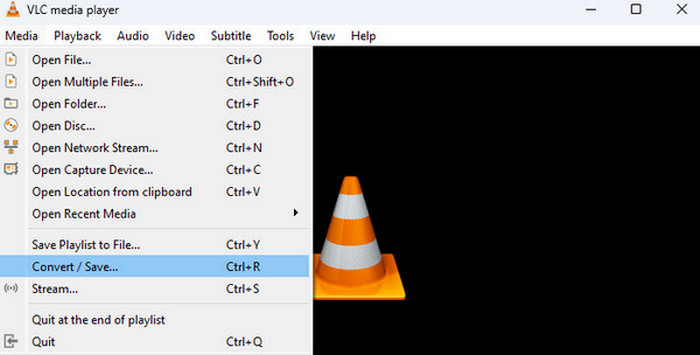
Langkah 1. Buka VLC pada peranti komputer anda, kemudian masukkan juga fail video tersebut. Bagaimana? Pergi ke menu Media dan klik sub-menu Convert/Save.
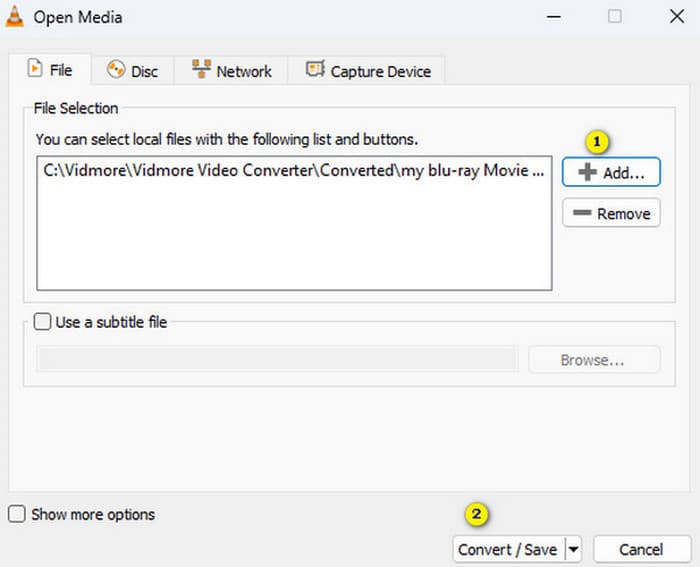
Langkah 2. Pada tetingkap Open Media, klik butang +Add untuk memasukkan fail. Apabila fail telah dimasukkan, klik butang Convert/Save di bahagian bawah.
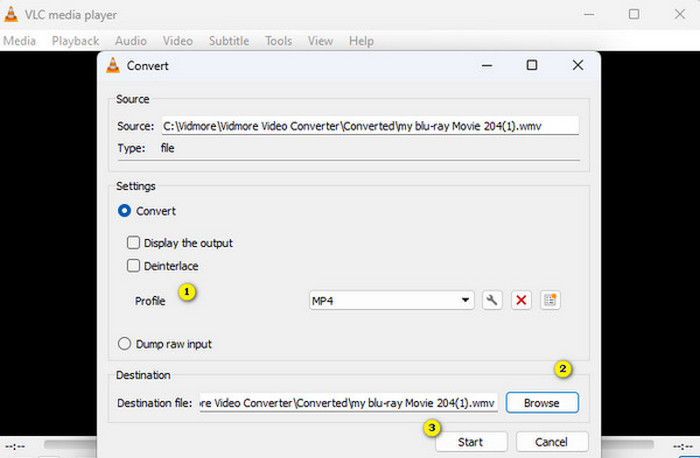
Langkah 3. Selepas itu, VLC akan membawa anda ke tetingkap seterusnya, di mana anda perlu memilih MP4 sebagai format output anda. Untuk berbuat demikian, pergi ke bahagian Profile. Kemudian, pergi ke bahagian Browse untuk menetapkan lokasi simpanan fail anda, lalu klik butang Start untuk memulakan proses penukaran.
Kelebihan
- Ia adalah penukar percuma dan pemain media.
- Ia adalah penukar VLC ke MP4 silang platform.
- Anda boleh terus bekerja dengan fail VLC anda tanpa alat pihak ketiga.
- Anda boleh bekerja dengan pelbagai format video.
Keburukan
- Proses penukaran tidak begitu pantas.
- Ia datang dengan had saiz fail pada penukaran.
Bahagian 3. Tukar Fail Dari VLC ke MP4 Dalam Talian
Katakan anda ingin berusaha lebih dengan menukar fail video secara dalam talian. Jika begitu, anda mesti belajar menukar fail dengan FVC Free Video Converter Online. Penukar berasaskan web ini direka untuk memudahkan penukaran multimedia secara percuma. Ia boleh menukar hampir semua fail video dan juga audio kepada pelbagai format tanpa kehilangan kualiti. Dengan penukar ini, anda boleh menukar video HD anda dengan pantas kepada format popular sambil mengekalkan ketajaman asalnya. Selain itu, ia membolehkan anda menukar berbilang fail dalam proses penukaran yang amat pantas dan mengagumkan!
Alat ini juga menawarkan ciri penyuntingan di mana anda boleh melaraskan tetapan video seperti kadar bingkai, kadar bit dan peleraian, serta tetapan audio seperti kadar bit dan kelantangan. Ini bermakna anda boleh mengubah suai video anda seperti yang anda mahu dan mengeksportnya tanpa kehilangan kualiti! Ikuti langkah yang diberikan di bawah untuk menukar daripada VLC ke MP4 dalam talian.
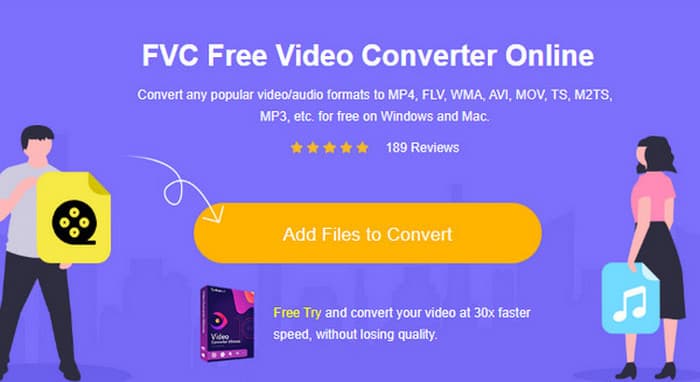
Langkah 1. Setelah anda sampai ke laman rasmi penukar dalam talian ini, klik butang Add Files to Convert. Ini akan membolehkan anda memuat naik fail video awal anda.
Langkah 2. Apabila fail anda dipaparkan, klik fail tersebut dan pilih MP4 sebagai format output daripada pilihan yang diberikan di bahagian bawah antara muka.
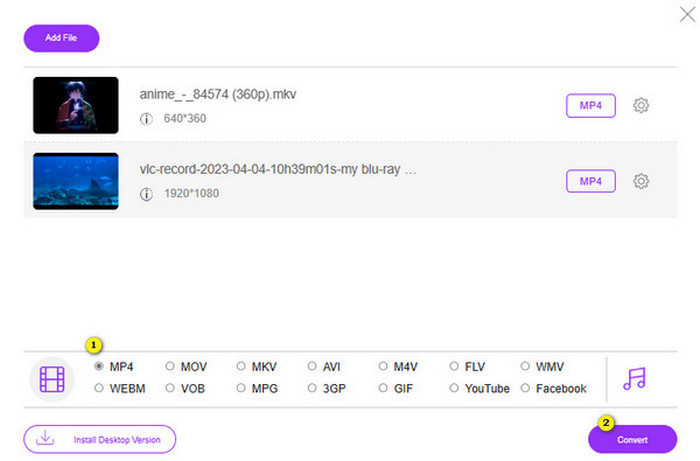
Langkah 3. Selepas menetapkan semua fail kepada MP4, kini masanya untuk klik butang Convert.
Kelebihan
- Ia adalah lebih mudah untuk digunakan.
- Ia tidak memerlukan sebarang pemasangan perisian.
- Anda boleh menukar semua fail anda serentak.
Keburukan
- Anda mesti mempunyai sambungan internet yang stabil untuk proses penukaran yang mudah.
Bahagian 4. Soalan Lazim tentang Penukaran VLC ke MP4
Bagaimanakah anda menukar VLC kepada MP4 pada Mac?
Gunakan versi Mac bagi FVC Video Converter Ultimate untuk menukar fail video anda kepada MP4 tanpa kehilangan kualiti.
Bolehkah saya menggunakan VLC untuk menukar video yang disulitkan atau dilindungi DRM?
Tidak. Malangnya, VLC tidak boleh menukar video yang disulitkan atau dilindungi DRM kepada MP4 atau format lain.
Adakah VLC melakukan penukaran tanpa kerugian?
VLC menawarkan pilihan untuk melaraskan tetapan video dan audio untuk mengekalkan penukaran tanpa kehilangan yang terbaik.
Kesimpulannya
Anda lihat, menukar VLC ke MP4 sebenarnya cukup mudah asalkan anda tahu langkah yang betul. Namun, jika anda menyasarkan hasil yang pantas dan berkualiti tinggi, anda mesti bergantung pada penukar berkuasa seperti FVC Video Converter Ultimate. Penukar ini tidak memerlukan anda menggunakan tetapan terperinci semata-mata untuk menghasilkan output yang baik, berbeza dengan apa yang mungkin anda perlu lakukan dengan VLC.
-
 Proses untuk Rip dan Rakam DVD dengan VLC untuk Digitize Format yang Boleh Dimainkan
 VLC menyokong banyak format fail pemampatan audio-video, termasuk rakaman dalam DVD. Biarkan bola terus bergulir untuk perbincangan dan perincian lebih banyak hingga akhir.
-
 Cara Cemerlang Mungkin | Cara Membetulkan Kelewatan Audio VLC [2024]
 Adakah anda mengalami kesukaran menonton filem kegemaran anda pada pemain media VLC anda kerana ketidaktentuan audio? Teruskan membaca artikel ini untuk mengetahui semua cara yang mungkin untuk membetulkan kelewatan audio VLC.
-
 Cara Menggunakan VLC untuk Membaiki Video | Panduan Terbaik Anda
 Adakah anda mempunyai video rosak yang tersekat pada fail anda? Terokai panduan muktamad untuk pembaikan video VLC untuk membaiki video anda dan membolehkannya dimainkan semula dengan mudah.
