


 Video Converter Ultimate
 Perakam Skrin
 Pembaikan Video
 Muat Turun Selamat
4 Petua Berguna untuk Memperbaiki Pemain VLC Tidak Akan Memainkan MKV
Fail video MKV (Matroska) ialah format fail multimedia percuma dan sumber terbuka. Namun, ia tidak disokong oleh banyak pemain yang kerap digunakan, termasuk Windows Media Player dan QuickTime Player. Jadi, anda boleh beralih kepada VLC Media Player yang popular untuk memainkan MKV. Walau bagaimanapun, ramai pengguna menghadapi masalah VLC player tidak dapat memainkan MKV.

Masalah main balik MKV boleh jadi pelbagai, seperti trek audio fail MKV anda lewat dipaparkan, main balik tersekat-sekat, imej kabur, antaramuka bermasalah dan sebagainya. Di dalam hantaran ini, kami ingin berkongsi 4 petua berguna untuk membantu anda membetulkan masalah fail MKV tidak dapat dimainkan pada VLC.
Bahagian 1. Tetapkan Keutamaan untuk Memperbaiki Pemain VLC Tidak Akan Memainkan MKV
VLC adalah alat permainan fail media yang sangat popular yang dapat menyokong kebanyakan format video dan audio digital termasuk MKV, MP4, AVI, FLV, MP3, AAC, M4A, FLAC, dll. Dan VCD, CD Audio, dan DVD.
Pemain Media VLC menarik berjuta-juta pengguna kerana dapat memainkan fail media yang anda ada. Tetapi pemain VLC tidak akan memainkan fail MKV masalah berlaku dari semasa ke semasa. Sekiranya pemain VLC melangkau fail MKV atau HD MKV anda, anda boleh memilih pilihan untuk memperbaikinya.
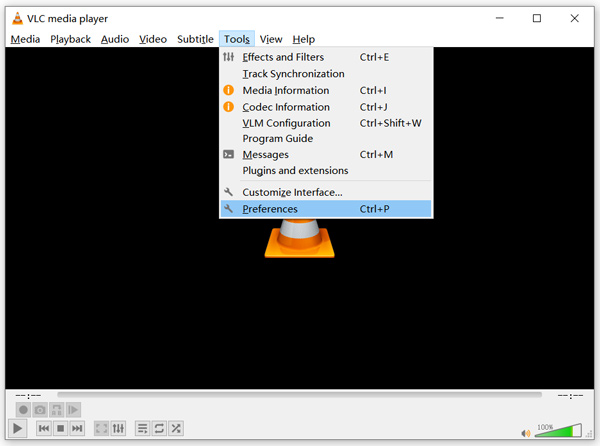
Langkah 1. Buka VLC Media Player dan pilih menu Tools. Dari senarai tarik-turun, pilih pilihan Preferences.
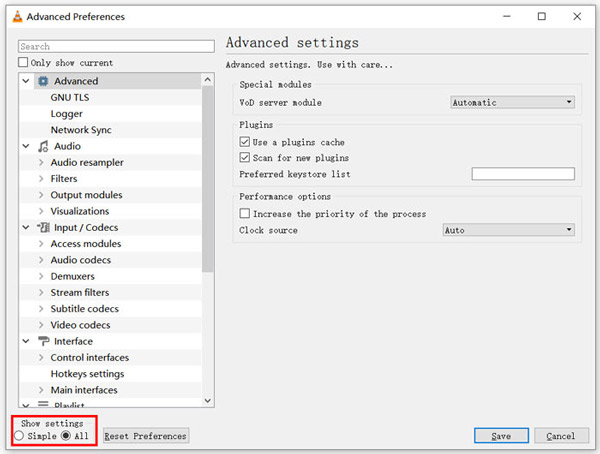
Langkah 2. Tanda All di bawah Show settings di bahagian kiri bawah tetingkap dialog. Dengan berbuat demikian, anda boleh memaparkan tetingkap Advanced Preferences.
Langkah 3. Pilih bahagian Input/Codecs di sebelah kiri, kemudian cari pilihan File Caching(ms) di sebelah kanan. Anda mungkin perlu menatal ke bawah untuk mencarinya.
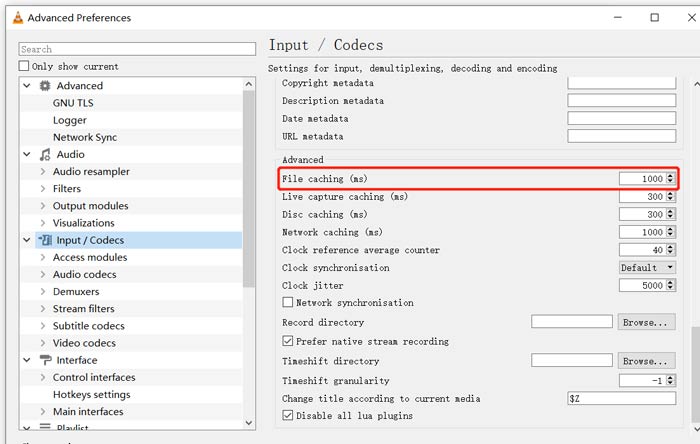
Langkah 4. Tetapkan File Caching kepada 1000 dan kemudian klik butang Save untuk mengesahkan tindakan anda. Selepas itu, mulakan semula VLC dan main semula fail MKV anda.
Bahagian 2. Kemas kini atau Pasang semula VLC untuk Memperbaiki Pemain Tidak Akan Memainkan MKV
Sekiranya pemain VLC tidak dapat memainkan masalah MKV masih ada, anda boleh memilih untuk menaikkannya ke versi terbaru. Anda harus tahu bahawa, versi baru akan selalu memperbaiki banyak bug versi lama. Anda boleh mengikuti langkah di bawah untuk mengemas kini Pemain Media VLC anda.
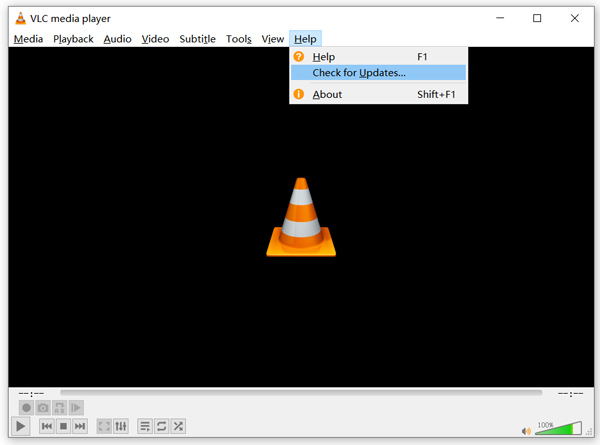
Buka VLC dan klik menu Help. Pilih pilihan Check for Updates daripada senarai tarik-turun. VLC akan mula menyemak sama ada terdapat versi kemas kini yang tersedia. Kemudian anda boleh ikut arahan untuk menaik taraf VLC kepada versi terbaharu.
Anda juga boleh terus menyahpasang VLC daripada komputer anda, kemudian pergi ke laman rasmi, VideoLAN untuk memasang versi yang sesuai. Setelah anda memasang VLC Media Player yang baharu, anda boleh memainkan fail MKV anda dan menyemak sama ada ia boleh dimainkan seperti biasa.
Bahagian 3. Aktifkan Audio untuk Memperbaiki Pemain VLC Tanpa Suara Semasa Memainkan MKV
Sekiranya Pemain Media VLC anda dapat memainkan fail MKV tetapi tidak ada suara, anda harus memeriksa apakah tetapan audio yang betul.
Langkah 1. Pilih pilihan Tools pada bar menu VLC. Daripada menu tarik-turun, pilih Preferences. Kemudian anda akan dibawa ke tetingkap Simple Preferences.
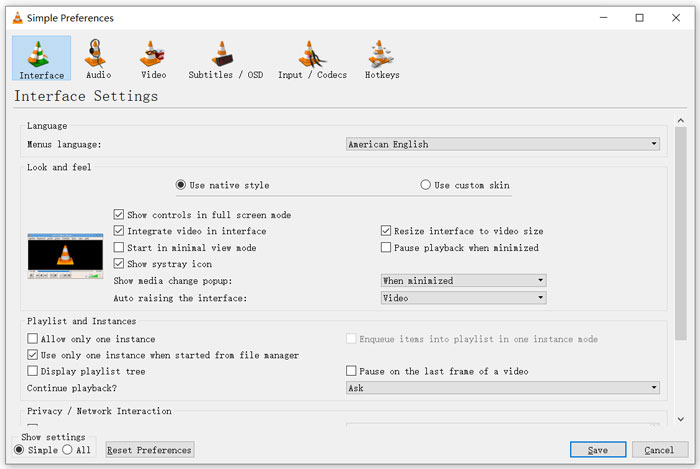
Langkah 2. Klik pada tab Audio, kemudian tandakan pilihan Enable Audio. Dalam langkah ini, anda juga boleh tetapkan sendiri Output Module, HDMI/SPDIF audio passthrough dan Device mengikut keperluan anda. Klik butang Save untuk menyimpan perubahan anda.
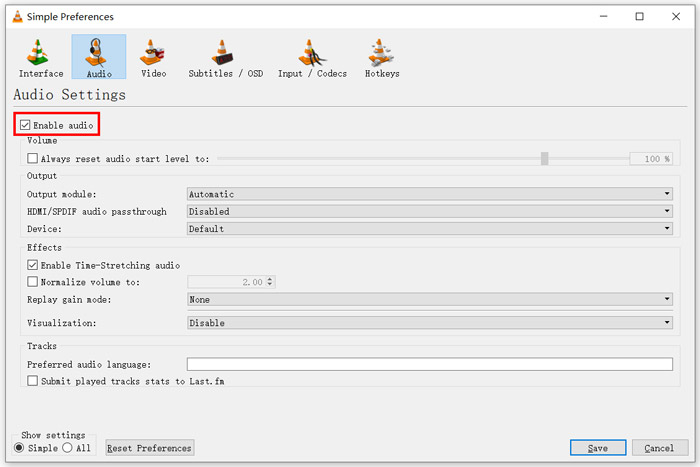
Sekarang anda kembali ke antaramuka utama VLC, anda boleh klik Media dan kemudian Open File untuk memainkan fail MKV anda.
Bahagian 4. Pilih Alternatif Pemain VLC untuk Memainkan Fail MKV
Apabila anda ingin menonton filem MKV, anda juga boleh memilih pemain lain untuk menggantikan VLC. Anda boleh cuba Free Online Video Player yang popular. Sama ada anda menggunakan PC Windows 10/8/7 atau Mac, anda boleh bergantung padanya untuk memainkan sebarang fail MKV dengan kualiti tinggi.
Pemain dalam talian percuma ini mempunyai keupayaan untuk memainkan 4K, 1080p / 720p HD, video SD, video 3D dan fail audio dengan lancar. Selain MKV, ia juga menyokong banyak format lain termasuk MP4, MOV, FLV, AVI, MPEG, WMV, WMA, AAC, MP3, dan banyak lagi.
Langkah 1. Apabila anda mahu menonton fail MKV, anda boleh pergi ke laman Free Online Video Player ini. Ia serasi dengan mana-mana pelayar web seperti Chrome, IE, Firefox dan Safari. Klik butang Play Now untuk memasang pelancar kecil dengan cepat bagi memainkan MKV.
Langkah 2. Setelah pemasangan selesai, pemain fail MKV dalam talian percuma ini akan dimulakan secara automatik. Klik butang Open File untuk mengimport fail MKV anda. Di sini anda juga boleh klik Open Disc untuk menonton filem DVD.
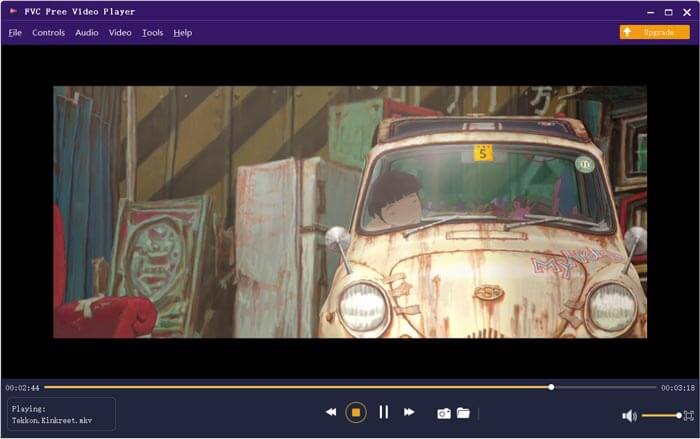
Video MKV anda akan dimainkan secara automatik selepas itu. Anda diberikan kawalan penuh terhadap main balik MKV. Berbanding dengan VLC Media Player, ia menawarkan cara yang lebih mudah untuk menikmati fail MKV. Pemain MKV dalam talian percuma ini menyokong kedua-dua DTS-HD dan Dolby TrueHD untuk memastikan anda mendapat pengalaman bunyi yang hebat.
Bahagian 5. Soalan Lazim Pemain VLC Tidak Akan Memainkan MKV
Adakah TV pintar memainkan fail MKV?
Ya. Banyak TV pintar seperti Sony dan Samsung yang dapat menyokong fail MKV. Anda boleh memainkan MKV anda melalui cakera keras luaran atau peranti UBS
Bagaimana bermain DVD dengan Pemain Media VLC?
Semasa anda ingin memainkan filem DVD dengan VLC, anda harus memasukkan cakera DVD ke pemacu cakera komputer anda terlebih dahulu. Buka VLC, klik Media pada bar menu dan kemudian pilih Open Disc. Semak imbas dan muatkan filem DVD ini ke VLC dan mainkan.
Bagaimana untuk mematikan penyahkodan pecutan perkakasan pada VLC?
Untuk melumpuhkan penyahkodan pecutan perkakasan pada Pemain Media VLC, anda harus pergi ke Pilihan dari menu Alat. Pilih kategori Input / Codec dan kemudian Codec. Cari pilihan penyahkodan dipercepat Perkakasan dan lumpuhkannya di sana.
Kesimpulannya
Apabila anda menghadapi masalah VLC player tidak dapat memainkan MKV, anda boleh terus menggunakan pemain lain seperti Free Online Video Player yang disyorkan untuk menonton fail MKV anda. Selain itu, anda boleh memilih untuk menaik taraf VLC Media Player atau menyesuaikan pelbagai tetapan untuk membetulkannya.
-
 Kaedah Percuma dan Profesional untuk Menukar MKV ke MOV
 Bagaimana cara menukar MKV ke MOV di Mac? Bolehkah iMovie membaca MKV? Apakah maksud format MOV? Catatan ini memberitahu 2 cara mudah untuk membantu anda menukar MKV ke MOV dengan penukar video dalam talian dan profesional percuma.
-
 Cara Menukar M2TS ke MKV tanpa Kehilangan Kualiti
 Ingin menukar M2TS ke MKV sambil mengekalkan kualiti asal? Catatan ini menunjukkan kaedah percuma dan dalam talian untuk menukar M2TS menjadi MKV tanpa kerugian.
-
 Pemain Media VLC - Pemain Video Ulasan Ringkas dan Alternatif Terbaik pada Windows dan Mac
 Mengapa audio tidak berfungsi pada Pemain Media VLC? Sekiranya anda ingin mengetahui lebih lanjut mengenai pemain media yang popular, anda boleh mengetahui lebih lanjut mengenai ulasan dan alternatif terbaik dari artikel tersebut.
