


 Video Converter Ultimate
 Perakam Skrin
 Pembaikan Video
Ketahui Cara Merakam di Minecraft dengan Alat Rakaman Skrin Terbaik
Setiap orang yang gemar bermain permainan di komputer pasti mengenali Minecraft. Disebabkan popularitinya yang meluas, ia telah mempengaruhi ramai penstrim untuk menstrim permainan ini. Kebanyakan daripada mereka juga mempunyai detik sorotan epik yang menjadikan mereka terkenal. Seperti aksi “Dream boat clutch”, ramai antara kita sudah mencubanya berkali-kali tetapi gagal. Selepas mencubanya berkali-kali, anda akhirnya berjaya namun tiada sesiapa untuk menyaksikan aksi clutch anda. Jadi, cara terbaik untuk berkongsi “Dreams boat clutch” versi anda ialah dengan merakamnya. Di sini kami memperkenalkan kepada anda pelbagai alat yang boleh anda gunakan dan pelajari cara merakam di Minecraft. Dengan meneruskan bacaan artikel ini, anda akan menemui perisian rakaman terbaik yang boleh anda dapati di web.

Bahagian 1. Cara Merakam Minecraft Menggunakan Alat Dalam Talian
Perakam Skrin Percuma FVC
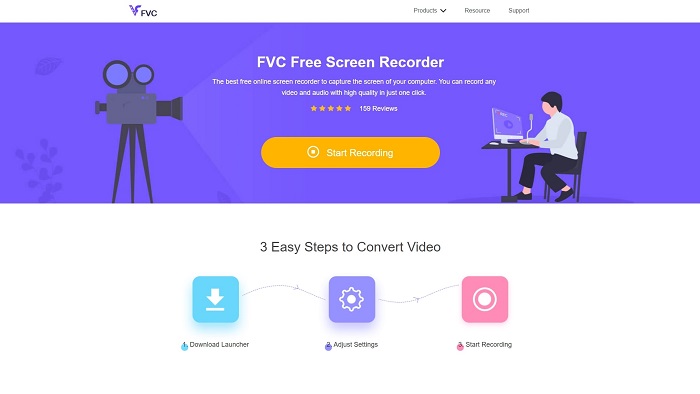
Anda mahu belajar cara merakam video Minecraft dalam talian? Maka cubalah baca dan gunakan alat ini. FVC Screen Recorder tidak mempunyai caj tersembunyi. Selain itu, antara muka alat web ini bebas daripada iklan yang menjengkelkan. Tambahan pula, anda boleh merakam tanpa had di sini. Walaupun alat ini nampak sudah sedia digunakan untuk rakaman skrin, versi dalam talian ini tidak mempunyai mod permainan. Namun anda masih boleh menggunakan alat ini selagi ada sambungan internet. Jadi, untuk mengetahui cara menggunakan alat ini, anda perlu mengikuti langkah-langkah di bawah.
Langkah 1. Untuk mengakses alat ini, klik dahulu pautan ini.
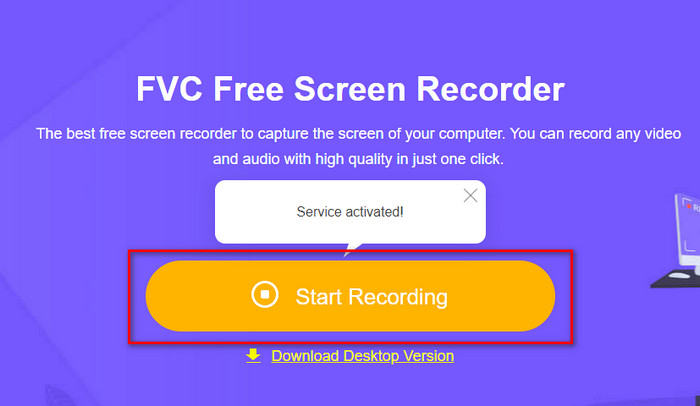
Langkah 2. Tekan Start Recording kemudian muat turun pelancar jika ini kali pertama anda menggunakannya dan pasang. Klik sekali lagi Start Recording untuk melancarkan alat tersebut kali ini.
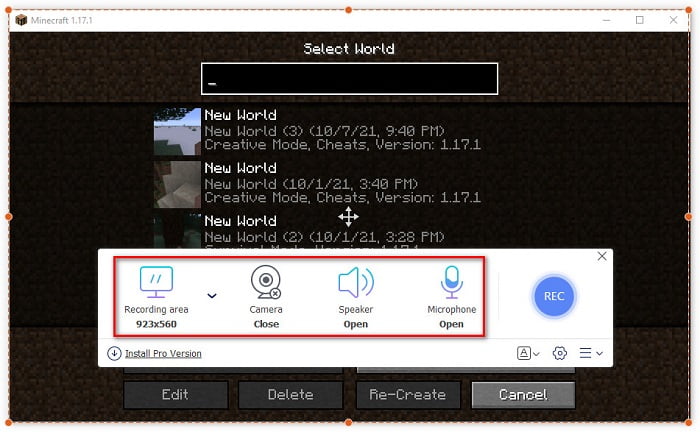
Langkah 3. Laraskan nisbah bingkai skrin anda kemudian hidupkan Camera untuk menambah reaksi anda, Speaker untuk menambah bunyi yang dijana daripada permainan, dan Microphone untuk menambah suara anda.
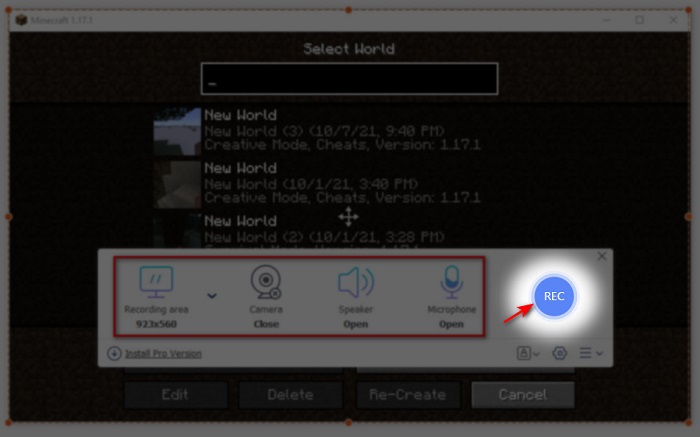
Langkah 4. Kemudian klik butang REC untuk mula merakam.
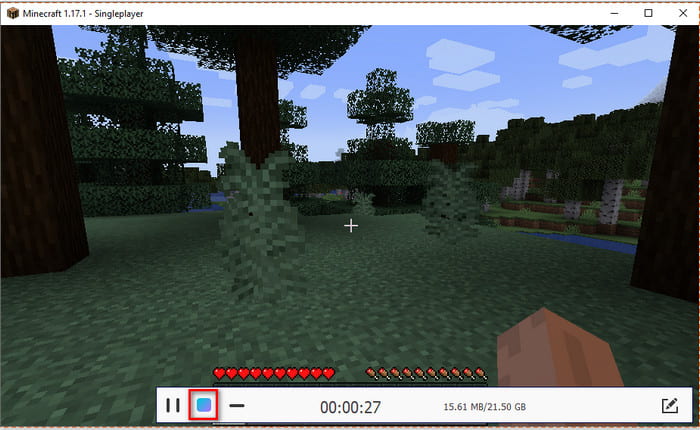
Langkah 5. Untuk menamatkan rakaman, klik butang square dan klik fail pertama pada Recording List untuk menonton semula aksi clutch sebelum anda menghantar atau memuat naiknya.
Bahagian 2. Cara Merakam Minecraft dengan 2 Alat Perakam Luar Talian Terbaik
pertama Perakam Skrin FVC
Mahukah anda merakam setiap detik aksi hebat anda di Minecraft? Maka FVC Screen Recorder ialah pilihan terbaik untuk anda. Alat ini jauh lebih baik berbanding alat dalam taliannya dan OBS dari segi prestasi keseluruhan serta antara muka mesra pengguna. Alat ini menyokong Game Recorder yang boleh anda gunakan untuk menjadikan rakaman permainan berlangsung dengan pantas dan lancar. Selain itu, anda boleh menggunakan dan menyunting kekunci pintas (hotkeys) untuk mengawal alat ini bagi akses yang lebih mudah. Anda boleh merakam tanpa henti walaupun sehingga 24/7. Jadi, untuk mengetahui cara merakam Minecraft pada Windows 10 atau Mac, ikut langkah-langkah ini dengan teliti.
Langkah 1. Muat turun kemudian pasang perisian ke dalam pemacu anda. Seterusnya lakukan persediaan ringkas perisian dan klik Finish untuk menyimpan tetapan.
Muat Turun PercumaUntuk Windows 7 atau lebih baharuMuat Turun Selamat
Muat Turun PercumaUntuk MacOS 10.7 atau lebih baharuMuat Turun Selamat
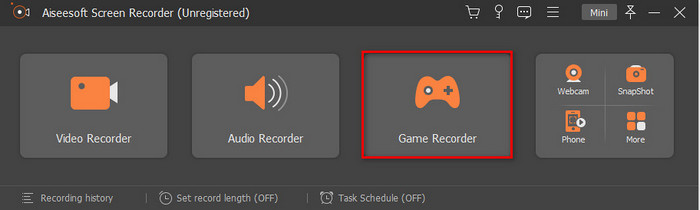
Langkah 2. Klik Game Recorder dan benarkan alat ini dijalankan sebagai pentadbir kemudian tekan OK. Klik sekali lagi Game Recorder untuk meneruskan.
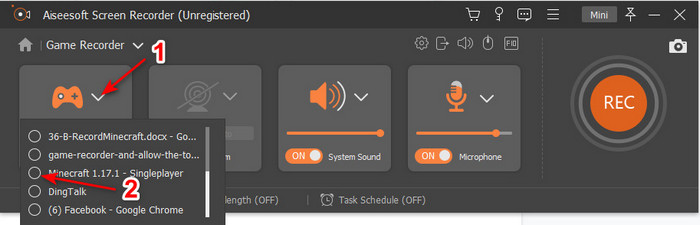
Langkah 3. Lancarkan Minecraft terlebih dahulu kemudian tunggu sehingga ia dimuat sepenuhnya. Tekan Select Game dan pilih Minecraft.
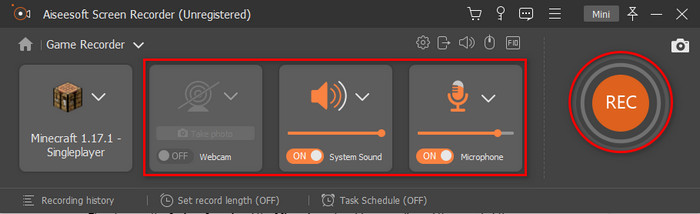
Langkah 4. Sebelum anda mula merakam, hidupkan Webcam untuk menambah reaksi anda semasa rakaman. Kemudian hidupkan System Sound dan Microphone untuk menambah audio anda serta bunyi permainan. Klik butang REC untuk memulakan rakaman dan permainan akan dipaparkan secara automatik pada skrin anda. Kini anda boleh melakukan aksi epik yang ingin anda rakam.
Langkah 5. Jika anda mahu menamatkan rakaman, klik butang cube untuk berhenti. Klik Save dan Next untuk meneruskan proses menyimpan video. Tetingkap History akan dipaparkan pada skrin anda dan klik fail pertama untuk menonton semula aksi epik yang telah anda lakukan dan kongsikannya kemudian.
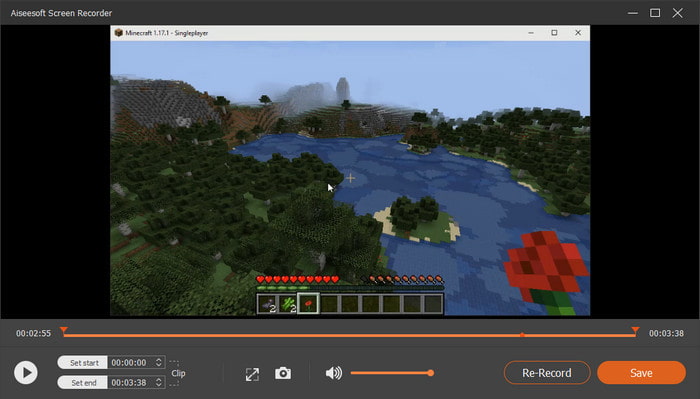
ke-2. OBS
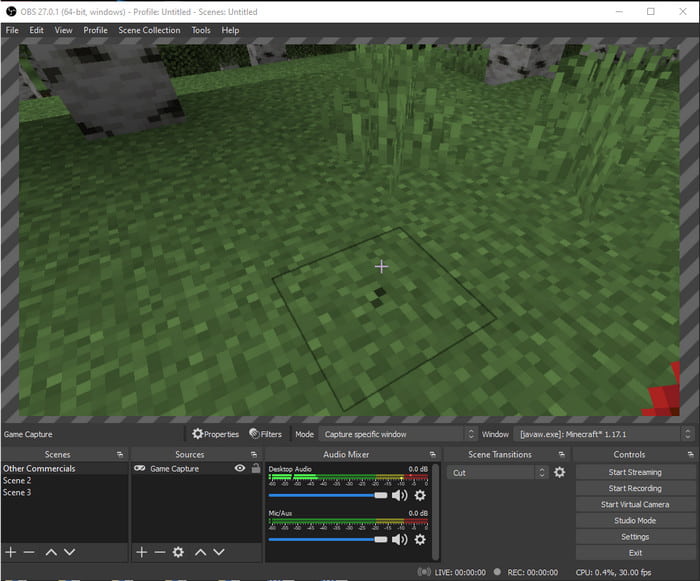
OBS terkenal sebagai salah satu alat yang rumit digunakan oleh ramai pengguna. Namun ia sentiasa menghasilkan kualiti yang hebat walaupun sukar digunakan. Jadi, jika anda mahu belajar cara merakam Minecraft dengan OBS pastikan anda mempunyai masa lapang yang mencukupi. Ini kerana alat ini jauh lebih rumit daripada yang disangka, jadi jika anda tiada idea bagaimana untuk melakukannya, ikut langkah di bawah.
Langkah 1. Muat turun dahulu OBS ke dalam pemacu anda.
Langkah 2. Kemudian buka Minecraft terlebih dahulu dan pergi ke panel Source kemudian klik Game Capture. Tukar mod kepada Capture Specific Window kemudian klik butang drop-down pada bahagian window dan pilih nama fail Minecraft. Kemudian klik OK untuk meneruskan.
Langkah 3. Klik Start Recording untuk memulakan rakaman. Dan untuk menamatkannya, klik Stop Recording dan rakaman skrin akan disimpan secara automatik ke storan anda.
Bahagian 3. Soalan Lazim tentang Rakaman Minecraft
Apakah permainan popular di PC sekarang?
Terdapat banyak permainan popular di PC tetapi ini adalah 5 permainan pertama yang sentiasa berada di atas setiap ulasan. Pertama ialah Minecraft yang diterbitkan oleh Mojang pada 2011, seterusnya dalam senarai ialah League of Legend atau dikenali sebagai LOL yang dicipta oleh Riot Games pada 2009, Counter Strike Global yang dibangunkan oleh Valve Corporation pada 2012, Grand Theft Auto Five yang diterbitkan oleh Rockstar Games. dan dibangunkan oleh Rockstar utara pada 2013, dan terakhir ialah Valorant yang dicipta oleh Riot Games pada 2020.
Adakah Bandicam alat terbaik untuk melakukan rakaman?
Ramai orang mempunyai pendapat berbeza tentang Bandicam, tetapi mari kita pelajari dan tentukan sama ada alat ini berbaloi untuk digunakan. Jadi, untuk mengetahui lebih lanjut tentang Bandicam, klik pautan ini untuk pergi ke tulisan baharu yang membincangkan tentang Bandicam.
Bagaimana untuk memuat naik video fail besar di YouTube?
Memandangkan YouTube terkenal sebagai platform perkongsian video, ramai pengguna cuba memuat naik video. Namun apabila kita memuat naik video bersaiz fail yang besar, proses itu akan mengambil banyak masa. Jadi kini, cara terbaik untuk memuat naiknya dengan mudah ialah memampatkan video tanpa menjejaskan kualitinya. Ketahui cara memampatkan fail video dan memuat naiknya ke YouTube dengan mudah.
Kesimpulannya
Untuk menutup perbincangan ini, kini lebih mudah untuk anda memahami cara merakam Minecraft pada PC. Mungkin pada masa ini anda sudah memilih perakam skrin anda, tetapi sebagai tambahan, FVC Screen Recorder ialah pilihan yang tepat. Ini kerana anda boleh menggunakannya dengan mudah walaupun anda seorang pemula. Mempelajari cara menggunakan perakam skrin yang tiada tandingan ini tidaklah terlalu sukar. Jadi, sebelum anda mula merakam “Dream boat clutch” anda, pastikan anda telah memuat turun perisian ini.
Muat Turun PercumaUntuk Windows 7 atau lebih baharuMuat Turun Selamat
Muat Turun PercumaUntuk MacOS 10.7 atau lebih baharuMuat Turun Selamat
-
 Perakam Skrin XviD Terbaik untuk Pemula pada 2021 [Dalam Talian & Luar Talian]
 XviD terkenal kerana memampatkan fail video. Ia adalah perisian sumber terbuka yang menjalankan format ISO MPEG-4. Sambung semula untuk membaca dan mengetahui lebih terperinci.
-
 [Go-To-Guide] Rakam Blu-ray di OBS Studio dan Alat Alternatif
 Ketahui cara merakam Blu-ray di studio OBS dan pengganti lain dengan langkah dan petua mudah yang berguna ini. Teruskan membaca dan mari kita selami butiran.
-
 Proses untuk Rip dan Rakam DVD dengan VLC untuk Digitize Format yang Boleh Dimainkan
 VLC menyokong banyak format fail pemampatan audio-video, termasuk rakaman dalam DVD. Biarkan bola terus bergulir untuk perbincangan dan perincian lebih banyak hingga akhir.
