


 Video Converter Ultimate
 Perakam Skrin
 Pembaikan Video
 Muat Turun Selamat
4 Cara Paling Mudah untuk Mengubah Main Semula Kelajuan Video pada Desktop, Web & Telefon
Kebanyakan pengguna mencari cara berkesan untuk menonton video berdurasi satu jam dalam masa yang lebih singkat daripada satu jam. Satu-satunya penyelesaian yang boleh menyelesaikan masalah ini ialah menukar kelajuan main balik video yang sedang anda tonton. Kebanyakan penyunting video yang anda temui di pasaran dapat membantu anda menyiapkan tugas ini, tetapi persoalannya, adakah ia boleh dipercayai? Semasa meneliti setiap satunya, kami mendapati bahawa anda boleh menukar kelajuan video pada peranti desktop, dalam talian, iOS dan Android. Jika anda ingin tahu cara melakukannya, anda mesti terus membaca blog ini kerana kami sertakan alat dan aplikasi yang dapat membantu anda.

Bahagian 1. Cara Terbaik Disyorkan untuk Menukar Kelajuan Video pada Windows dan Mac Dengan Mudah
Untuk menukar kelajuan video dengan mudah, anda mesti memilih alat terbaik yang memberikan hasil hebat walaupun hanya dengan beberapa klik ringkas—memperkenalkan FVC Video Converter Ultimate. Alat ini berkesan memanipulasi kelajuan video yang anda miliki pada bila-bila masa dan di mana sahaja. Selain itu, anda boleh menukar kelajuan video walaupun formatnya ialah MP4, MOV, AVI, FLV, TS, RMVB dan lebih 1000 format lain; memuat naik fail anda di sini adalah pantas dan mudah. Sama ada anda pengguna Windows atau Mac, memuat turun perisian pada OS tersebut boleh membantu anda menyiapkan tugas menukar kelajuan main balik hanya dalam beberapa klik.
Selain fungsi pengawal kelajuan videonya, alat ini juga mempunyai Kotak Alat pelbagai fungsi yang boleh membantu tugasan lain. Seperti menambah metadata, mencipta GIF, mengalih keluar tera air dan banyak lagi. Walaupun alat itu boleh dimuat turun, anda akan perasan semasa menggunakannya bahawa anda tidak memerlukan banyak pengalaman dalam menyunting, kerana ia mesra pengguna. Terdapat fungsi dan ciri yang belum kami tulis yang akan menyerlahkan produk ini. Tetapi jika anda ingin belajar cara menukar kelajuan video, baca butiran untuk mengetahui caranya.
Kelebihan Menggunakan Perisian Terbaik sebagai Pengubah Kelajuan Video:
◆ Antara muka yang intuitif, jadi mereka akan belajar cara menggunakannya dalam beberapa minit.
◆ Muat naik 1000+ video untuk mempercepatkan main semula yang dimilikinya.
◆ Mesra Pengguna untuk membantu pengguna mengalaminya sepenuhnya.
◆ Fungsi lain terdapat pada Kotak Alat, seperti penyuntingan video asas dan lanjutan.
◆ Ia adalah pilihan pertama hampir sejuta pengguna yang memuat turunnya.
◆ Tersedia pada Windows dan Mac untuk memuat turun alat dengan mudah.
Langkah-langkah Cara Menukar Kelajuan Video Menggunakan Perisian Ultimate:
Langkah 1. Anda boleh mendapatkan perisian penuh ini pada sistem Windows dan Mac dengan mengklik butang muat turun. Lengkapkan proses pemasangan selepas mengklik fail yang anda muat turun, kemudian lancarkan perisian untuk meneruskan.
Muat Turun PercumaUntuk Windows 7 atau lebih baharuMuat Turun Selamat
Muat Turun PercumaUntuk MacOS 10.7 atau lebih baharuMuat Turun Selamat
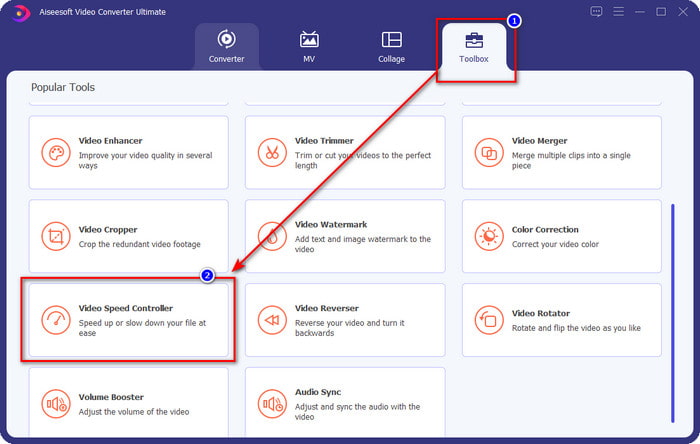
Langkah 2. Setelah anda membuka perisian, anda mesti pergi ke bahagian Toolbox; di bawahnya, buka Video Speed Controller. Tidak perlu risau; anda tidak perlu memuat turun sumber tambahan untuk menggunakan alat ini.
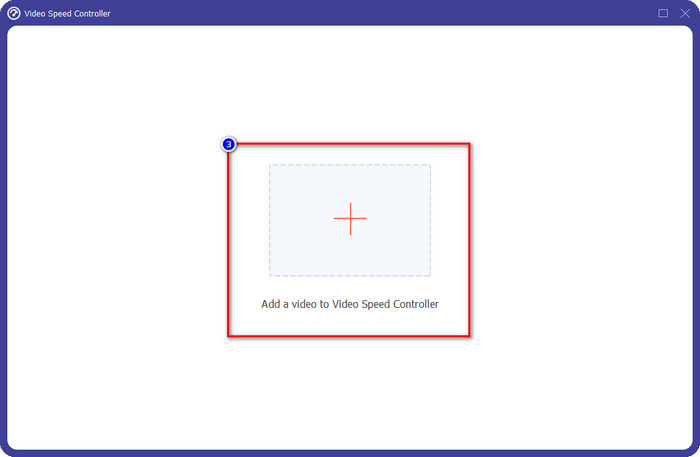
Langkah 3. Tekan ikon +, tambah fail yang anda ada dalam folder, klik fail itu dan tekan Open untuk memuat naik fail video anda.
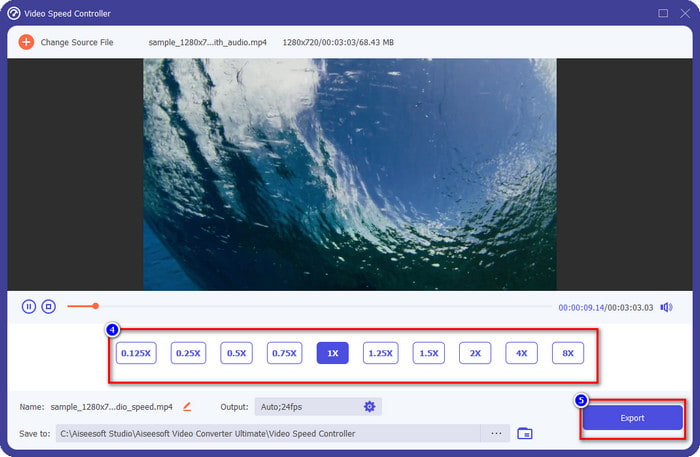
Langkah 4. Pilih daripada senarai kelajuan main balik yang anda mahu capai, kerana kita semua mempunyai kelajuan main balik yang berbeza yang kita inginkan. Klik Export untuk menyimpan output akhir video yang telah anda tukar kelajuannya. Dalam masa kurang daripada seminit, anda sudah pun menukar kelajuan video tersebut. Kini anda boleh menikmatinya dengan masa tontonan yang lebih singkat.
Bahagian 2. Cara Percuma Terbaik untuk Menukar Kelajuan Video di Web
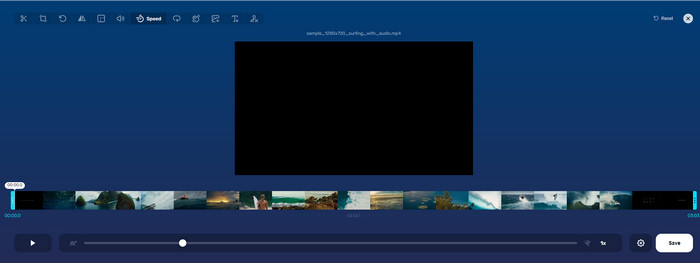
Dengan bantuan Online Video Cutter, anda boleh menukar kelajuan video secara dalam talian secara percuma. Tidak seperti alat pertama, anda tidak perlu memuat turun sebarang sumber tambahan atau pemasang pada desktop untuk menggunakan alat web ini. Selain fungsinya menukar kelajuan, anda juga boleh menggunakan alat ini untuk membuat suntingan asas. Walaupun alat ini bagus, anda tidak boleh memuat naik semua format yang anda miliki di sini kerana format yang disokong adalah terhad. Untuk menggunakannya, ikuti langkah di bawah.
Langkah 1. Buka pelayar yang anda mahu gunakan dan cari alat web tersebut.
Langkah 2. Buka alat web, klik Open File, cari fail video yang anda miliki dan muat naiknya.
Langkah 3. Seret peluncur ke kiri atau ke kanan untuk menukar kelajuannya; klik butang Save jika anda berpuas hati dengan kelajuan tersebut.
Bahagian 3. Editor Video Terbaik pada iOS untuk Menukar Kelajuan Video secara Percuma
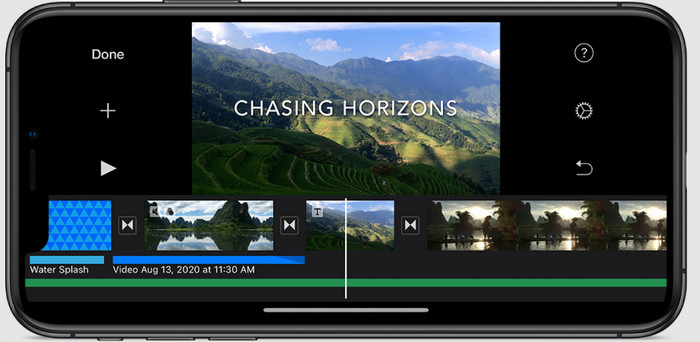
Untuk pengguna iOS, anda boleh menggunakan iMovie untuk mengetahui cara menukar kelajuan video pada iPhone secara percuma. Walaupun alat itu ialah editor video asli pada Mac, anda masih mempunyai pilihan untuk memuat turun aplikasi pada peranti anda atau tidak. Pilihan ini membuktikan bahawa pengguna iOS boleh menyimpan editor atau tidak, untuk menjimatkan sedikit ruang pada storan mereka. Tetapi jika anda mempunyai aplikasi pada iPhone anda, anda boleh mengikuti langkah yang kami tambahkan di bawah untuk mengetahui cara alat ini berfungsi.
Langkah 1. Muat turun kemudian buka apl pada iPhone anda dan dalam Project, ketik tanda +, kemudian ketik Movie.
Langkah 2. Ketik video yang anda mahu lajukan, kemudian di bahagian bawah skrin anda, ketik Create Movie untuk memuat naiknya ke garis masa.
Langkah 3. Dengan mengetik rakaman yang telah anda muat naik, klik ikon speed controller, dan laraskan kelajuan video dengan menyeret peluncur pada iPhone anda. Klik Done untuk menyimpannya, kemudian eksport jika anda mahu.
Bahagian 4. Cara Terbaik untuk Mengubah Main Balik Kelajuan Video pada Peranti Android Menggunakan Editor Terbina dalam
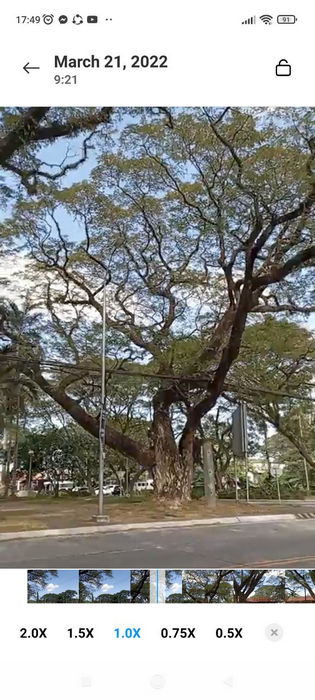
Memuat turun aplikasi tidak berlaku jika anda pengguna Android; tukar kelajuan video pada telefon anda dengan editor video terbina dalam. Dengan editor ini, anda boleh melakukan penyuntingan asas yang diperlukan pada video anda untuk menjadikannya kelihatan lebih baik daripada sebelumnya. Anda boleh menemui editor ini pada Galeri atau Album pada Android anda. Jika anda ingin mengetahui cara menggunakannya, maklumat berikut akan membantu anda.
Langkah 1. Buka Gallery atau Album anda, kemudian ketik video yang anda mahu tukar kelajuannya.
Langkah 2. Klik Edit untuk meneruskan.
Langkah 3. Ketik bahagian Playback Speed, kemudian tukar kelajuan mengikut keperluan anda.
Bahagian 5. Soalan Lazim tentang Menukar Kelajuan Video
Bolehkah saya menukar kelajuan di YouTube?
Benar-benar ya, anda boleh menukar main balik video di YouTube walaupun anda tidak memuat turun perisian untuk melakukannya. Ikuti langkah untuk mengetahui cara menukar kelajuan video di YouTube. Pertama ialah buka YouTube, cari video yang anda ingin tonton dalam gerakan yang diubah suai, klik ikon roda gigi, dan di bawahnya, Kelajuan Main Semula, pilih kelajuan yang ingin anda capai dan nikmati.
Adakah menukar kelajuan memendekkan tempoh video?
Ia bergantung pada cara anda menukar kelajuan; jika anda memperlahankan video, maka jangkakan bahawa tempohnya akan berlangsung kerana anda memainkannya dalam mod perlahan. Tetapi jika anda menukar kelajuan kepada tinggi, maka tempoh video yang anda mainkan akan menjadi lebih pendek daripada yang asal. Untuk mengetahui lebih lanjut tentang menukar kelajuan video, anda mesti membaca butiran berikut yang kami tambahkan di atas.
Selepas menukar kelajuan, adakah kualiti akan memberi kesan?
Bergantung pada kelajuan video yang anda tetapkan, kualiti mungkin menurun atau kekal. Jika anda memainkan video lapan kali atau lebih tinggi, jangkakan video yang akan anda mainkan. Walau bagaimanapun, anda tidak akan melihat banyak perbezaan selain daripada main semula, dari segi kualiti, ia akan kekal sama.
Kesimpulannya
Sekarang kita sudah mempunyai idea tentang cara menukar kelajuan video pada desktop, dalam talian dan telefon, sudah tiba masanya untuk menentukan yang mana patut kita gunakan. Katakan anda tidak mahu memuat turun perisian pada desktop untuk menjimatkan ruang dan langkah pemasangan, maka anda perlu membaca bahagian dua artikel ini. Tetapi jika anda pengguna iOS atau Android, bahagian tiga dan empat adalah untuk anda. Jika anda mahu menggunakan penyunting video terbaik pada Windows dan Mac, anda mesti memuat turun FVC Video Converter Ultimate. Ia adalah pengawal kelajuan video terbaik untuk menukar kelajuan main balik video yang anda miliki pada desktop dengan mudah. Apa yang anda tunggu lagi? Muat turunnya sekarang dan rebut promosi kami yang khas untuk anda!
-
 Cara Mempercepatkan Video dalam Premiere Pro dan dengan Alternatifnya
 Adakah anda ingin tahu cara menggunakan perdana pro untuk mempercepatkan video? Kemudian anda berada di artikel yang betul kerana kami menyediakan langkah-langkah dan alternatif lain yang berpatutan.
-
 2 Cara Mudah untuk Mempercepatkan Video di TikTok
 Adakah anda ingin tahu rahsia bagaimana untuk mempercepatkan video di TikTok? Kemudian baca artikel ini untuk mendapatkan idea tentang cara melakukannya dan mengetahui apakah 2 alatan lain yang akan membantu anda.
-
 Petua Cemerlang 2021: Cara Mempercepatkan Video pada iMovie
 Rakan anda mencadangkan iMovie untuk membantu anda dengan masalah anda tentang cara mempercepatkan video menggunakan sistem pengendalian iOS, tetapi anda tidak tahu apa yang perlu dilakukan? Lihat lebih lanjut mengenai perkara ini sambil anda membaca lebih lanjut melalui artikel ini.
