


 Video Converter Ultimate
 Perakam Skrin
 Pembaikan Video
 Muat Turun Selamat
Apl Pangkas Video Teratas untuk Pengguna iPhone | Tangkapan Luas untuk Tanaman Sempurna
Pernahkah anda merakam video pada iPhone anda hanya untuk menyedari bahawa ia bukan saiz yang betul atau tidak sesuai dengan nisbah aspek platform yang anda mahu siarkan? Memangkas video iPhone anda boleh membantu anda mencipta komposisi yang sempurna dan menghapuskan sebarang unsur yang tidak diingini daripada rakaman anda. Nasib baik, terdapat beberapa aplikasi pemangkasan video tersedia untuk iPhone yang membolehkan anda memangkas video anda dengan mudah dan tepat.
Catatan ini akan membolehkan anda meneroka beberapa aplikasi tanam video terbaik untuk iPhone dan menunjukkan cara menggunakannya untuk meningkatkan kemahiran penyuntingan video anda ke tahap seterusnya. Selain itu, pengaruh media sosial, pencipta kandungan atau pengguna biasa yang ingin memperbaik video rumah boleh memanfaatkan panduan ini. Aplikasi-aplikasi ini pasti dapat membantu anda mencapai matlamat anda.

Bahagian 1. Panduan Cara Memangkas Video pada iPhone menggunakan Foto
Sama ada anda ingin membuat video untuk media sosial atau hanya mahu memotong kandungan yang tidak diingini daripada video rumah anda, apl Photos ialah pilihan yang bagus. Ia bukan sahaja membenarkan anda mengatur dan melihat media anda, tetapi ia juga mempunyai pelbagai ciri penyuntingan yang boleh membantu anda mempertingkat dan menyesuaikan kandungan anda. Salah satu ciri menakjubkan apl Foto ialah keupayaannya untuk memangkas video. Untuk mengejar, ikut panduan ringkas di bawah untuk mengetahui cara mengubah saiz video pada iPhone.
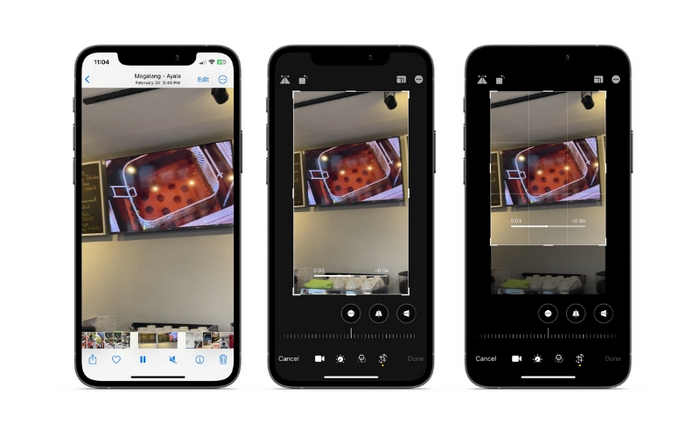
Langkah 1. Lancarkan aplikasi Photos pada iPhone anda dan cari video yang ingin anda potong (crop).
Langkah 2. Ketik pada video untuk membukanya, kemudian ketik butang Edit di penjuru kanan sebelah atas.
Langkah 3. Kini, ketik ikon Crop and Rotate di bahagian bawah skrin.
Langkah 4. Gunakan jari anda untuk melaras saiz dan kedudukan kotak pemotongan kepada saiz dan bentuk yang dikehendaki.
Langkah 5. Ketik butang kuning Done di penjuru kanan bawah untuk menyimpan perubahan anda.
Bahagian 2. Cara Mengubah Saiz Video pada iPhone menggunakan Apl Pihak Ketiga
Bagi mereka yang mencari alat pihak ketiga dan ingin meneroka, anda boleh bergantung pada InShot. Penyunting baharu akan menggemari alatan dan pilihannya yang dipadankan dengan antara muka yang intuitif. Pengguna boleh memotong dan mengubah saiz video, melaras kecerahan dan warna rakaman, serta menambah teks atau pelekat. Bukan itu sahaja, alat ini menawarkan pilihan kesan video untuk menambah sentuhan profesional pada video anda. Untuk mengetahui lebih lanjut tentang program ini, berikut ialah panduan ringkas untuk aplikasi ubah saiz video iPhone ini:
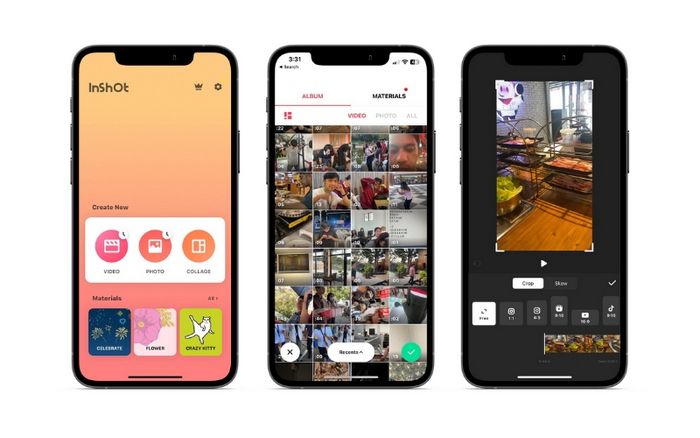
Langkah 1. Mula-mula, dapatkan dan pasang aplikasi InShot daripada App Store.
Langkah 2. Lancarkan aplikasi dan pilih Video dari skrin utama. Pilih video yang ingin anda crop daripada kamera roll anda.
Langkah 3. Setelah video diimport, ketik pilihan Crop daripada menu bawah.
Langkah 4. Gunakan peluncur (slider) untuk melaras nisbah aspek video kepada saiz yang anda inginkan. Anda juga boleh melaras crop secara manual dengan menyeret sudut bingkai video.
Langkah 5. Apabila berpuas hati dengan pemotongan, ketik ikon tanda semak di penjuru kanan atas untuk menerapkan perubahan. Akhir sekali, ketik butang save di penjuru kanan atas untuk menyimpan video yang telah dipotong ke kamera roll anda.
Bahagian 3. Cara Memangkas Video pada iPad
Jika anda mahu crop video pada iPad, anda boleh mencuba iMovie. iMovie ialah aplikasi penyuntingan video keluaran Apple sendiri, dan ia mempunyai pelbagai ciri yang membolehkan anda mengubah saiz dan menyesuaikan video anda. Ia merupakan pilihan yang baik untuk penyuntingan video yang lebih lanjutan, dengan pelbagai kesan dan transisi untuk dipilih. Anda juga boleh mempercepatkan video dengan alat ini. Ia serasi dengan peranti iPad dan iPhone. Tanpa berlengah lagi, berikut ialah langkah menukar nisbah aspek dengan iMovie pada iPhone atau iPad:
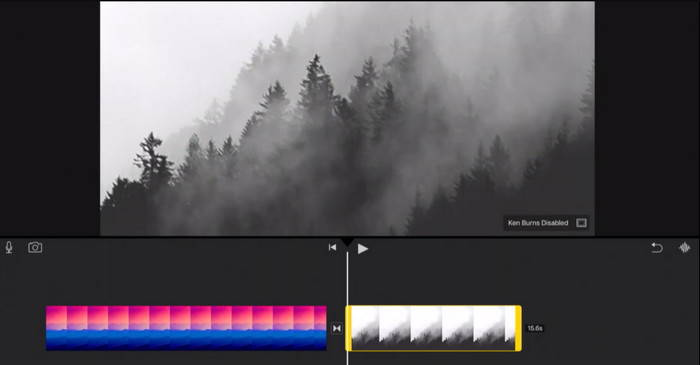
Langkah 1. Buka iMovie pada iPad anda dan pilih projek yang ingin anda kerjakan. Kemudian, ketik pada klip video yang ingin anda crop dalam garis masa di bahagian bawah.
Langkah 2. Ketik ikon crop di penjuru kiri bawah skrin, yang kelihatan seperti dua segi empat tepat bertindih dengan satu garisan serong di atasnya.
Langkah 3. Gunakan alat crop yang muncul untuk melaras saiz dan kedudukan klip video. Anda boleh menyeret tepi bingkai video untuk mengubah saiz klip atau mencubit dengan dua jari untuk zum masuk dan keluar klip.
Langkah 4. Selepas crop video, ketik butang Done di penjuru kanan atas skrin. Akhir sekali, ketik butang Export di penjuru kanan atas skrin untuk menyimpan video yang telah dicrop ke kamera roll anda atau kongsikannya terus ke media sosial.
Bahagian 4. Bagaimana untuk Memangkas Video iPhone pada PC
FVC Video Converter Ultimate ialah perisian penukar video serba guna yang boleh membantu anda crop video iPhone pada PC anda. Salah satu perkara terbaik tentang FVC Video Converter Ultimate ialah keserasinya dengan pelbagai format video seperti MP4, AVI, HEIV dan WMV. Ini bermakna anda boleh menukar video anda ke format yang berbeza dengan mudah dan berkongsi merentasi pelbagai peranti dan platform. Secara keseluruhan, FVC Video Converter Ultimate ialah perisian penukar video yang serba boleh dan berkuasa yang boleh membantu anda crop video iPhone pada PC anda. Ikuti langkah aplikasi crop video di bawah untuk mempelajari cara menggunakannya.
Langkah 1. Dapatkan program
Anda boleh mendapatkan program dengan menandakan butang Muat Turun Percuma di bawah. Seterusnya, pasang dan lancarkannya pada komputer anda.
Muat Turun PercumaUntuk Windows 7 atau lebih baharuMuat Turun Selamat
Muat Turun PercumaUntuk MacOS 10.7 atau lebih baharuMuat Turun Selamat
Langkah 2. Tambah video iPhone
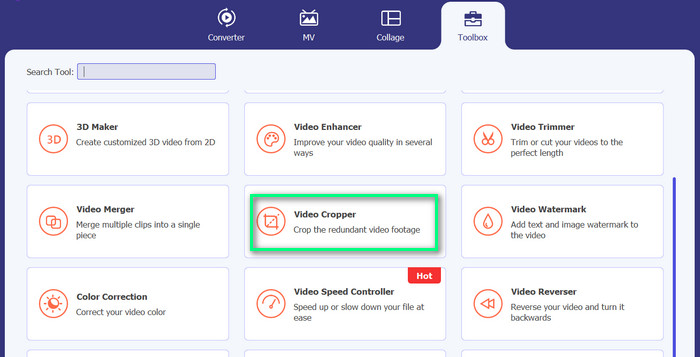
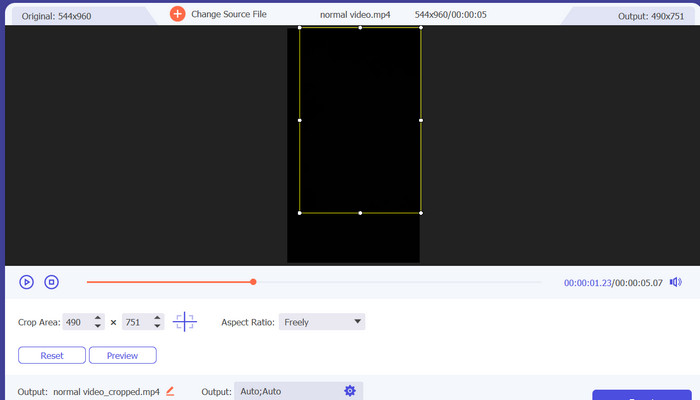
Sekarang, pergi ke tab Toolbox dan cari pilihan Video Cropper. Selepas itu, tandakan butang tanda plus dan tambah video iPhone sasaran anda dari pemacu tempatan PC anda.
Langkah 3. Potong video
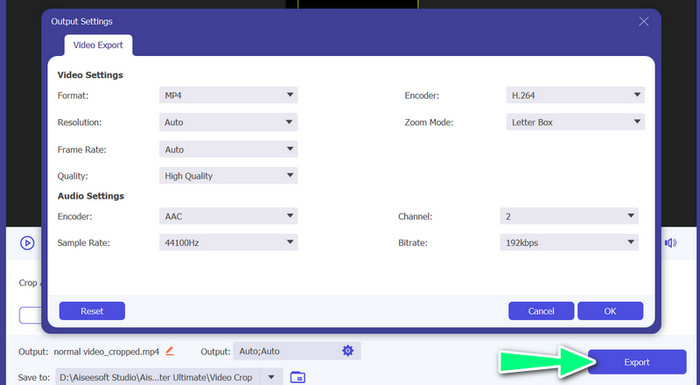
Kali ini, crop video dengan melaras nisbah aspek. Sebagai alternatif, anda boleh menyeret tepi menggunakan peluncur untuk menetapkan nisbah aspek. Kemudian, tandakan menu Output untuk menukar tetapan video dan audio.
Langkah 4. Eksport video
Pratonton perubahan dalam masa nyata dan tekan butang Export untuk menyimpan video yang telah dicrop.
Bahagian 5. Soalan Lazim tentang Memangkas Video iPhone
Bagaimana untuk menukar resolusi video iPhone?
Untuk menukar peleraian video pada iPhone, pergi ke apl Tetapan dan pilih Kamera diikuti dengan Rakam Video. Dari sini, pilih peleraian dan kadar bingkai yang anda mahu gunakan untuk video anda.
Adakah pemangkasan video menjejaskan kualitinya?
Pemangkasan video boleh mengakibatkan beberapa kehilangan kualiti, terutamanya jika anda mengurangkan saiz video dengan ketara. Walau bagaimanapun, jika anda memangkas video secara sederhana, perbezaan kualiti harus diabaikan
Bolehkah saya memangkas video yang telah saya siarkan di media sosial?
Tidak, sebaik sahaja video telah disiarkan di media sosial, anda tidak boleh memangkasnya atau membuat sebarang perubahan lain padanya. Anda perlu mengedit fail video asal dan menyiarkannya semula.
Kesimpulannya
Aplikasi video crop untuk iPhone menyediakan cara yang mudah untuk menyunting video terus pada peranti anda. Daripada aplikasi Photos terbina dalam hinggalah aplikasi pihak ketiga seperti InShot dan FVC Video Converter Ultimate, terdapat banyak pilihan untuk dipilih. Dengan alatan ini di hujung jari anda, anda boleh mencipta dan berkongsi video yang disesuaikan dengan keperluan dan pilihan khusus anda dengan mudah.
-
 Tutorial - 4 Cara Percuma untuk Menggabungkan Video di iPhone menjadi Yang Baru
 Baca dan dapatkan 4 cara mudah untuk menggabungkan video di iPhone. Semua model iPhone dan versi iOS disokong. Anda boleh menggabungkan 2 dan lebih banyak video di iPhone menjadi video baru dengan cepat.
-
 [Diselesaikan] Cara Membetulkan Video Tidak Dimainkan pada iPhone dengan Langkah Terperinci
 Video tempatan di galeri tidak dapat dimainkan di iPhone anda melalui pemain video lalai? Video YouTube dalam talian yang tidak dimainkan di iPhone selalu berlaku? Berikut adalah 5 penyelesaian untuk membantu anda dalam artikel ini.
-
 Cara Memendekkan Video pada iPhone [Tutorial Terperinci]
 Adakah anda pengguna iPhone dan ingin memangkas video anda? Jangan risau lagi. Catatan panduan ini akan memberikan butiran penuh tentang cara memotong video pada iPhone dan iPad.
