


 Video Converter Ultimate
 Perakam Skrin
 Pembaikan Video
 Muat Turun Selamat
Prosedur Cara Memotong Bahagian Video pada iPhone
Anda mungkin telah merakam video yang cantik dengan iPhone atau iPad semasa waktu lapang dan mahu berkongsi dengan rakan-rakan atau memuat naiknya ke media sosial. Namun, adalah lebih baik jika anda terlebih dahulu menyunting bahagian video yang tidak mahu dihantar. Dalam situasi ini, anda boleh menyunting video dengan cepat menggunakan peranti anda dengan memendekkan atau mengeditnya. Jadi, bagaimana cara memendekkan video di iPhone? Anda akan melihat kaedah terbaik dalam artikel ini. Jika anda ingin mengetahui semua langkahnya, baca maklumat di bawah hingga habis.

Bahagian 1. Prosedur Berkesan untuk Memotong Video pada iPhone
Menggunakan Apl Foto
Jika anda seorang pengguna iPhone dan ingin memendekkan panjang video anda, apl Foto mungkin membantu anda. Aplikasi Foto bukan sahaja bagus untuk memaparkan imej dan video. Dengan bantuan aplikasi pra-bina ini, anda juga boleh memotong atau memangkas video anda. Memandangkan ia adalah aplikasi mudah pada iPhone, anda boleh memendekkan video kepada beberapa sentuhan sahaja. Dengan cara ini, semua pengguna, terutamanya pemula, boleh menggunakan aplikasi tersebut. Selain itu, kerana ia adalah aplikasi pra-bina, pemasangan tidak diperlukan. Walau bagaimanapun, walaupun ia adalah aplikasi praktikal untuk memotong video, aplikasi Foto mempunyai beberapa batasan. Aplikasi ini tidak sesuai jika anda mahukan alat penyuntingan lanjutan untuk meningkatkan video selain memendekkan panjang video. Apl Foto hanya boleh menawarkan fungsi pengeditan asas seperti memotong, menambah penapis dan banyak lagi. Jika anda ingin tahu cara memangkas video pada iPhone, ikuti langkah di bawah.
Langkah 1. Buka iPhone anda dan lancarkan aplikasi Photos.
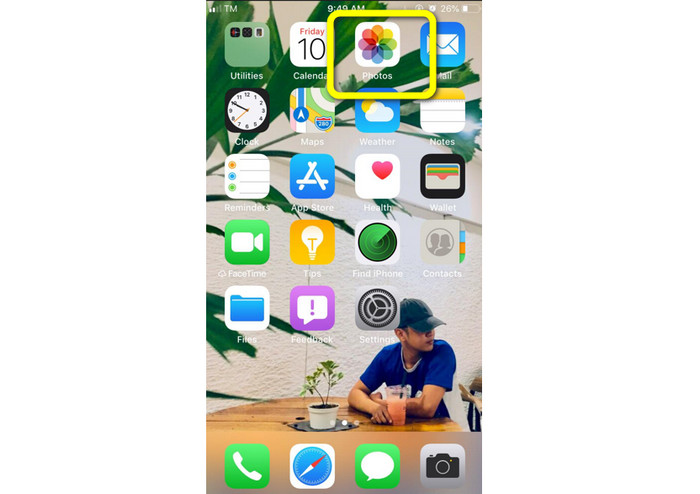
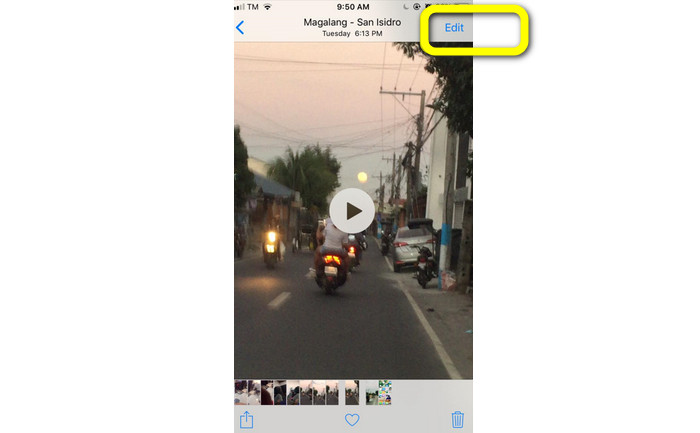
Langkah 2. Selepas itu, ketik video yang anda ingin pendekkan. Kemudian, tekan butang Edit di sudut kanan skrin.
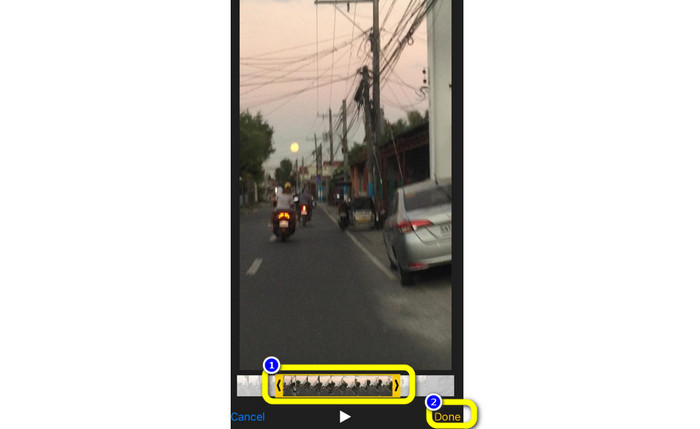
Langkah 3. Kemudian anda sudah boleh memendekkan video dengan menyeret bahagian tepi video. Anda boleh menyeret tepi kiri dan kanan video. Setelah memotong video, klik butang Done untuk menyimpannya dalam telefon anda.
Menggunakan iMovie
Adakah anda ingin menyunting sebahagian video yang anda rakam dengan iPhone, mungkin untuk membuang bahagian yang tidak diperlukan, memendekkannya, atau menjadikannya lebih menarik secara visual? Ini adalah proses yang mudah dan ringkas apabila menggunakan program iMovie, yang tersedia untuk peranti iOS. Editor video terbina dalam aplikasi Photos lalai sudah memadai untuk kebanyakan pengguna. Namun begitu, anda tidak boleh menggunakannya untuk mengakses fungsi yang lebih canggih seperti memantau garis masa (timeline), menggunakan transisi, menggabungkan beberapa video, dan sebagainya. Program penyuntingan video khusus seperti iMovie sangat berguna dalam situasi ini. iMovie keluaran Apple lebih baik berbanding alat penyuntingan video lain di App Store. Dan anda boleh menyegerakkan audio dan video menggunakan iMovie. Walau bagaimanapun, iMovie mempunyai beberapa kekurangan. iMovie hanya tersedia pada peranti iPhone. Ini bermaksud jika anda pengguna Android, anda perlu menggunakan aplikasi lain untuk memotong video.
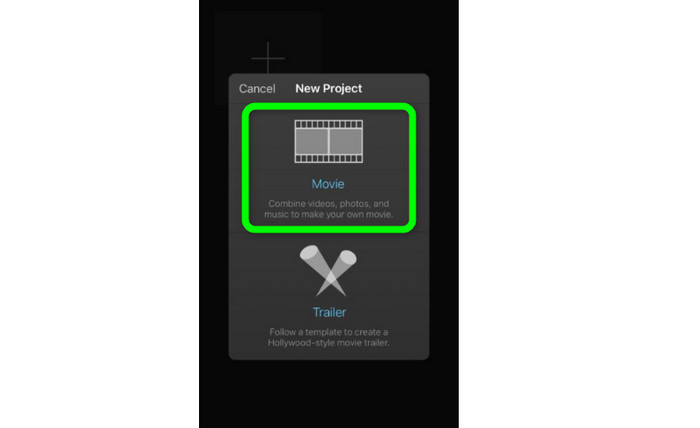
Langkah 1. Muat turun dan pasang aplikasi iMovie pada peranti iPhone anda. Kemudian, lancarkan aplikasi tersebut. Selepas itu, apabila antara muka sudah terpapar pada skrin, klik pilihan Create Project > Movie dan tambah video tersebut.
Langkah 2. Garis masa iMovie kini akan memaparkan video yang anda pilih. Secara lalai, penunjuk akan berada di hujung klip, tetapi anda boleh menyeretnya perlahan-lahan ke kanan dan hentikan di situ jika anda mahu memotong video.
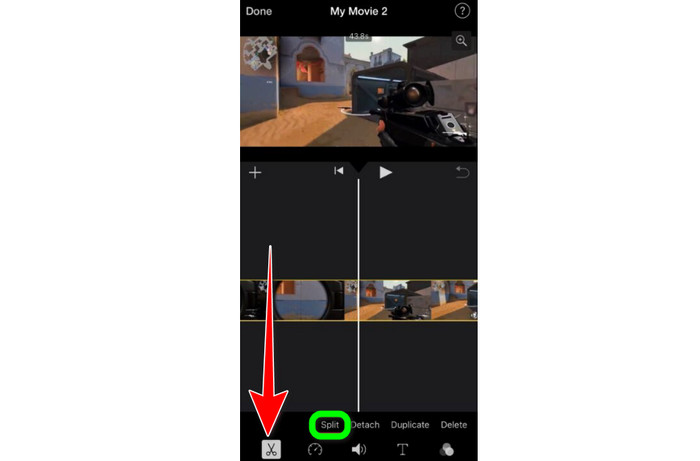
Langkah 3. Anda kini boleh menggunakan pelbagai ciri yang ditawarkan iMovie. Seperti yang ditunjukkan di bawah, ikon Scissor menandakan pemilihan alat potong. Pilih alat Split daripada menu untuk memotong klip video tepat pada tempat yang anda tandakan.
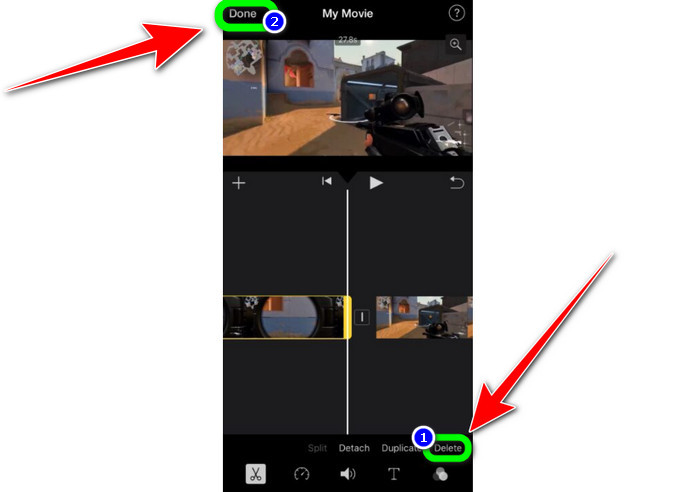
Langkah 4. Kemudian, klik pilihan Delete untuk membuang bahagian video yang tidak diperlukan. Selepas selesai memotong video, klik butang Done.
Bahagian 2. Bagaimana untuk Memangkas Video pada iPad
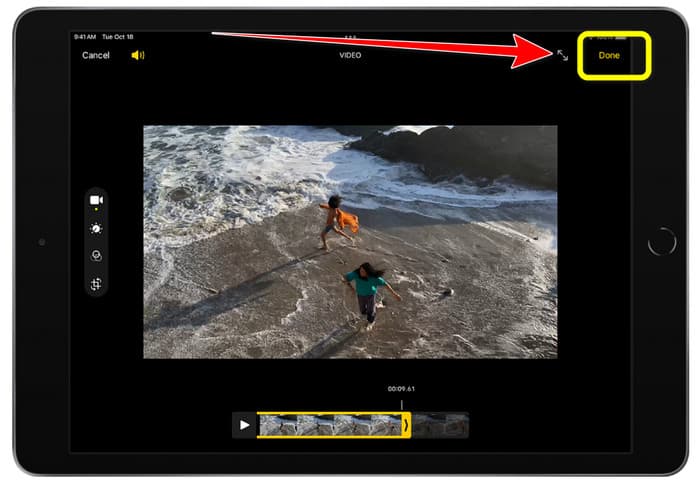
Jika anda mahu memotong atau memangkas video menggunakan iPad, anda tidak perlu lagi mencari aplikasi yang boleh dimuat turun. Sama seperti di iPhone, anda boleh memotong atau mengerat video menggunakan aplikasi Photos. Aplikasi Photos masih mempunyai beberapa keterhadan apabila digunakan pada peranti iPad. Jika matlamat anda hanya untuk memotong video, ia sudah memadai. Tetapi anda tidak boleh menggunakan aplikasi ini jika anda mahu menggunakan alat penyuntingan lanjutan. Ikuti langkah di bawah untuk memotong atau memangkas video menggunakan iPad.
Langkah 1. Jalankan aplikasi Photos pada iPad anda, ketik klip video yang ingin anda edit, dan klik pilihan Edit.
Langkah 2. Seret tepi pemapar bingkai untuk memendekkan durasi video bagi memulakan proses pemangkasan.
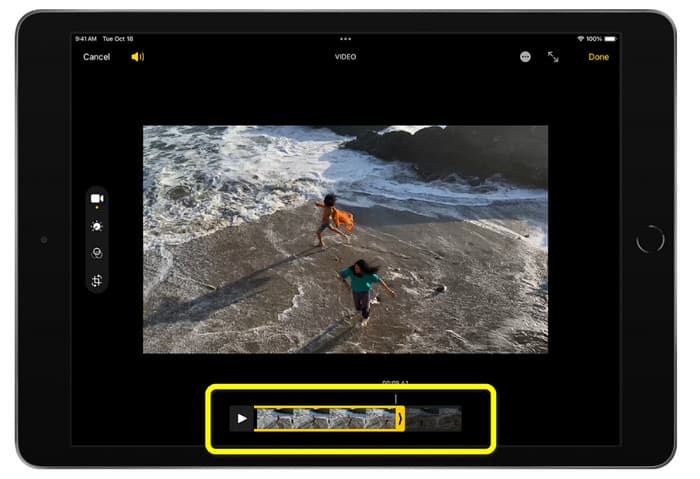
Langkah 3. Setelah anda selesai memangkas video, klik butang Done.
Bahagian 3. Bagaimana untuk Memotong Video iPhone pada PC
Adakah anda sedang mencari cara terbaik untuk memotong video iPhone di PC? Jika ya, gunakan Video Converter Ultimate. Anda boleh memotong video iPhone dengan mudah menggunakan perisian luar talian ini. Ia juga menyediakan antara muka yang mesra pengguna dengan prosedur yang ringkas. Jadi, ia sesuai untuk semua pengguna, terutamanya pemula. Anda juga boleh melaraskan pelbagai perkara dengan pergi ke tetapan Output. Resolusi, kejelasan, dan kadar bingkai video boleh diubah. Anda juga boleh menukar bitrate audio, kadar pensampelan, dan aspek lain. Anda juga boleh menyimpan hasil akhir dalam pelbagai format, termasuk MP4, MOV, AVI, MKV, dan sebagainya. Ini memberi kelebihan kepada pengguna kerana Video Converter Ultimate boleh diakses dan digunakan pada komputer Windows dan Mac. Selain itu, aplikasi ini tidak akan menambahkan tera air pada video yang disunting. Jadi anda masih boleh menonton video tanpa rasa terganggu.
Muat Turun PercumaUntuk Windows 7 atau lebih baharuMuat Turun Selamat
Muat Turun PercumaUntuk MacOS 10.7 atau lebih baharuMuat Turun Selamat
Langkah 1. Muat turun Video Converter Ultimate pada PC anda. Klik butang Download di bawah untuk mengakses program dengan mudah.
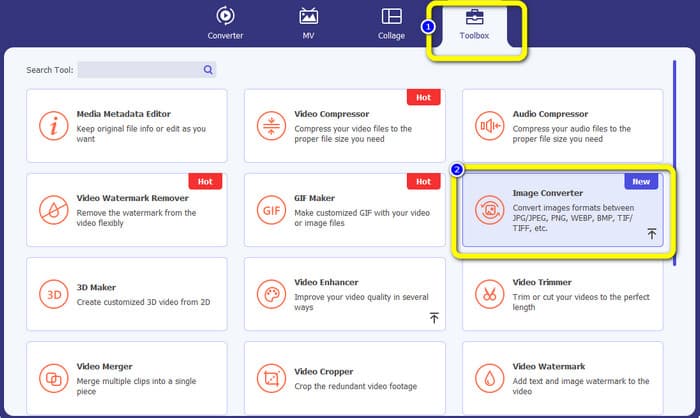
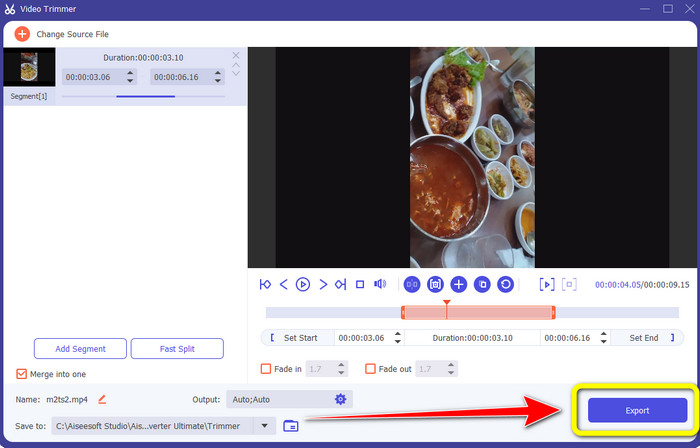
Langkah 2. Selepas memuat turun, lancarkan program untuk melihat antara muka utama. Pastikan video iPhone telah dipindahkan ke komputer. Selepas itu, klik Toolbox > Video Trimmer Tool apabila antara muka sudah dipaparkan.
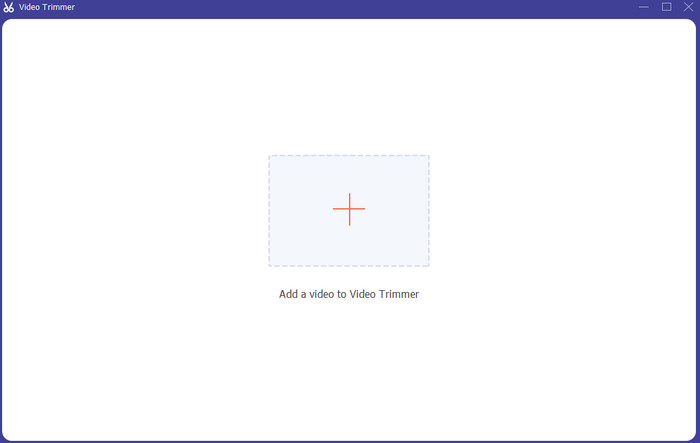
Langkah 3. Apabila antara muka baharu muncul pada skrin, klik tanda + untuk menambah video iPhone.
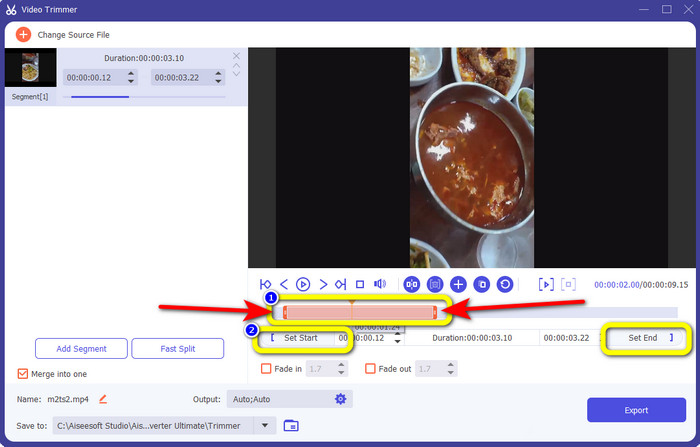
Langkah 4. Kemudian, anda sudah boleh melaraskan tepi video untuk memotongnya. Selain itu, anda boleh menggunakan pilihan Set Start and Set End untuk memangkas video secara manual.
Langkah 5. Akhir sekali, klik butang Export untuk menyimpan video selepas dipangkas.
Bahagian 4. Soalan Lazim tentang Cara Memendekkan Video pada iPhone
Bagaimana untuk memangkas bahagian tengah video pada iPhone?
Jika anda ingin memangkas bahagian tengah video anda menggunakan iPhone, anda masih boleh menggunakan kaedah yang disebutkan di atas. Apl Foto dan iMovie juga boleh memangkas bahagian tengah video.
Bagaimana untuk memangkas video pada Telefon Android?
Anda boleh pergi ke aplikasi Galeri anda. Kemudian buka video dan klik pilihan Edit. Selepas itu, anda sudah boleh memangkas video dengan menyeret tepi video.
Bagaimana untuk memindahkan video ke iPhone dari komputer?
Anda boleh menggunakan banyak alatan untuk memindahkan video dari komputer ke iPhone. Anda boleh menggunakan iPhone Transfer Pro, Dropbox, AirDrop dan banyak lagi.
Kesimpulannya
Memangkas video sangat berguna apabila anda mahu berkongsi atau memuat naik klip video. Oleh itu, artikel informatif ini membincangkan tentang cara memendekkan video di iPhone. Selain itu, jika anda mahu memendekkan durasi video iPhone menggunakan komputer, anda boleh menggunakan Video Converter Ultimate. Dengan bantuan program luar talian ini, anda boleh memotong video iPhone dengan mudah dan pantas menggunakan PC.
-
 [4 Penyelesaian] Cara Memperlahankan Video pada iPhone seperti Pro
 Menghadapi masalah memperlahankan video pada iPhone? Jika anda menghadapi masalah ini, jangan risau lagi, kerana kami akan membantu anda menyelesaikan masalah dengan membaca artikel ini.
-
 Cara Memajukan Cepat Video pada iPhone – Laraskan Kelajuan Video
 Bagaimanakah saya boleh memajukan pantas video pada iPhone saya? Bagaimana untuk memajukan pantas video pada iPhone menggunakan iMovie? Ketahui 3 cara untuk mempercepatkan video pada peranti iPhone dan iPad.
-
 Tutorial - 4 Cara Percuma untuk Menggabungkan Video di iPhone menjadi Yang Baru
 Baca dan dapatkan 4 cara mudah untuk menggabungkan video di iPhone. Semua model iPhone dan versi iOS disokong. Anda boleh menggabungkan 2 dan lebih banyak video di iPhone menjadi video baru dengan cepat.
