


 Video Converter Ultimate
 Perakam Skrin
 Pembaikan Video
 Muat Turun Selamat
Cara Mempercepatkan Video dalam After Effects Dengan Mudah
Jika anda ingin menjadikan video anda lebih pantas, anda mesti menggunakan alat pemecut kelajuan. Namun, tidak semua alat menawarkan ciri yang sama. Dan mungkin alat terbaik yang akan anda temui di internet untuk mengubah kelajuan video anda ialah Adobe After Effects. Ramai profesional menggunakannya sebagai pilihan utama mereka apabila menggunakan alat pemecut kelajuan. Dalam artikel ini, anda akan mengetahui alat pemecut kelajuan terbaik dan mempelajari cara mempercepat video dalam After Effects.

Bahagian 1. Cara Mempercepatkan atau Memperlahankan Video Anda dalam After Effects
Adobe After Effects mungkin merupakan salah satu alat pemecut kelajuan yang paling banyak digunakan di pasaran. Ramai profesional menggunakan alat ini kerana ia mempunyai ciri lanjutan seperti menambah efek, menghasilkan templat anda sendiri, menganimasikan teks, dan sebagainya. Apa yang mengagumkan tentang alat ini ialah ia boleh menghasilkan grafik gerak dan efek visual yang hebat. Dan jika anda seorang pembuat filem profesional, anda mungkin mahu menggunakan alat ini kerana ciri dan alat yang disediakannya. Selain itu, ia tersedia untuk kedua-dua Windows dan Mac.
Walaupun ia boleh mencipta output profesional, antara muka penggunanya sukar difahami. Anda memerlukan panduan untuk menguasai antara mukanya. Namun begitu, ramai pembuat filem dan editor profesional menggunakan alat ini dan mendapati ia sebagai alat mempercepatkan video terbaik. Dan jika anda berminat untuk menggunakan alat video mempercepatkan After Effects, ikuti langkah di bawah.
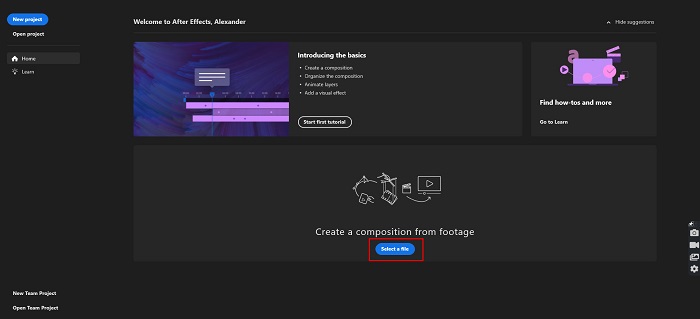
Langkah 1. Mula-mula, muat turun Adobe After Effects pada komputer anda. Kemudian buka aplikasi tersebut. Pada antara muka utama perisian, klik butang Select a File untuk memuat naik video yang anda mahu percepatkan. Selepas itu, fail komputer anda akan muncul dan anda boleh memuat naik video anda.
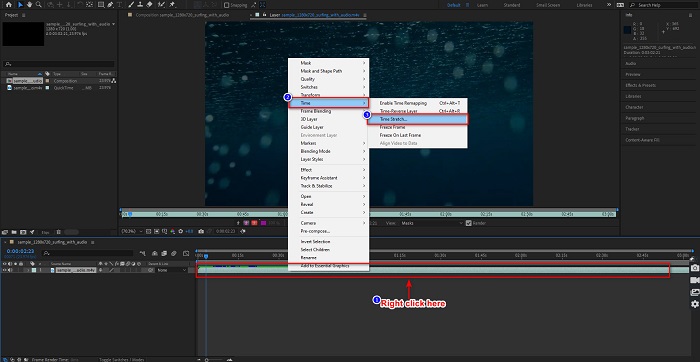
Langkah 2. Kemudian, klik kanan pada garis masa (timeline) video anda. Satu menu akan muncul dan anda perlu klik Time > Time Stretch.
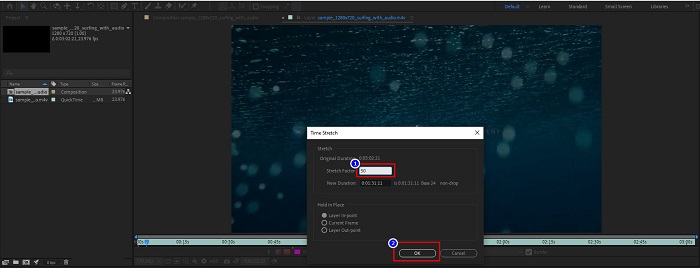
Langkah 3. Seterusnya, taip peratusan faktor regangan (stretch factor) yang anda inginkan dan klik butang OK. Selepas itu, anda akan melihat perubahan pada kelajuan video anda.
Kelebihan
- Alat ini digunakan dalam industri pembuatan filem dan kerjaya pembikinan filem
- Ia mempunyai banyak ciri lanjutan, seperti membuat 3D, realiti maya, menambah kesan dan banyak lagi
- Ia tersedia pada hampir semua platform media termasuk Windows dan Mac
Keburukan
- Anda perlu membayar yuran langganan untuk menggunakan alat untuk masa yang lama.
- Ia mempunyai antara muka perisian yang sukar digunakan.
Bahagian 2. Cara Lebih Mudah untuk Mempercepatkan Video Anda
Tetapi jika anda sedang mencari alat dengan antara muka perisian yang lebih mudah, alat ini ialah apa yang anda cari. FVC Video Converter Ultimate juga merupakan alat popular untuk mempercepat atau memperlahankan video anda. Ia mempunyai antara muka pengguna yang ringkas, yang menjadikannya pilihan ramai orang untuk mempercepat video mereka. Selain itu, anda boleh melaraskan kelajuan video anda kepada 0.125x, 0.25x, 0.5x, 0.75x, 1.25x, 1.5x, 2x, 4x dan 8x.
Selain itu, alat ini menawarkan lebih banyak ciri yang boleh anda gunakan, seperti, perapi video, pembuat GIF, pembuat 3D dan banyak lagi. Apa yang lebih menarik dalam alat ini ialah anda boleh menukar resolusi video anda dan kadar bingkainya. Baca huraian di bawah untuk mendapatkan lebih banyak cerapan tentang alat ini.

FVC Video Converter Ultimate
5,689,200+ Muat Turun- Percepatkan video pada Windows dan Mac.
- Ia mempunyai ciri lanjutan seperti pembalikan video, tera air video, penggalak volum, dsb.
- Ia menyokong pelbagai format fail, termasuk MP4, WMV, AVI, M4V, FLV dan banyak lagi.
- Membolehkan anda melaraskan kadar bit dan resolusi video anda.
Muat Turun PercumaUntuk Windows 7 atau lebih baharuMuat Turun Selamat
Muat Turun PercumaUntuk MacOS 10.7 atau lebih baharuMuat Turun Selamat
Berikut ialah cara menggunakan FVC Video Converter Ultimate untuk mempercepat video anda
Langkah 1. Muat turun FVC Video Converter Ultimate dengan mengklik butang Download untuk Windows atau Mac. Ikuti proses pemasangan, dan jalankan aplikasi.
Muat Turun PercumaUntuk Windows 7 atau lebih baharuMuat Turun Selamat
Muat Turun PercumaUntuk MacOS 10.7 atau lebih baharuMuat Turun Selamat
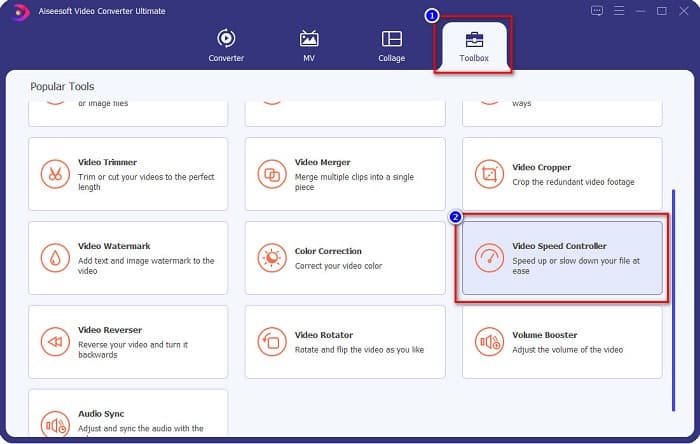
Langkah 2. Klik pilihan Toolbox pada panel di bahagian atas antara muka utama perisian. Kemudian, klik pilihan Video Speed Controller.
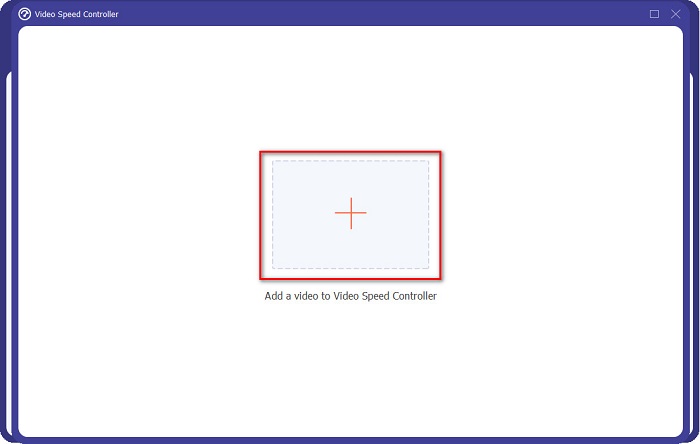
Langkah 3. Selepas mengklik Video Speed Controller, anda akan dibawa ke antara muka lain. Klik butang tanda + atau seret dan lepas video anda ke atas tanda + tersebut.
Langkah 4. Seterusnya, pilih kelajuan video yang anda mahukan pada pilihan di bawah pratonton video anda, kemudian klik butang Export.
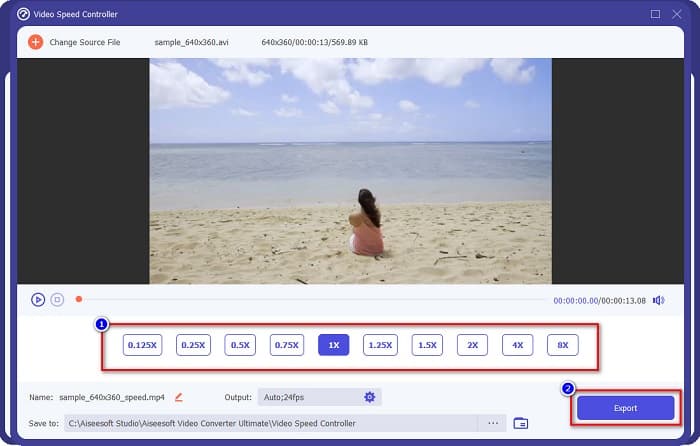
Ia akan disimpan secara automatik pada fail desktop anda apabila ia selesai.
Bahagian 3. Adobe After Effects lwn. FVC Video Converter Ultimate
Menghadapi kesukaran memilih alat video mempercepatkan terbaik untuk digunakan? Kemudian jangan risau kerana kami akan memberikan anda gambaran yang lebih terperinci dan lebih jelas tentang alatan yang disebutkan di atas. Walaupun begitu, kedua-dua alat ini mempunyai rating pengguna yang hebat dan boleh mempercepatkan atau memperlahankan video anda.
| lwn. | Adobe After Effects | FVC Video Converter Ultimate |
| Keserasian | Windows dan Mac | Hampir semua platform media termasuk Windows dan Mac |
| Mudah untuk digunakan |  |  |
| Mempunyai ciri lain untuk digunakan | | |
| Harga | Harga bermula pada $20.99/bulan | Harga versi 1 bulannya ialah $23.30 |
| Terbaik digunakan untuk | Membuat filem | Menukar dan mengedit video |
Sekarang setelah anda mengetahui perbezaan dan persamaan, alat video mempercepatkan yang akan anda gunakan ada di tangan anda.
Bahagian 4. Soalan Lazim tentang Cara Mempercepatkan Video dalam After Effects
Adakah lebih baik menggunakan alat dalam talian mempercepatkan video?
ya. Terdapat banyak alat video mempercepatkan dalam talian yang boleh anda temui di internet. Walau bagaimanapun, alat dalam talian mempercepatkan adalah bergantung kepada internet, yang bermaksud apabila sambungan internet perlahan, proses pemuatan mungkin perlahan.
Bolehkah anda membuat GIF menggunakan After Effects?
Tidak. Adobe After Effects tidak mempunyai pembuat GIF. Tetapi jika anda mahukan alat yang boleh mencipta GIF animasi, gunakan FVC Video Converter Ultimate. Ia mempunyai pembuat GIF terbina dalam yang mudah digunakan.
Adakah Adobe After Effects menyokong semua format fail?
Adobe After Effects menyokong pelbagai format fail video/imej, termasuk MPEG, WAV, WMV, SWF, FLV, MP4, M4V dan banyak lagi.
Kesimpulannya
Dengan semua penjelasan di atas, artikel ini membuktikan bahawa fungsi mempercepat video dalam Adobe After Effects benar-benar merupakan alat yang unik dan terbaik untuk digunakan. Ciri-ciri yang dimilikinya dan hasil profesional yang dihasilkannya memang luar biasa. Kini anda jelas dapat melihat mengapa ramai pembuat filem dan penyunting video profesional menggunakan alat ini untuk pelbagai tujuan. Namun, jika anda seorang pemula dan sedang mencari alat pemecut video dengan antara muka pengguna yang lebih ringkas, maka FVC Video Converter Ultimate ialah pengawal kelajuan video yang terbaik untuk anda. Jadi, apa tunggu lagi? Muat turunnya sekarang dan cuba ciri-ciri hebat yang ditawarkannya.
-
 Cara Mempercepatkan Video dalam Premiere Pro dan dengan Alternatifnya
 Adakah anda ingin tahu cara menggunakan perdana pro untuk mempercepatkan video? Kemudian anda berada di artikel yang betul kerana kami menyediakan langkah-langkah dan alternatif lain yang berpatutan.
-
 2 Cara Mudah untuk Mempercepatkan Video di TikTok
 Adakah anda ingin tahu rahsia bagaimana untuk mempercepatkan video di TikTok? Kemudian baca artikel ini untuk mendapatkan idea tentang cara melakukannya dan mengetahui apakah 2 alatan lain yang akan membantu anda.
-
 Petua Cemerlang 2021: Cara Mempercepatkan Video pada iMovie
 Rakan anda mencadangkan iMovie untuk membantu anda dengan masalah anda tentang cara mempercepatkan video menggunakan sistem pengendalian iOS, tetapi anda tidak tahu apa yang perlu dilakukan? Lihat lebih lanjut mengenai perkara ini sambil anda membaca lebih lanjut melalui artikel ini.
