


 Video Converter Ultimate
 Scherm opnemer
 Videoreparatie
Richtlijnen die u moet volgen bij het converteren van MXF naar MOV met hoge kwaliteit
Material Exchange Format is waar MXF voor staat. Een open bestandsformaat dat het uitwisselen van audiovisueel materiaal en de bijbehorende data en metadata mogelijk maakt, wordt OMF genoemd. Het oorspronkelijke ontwerp van MXF werd gemaakt door een groep toonaangevende omroep- en digitale productiebedrijven. Het doel van MXF is om bestandsformaten te standaardiseren, compatibiliteit tussen allerlei hardware- en softwareleveranciers te vergemakkelijken en uiteindelijk de noodzaak van tape weg te nemen. Als je op zoek bent naar een geschikte converter om MXF naar MOV te converteren, vind je hier de opties waaruit je kunt kiezen wat voor jou het beste is.
Deel 1. Een overzicht: MXF & MOV
MXF is een uitstekende keuze voor zowel opname als levering. Het gebruik van interframe‑compressie is niet ideaal voor het maken van films. Het decomprimeren van interframe‑compressie duurt langer, omdat veel methoden sub‑pixelinformatie vereisen voor frame‑voor‑frame‑precisie in AE. Bij het gebruik van interframe‑compressie moeten gebruikers sommige frames tijdens de decompressie opnieuw opbouwen, en daar loopt After Effects tegen problemen aan.
De bestandsnaamextensie MOV staat echter voor Apple’s QuickTime‑videoformaat. Deze multimediacontainer kan ook meerdere sporen met verschillende gegevens (audio, video, ondertitels) opslaan. Functies zoals het scheiden van mediagegevens van media‑offsets, abstracte gegevensverwijzingen en track‑editlijsten maken het ideaal voor videobewerking. De MOV‑container wordt ook veel gebruikt voor online videodistributie.
Deel 2. Uitstekende methoden om te gebruiken bij het converteren van MXF naar MOV
Met de nieuwste en efficiënte software genaamd Video Converter Ultimate kun je nu offline MXF naar MOV converteren in een groot aantal formaten die kunnen worden hersteld. Met deze software kun je nu MXF sneller naar MOV converteren dan met andere converters. De videokwaliteit kan ook worden aangepast voordat je gaat converteren. Je kunt je videobestand bovendien verbeteren door gebruik te maken van de diverse functies van de converter. Met deze app hoef je je geen zorgen te maken over het converteren van videoformaten die niet compatibel zijn met het formaat dat je verkiest. Nu je kennis hebt gemaakt met de beste converter, is dit wat je moet doen:
Stap 1. Klik op de onderstaande knop Gratis downloaden om je downloads te starten! Zodra het downloaden is voltooid, kun je ervoor kiezen de software op Windows of Mac te installeren. Je moet de software eerst op het bureaublad van je computer installeren en vervolgens op Nu starten klikken om ermee te beginnen werken.
Gratis downloadVoor Windows 7 of nieuwerVeilige download
Gratis downloadVoor MacOS 10.7 of nieuwerVeilige download
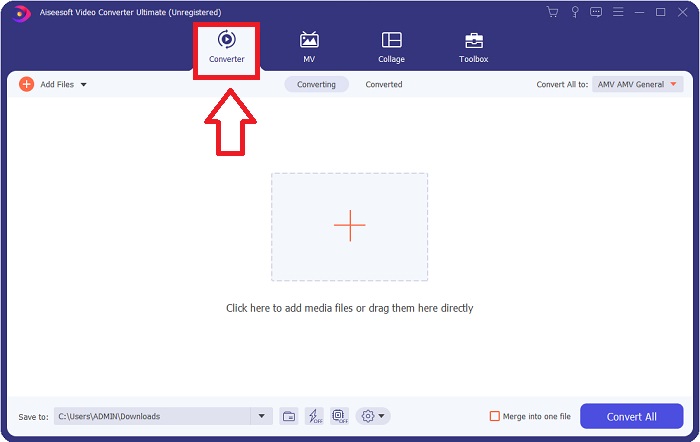
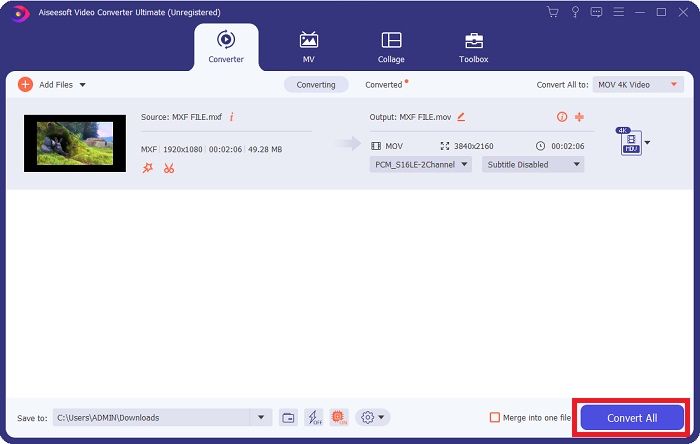
Stap 2. Start het gedownloade programma door op de knop te klikken. De interface Converter wordt weergegeven zodra je de software voor het eerst opent. Hier begin je met het transcoderen van je video.
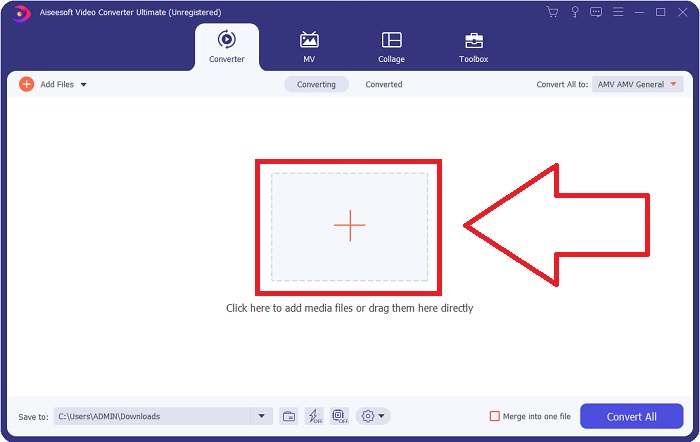
Stap 3. Start het conversieproces door je bestanden in de converter te importeren. Het videobestand dat je wilt converteren kan worden versleept en neergezet op het +‑pictogram.
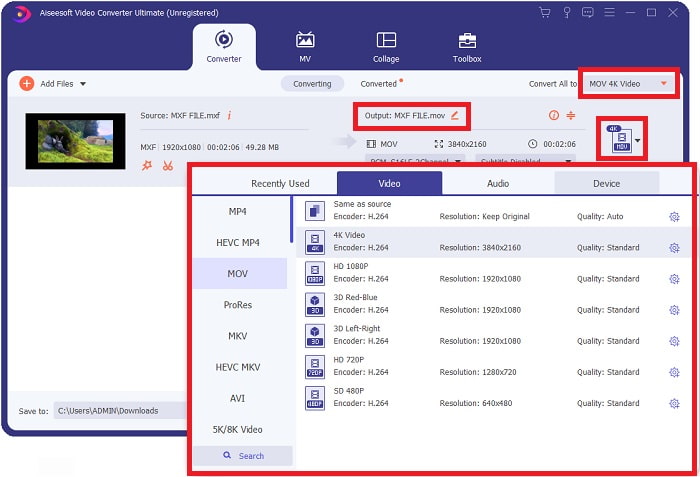
Stap 4. Selecteer vervolgens het MOV-formaat in de vervolgkeuzelijst van Alles converteren naar. Zodra je een MOV‑bestand hebt gekozen, krijg je toegang tot diverse opties voor videokwaliteit. Maar als je gewenste video‑output niet in de lijst staat, kun je de kwaliteitsinstellingen aanpassen aan je behoeften. Door op het tandwielpictogram te klikken, kun je de resolutie van het beeld, de beeldsnelheid en zelfs de geluidskwaliteit wijzigen. Klik op de knop Nieuw maken om je wijzigingen op te slaan.
Stap 5. Het converteren van je video is zo eenvoudig als klikken op Alles converteren wanneer je klaar bent met het bewerken van de kwaliteit, resolutie, framesnelheid, enz.
Deel 3. Nog een tip bij het converteren van MXF naar MOV [Online]
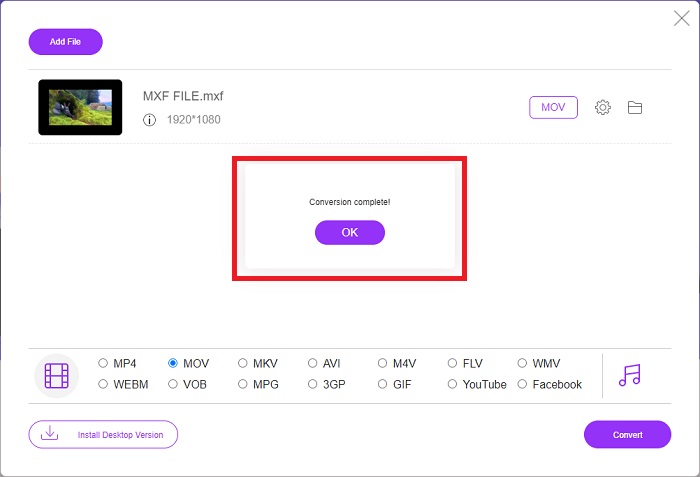
Het gebruik van de Free Video Converter Online is de beste manier om in korte tijd een groot aantal videoformaten te converteren. Deze converter, anders dan een gewone online converter, heeft geen beperkingen op de formaten die hij kan accepteren. Daarom is het een goede optie voor sommige beginners. Hier zijn de stappen die je moet volgen om meer te leren over deze online webtool.
Stap 1. Ga naar de startpagina van de FVC‑converter door op deze link te klikken.
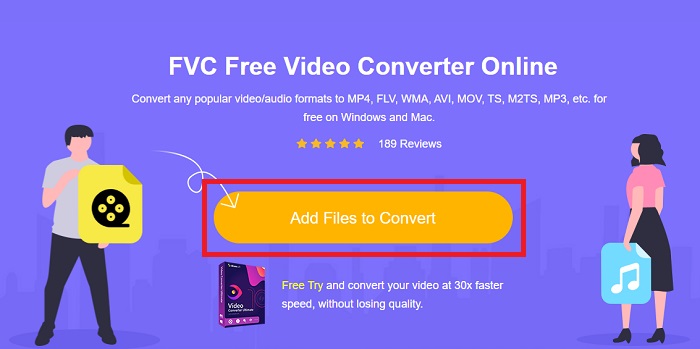
Stap 2. Klik op de knop Bestanden toevoegen om te converteren om de launcher voor je computer te downloaden als je het hulpmiddel voor de eerste keer gebruikt. Zodra deze opnieuw is gedownload, wordt hij automatisch opnieuw uitgevoerd. Open het bestand vanuit je downloadmap door het te selecteren en op Openen te klikken.
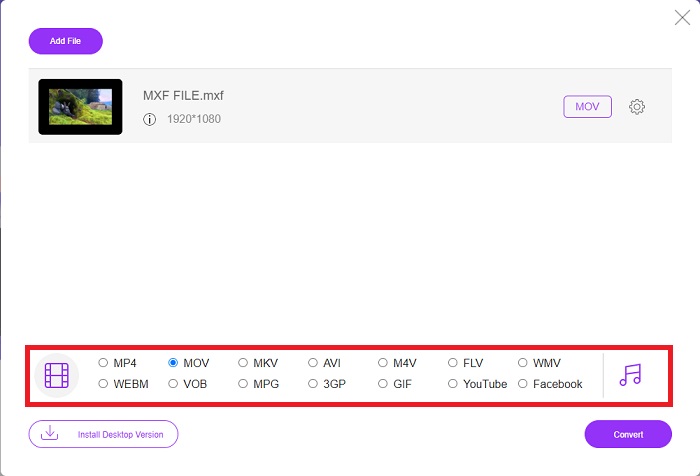
Stap 3. Zodra je het MOV-formaat hebt gekozen dat je wilt gebruiken, klik je erop om het conversieproces te starten.
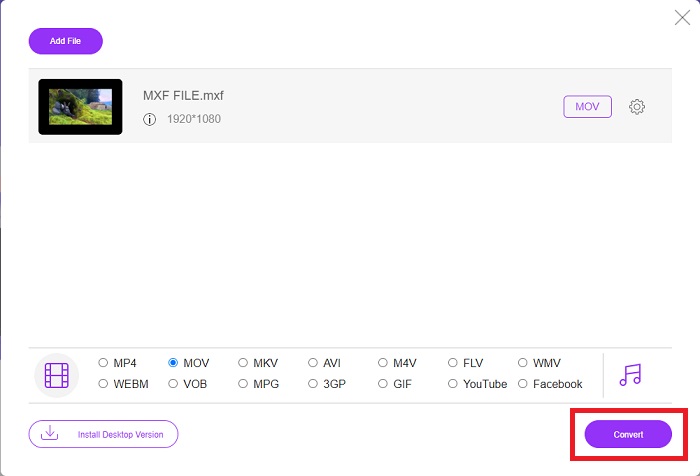
Stap 4. Je kunt het conversieproces starten door op de knop Converteren te klikken zodra je het MOV-formaat hebt geselecteerd.
Stap 5. Je kunt het geconverteerde bestand na enkele minuten bekijken door erop te klikken wanneer het verschijnt in een map op het bureaublad van je computer.
Deel 4. Veelgestelde vragen over MXF naar MOV-conversie
Is MXF hetzelfde als MOV?
Ook in de digitale wereld is dit een probleem. Materialenuitwisselingsformaat en QuickTime-videoformaat vallen beide onder de overkoepelende term 'containerformaten'. Wanneer een videoprogramma een bepaald containerformaat ondersteunt, kan het standaardtools gebruiken om de containers te manipuleren, zoals het openen van het bestand, het zoeken naar een specifiek tijdstip, en afspelen of snel vooruit- of terugspoelen, met gebruikmaking van algemeen beschikbare standaarden en bibliotheken. Een nieuw bestandsformaat of nieuwe bibliotheken voor het manipuleren van media zijn niet nodig.
Is MOV rauw?
Bij het werken met RAW-video zijn de meest voorkomende bestandstypen AVI (.avi) en MOV (.mov); omdat het ongecomprimeerde video is, kunnen hun bestandsgroottes extreem groot zijn - tot wel een gigabyte of meer, afhankelijk van de lengte en kwaliteit van de video.
Wat is MXF-bestand Pro Tools?
Met behulp van de Quicktime-mogelijkheden van Pro Tools kan SoundCode Exchange MXF MXF-bestanden uitwisselen. Pro Tools kan MXF-bestanden visualiseren als Quicktime-films dankzij een Quicktime-component en een hulpprogramma voor slepen en neerzetten. Een videotrack kan binnen enkele seconden worden gemaakt met behulp van de Quicktime Import-functie van Pro Tools, die high-definition of standard definition MXF-bestanden kan afspelen. Met behulp van een Blackmagic-videokaart kunt u de beelden nu als een venster in Pro Tools of als uitvoer naar een extern beeldscherm zien. Tegelijkertijd kunnen MXF-audiotracks worden geïmporteerd als WAV-bestanden voor bewerking en mixen in Pro Tools.
Gevolgtrekking
Tot slot: er is een breed scala aan opties beschikbaar, of je nu software of een webdienst gebruikt om je video van het ene formaat naar het andere te converteren. Wat de mogelijkheden of het gebruiksgemak betreft, vullen ze elkaar echter nog steeds aan. Sommige doen gewoon het werk, terwijl andere allerlei extra opties bieden. Dit artikel richt zich hierop om je te helpen bepalen welke je moet gebruiken op basis van je situatie. Omdat je nooit weet wanneer je sommige van deze extra functies nodig kunt hebben, zoals het terugdraaien, verbeteren, samenvoegen, enzovoort, raden we Video Converter Ultimate het meest aan. In plaats van steeds online naar een converter te zoeken, kun je deze software altijd op je computer hebben staan.
-
 4 gratis manieren om camcorder MXF naar MP4 te converteren voor universele weergave
 Dit bericht is de gedetailleerde gids om MXF naar MP4 op de computer te converteren. U kunt 4 gratis MXF naar MP4-converters krijgen om camcorder MXF naar MP4 in eenvoudige stappen te transcoderen.
-
 4 Top MXF-converters om MXF naar AVI te converteren [gratis en betaald]
 Wat is een MXF-bestand? Hoe MXF naar AVI te converteren? Dit zijn de weinige vragen die we beantwoorden. Dus als je dezelfde vraag hebt, lees dan dit artikel.
-
 Hoe AVI naar MOV te converteren met eenvoudige stappen en hulpmiddelen
 Wil je weten hoe je AVI converteert naar een speelbare MOV? U moet dit artikel volgen om te weten hoe u dit moet doen en tips voor een succesvolle conversie.
