


 Video Converter Ultimate
 Scherm opnemer
 Videoreparatie
Online en offline conversieproces: SWF naar WMV
SWF is a legacy file format created by Adobe for the Shockwave Flash player. Flash is no longer supported by many browsers, was never supported by iOS devices, and the SWF file format is seldom used these days due to performance and security problems. On the other hand, WMV is a set of video compression codecs created for early internet video streaming and physical media such as HD-DVD and Blu-Ray. Video in this file format is natively viewable on Windows devices, so you may wish to convert SWF files to WMV because Flash players are becoming more unsupported, and you can no longer play SWF files. Hence, we provide you with two options to convert your SWF to WMV.

Deel 1. Eenvoudig SWF naar WMV converteren op Windows en Mac
Video Converter Ultimate is a multimedia converter that converts practically all major video and audio files to your desired output format. It can convert video files in batches, making it more potent than it seems. It does not stop at converting; it also enables users to modify their videos with the help of helpful editing tools. Furthermore, this video converter supports various formats, including the most widely used nowadays. More significantly, it converts at a faster rate than comparable software. To use this particular software, follow these simple steps:
Step 1: Click the Free Download button to download the .exe file you will need to install the software. Wait for it to finish, open it, and follow the installation process promptly. Click Start Now and launch the software.
Gratis downloadVoor Windows 7 of nieuwerVeilige download
Gratis downloadVoor MacOS 10.7 of nieuwerVeilige download
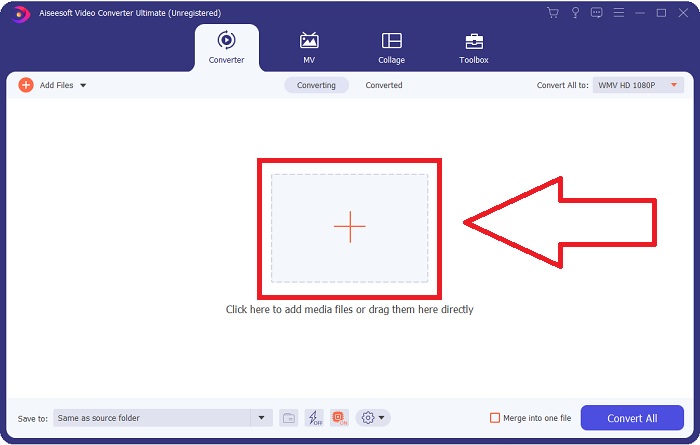
Step 2: Upload the video file you wish to convert by clicking the + button in the middle of the interface. Alternatively, drag the file from your desktop and drop it on the interface, and it will automatically import.
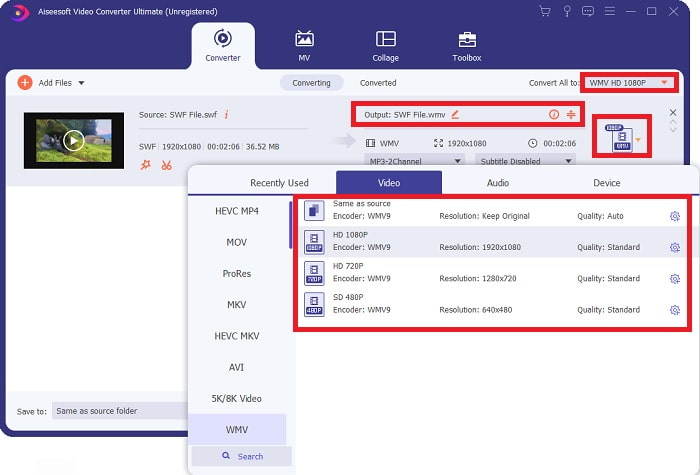
Step 3: Click the drop-down arrow on the right in which you will see the current format your video is in, and it will show you all the available formats to choose. In this case, scroll down and select WMV or just type it in the search bar. All video qualities are also available to choose from on the right panel.
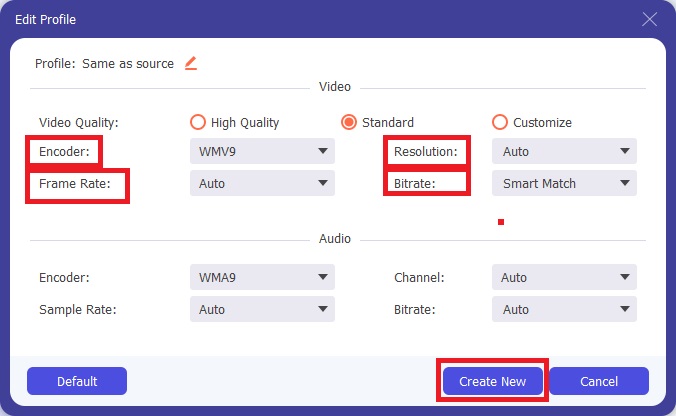
Step 4: To further edit your video, click on the gear icon on the right to show all the handy editing tools. From there, you can make all the necessary adjustments that best suit your needs. Just click the Create New button once you are finished.
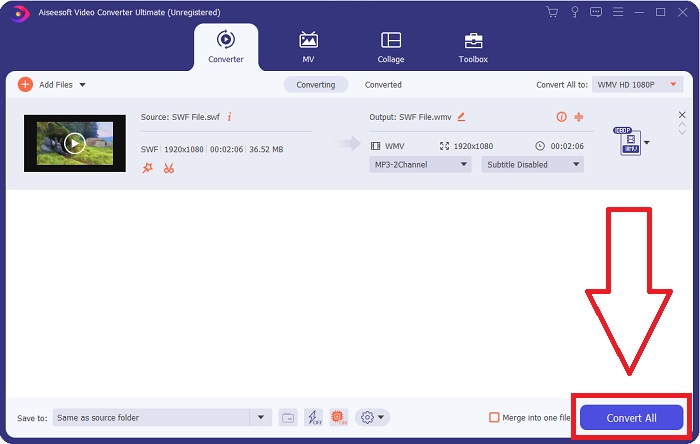
Step 5: Finish the conversion process by finally clicking the Convert All button on the window's bottom right corner and waiting for it to finish.
Deel 2. Nog een tip om SWF online naar WMV te converteren
FVC Free Video Converter is altijd gratis en vereist geen registratie. Sommige gratis online video-omzetters beperken conversietijdframes of bestandsgrootte. Als je al je gratis conversietijden hebt gebruikt of als je bestand te groot is, moet je een abonnement kopen, zelfs als je zelden video's converteert. Maar FVC Free Video Converter heeft dergelijke beperkingen niet en kan op elk moment video's converteren.
Bovendien heeft deze service geen registratie nodig om grotere bestanden te converteren, in tegenstelling tot de meeste online videoconverters die registratie vereisen om video's groter dan 1 GB te converteren. Dit zijn de stappen die u moet volgen voor deze fantastische tool:
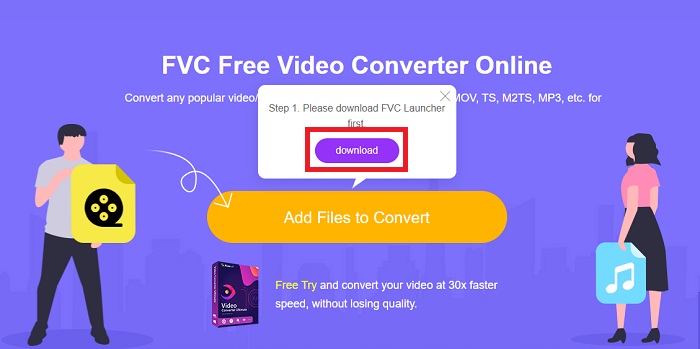
Step 1: To go to the website, click this link. Then, download the launcher quickly by clicking the Add Files to Convert button and waiting for it to finish.
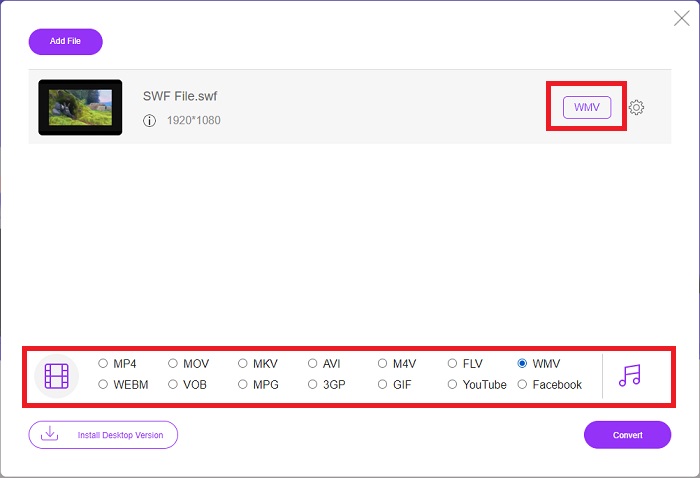
Step 2: Click the said button again, and this time, it will allow you to upload the video file you wish to convert. After that, select WMV among all the available formats.
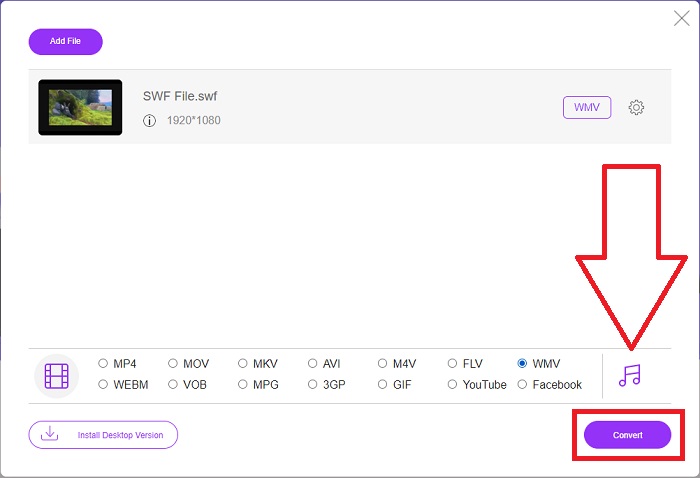
Step 3: You can still use handy editing tools like the software itself. Just click the gear icon, and it will show you all the adjustments you can make. To save the changes made, click OK and once you finish adjusting, click Convert to start the process.
Gerelateerd:
Deel 3. Uitgebreide kennis over SWF- en WMV-formaten
Wil je meer weten over de twee formaten, lees dan verder in dit artikel. We bieden alle noodzakelijke en essentiële informatie die u nodig heeft als achtergrond.
Adobe gebruikt het SWF-bestandsformaat om films en vectorgebaseerde animaties op te slaan. Small Web Format is de afkorting; het is echter ook bekend als ShockWave-formaat. Het wordt meestal gebruikt om video via internet uit te zenden, met name browsergebaseerde games. Helaas verklaarde Adobe dat het tegen eind 2020 zou stoppen met het ondersteunen van het Flash-formaat vanwege prestatie- en beveiligingsproblemen.
Aan de andere kant is een WMV-bestand een Windows Media Video-bestand dat kan worden gecomprimeerd met een of meer videocompressie-indelingen van Microsoft. Het is een populair video-opslagformaat in Windows en daarom wordt het door bepaalde apps van derden gebruikt voor zaken als korte animaties. Het is ontworpen om te werken met Microsoft-mediaspelers zoals Windows Media Player en Movies & TV. Voor gebruik met Digital Rights Management (DRM)-systemen kunnen WMV-bestanden worden gecodeerd.
| Klein webformaat | Windows Media-video | |
| Bestandsextensie | .swf | .wmv |
| Ontwikkelaar | Geïntegreerde adobe systemen | Microsoft |
| Ondersteunende programma's | ◆Adobe Flash Player ◆Adobe Flash ◆ Professionele CC ◆GOM-speler ◆Adobe Dreamweaver 2020 | ◆VLC-mediaspeler ◆ MP-speler ◆ Mediaspeler Klassiek ◆Windows Media Player |
Deel 4. Veelgestelde vragen over het converteren van SWF en WMV
Wat is het nut van WMV-bestanden?
WMV-videobestanden zijn het beste formaat om videomateriaal online of via HD DVD en Blu-ray Discs te verkopen.
Wat is het nut van het SWF-bestand?
Flash-bestanden, of SWF-bestanden, worden vaak gebruikt voor de efficiënte distributie van multimedia-informatie via internet.
Kunnen SWF-bestanden worden bewerkt?
Adobe Flash is een bestandsindeling die wordt gebruikt door Adobe. In tegenstelling tot andere multimediabestanden, vereist het SWF-bestand de Flash Player-plug-in om een webbrowser te kunnen bekijken. Bovendien kunnen gebruikers SWF-bestanden niet rechtstreeks bewerken.
Gevolgtrekking
FVC Video Converter Ultimate is de perfecte optie voor jou als je een beginner bent of gewoon een amateur als het gaat om videoconversie. U converteert niet vaak videoformaten. De voordelen, zoals constante conversie van videoformaten, snelle conversie van videobestanden in vergelijking met vergelijkbare programma's, eenvoudige bediening, ondersteuning voor verschillende formaten, enzovoort, helpen het de beste videoconvertor te worden die er is. Als het gaat om videoconversie, zijn Video Converter Ultimate en zijn online equivalent de meest acceptabele opties.
-
 [2 Oplossingen] Hoe u SWF-bestanden gemakkelijk en gratis kunt converteren naar GIF
 Als u de GIF-indeling niet kunt exporteren via Flash-software, kunt u proberen de bestanden eerst in SWF-indeling op te slaan. Dan kunt u in dit artikel 2 eenvoudige manieren leren om SWF naar GIF-bestanden te converteren.
-
 Top of the Line 5 Beste gratis SWF naar AVI-converters [Web & Desktop Based]
 Wilt u weten hoe u uw SWF-bestand naar AVI converteert? Dus zo niet, lees dan dit artikel, want we bieden een oplossing voor uw conversie van het SWF-probleem.
-
 [Gratis en eenvoudig] Uitzonderlijke tools om te gebruiken bij het converteren van SWF naar MOV
 Heb je geprobeerd SWF naar MOV te converteren omdat je geen video's kunt bewerken? Wie is verantwoordelijk voor de incompatibiliteit van uw video-editor'? Lees verder voor uw oplossing.
