


 Video Converter Ultimate
 Scherm opnemer
 Videoreparatie
 Beveiligde download
Hoe u gratis lid kunt worden van MOV (QuickTime) -bestanden
Nadat je veel MOV-videomateriaal hebt verzameld, wil je misschien het materiaal ordenen en samenvoegen tot één compleet bestand. Voor beginners of amateurvideoproducenten kan het echter te gecompliceerd zijn om een technische tool zoals Adobe Premiere Pro te gebruiken. Misschien zult u dagen of zelfs maanden besteden om te bestuderen hoe u het programma moet uitvoeren.
Als je eigenlijk alleen videoclips wilt samenvoegen, kun je een eenvoudige en effectieve video-joiner gebruiken om je probleem op te lossen. Het kost maar een paar minuten om twee of meer MOV-bestanden samen te voegen.
Met de volgende stappen kun je eenvoudig MOV-bestanden combineren op zowel Mac als Windows. Lees dus verder en probeer de methoden zelf uit.

Deel 1. Hoe MOV-video's samen te voegen in QuickTime
MOV, ook bekend als QuickTime File Format (QTFF), is een digitaal videocontainerformaat met MPEG-4-codec. Het werd in 1998 door Apple geïntroduceerd ter ondersteuning van QuickTime Player. Daarom kun je, als je een Mac hebt, QuickTime Player gebruiken om MOV-bestanden probleemloos samen te voegen.
Verrassend genoeg is QuickTime niet alleen een mediaspeler, maar ook een video-editor waarmee je afzonderlijke video's kunt samenvoegen, videoclips kunt bewerken en zelfs audio of video op je Mac kunt opnemen. Bovendien is het gemakkelijk te gebruiken en behoudt het de originele kwaliteit van video's.
Hier zijn de stappen om deel te nemen aan videoclips in QuickTime.
Stap 1. Zoek de video’s die je wilt samenvoegen en open er één met QuickTime Player. (Je kunt ze eerst naar één map of naar het bureaublad verplaatsen om het jezelf makkelijker te maken.)
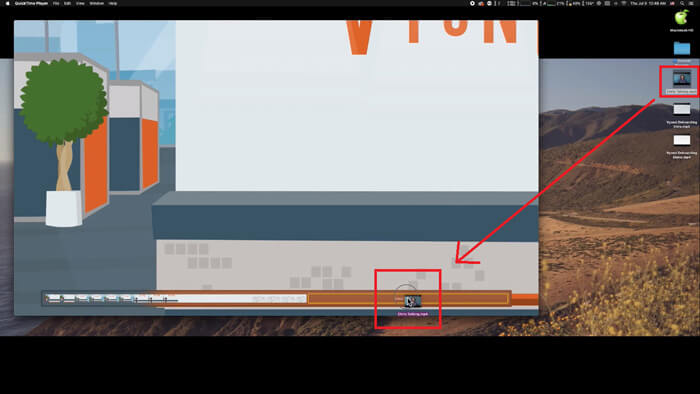
Stap 2. Na het openen van het bestand verschijnt er een afspeelvenster op het scherm. Sleep nu de andere videoclip naar QuickTime Player. Je kunt de videoclip vasthouden en naar de juiste volgorde slepen. Wanneer je de muis loslaat, verschijnt er een knop Gereed naast je videoclips. Klik daarop.
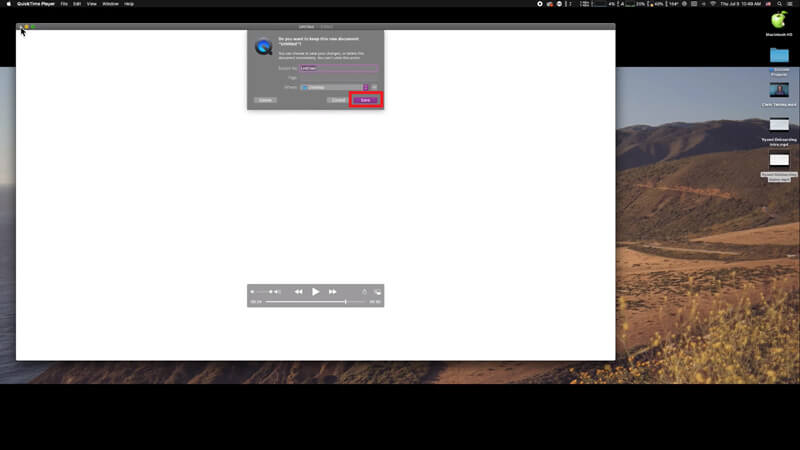
Stap 3. Sluit QuickTime af en je krijgt direct een melding om je samengevoegde video op te slaan. Voer gewoon een nieuwe naam in en kies een opslaglocatie voordat je op de knop Bewaar klikt.
Deel 2. Hoe MOV-bestanden online en gratis samen te voegen
QuickTime kan je echter niet helpen om verschillende videobestanden in uiteenlopende formaten, zoals MP4, MOV, AVI, WMV, FLV, enz. samen te voegen tot één MOV-bestand. In dat geval heb je een professionelere video-merger nodig die meerdere videoformaten ondersteunt.
Maak daarom kennis met FVC Free Online Video Merger, de beste video-joiner om gratis video’s samen te voegen. Met deze tool kun je onbeperkt veel video’s uploaden. Naast MOV kun je ook naar andere populaire videoformaten exporteren, wat het erg handig maakt om de video te delen op streamingwebsites zoals YouTube.
In plaats van een serieus en kostbaar programma op uw pc te installeren, kunt u met alle video's samen een geweldige video online produceren met deze gebruiksvriendelijke video-combiner, waarmee u ook een video zonder watermerk kunt maken. Het maakt niet uit welk systeem u gebruikt, Windows, Mac of Linux, het kan goed werken. Het enige dat u nodig heeft, is een browser en een stabiel netwerk.
De volgende stappen zullen u helpen bij het gebruik van deze tool voor het samenvoegen van video's.
Stap 1. Klik op de bovenstaande link om de website van FVC Free Online Video Merger in je browser te openen.
Stap 2. Klik eerst op de knop Upload Videos to Merge in de banner. Volg daarna de instructies op het scherm om een launcher op je computer te downloaden en te installeren.
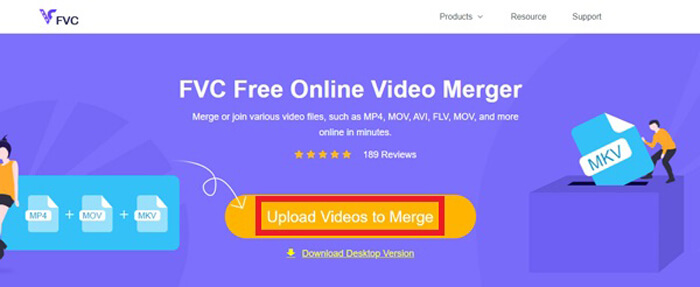
Stap 3. Zodra de installatie voltooid is, verschijnt er direct een venster. Nu kun je alle MOV-bestanden die je wilt samenvoegen, selecteren en toevoegen aan de video-merger.
Stap 4. Controleer na het uploaden of de volgorde van de videoclips klopt. Wijzig vervolgens de Resolutie naar wens en stel de Indeling in op MOV of een ander formaat dat je wilt.
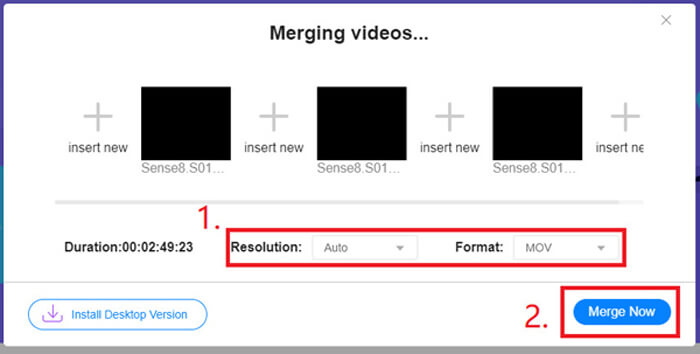
Stap 5. Klik op Merge Now om het samenvoegen te starten.
Deel 3. Hoe MOV-bestanden samen te voegen in Windows 10
Als je geen Mac hebt maar wel een pc met Windows 10, kun je de volgende stappen proberen om MOV-bestanden samen te voegen.
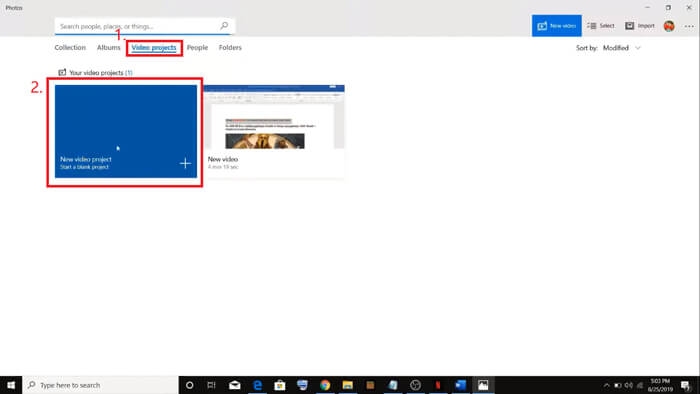
Stap 1. Open de app Foto’s op je pc. Je kunt deze vinden door ernaar te zoeken in de Zoekbalk. Selecteer vervolgens het tabblad Videoprojecten bovenaan en klik op Nieuw videoproject. Geef het videoproject een naam.
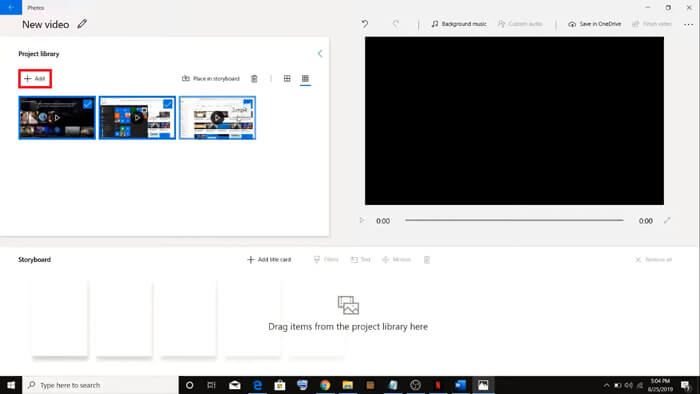
Stap 2. Klik op de knop Toevoegen linksboven en selecteer alle video’s die je vanaf je pc wilt converteren.
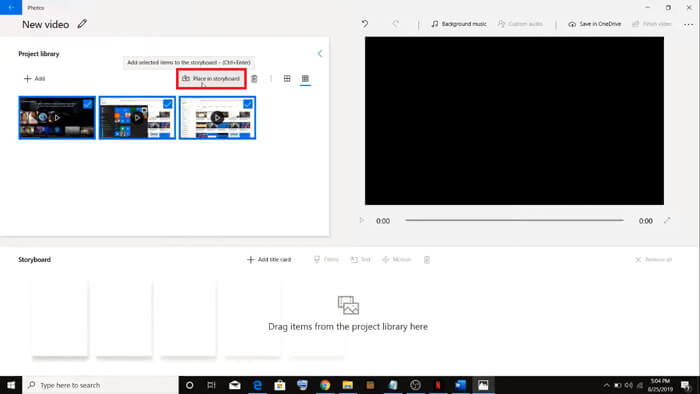
Stap 3. Klik daarna op de knop In storyboard plaatsen om al je MOV-bestanden te combineren.
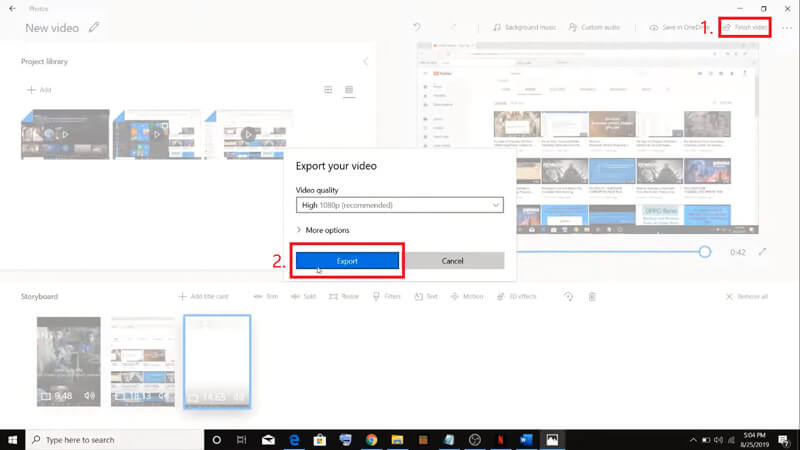
Stap 4. Nadat je de volgorde van de video’s hebt aangepast, klik je rechtsboven op Video voltooien. Exporteer vervolgens de samengevoegde video naar je pc.
Deel 4. Veelgestelde vragen over het samenvoegen van MOV
1. Kan ik QuickTime Player op Windows gebruiken?
Ook al ondersteunt Apple QuickTime voor Windows niet meer, je kunt het installatiepakket van QuickTime nog steeds op internet vinden. Let er echter op dat je het alleen kunt gebruiken om video’s af te spelen. Het is dus in feite een gewone speler waar je weinig aan hebt.
Als je een Windows-gebruiker bent die MOV-bestanden wil samenvoegen, kun je gewoon de krachtige FVC Free Online Video Merger gebruiken.
2. Wat is beter voor YouTube, MOV of MP4?
Nadat je een geweldige video hebt gemaakt door al je videomateriaal samen te voegen, wil je die misschien uploaden naar YouTube, Facebook, Instagram of andere platforms. In dat geval is MP4 een betere keuze, omdat het kleiner is in bestandsgrootte en eenvoudiger via internet te delen is.
Misschien wil je meer weten over de verschillen tussen MOV en MP4.
3. Kan QuickTime Player MP4-video exporteren?
Nee en ja. Want QuickTime zelf ondersteunt het exporteren van MP4-bestanden niet. Maar als je hebt betaald en je QuickTime hebt geüpgraded naar QuickTime Pro, dan kun je MOV-bestanden samenvoegen en automatisch het geconverteerde MP4-bestand krijgen. Als je geen cent wilt uitgeven maar toch MOV naar MP4 wilt converteren op een Mac, kun je een gratis online converter proberen, genaamd FVC Free Online Video Converter, die compatibel is met zowel Mac als Windows.
Gevolgtrekking
Dit zijn dus de methoden die je kunt gebruiken wanneer je MOV-bestanden tot één bestand wilt samenvoegen. Als je een Mac gebruikt, kun je de ingebouwde software QuickTime Player direct gebruiken om het samengevoegde MOV-bestand te verkrijgen. Gebruikers van Windows 10 kunnen Foto’s proberen. Voor andere Windows-computers kunnen gebruikers kiezen voor FVC Free Online Video Merger en genieten van een fantastische ervaring met video’s samenvoegen, zonder beperkingen, zonder advertenties en zonder virussen.
Als je dit bericht leuk en praktisch vindt, kun je het delen met je vrienden. En aarzel niet om uw opmerking achter te laten. Nu is het jouw beurt om de methoden uit te proberen en je bestanden samen te voegen.
-
 Hoe QuickTime naar MP4 te converteren op Windows / Mac / Online / iOS / Android
 Lees en krijg 4 manieren om QuickTime gratis naar MP4-video's te converteren op uw telefoon of computer. U kunt het bestandsformaat gemakkelijk wijzigen van MOV naar MP4 op Windows / Mac / iPhone / Android / online.
-
 Top 4 manieren om gratis MP4 naar MOV te converteren
 Hoe MP4 naar MOV op Mac te converteren? Is er een gratis manier om MP4 naar MOV te converteren zonder kwaliteitsverlies? Dit bericht deelt 4 eenvoudige manieren om u te helpen bij het maken van de videoconversie van MP4 naar MOV op Mac, Windows-pc en online.
-
 Hoe M2TS naar MOV te converteren op Windows / Mac (online / offline)
 Moet u M2TS naar MOV converteren om videobestanden op een aantal spelers en platforms af te spelen? Dit artikel helpt je bij het vinden van de beste online / offline methode om M2TS naar MOV op Windows / Mac te converteren.
