


 Video Converter Ultimate
 Scherm opnemer
 Videoreparatie
 Beveiligde download
Hoe het WeVideo-watermerk op bewerkte video te verwijderen als een professional
Wil je geen maandelijkse video-editor op je desktop downloaden of gebruiken omdat je er niet genoeg budget voor hebt? De WeVideo is een tool die je echt moet proberen als je een gratis video-editor wilt die geen geld aftrekt. Met deze webtool kunt u met een paar eenvoudige stappen een ongelooflijke video-uitvoer binnen uw bereik en op een mooiere manier maken. Vanwege zijn populariteit is de tool een van de meest bezochte video-editors geworden die je op internet kunt gebruiken.
From this day forward, the chances of users visiting the website for its video editor will go more. But users have some queries about this video editor online, and more often, users ask does WeVideo have a watermark applied on the video edited? To answer the question, you must read the whole article to find out if it does leave a watermark on the video you edited here.

Deel 1. Heeft WeVideo een watermerk?
Ja, het voegt het WeVideo-watermerk toe zodra u de video exporteert die u hier bewerkt. Er zijn verschillende methoden om het WeVideo-watermerk te verwijderen, maar niet alle watermerkverwijderaars die u op de markt kunt zien, zijn even effectief als de andere watermerkverwijderaars. In plaats van alle tools uit te proberen om te zien welke bij u past, worden hier de beste dingen overwogen, omdat we u de handgeselecteerde watermerkverwijderaar van onze keuze geven die de beste resultaten biedt bij het verwijderen van het watermerk. Ook al ben je een professional of niet, je kunt deze watermerkverwijderaar gebruiken om het watermerk in je video gemakkelijk te verwijderen.
Deel 2. Hoe zich te ontdoen van WeVideo-watermerk
FVC Video Converter Ultimate
FVC Video Converter Ultimate provides the best video output for starters and professionals. With its power to remove the watermark on the video, it became popular with many users, and it became their first choice for removing the watermark in their video. It is compatible with Windows and macOS, so it supports multiple platforms from the oldest up to the latest version. Even though the tool is not free to use, you will still achieve the best output once you use this software on your end, for the users who want to use this and those who have already tried it but want to know how to get rid of WeVideo watermark. The step-by-step below will lead you on a path to where you can remove the watermark that is in your video effectively.
Step 1. You can download this software by clicking the download button presented below, choosing which operating system you are currently using, and ensuring to click the right button. After that, install the software promptly, follow the guide on setting it up, then open it.
Gratis downloadVoor Windows 7 of nieuwerVeilige download
Gratis downloadVoor MacOS 10.7 of nieuwerVeilige download
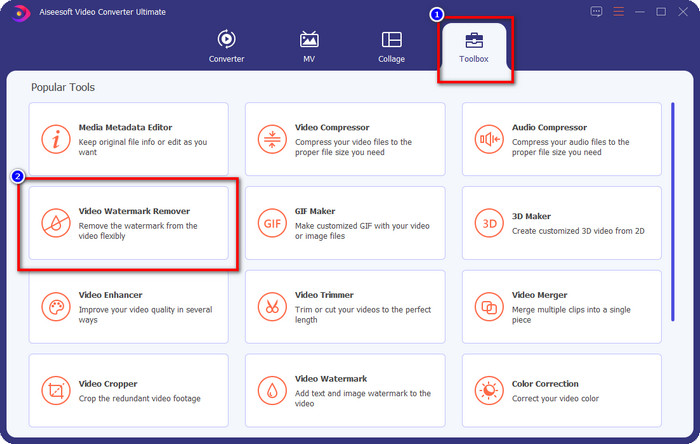
Step 2. On the Toolbox, locate the Video Watermark Remover this tool has, and click it to proceed.
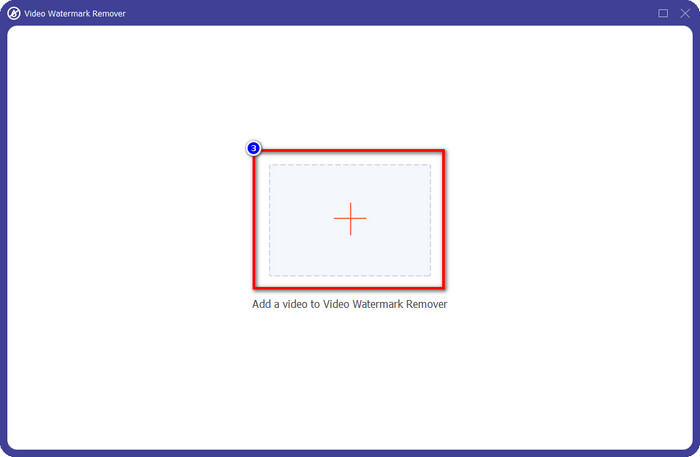
Step 3. By clicking the + icon, you upload the video containing a watermark. Search it over the folder that will show on your screen, click the file once, then press Open to upload it.
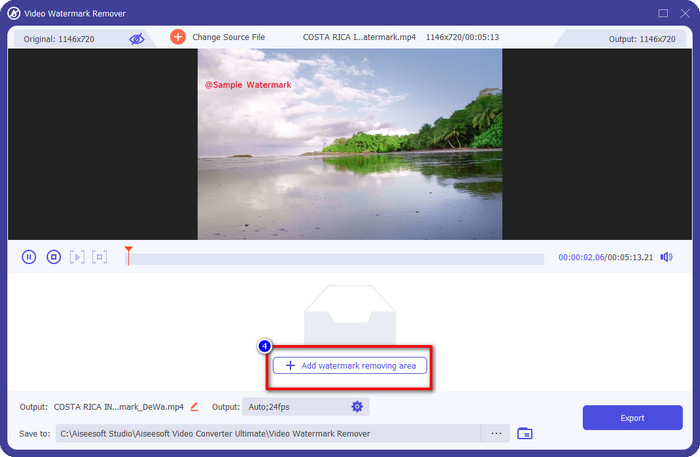
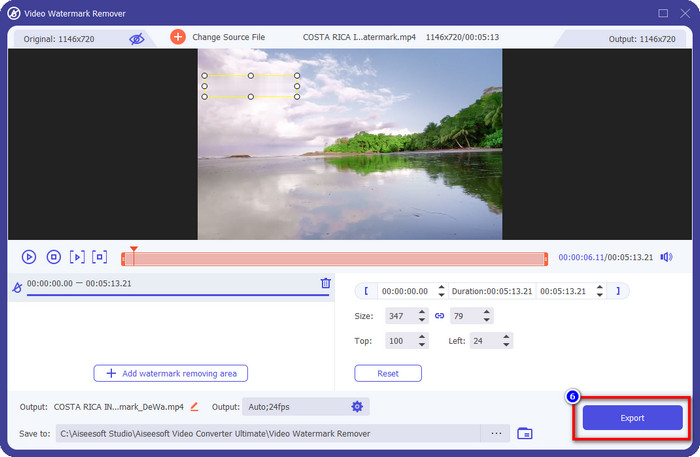
Step 4. After uploading the video with a watermark, press Add Watermark Removing Area and wait for the short loading process.
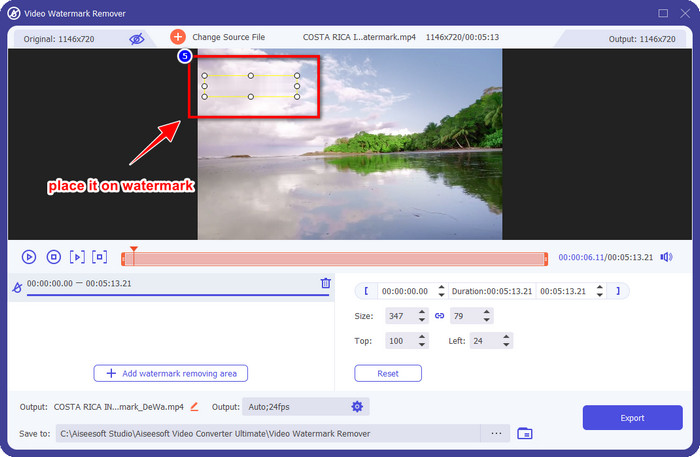
Step 5. Place the selection box to the WeVideo watermark and cover it all up so that when you export the video, you wouldn't see any traces of the watermark at the end of the video.
Step 6. You can save the video now; you remove the watermark here by clicking the Export button. The saving process wouldn't take much time because it supports ultra-fast processes and hardware acceleration.
iMyFone Mark Go
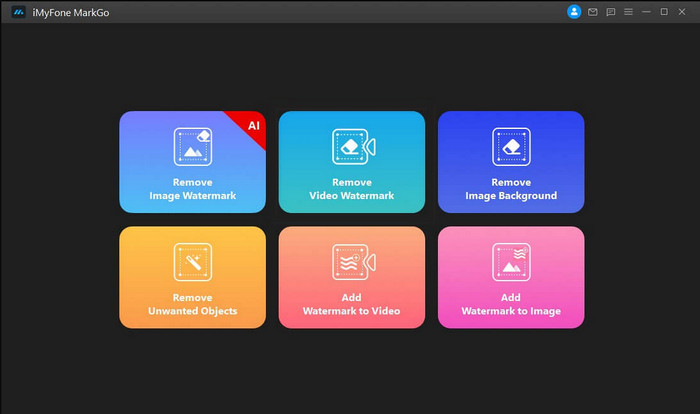
iMyFone Mark Go is another watermark remover you can download on your Windows and Mac to help you how to remove the WeVideo watermark. This tool effectively removes the watermark in your video, like what the ultimate tool can give you. Like any other offline software you can download on your desktop, you will need to avail the tool to remove the watermark and make good use of the premium version to remove the watermark on your video. Though it would cost you, it is not that expensive compared to other watermark removers you can download. So, if you want to remove the watermark on your video easily and effectively, you can follow the indicated steps below as we teach you how to do it step by step.
Step 1. Download the software on your desktop by going to its official website.
Step 2. After you've launched the software, click the Remove Video Watermark.
Step 3. Add the video file by clicking the Add the Video. Choose the video file that has a watermark.
Step 4. Move the rectangular shape that will show and place it to the watermark to cover it up. Even though there are three other options for removing the watermark, you can't access them because these options are for premium users.
Step 5. Click the Export button to save the video you removed the watermark on it.
Online Video Cutter – Logo van video verwijderen
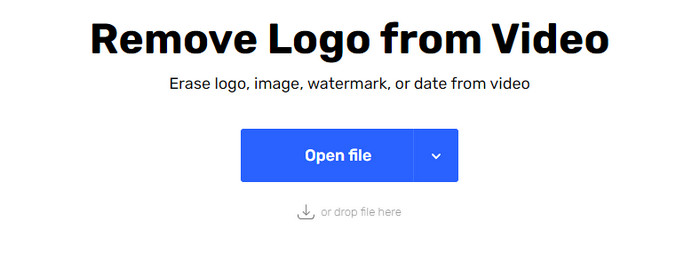
How to remove the WeVideo watermark for free? Use the Online Video Cutter – Remove Logo From Video. This software is a free web tool that you can use to remove the watermark in your video on the web without downloading any or paying any. This tool is effective as the other watermark remover on the market if we are about to compare, but not as good as the ultimate software. It can cover up the watermark in your video to make the video visual better. However, if you don't have an internet connection, this tool wouldn't be the best choice for removing the watermark in your video. But if you do have, then you can follow the steps below to start using this tool to remove the watermark on your video.
Step 1. Open a new tab and search the tool's name to start removing the watermark from the video.
Step 2. Click Open File to upload the WeVideo video here and for it to generate the preview of the video you uploaded.
Step 3. Click on the watermark to apply the removing area this tool has. Once you click any part of the video, there will be a selection box.
Step 4. Press Save to have the video without the watermark on it.
Gerelateerd:
How to Remove Movavi Watermark
How to Remove the Weibo Watermark
Deel 3. Veelgestelde vragen over het verwijderen van WeVideo-watermerk
Welke tool is het beste om WeVideo Watermark te verwijderen?
Zonder twijfel is het de FVC Video Converter Ultimate; deze tool biedt de beste output bij het verwijderen van het watermerk in je video. Van de geselecteerde watermerkverwijderaar kunnen we niet ontkennen dat de ultieme tool superieur is aan de andere watermerkverwijderaar.
Kan ik het WeVideo-watermerk uitsnijden?
Ja, je kunt het watermerk wegsnijden dat WeVideo op je video achterlaat. Maar de afmeting van de video wordt kleiner en er is een kans dat de kwaliteit ervan afneemt omdat u de beeldverhouding weghaalt.
Wat maakt WeVideo de beste video-editor op internet?
Met zijn complete fundamentele videobewerkingsfuncties waaraan u kunt wennen, en hoe gemakkelijk het is om de tool te gebruiken. Dit zijn de meest algemene kennis over wat WeVideo tot een van de beste video-editors maakt die u op internet kunt gebruiken. Maar het is niet zo goed als de andere video-editor Adobe Premiere Pro, Final Cut Pro, enz.
Gevolgtrekking
Eindelijk, met de methoden die we hierboven bieden, heb je nu een idee van hoe je van het WeVideo-watermerk af kunt komen. Maar wat vind je van de tool die we inschakelen? Als je nog steeds geen idee hebt wat je moet gebruiken, moet je naar onze mening de FVC Video Converter Ultimate uitproberen. Het biedt het beste van het beste bij het verwijderen van het watermerk en is ook gemakkelijk te gebruiken. Dus waar wacht je op? Klik op de downloadknop om de watermerkverwijderaar te gebruiken en deze onmiddellijk te gebruiken.
-
 123rf Watermark Removers - Grondige beoordeling van de ultieme tools
 Als je wilt weten wat de meest opvallende 123rf-watermerkverwijderaars zijn, lees dan dit artikel aandachtig door. Dit artikel geeft een diepgaand overzicht van de tools.
-
 Hoe DeviantArt Watermark op Windows en Mac te verwijderen
 Wilt u leren hoe u het DeviantArt-watermerk op uw afbeeldingen kunt verwijderen? Met behulp van de meest opvallende DeviantArt-watermerkverwijderaars kunt u die vervelende watermerken gemakkelijk verwijderen.
-
 Ultieme software om het videohelperwatermerk op geëxporteerde video's te verwijderen [2022]
 Wil je weten hoe je het watermerk verwijdert van de video die je downloadt op Video Helper? Als dat zo is, lees dan dit artikel om te weten.
