


 Video Converter Ultimate
 Scherm opnemer
 Videoreparatie
 Beveiligde download
Het formaat van afbeeldingen wijzigen in Illustrator op uw computer
Veel geavanceerde bewerkingen zijn gangbaar geworden, vooral sinds de opkomst van professionele fotobewerkingsprogramma’s zoals Adobe Illustrator. Maar het is nog steeds mogelijk om eenvoudige bewerkingen uit te voeren met deze krachtige apps. Zo kun je bijvoorbeeld Adobe Photoshop gebruiken als je de afmetingen van je afbeelding wilt wijzigen. En wist je dat je je afbeelding in Illustrator op twee manieren kunt vergroten of verkleinen? De ene manier is door je afbeelding handmatig te schalen, en de andere door numerieke waarden in te voeren die je voor je foto verkiest. In deze handleiding laten we je deze twee methoden zien voor hoe je afbeeldingen kunt resizen in Illustrator.

Deel 1. Het formaat van afbeeldingen wijzigen in Illustrator
Adobe Illustrator is de meest gebruikte fotobewerkingssoftware door professionals. Met deze app kun je uitzonderlijke resultaten creëren met behulp van de geavanceerde digitale tekentools. Het is perfect voor het maken van op vectoren gebaseerde illustraties, pictogrammen, typografie, logo's en meer. Bovendien heeft het geavanceerde kleuropties voor het maken van kleurenpaletten, kleurverloopschema's en het mengen van verschillende kleuren voor verbluffende beelduitvoer.
U kunt veel dingen doen met Adobe Illustrator. De genoemde functies zijn slechts enkele van de vele functies die Illustrator biedt. En als u vraagt of Adobe Illustrator het formaat van uw afbeelding kan wijzigen, dan is het antwoord ja. Lees dit deel voortdurend om de stappen te leren voor het wijzigen van het formaat van afbeeldingen in Illustrator.
Het formaat van een afbeelding wijzigen in Illustrator met behulp van de Image Scaler
Stap 1. Het eerste dat je moet doen, is Adobe Illustrator op je computer downloaden. Nadat je de app hebt gedownload en geïnstalleerd, start je deze op je apparaat. Open vervolgens je afbeelding in Illustrator via Bestand > Openen. Je kunt je afbeelding ook kopiëren en plakken op een tekengebied dat je al hebt geopend.
Stap 2. Klik vervolgens op het Selectiegereedschap (Cmd V op je toetsenbord) en klik op je afbeelding om deze te selecteren. Nadat je de afbeelding hebt geselecteerd, verschijnen er handgrepen in de hoeken van je afbeelding. Deze handgrepen zien eruit als kleine witte vierkantjes met een blauwe rand. Met deze handgrepen kun je je afbeelding schalen/resizen, roteren en schuintrekken.
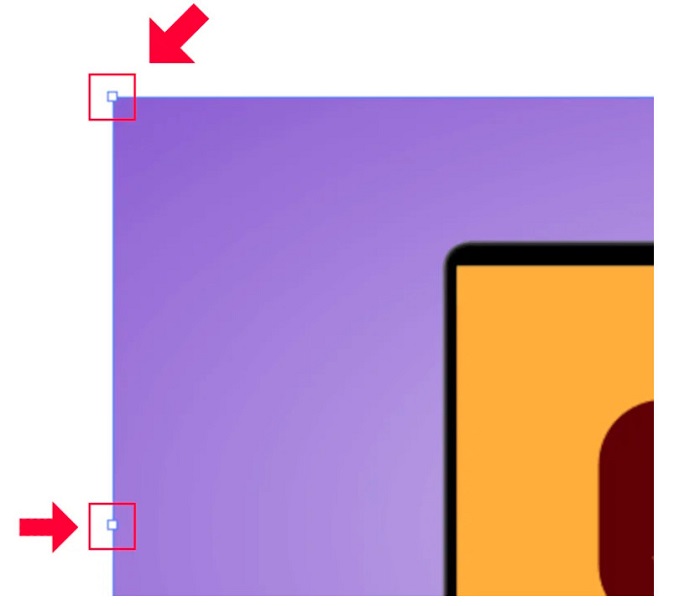
Stap 3. Om je afbeelding te resizen door te schalen, klik en sleep je aan een van de handgrepen tot de gewenste grootte. Je kunt de beeldverhouding van je afbeelding ook vastzetten door Shift op je toetsenbord ingedrukt te houden terwijl je de cursor verplaatst.
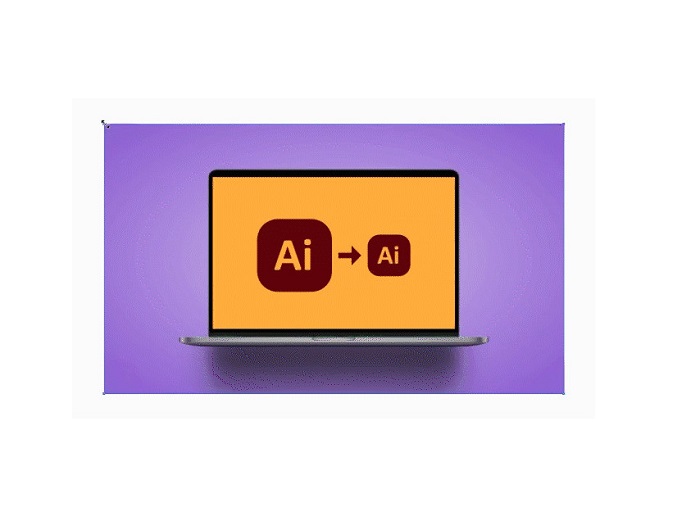
Nadat u het formaat van uw afbeelding hebt aangepast op basis van uw voorkeur, kunt u nu op de handvatten klikken.
Adobe Illustrator gebruiken om het formaat van een afbeelding te wijzigen door de numerieke waarden aan te passen
Nu leren we u hoe u het formaat van uw foto kunt wijzigen door numerieke waarden in te voeren met behulp van het menu Transformeren in plaats van uw afbeelding handmatig te schalen met het selectiegereedschap.
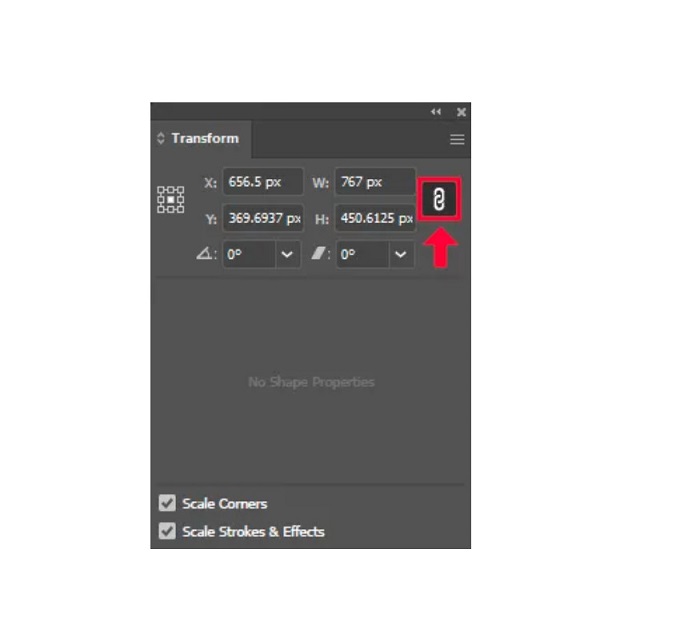
Stap 1. Zodra Adobe Illustrator op je apparaat is geopend, open je het Transformatie-menu door te klikken op Venster > Transformeren. Je kunt dit menu ook openen met Shift + F8 op je toetsenbord. Zo ziet het Transformatie-menu eruit.
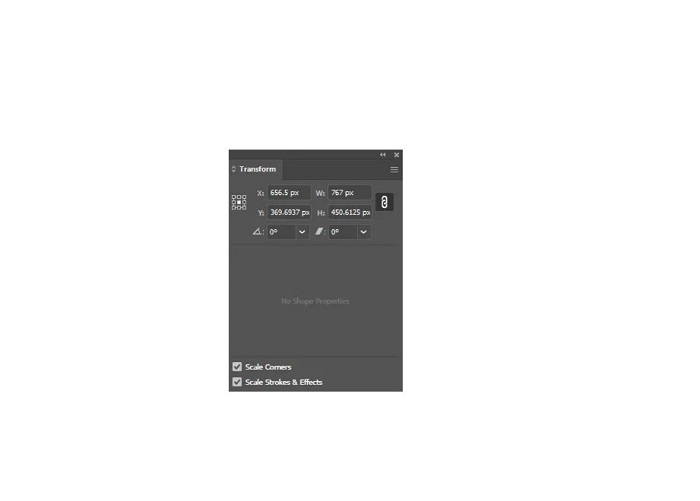
Met het Transformatie-menu kun je de positie van je object wijzigen ten opzichte van de X- en Y-as. Je kunt dit menu ook gebruiken om je afbeelding te roteren, schuintrekken en resizen door een numerieke waarde in te voeren.
Stap 2. Selecteer vervolgens de afbeelding die je wilt resizen met het Selectiegereedschap. Pas daarna de breedte en hoogte in het Transformatie-menu aan door de waarden te wijzigen op basis van het formaat dat je voor je foto wilt. De letter W staat voor de breedte (width) en de letter H voor de hoogte (height) van je afbeelding.
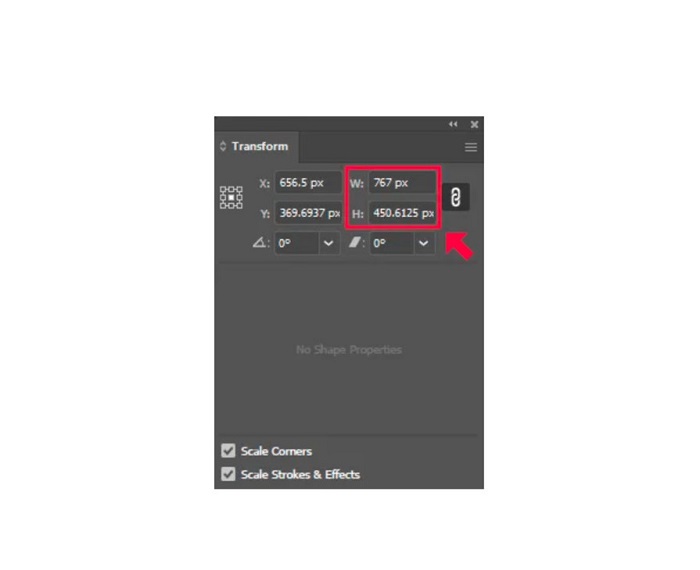
Stap 3. Het is ook handig om de beeldverhouding van je foto te vergrendelen door op het Kettingsymbool naast de hoogte- en breedtevelden te klikken. Wanneer je de kettingoptie selecteert en de hoogte van je afbeelding wijzigt, past de breedte zich automatisch aan.
Tip. Je kunt ook de standaard maateenheid van je afbeelding veranderen. Illustrator gebruikt standaard pixels (px) als maateenheid. Je kunt de eenheid wijzigen door:
◆ Centimeter (cm)
◆ Millimeter (mm)
◆ Duim (inch)
◆ Percentages (%)
Om de maateenheid van je afbeelding te wijzigen, typ je de eenheid achter het getal van je maat. Zodra je de numerieke waarde en de eenheid van je afbeelding hebt aangepast, druk je op Enter op je toetsenbord.
Nu gaan we je afbeelding exporteren. Selecteer je afbeelding met het Selectiegereedschap, klik er met de rechtermuisknop op en kies Exportselectie.
Nadat je de optie Exportselectie hebt gekozen, verschijnt het menu Exporteren voor schermen. Met dit menu kun je je geresize-de afbeelding in een bruikbaar formaat opslaan.
Onder de miniatuur kun je een voorbeeld van je resultaat bekijken en de naam van je bestand aanpassen zoals jij wilt. Klik vervolgens in het paneel Exporteren naar op het mapicoon om de opslaglocatie voor je bestand te kiezen. Zorg er ook voor dat het veld Schaal is ingesteld op 1x. Kies daarna het uitvoerformaat. Het wordt aangeraden om PNG- of JPG-indeling te gebruiken.
En tot slot klik je op de knop Asset exporteren om je resultaat op te slaan.
Geweldig, toch? Met Adobe Illustrator bewerk je je afbeeldingen naar hartenlust. Dit deel is ook het antwoord als u zoekt naar het formaat van afbeeldingen in illustrator wijzigen zonder vervorming. Deze app is echter geen gebruiksvriendelijke tool omdat hij geen gebruiksvriendelijke interface heeft. Lees daarom het volgende deel aandachtig door als u uw afbeelding wilt vergroten/verkleinen met behulp van een gebruiksvriendelijke toepassing.
Deel 2. Online alternatief voor Illustrator
Adobe Illustrator is een offline tool en is niet gratis. Dus als je een fantastische afbeeldingsresizer wilt gebruiken die gratis is en waarmee je je afbeelding kunt verbeteren, volg dan de tutorial die we hieronder zullen presenteren.
FVC Free Image Upscaler is een online image upscaler waarmee je je afbeelding van lage kwaliteit kunt verbeteren. Deze online tool kan je afbeelding vergroten met 2x, 4x, 6x en 8x. Bovendien gebruikt het AI-technologie (kunstmatige intelligentie) die automatisch de delen met lage kwaliteit in je afbeelding detecteert en verbetert. Het ondersteunt alle afbeeldingsformaten, waaronder JPEG, JPG, PNG en BMP. Verder is het veilig in gebruik en volledig gratis. En dankzij de eenvoudige gebruikersinterface kun je je afbeelding heel gemakkelijk resizen/upscalen.
Het formaat van een afbeelding wijzigen met FVC Free Image Upscaler:
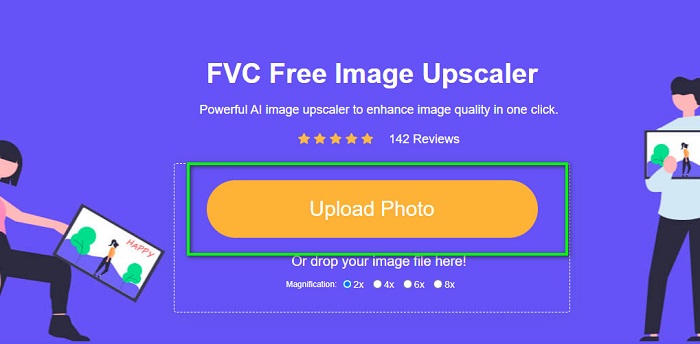
Stap 1. Zoek naar FVC Free Image Upscaler in je browser of klik op deze link om direct naar de hoofdpagina te gaan. Klik vervolgens in de hoofdinterface van de software op de knop Upload Photo om de app op je apparaat te openen.
Stap 2. Klik daarna nogmaals op de knop Upload Photo om de afbeelding te importeren die je wilt upscalen.
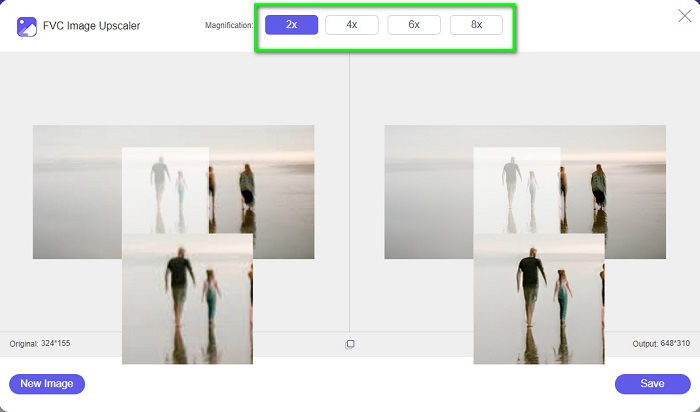
Stap 3. Zodra je foto is geüpload, kies je de vergrotingspreset die je voor je afbeelding wilt. Je kunt kiezen uit 2x, 4x, 6x en 8x.
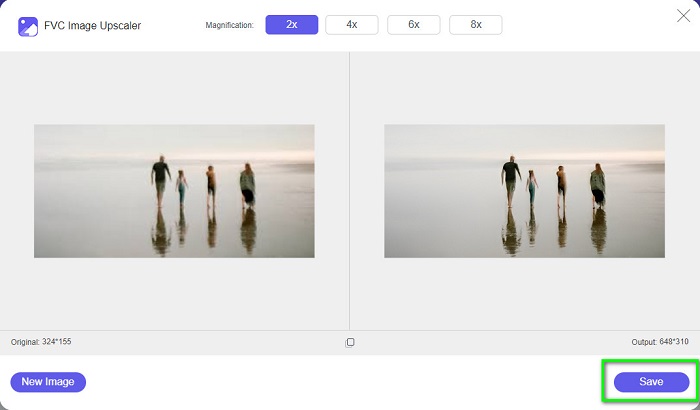
Stap 4. Vink ten slotte de knop Save aan om je resultaat op je apparaat op te slaan.
Gerelateerd aan:
GIMP gebruiken om afbeeldingen te resizen: stapsgewijze handleiding
Hoe een foto resizen voor Facebook [Snelle en eenvoudige stappen]
Deel 3. Veelgestelde vragen over het formaat van afbeeldingen wijzigen in Illustrator
Waarom past Adobe Illustrator het formaat van afbeeldingen niet aan?
U kunt het formaat van een afbeelding in Illustrator niet wijzigen omdat het selectiekader waarschijnlijk niet is geactiveerd. Om het begrenzingskader in te schakelen, gaat u naar Beeld > Toon begrenzingskader. Door het te activeren, kunt u nu het formaat van uw afbeelding wijzigen in Illustrator.
Kan ik het formaat van een afbeelding in Illustrator wijzigen zonder kwaliteitsverlies?
Ja. Er is een manier waarop u het formaat van uw afbeelding kunt wijzigen met Adobe Illustrator. Wanneer u het formaat van een afbeelding aanpast met behulp van de scaler, heeft dit echter meestal invloed op de kwaliteit van uw afbeelding.
Is Adobe Illustrator gratis?
Nee. Adobe Illustrator is niet gratis. Voordat u deze krachtige app voor fotobewerking gebruikt, moet u deze aanschaffen voor $20,99 per maand.
Gevolgtrekking
Je hebt geleerd hoe je afbeeldingen kunt resizen in Illustrator door de methoden te volgen die we hebben laten zien. Het kan wat stappen vergen, maar het is de moeite waard om te gebruiken en te proberen. Het nadeel van Adobe Illustrator is dat het niet gratis is en een complexe interface heeft. Dus als je een gebruiksvriendelijker en gratis hulpmiddel om afbeeldingen te resizen wilt, gebruik dan FVC Free Image Upscaler.
-
 Het formaat van een afbeelding wijzigen – Adobe Formaat van afbeelding wijzigen [Online en Offline]
 Als u op zoek bent naar Adobe Resize Image, dan hebben wij de oplossing voor u. Bekijk dit bericht grondig om te leren hoe u het formaat van afbeeldingen kunt wijzigen met Adobe op uw pc.
-
 Beste Photo Resizer-app online, offline, Android en iPhone
 Wat zijn de beste foto-resizer-apps? Klik op de pagina voor meer informatie over de vijf krachtigste apps voor het wijzigen van foto's die u kunt gebruiken om uw bestand te verbeteren of het formaat ervan te wijzigen
-
 Top 7 Pixels Enhancer voor alle webbrowsers die u moet gebruiken
 Als je wilt weten welke pixelverbeteraars je het beste kunt gebruiken, kun je dit bericht beter bekijken. Dit artikel somt zeven beste fotopixelversterkers op voor alle webbrowsers.
