


 Video Converter Ultimate
 Scherm opnemer
 Videoreparatie
 Beveiligde download
Een uitstekende toepassing voor het wijzigen van het formaat van afbeeldingen - FastStone Photo Resizer
Op internet naar een foto-resizer zoeken is eenvoudig. Vooral tegenwoordig zijn er veel fotobewerkingsprogramma’s online beschikbaar. Voor het wijzigen van formaat en het converteren van afbeeldingen vind je zowel online als offline tal van uitstekende tools. Maar als je moeite hebt om er één te kiezen, maken wij het je gemakkelijk. FastStone is een platform voor beeldbewerking dat je kunt gebruiken om je afbeeldingen te verkleinen of te vergroten. En in dit artikel geven we je alle details over FastStone en hoe je de FastStone Photo Resizer gebruikt.

Deel 1. FastStone Photo Resizer Review
FastStone Photo Resizer is een toepassing voor het bewerken van afbeeldingen die u moet gebruiken. U kunt het op uw Windows-bureaublad gebruiken en eenvoudig downloaden. Bovendien heeft het een schone en gebruiksvriendelijke interface, waardoor het een gebruiksvriendelijke tool is. FastStone Photo Resizer ondersteunt verschillende beeldformaten, zoals JPEG, BMP, PNG, TIFF en GIF. Het bevat ook veel bewerkingsfuncties die u kunt gebruiken om te converteren, hernoemen, bijsnijden, tekst toevoegen, kleur wijzigen, watermerk toevoegen en meer.
Bovendien biedt het batchverwerking, waarbij u twee of meer afbeeldingen tegelijkertijd kunt verwerken. En als u een voorbeeld wilt zien van de conversie die u aan het maken bent, stelt FastStone u in staat om dat te doen. U kunt FastStone image resizer gratis downloaden op uw Windows-computer, maar u moet de app kopen om de expliciete functies te gebruiken. Volg de onderstaande tutorial als je wilt weten hoe je afbeeldingen kunt verkleinen met FastStone.
Voordelen
- Het biedt een verscheidenheid aan bewerkingsfuncties en -hulpmiddelen.
- Het heeft een lage prijs.
- Het heeft een duidelijke gebruikersinterface.
- Het heeft een eenvoudig proces voor het delen van bestanden.
Nadelen
- Het heeft slechts een beperkte ondersteunings- en hulpfaciliteit.
- Het is niet gratis te gebruiken.
- Alleen beschikbaar op Windows-software
Hoe FastStone Photo Resizer te gebruiken om het formaat van afbeeldingen te wijzigen:
Stap 1. Download en installeer eerst FastStone Photo Resizer op je Windows‑desktop. Nadat je de app hebt geïnstalleerd, start je deze op je desktop. Klik vervolgens in de hoofdinterface van de app op de knop Batch Convert in het Menu om de afbeelding te uploaden waarvan je het formaat wilt wijzigen.
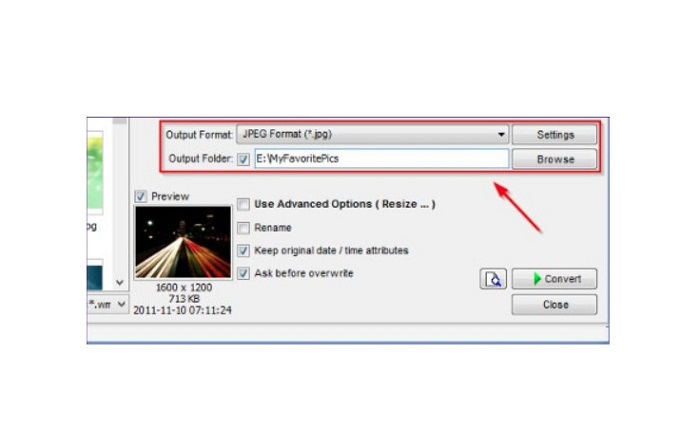
Stap 2. Nadat je je afbeelding(en) hebt geïmporteerd, verschijnen deze in de interface. Klik daarna op het uitklapmenu Output Format om het gewenste bestandsuitvoerformaat te selecteren. En om de doelmap voor je uitvoer te kiezen, klik je op de knop Browse naast de Output Folder.
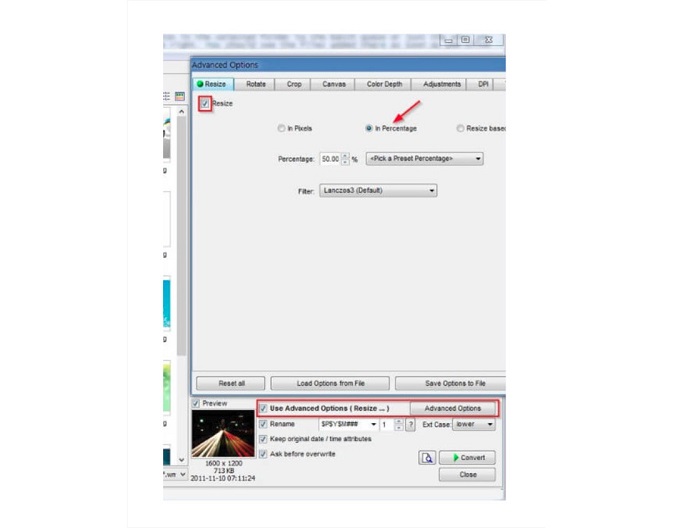
Stap 3. Klik vervolgens op Advanced Options; er verschijnt een nieuw tabblad. Vink daarna op het tabblad Resize de optie In Percentage aan om de afbeeldingsgrootte in procenten te wijzigen. Je kunt een filter kiezen door op het uitklapmenu naast Filter te klikken.
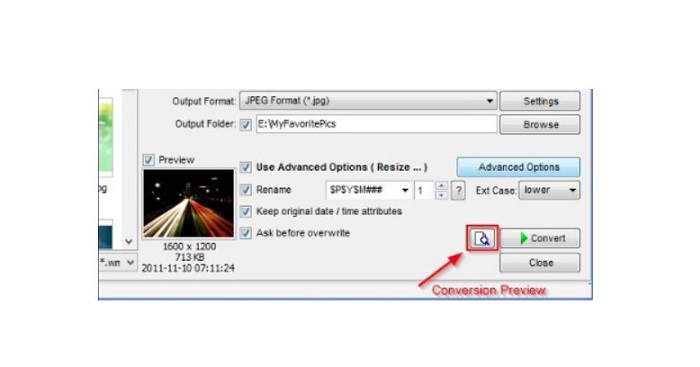
Stap 4. Vervolgens kun je je afbeelding bekijken en met het originele bestand vergelijken door op het pictogram Preview naast de knop Convert te klikken.
Stap 5. Vink ten slotte de knop Convert aan om het verkleiningsproces te starten. Je afbeelding wordt daarbij ook geconverteerd naar het bestandsformaat dat je in de vorige stap hebt geselecteerd. Nadat FastStone je afbeelding heeft aangepast, verschijnt er een nieuw venster waarin je de uitvoerafbeelding en hun groottes kunt zien.
En dat is het einde van de FastStone Photo Resizer-tutorial. Door de bovenstaande stappen te volgen, kunt u het formaat van uw afbeelding eenvoudig wijzigen met FastStone.
Deel 2. Alternatieven voor FastStone Photo Resizer
FastStone Photo Resizer is alleen toegankelijk op Windows-desktops. En een andere tegenvaller is dat je de app moet kopen voordat je toegang krijgt tot de andere bewerkingsfuncties. Dus als u liever een videotrimmer-app gebruikt die beschikbaar is op Windows-, Mac- of Linux-apparaten en online beschikbaar is, lees dan deze sectie grondig door.
FVC gratis afbeelding upscaler
FVC Free Image Upscaler is een van de meest gebruikte toepassingen voor het wijzigen van het afbeeldingsformaat die online toegankelijk is in alle browsers, waaronder Google, Firefox en Safari. Deze onlinetool kan je ook helpen met je wazige afbeeldingen. Als je een wazige of afbeelding van lage kwaliteit hebt, kun je deze onlinetool gebruiken om de foto scherper te maken en de kwaliteit te verbeteren. Daarnaast kun je je afbeelding vergroten met 2x, 4x, 6x en 8x vergroting. Wat indrukwekkend is aan FVC Free Image Upscaler, is dat het AI‑technologie gebruikt, die automatisch de wazige delen van je afbeelding detecteert en ze vervolgens verbetert.
Bovendien ondersteunt het alle afbeeldingsformaten, zoals PNG, JPG, JPEG en BMP. U hoeft zich ook niet te registreren of aan te melden voor een account om deze tool te gebruiken. En als u het voorbeeld van uw uitvoer wilt controleren voordat u het opslaat, kunt u dit doen terwijl u deze applicatie gebruikt. Bovendien is het veilig in gebruik en handig in gebruik. En ondanks dat het een internetafhankelijke applicatie is, heeft het een snelle verwerkingsinterface waar je geen moeite zult hebben om afbeeldingen te uploaden om het formaat te wijzigen.
Stap 1. Open je browser en typ FVC Free Image Upscaler in de zoekbalk. Klik op de weergegeven link om direct naar de homepage te gaan.
Stap 2. Start het programma op je desktop door op de knop Upload Photo te klikken. Klik na het starten van de app op de knop Upload Photo om de afbeelding te uploaden waarvan je het formaat wilt wijzigen of die je wilt ontscherpen.
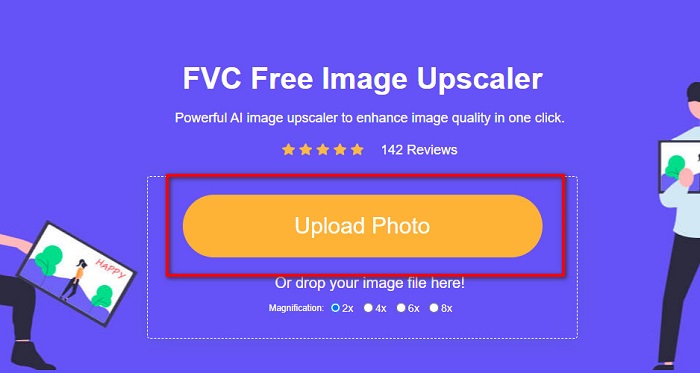
Stap 3. Vervolgens zie je de beschikbare vergrotingspresets. Je kunt kiezen uit 2x, 4x, 6x of 8x.
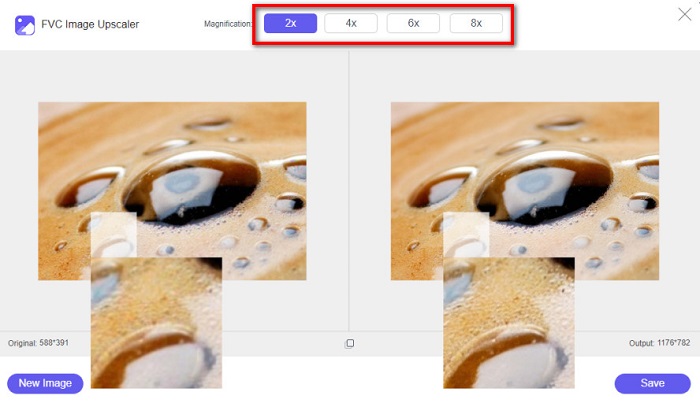
Stap 4. Beweeg je cursor om de voorbeeldweergave van je afbeelding te zien. En als je tevreden bent met het resultaat, klik je op de knop Save in de rechterbenedenhoek van de interface.
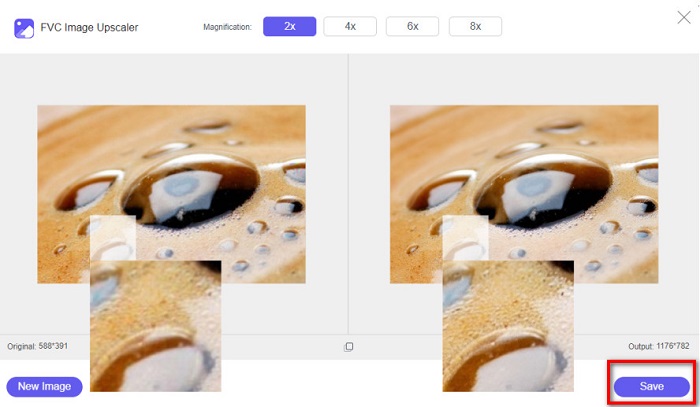
Image Resizer.com
Een andere fantastische online tool om het formaat van afbeeldingen te wijzigen is Image Resizer.com. Met Image Resizer.com kun je de afmetingen van je afbeelding aanpassen door de dimensies van de foto te wijzigen. Bovendien heeft het een functie om je foto bij te snijden of te roteren. Het is ook een gebruiksvriendelijke tool voor beginners omdat de interface makkelijk te gebruiken is. Het bevat echter veel vervelende advertenties die je kunnen afleiden.
Stap 1. Zoek in je browser naar Image Resizer.com. Klik vervolgens in de hoofdinterface op de knop Select Image om de foto te uploaden waarvan je het formaat wilt wijzigen.
Stap 2. In de volgende interface kun je de afmetingen van je afbeelding wijzigen op basis van afmetingen of percentage. Typ daarna de gewenste Width and Height voor je afbeelding.
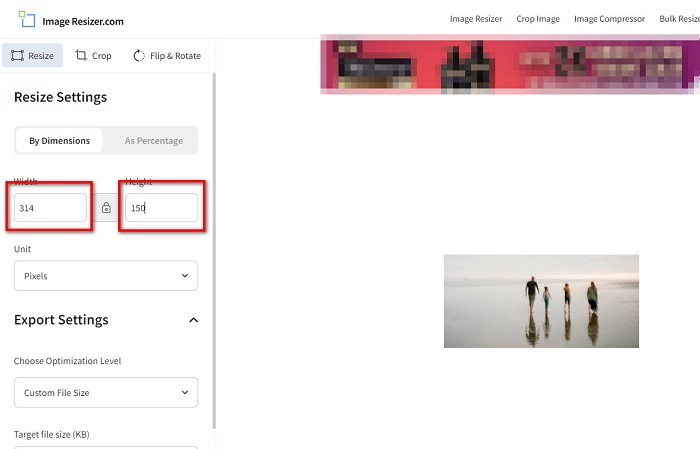
Stap 3. Als je klaar bent met het wijzigen van het formaat van je afbeelding, klik je op de knop Resize Image om het proces te voltooien.
Deel 3. Veelgestelde vragen over FastStone Photo Resizer
Hoeveel kost FastStone Photo Resizer?
U kunt de volledige versie van FastStone Photo Resizer kopen voor $19.95 (levenslange licentie)
Is de FastStone-viewer gratis?
FastStone Image Viewer is een afbeeldingsviewer die wordt gebruikt voor Microsoft Windows. U kunt de FastStone Image Viewer gratis en kosteloos gebruiken.
Verpest FastStone Photo Resizer de fotokwaliteit?
Nee. Wanneer je je afbeelding optimaliseert met FastStone Photo Resizer, gaat de kwaliteit van je afbeelding niet verloren.
Gevolgtrekking
FastStone Photo Resizer is een uitstekende toepassing als je je foto op je Windows‑desktop van formaat wilt veranderen. Daarnaast heeft het veel bewerkingsfuncties en is het ook een gebruiksvriendelijke tool. Maar als je je afvraagt of er een FastStone Photo Resizer voor Mac is, is het antwoord: nee. Wil je dus een foto-resizer die op alle platforms beschikbaar is, gebruik dan nu FVC Free Image Upscaler.
-
 Complete gids van Imglarger - Oplossing voor fotoontwerpers
 Imglarger is een van de meest vooraanstaande tools voor beeldoplossing. Klik op deze pagina voor de volledige beschrijvingen, voor- en nadelen, prijs en alternatieven van Imglarger.
-
 Beste Photo Resizer-app online, offline, Android en iPhone
 Wat zijn de beste foto-resizer-apps? Klik op de pagina voor de top vijf van krachtigste apps voor het wijzigen van foto's die u kunt gebruiken om uw bestand te vergroten of verkleinen.
-
 6 manieren om een afbeelding op het web en offline te wijzigen [100% werkt]
 Met de zelfstudie die we hier toevoegen, kunt u nu eenvoudig het formaat van een afbeelding wijzigen op basis van uw gewenste grootte. Leer hier hoe je het doet!
