


 Video Converter Ultimate
 Scherm opnemer
 Videoreparatie
 Beveiligde download
Eenvoudigste methoden voor het verwijderen van het ManyCam-logo op uw apparaat
Wil je leren hoe je het ManyCam-logo kunt verwijderen op je Windows- en Mac-computer? In dat geval biedt dit artikel je verschillende manieren om een logo uit je video’s te verwijderen die je zeker moet uitproberen. Het afspelen van je favoriete video’s met watermerken of logo’s is best irritant. Je kunt minder van je video’s genieten en het leidt af. Soms kun je bepaalde delen van de video niet eens zien door de watermerken, afbeeldingen, tekst of logo’s. Gelukkig kun je uitstekende software met een watermark-verwijderaar gebruiken om die onnodige elementen uit je video’s te verwijderen.
Met behulp van deze applicaties zul je nooit meer teleurgesteld worden. Als u geïnteresseerd bent in de beste methoden voor het verwijderen van het ManyCam-logo, kunt u dit artikel het beste lezen.

Deel 1: Hoe het ManyCam-logo te verwijderen door het abonnement te activeren
Als je wilt leren hoe je watermerken uit ManyCam verwijdert, ben je hier op de juiste plek. ManyCam is livestreamsoftware die beschikbaar is voor zowel Windows als Mac. Met deze applicatie kun je unieke uitzendingen maken op je platforms, tutorials maken, zakelijke presentaties geven, je games streamen en meer. Bovendien heeft het nog meer handige functies, zoals muziek toevoegen, je scherm opnemen, een green screen gebruiken, games streamen enzovoort. Voor contentmakers is ManyCam waardevol en nuttig. Het biedt essentiële tools die zij nodig hebben, zoals screencasting en schermopname, waardoor het voor hen erg praktisch is.
Elke keer dat u uw video maakt of bewerkt, staat er echter een Manycam-logo onderaan de video, wat storend is. Gelukkig kun je dit logo verwijderen door het abonnement op ManyCam te activeren. Volg onderstaande stappen om te leren hoe u het Manycam-logo kunt verwijderen door het abonnement te activeren.
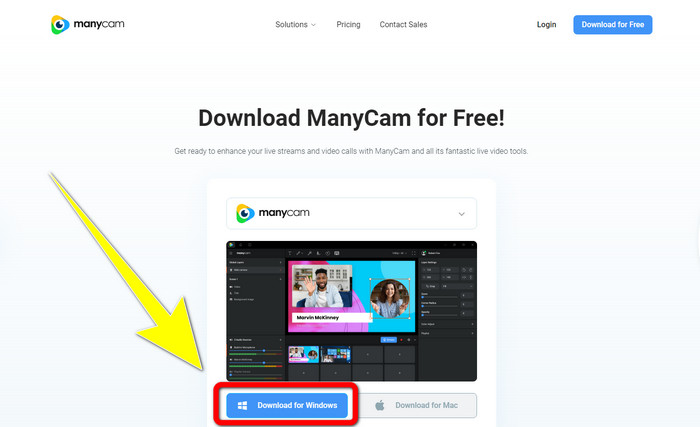
Stap 1: Klik op de knop Download for Windows om ManyCam te downloaden. Ga vervolgens verder met het installatieproces.
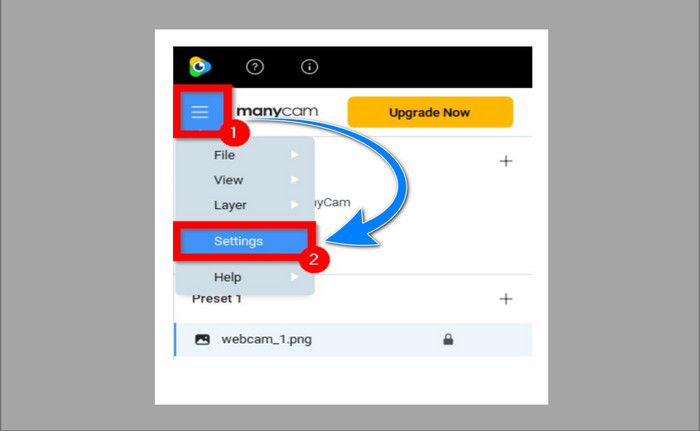
Stap 2: Start de applicatie op je computer en klik op het sandwichpictogram van ManyCam. Ga vervolgens naar Settings > Account en log in op het account dat je hebt aangemaakt nadat je het abonnement hebt gekocht.
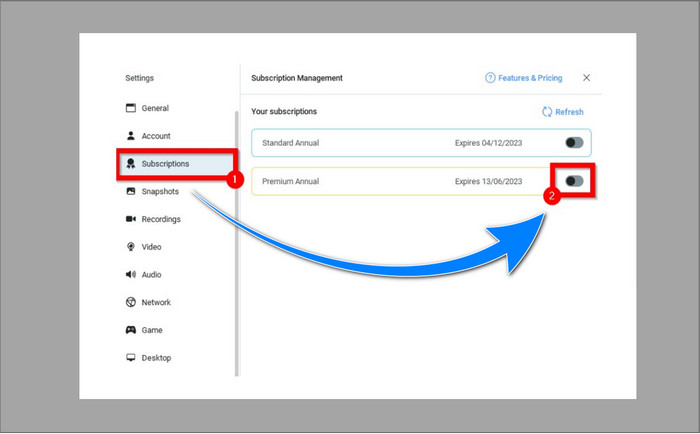
Stap 3: Ga naar het tabblad Subscription om te controleren of het abonnement is geactiveerd.
Stap 4: Als het abonnement al is ingeschakeld, verschijnt er een pop-upmelding en ben je klaar.
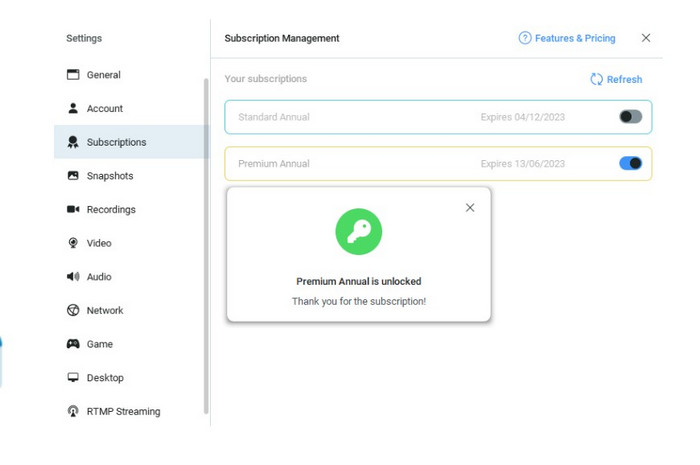
Als uw ManyCam-toepassing al is geactiveerd, worden de watermerken of het logo op uw video's automatisch verwijderd. U kunt genieten van het bekijken van uw favoriete video's zonder dat u er watermerken op tegenkomt.
Deel 2: Hoe het ManyCam-logo te verwijderen zonder abonnement
Wil je het watermerk van ManyCam gratis verwijderen? Naast de ManyCam-applicatie kun je ook een andere applicatie gebruiken om het ManyCam-logo te verwijderen. De beste applicatie die je kunt gebruiken is Video Converter Ultimate. Met deze applicatie kun je onnodige elementen uit je video’s verwijderen, zoals tekst, watermerken, logo’s enzovoort. Daarnaast heeft Video Converter Ultimate veel bewerkingstools die je kunt gebruiken, zoals een video-snelheidsregelaar, videoverbetering, watermerken toevoegen en verwijderen, kleurcorrectie, volumebooster en meer. De beste tool die je in Video Converter Ultimate kunt gebruiken om watermerken te verwijderen, is de Video Watermark Remover.
Met deze tool kunt u gemakkelijk watermerken verwijderen. Verder is deze applicatie beschikbaar op zowel Windows als Mac. U zult ook geen moeite hebben om deze applicatie te gebruiken. Het ondersteunt ook verschillende audio- en videobestandsindelingen, zoals MP4, FLV, MOV, MKV, MP3, AAC en meer. Als je het ManyCam-logo wilt verwijderen met Video Converter Ultimate, laat dit artikel je twee manieren zien. Deze manieren gebruiken video-cropper en video-watermerkverwijderaar.
1. Video bijsnijden gebruiken
Stap 1. Download FVC Video Converter Ultimate en ga verder met de installatie.
Gratis downloadVoor Windows 7 of nieuwerVeilige download
Gratis downloadVoor MacOS 10.7 of nieuwerVeilige download
Stap 2: Start na de installatie de applicatie. Klik op Toolbox > Video Cropper.
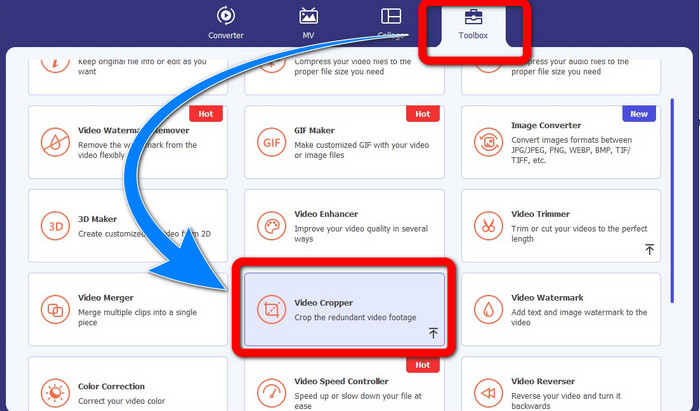
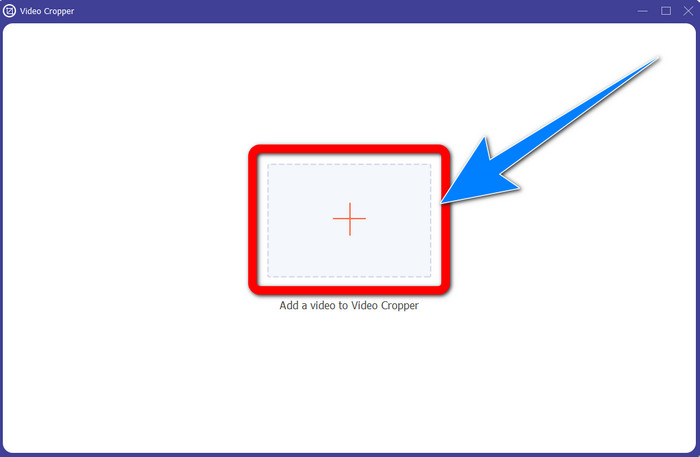
Stap 3: Nadat je op Video Cropper hebt geklikt, verschijnt er een nieuw venster. Klik op de knop met het plusteken en voeg je video’s met een ManyCam-watermerk toe.
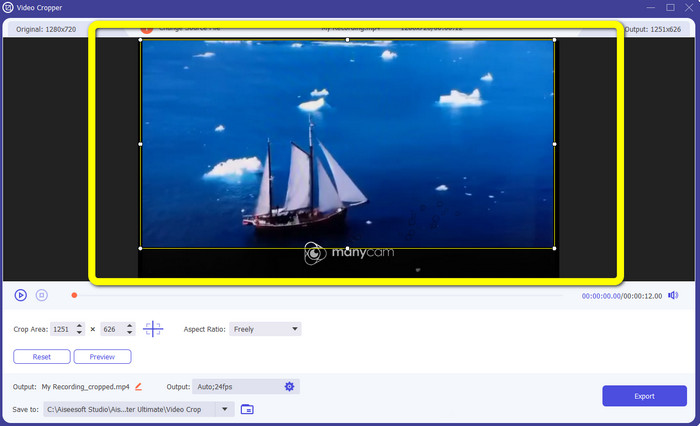
Stap 4: Als je bestand is toegevoegd, kun je je video bijsnijden en zo het watermerk verwijderen.
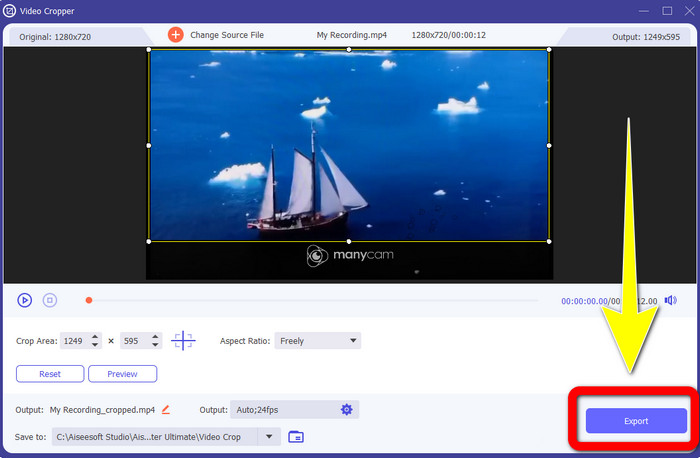
Stap 5: Wanneer het watermerk is verwijderd, klik je op de knop Export om je uiteindelijke bestand op te slaan. Je kunt je favoriete video nu zonder watermerk afspelen.
2. Videowatermerkverwijderaar gebruiken
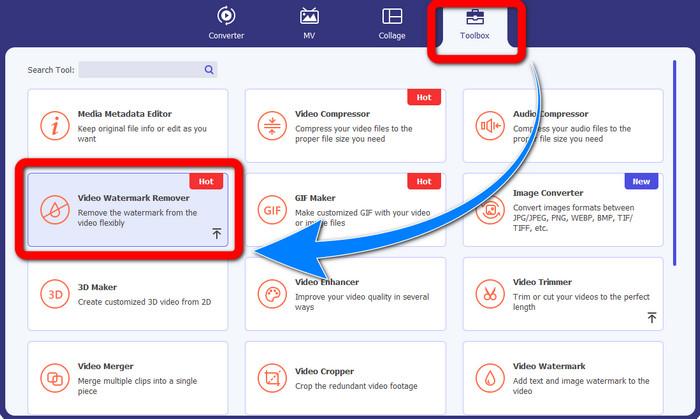
Stap 1: Open de applicatie. Ga naar Toolbox > Video Watermark Remover.
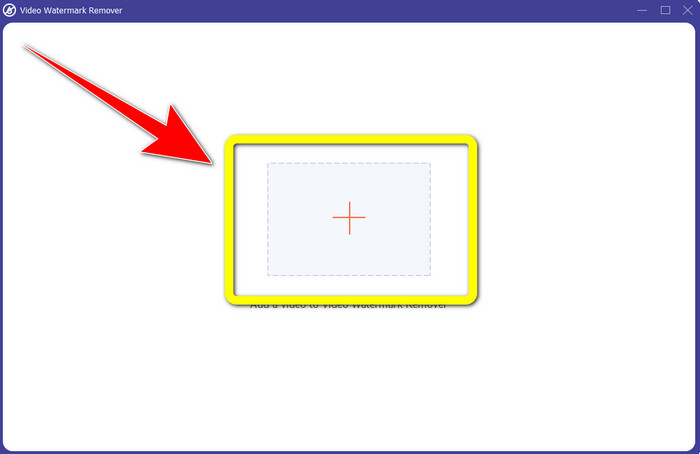
Stap 2: Er verschijnt een ander venster nadat je op Video Watermark Remover hebt geklikt. Klik op de knop met het plusteken om je video met ManyCam-watermerken toe te voegen.
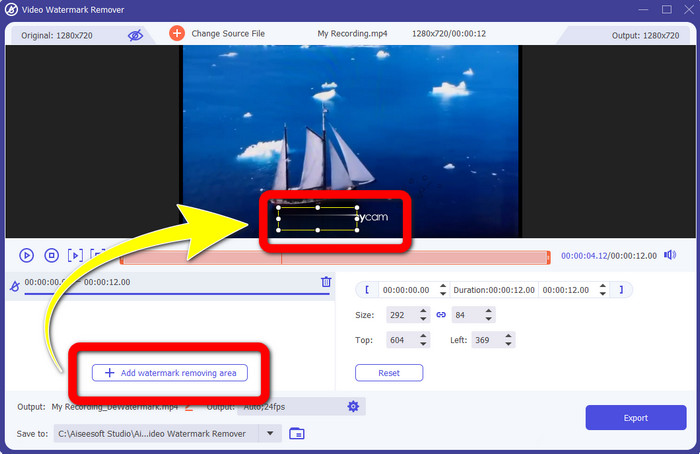
Stap 3: Als je je video al hebt toegevoegd, klik je op Add Watermark Removing Area. Vervolgens verschijnt er een vak in je video. Sleep het vak naar het watermerk om het te bedekken.
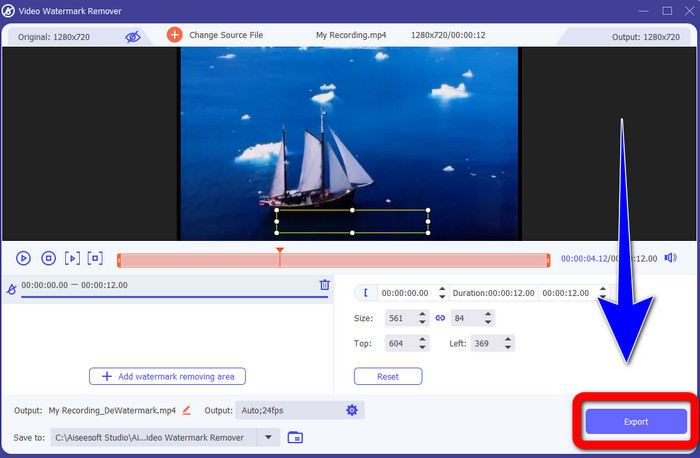
Stap 4: Wanneer je klaar bent met het verwijderen van watermerken uit je video’s, klik je op Export om je bestand op te slaan. Dit is de beste manier om het ManyCam-logo gratis te verwijderen.
Deel 3: Veelgestelde vragen over het verwijderen van het ManyCam-logo
Hoe lang duurt het om het logo te verwijderen?
U hoeft niet langer te wachten, want het verwijderen van het logo of onnodige objecten duurt slechts enkele seconden.
Kan ik het ManyCam-logo op mijn telefoon verwijderen?
Ja! U kunt het ManyCam-logo op uw Androids of iPhone verwijderen met verschillende softwaretoepassingen met watermerkverwijderaars. Zoek naar de applicatie in je play store of app store en probeer die applicaties te gebruiken die je bovenaan de resultaten kunt zien.
Is er een beste manier om watermerken op mijn Mac te verwijderen?
Jazeker! Je kunt een uitstekende applicatie met een watermark-verwijderaar gebruiken om watermerken op je Mac te verwijderen. Deze applicatie is Video Converter Ultimate. Het werkt perfect op zowel Windows als Mac. Met deze software kun je onnodige elementen uit je video’s verwijderen, zoals logo’s, watermerken, afbeeldingen en tekst.
Kan ik de tool Bijsnijden van de ManyCam-toepassing gebruiken om het ManyCam-logo te verwijderen?
Helaas niet! Het gebruik van de bijsnijdfunctie om het ManyCam-logo te verwijderen is niet effectief. Zelfs als je probeert de video bij te snijden om het logo weg te halen, blijft het zichtbaar. De enige oplossing om het logo te verwijderen, is je ManyCam-abonnement activeren.
Is er naast ManyCam een alternatieve manier om watermerken op mijn video's te verwijderen?
Ja dat is er! Afgezien van ManyCam zijn er meer toepassingen met watermerkverwijderaar die u kunt gebruiken zonder te kopen. Een van de beste toepassingen die u kunt gebruiken om watermerken op uw video's te verwijderen, is Video Converter Ultimate. Het is eenvoudig en gemakkelijk te gebruiken, wat geschikt is voor beginners.
Gevolgtrekking
Op basis van de bovenstaande informatie kun je leren hoe je het ManyCam-logo kunt verwijderen op je Windows- en Mac-computer. Je kunt de ManyCam-applicatie gebruiken om het logo eenvoudig te verwijderen nadat je je abonnement hebt geactiveerd. Daarnaast, als je gratis een applicatie met een watermark-verwijderaar wilt gebruiken, moet je Video Converter Ultimate gebruiken. Deze applicatie is een grote hulp bij het verwijderen van onnodige elementen uit je video’s.
-
 Eenvoudigste methoden voor het verwijderen van watermerk van foto's
 Ben je geïrriteerd door de watermerken op je foto's? Maak je geen zorgen! Dit artikel biedt eenvoudige en gemakkelijke methoden om watermerken van uw foto's te verwijderen.
-
 Hoe het Powtoon-watermerk te verwijderen met behulp van 4 effectieve methoden
 Lees dit artikel om te leren hoe u het Powtoon-watermerk kunt verwijderen met behulp van de beste tools die we hier hebben opgenomen en een zelfstudie.
-
 Apowersoft Watermark Remover Review – Functies, voor- en nadelen en prijzen
 Apowersoft Watermark Remover is een van de beste watermerkenverwijderaars die online en offline ondersteunt, klik hier voor meer informatie!
