


 Video Converter Ultimate
 Scherm opnemer
 Videoreparatie
 Beveiligde download
Prachtige manieren om het logo van een video te verwijderen met uw apparaten
Het is heerlijk om je favoriete video’s te bekijken — totdat er een overbodig element in beeld verschijnt, zoals logo’s, watermerken, tekst, enzovoort. Als je op zoek bent naar de beste en meest nuttige methoden, lees dan dit artikel om een goed idee te krijgen. Met uitstekende toepassingen kun je op allerlei manieren offline en online logo’s uit video’s verwijderen. Met behulp van deze logoverwijderaars kun je ongestoord genieten van je favoriete films, videoclips, diavoorstellingen en meer. Zo kom je dit probleem niet opnieuw tegen. Als je effectieve manieren wilt leren om een logo uit je video’s te verwijderen, sla dit informatieve artikel dan niet over.

Deel 1: Beste methode om het logo van een video te verwijderen
Stel dat je op zoek bent naar een gratis logoverwijderaar. De beste toepassing die je kunt gebruiken is Video Converter Ultimate. Met deze applicatie kun je een logo uit je video verwijderen. Niet alleen een logo, maar ook andere ongewenste objecten in je video’s, zoals watermerken, tekst, afbeeldingen, enzovoort. Bovendien kun je het logo eenvoudig verwijderen, omdat er slechts een paar simpele stappen nodig zijn die zelfs een beginner kan volgen.
Bovendien heeft Video Converter Ultimate een snel verwijderingsproces, in tegenstelling tot de andere applicaties die veel tijd kosten om logo's van een video te verwijderen. Met deze applicatie kun je het logo verwijderen in twee eenvoudige tools, de videowatermerkverwijderaar en de videobijsnijder. Verder heeft het functies waarvan u kunt genieten, zoals een video-omzetter, videosnelheidsregelaar, videocompressor, kleurcorrectie, video-cropper, collage-maker en meer. Als u deze twee manieren wilt weten om de logo's te verwijderen met Video Converter Ultimate, volgt u de onderstaande stappen.
1. De functie Video Watermark Remover gebruiken
Stap 1: Ga eerst naar de website van Video Converter Ultimate en download de software. Ga na het downloaden verder met het installatieproces en start daarna Video Converter Ultimate op je desktop.
Gratis downloadVoor Windows 7 of nieuwerVeilige download
Gratis downloadVoor MacOS 10.7 of nieuwerVeilige download
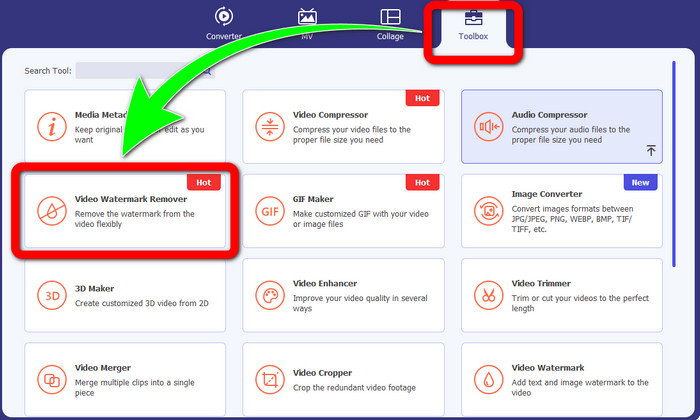
Stap 2: Ga na het starten van de software naar het paneel Toolbox. Zoek vervolgens naar Video Watermark Remover en klik erop.
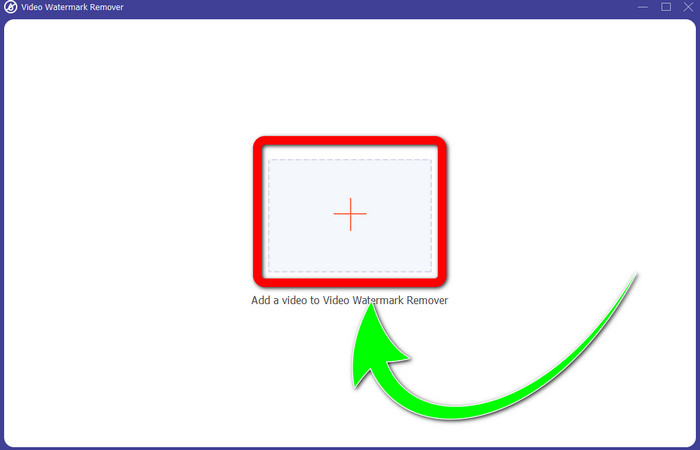
Stap 3: Nadat je op Video Watermark Remover hebt geklikt, verschijnt er een nieuw venster op je desktop. Klik op de knop met het plusteken en importeer je video met een logo.
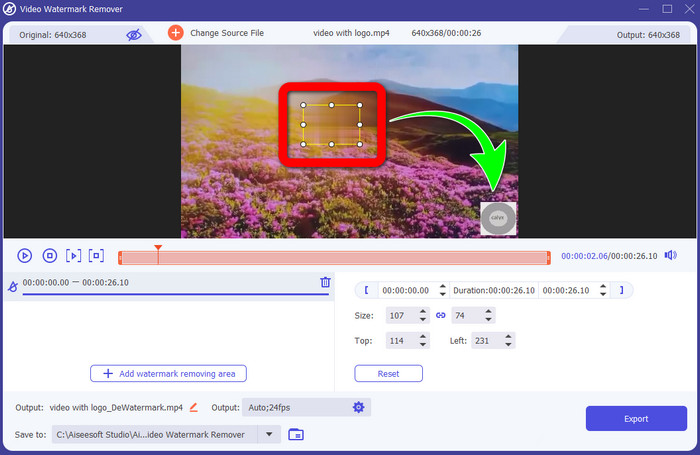
Stap 4: Klik op de knop Add Watermark Removing Area. Er verschijnt een klein vak op je video. Versleep dit vak naar het logo om het te bedekken.
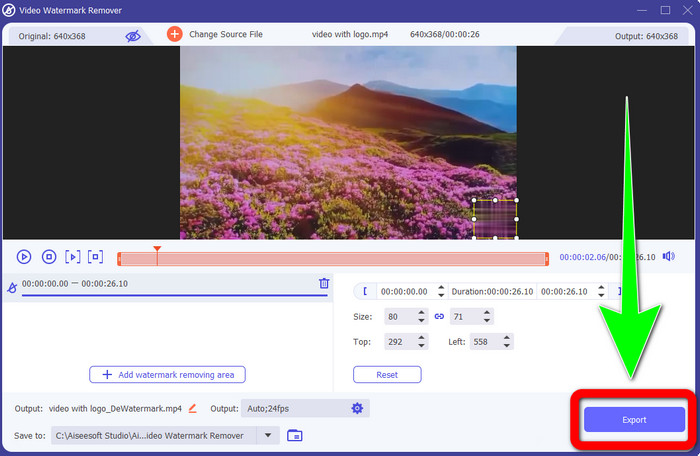
Stap 5: Wanneer je klaar bent met het verplaatsen van het vak om het logo te bedekken, klik je op de knop Export om je definitieve video op te slaan.
1. Gebruik van de Video Cropper-functie
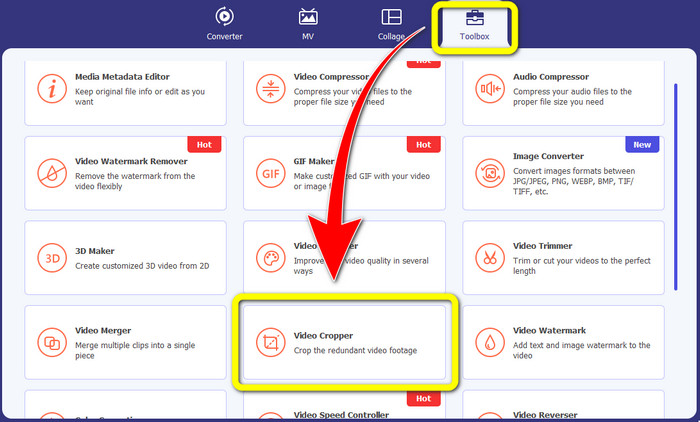
Stap 1: Open Video Converter Ultimate, ga naar Toolbox en klik op de knop Video Cropper. Vervolgens verschijnt er een nieuw venster op je scherm.
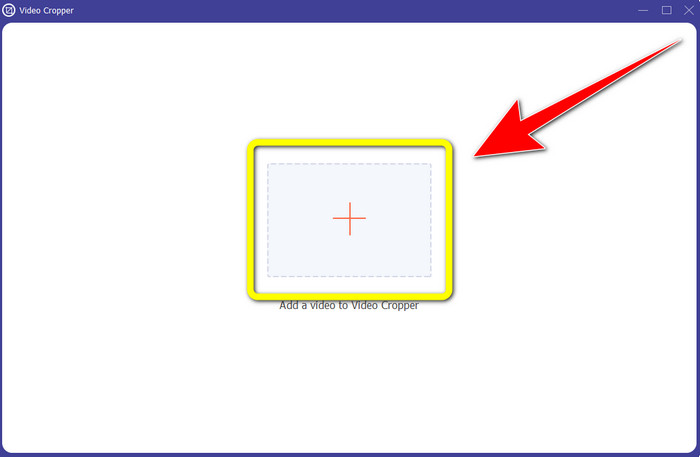
Stap 2: Wanneer het nieuwe venster op je scherm verschijnt, klik je op de knop met het plusteken om je video met een logo te importeren.
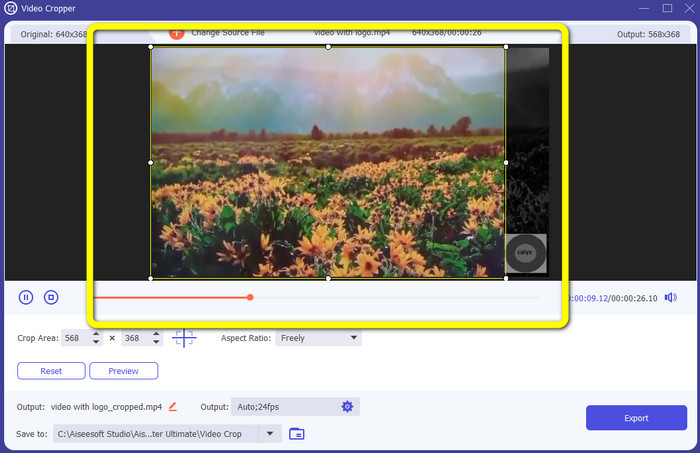
Stap 3: Na het importeren van de video kun je je video bijsnijden om het logo te verwijderen.
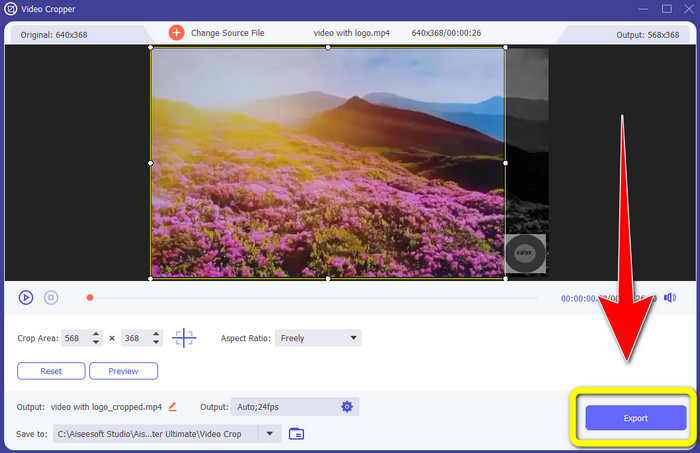
Stap 4: Klik op de knop Export nadat je de video hebt bijgesneden.
Deel 2: Hoe het logo van video online te verwijderen
Als je op zoek bent naar een fantastische toepassing die je kan helpen om het logo uit een video te verwijderen, kun je 123APPS gebruiken. Deze applicatie kan je snel en moeiteloos helpen een logo uit je video te verwijderen, wat perfect en geschikt is voor beginners. Bovendien is deze online tool gratis, dus je hoeft je geen zorgen te maken of je hem moet aanschaffen of niet. Ook is één van de goede functies van deze applicatie dat hij storende objecten in je video’s kan verwijderen, zoals watermerken, tekst, afbeeldingen, enzovoort. Daarnaast worden verschillende bestandsformaten ondersteund, zoals MOV, WMV, AVI, MP4 en meer. Het nadeel is echter dat het elke keer lang duurt voordat een bestand is geüpload. Ook het verwijderingsproces verloopt erg traag. Als je een logo uit je video’s wilt verwijderen, volg dan deze eenvoudige stappen.
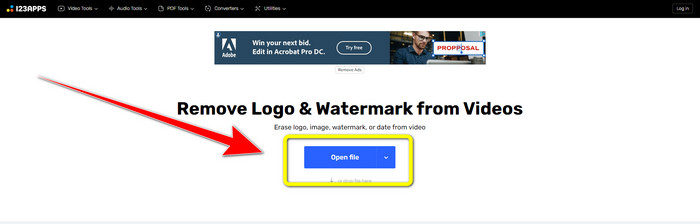
Stap 1: Ga naar de website van 123APPS. Klik op de knop Open file en voeg je video met een TikTok-logo toe.
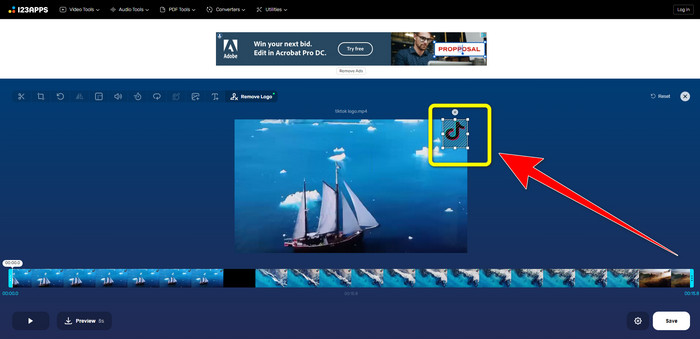
Stap 2: Nadat je je video hebt toegevoegd, maak je met je muis een vak op het scherm en plaats je dit over het logo om het te verwijderen.
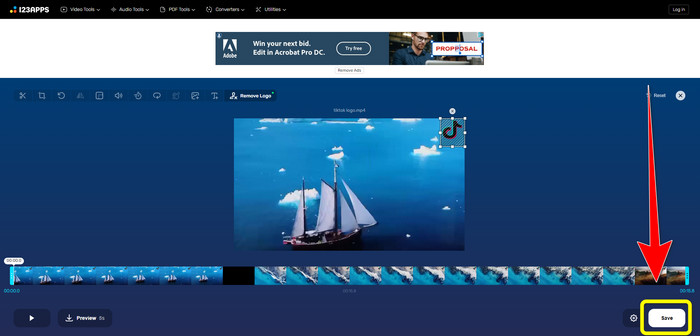
Stap 3: Nadat je het logo hebt bedekt, kun je op de knop Save klikken om je uiteindelijke video zonder logo op te slaan.
Deel 3: Logo verwijderen van video op iPhone en Android
Hoe het logo van video op Android te wissen
Als je wilt weten hoe je een logo uit een video verwijdert met Android, dan is Remove and Add Watermark de toepassing die je kunt gebruiken. Met deze software kun je direct een logo uit je video’s verwijderen. Bovendien is hij niet alleen geschikt om ongewenste objecten uit je video’s te verwijderen. Je kunt er ook logo’s uit je afbeeldingen mee verwijderen, wat erg handig is voor gebruikers. Daarnaast is deze remover eenvoudig en gemakkelijk in gebruik. Tot slot slaat hij je video’s snel op. Als je het logo uit je video’s wilt verwijderen, volg dan de onderstaande eenvoudige stappen.
Stap 1: Download Remove and Add Watermark op je Android-apparaat.
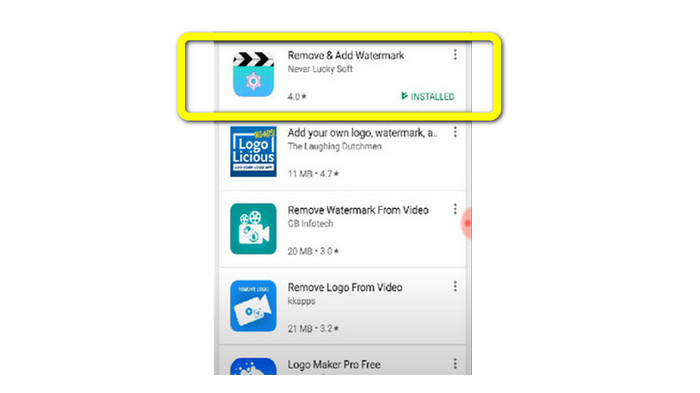
Stap 2: Nadat je de applicatie hebt gedownload, klik je op de knop Select Video > Remove Logo om je video met een logo toe te voegen.
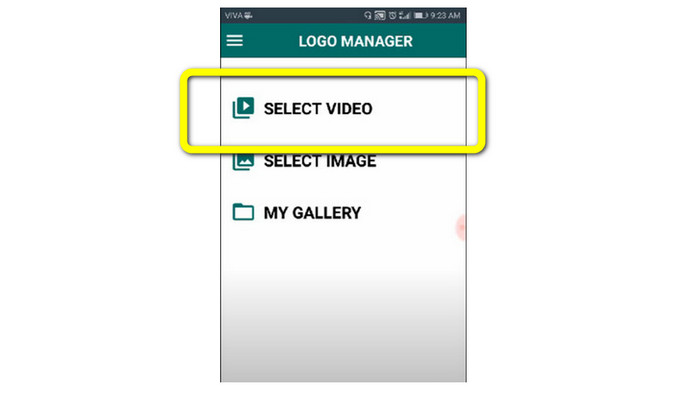
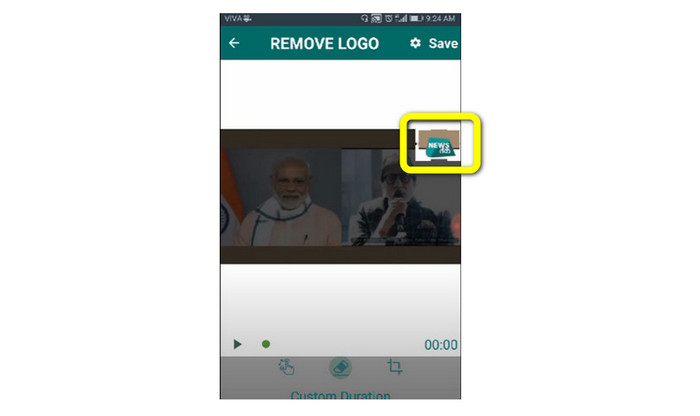
Stap 3: Er verschijnt een klein vak op je scherm zodra je de video hebt toegevoegd. Gebruik dit vak om het logo te verwijderen.
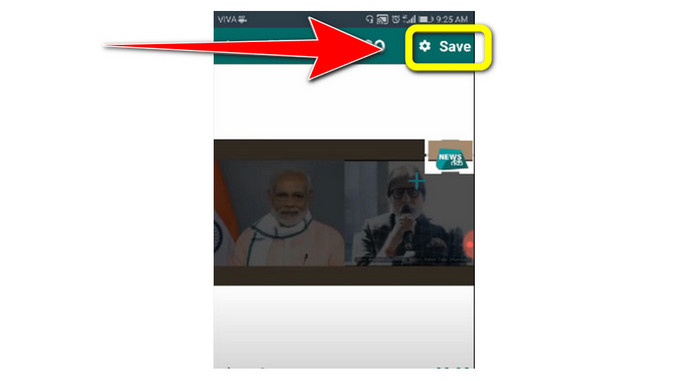
Stap 4: Als je klaar bent met het bedekken van het logo, klik je op de knop Save om je video zonder logo op te slaan.
Hoe logo van video op iPhone te verwijderen
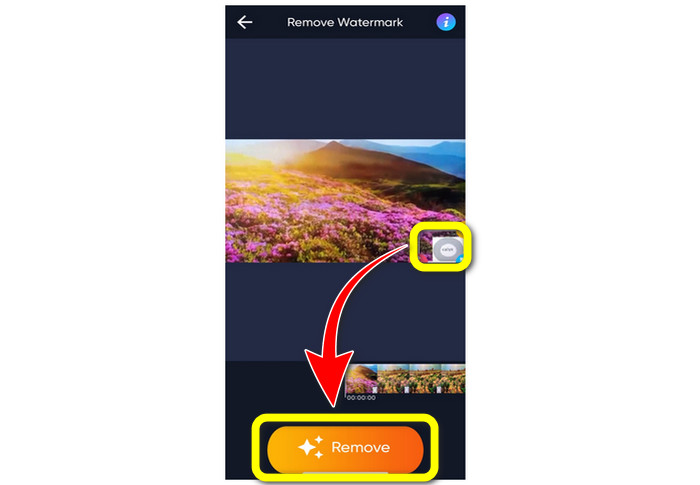
Als je een logo uit je video’s op je iPhone wilt wissen, is de beste applicatie die je kunt gebruiken Watermark Remover Retouch. Met deze applicatie kun je ongewenste objecten uit je video’s verwijderen, zoals logo’s, watermerken, tekst, afbeeldingen, enzovoort. Je kunt ze bovendien snel verwijderen, wat prettig is voor nieuwe gebruikers. Daarnaast heeft de applicatie een eenvoudige interface, zodat je hem gemakkelijk kunt gebruiken. Als je deze applicatie wilt gebruiken om logo’s uit een video op je iPhone te verwijderen, volg dan de onderstaande eenvoudige stappen.
Stap 1: Download Watermark Remover Retouch op je iPhone. Start vervolgens de applicatie en voeg de video met een logo toe.
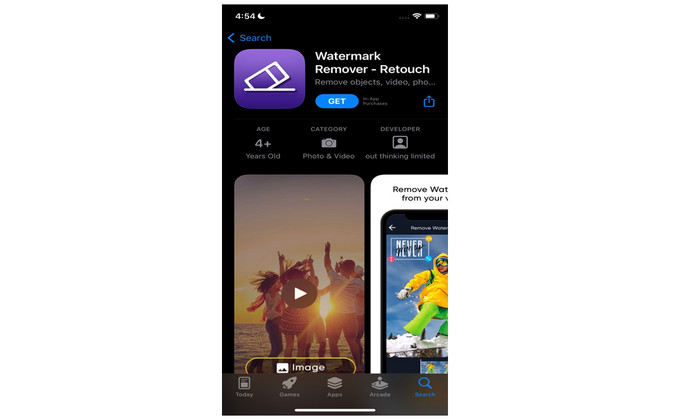
Stap 2: Wanneer de video is toegevoegd, verschijnt er een klein vak op de video. Gebruik dit vak om het logo te bedekken. Klik daarna op de knop Remove en sla je video zonder watermerk op.
Gerelateerd aan:
Hoe verwijder je het Filmora-watermerk gratis uit je video’s of projecten
Snelste manier om het Adobe Stock-watermerk uit een video te verwijderen [Handleiding]
Deel 4: Veelgestelde vragen over het verwijderen van logo uit video
Is het veilig om het logo online te verwijderen?
Jazeker! Online applicaties zijn veilig en veilig in gebruik. Het beste wat u hoeft te doen, is op zoek gaan naar een applicatie waarmee u logo's kunt verwijderen en gebruiken.
Is het mogelijk om handtekeningen van mijn video's te verwijderen?
Ja, natuurlijk. Je kunt de ondertekeningen (signatures) uit je video’s verwijderen met Video Converter Ultimate. Handtekeningen, watermerken, logo’s en tekst kunnen eenvoudig worden verwijderd met deze uitstekende applicatie.
Wat is de beste applicatie die ik kan gebruiken om logo's te verwijderen met mijn Mac?
De beste applicatie die je kunt gebruiken om logo’s te verwijderen op je Mac is Video Converter Ultimate. Deze applicatie is niet alleen beschikbaar voor Windows, maar ook voor Mac, wat erg handig is voor gebruikers.
Gevolgtrekking
Dit artikel heeft je een effectieve en betrouwbare manier geboden om logo’s uit je video’s te verwijderen. Op deze manier kun je genieten van je favoriete video’s zonder logo. Tot slot: als je de meest eenvoudige en moeiteloze methode wilt om logo’s uit je video’s te verwijderen, moet je Video Converter Ultimate gebruiken.
-
 Hoe het Animaker-watermerk te verwijderen zonder kosten [bewezen manieren]
 Hoe het Animaker-watermerk te verwijderen? Met de beste tools die we in deze blog gebruiken, kun je ze gebruiken om van het watermerk af te komen.
-
 Zelfstudie over het verwijderen van het watermerk uit de oorspronkelijke grafiek [100% werkt]
 Om het watermerk uit Origin Graph te verwijderen, heb je hulp nodig. De hulp die u nodig heeft is opgenomen in dit artikel, u kunt dit lezen om dit te weten.
-
 Het watermerk in SmartDraw met gemak verwijderen [2 bewezen manieren]
 Hoe het watermerk in Smart Draw te verwijderen? Als je dezelfde vraag hebt, kun je vertrouwen op dit artikel, want we hebben je gedekt!
