


 Video Converter Ultimate
 Scherm opnemer
 Videoreparatie
2 eenvoudige manieren om MKV-bestanden te comprimeren zonder kwaliteitsverlies
Wil je de grootte van een MKV‑bestand verkleinen maar geen videokwaliteit verliezen? Is er een eenvoudige, vooral gratis manier om MKV‑bestanden te comprimeren?
Een MKV‑bestand biedt doorgaans een hoge video‑ en geluidskwaliteit, maar heeft meestal ook een grote bestandsgrootte. Wanneer je een MKV‑video wilt uploaden en delen, is het daarom vaak nodig om deze te comprimeren. De vraag is: hoe MKV‑bestanden comprimeren zonder kwaliteitsverlies?

Er zijn in feite heel wat videocompressors, inclusief gratis online tools, op de markt beschikbaar die je kunnen helpen de bestandsgrootte van je MKV‑video’s te verkleinen. In dit bericht delen we 2 eenvoudige manieren om MKV te comprimeren.
Deel 1. Hoe MKV-bestanden gratis online te comprimeren
Zoals hierboven vermeld, kunnen veel gratis online videocompressors of videobewerkers je helpen MKV te comprimeren en de bestandsgrootte te verkleinen. In het eerste deel raden we je een populaire online Free Video Compressor aan om je daarbij te helpen.
Deze gratis online MKV-bestandencompressor is speciaal ontworpen voor het comprimeren van video's. Het ondersteunt vrijwel alle videoformaten, inclusief MKV, MP4, MOV, FLV, AVI en meer. Het heeft de mogelijkheid om de bestandsgrootte van 4K-, HD- of SD-videobestanden te verkleinen zonder kwaliteitsverlies. Bovendien heeft deze MKV-compressietool een batchcompressiefunctie om ervoor te zorgen dat u de video met een hogere snelheid kunt comprimeren.
Stap 1. Open je browser en ga naar de officiële website van deze MKV‑bestandscompressor. Hij is compatibel met alle veelgebruikte browsers zoals Google Chrome, IE, Firefox, Safari en meer.
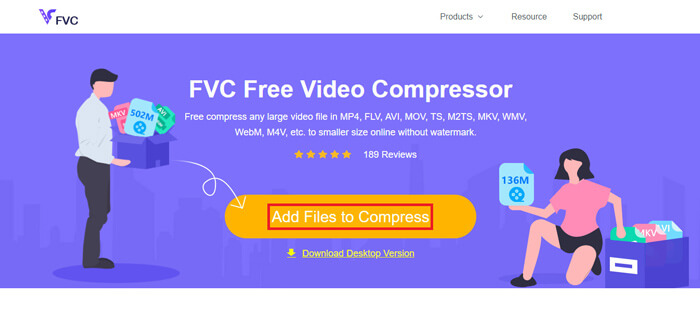
Stap 2. Klik op de knop Add Files to Compress om een kleine launcher voor het comprimeren van MKV te downloaden en te installeren.
Stap 3. Selecteer en voeg het MKV‑bestand toe dat je wilt comprimeren. Vervolgens kun je de bestandsgrootte van het MKV‑bestand en de videolengte in de rechterbovenhoek zien.
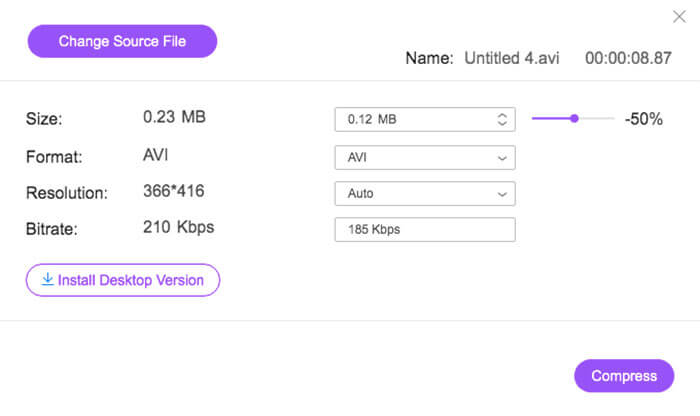
Stap 4. Je kunt de resolutie, framerate en bitrate van de MKV‑video aanpassen. Bovendien kun je een geschikt uitvoerformaat voor de gecomprimeerde video kiezen. Klik na al deze bewerkingen op de knop Compress om het comprimeren van de MKV te starten.
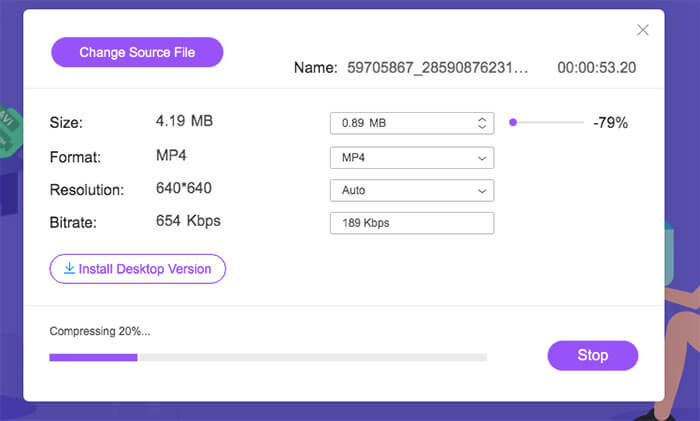
Met slechts een paar klikken kunt u een MKV-bestand handig comprimeren om de bestandsgrootte te verkleinen. Wat nog belangrijker is, er wordt geen watermerk aan uw gecomprimeerde video toegevoegd. U moet weten dat de meeste online videocompressoren een watermerk in uw uitvoerbestand zullen invoegen.
Deel 2. Professionele manier om MKV-bestanden te comprimeren
Met de bovenstaande methode kun je eenvoudig gratis online een MKV‑bestand comprimeren. Maar als je je MKV‑video te sterk comprimeert, krijg je waarschijnlijk een gecomprimeerd bestand van slechte kwaliteit. Je kunt er in feite ook voor kiezen om overbodige delen weg te knippen om de bestandsgrootte te verkleinen zonder enig kwaliteitsverlies. Hier stellen we je een krachtige tool voor videoconversie en videobewerking voor, Video Converter Ultimate, die je helpt MKV‑bestanden te comprimeren zonder kwaliteitsverlies.
Video Converter Ultimate is speciaal ontworpen om allerlei taken rond videoconversie en videobewerking uit te voeren. Hij kan video’s knippen, zodat je alleen het nuttige deel bewaart. Bovendien is hij uitgerust met een functie Video Compressor voor het comprimeren van MKV‑bestanden.
Gratis downloadVoor Windows 7 of nieuwerVeilige download
Gratis downloadVoor MacOS 10.7 of nieuwerVeilige download
Stap 1. Dubbelklik op de downloadknop hierboven om deze software voor het comprimeren van MKV‑bestanden gratis te installeren en op je computer te starten. Met deze videocompressor kun je MKV‑bestanden comprimeren op zowel een Windows‑pc als een Mac.
Stap 2. Wanneer je in het hoofdvenster komt, klik je op het tabblad Toolbox en selecteer je vervolgens de functie Video Compressor.
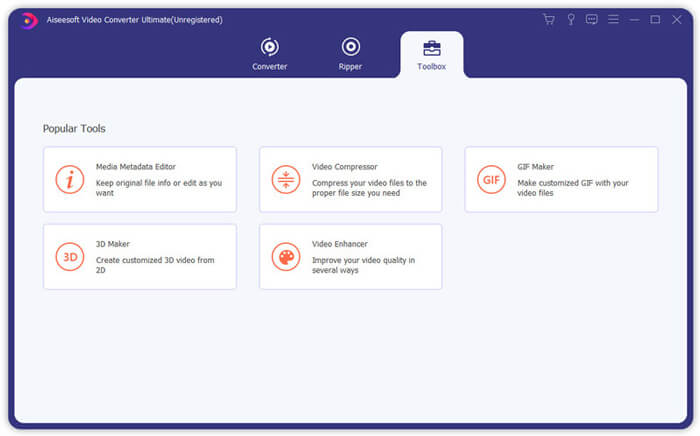
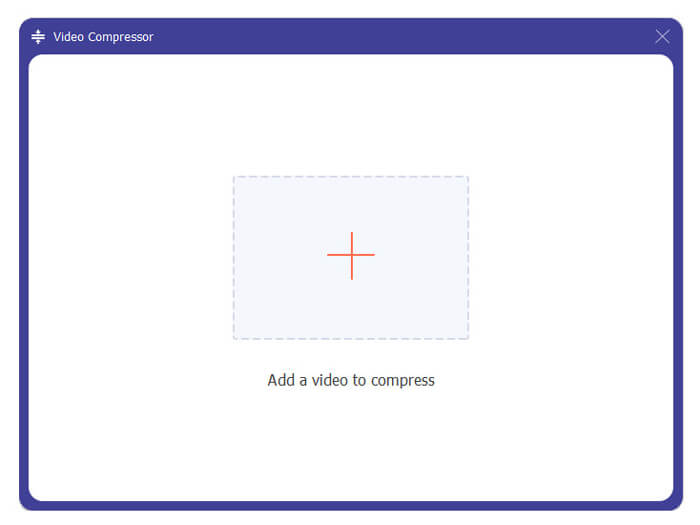
Stap 3. Klik op het +‑pictogram om een MKV‑bestand te importeren dat je wilt comprimeren.
Nu kunt u de MKV-bestandsgrootte eenvoudig naar behoefte verkleinen. Tijdens deze stap kunt u ook de videoresolutie, bitsnelheid, duur en bestandsnaam naar wens aanpassen. Bovendien kunt u een geschikt uitvoerformaat voor de gecomprimeerde video selecteren.
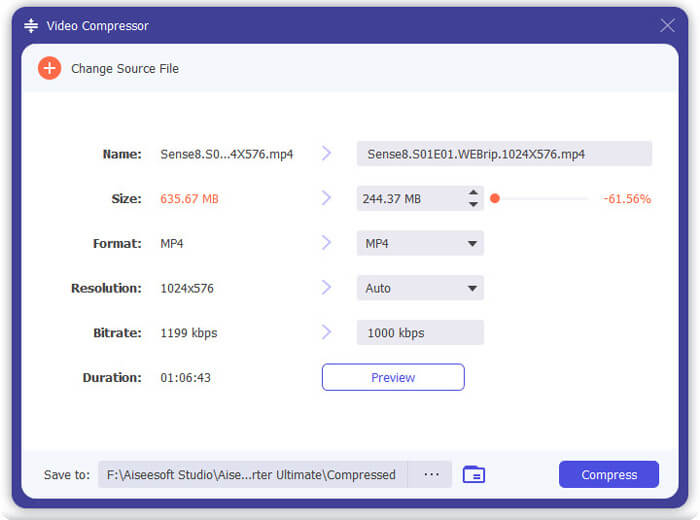
Stap 4. Klik op de knop Compress om te beginnen met het comprimeren van je MKV‑video tot een kleiner bestand.
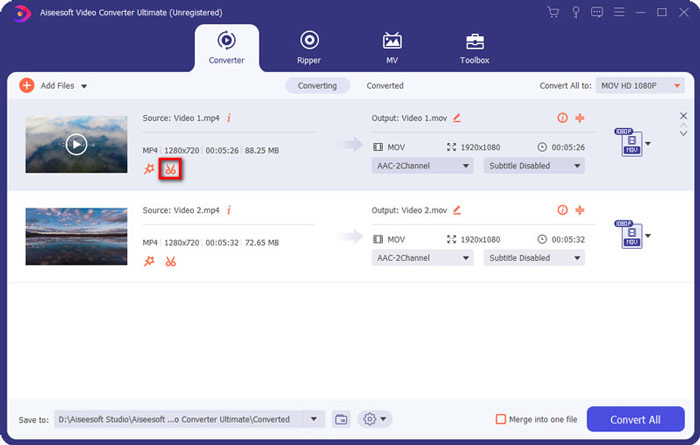
Stap 5. Als je de MKV‑bestandsgrootte wilt verkleinen via de knipfunctie, kun je teruggaan naar het startvenster en de optie Converter kiezen. Nadat je de MKV‑video hebt geïmporteerd, kun je op het pictogram Cut klikken om de overbodige delen te verwijderen.
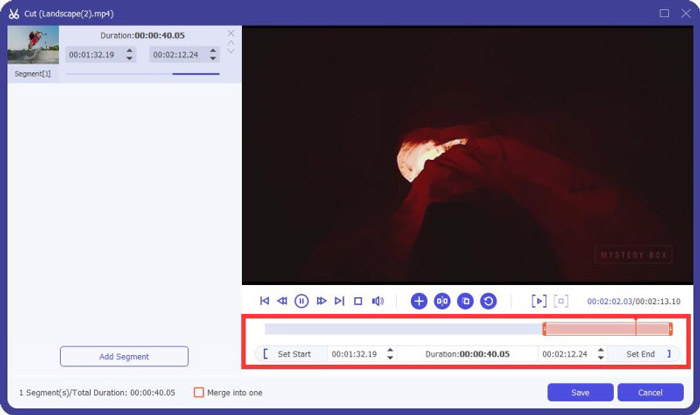
Stap 6. Je kunt de schuif op de voortgangsbalk verslepen of direct de begin‑ en eindtijd invoeren om je MKV‑bestand te trimmen. Vervolgens kun je op de knop Save klikken om je bewerking te bevestigen.
Daarna word je teruggeleid naar het startvenster. Hier kun je op de knop Convert All klikken om de MKV‑video uit te voeren. Deze software voor het comprimeren van MKV‑bestanden heeft een ingebouwde mediaspeler waarmee je het compressieresultaat direct kunt bekijken.
Of je nu een video voor e‑mail of voor WhatsApp wilt comprimeren, je kunt dat eenvoudig in dit programma doen.
Deel 3. Veelgestelde vragen over het comprimeren van MKV-bestanden
Vraag 1. Hoe kan ik een video comprimeren zonder kwaliteitsverlies?
U kunt ervoor kiezen om video bij te snijden om de bestandsgrootte te verkleinen. Door dit te doen, kunt u een video comprimeren zonder kwaliteitsverlies. Als je kiest voor een gratis online of professionele videocompressor, zal de video zeker wat beeld- of geluidskwaliteit verliezen. Maar u merkt het kwaliteitsverlies misschien niet aan uw ogen.
Vraag 2. Hoe kan ik een MKV-bestand gratis naar MP4 converteren?
Om een MKV‑bestand gratis naar een MP4‑video te converteren, kun je vertrouwen op de betrouwbare Free Online Video Converter. Deze kan eenvoudig de conversie MKV naar MP4 en andere video‑/audioconversies uitvoeren.
Vraag 3. Waarom zijn MKV-bestanden zo groot?
MKV is een containerformaat dat een betere codec gebruikte met een hogere compressieverhouding. MKV-bestanden zijn meestal afkomstig van Blu-Rays en hebben een hogere resolutie.
Gevolgtrekking
Na het lezen van dit bericht ken je 2 eenvoudige manieren om MKV‑bestanden te comprimeren. Met de aanbevolen videocompressors kun je de bestandsgrootte van je MKV‑bestanden gemakkelijk verkleinen. Als je een betere manier hebt om MKV te comprimeren, deel die dan in de reacties met andere lezers.
-
 Handleiding om een video te comprimeren voor e-mail op iPhone / Android / online
 Kunt u geen video via e-mail verzenden die te groot is? Als je dit probleem hebt, kun je hier werkbare manieren vinden om een video voor e-mail te comprimeren. In dit artikel wordt in detail uitgelegd hoe u grote videobestanden gratis kunt verkleinen.
-
 Tutorial om GIF te comprimeren en de bestandsgrootte met hoge kwaliteit te verkleinen
 Hier zijn 2 eenvoudige manieren om GIF op uw computer of mobiele telefoon te comprimeren. U kunt FVC Free Online Video Compressor en Photoshop gebruiken om de GIF-bestandsgrootte in verschillende aspecten te verkleinen.
-
 2 manieren om AVCHD-video's gratis in kleine bestandsformaten te comprimeren
 Lees en krijg 2 eenvoudige manieren om AVCHD-videobestanden te comprimeren. U kunt online en offline videocompressoren gebruiken om de AVCHD-videogrootte gratis op uw computer te verkleinen.
