


 Video Converter Ultimate
 Scherm opnemer
 Videoreparatie
 Beveiligde download
Leer de perfecte methoden voor het maken van een URL van een afbeelding
Nowadays, image file formats have become popular. These formats are one of the best ways to share and open images in different browsers and programs. However, there are some instances when you can’t share your images, no matter what extension you use. This situation might be troublesome for other people. But little did we know there was a solution to this type of struggle. If you want to share your photos everywhere and anywhere, the best way is to transcode the image into the URL. This way, you can share the photo to others without the help of any extensions. Fortunately, the article has an exceptional solution for you. Please read this post as we give you the best tutorials on how to turn your images into a link.

Deel 1. Effectieve methoden om van een afbeelding een link te maken
Converteer afbeelding naar link met i-Converter
Some image to URL converters online are not working well, so we want to introduce you to i-Converter. It is an online converter you can rely upon to change your image files into a URL link. You can access the online tool on different browsers. It includes Firefox, Chrome, Edge, Explorer, and more. It also has a simple process of converting files. This way, the tool is suitable for you whether you are a skilled user or a beginner. Additionally, it supports various image file formats. You can convert your images to JPEG, BMP, TIFF, PNG, GIF, DOC, and more. Moreover, the i-Converter is free. It means that you can convert your images without purchasing a subscription plan. However, the i-Converter is only exclusive to JPG image files. If your image doesn't have a .jpg file extension, you can't upload it on this online tool. Also, there are times when the tool is not performing well. Since it is an online tool, an internet connection is highly recommended.
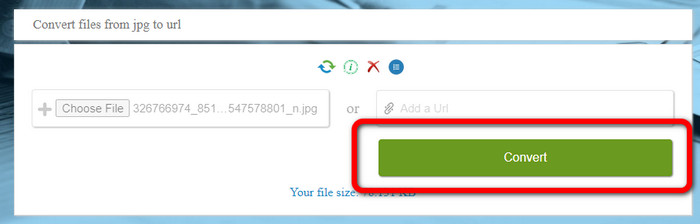
Step 1. Open any browser from your desktop and visit the i-Converter website. When you are already on the main webpage, click the Choose File button. When the computer file appears on the screen, open the image you want to turn into a URL.
Step 2. After uploading the image file you want to convert, click the Convert button. Then, wait for the conversion process. After a few seconds, the tool will give you the link. You can copy the link to the browser to open the image by clicking the Copy Code button.
Hoe maak je van een afbeelding een link met behulp van Image to Link
Another online tool you can utilize to convert images to HTML is Image to Link. Compared to the first tool above, the tool supports various input formats like JPG, PNG, and GIF. Also, it offers straightforward methods. After uploading the image, the tool will convert the image automatically. The conversion process is fast so you can get the link quickly. Additionally, Image to Link is available on various web browsers. You can use it on Google, Mozilla, Explorer, and more. All users are capable of operating this tool because of its understandable options. The best thing is that you can convert multiple images at once. This way, converting more files is perfect when using the tool. However, when using the converter, some ads appear on the screen, making it frustrating for users. Also, when converting multiple files, you can only upload up to five images. You also need internet access to use the online image converter.
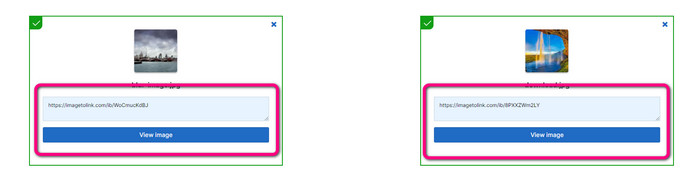
Step 1. Navigate to the Image to Link website from your browser. On the webpage, click the Start Uploading button. Then open the image file you want to convert from your computer file. You can upload up to five images when doing a batch conversion process.
Step 2. After uploading, the tool will automatically turn the image into a link. Afterward, the tool will provide a link that you can use to open the image. To open the image, copy the given link and paste it into your browser.
Deel 2. Afbeeldingen wijzigen in JPG, PNG en GIF
Converteer afbeeldingen naar JPG, PNG en GIF op FVC Free Image Converter
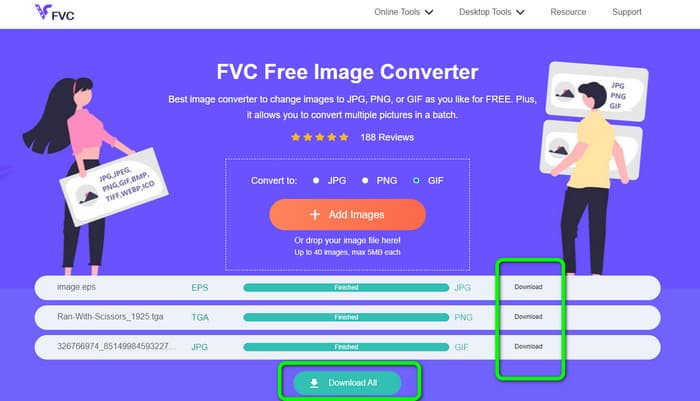
One of the leading online image converters you can use is the FVC Free Image Converter. The tool can transcode your image into various formats like JPG, PNG, and GIF. Also, it supports various input formats, including BMP, SVG, ICO, WebP, and more. You can convert images in just a simple method, which is perfect for users. Additionally, The image converter has great features you can enjoy. It is the batch conversion feature. It allows you to upload multiple images and convert them in a single click. Note that you can convert up to 40 image files. It also offers a fast conversion process wherein you can convert images in a few seconds.
Bovendien zit FVC Free Image Converter in alle browsers, dus je kunt het overal gebruiken zolang je maar een internetverbinding hebt. De tool garandeert ook uw privacy. Tijdens het conversieproces zult u nooit vervelende advertenties op uw scherm tegenkomen. Nadat u uw geconverteerde afbeeldingen hebt opgeslagen, verwijdert de tool uw gegevens, zodat niemand uw geüploade en geconverteerde foto's kan zien. Gebruik de onderstaande methoden om afbeeldingen moeiteloos te converteren naar JPG-, PNG- of GIF-indeling.
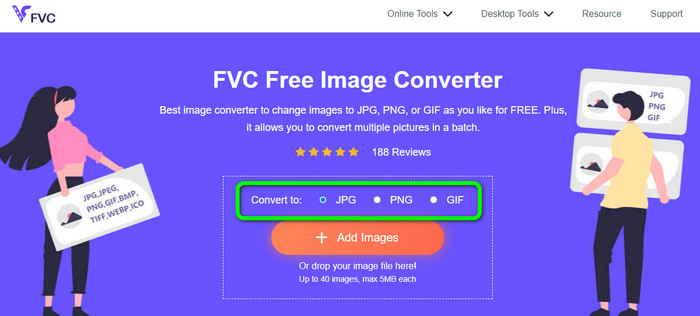
Step 1. Navigate to the official website of FVC Free Image Converter. You can access this online image converter on all browsers. After that, you can click the JPG, PNG, or GIF format from the format option.
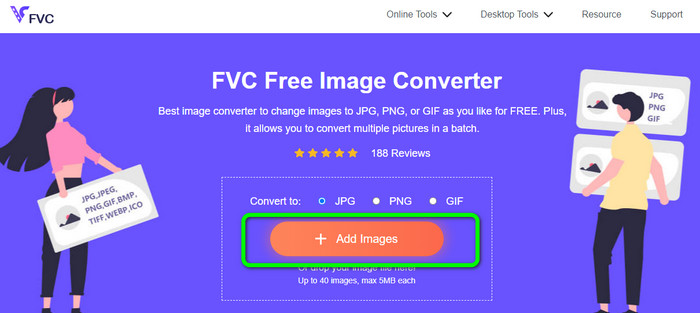
Step 2. Click the Add Images to upload the image file from your computer. You can also drop and drag the file into the box. Since the tool offers a batch conversion process, you can upload multiple files simultaneously.
Step 3. You will see that the image converter will convert the images automatically after the uploading process. When the conversion process is done, click the Download All button to save them in one click. But, if you prefer to save the image manually, click the Download button on the right.
Deel 3. Veelgestelde vragen over het converteren van afbeeldingen naar een link
1. Waarom van een afbeelding een link maken?
U kunt een afbeelding als knop gebruiken als u een website of blog heeft. Op deze manier hebben gebruikers toegang tot uw startpagina of een bepaalde pagina. Daarnaast is het mogelijk om foto's te koppelen aan posts op sociale media of e-mailhandtekeningen. Het is ook een fantastische manier om reclame te maken voor uw website of blog en het verkeer te stimuleren. Hier zijn slechts enkele van de belangrijkste redenen voor URL-conversie van een afbeelding.
2. Wat zijn de voordelen van het omzetten van een afbeelding in een link?
Het kan eenvoudiger zijn voor gebruikers om op uw link te klikken als u een afbeelding omzet in een link. Als u wilt dat bezoekers op een kleine afbeelding klikken, kunt u door de afbeelding in een URL te veranderen een groter gebied krijgen om op te klikken. Het delen van uw materiaal met anderen kan het veel eenvoudiger maken om nieuwe goederen of diensten te ontdekken.
3. Hoe vind ik de URL van een afbeelding op een website?
Klik met de rechtermuisknop op de afbeelding en kies Afbeeldingslink kopiëren om de URL van een afbeelding op een website te krijgen. U kunt de URL vervolgens openen in een nieuw tabblad om de afbeelding op te slaan of de URL delen via e-mail, sociale media en andere kanalen.
Gevolgtrekking
There you go! Now you have learned the best methods to convert images to links. In addition to that, you discovered the most straightforward ways of converting images to JPG, PNG, and GIF formats. Thus, if you want to change your images to URL links, see the effective methods above. On the other hand, if you want an outstanding image converter to convert images to other formats, use FVC Free Image Converter.
-
 Methoden voor het online en offline converteren van afbeeldingen naar JPG
 Wilt u het bestand om de een of andere reden naar JPG-indeling converteren? Dan is dit artikel iets voor jou. We leren je de beste methode om je afbeelding naar JPG te converteren
-
 Handige methoden om eenvoudig afbeeldingen naar PNG-indeling te converteren
 Bent u op zoek naar de beste manier om uw afbeelding op te slaan als PNG? Deze wegwijzer biedt uitstekende oplossingen om afbeeldingen online en offline naar PNG te converteren
-
 Wat is JPEG/JPG: converteer uw afbeeldingen moeiteloos naar JPG
 Ben je benieuwd naar de betekenis van JPEG? Wij hebben een antwoord voor je. Ook leer je hoe je verschillende afbeeldingsformaten converteert naar JPG-bestanden. Lees nu het bericht.
