


 Video Converter Ultimate
 Scherm opnemer
 Videoreparatie
 Beveiligde download
Stapsgewijze zelfstudies over het converteren van GIF naar JPG
GIF is het meest populaire bestandsformaat dat we gebruiken om overdreven emoties over te brengen, zoals bij memes. Het kan ook animaties en statische afbeeldingen bevatten, maar niet alle platforms ondersteunen het GIF-formaat. Soms wil je een GIF-afbeelding delen omdat die grappig is. Maar je kunt hem niet verzenden omdat het programma of de browser die je gebruikt dit formaat niet ondersteunt. Dat is behoorlijk frustrerend. Als je de afbeelding zonder problemen wilt versturen, is het beter je GIF-afbeelding naar een ander formaat, zoals JPG, te converteren. Omdat het JPG‑formaat erg populair is, kun je het in elke browser en elk programma gebruiken. In dit artikel leer je verschillende methoden om met behulp van afbeeldingsconverters GIF naar JPG te converteren. Als je dit probleem in de toekomst wilt voorkomen, lees dan dit artikel en begin je afbeeldingen te converteren.

Deel 1. GIF versus JPG/JPEG
| Bestandsformaat | GIF | JPG / JPEG |
| Bestandsnaam Extensie | .gif | .jpg / .jpeg |
| Ontwikkeld door | Samengesteld | Gezamenlijke Groep Fotografische Experts |
| Mime type | afbeelding/gif | afbeelding/jpeg |
| Beschrijving | GIF is het favoriete bestandsformaat van internet vanwege de mogelijkheid om afbeeldingen te animeren. GIF-bestanden gebruiken bitmapfoto's en staan maximaal 8 pixels/bits toe. Het staat ook 256 kleuren toe in 24-bits RGB-kleurruimte. Niet alle GIF-foto's zijn geanimeerd. | JPG formaat, wat tegenwoordig een populair bestandsformaat is. Het doel is om afbeeldingen te comprimeren om de download- en uploadtijd te verkorten. Alle programma's hebben toegang tot dit formaat. Hierdoor hoeft u niet na te denken over het openen van dit bestand in verschillende programma's en browsers. |
| Bijbehorende programma's / browsers | Adobe Photoshop CorelDraw Corel Paint Shop Pro Canvas Google Chrome Internet Explorer Microsoft Rand | Verf Adobe Photoshop Foto's Programma IrfanView Foto-viewer Internet Explorer Mozilla Firefox Google Chrome |
Deel 2. Eenvoudige methoden om GIF's online naar JPG te converteren
Hoe GIF naar JPG te converteren met FVC Free Image Converter
FVC Free Image Converter is de beste online afbeeldingsconverter om GIF naar JPG te converteren. Je kunt je GIF-bestandsformaat snel naar JPG omzetten via de eenvoudige stappen. Hierdoor is de online tool uitstekend geschikt, zelfs voor beginners. Je kunt ook gebruikmaken van de batchconversieoptie van FVC Free Image Converter. Met deze tool kun je meerdere foto’s in één keer converteren. Bovendien voegt de tool geen storende elementen toe aan de geconverteerde en opgeslagen foto’s. Zo kun je de afbeeldingen netjes bekijken. Daarnaast verschijnen er tijdens het conversieproces geen advertenties op je scherm. Je kunt je bestanden dus converteren zonder afgeleid te worden. Volg de eenvoudige instructies hieronder om je GIF naar een JPG‑afbeelding te converteren.
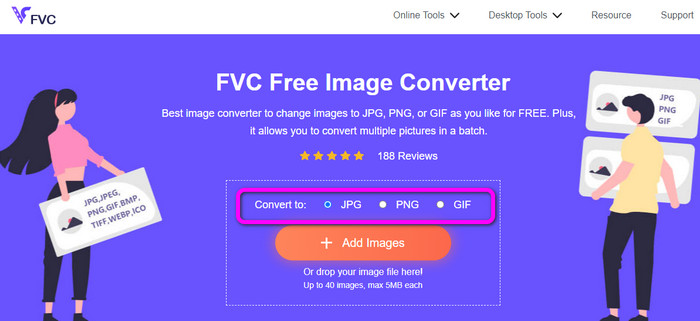
Stap 1. Ga naar de hoofdwebsite van FVC Free Image Converter. Je kunt elke browser op je computer gebruiken om toegang te krijgen tot de online converter. Klik vervolgens op het formaat JPG bij de optie Converteren naar.
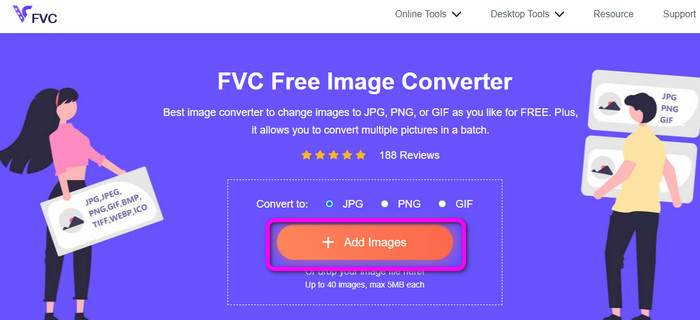
Stap 2. Klik op de knop Afbeeldingen toevoegen. Wanneer de map op het scherm verschijnt, open je de GIF‑afbeelding die je wilt converteren. Je kunt ook je computermap openen en het afbeeldingsbestand naar het vak slepen. Je kunt tot 40 afbeeldingen uploaden als je meerdere bestanden wilt converteren.
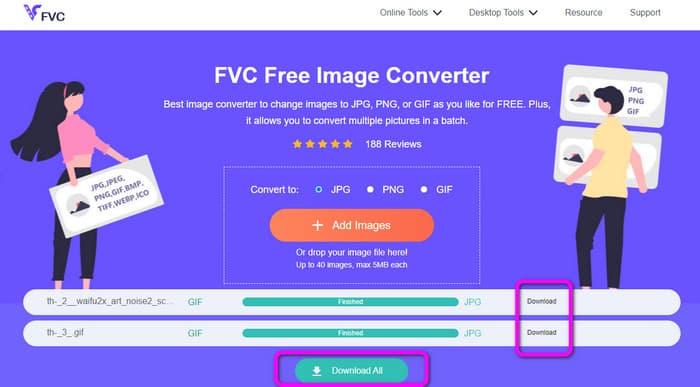
Stap 3. De tool converteert je afbeeldingen automatisch na het uploaden. Wanneer het conversieproces is voltooid, klik je op de knop Alles downloaden. Wil je de afbeelding handmatig opslaan, klik dan op de knop Downloaden ernaast. Je kunt deze tool ook gebruiken om WebP naar GIF te converteren.
Hoe GIF naar JPG te converteren met Online Convert
Een andere handige online tool om GIF’s naar JPG te converteren is Online Convert. Met deze online tool kun je verschillende bestanden converteren, waaronder JPG, PNG, GIF, TIFF, BMP en meer. Het conversieproces is snel. De tool is bovendien eenvoudig te gebruiken, wat een voordeel is voor niet-professionele gebruikers. Daarnaast biedt Online Convert een batchconversieproces. Je kunt meer dan één afbeelding invoegen die je wilt converteren. Je kunt deze tool ook gebruiken voor het converteren van video’s, audio, documenten en meer. De online afbeeldingsconverter is beschikbaar in vrijwel alle browsers, waaronder Firefox, Chrome, Explorer en andere. Tijdens batchconversie kun je echter maar drie afbeeldingen uploaden. Je moet de betaalde versie aanschaffen als je tegelijkertijd veel afbeeldingen wilt uploaden.
Stap 1. Open in je browser de website van Online Convert. Klik op de knop Choose Files op de webpagina om de GIF‑afbeelding te uploaden. Je kunt het bestand ook in het groene vak slepen.
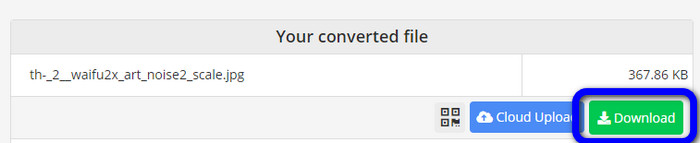
Stap 2. Klik na het uploaden van de GIF‑afbeelding op de knop Start. Na het klikken begint het conversieproces. Klik vervolgens op de knop Download om de geconverteerde afbeelding op je computer op te slaan.
Deel 3. GIF snel naar JPG offline converteren
Je kunt ook Video Converter Ultimate gebruiken om GIF naar JPG te converteren. Dit offline programma heeft een uitstekende conversiemethode. Het beschikt ook over een intuïtieve interface, waardoor het geschikt is voor niet-professionele gebruikers. Daarnaast biedt Video Converter Ultimate een batchconversiefunctie. Dat betekent dat je meerdere afbeeldingen met één klik kunt converteren. Het programma biedt bovendien een snel conversieproces. Met deze functie kun je veel bestanden in korte tijd converteren. Verder ondersteunt het verschillende afbeeldingsformaten, waaronder JPG, PNG, BMP, GIF, TIFF en meer. Naast converteren kun je ook de kwaliteit van je foto aanpassen via de uitvoerinstellingen. Zo kun je de beeldkwaliteit aanpassen aan je eigen wensen. Tot slot is Video Converter Ultimate beschikbaar voor zowel Windows als Mac, wat erg handig is.
Stap 1. Download Video Converter Ultimate op je desktop. Er zijn twee Download-knoppen hieronder. Als je een Windows‑gebruiker bent, klik je op de Windows‑versie. En als je een Mac‑computer gebruikt, kies je de Mac‑versie. Start het programma na de installatie.
Gratis downloadVoor Windows 7 of nieuwerVeilige download
Gratis downloadVoor MacOS 10.7 of nieuwerVeilige download
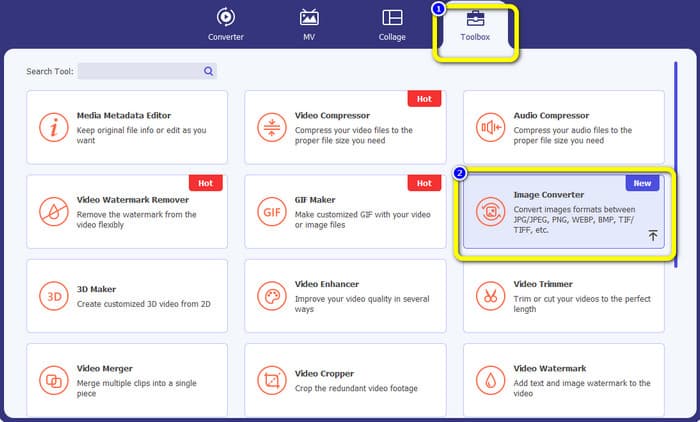
Stap 2. Klik in de bovenste interface op het paneel Toolbox. Kies vervolgens de tool Image Converter. Er verschijnt een nieuw venster op het scherm.
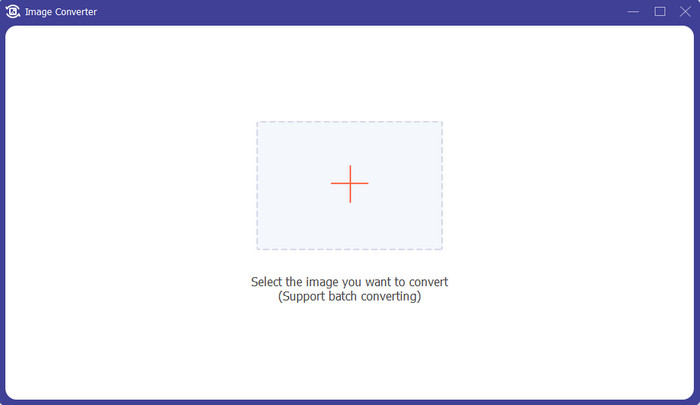
Stap 3. Klik op het Plusteken in het midden van de interface. Wanneer de bestandsmap verschijnt, kies je het GIF‑bestand en open je dit. Je kunt meer bestanden toevoegen omdat het programma een batchconversiefunctie biedt.
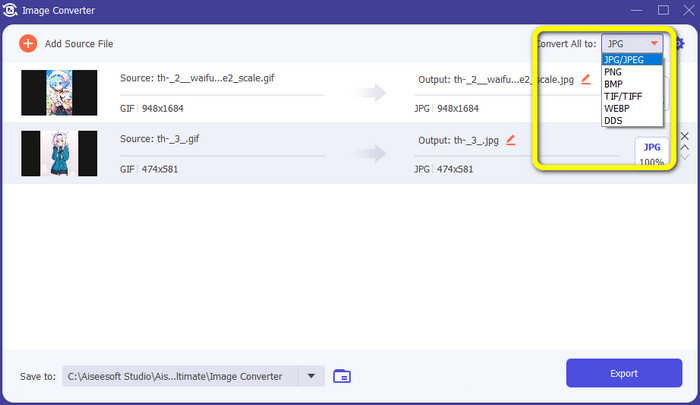
Stap 4. Ga naar de rechterkant van de interface en ga naar de formaatoptie. Selecteer JPG als je uitvoerformaat.
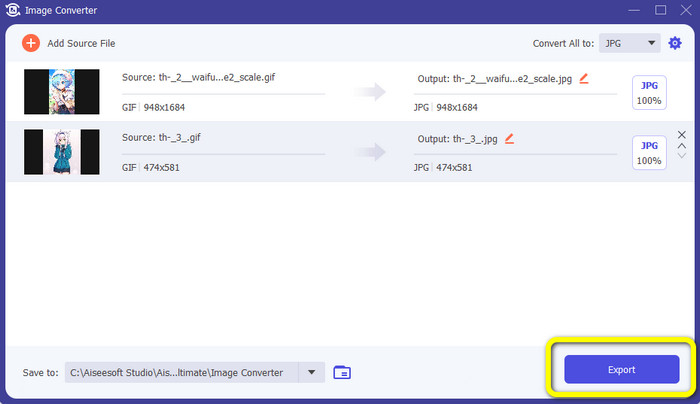
Stap 5. Wanneer je klaar bent met het selecteren van het JPG‑formaat, klik je op de knop Exporteren. Na het proces kun je je geconverteerde afbeeldingen openen in je uitvoermap.
Deel 4. GIF converteren naar JPG in Android en iPhone
Als je GIF’s naar JPG wilt converteren met iPhone‑ en Android‑apparaten, gebruik dan File Converter. Deze app biedt een eenvoudige manier om verschillende bestanden naar JPG te converteren. Bovendien is File Converter gratis te downloaden. De app is beschikbaar in de Google Play Store en de App Store. De installatie kan echter vrij traag verlopen. Ook zijn sommige opties lastig te begrijpen. Tot slot werkt de app alleen goed met een internetverbinding.
Stap 1. Ga naar de Google Play Store of de App Store. Download File Converter en start de app.
Stap 2. Selecteer in de interface de optie Image Converter. Selecteer daarna JPG als je uitvoerformaat.
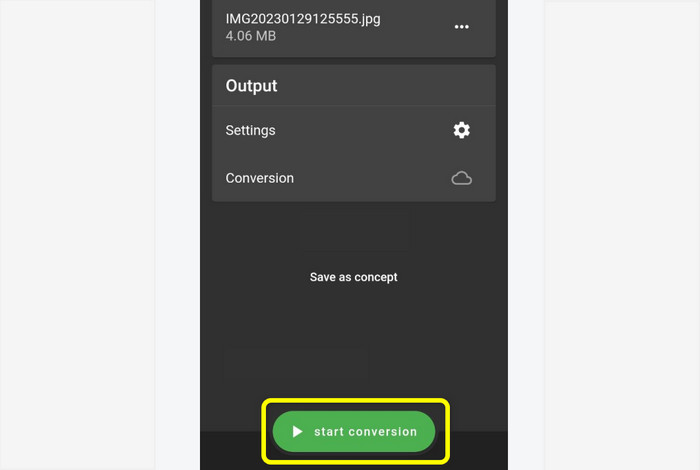
Stap 3. Klik op de optie File om de GIF‑afbeelding toe te voegen die je wilt converteren. Klik daarna op Start Conversion. Vervolgens kun je je afbeelding in je galerij opslaan.
Deel 5. Veelgestelde vragen over het converteren van GIF naar JPG
1. Is het mogelijk om een GIF-bestand te bewerken?
Absoluut ja. Als u uw GIF-afbeeldingsbestand wilt bewerken, kunt u een offline tool zoals Video Converter Ultimate gebruiken. Het heeft verschillende bewerkingstools die u kunt gebruiken, zoals roteren, bijsnijden, filters toevoegen en meer.
2. Hoe sla ik iPhone-foto's op als JPG?
Standaard worden foto’s die je met een iPhone maakt automatisch opgeslagen in het HEIC‑formaat. De meeste apparaten herkennen dit bestandsformaat echter niet. Je kunt foto’s als JPG opslaan via de instellingen van je iPhone. Ga naar Instellingen > Camera. Klik vervolgens op de optie Formaten. Kies daar de optie Meest compatibel om de foto als JPG op te slaan.
3. Hoe converteer je GIF naar JPG in Photoshop?
Start Photoshop op je desktop. Ga daarna naar het menu Bestand en klik op Openen om het GIF‑bestand aan het programma toe te voegen. Vervolgens kun je je foto verbeteren met de bewerkingstools van het programma. Om de foto in JPG‑formaat op te slaan, ga je naar Bestand > Opslaan als. Ga daarna naar de formaatoptie en selecteer het formaat JPG.
Gevolgtrekking
Het is een verstandige keuze om je GIF’s naar JPG te converteren als je foto’s via alle browsers en programma’s wilt delen. Dit artikel biedt je daarom de eenvoudigste manier om je afbeeldingsbestanden te converteren met behulp van FVC Free Image Converter.
-
 Leer de eenvoudigste benaderingen om WebP snel naar JPG te converteren
 Laten we allemaal effectieve manieren leren om webafbeeldingen eenvoudig naar JPG te converteren. Dit artikel geeft je uitstekende beeldconversieprogramma's die je kunt gebruiken om beeldbestanden te converteren.
-
 Uitstekende technieken om GIF direct naar M4V te converteren
 Deze wegwijzer biedt u de meest effectieve strategieën om GIF naar M4V te converteren. Bovendien laten we u kennismaken met de beste twee converters die u kunt proberen.
-
 Eenvoudige instructies voor het converteren van GIF naar MKV op het bureaublad
 Kom naar dit artikel als u op zoek bent naar de meest uitstekende methoden voor het converteren van GIF naar MKV-bestandsindelingen met behulp van een uitzonderlijke downloadbare converter.
