


 Video Converter Ultimate
 Scherm opnemer
 Videoreparatie
Hoe u een afbeelding uitknipt in Photoshop
Je kunt veel doen in Photoshop; het is een alles-in-één tool voor het bewerken van afbeeldingen. Als je Photoshop al gebruikt en nog steeds vertrouwd bent met alle functies, of als je iemand bent die de uitsnijfuncties wil verkennen die het biedt, staan wij voor je klaar! Leer en begrijp snel en eenvoudig hoe je een afbeelding uitknipt in Photoshop. Ontdek ook andere methoden om online afbeeldingen uit te knippen als Photoshop niet bij je middelen of vaardigheden past.
Deel 1. Een afbeelding uitknippen in Photoshop
Het is belangrijk om te leren hoe u afbeeldingen kunt knippen in Photoshop, omdat u hierdoor verschillende elementen binnen een afbeelding nauwkeurig kunt scheiden en manipuleren. Deze vaardigheid is van fundamenteel belang voor taken zoals het verwijderen van de achtergrond, het maken van collages en het aanbrengen van gerichte verbeteringen tijdens het bewerken van afbeeldingen. Of het nu gaat om grafisch ontwerp, productfotografie of digitale kunst, de mogelijkheid om afbeeldingen te knippen biedt flexibiliteit en creatieve controle, waardoor zowel professionals als liefhebbers de gewenste visuele resultaten kunnen bereiken in uiteenlopende projecten.
Zo knipt u een afbeelding in Photoshop:
Stap 1. Open een afbeelding in Photoshop via het tabblad File (Bestand).
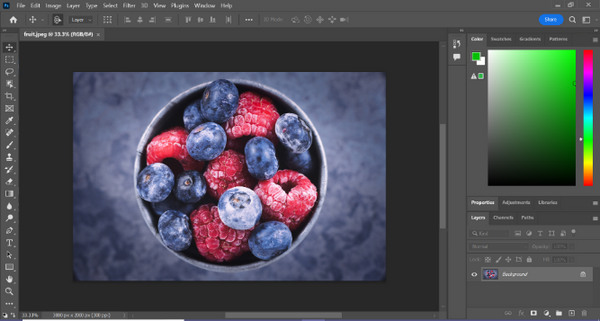
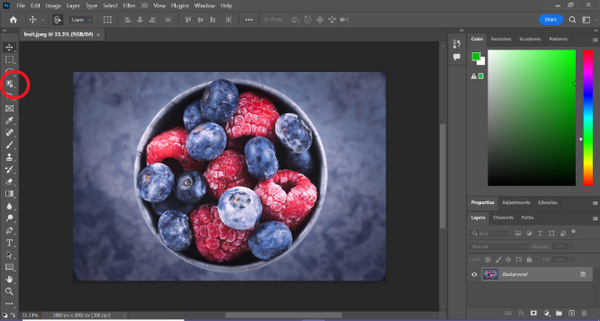
Stap 2. Kies het gereedschap Object Selection en sleep met de muis over je object om het gebied te selecteren dat je wilt uitknippen.
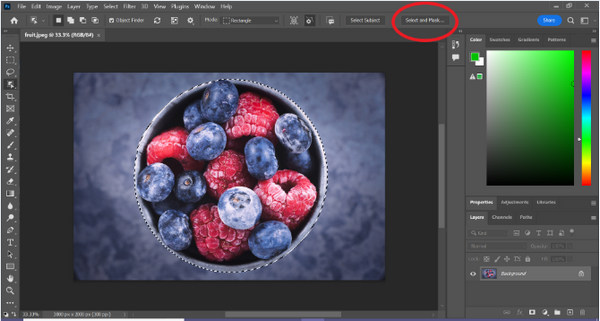
Stap 3. Klik op Select and Mask.
Stap 4. Pas indien nodig de selectie-instellingen aan, zoals verzachten (feathering).
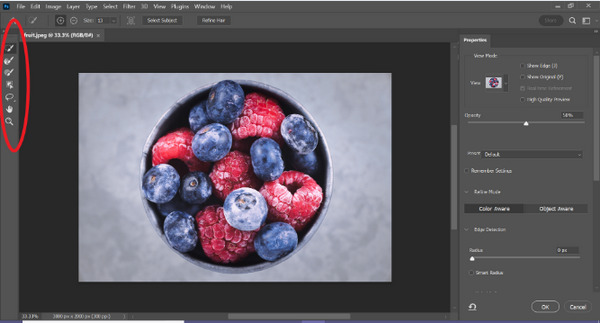
Stap 5. Klik op het pictogram Mask om je afbeelding uit te knippen en sla de bewerkte afbeelding op.
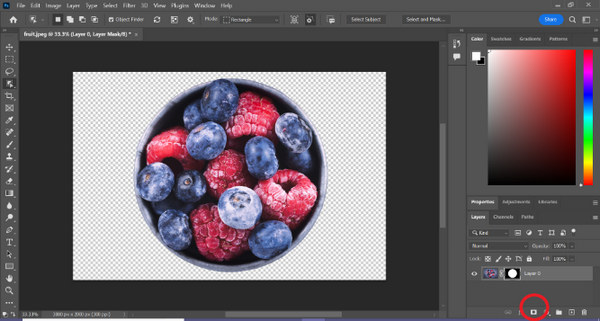
Met deze eenvoudige handleiding kun je nu snel en gemakkelijk een afbeelding in Photoshop uitknippen. Volg gewoon de stappen en geniet van een soepel proces voor nauwkeurige fotobewerking. Je kunt ook de kleur van de afbeelding veranderen om het uitgeknipte deel te vervangen.
Deel 2. Hoe knip je een afbeelding uit zonder Photoshop online?
Als Photoshop niet op uw computer is geïnstalleerd, kunt u online een afbeelding uitknippen. Hoewel Photoshop een kwaliteitstool is voor het bewerken van afbeeldingen, vooral voor het perfect uitsnijden van een afbeelding, waren er vaardigheden en oefening nodig om het onder de knie te krijgen. Dus als u dit hulpmiddel niet in handen heeft, kunt u deze methoden gebruiken om eenvoudig een afbeelding uit te snijden.
Methode 1: FVC Online Achtergrondverwijderaar
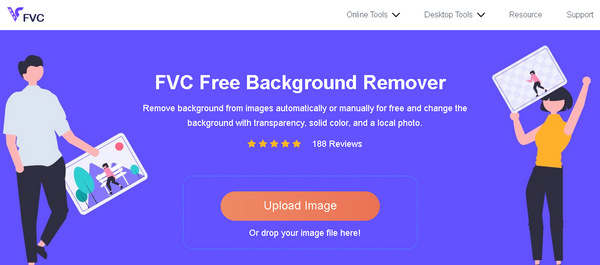
De FVC Online Background Remover is veelzijdig en gebruiksvriendelijk en is ontworpen om automatisch achtergronden te verwijderen uit afbeeldingen in formaten zoals PNG, JPG en JPEG. Deze tool vereenvoudigt het maken van transparante achtergronden en biedt aanpassingsmogelijkheden, zodat gebruikers met een penseel specifieke gebieden kunnen selecteren om te verwijderen of te behouden.
Bovendien kunnen gebruikers met FVC Free Background Remover de achtergrond van de afbeelding wijzigen in een effen kleur naar keuze of deze zelfs vervangen door een andere foto. De tool gaat verder dan het verwijderen van achtergronden en biedt eenvoudige bewerkingsfuncties zoals bijsnijden, verplaatsen, spiegelen en roteren, waardoor gebruikers de algehele aantrekkingskracht van hun afbeeldingen kunnen verbeteren. Hieronder vindt u de stappen om dit te gebruiken.
Stap 1. Ga eerst naar hun officiële website en klik op ‘Upload Image’.
Stap 2. Wacht op het proces. Daarna kun je je afbeelding bewerken door de randen te verfijnen en het onderwerp te verplaatsen.
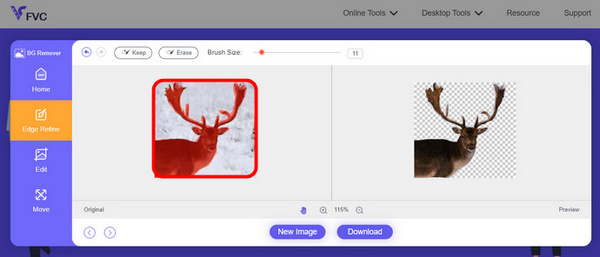
Stap 3. Om het resultaat op te slaan, klik je op de knop Download.
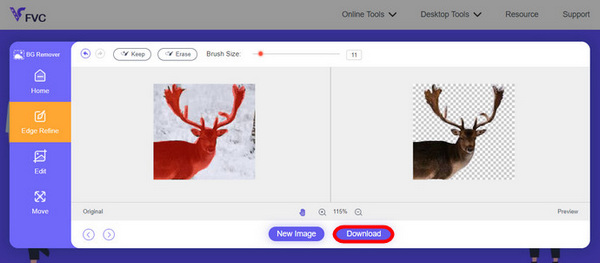
FVC Image Background Remover is echt een ideale tool om een afbeelding uit te knippen. Behalve dat hij gratis is, is de tool ook supergebruiksvriendelijk om een achtergrond aan een afbeelding toe te voegen. Zie je, je hoeft maar een paar eenvoudige stappen te volgen en je kunt met groot gemak de achtergrond van je foto’s verwijderen.
Methode 2: iPhone iOS 16-functie gebruiken
iPhone iOS 16 brengt verschillende nieuwe functies en updates met zich mee. Eén daarvan is de uitgesneden afbeelding. Met deze functie voor het uitknippen van afbeeldingen kunnen gebruikers het onderwerp van een foto isoleren en rechtstreeks op hun iPhone foto-uitsneden maken.

Stap 1. Open een foto in de app Foto’s.
Stap 2. Houd het onderwerp van de foto lang ingedrukt, waarna er een glanzende witte omlijning verschijnt.
Stap 3. Kopieer en plak de afbeelding nu in je notities, berichten-app of sms. Je kunt de afbeelding ook direct via AirDrop naar een ander iPhone-apparaat sturen.
Deze functie voor het uitknippen van foto's is alleen beschikbaar in iOS 16 en hoger op iPhone XS, iPhone XR en hoger.
Deel 3. Veelgestelde vragen over het uitsnijden van een afbeelding in Photoshop
Hoe knip je iemand uit een foto en plaats je hem in een andere in Photoshop?
Om iemand uit een foto in Photoshop te knippen en in een andere foto te plaatsen, volg je deze stappen:
1. Gebruik het Lasso- of Pen-gereedschap om de persoon zorgvuldig te omlijnen.
2. Klik met de rechtermuisknop en kies ‘Layer via Copy’ om het geselecteerde gebied te dupliceren.
3. Open de doelfoto, maak een nieuwe laag en plak de gekopieerde laag daarop.
4. Pas de grootte en positie aan en werk de randen bij voor een naadloze integratie.
Hoe knip je iets uit in Photoshop en maak je het transparant?
Om iets in Photoshop uit te knippen en transparant te maken:
1. Gebruik het Pen-gereedschap of de Magic Wand om het object te selecteren.
2. Druk op Delete om het geselecteerde gebied te verwijderen.
3. Sla de afbeelding op als PNG.
4. Controleer of het verwijderde gebied als een schaakbordpatroon wordt weergegeven, wat duidt op transparantie.
Hoe trek je een vorm af in Photoshop?
Om een vorm in Photoshop af te trekken:
1. Maak twee vormen met behulp van het Shape-gereedschap of een willekeurig selectiegereedschap.
2. Zorg dat beide vormen zich op aparte lagen bevinden.
3. Selecteer de bovenste laag, ga naar Path Operations in de werkbalk en kies ‘Subtract Front Shape’.
4. De bovenste vorm wordt van de onderste vorm afgetrokken, waardoor een nieuwe vorm ontstaat met het uitgesneden gebied.
Kan ik complexe objecten met fijne details uitsnijden in Photoshop?
Ja, Photoshop biedt geavanceerde hulpmiddelen zoals de Pen-tool voor nauwkeurige selecties van ingewikkelde objecten. Zoom in voor nauwkeurigheid, creëer ankerpunten rond het object en verfijn het pad voor gedetailleerde uitsneden.
Wat is het verschil tussen Laag via knippen en Laag via kopiëren bij het knippen van een afbeelding in Photoshop?
Met Laag via Knippen wordt het geselecteerde gebied verwijderd en op een nieuwe laag geplaatst. Terwijl Laag via Kopiëren het geselecteerde gebied naar een nieuwe laag dupliceert, waarbij het origineel intact blijft. Kies op basis van of u het origineel wel of niet wilt behouden tijdens het snijproces.
Gevolgtrekking
Makkelijk, toch? Nu je weet hoe je een afbeelding uitknipt in Photoshop, kun je die vaardigheid verder ontwikkelen en andere functies in Photoshop verkennen. Bovendien kun je andere methoden proberen om online een afbeelding uit te knippen met behulp van FVC Online Background Remover of via je iPhone. Een afbeelding uitknippen is nu eenvoudiger dan ooit, dus mis deze kans niet en vergroot je creativiteit door deze gids te volgen.
-
 Watermerk verwijderen uit foto in Photoshop [Stappen]
 Photoshop is een van de populaire bewerkingstools. Download hier de gratis zelfstudie met Photoshop om het watermerk van foto's te verwijderen. Ontdek ook alternatieve manieren.
-
 Bijsnijden in Photoshop: beginnershandleiding [2025]
 Ontdek hoe u afbeeldingen bijsnijdt in Photoshop met deze eenvoudig te volgen handleiding. Leer ook hoe u gebieden selecteert, de beeldverhoudingen aanpast en meer voor het bijsnijden van foto's.
-
 Hoe u de kleur in Photoshop kunt veranderen | Uitgebreide gids voor 2025
 Wilt u uw creativiteit naar een hoger niveau tillen door te leren hoe u de achtergrondkleur in Photoshop kunt veranderen? Dit artikel bevat alles wat u moet weten. Lees het nu!
