


 Video Converter Ultimate
 Scherm opnemer
 Videoreparatie
 Beveiligde download
Hoe WebP naar MP4 op de pc te converteren voor een geanimeerde video-uitvoer
Er zijn verschillende redenen waarom we WebP naar MP4 converteren. Een van de belangrijkste redenen is dat wanneer je een verzameling geanimeerde afbeeldingen in het WebP‑formaat hebt, je apparaten dit formaat niet ondersteunen. Het is frustrerend om te merken dat je je eigen bestanden niet op je eigen apparaat kunt bekijken. Daarom kiezen de meeste gebruikers in dezelfde situatie ervoor om hun WebP‑bestanden om te zetten naar een formaat zoals MP4, zodat hun digitale bestanden beter compatibel zijn en minder ruimte innemen. Maar hoe pak je dat de eerste keer aan? Gelukkig verzamelt dit artikel de degelijke converters die je hierbij enorm zullen helpen. Daarnaast hebben we ook een professionele methode toegevoegd om je met dit probleem te helpen.

Deel 1. Hoe u WebP online naar MP4 kunt converteren
In dit gedeelte introduceren we onze 3 beste oplossingen voor het online converteren van WebP naar MP4.
1. EZGIF
De eerste van de beste online oplossingen is EZGIF. Het is een handige, gratis tool die je op het web kunt gebruiken. Deze tool helpt je bij het maken, wijzigen en tweaken van GIF's. Maar het gaat niet alleen om GIF's, want het kan ook WebP-, AVIF- en APNG-formaten verwerken. Bovendien kun je met EzGIF deze formaten omwisselen met GIF, JPG, PNG en natuurlijk MP4. Zoals de naam al doet vermoeden, draait EZGIF helemaal om het simpel maken van dingen. Of je nu geanimeerde afbeeldingen wilt maken of animaties in video's wilt veranderen, deze tool staat voor je klaar. Je kunt het dus ook gebruiken om WebP-bestanden, zowel de stilstaande als de bewegende, om te wisselen naar MP4. Hier zijn dus de eenvoudige stappen die je moet volgen met EZGIF.
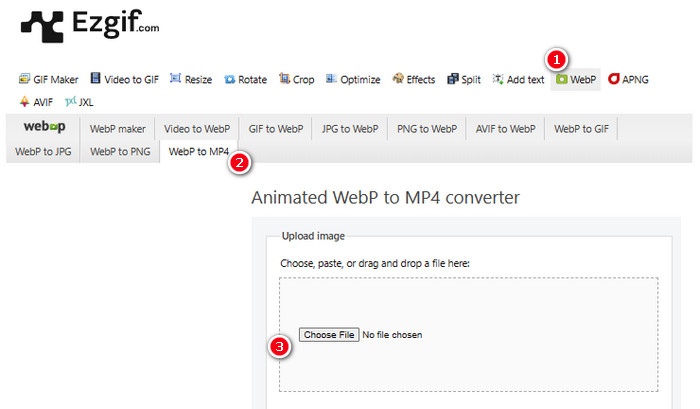
Stap 1. Ga op de EZGIF‑website naar de tool WebP>WebP naar MP4 om de WebP‑naar‑MP4‑converter te openen. Klik daar op de knop Bestand kiezen om je WebP‑bestand te uploaden.
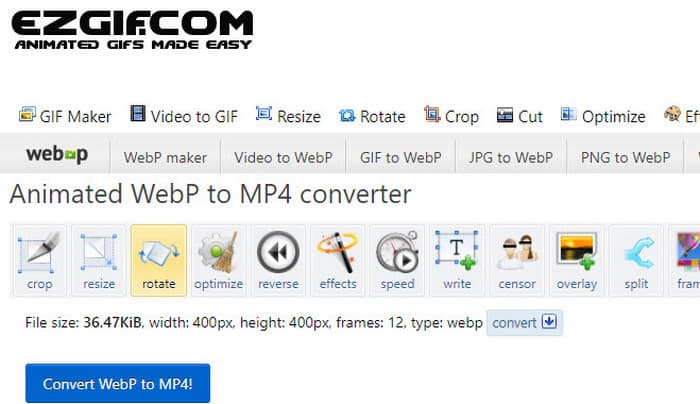
Stap 2. Na het uploaden van het WebP‑bestand kun je doorgaan naar het conversieproces. Klik op de knop Converteren om te starten.
Stap 3. Download je zojuist geconverteerde bestand wanneer het klaar is.
2. MConverter
De volgende tool is de MConverter. Deze converter is een erg handige tool op het web die je helpt bestanden van het ene type naar het andere te veranderen. Opmerkelijk genoeg, als je een heleboel WebP-afbeeldingen hebt die je wilt omzetten in MP4-video's, kun je dat met MConverter allemaal tegelijk doen. Bespaart dat niet veel tijd? Bovendien heeft het een heleboel formaten die het aankan - zoals video's, liedjes, afbeeldingen, ondertitels, etc. Maar er is een addertje onder het gras met de gratis versie - het laat je alleen bestanden tot 200 MB groot maken. Laten we in de tussentijd eens kijken hoe MConvert werkt als je WebP ermee naar MP4 converteert.
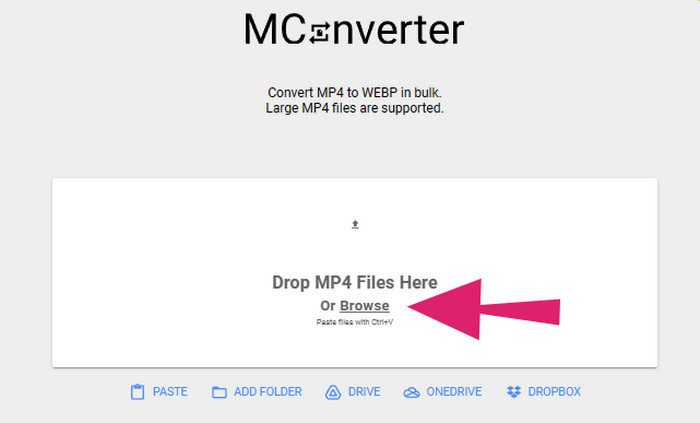
Stap 1. Klik in de online tool op de knop Browse om de WebP‑bestanden te uploaden die je wilt converteren.
Stap 2. Wanneer het bestand succesvol is geüpload, klik je op het MP4‑formaat tussen de gegeven opties.
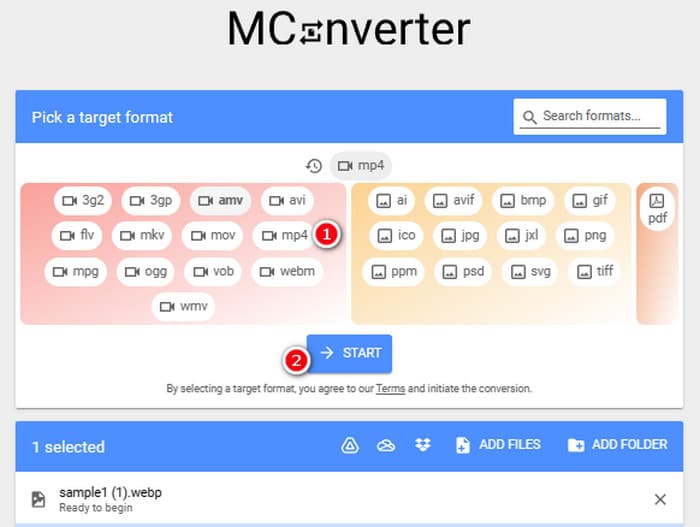
Stap 3. Klik vervolgens op de knop START om de conversie uit te voeren.
3. Online-converteren
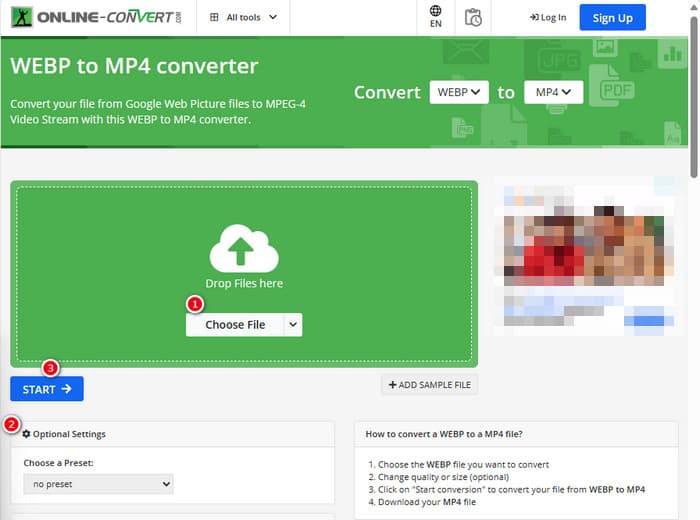
Laat ten slotte de Online Convert de laatste online positie invullen. Deze Online Convert is een opmerkelijke converter die bijna elk type mediabestand voor u kan veranderen. Ondanks dat kost het u geen cent voor elke conversie die u wilt maken, zolang het dit ondersteunt. Bovendien werkt het vrij snel, behalve wanneer uw internet problematisch is. Als u nu een WebP-bestand in een MP4 wilt veranderen, kunt u dat op hun website doen. En niet alleen dat, maar u kunt ook videoparameters aanpassen, zoals de grootte, framesnelheid en kwaliteit, en zelfs het omdraaien, bijsnijden of delen die u niet nodig hebt eruit knippen. Dus als uw WebP-bestand klaar is om te worden omgezet, volg dan onmiddellijk de onderstaande stappen.
Stap 1. Zorg ervoor dat je de tool WebP naar MP4 converter gebruikt zodra je op de officiële website bent.
Stap 2. Klik op de knop Bestand kiezen en haal het WebP‑bestand binnen. Vervolgens kun je het bestand desgewenst aanpassen met behulp van de instellingen die in de interface worden aangeboden.
Stap 3. Of klik anders op de knop START om het conversieproces te starten.
Deel 2. Professionele aanpak om WebP-bestand naar MP4 te converteren: FFmpeg
Voor een professionele aanpak om een afbeeldingsbestand naar een video te converteren kun je FFmpeg gebruiken. Dit is een krachtig software‑hulpmiddel voor het verwerken van multimediabestanden. Met dit programma kun je audio‑, video‑ en beeldformaten converteren tussen een grote verscheidenheid aan codecs. Het werkt echter via de opdrachtregel, wat het voor beginners lastig maakt. Daarom volgen hier de vereenvoudigde stappen die je kunt volgen. Ter informatie: FFmpeg kan als professionele videotranscoder zelfs ook beschadigde video’s repareren.
Stap 1. Open FFmpeg nadat je het op je pc hebt geïnstalleerd. Begin vervolgens door CD te typen om de opdrachtprompt te starten.
Stap 2. Je kunt nu naar de map gaan die het WebP‑bestand bevat. Gebruik vervolgens de opdracht ffmpeg -i input.webp output.mp4.
Stap 3. Start het conversieproces door op de ENTER-toets van je toetsenbord te drukken.

Deel 3. Bonustip: de beste manier om MP4-bestanden online naar elk video-/audiotype te converteren
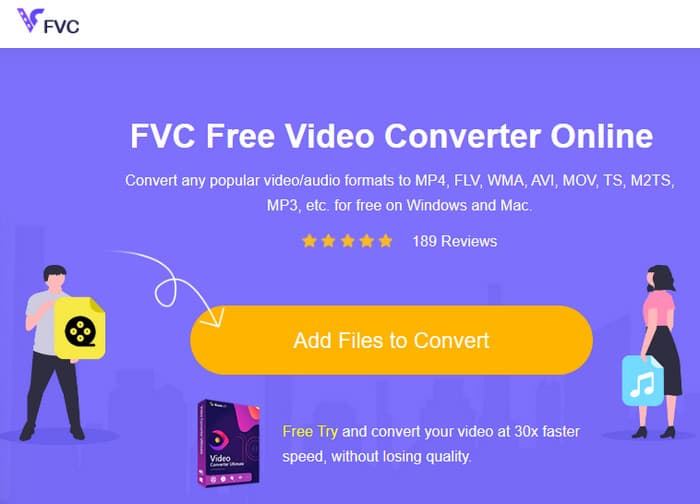
Hoe zit het met het online converteren van je MP4‑bestanden naar de gewenste video‑ en audioformaten? Dat wordt eenvoudig, snel en efficiënt als je gebruikmaakt van de FVC Free Video Converter Online. Dit is je gratis oplossing waarmee je video’s in MP4‑formaat kunt omzetten naar verschillende video‑ en audioformaten zoals WMV, MOV, FLV, AVI, MKV, AAC, MP3, WAV en meer. Ook kun je je HD‑video’s eenvoudig converteren naar kleinere MP4‑bestanden zonder kwaliteitsverlies. Nog beter: je kunt meerdere bestanden tegelijk converteren terwijl het hele proces eenvoudig en snel blijft. Bovendien hoef je je geen zorgen te maken over watermerken op je video’s of gegevensverlies tijdens het converteren, want deze online converter streeft ernaar je schone en veilige uitvoer te bieden. Hier volgen de drie eenvoudige stappen om je MP4‑bestanden naar verschillende typen formaten te converteren.
Stap 1. Klik op het tabblad Bestanden toevoegen om te converteren zodra je op de website bent aangekomen. Hierdoor kun je de MP4‑bestanden uploaden.
Stap 2. Stel na het importeren van de bestanden de gewenste uitvoerformaten voor de bestanden in.
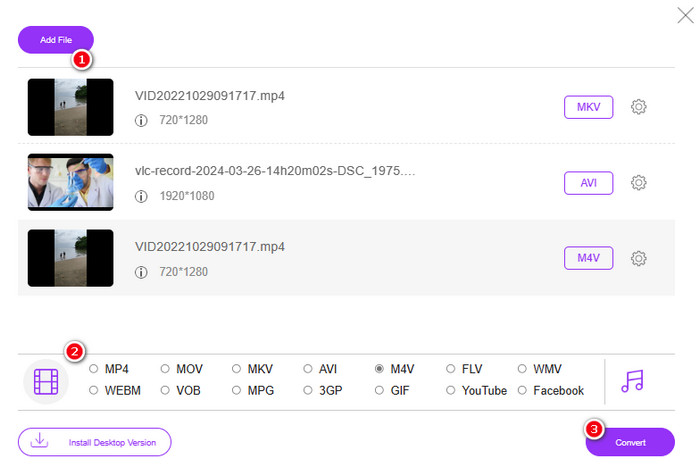
Stap 3. Zodra alles is ingesteld, klik je op de knop Converteren om de conversie te starten.
Hieronder vindt u meer tips voor het converteren van afbeeldingen naar MP4.
Uitgebreide leestips
VLC naar MP4 converteren: de snelste methoden om onder de knie te krijgen
iPhone‑video’s moeiteloos naar MP4 converteren op de pc zonder kwaliteitsverlies
Deel 4. Veelgestelde vragen over Webp- en MP4-conversie
Waarom zou ik een afbeeldingsbestand zoals WebP converteren naar een videobestand zoals MP4?
- U moet een afbeelding naar een video converteren voor bredere compatibiliteit en behoud.
Kunnen afbeeldingen in WebP-formaat in alle webbrowsers worden weergegeven?
-Nee. Sommige oudere browsers, met name Internet Explorer, ondersteunen WebP niet native. Moderne browsers ondersteunen het echter wel.
Hoe kan ik een afbeelding naar WebP converteren?
- U moet een speciale WebP-maker gebruiken. Er zijn ook verschillende tools en bibliotheken beschikbaar om afbeeldingen naar WebP-formaat te converteren.
Gevolgtrekking
Met de hierboven gepresenteerde WebP naar MP4‑converters wordt je conversie‑ervaring voortaan heel eenvoudig. Zo worden de drie meest gebruikte methoden ingezet om de gewenste conversie te bereiken. Als je moeite hebt om het proces met een van deze methoden te beheren, kun je de conversie gerust met een van de andere uitvoeren.
-
 Leer de eenvoudigste benaderingen om WebP snel naar JPG te converteren
 Laten we allemaal effectieve manieren leren om webafbeeldingen eenvoudig naar JPG te converteren. Dit artikel geeft je uitstekende beeldconversieprogramma's die je kunt gebruiken om beeldbestanden te converteren.
-
 Perfecte methoden om WebP moeiteloos naar PNG te converteren
 Zorg dat u op de hoogte bent van de opmerkelijke methoden voor het converteren van WebP naar PNG. Deze wegwijzer biedt u de meest behulpzame beeldconversieprogramma's die u kunt proberen.
-
 Ultieme methoden voor het perfect converteren van WebP naar GIF
 Wilt u WebP naar GIF converteren, maar heeft u geen idee wat u moet doen? Gelukkig biedt dit bericht meerdere manieren om WebP direct naar GIF te converteren.
