


 Video Converter Ultimate
 Scherm opnemer
 Videoreparatie
 Beveiligde download
Hoe je een Spotify-nummer als beltoon instelt - een volledige handleiding
Spotify biedt gebruikers over de hele wereld een enorme bibliotheek met muziek, podcasts en andere audiocontent. Miljoenen nummers zijn beschikbaar zodat mensen er op aanvraag naar kunnen luisteren. Als je de mooie muziek die het aanbiedt ook als ringtone op je smartphone wilt instellen, moet je het geselecteerde audiobestand eerst naar je apparaat downloaden. Het goede is dat deze procedure niet ingewikkeld is. In dit artikel splitsen we het volledige proces van hoe je een Spotify‑nummer als ringtone instelt op in drie delen en analyseren we elk deel uitvoerig voor je. Bij het voorbereiden van je ringtones moet je mogelijk een deel van het audiobestand uitknippen. Met dit in gedachten raden we je ook een van de meest professionele audio- en videobewerkingstools aan. Daarnaast beantwoorden we enkele veelgestelde vragen over het instellen van ringtones.

Deel 1. Download Spotify Song voor Ringtone
Kun je Spotify gebruiken voor ringtones? Het antwoord is ja, natuurlijk. Wat je moet weten voordat je officieel verdergaat, is dat je momenteel geen muziek rechtstreeks naar je apparaat kunt downloaden via Spotify en deze als ringtones kunt instellen. Daarom hebben we de hulp van een aantal tools nodig. Volgens ons onderzoek is Spotify Downloader een behoorlijk goede keuze. Het enige wat je hoeft te doen, is de officiële website in je browser te openen, de link naar je favoriete muziek te kopiëren en deze in de bijbehorende sectie te plakken. Zo kun je het bestand rechtstreeks naar je computer downloaden. Als je er problemen mee hebt, leggen we de stappen in de volgende sectie uit.
Dit is wat u moet doen om Spotify-nummers te downloaden als beltoon met Spotify Downloader.
Stap 1. Ga met je browser naar de officiële Spotify Downloader‑website.
Stap 2. Open de Spotify‑app op je telefoon. Zoek vervolgens het fragment dat je wilt downloaden.
Stap 3. Tik op het pictogram met de drie puntjes en kies Delen > Link kopiëren.
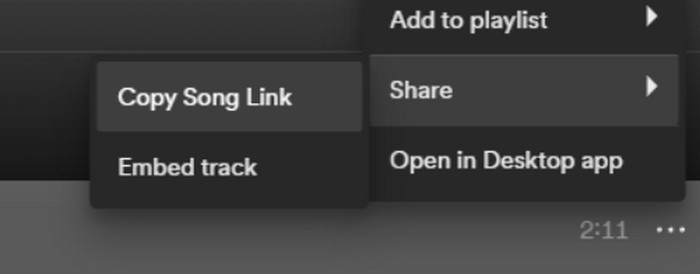
Stap 4. Ga nu naar de Spotify Downloader‑pagina. Plak de gekopieerde link en klik op Verzenden.
Stap 5. Wanneer het proces is voltooid, klik je op Downloaden.

Deel 2. Maak een Spotify-nummer je beltoon
Nadat u uw favoriete muziek naar uw apparaat hebt gedownload, kunt u beginnen met het bewerken ervan. We kunnen het hoogtepunt van het nummer of uw favoriete deel van het nummer bewerken en een Spotify-nummer uw beltoon maken. Houd er rekening mee dat iPhone- en Android-telefoons verschillende beltoonaudioformaten ondersteunen. Momenteel ondersteunt de iPhone alleen beltonen in M4R-formaat, terwijl Android-telefoons momenteel MP3, M4A, WAV en OGG ondersteunen. Als u vindt dat uw audiobestandsformaat niet aan de bovenstaande vereisten voldoet, kunt u een professionele formaatconverter gebruiken om u te helpen.
In dit geval raden we je aan een alles-in-één audiobewerkingsprogramma te proberen, de door FVC geselecteerde Video Converter Ultimate, om in één keer je nummers te bewerken. Naast de kernfunctie formaatconversie ondersteunt het ook het bewerken van de lengte van het audiobestand, het aanpassen van het volume en het audiokanaal, en het toevoegen van fade‑in‑ en fade‑out‑effecten aan je ringtones. Je hoeft tijdens de verwerking van je bestanden nauwelijks extra te wachten. Het helpt je de parameters van je audio zeer efficiënt aan te passen.
Gratis downloadVoor Windows 7 of nieuwerVeilige download
Gratis downloadVoor MacOS 10.7 of nieuwerVeilige download
Hier leren we je hoe je een beltoon van Spotify kunt maken met FVC Video Converter Ultimate.
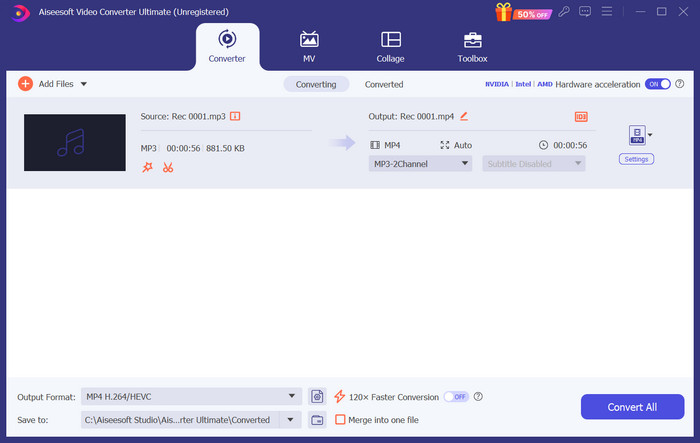
Stap 1. Download en installeer FVC Video Converter Ultimate op je computer. Zorg ervoor dat je je favoriete nummer op je apparaat hebt opgeslagen.
Stap 2. Open deze software op je desktop en klik op Bestanden toevoegen om het Spotify‑nummer naar dit platform te uploaden.
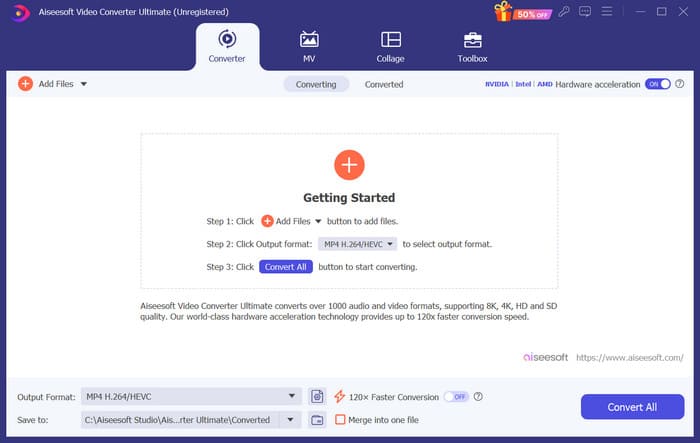
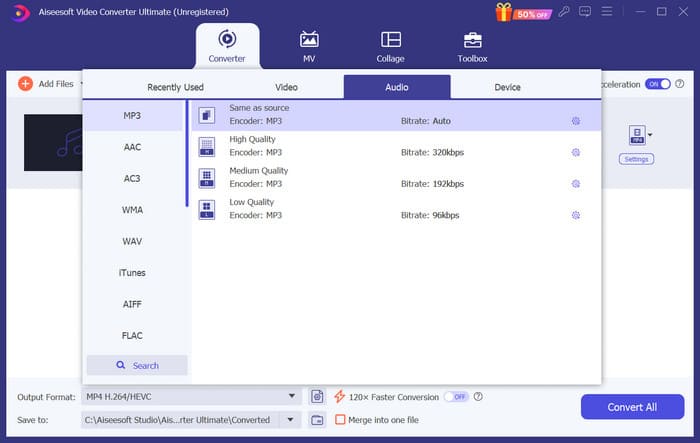
Stap 3. Om het formaat van je ringtone te converteren, klap je het menu naast Uitvoerformaat uit. Vervolgens kun je je doelformaat kiezen uit alle opties onder Audio.
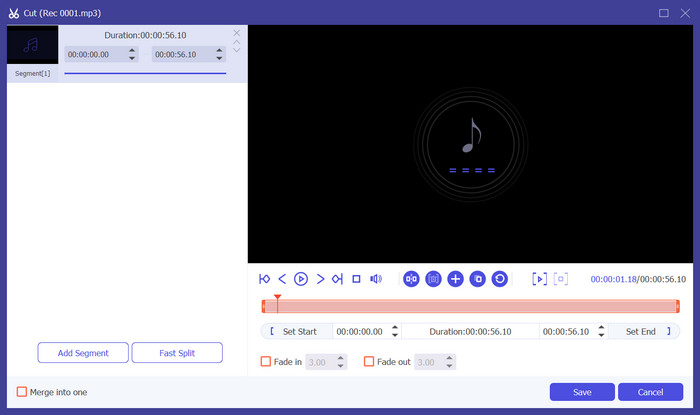
Stap 4. Om een deel van het nummer als ringtone voor je telefoon te kiezen, klik je op Knippen. Je komt dan op de pagina voor inkorten. Sleep de schuifbalk om het gedeelte te kiezen dat je wilt behouden. In dit venster kun je ook een fade‑in‑ en fade‑out‑effect aan je ringtone toevoegen.
Stap 5. Om het volume of het audiokanaal van je bestand te wijzigen, klik je op Bewerken. Op de nieuwe pagina kun je het bewerkingsresultaat zelfs direct bekijken. Klik op OK om de wijziging op te slaan.
Stap 6. Wanneer je het instellen van je ringtone hebt voltooid, klik je op Alles converteren om het bestand te exporteren.
Deel 3. Spotify-nummer instellen als beltoon
Nu we onze nieuwe ringtone klaar hebben en deze op de juiste lengte hebben bewerkt, moeten we de laatste stap zetten: het Spotify-nummer instellen als ringtone voor inkomende oproepen op je telefoon. Aangezien verschillende apparaten anders werken, zullen we je begeleiden bij het instellen ervan op je apparaat vanaf zowel iPhone- als Android-telefoons.
Android
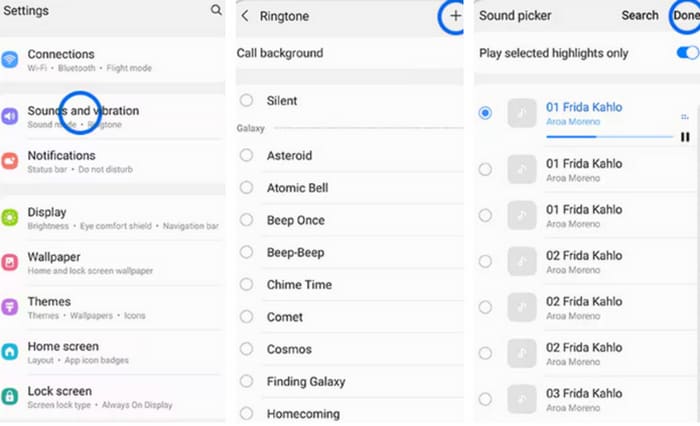
In dit gedeelte begeleiden we je bij het instellen van Spotify-nummers als ringtones op je Android-telefoon. We gebruiken een Samsung-telefoon als voorbeeld. Voordat we beginnen, moet je je Spotify-nummer overzetten naar je telefoon. Transformatie via een USB-kabel of Bluetooth zijn beide routes die kunnen worden aangehaald.
Stap 1. Ga op je telefoon naar Instellingen en tik op Geluiden & trillen > Telefoonbeltoon > Mijn geluiden.
Stap 2. Tik op Toevoegen en kies het bewerkte Spotify‑nummer uit alle bestanden op je mobiele telefoon.
Stap 3. Tik op Gereed om de aanpassing op te slaan. Je hebt nu met succes een Spotify‑nummer toegevoegd als ringtone op je Samsung‑toestel.
iPhone
Als je een ringtone voor je iPhone wilt maken, moet je mogelijk gebruikmaken van tools van derden. De populairste tool is GarageBand, en we leggen uit hoe je Spotify‑nummers als iPhone‑ringtone instelt.
Stap 1. Download en start GarageBand op je iPhone. Kies Project.
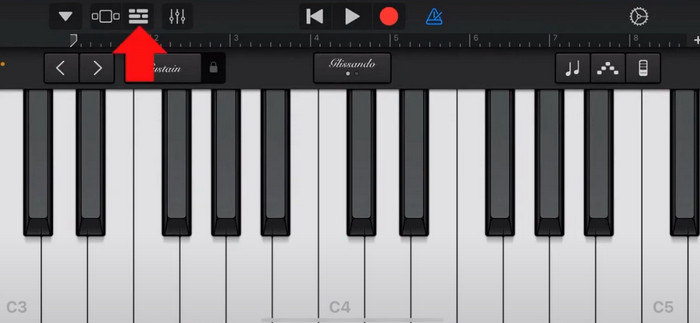
Stap 2. Kies daarna Loop > Bestanden. Om je Spotify‑nummer te selecteren, kies je Blader door onderdelen in de Bestanden‑app.
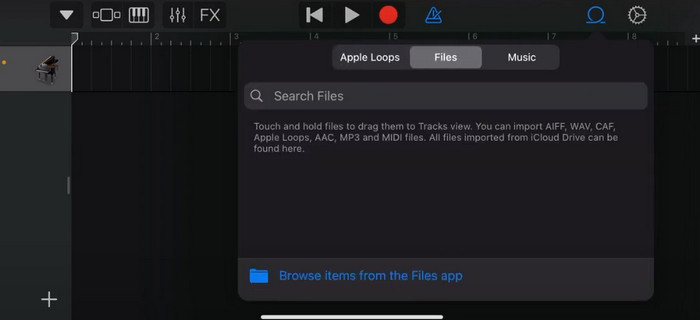
Stap 3. Plaats het getrimde Spotify‑bestand op de tijdlijn.
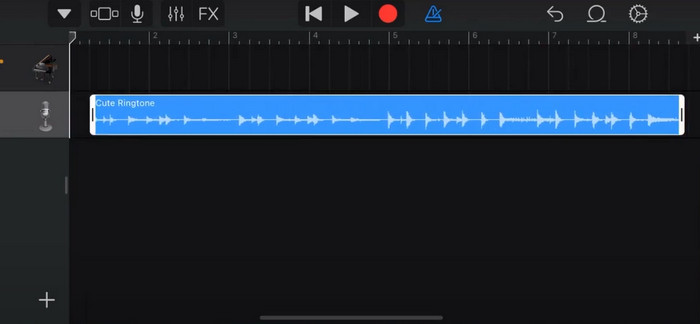
Stap 4. Schakel Metronoom uit. Tik vervolgens op het pijltje omlaag en kies Mijn nummers.
Stap 5. Houd de songclip ingedrukt en tik op Delen.
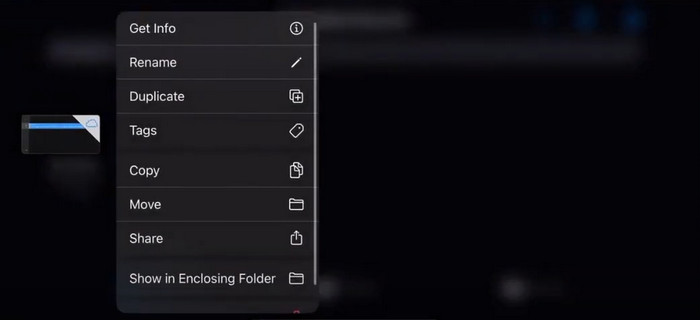
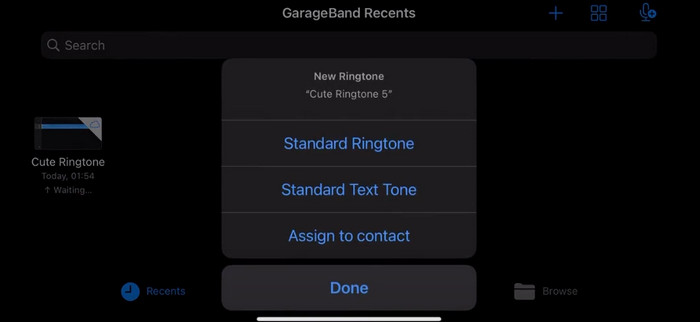
Stap 6. Kies Ringtone > Exporteren. Tik op Geluid gebruiken als > Standaardbeltoon.
Deel 4. Veelgestelde vragen over het maken van een Spotify-nummer als beltoon
Kan ik een Spotify-nummer rechtstreeks als beltoon gebruiken?
Spotify staat gebruikers niet toe om een nummer uit de app rechtstreeks als beltoon op een mobiel apparaat te gebruiken. Er zijn echter alternatieve methoden die u kunt gebruiken om een Spotify-nummer als beltoon in te stellen. U kunt het nummer dat u leuk vindt kopen in een digitale muziekwinkel zoals iTunes of Google Play Music. Er zijn tools van derden beschikbaar waarmee u Spotify-nummers naar MP3-bestanden kunt converteren.
Hoe maak ik een aangepaste beltoon voor mijn iPhone zonder iTunes?
Als u een aangepaste beltoon voor uw iPhone wilt maken zonder iTunes te gebruiken, kunt u GarageBand gebruiken, een muziek-app die beschikbaar is op iOS-apparaten. Met deze methode kunt u uw beltoon personaliseren met uw favoriete audioclips op uw apparaat.
Hoe converteer ik Spotify naar een iPhone-beltoon zonder computer?
Het is lastig om een Spotify-nummer rechtstreeks naar een iPhone-beltoon te converteren zonder een computer te gebruiken. Er zijn echter alternatieve methoden om een vergelijkbaar resultaat te bereiken. U kunt bijvoorbeeld een ringtone maker-app gebruiken of GarageBand kiezen.
Gevolgtrekking
Hierboven hebben we je een volledig overzicht gegeven van hoe je een Spotify‑nummer als ringtone voor inkomende oproepen kunt instellen. We hebben alle stappen behandeld en je een geavanceerde audiobewerkingstool aangeboden, de door FVC aanbevolen Video Converter Ultimate, om je te helpen je nummer te personaliseren. Als je dat wilt, helpt deze tool je ook eenvoudig om een video als je ringtone te maken. We zijn ervan overtuigd dat je hiermee de nodige instructies krijgt.
-
 Beste walkthrough Hoe WAV in een mum van tijd naar beltoon te converteren
 Wilt u WAV moeiteloos naar een beltoon converteren? Onze gebruiksvriendelijke tools klaren de klus! Geniet in een handomdraai van hoogwaardige audioconversie - geen technische hoofdpijn. Probeer ze vandaag nog!
-
 Hoe maak je van een spraakmemo een beltoon op iPhone en Android
 Als u een voice memo in een ringtone wilt veranderen, lees dan dit artikel. Of u nu een iPhone-gebruiker of een Android-gebruiker bent, u vindt oplossingen in onze content.
-
 5 MP3-snijders om elk geluid gemakkelijk te knippen [2024 bijgewerkt]
 Heb je een MP3-snijder nodig om de audio bij te snijden? Lees in dat geval dit artikel, want wij bieden de tools waarop u kunt vertrouwen voor eenvoudig audiosnijden.
