


 Video Converter Ultimate
 Scherm opnemer
 Videoreparatie
 Beveiligde download
Gedetailleerde handleiding over het omkeren van audio in Audacity [2024]
Het omkeren van audiotracks kan een unieke dimensie en kleur toevoegen aan uw muziekproducties, en genereert boeiende geluidseffecten voor creatief vertellen. Deze stijl wordt veel gebruikt en wordt steeds populairder als het gaat om het verrijken van audioprojecten met diepte en originaliteit. Dus als u audio bewerkt in Audacity en een twist wilt toevoegen door het om te keren, bent u hier aan het juiste adres!
In dit artikel nemen we je mee door gedetailleerde stappen over hoe je audio in Audacity kunt omkeren en delen we waardevolle tips om je te helpen het meeste uit deze functie te halen. Aan het einde van deze gids ben je klaar om je audiotracks om te keren en eenvoudig nieuwe creatieve horizonten te verkennen. Dus, maak je klaar om je audioprojecten te transformeren en ontdek de opwindende mogelijkheden van omgekeerde audio!

Deel 1. Hoe u audio in Audacity kunt omkeren
Audacity is een programma dat is ontworpen om gebruikers in staat te stellen audiobestanden te bewerken zonder de noodzaak van dure premium tools, wat zorgt voor een output van hoge kwaliteit zonder kosten. Als open-source tool is het gratis toegankelijk voor iedereen en biedt het een lange lijst met functies die je normaal gesproken alleen in betaalde software vindt. Van de vele mogelijkheden valt Audacity op door de mogelijkheid om audiotracks om te draaien. Deze functie stelt gebruikers in staat om creatief te zijn met hoe ze willen dat hun audio klinkt. Meestal draaien editors hun audio om omdat het een uniek effect toevoegt aan hun projecten.
Zo kun je audio omkeren in Audacity.
Stap 1. Download en installeer Audacity op je computer.
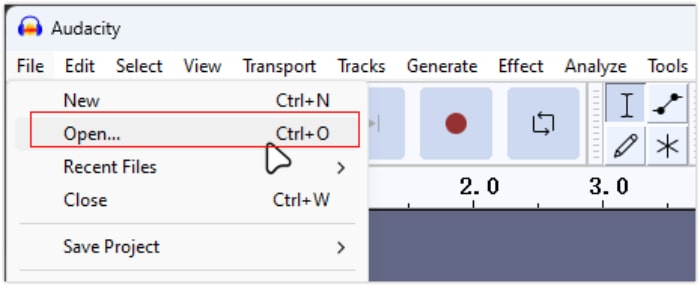
Stap 2. Start het programma, ga naar het menu Bestand in de linkerbovenhoek en kies Openen. Blader vervolgens op je computer om het audiobestand te zoeken en te selecteren, of sleep het audiobestand dat je wilt omkeren naar het programma.
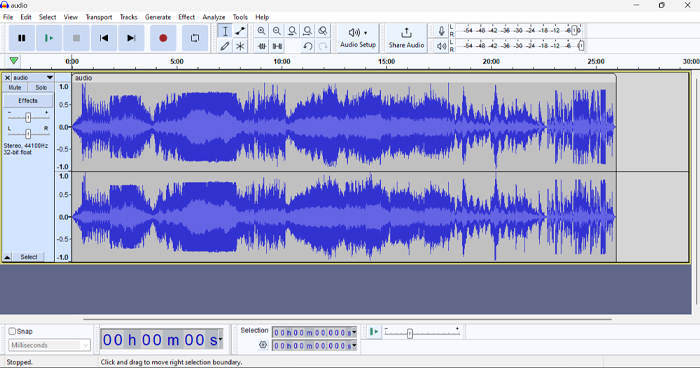
Stap 3. Klik nu op de audiotrack, ga naar het tabblad Selecteren en kies Alles om het volledige audiobestand te selecteren.
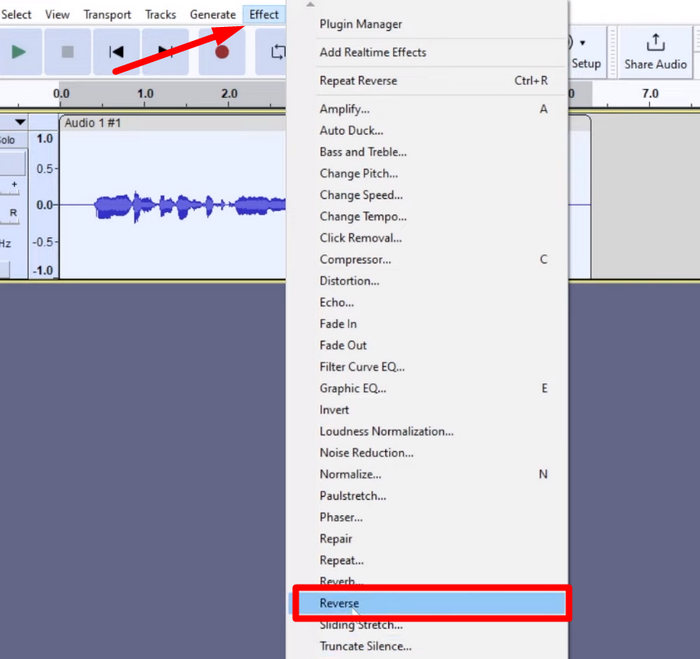
Stap 4. Om de audio om te keren, ga je naar het tabblad Effect en kies je Reverse in het vervolgkeuzemenu. Audacity zal het geselecteerde audiofragment verwerken en omkeren.
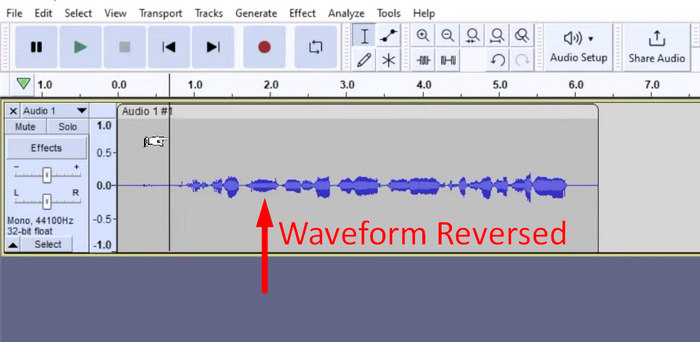
Stap 5. Je kunt de omgekeerde audio beluisteren door op de spatiebalk van je toetsenbord te drukken. Je kunt ook de afspeelknoppen linksboven in het Audacity‑venster gebruiken en op de knop Afspelen klikken.
Stap 6. Om het omgekeerde audiobestand te exporteren, ga je terug naar het menu Bestand en kies je onder dit menu voor Exporteren. Zo wordt je audio als een nieuw bestand opgeslagen. Vergeet intussen niet vóór het exporteren je voorkeursformaat voor het audiobestand te kiezen.
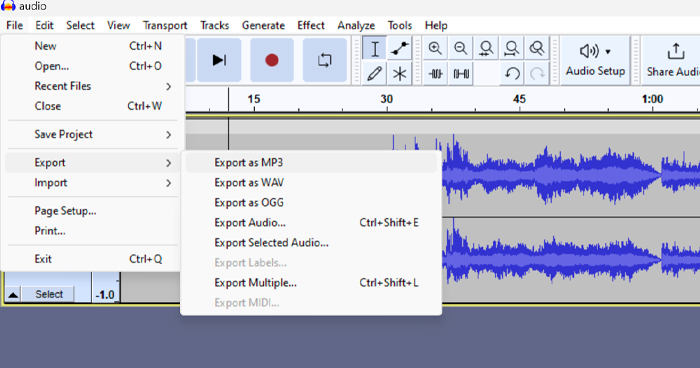
Vanwege problemen met betrekking tot onverwachts werkverlies, moet u uw project regelmatig opslaan tijdens het bewerken om verlies van voortgang te voorkomen. U kunt uw werk snel opslaan met Ctrl + S op Windows of Cmd + S op Mac. Overweeg daarnaast om beschrijvende bestandsnamen te gebruiken en uw bestanden in een speciale map te organiseren om uw projecten overzichtelijk en gemakkelijk toegankelijk te houden.
Deel 2. Hoe een deel van de audio in Audacity om te keren
Er zijn gevallen waarin gebruikers slechts een deel van de audio in Audacity wilden omkeren, misschien omdat er alleen specifieke secties zijn die ze willen benadrukken of een duidelijk effect willen creëren. De onderstaande stappen zijn bijna hetzelfde als hoe je een hele track omkeert. Het selecteren van een deel van een audio is echter een beetje lastig en moet in de stappen worden benadrukt om verwarring te voorkomen, vooral voor beginners.
Zo kun je een deel van de audio omkeren in Audacity.
Stap 1. Wanneer je in de hoofdinterface van het programma bent, ga je naar het menu Bestand in de linkerbovenhoek en kies je Openen. Blader vervolgens op je computer om het audiobestand te zoeken en te selecteren, of sleep het audiobestand dat je wilt omkeren naar het programma.
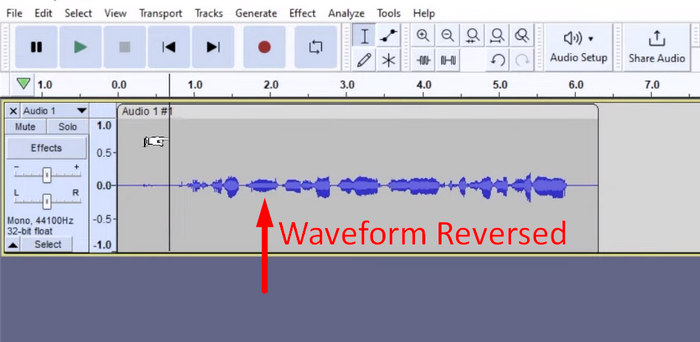
Stap 2. Gebruik nu de functie Zoom om in te zoomen op de golfvorm en sleep met de muis om het gedeelte van de audio te selecteren dat je wilt omkeren.
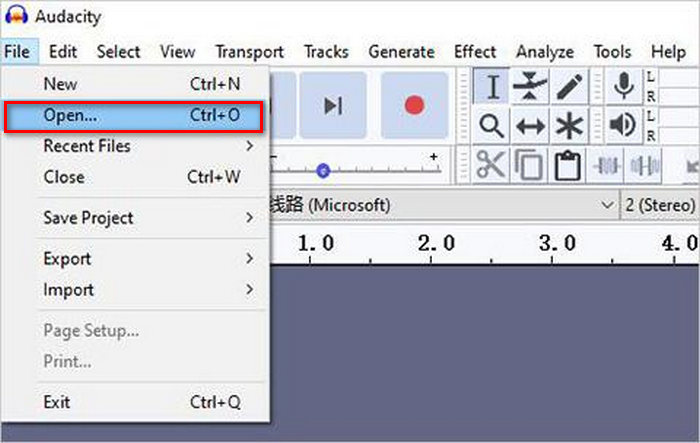
Stap 3. Om de audio om te keren, ga je naar het tabblad Effect en kies je Reverse in het vervolgkeuzemenu. Audacity zal het geselecteerde audioclips verwerken en omkeren.
Stap 4. Je kunt de omgekeerde audio beluisteren door op de spatiebalk van je toetsenbord te drukken. Je kunt ook de afspeelknoppen linksboven in het Audacity‑venster gebruiken en op de knop Afspelen klikken.
Stap 5. Om het omgekeerde audiobestand te exporteren, kies je tenslotte onder het menu Bestand voor Exporteren. Kies Exporteren als en selecteer je voorkeursformaat voor het audiobestand voordat je het uiteindelijk exporteert.
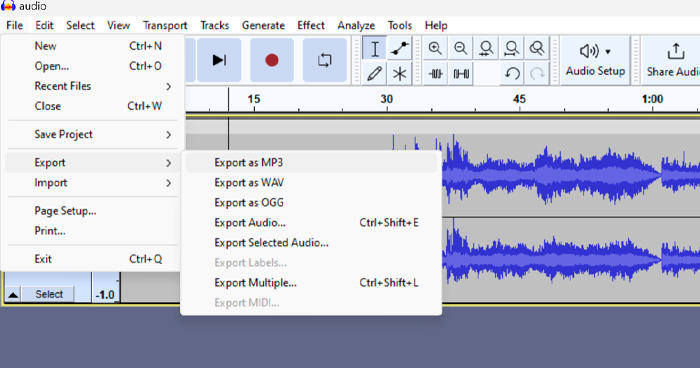
Wanneer je in Audacity een specifiek deel van de audio selecteert om om te keren, zorg er dan voor dat je voldoende inzoomt op de golfvorm zodat je duidelijk kunt zien waar het gedeelte begint en eindigt. Dit helpt bij het nauwkeurig selecteren en voorkomt dat er onbedoelde delen van de audio worden meegenomen. Gebruik bovendien vóór het omkeren indien nodig de tool Clip Split om de audio in segmenten op te delen, bijvoorbeeld bij het knippen van een MP3‑audio, zodat je specifieke delen eenvoudiger afzonderlijk kunt bewerken en aanpassen. Deze aanpak geeft je meer controle over je bewerkingen en zorgt ervoor dat de omgekeerde audio het gewenste effect naadloos bereikt.
Deel 3. Audio/Video omkeren met Audacity-alternatief
Als je liever een eenvoudigere en gebruiksvriendelijkere manier hebt om audio of video om te keren, kun je deze Audacity‑alternatief gebruiken, namelijk de door FVC geselecteerde Video Converter Ultimate. Deze alles‑in‑één video‑ en audiotool staat misschien vooral bekend om zijn krachtige conversiemogelijkheden, maar daarnaast is deze tool ook uitstekend voor gebruikers die een handige manier zoeken om audio of video om te keren.
Stap 1. Download en installeer op je computer de door FVC geselecteerde Video Converter Ultimate.
Gratis downloadVoor Windows 7 of nieuwerVeilige download
Gratis downloadVoor MacOS 10.7 of nieuwerVeilige download
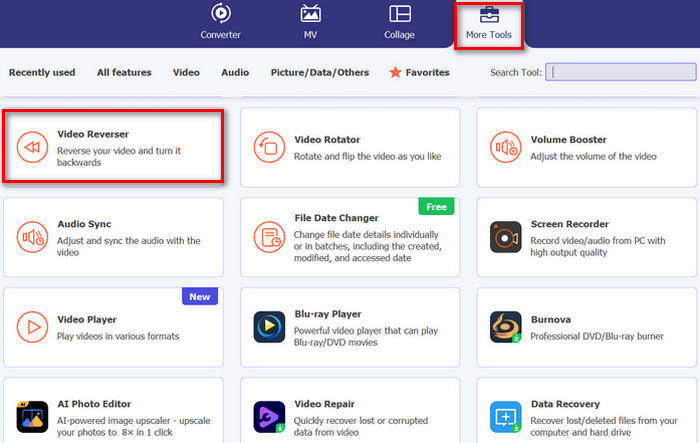
Stap 2. Start het programma en ga naar het tabblad Moretools. Selecteer daar Video Reverser.
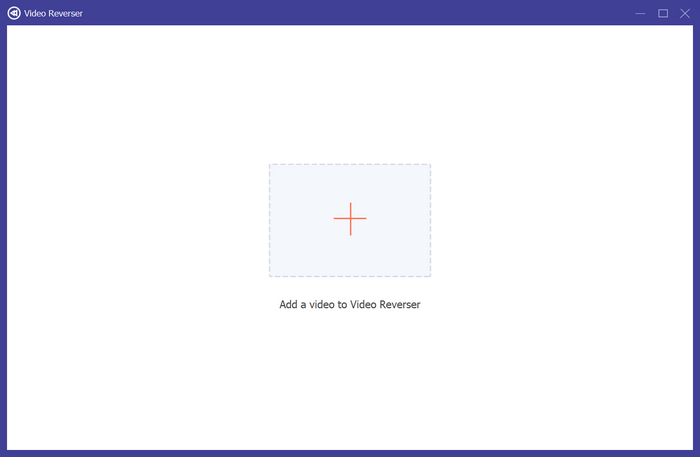
Stap 3. Importeer nu de audio of video die je wilt omkeren door op de knop Add a Video to Video Reverser te klikken.
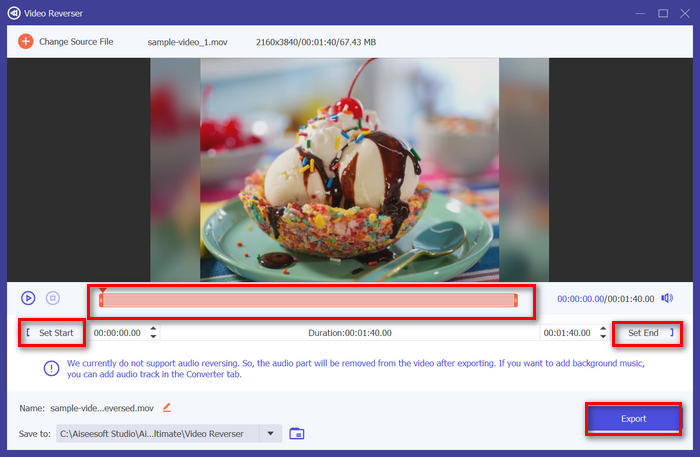
Stap 4. Wanneer je in de interface van Video Reverser bent, kun je, als je het volledige fragment wilt omkeren, direct naar de knop Exporteren gaan om je bestand automatisch om te keren. Wil je slechts een deel omkeren, dan kun je de balk verschuiven en zorgvuldig het deel van de audio of video kiezen dat je wilt omkeren. Als alternatief kun je eenvoudig de begintijd en eindtijd van het bestandsgedeelte dat je wilt omkeren invoeren. Klik daarna gewoon op de knop Exporteren.
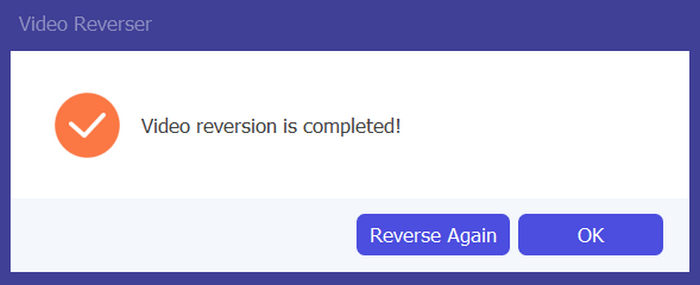
Stap 5. Wanneer het exporteren is voltooid, krijg je een melding en kun je je omgekeerde video openen in de map op je computer.
Daar heb je het! Makkelijk toch? Je hoeft niet in de war te raken met een complexe interface. Met de door FVC gekozen Video Converter Ultimate heb je alles wat je nodig hebt binnen handbereik.
Deel 4. Veelgestelde vragen over het omkeren van audio in Audacity
Hoe maak ik het omgekeerde audio-effect in Audacity ongedaan?
Als u een in Audacity hebt omgekeerd en dit ongedaan wilt maken, kunt u eenvoudig terugkeren naar de originele audio. Ga gewoon naar het menu Bewerken in de linkerbovenhoek van de Audacity-interface en selecteer Omgekeerd ongedaan maken. Bovendien kunt u de sneltoets Ctrl + Z voor Windows of Cmd + Z voor Mac gebruiken om de laatste actie ongedaan te maken. Hiermee wordt de audio teruggezet naar de oorspronkelijke staat voordat het omgekeerde effect werd toegepast.
Welke audioformaten ondersteunt Audacity voor het omkeren van audio?
Audacity ondersteunt verschillende populaire audioformaten, zoals WAV, MP3, FLAC, AIFF en OGG.
Kun je audio vervormen in Audacity?
Ja. U kunt audio vervormen in Audacity. Audacity biedt verschillende effecten en tools waarmee u vervorming kunt toepassen op uw audiotracks. Om dit toe te voegen, gaat u naar Effect, klikt u op Distortion en Modulation en kiest u Distortion.
Kun je audio converteren in Audacity?
Ja, dat kan. Audacity ondersteunt veel audiobestandsformaten. Als je merkt dat een audiobestand niet compatibel is met je apparaat, kun je Audacity bijvoorbeeld gebruiken om eenvoudig AIFF naar MP3 te converteren.
Gevolgtrekking
Tot slot: het is eenvoudig om te leren hoe je audio omkeert in Audacity, en het voegt unieke effecten toe aan je audio‑ of videoprojecten. Volg de gedetailleerde stappen om vandaag nog te beginnen met het omkeren van je audiobestanden. Voor een eenvoudigere alternatieve methode kun je de door FVC geselecteerde Video Converter Ultimate proberen. Ben je klaar om creatief aan de slag te gaan? Probeer nu een van deze methoden!
-
 Word gratis lid van MOV - Hoe u twee MOV-bestanden samenvoegt tot één
 Het kan voor beginners moeilijk zijn om verschillende MOV-videoclips samen te voegen. Dus, is er een eenvoudige en snelle manier om MOV-bestanden te combineren? Als dat het geval is, hoe moet u het dan gebruiken? Dit bericht helpt je om deze antwoorden te krijgen.
-
 4 manieren om video's gratis samen te voegen op Windows / Mac / online
 Hier zijn 4 snelle manieren om video's samen te voegen tot een nieuwe video. Geen videobestandsgrootte of formaatlimiet. U kunt met succes deelnemen aan 2, 3, 4 en zelfs meer videoclips in verschillende formaten en resoluties.
-
 Concrete gids om gratis lid te worden van M4V-bestanden op Windows en Mac
 Als u op zoek bent naar een oplossing om M4V-videobestanden in één te combineren, mis deze passage dan nooit. Hier zullen we het hebben over de twee beste methoden om M4V-videobestanden te combineren.
