


 Video Converter Ultimate
 Scherm opnemer
 Videoreparatie
 Beveiligde download
4 effectieve methoden: hoe u de bestandsgrootte van foto's op de iPhone kunt verkleinen
Meestal moeten we met onze iPhones foto’s direct uploaden op bepaalde websites of ze via e‑mail of andere platforms versturen. Foto’s die met iPhones zijn genomen, hebben echter vaak een groot bestandsgrootte door de hoge kwaliteit van de beelden die met de geavanceerde camera’s worden vastgelegd. Om de bestandsgrootte van foto’s op je iPhone te verkleinen zonder al te veel in te leveren op kwaliteit, hebben we hier vier effectieve methoden die je zeker moet bekijken. Lees verder om ze allemaal te ontdekken!

Deel 1. Verklein de bestandsgrootte van foto's op de iPhone in de camera-instellingen
De eenvoudigste en snelste manier om de bestandsgrootte van foto’s op je iPhone te verkleinen, is via de app Instellingen. Met deze methode kun je het formaat kiezen voor alle foto’s die je met de iPhone‑camera maakt. Het punt met iPhones is dat ze meestal zijn ingesteld op het meest compatibele formaat, waardoor foto’s automatisch in grote bestanden worden opgeslagen. Als je opslag wilt besparen, moet je je camera‑instellingen voor formaat aanpassen naar hoge efficiëntie en het HEIC‑formaat uitschakelen. Dit soort camera‑instelling vermindert de beeldkwaliteit niet, maar bespaart je wel veel ruimte op je iPhone.
Zo kunt u de bestandsgrootte verkleinen in de Camera-instellingen:
Stap 1. Ga op je iPhone naar Instellingen, zoek Camera en kies Formaten.
Stap 2. Kies bovenaan het scherm voor Hoge efficiëntie. Met dit formaat krijg je de kleinste fotobestanden zonder kwaliteitsverlies.
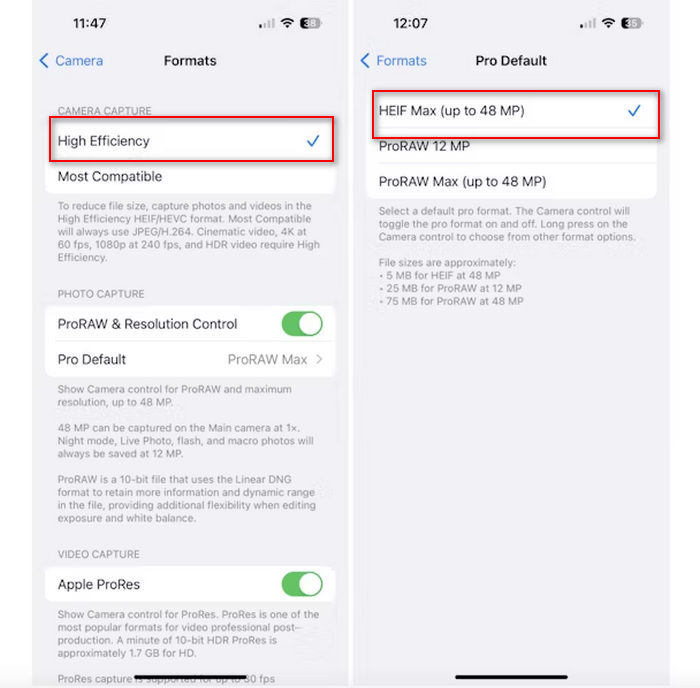
Stap 3. Om de grootte van je afbeeldingsbestanden verder te verkleinen, tik je op Pro‑standaard en kies je HEIF Max tot 48 MP. Hiermee wordt de bestandsgrootte van je foto beperkt tot ongeveer 5 MB.
Het verkleinen van de bestandsgrootte op een iPhone door de camera-instellingen te wijzigen, kan een goede manier zijn om afbeeldingen te comprimeren. Het zou echter enige tijd duren als u de camera-instellingen wilt wijzigen als u ook foto's van hoge kwaliteit wilt maken die een groot bestandsformaat kunnen hebben.
Deel 2. Foto's op de iPhone comprimeren door bij te snijden
Bijsnijden is een effectieve methode om de grootte van een afbeelding op een iPhone te verkleinen, omdat het onnodige delen van de foto verwijdert, waardoor de algehele bestandsgrootte afneemt. Wanneer u een foto bijsnijdt, knipt u in feite delen van de afbeelding weg die u niet nodig hebt, wat niet alleen de focus legt op de belangrijke elementen van de afbeelding, maar ook de hoeveelheid gegevens die het bestand bevat, vermindert. Dit kan met name handig zijn om opslagruimte op uw iPhone te besparen en het gemakkelijker te maken om foto's op verschillende platforms te delen.
Zo kunt u foto's op uw iPhone comprimeren door ze bij te snijden:
Stap 1. Open in de app Foto’s de foto waarvan je de bestandsgrootte wilt verkleinen en tik op Bewerk.
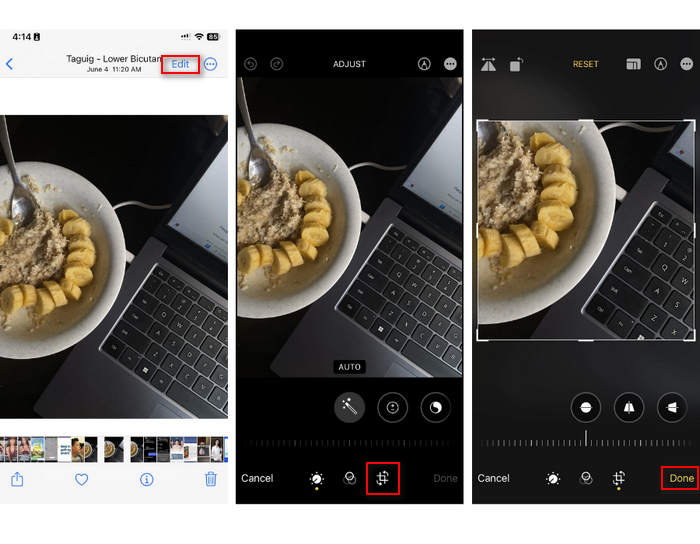
Stap 2. Tik nu onderaan op de knop Bijsnijden en snijd de ongewenste delen van de foto weg.
Stap 3. Pas het bijsnijden naar wens aan en tik vervolgens op Gereed.
Hoewel dit de bestandsgrootte van foto's op een iPhone kan verkleinen, is deze methode niet altijd toepasbaar. Daarom raden we aan om naast deze methode ook andere hulpmiddelen te gebruiken om foto's op een iPhone te comprimeren.
Deel 3. Verklein de bestandsgrootte van foto's op de iPhone via een app voor sociale media
WhatsApp maakt het mogelijk om de bestandsgrootte van foto’s op je iPhone te verkleinen. De app biedt een optie om de afbeelding te comprimeren tot een kleiner formaat voordat je deze verstuurt, wat helpt om opslagruimte te besparen en het delen van foto’s te vergemakkelijken.
Zo kun je foto's op je iPhone comprimeren met WhatsApp:
Stap 1. Open in WhatsApp een chatbericht.
Stap 2. Tik vervolgens op het foto‑icoon en kies de foto die je wilt versturen.
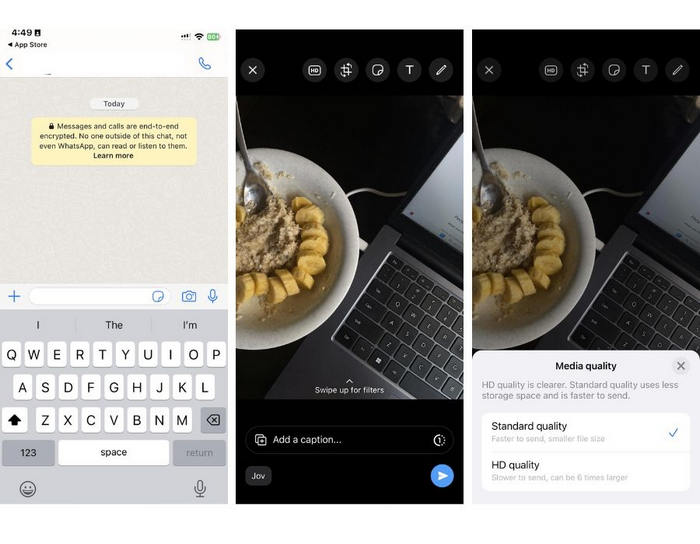
Stap 3. Tik daarna op HD om de bestandsgrootte aan te passen door je foto in standaardkwaliteit te versturen.
Stap 4. Tik op de pijl om je bericht te versturen en de foto te downloaden.
Deze methode wordt sterk aanbevolen voor degenen die WhatsApp op hun iPhone hebben geïnstalleerd. Hoewel het een geweldige manier is om de bestandsgrootte van foto's op een iPhone te verkleinen, zal het de kwaliteit van de foto aanzienlijk beïnvloeden.
Deel 4. Comprimeer foto's op de iPhone met een online tool
Als je ondertussen op zoek bent naar een directe en eenvoudigste manier om de bestandsgrootte van foto’s op iPhones te verkleinen, is het beste hulpmiddel dat je kunt gebruiken de FVC Free Image Compressor. Je hoeft deze tool alleen maar online te openen, de foto te uploaden die je wilt comprimeren en klaar. Bovendien kun je met deze tool meerdere foto’s rechtstreeks vanaf je iPhone uploaden en ze aanzienlijk comprimeren zonder veel kwaliteitsverlies vergeleken met de andere hierboven genoemde methoden.
Zo kunt u foto's op uw iPhone comprimeren met behulp van FVC Free Image Compressor:
Stap 1. Zoek in Safari naar FVC Free Image Compressor.
Stap 2. Tik op de knop Upload Images om de foto’s te importeren waarvan je de bestandsgrootte wilt verkleinen.
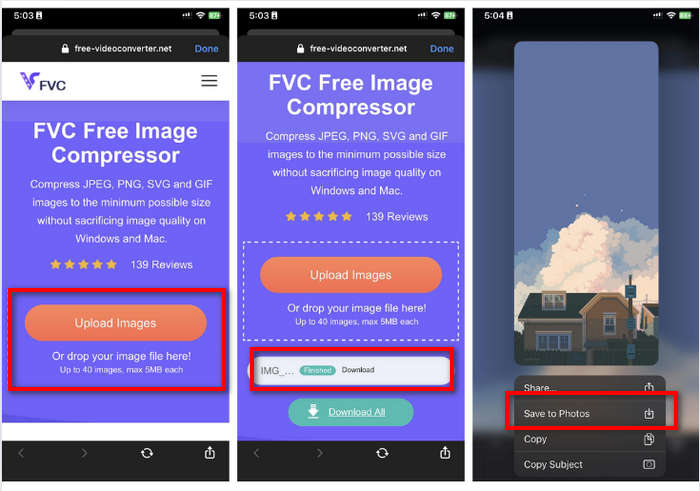
Stap 3. Daarna worden je foto’s automatisch gecomprimeerd. Tik op de knop Download, houd de gecomprimeerde foto lang ingedrukt en kies de optie Bewaar in Foto’s.
Met FVC Free Image Compressor kan het verkleinen van de bestandsgrootte van foto's op de iPhone snel worden gedaan zonder veel van de kwaliteit te verliezen. Bovendien maken de toegankelijkheid en de gebruiksvriendelijke interface het een go-to tool voor iPhone-gebruikers om hun foto's te comprimeren.
Deel 5. Veelgestelde vragen over het verkleinen van de bestandsgrootte van foto's op de iPhone
Hoe kan ik de bestandsgrootte van een JPEG verkleinen zonder dat de resolutie verloren gaat?
Om de grootte van een JPEG te verkleinen zonder resolutie te verliezen, kunt u de FVC Free Image Compressor gebruiken. Met deze online tool kunt u uw foto's comprimeren terwijl de kwaliteit behouden blijft. Upload of importeer het afbeeldingsbestand eenvoudig naar de tool en deze comprimeert het automatisch voor u. Vervolgens kunt u de gecomprimeerde foto terug downloaden naar uw iPhone.
Hoe kan ik de bestandsgrootte van foto's op een iPhone zien?
U kunt de bestandsgrootte van uw foto's bekijken in de Bestanden-app van uw iPhone. Als uw foto niet in de Bestanden-app staat, moet u deze eerst uploaden naar uw iCloud. Zodra de foto in iCloud staat, kunt u de bestandsgrootte bekijken door deze te openen via de Bestanden-app.
Welk type foto wordt met de iPhone gemaakt?
iPhones slaan foto's standaard op in HEIC of het High-Efficiency Image Coding-formaat. HEIC biedt betere compressie dan JPEG, terwijl de hoge kwaliteit behouden blijft. U kunt deze instelling wijzigen in het gedeelte Camera van de app Instellingen onder Formaten.
Gevolgtrekking
Omdat iPhones bij het maken van foto’s vaak grote bestanden produceren, kunnen delen en uploaden lastig zijn. Daarom is het een slimme zet om te leren hoe je de bestandsgrootte van foto’s op iPhones kunt verkleinen wanneer je je beelden wilt optimaliseren voor soepel gebruik. Nu is het aan jou welke methode je gebruikt om je foto’s te comprimeren. Waar wacht je nog op? Comprimeer je foto’s nu op je iPhone!
-
 Hoe u de grootte van een afbeelding kunt wijzigen – Adobe Resize Image [Online en offline]
 Als u op zoek bent naar Adobe Resize Image, dan hebben wij de oplossing voor u. Bekijk dit bericht grondig om te leren hoe u het formaat van afbeeldingen kunt wijzigen met Adobe op uw pc.
-
 Creatieve GIF-programmatools voor het wijzigen van het formaat beschikbaar met gemak
 Het formaat van GIF's wijzigen kan een pijnlijke taak zijn. Gebruik de juiste programma's om het formaat van uw GIF's te wijzigen en uw werk vlekkeloos uit te voeren. Bekijk dit artikel voor meer informatie.
-
 3 manieren om het formaat van de afbeelding voor Twitter te wijzigen zonder kwaliteitsverlies
 Om het formaat van de afbeelding voor Twitter te wijzigen, moet u een foto-resizer in uw hand hebben. Heeft u er geen? Kies dan op de lijst.
