


 Video Converter Ultimate
 Scherm opnemer
 Videoreparatie
 Beveiligde download
Combineer M4A-bestand: snelle en eenvoudige stappen voor het samenvoegen van audio
Using an M4A file is difficult enough, as all devices and audio software do not support this audio file format. Modifying it has imposed another challenge for users. Of course, there are tons of ways to join M4A files together into a single audio file, and using third-party tools such as software and online tools makes it possible. This guide will help struggling users find a reliable tool to combine their M4A files while also providing a walkthrough to help them get started navigating the software and online tools.

Deel 1. Snelste methode om M4A-bestanden te combineren op Windows/Mac [voor hoge kwaliteit]
First on the list is the FVC-picked Video Converter Ultimate. This software tool can effectively create precise cuts, trims, compressed files, and, in this case, M4A file mergers. Merging M4A files allows users to upload multiple M4A files at the same time without any trouble converting them first. It is quite fast and easy, as the software itself is very organized and easy to navigate, which makes it an instant favorite for novice users.
Step 1. Download and launch FVC-picked Video Converter Ultimate to your desktop.
Gratis downloadVoor Windows 7 of nieuwerVeilige download
Gratis downloadVoor MacOS 10.7 of nieuwerVeilige download
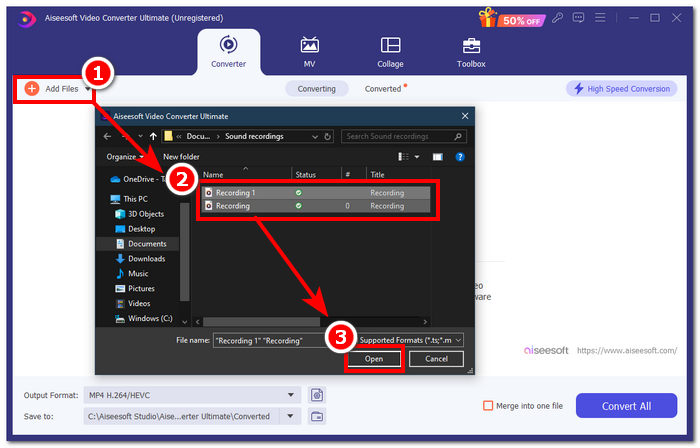
Step 2. Once the software is installed, click on the Add Files button and select the M4A files you want to merge.
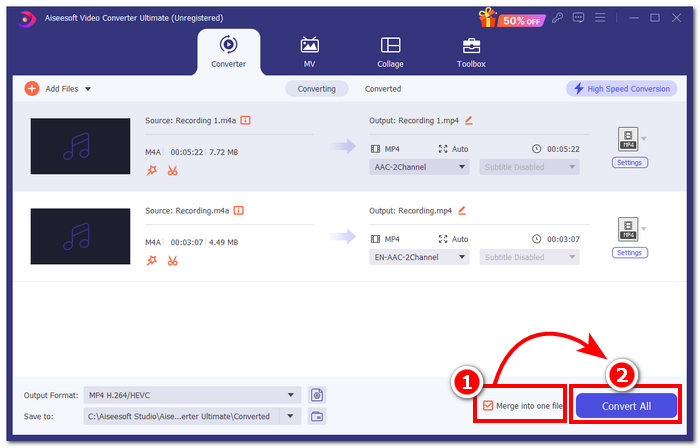
Step 3. Once your M4A files are uploaded to the tool’s interface, click the checkbox located in the lower-right part of the tool to enable the merging of your M4A file. Then, proceed to click the Convert All button right next to it to start the merging process.
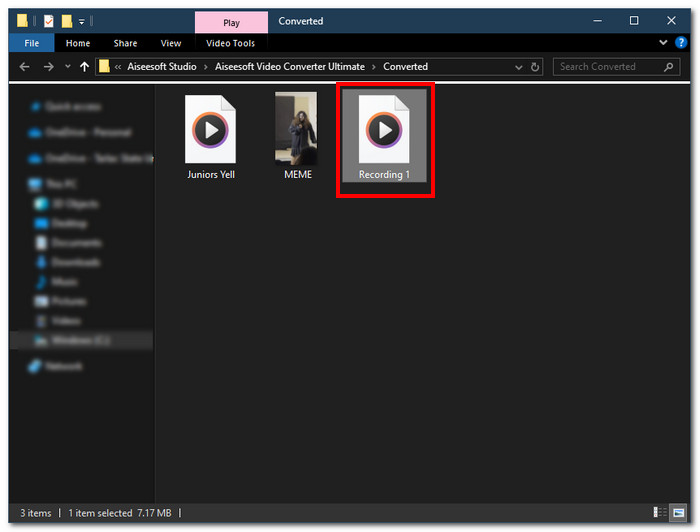
Step 4. Once the merging process is complete, a new window will open on your screen. Your merged M4A files will be located in that window. Congratulations, you have finally merged your M4A files.
FVC-picked Video Converter Ultimate is de snelste van de genoemde software omdat het is geïntegreerd met high-speed processing technologie om een verliesvrij kwaliteitsresultaat te garanderen en tegelijkertijd een zeer intuïtieve interface biedt die uw M4A-bestanden naadloos laat samensmelten. In tegenstelling tot andere software die slechts een beperkt aantal audiobestandsformaten ondersteunt, heeft deze software een breed scala aan audio- en videobestandsformaten ondersteund, waaronder M4A, MP3, MP4, WAV, AAC, etc.
Deel 2. M4A-bestanden op Mac combineren met GarageBand [voor muziekmakers]
Voor professionele muziekliefhebbers of makers in het Apple-ecosysteem is GarageBand de go-to M4A-bestandssamenvoegingstool. Het samenvoegen van M4A-bestanden met uw Mac-apparaten is eenvoudig, omdat Apple's GarageBand een audio-editor is die vooraf op uw apparaten is geïnstalleerd. Om twee M4A-bestanden samen te voegen tot één audiobestand, volgt u gewoon onze onderstaande stappen GarageBand is een van die softwaretools die eenvoudig en gemakkelijk werken.
Step 1. Download and launch GarageBand from your Mac devices.
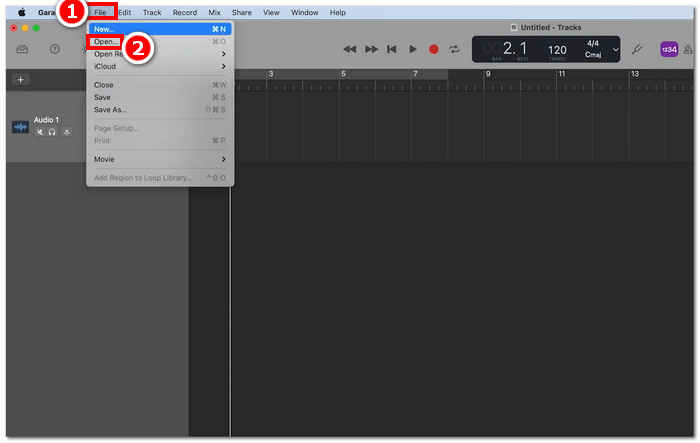
Step 2. On the main interface, load your M4A files by clicking on File > Open, located in the upper left corner of the tool.
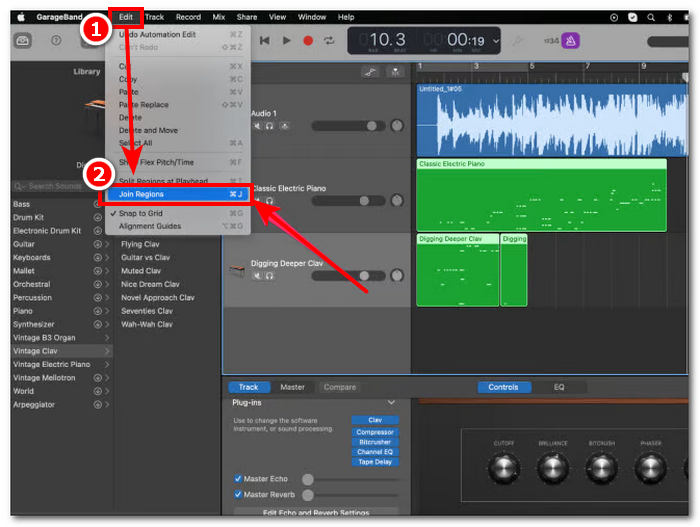
Step 3. Once your M4A files are loaded in the tool’s interface, click Edit > Join Regions to start merging your uploaded M4A files.
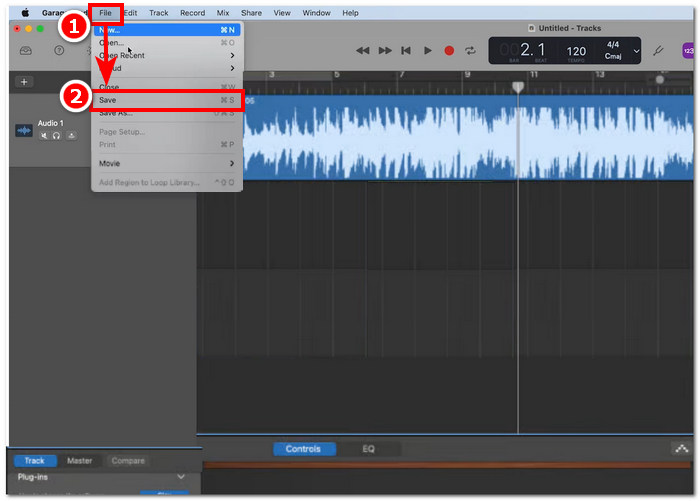
Step 4. Once your M4A files are merged into a single audio track, you can now save or download it by clicking on the File > Save button located in the upper-left corner of the tool.
Truly, GarageBand is one of the simplest yet professionally made software for merging and editing M4A files. Following the steps above is a great way of organizing two or more M4A files into a single audio file, which makes it easier to share a mix.
Deel 3. M4A-bestanden op Windows combineren met VLC [voor basisgebruikers]
Verrassend genoeg kan VLC Media Player M4A-bestanden combineren tot één bestand. Het maakt een naadloos en eenvoudig samenvoegingsproces mogelijk door gebruik te maken van de instellingen in de media- en bestandseigenschappenviewer. Deze gratis en nuttige populaire audio- en videospeler, ongeacht welk bestandsformaat u VLC wilt combineren, kan ze effectief converteren en samenvoegen.
Step 1. Download and launch VLC Media Player on your desktop.
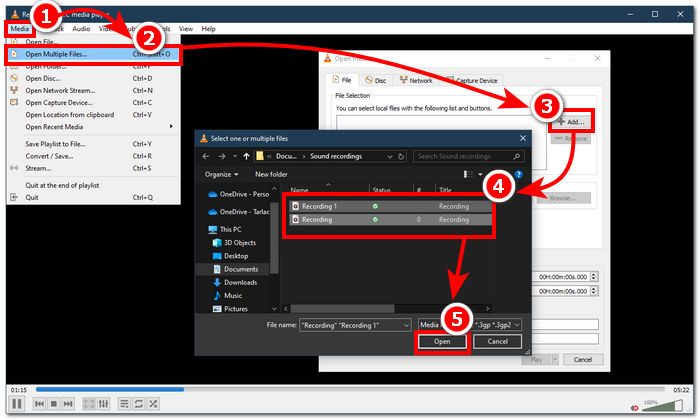
Step 2. On the main interface, click first on Media > Open Multiple Files in the upper-left corner of the player. Once you click on that, a new window will appear. To continue, click on the + Add button and select the M4A files you want to merge.
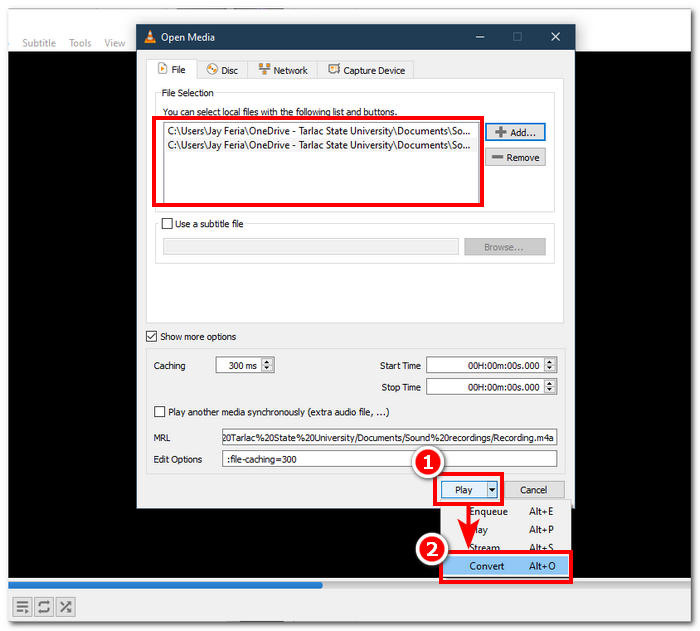
Step 3. Once your M4A files are in the file field, click on the arrow-down button next to the Play button in the lower part of the tool’s interface and select Convert.
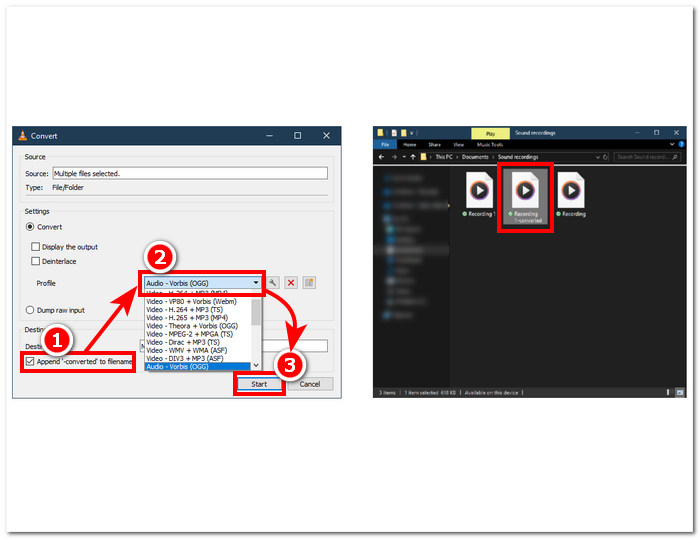
Step 4. A new window will then appear. Click on the checkbox for Append ‘-converted’ to filename. Next, go to the profile settings and choose Audio. Once everything is set, click on the Start button, and your merged M4A file will be available in the file folder where your M4A files are located.
Do not forget to adjust the audio length when you combine them for syncing with a video file. If audio is delayed in VLC, this article will be helpful: How to fix VLC audio delay.
Door de gegeven stappen te volgen, verzekert u zich van een naadloze samenvoeging van uw M4A-bestanden. VLC Media Player is niet alleen een typische speler voor alle soorten media, maar kan ook worden gebruikt als een metadata-editor en kan niet alleen M4A combineren, maar ook video's.
Deel 4. M4A-bestanden online combineren [voor kleine M4A-bestanden]
Als u op zoek bent naar een efficiëntere en tijdbesparende M4A-samenvoegingstool, kunt u beter een online tool gebruiken. Om M4A-bestanden online samen te voegen, moet u een betrouwbare tool gebruiken, want er zijn talloze misleidende M4A-samenvoegingstools online. Gelukkig heeft Audio Joiner u te pakken, want het is een webgebaseerde tool voor het samenvoegen van M4A-bestanden. Het werkt in principe door uw M4A-bestanden naar de website te uploaden en met één klik worden uw audiobestanden direct samengevoegd tot één bestand.
Step 1. Go to Audio Joiner's official website to access the service.
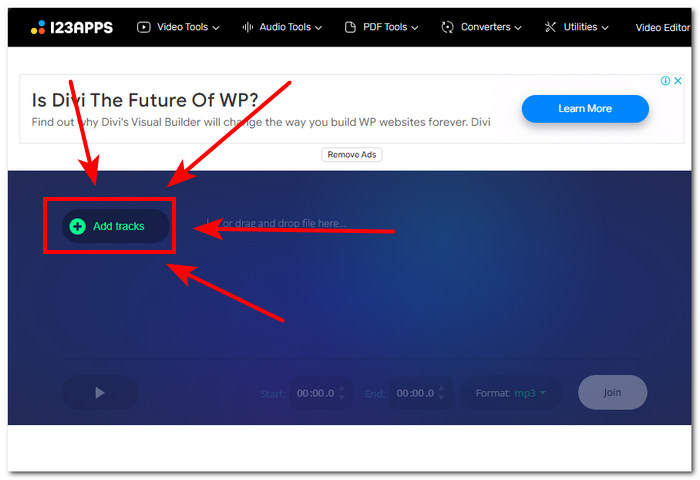
Step 2. Once you are in the website interface, click on the green + Add Tracks button and select the M4A files you want to combine.
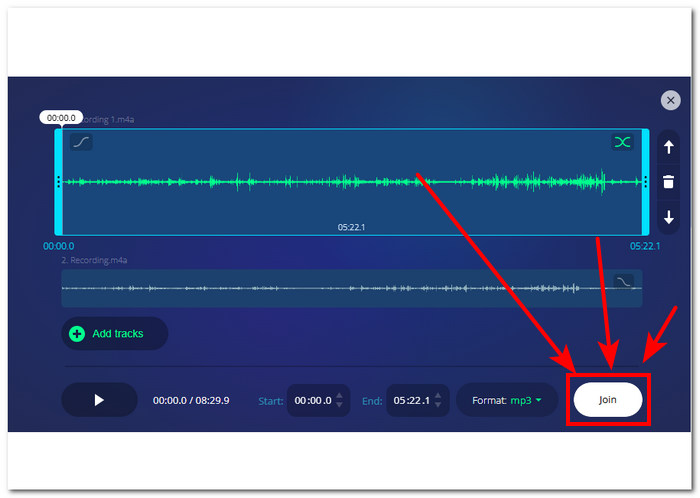
Step 3. Once your M4A is loaded in the tool proceed to click on the Join button located in the lower-right part of the website and just wait for it to finish the merging process.
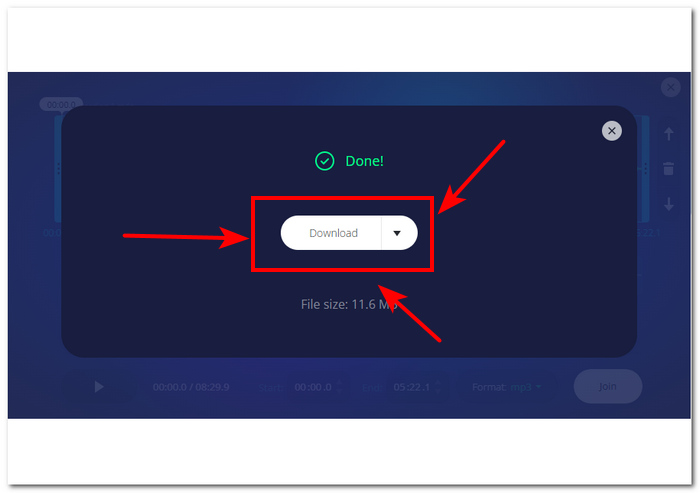
Step 4. Once the merging is done, you can press the Download button on your screen to download and save your merged M4A file to your desktop.
Hoewel dit webgebaseerde hulpmiddel voor het samenvoegen van M4A-bestanden handig is voor gebruikers die geen tijd willen besteden aan het installeren van een softwaretool, worden er pop-upadvertenties weergegeven en worden uw audiobestanden helaas langzamer geladen.
Deel 5. Veelgestelde vragen over het combineren van M4A-bestanden
Wat is de eenvoudigste manier om audiobestanden te combineren?
De makkelijkste manier om M4A-bestanden te combineren is om te vertrouwen op online tools, die direct samenvoegen van audiobestanden in één klik bieden. Wees echter voorzichtig met het gebruik van dergelijke tools, want er zijn enkele risico's aan verbonden.
Wat is de opdracht om tracks samen te voegen in GarageBand?
De sneltoets voor het samenvoegen van een track in GarageBand is het gelijktijdig indrukken van Command + J.
Kun je een Windows Media Player gebruiken om nummers te mixen?
Helaas beschikt Windows Media Player nog niet over dergelijke functies of ingebouwde functionaliteit om nummers te mixen of samen te voegen.
Is er een manier om M4A-bestanden te combineren zonder kwaliteitsverlies?
Ja, er zijn genoeg manieren om M4A te combineren zonder kwaliteitsverlies. Sommige tools hebben een aangewezen instellingsaanpassing hiervoor, en sommige bieden gewoon elke keer een export van hoge kwaliteit, zoals de door de FVC gekozen Video Converter Ultimate.
Kan ik M4A-bestanden combineren op mijn smartphone?
Ja, M4A-bestandssamenvoegingen zijn beschikbaar op desktops en webbrowsers, evenals op mobiele apparaten. GarageBand biedt een mobiele versie van zijn desktopversie, maar deze is alleen beschikbaar op iOS-apparaten, terwijl WavePad mobiel beschikbaar is op zowel iOS als Android.
Gevolgtrekking
Knowing how to merge M4A tracks is a fantastic skill to have when learning audio editing. It will assist you in trimming and organizing your projects so that none of them have an absurd number of tracks active at any given time. To merge M4A files effectively, users might need reliable software or online tools to get by such a task. Therefore, to get you started following through our steps can help you master this is a useful skill to have before switching to more advanced recording platforms.
-
 Hoe M4A naar MP3 te converteren met 4 gratis audio-converters
 Kun je M4A niet afspelen en moet je het converteren naar MP3? Is er een gratis manier om M4A online naar MP3 te converteren? Dit bericht deelt 4 gratis manieren om u te helpen M4A naar MP3 te converteren met iTunes, online en professionele audioconverters.
-
 MP3-speler downloaden - 10 beste gratis mp3-muziekspelers van 2021
 Wat is de beste mp3-muziekspeler? Hoe zet ik muziek op een mp3-speler? Hoe kan ik de mp3-muziekspeler downloaden? Dit bericht geeft je een gedetailleerd overzicht van de 10 beste gratis mp3-spelers voor Windows-pc en Mac.
-
 Download uw beste MP4-speler om MP4-bestanden met hoge visuele kwaliteit af te spelen
 Lees en haal uw beste MP4-speler uit de aanbevelingen van de 10 nieuwste MP4-videospelersoftware. U kunt MP4-videobestanden soepel en zonder vertraging afspelen op Windows en Mac.
