


 Video Converter Ultimate
 Scherm opnemer
 Videoreparatie
 Beveiligde download
Hoe je een WAV-bestand op Windows/Mac/online kunt trimmen
Het gebruik van een trim- of kniptool bij het bewerken van WAV-bestanden is één manier om het bestand te verkorten en alleen de delen te behouden die je wilt. In dit artikel verkennen we drie methoden om WAV-audio te trimmen met behulp van de beste alles-in-één tool, een geavanceerde softwaretool en een webgebaseerde tool.

Deel 1. Trim een WAV-bestand met de professionele WAV-trimmer [het beste voor iedereen]
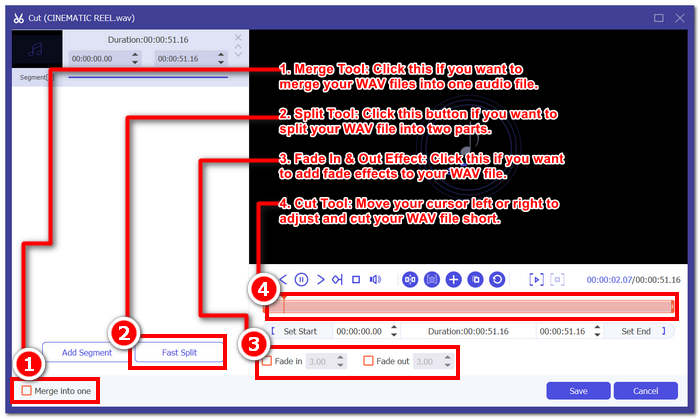
De door FVC geselecteerde Video Converter Ultimate is een volwaardige WAV-trimtool die gratis kan worden gedownload voor zowel Windows als macOS. Deze software biedt functies voor het trimmen en knippen van WAV-bestanden, zoals het maken van snelle knippen via de snelle splitsfunctie, het toevoegen en samenvoegen van segmenten, het nauwkeurig instellen van begin- en eindtijd van het audiobestand en het toevoegen van fade-effecten. De tool toont ook je duur in realtime, zodat je vóór en na het knippen van je WAV-bestand de resultaten kunt zien en het op de gewenste lengte kunt brengen.
Voordelen
- Snelle tool voor het bijsnijden van WAV-bestanden.
- Het kan gebruikt worden als een WAV-editor en volumeversterker.
- Het kan uw bijgesneden WAV-bestanden met één klik samenvoegen.
- Het is een veilige en beveiligde tool zonder advertenties of virussen.
Nadelen
- De gratis versie kan geen 120× snellere conversie mogelijk maken.
Stap 1. Download de WAV-bestand-trimtool via de onderstaande downloadlink en installeer deze op je desktop. Start de software zodra hij is geïnstalleerd.
Gratis downloadVoor Windows 7 of nieuwerVeilige download
Gratis downloadVoor MacOS 10.7 of nieuwerVeilige download
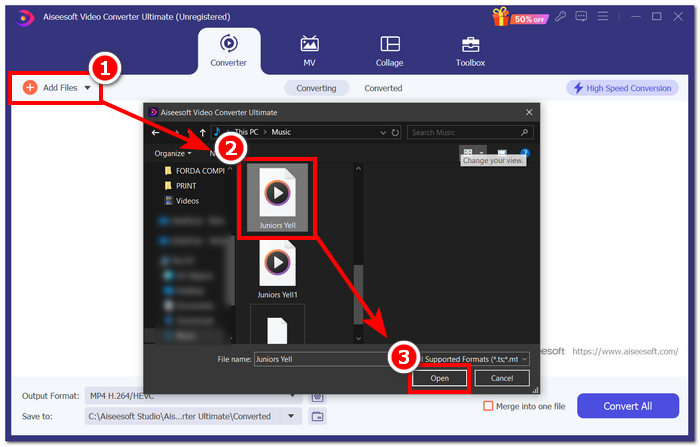
Stap 2. Klik op de knop Bestanden toevoegen in de linkerbovenhoek van de software om het WAV-bestand te laden dat je wilt trimmen.
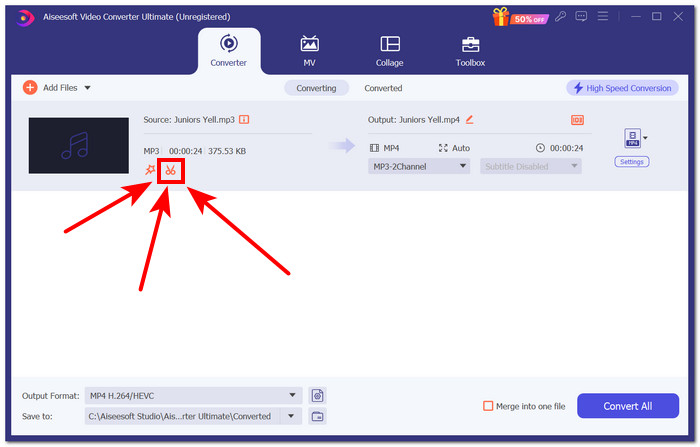
Stap 3. Klik, om te beginnen met het trimmen van je WAV-bestand, op de Kniptool (de schaar-knop) die zich direct naast je WAV-bestand bevindt.
Er opent een nieuw venster. In dat venster vindt u alle beschikbare functies van het gereedschap Knippen, inclusief het gereedschap Bijsnijden.
Stap 4. Om je WAV-bestand korter te knippen of te trimmen, sleep je je cursor over de track van links naar rechts om het WAV-bestand in te korten.
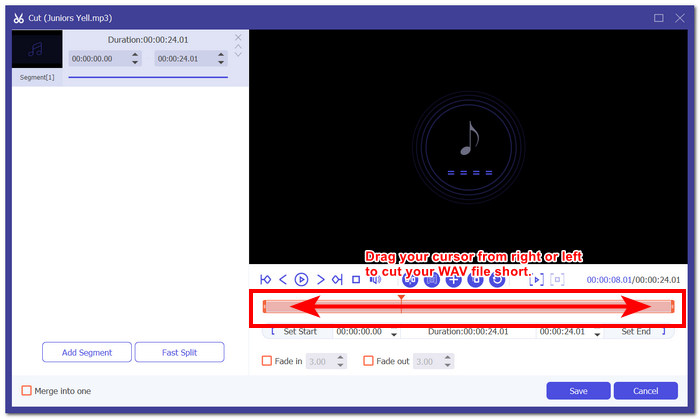
Zodra u klaar bent met het trimmen van uw WAV-bestand, zou het er zo uit moeten zien. Om uw realtime-duur te bekijken, kijkt u in de linkerbovenhoek. Daar wordt weergegeven waar uw cut begon en eindigde en wordt uw nieuwe tijdsduur weergegeven, exclusief de delen die u zojuist hebt verwijderd.
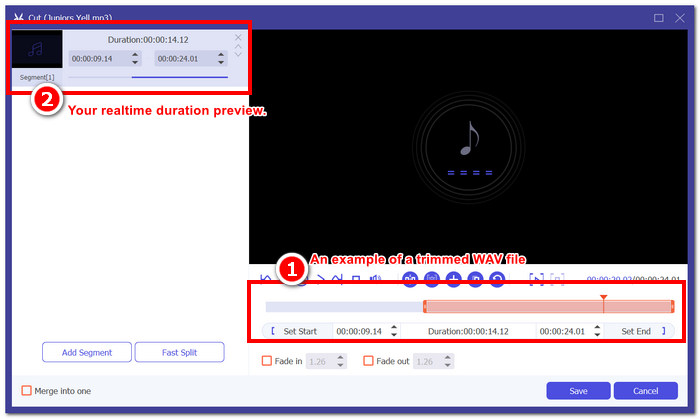
Stap 5. Zodra je tevreden bent met je getrimde WAV-bestand, klik je op de knop Opslaan onderaan in de softwaretool. Klik daarna op de knop Alles converteren om het te downloaden naar je downloadmap.

Als je op zoek bent naar de beste WAV-trimtool voor zowel professionele als beginnende gebruikers, wordt aanbevolen om de door FVC geselecteerde Video Converter Ultimate te gebruiken. Deze software fungeert als je WAV-bestand-trimtool én als software om WAV-bestanden te bewerken. Bovendien is het vermeldenswaard dat de tool niet alleen werkt als WAV-trimtool; gebruikers kunnen ook taken uitvoeren zoals het maken van een snelle splitsing voor nauwkeurig knippen van WAV-bestanden, het toevoegen en samenvoegen van segmenten in het WAV-bestand en het exporteren met hoge verwerkingssnelheid.
Deel 2. Een WAV-bestand bijsnijden met een gratis en open-source WAV-snijder [voor gevorderde gebruikers]
Til uw ervaring met het trimmen van WAV-bestanden naar een hoger niveau met Audacity, een professionele maar gratis en open-source software. Deze populaire software is compatibel met Windows en macOS, waardoor het een van de meest gewilde software is op het gebied van geavanceerde bewerkingsprocessen. Met Audacity kan de gebruiker het specifieke deel selecteren waar hij zijn bestanden wil knippen of trimmen via het ingebouwde vergrootglas om het spoor uit te breiden. Daarnaast heeft het ook een speciale knop voor het direct knippen van WAV-bestanden, genaamd 'I-beam'. Deze software is voor degenen die op zoek zijn naar een geavanceerder niveau van trimmen, omdat het gebruikers in staat stelt om de golfvorm van een WAV-bestandsspoor van dichterbij te bekijken, wat kan worden gebruikt om het bestand nauwkeurig te bekijken en te knippen.
Voordelen
- Gratis te gebruiken WAV-bewerkings- en bijsnijdsoftware.
- Het kan worden gebruikt als een multi-track WAV-trimmer.
- Biedt een uitgebreide bibliotheek met audio-effecten van derden.
- Het kan uw audiobewerking synchroniseren met andere tracks.
Nadelen
- Gebruikers vinden het mogelijk lastig om door de hele software te navigeren.
Stap 1. Installeer Audacity via de officiële website en open het op je desktop zodra het is geïnstalleerd.
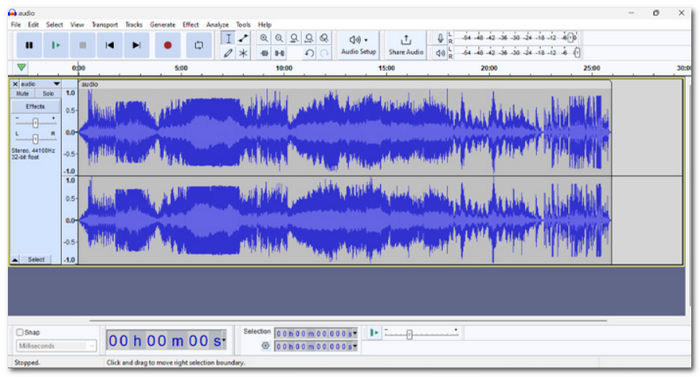
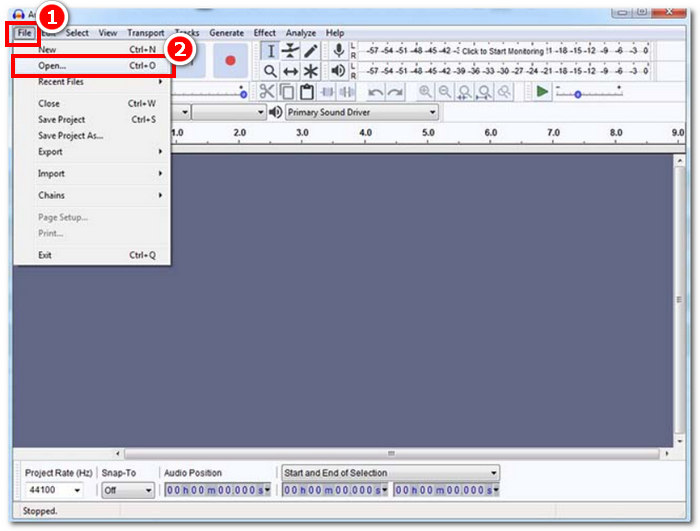
Stap 2. Open de software en importeer je WAV-bestand door in de linkerbovenhoek op Bestand > Openen te klikken.
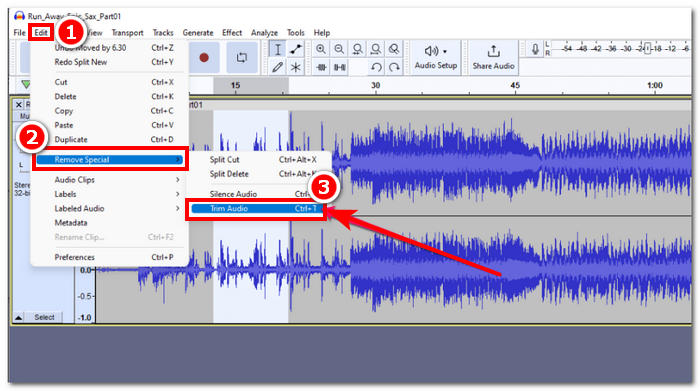
Stap 3. Zodra je WAV-bestand in de software is geladen, ga je naar het deel van je WAV-bestand dat je wilt trimmen. Klik daarna op het menu Bewerken in de linkerbovenhoek en ga naar Speciaal verwijderen. Klik onder dat gedeelte op Audio trimmen om je WAV-bestand effectief te trimmen.
Stap 4. Zodra je tevreden bent met al het trimwerk aan je WAV-bestand, exporteer je het en sla je het op in de daarvoor bestemde downloadmap door in de linkerbovenhoek van de software op het menu Bestand te klikken. Klik daar op Exporteren > Exporteren als WAV, en het wordt automatisch opgeslagen in je downloadmap.
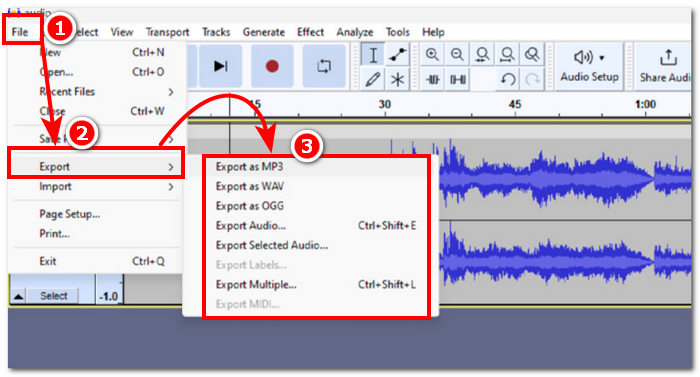
Audacity heeft het potentieel om de beste WAV-trimmer op de lijst te zijn, maar de ontoegankelijkheid voor incidentele gebruikers maakt het een tool voor alleen gevorderde gebruikers. Ondanks de next-level functies in trimmen en audiobewerking, presteerde het relatief goed en kan het alle basis- tot geavanceerde WAV-bestandsbewerkingsbehoeften aan. Daarom vereist het uitproberen van Audacity kennis van de software en vertrouwdheid met alle functies om te voorkomen dat u in de war raakt en overweldigd wordt door de interface.
Deel 3. Een WAV-bestand online trimmen [eenvoudige stappen]
Een andere methode om een WAV-bestand online te trimmen is via Aconvert, een gratis webgebaseerde WAV-bestandtrimmer. Gebruikers kunnen eenvoudig een WAV-bestand uploaden in de tool, selecteren waar ze willen beginnen met knippen en hun ideale tijdsduur invoeren. En zo bent u klaar met het trimmen van uw WAV-bestand. Hieronder vindt u een stapsgewijze handleiding en de voor- en nadelen om u te helpen de online tool beter te begrijpen en deze effectief te gebruiken.
Voordelen
- Eenvoudige en gemakkelijk te navigeren online tool.
- Snel een WAV-bestand bijsnijden.
- U kunt een URL invoeren om uw WAV-bestand te uploaden.
Nadelen
- Er zijn veel pop-upadvertenties.
- U kunt het WAV-bestand pas afspelen nadat u het hebt geknipt.
- Vereist een internetverbinding.
Stap 1. Ga naar de officiële website van Aconvert om toegang te krijgen tot de WAV-bestand-trimtool.
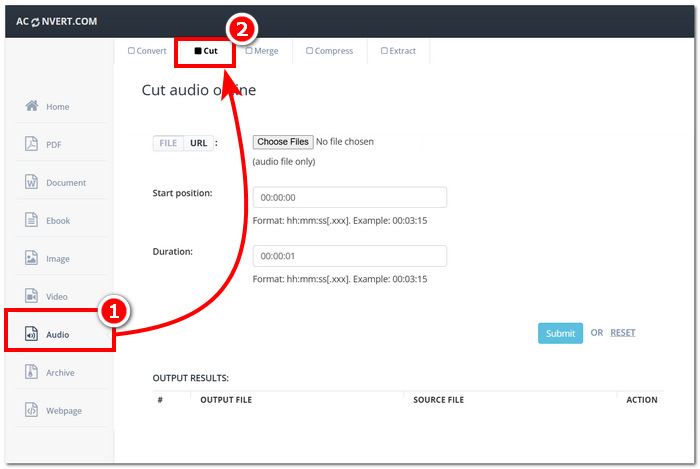
Stap 2. Zodra je in de interface van de webgebaseerde tool bent, klik je in het menu Audio aan de linkerkant van de tool en klik je op de Kniptool die zich bovenaan in de tool bevindt.
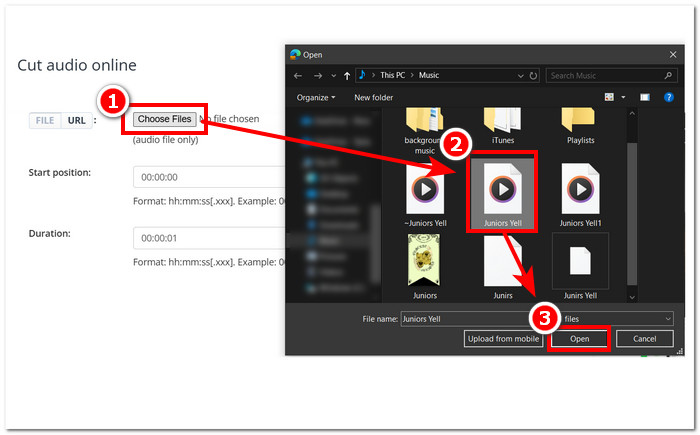
Stap 3. Klik op Bestanden kiezen en selecteer het WAV-bestand dat je wilt knippen of trimmen.
Stap 4. Nadat je je WAV-bestand hebt geselecteerd, vul je je startpositie en duur in de daarvoor bestemde velden in. Klik vervolgens op de knop Verzenden om te beginnen met het trimmen van je WAV-bestand.
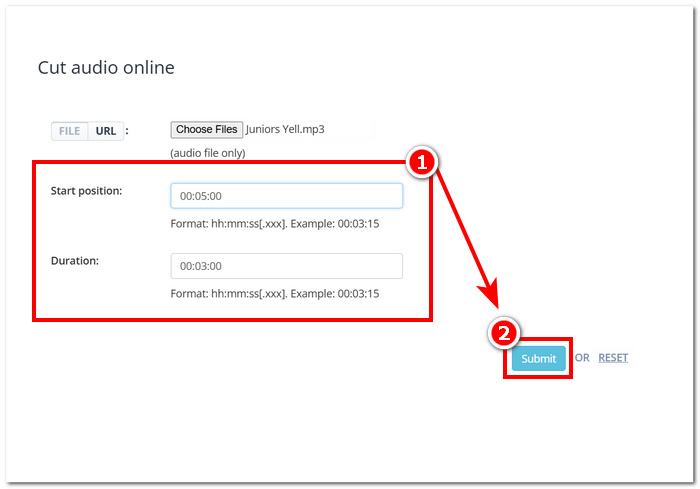
Startpositie verwijst naar het startpunt waar uw cut begint en duur verwijst naar de totale tijdsduur van uw WAV-bestand.
Stap 5. Zodra de tool je bestand heeft verwerkt, kun je je getrimde WAV-bestand downloaden door op de knop Opslaan te klikken in het actiegedeelte onderaan in je interface.
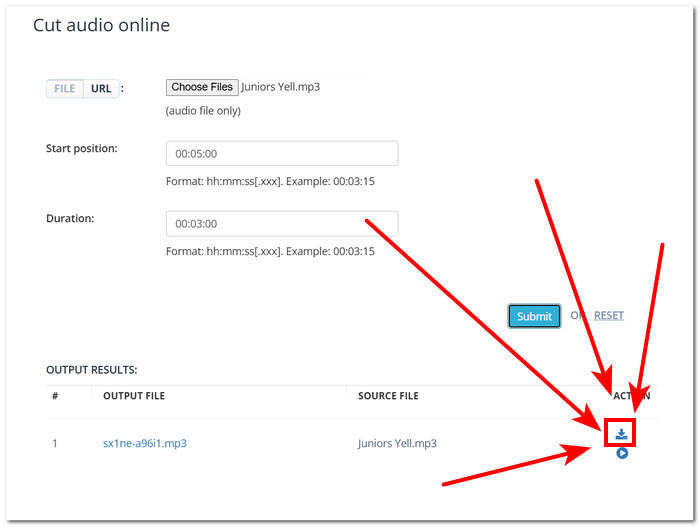
Aconvert is de snelste oplossing om uw WAV-bestanden snel te trimmen, omdat het naadloos trimmen mogelijk maakt en direct resultaat geeft. Deze webgebaseerde tool is misschien handig voor gebruikers, maar het is ook belangrijk om op te merken dat deze tool pop-upadvertenties heeft die zorgen kunnen oproepen over de beveiliging van bestanden en de exportkwaliteit.
Deel 4. Veelgestelde vragen over het trimmen van WAV-bestanden
Worden WAV-bestanden nog steeds gebruikt?
Ja, WAV-bestanden worden vandaag de dag nog steeds gebruikt. Ze zullen nog steeds gebruikt worden omdat ze effectief zijn in het bewaren en opslaan van verliesloze audiogegevens en compatibel zijn met veel audiosoftware en -apparaten.
Kun je een WAV-bestand knippen in Windows Media Player?
Nee, Windows Media Player dient alleen als mediaspeler voor je WAV-bestanden. Het heeft geen ingebouwde functies om WAV-bestanden te trimmen of te knippen.
Ondersteunt Final Cut Pro WAV?
Ja, Final Cut Pro ondersteunt WAV en u kunt WAV-bestanden eenvoudig bijsnijden, samenvoegen en bewerken.
Hoe kan ik een WAV-bestand bijsnijden zonder kwaliteitsverlies?
Om een WAV-bestand te trimmen zonder kwaliteitsverlies, moet u betrouwbare software en webgebaseerde tools gebruiken, zoals FVC-picked Video Converter Ultimate of Audacity. Door vertrouwde tools te gebruiken, zorgt u ervoor dat u altijd audio van hoge kwaliteit exporteert en de originele audiokwaliteit van uw WAV-bestand behoudt.
Welke software wordt gebruikt om WAV-bestanden te knippen?
Audacity is een bekend softwareprogramma voor het bewerken van WAV-bestanden. Wanneer u geavanceerde software zoals Audacity gebruikt, zorg er dan voor dat u volledig bekend bent met de interface, want navigeren als beginner kan behoorlijk verwarrend en lastig zijn.
Gevolgtrekking
WAV-bestanden trimmen is een eenvoudig proces en een veelvoorkomende functie in audiobewerkingssoftware. Gebruik de juiste softwaretools, zoals de door FVC geselecteerde Video Converter Ultimate, Audacity en Aconvert, om je WAV-bestanden te trimmen en er zo voor te zorgen dat je ongewenste delen effectief verwijdert met een export van hoge kwaliteit.
-
 Hoe kan ik MP4 gratis naar WAV converteren
 Probeert u MP4 naar WAV te converteren? Weet u niet welke converter u daarbij perfect kan helpen zonder een cent te betalen? Lees dit bericht en al je vragen worden beantwoord.
-
 Herziening van 10 beste gratis mp3-muziekspelers
 Wat is de beste mp3-muziekspeler? Hoe zet ik muziek op een mp3-speler? Hoe kan ik de mp3-muziekspeler downloaden? Dit bericht geeft je een gedetailleerd overzicht van de 10 beste gratis mp3-spelers voor Windows-pc en Mac.
-
 8 Beste MOV-spelers voor pc en Mac om QuickTime MOV-videobestanden af te spelen
 Lees gewoon meer over de 8 beste MOV-spelers die beschikbaar zijn voor zowel Windows als Mac. U kunt de gewenste en geschikte kiezen om MOV-bestanden met de originele kwaliteit af te spelen.
