Gebruikershandleiding

Oplossingen voor video-/audioconversie

Begin

FVC Free FLV to Audio Converter is de beste gratis video naar audio-converter. Het kan audiotracks extraheren uit het FLV-videobestand. Bovendien ondersteunt het het converteren van audiobestanden tussen verschillende audioformaten.
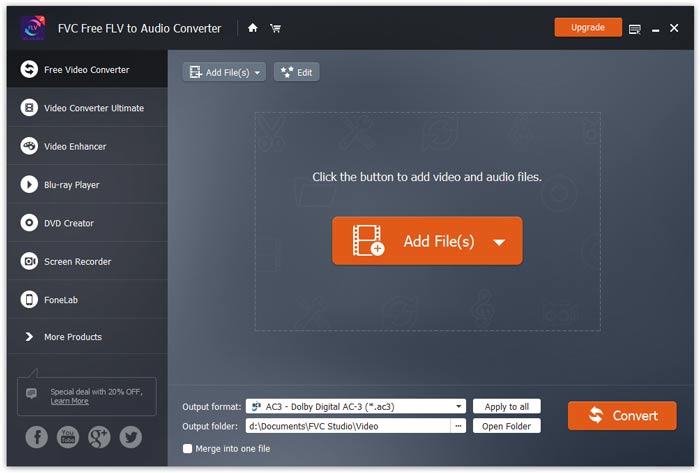
Hoofdinterface

Download en installeer

Download het installatiepakket op basis van het besturingssysteem van uw computer. Dubbelklik vervolgens op het installatiebestand en volg de instructies op het scherm om het programma te installeren.

Voorkeuren

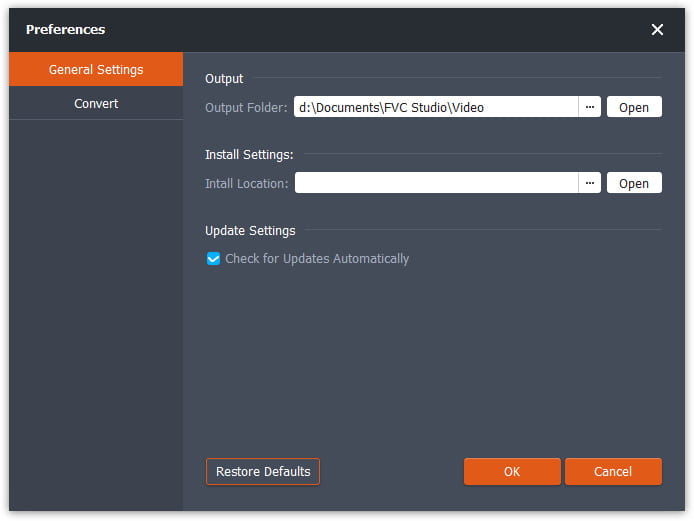
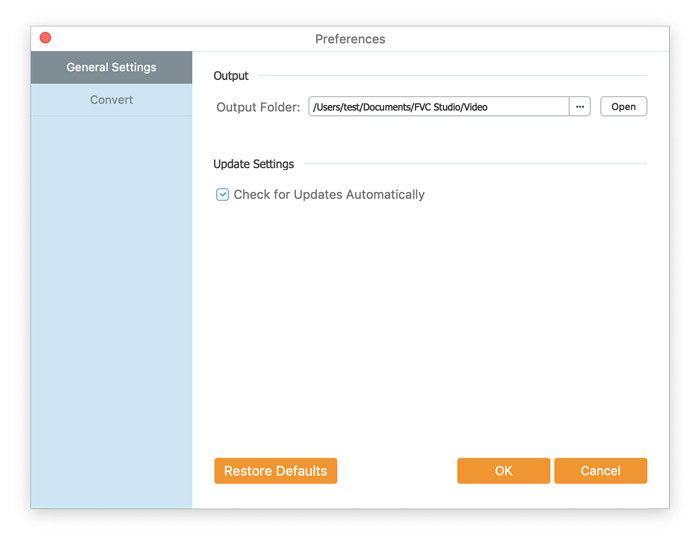
Before you start the conversion, it’s recommended to tweak the default settings. You can click the Menu icon and click on Preferences… to configure the specific settings. For example, you are free to choose the output folder to store your converted files.

Voorkeuren

Converteer FLV naar audio

Nu kunt u deze stappen volgen om FLV-bestanden naar audioformaten te converteren.

Step 1. Launch FVC Free FLV to Audio Converter

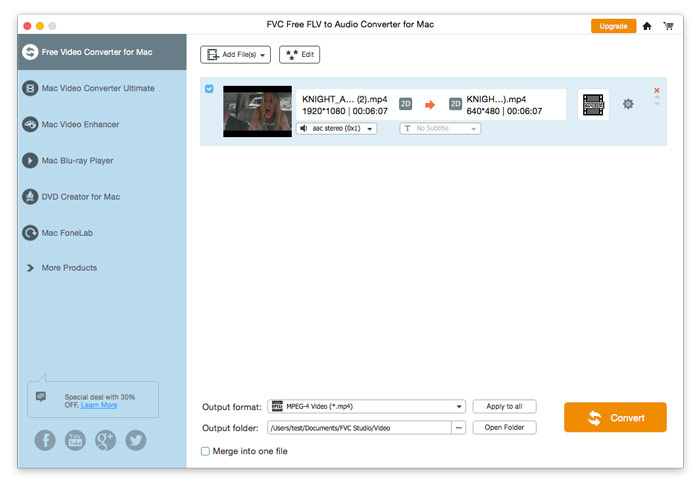
Start FVC Free FLV to Audio Converter en u zult de schone interface zien.

Hoofdinterface

Step 2. Add an FLV file into the program

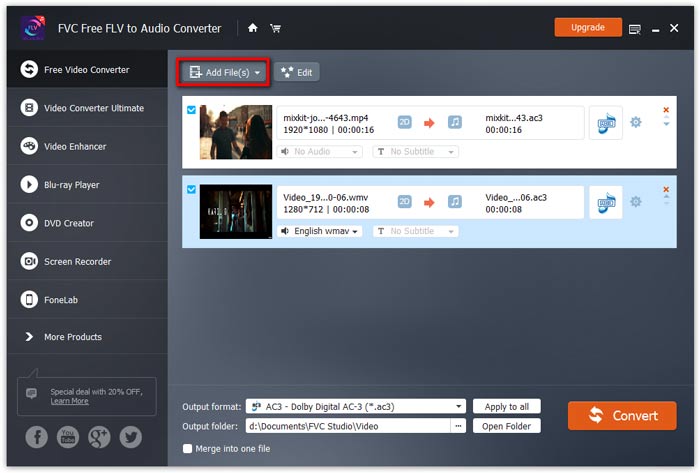
Click the Add File(s) button and choose FLV files you want to process in the dialogue opening subsequently. After the files are added to the program, they will be displayed on the file list.

Voeg FLV-bestanden toe

Step 3. Select the output format

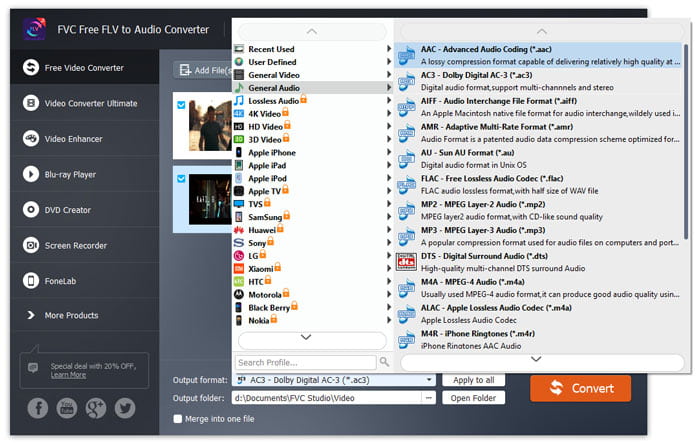
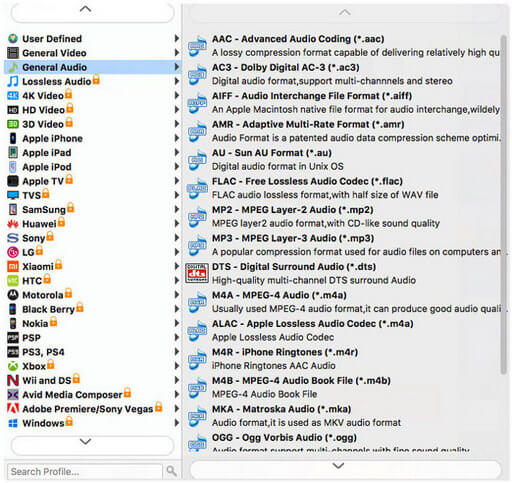
Click to open Output format drop-down list, then choose the audio format from the General Audio profile list. It can convert your FLV files to MP3, WMA, AAC, M4A, and so on.

Selecteer Audioformaat

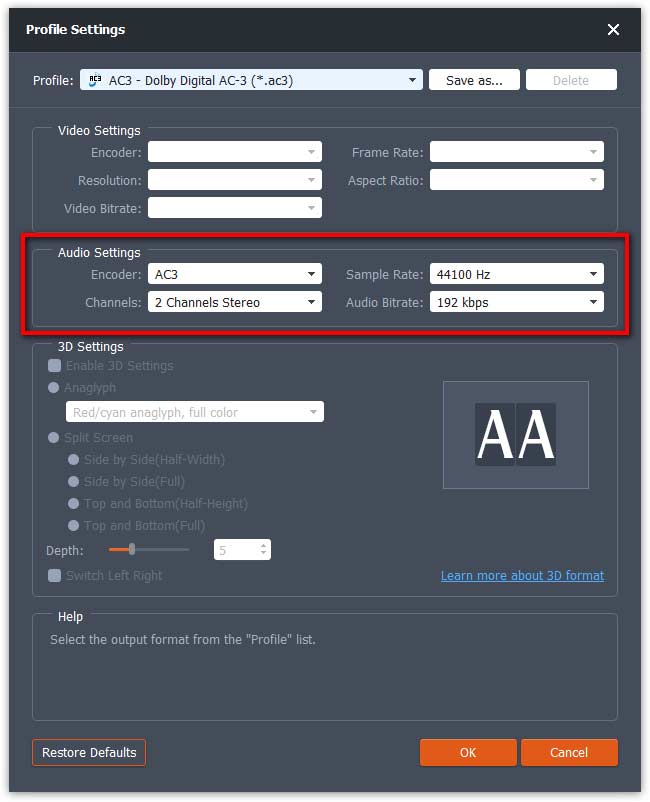
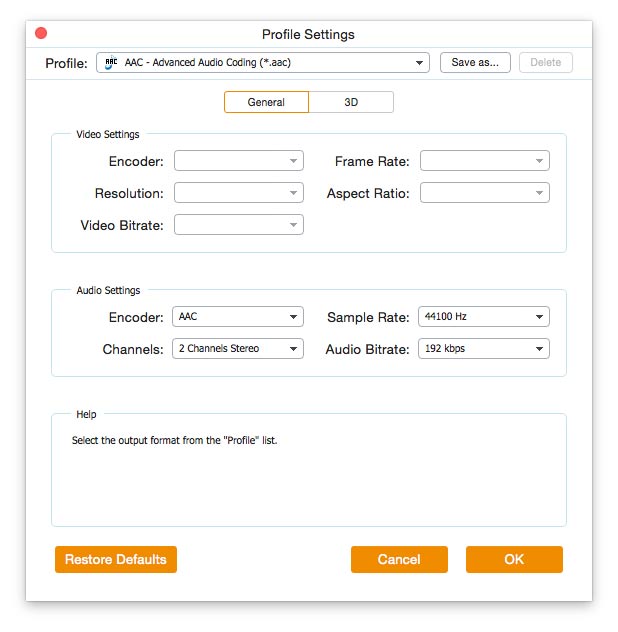
If you’re not satisfied with the original profile parameter settings, you can click the Cogwheel icon and adjust the encoder, channel, sample rate, and audio bitrate in the Profile settings window.

Profielinstellingen

Step 4. Start converting FLV to Audio

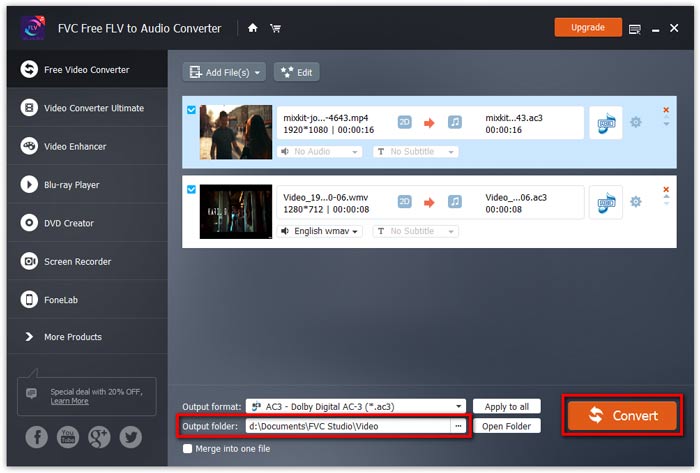
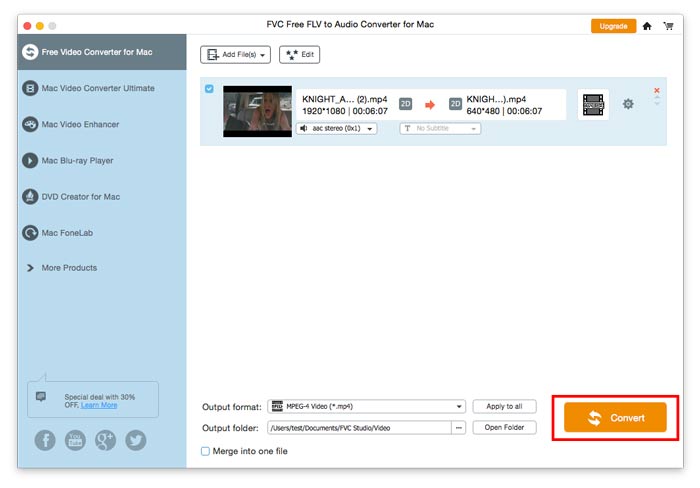
Go to Output folder to choose the destination folder for saving output files, and then click OK button to return to the main window. Finally, click the Convert button to start the conversion.

Start de conversie

Gebruikershandleiding

Oplossingen voor video-/audioconversie

Begin

FVC Free FLV to Audio Converter is de beste gratis video naar audio-converter. Het kan audiotracks extraheren uit het FLV-videobestand. Bovendien ondersteunt het het converteren van audiobestanden tussen verschillende audioformaten.
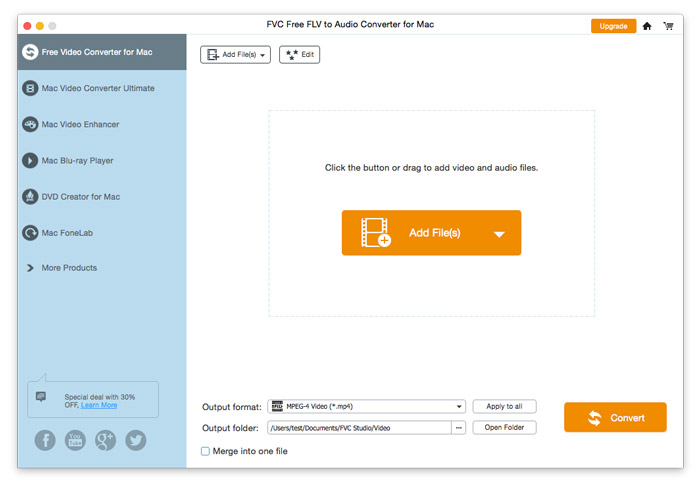
Hoofdinterface

Download en installeer

Download het installatiepakket op basis van het besturingssysteem van uw computer. Dubbelklik vervolgens op het installatiebestand en volg de instructies op het scherm om het programma te installeren.

Voorkeuren

Before you start the conversion, it’s recommended to tweak the default settings. You can click the Menu icon and click on Preferences… to configure the specific settings. For example, you are free to choose the output folder to store your converted files.

Voorkeuren

Converteer FLV naar audio

Nu kunt u deze stappen volgen om FLV-bestanden naar audioformaten te converteren.

Step 1. Launch FVC Free FLV to Audio Converter

Start FVC Free FLV to Audio Converter en u zult de schone interface zien.

Hoofdinterface

Step 2. Add an FLV file into the program

Click the Add File(s) button and choose FLV files you want to process in the dialogue opening subsequently. After the files are added to the program, they will be displayed on the file list.

Voeg FLV-bestanden toe

Step 3. Select the output format

Click to open Output format drop-down list, then choose the audio format from the General Audio profile list. It can convert your FLV files to MP3, WMA, AAC, M4A, and so on.

Kies Audio-uitgang

If you’re not satisfied with the original profile parameter settings, you can click the Cogwheel icon and adjust the encoder, channel, sample rate, and audio bitrate in the Profile settings window.

Profielinstellingen

Step 4. Start converting FLV to Audio

Go to Output folder to choose the destination folder for saving output files, and then click OK button to return to the main window. Finally, click the Convert button to start the conversion.

Start de conversie