


 Video Converter Ultimate
 Scherm opnemer
 Videoreparatie
 Beveiligde download
Afbeeldingen converteren naar SVG: ontdek de perfecte converters voor u
Het SVG-bestand kan op elke schaal haarscherpe graphics bieden. Het kan de SEO verbeteren en de website sneller maken. Het is ook geschikt voor dynamische animaties. Dit zijn enkele redenen waarom gebruikers het SVG-bestandsformaat gebruiken. Wil jij in dat geval ook je afbeeldingen naar SVG-bestanden converteren? Lees dan dit artikel. Je ontdekt de meest effectieve manieren om je afbeeldingen naar SVG-bestandsformaat te converteren. Daarnaast bieden we je de beste en meest betrouwbare afbeeldingsconverters die je kunt gebruiken voor het omzetten van afbeeldingen. Lees het artikel aandachtig door, want we geven je alle informatie die je nodig hebt om afbeeldingsbestanden te converteren.

Deel 1. Uitstekende manieren om afbeeldingen online naar SVG te converteren
Afbeeldingen converteren naar SVG op Convertio
Een andere online tool die je kunt gebruiken om afbeeldingen naar SVG te converteren is Convertio. Deze online tool kan je afbeeldingen omzetten naar SVG-formaten. Je kunt je afbeeldingen in slechts drie stappen converteren. Daarnaast heeft Convertio een batchconversiefunctie. Op deze manier kun je meerdere bestanden in één keer uploaden en converteren. Bovendien heeft het duidelijke lay-outs en opties, waardoor het zeer geschikt is voor alle gebruikers, vooral beginners. Naast het SVG-bestandsformaat ondersteunt het ook verschillende andere afbeeldingsformaten, waaronder JPG, PNG, BMP, TIFF, ICO en meer. Verder kun je Convertio in diverse browsers gebruiken, zoals Google, Mozilla, Edge, Explorer en meer. Convertio heeft echter ook nadelen, vooral bij gebruik van de gratis versie. De maximale bestandsgrootte die je kunt uploaden is 100 MB. En als je een batchconversie wilt uitvoeren, kun je slechts twee afbeeldingsbestanden tegelijk converteren. Om van de onbeperkte functies te profiteren, moet je het unlimited-abonnement aanschaffen.
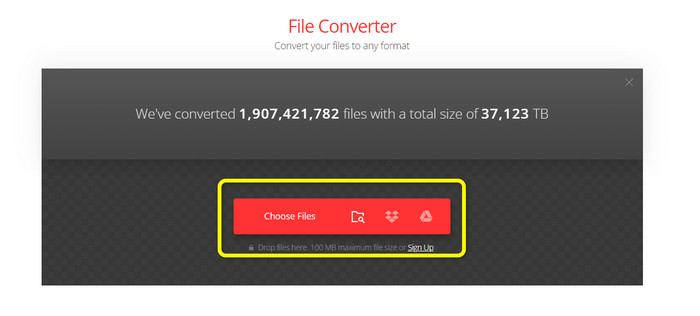
Stap 1. Open je browser en ga naar de hoofdwebsite van Convertio. Klik op de startpagina op de knop Choose Files. Na het klikken verschijnt je bestandsverkenner op het scherm. Kies de afbeelding die je naar een SVG-bestand wilt converteren en open deze.
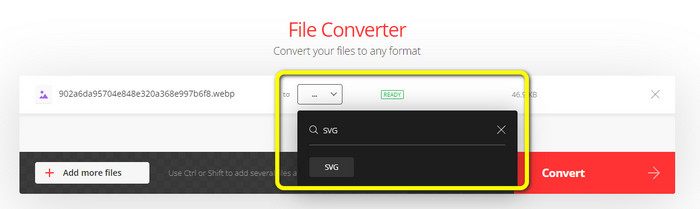
Stap 2. Ga, nadat je het bestand dat je wilt converteren hebt geüpload, naar de formaatopties. Zoek het SVG-bestandsformaat en klik erop. Je kunt SVG in het zoekvak intypen om het gemakkelijk te vinden.
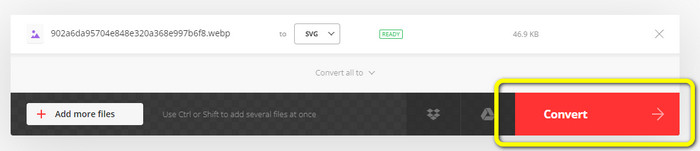
Stap 3. Wanneer je klaar bent met het selecteren van SVG als uitvoerformaat, klik je op de knop Convert. Het conversieproces begint. Wacht even tot het is voltooid.
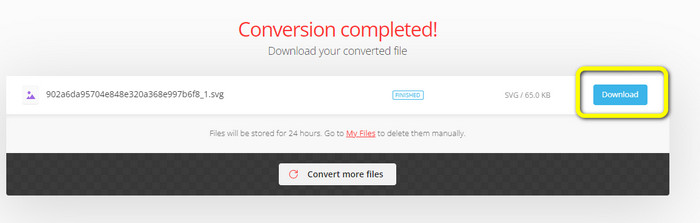
Stap 4. Wanneer het conversieproces is voltooid, klik je op de knop Download. Zo kun je je geconverteerde afbeelding op je computer opslaan. Klik op de knop Add more files om meer afbeeldingen te converteren.
Bonus: SVG-afbeeldingen converteren
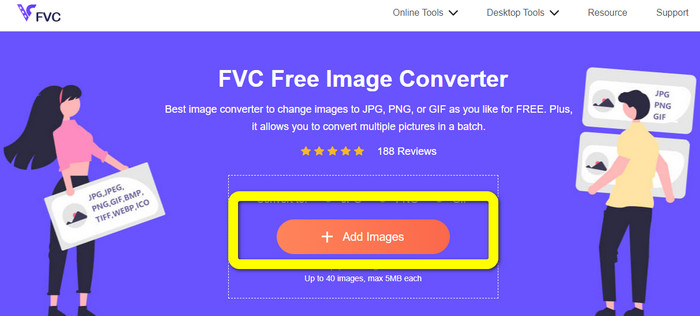
Als je een effectieve afbeeldingsconverter nodig hebt om je SVG-afbeeldingen naar JPG en andere breed ondersteunde formaten te converteren, is FVC Free Image Converter je beste keuze. Het is eenvoudig om afbeeldingen met deze tool te converteren dankzij de intuïtieve interface. Je kunt afbeeldingen met slechts een paar klikken omzetten. Bovendien ondersteunt het, naast SVG, ook het converteren van andere afbeeldingsformaten naar PNG, JPG en GIF, waaronder WebP, BMP, TIFF enzovoort. FVC Free Image Converter biedt ook een batchconversiefunctie. Zo kun je veel afbeeldingen tegelijkertijd converteren. Daarnaast is de afbeeldingsconverter op alle platforms toegankelijk. Je kunt afbeeldingsbestanden converteren in Google, Explorer, Edge en meer.
Stap 1. Ga naar de website van FVC Free Image Converter. Klik daarna op het formaat JPG, PNG of GIF in de formaatopties.
Stap 2. Klik op de knop Add Images in het middelste deel van de interface om de SVG-afbeeldingen te uploaden die je wilt converteren. Je kunt meerdere afbeeldingen toevoegen om ze met één klik om te zetten.
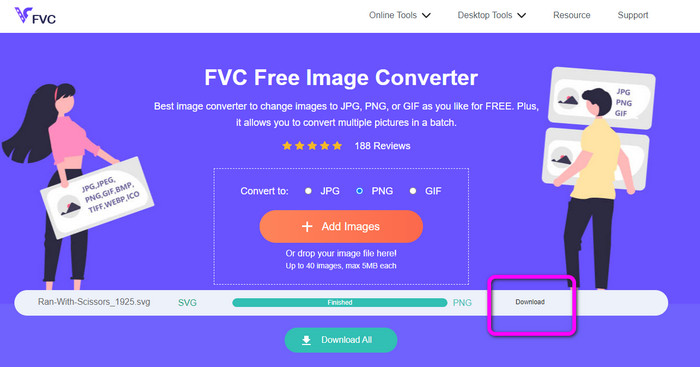
Stap 3. Je SVG-afbeeldingen worden in deze tool automatisch geconverteerd. Klik daarna op de knop Download om de geconverteerde afbeeldingen op te slaan.
Deel 2. Beste methode om afbeeldingen naar SVG offline te converteren
Het gebruik van Converseen is een van de beste manieren om afbeeldingen naar SVG te wijzigen. Het programma biedt duidelijke conversie-instructies. Daarnaast beschikt deze offline afbeeldingsconverter over een eenvoudige interface met een overzichtelijke set opties. Dat betekent dat de converter geschikt is voor alle gebruikers. Converseen heeft ook een batchconversiefunctie. Op deze manier kun je veel bestanden in één bewerking converteren. De converter ondersteunt bovendien allerlei bestandsformaten. Onder andere PNG, JPG, BMP, WEBP, TIFF en SVG. Verder zijn er geen abonnementskosten nodig om deze offline converter te downloaden. Converseen is bovendien beschikbaar voor zowel Windows- als Mac-gebruikers. Na het conversieproces plaatst het programma geen watermerken op je geconverteerde foto’s. Zo kun je je foto’s bekijken zonder vervelende, overbodige elementen. Volg de eenvoudige instructies hieronder om eenvoudig afbeeldingen naar SVG te converteren.
Stap 1. Download de installer van Converseen via de website. Installeer daarna de offline converter en start deze op je computer.
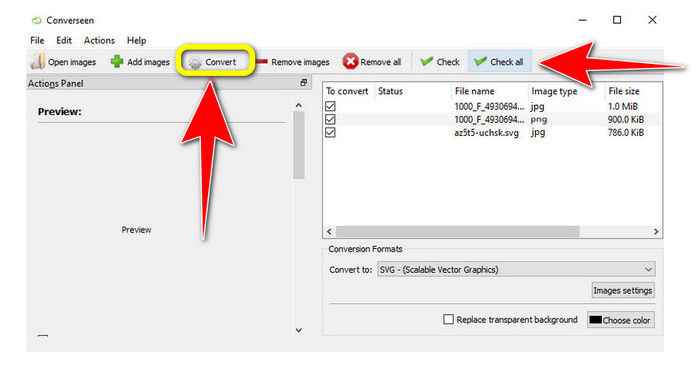
Stap 2. De tool is eenvoudig te gebruiken. Bovenaan zie je de functietoetsen. Selecteer je foto’s door op de knop Add images op het hoofdscherm te klikken.
Stap 3. Ga daarna naar de optie Convert to. Selecteer vervolgens het SVG-bestandsformaat in de lijst met formaten.
Stap 4. Je kunt bevestigen dat je de geladen foto’s wilt converteren door de selectievakjes aan te vinken. Kies gewoon Check of Check All in het bovenste menu. Klik tot slot op de knop Convert om de sessie te starten.
Deel 3. Afbeeldingen converteren naar SVG op iPhone en Android
File Converter is de beste app om afbeeldingen naar SVG te converteren die je op je iPhone en Android kunt gebruiken. U kunt de applicatie ook gratis gebruiken. Het is beschikbaar in de Google Play Store en App Store. Het installatieproces is echter te traag. En het proces is uitdagend, vooral voor beginners. Zorg er ook voor dat je een internetverbinding hebt.
Stap 1. Installeer de app File Converter op je mobiele apparaat. Start vervolgens de applicatie.
Stap 2. Ga naar de optie Image Converter. Selecteer daarna het SVG-bestand als je uitvoerformaat.
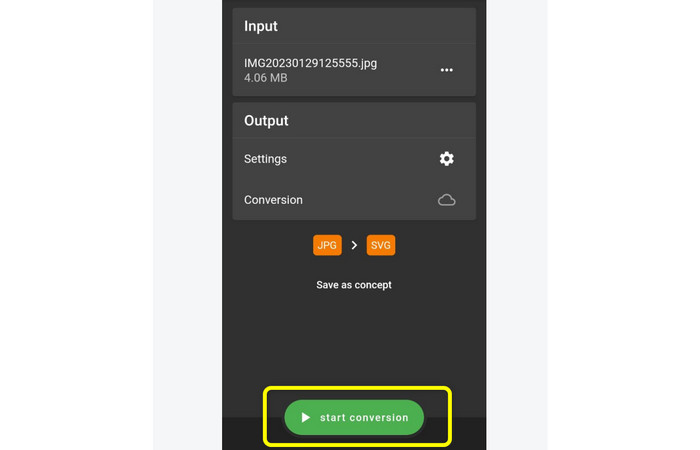
Stap 3. Daarna verschijnt er een andere interface. Klik op de optie File om de afbeelding in te voegen die je wilt converteren.
Stap 4. Druk ten slotte op de knop Start Conversion om het conversieproces te starten. Vervolgens kun je je geconverteerde afbeelding op je telefoon opslaan. Klik hier om te leren hoe je afbeeldingen naar PNG converteert.
Deel 4. Veelgestelde vragen over het converteren van afbeeldingen naar SVG
1. Welk compressieschema gebruikt de SVG?
Een verliesvrij bestand is een SVG. SVG-bestanden bevatten daarom verliesloze bestandscompressie. Hierdoor kunt u in- en uitzoomen op deze bestanden zonder kwaliteitsverlies. Na de compressie verlies je geen informatie.
2. Waar zijn SVG-bestanden het meest geschikt voor?
Vectorafbeeldingen, zoals SVG's, verliezen nooit resolutie, hoe groot of klein je ze ook maakt, in tegenstelling tot rasterbestanden, zoals JPG's, die zijn samengesteld uit pixels. Ze zijn uitstekend geschikt voor digitale ontwerpen zoals infographics, pictogrammen en logo's.
3. Hoe bewaar ik JPG als SVG?
U kunt veel beeldconversieprogramma's gebruiken om uw JPG-indeling op te slaan als SVG. Een gebruikelijke manier om de afbeelding te transcoderen, is door het JPG-bestand in te voeren, de SVG als uitvoerformaat te selecteren en door te gaan met het conversieproces. Op deze manier kunt u uw JPG-afbeeldingsbestand opslaan in SVG-indeling.
Gevolgtrekking
In deze handleiding heb je de beste methoden geleerd om je afbeeldingen naar SVG te converteren: online, offline en op mobiele apparaten. Ook kun je FVC Free Image Converter gebruiken om SVG naar andere afbeeldingsformaten om te zetten. Deze online tool is eenvoudig te bedienen en biedt batchconversie zonder dat je een abonnement nodig hebt.
-
 Methoden voor het online en offline converteren van afbeeldingen naar JPG
 Wilt u het bestand om de een of andere reden naar JPG-indeling converteren? Dan is dit artikel iets voor jou. We leren je de beste methode om je afbeelding naar JPG te converteren
-
 Meest eenvoudige methoden om SVG naar PNG te converteren
 Weet hoe u uw afbeeldingsbestand kunt wijzigen van SVG naar PNG met behulp van handige afbeeldingsconversieprogramma's. Lees deze wegwijzer om alles te weten te komen over converteren.
-
 Moeiteloze methoden voor het converteren van SVG naar JPG-indeling
 De beste manier vinden om SVG naar JPG te converteren? Dit bericht geeft een aantal trefzekere tutorials die je kunt proberen. U zult ook de SVG naar JPG-converter voor u ontdekken.
