


 Video Converter Ultimate
 Scherm opnemer
 Videoreparatie
 Beveiligde download
Adobe Resize Images - Eenvoudigste manieren om het formaat van een afbeelding online en offline te wijzigen
Als je afbeeldingen wilt vergroten of verkleinen in Adobe, dan hebben wij de oplossing die je zoekt. Adobe is een bekende naam voor toepassingen voor foto- en videobewerking. Adobe heeft veel applicaties waarmee je beelden kunt verbeteren, bijknippen, bewerken en nog veel meer; noem het maar op! Adobe heeft vrijwel alle apps voor video- en fotobewerking. Maar wist je dat Adobe ook een toepassing heeft waarmee je een afbeelding kunt resizen? Dat heb je goed gelezen! Adobe Express is een online tool voor het aanpassen van het formaat van afbeeldingen. En als je offline wilt resizen, kun je Adobe Photoshop gebruiken. Hieronder bespreken we de tools en laten we je zien hoe je afbeeldingen kunt resizen met Adobe Express en Adobe Photoshop.
Deel 1. Het formaat van een afbeelding wijzigen in Adobe Express Online
Als u graag een online afbeeldingsgrootte wilt gebruiken, zijn er tal van hulpmiddelen die u op internet kunt zoeken. Zoeken op internet is echter soms niet de beste keuze, omdat er tools zijn die geen uitvoer van hoge kwaliteit bieden. Ook zoeken veel mensen op Adobe Photoshop online het formaat van afbeeldingen wijzigen. Het probleem is dat Adobe Photoshop geen online versie heeft. We zullen dus nog een Adobe-tool presenteren om het formaat van een afbeelding te wijzigen.
Adobe Express is waarschijnlijk de beste online tool voor het resizen van afbeeldingen die je op internet kunt vinden. Met deze online applicatie kun je een afbeelding resizen door een schaalvoorinstelling uit de opties te kiezen. Je kunt kiezen uit 9:16 (Story), 1:1 (Vierkant), 4:5 (Portret) en 1,91:1 (Landschap). Bovendien heeft het een eenvoudige interface, waardoor het een gebruiksvriendelijke applicatie is. Je kunt je afbeelding ook handmatig schalen door de schuifbalk vast te houden en te verslepen. Daarnaast helpt Adobe Express je als je een afbeelding wilt resizen voor Instagram, Facebook, Twitter of Pinterest. Deze tool heeft echter, in tegenstelling tot andere Adobe-bewerkingsapps, geen aanvullende bewerkingsfuncties.
Het formaat van een afbeelding wijzigen met Adobe Express:
Stap 1. Open je browser en zoek in het zoekveld op Adobe Express image resizer. Klik vervolgens op de knop Upload your Photo in de hoofdinterface om de afbeelding te uploaden die je wilt resizen.
Stap 2. Sleep daarna je afbeelding vanuit de mappen op je computer en zet hem neer. Je kunt ook gewoon op de knop Browse on your device klikken om een afbeelding te uploaden.
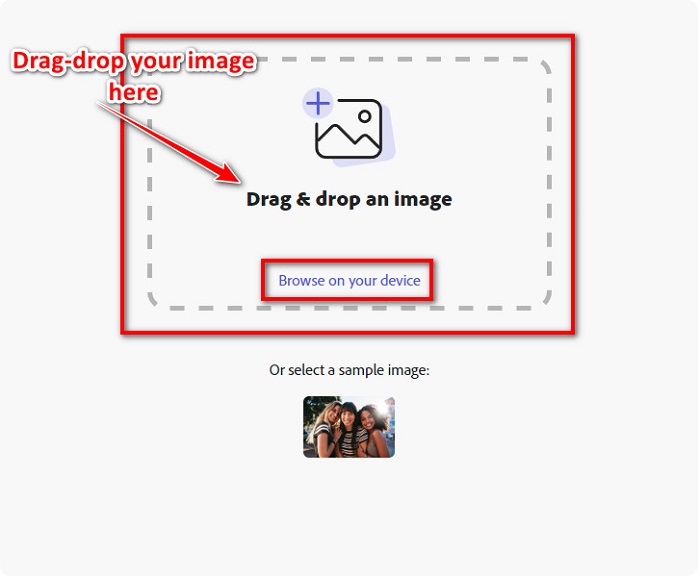
Stap 3. Kies ten slotte waar je voor wilt resizen door op de pijl-omlaag naast Resize for te klikken. Selecteer vervolgens je voorkeursformaat aan de linkerkant van de interface. Je kunt je afbeelding ook handmatig resizen door de schuifbalk onder de formaatvoorinstellingen vast te houden en te verslepen.
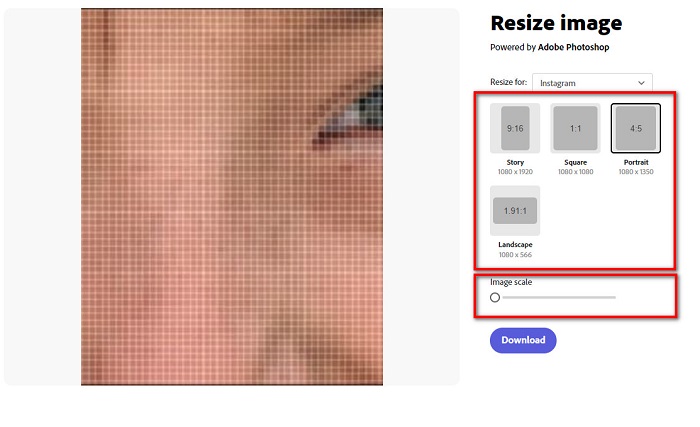
Stap 4. Klik op de knop Download om je geresize-de afbeelding te downloaden.
Deel 2. Het formaat van een afbeelding wijzigen met Adobe Photoshop Offline
Desondanks is het goed om een online tool te gebruiken omdat je daarmee ruimte op je apparaat kunt besparen, maar het is nog steeds de beste keuze om een offline tool te gebruiken. De meeste offline resizers voor afbeeldingen bevatten veel bewerkingsfuncties. Het voordeel van het gebruik van offline tools is dat u geen toegang tot internet nodig heeft om het formaat van uw afbeelding te wijzigen. In dit deel zullen we de meest opvallende offline video-resizer presenteren.
Adobe Photoshop is de beste fotobewerkingsapplicatie die je op je pc kunt hebben. Deze fotobewerkingsapp heeft veel tools en functies die je kunt gebruiken om je afbeeldingen te bewerken. Daarnaast kun je deze tool gebruiken om elke afbeelding te resizen. Met deze app kun je digitale afbeeldingen, tekeningen, schilderijen en animaties verbeteren die je voor zakelijke doeleinden kunt gebruiken. Bovendien gebruiken veel professionals deze beeldbewerkingsapplicatie vanwege de functies en de kwaliteit die hij oplevert.
Wat meer is, is dat je deze app kunt gebruiken om tekst toe te voegen, 3D te maken en scherpte aan je afbeelding toe te voegen. Maar het nadeel van Adobe Photoshop is dat je de app moet kopen voordat je hem kunt gebruiken. En het is ook moeilijk te gebruiken, vooral voor beginners. Desalniettemin is deze app zijn prijs waard, en je zult zeker genieten van het gebruik van deze app.
Het formaat van afbeeldingen wijzigen met Adobe Photoshop offline:
Stap 1. Download Adobe Photoshop op je apparaat. Volg vervolgens het installatieproces van de app en start hem op je apparaat.
Stap 2. Open je afbeelding in Photoshop, ga dan naar Image linksboven in de interface. Selecteer vervolgens Image Size.
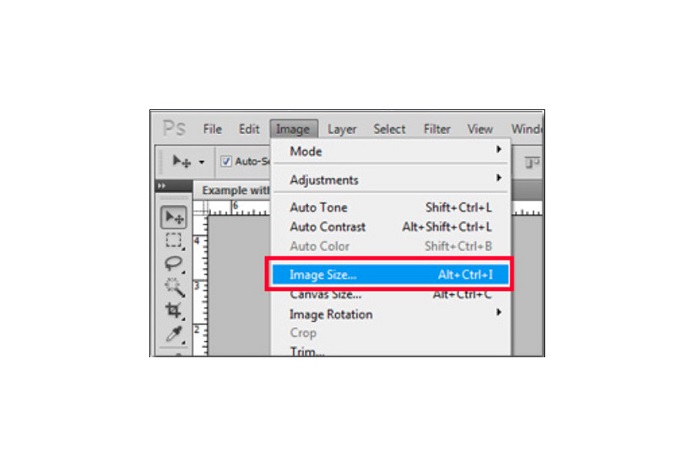
Stap 3. Vervolgens verschijnt er een nieuw venster, waar je het vakje naast Constrain Proportions aanvinkt.
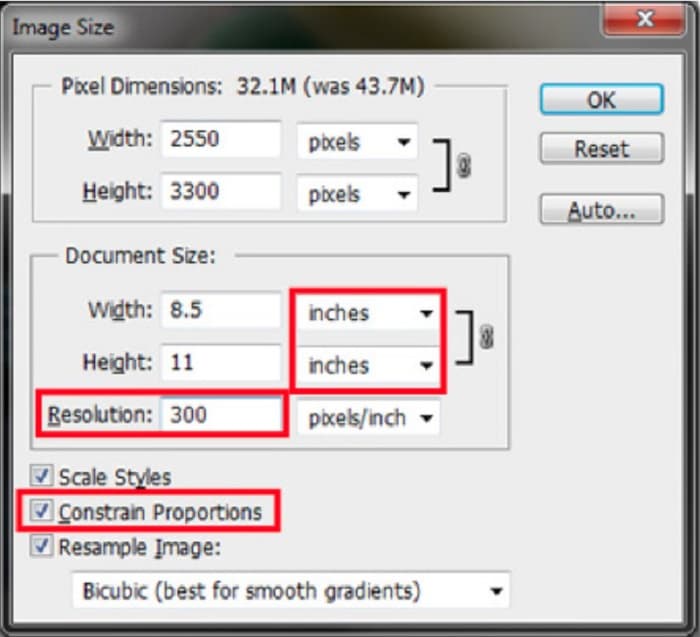
Stap 4. Kies onder Document Size inches als je meeteenheid. Zorg ervoor dat de resolutie niet lager is dan 200 pixels per inch.
Stap 5. Typ de breedte en de hoogte die je voor je afbeelding wilt. Vink daarna op de knop OK om de wijzigingen op te slaan.
Stap 6. Sla je bestand tenslotte op je computer op.
Nu je hebt geleerd hoe je een afbeelding kunt resizen met de beste Adobe photo resizer, laten we je een alternatieve image resizer zien die je kunt gebruiken.
Deel 3. Alternatief voor Adobe Photoshop bij het wijzigen van het formaat van afbeeldingen
Omdat Adobe Photoshop geen gebruiksvriendelijke tool is, hebben we gezocht naar een alternatief waarmee je het formaat van je afbeelding kunt wijzigen. Daarom presenteren we een softwaretoepassing die u kunt downloaden op uw Windows- of Mac-apparaat. We zullen je ook leren hoe je het formaat van een afbeelding kunt wijzigen met deze ultieme app.
FVC Free Image Resizer is een andere krachtige online image resizer die je kunt gebruiken als je je afbeelding wilt resizen. Je kunt toepassingen voor het resizen van afbeeldingen ook gebruiken om de kwaliteit van je foto te verbeteren, en dat is precies wat FVC Free Image Resizer doet. Deze online tool kan je afbeelding opschalen tot 2x, 4x, 6x en 8x vergroting. Daarnaast ondersteunt hij alle beeldformaten, zoals JPG, JPEG, PNG en BMP. Wat deze applicatie nog beter maakt, is de gebruiksvriendelijke software-interface. Bovendien gebruikt hij AI-technologie die automatisch het wazige deel van een afbeelding detecteert en het vervolgens verbetert.
Het formaat van een afbeelding wijzigen met FVC Free Image Upscaler:
Stap 1. Zoek in je browser naar FVC Free Image Upscaler en ga dan naar de hoofdpagina van de app. Druk op de knop Upload Photo in de hoofdinterface om de afbeelding te uploaden die je wilt resizen.

Stap 2. Selecteer na het uploaden van je afbeelding de vergroting die je voor je foto wilt. Je kunt kiezen uit 2x, 4x, 6x en 8x. Hoe groter het getal, hoe beter de kwaliteit.
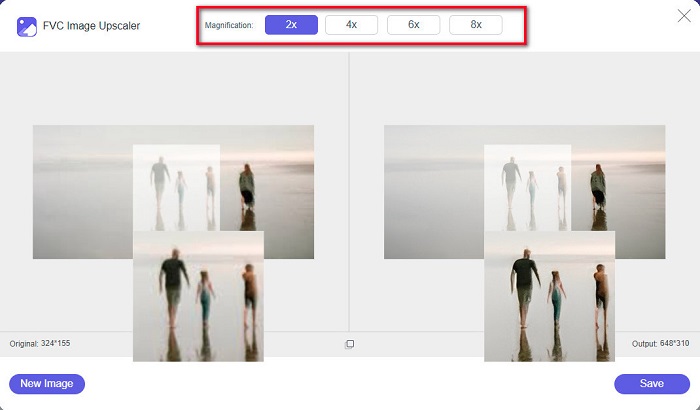
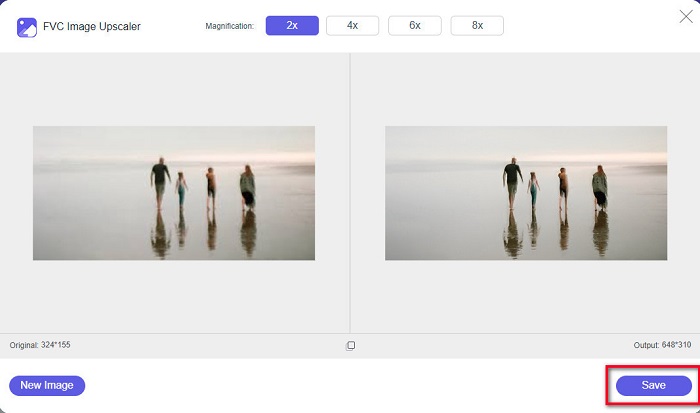
Stap 3. Klik vervolgens op de knop Save om je resultaat op je apparaat op te slaan.
Deel 4. Veelgestelde vragen over het formaat van een afbeelding wijzigen in Adobe Photoshop
Wijzigt Adobe het formaat van afbeeldingen zonder verlies?
Met Adobe Photoshop kunt u het formaat van uw afbeeldingen wijzigen zonder kwaliteitsverlies. Bovendien produceert het hoogwaardige outputs.
Welke bestandsindelingen ondersteunt Adobe Photoshop?
Adobe Photoshop accepteert bijna alle bekende afbeeldingsformaten, zoals JPG, JPEG, PNG, BMP, TIFF, EPS, PDF en meer.
Wat is de prijs van Adobe Photoshop?
U kunt Adobe Photoshop aanschaffen voor $19,99 per maand. U kunt de gratis proefperiode van 30 dagen gebruiken om de applicatie eerst te testen.
Gevolgtrekking
Nu je vraag over Adobe resize images is beantwoord, kun je een afbeelding resizen met Adobe Express of Adobe Photoshop. Welke applicatie je ook kiest uit de bovenstaande tools, je kunt je afbeelding met succes resizen. Maar als je een eenvoudigere en efficiëntere manier wilt om een afbeelding te resizen en te verbeteren, gebruik dan FVC Free Image Upscaler.
-
 Hoe u afbeeldingen online en offline kunt verscherpen met 4 eenvoudige manieren
 Er zijn veel methoden die u kunt gebruiken als u een afbeelding wilt verscherpen. Hieronder bespreken we de beste en gemakkelijkste manieren om afbeeldingen online en offline te verscherpen.
-
 Oude fotorestauratie online en offline [eenvoudige stappen]
 Wilt u een oude foto herstellen? Met deze tools ken je het oude fotoherstelproces. Lees dit bericht om de meest eenvoudige methoden te leren.
-
 Het formaat van foto voor Facebook wijzigen [Snelle en gemakkelijke stappen]
 Als je problemen hebt met het uploaden van een grote afbeelding op Facebook, hebben we een oplossing voor je. Voltooi dit artikel om te leren hoe u het formaat van foto's voor Facebook kunt wijzigen.
