


 Video Converter Ultimate
 Scherm opnemer
 Videoreparatie
 Beveiligde download
Verbazingwekkend herstel van de beeldkwaliteit met behulp van de meest fantastische tools
Een afbeelding van lage kwaliteit is behoorlijk storend. Als jij ook een afbeelding van lage kwaliteit hebt, moet je de kwaliteit van je afbeelding verbeteren. Maar hoe kun je dat doen? Er zijn veel beeldvergroters die je op je computer kunt gebruiken om de kwaliteit van je afbeelding te verhogen. En als je je afvraagt hoe je de kwaliteit van je afbeelding kunt herstellen, dan helpen we je daarbij. Lees dit hele artikel om snel te leren hoe je de beeldkwaliteit kunt verbeteren.

Deel 1. Hoe de beeldkwaliteit gratis online te herstellen
Er zijn tonnen beeld-upscaler die u op uw pc kunt downloaden. U moet ze echter aanschaffen voordat u de kwaliteit van uw afbeelding kunt verbeteren. En als u op zoek bent naar een gratis upscaler voor afbeeldingen, dan hebben wij de juiste tool. Lees dit deel grondig om te leren hoe u gratis de beeldkwaliteit kunt verbeteren met behulp van de twee meest fantastische online tools.
FVC gratis afbeelding upscaler
FVC Free Image Upscaler is een gratis online applicatie die je helpt de kwaliteit van een afbeelding te verbeteren. Deze online tool is gebruiksvriendelijk voor beginners omdat de software-interface eenvoudig te gebruiken is. Bovendien kan hij vier resultaten geven met 2x, 4x, 6x en 8x vergroting, wat uitstekende resultaten oplevert. Ook hoef je je geen zorgen te maken over de veiligheid van je gegevens, want FVC Free Image Upscaler verzekert je dat het veilig te gebruiken is. Wat deze tool nog indrukwekkender maakt, is dat hij AI-technologie gebruikt die automatisch de wazige delen herkent. Verder kun je met deze tool perfect de verloren pixels, kleurtexturen en andere details herstellen. Als je deze tool wilt gebruiken om de kwaliteit van je afbeelding te verbeteren, lees dan de onderstaande instructies.
Hoe de fotokwaliteit online te verbeteren met FVC Free Image Upscaler:
Stap 1. Zoek in de browser die je gebruikt op FVC Free Image Upscaler in de zoekbalk. Klik op deze link om direct naar hun hoofdpagina te gaan.
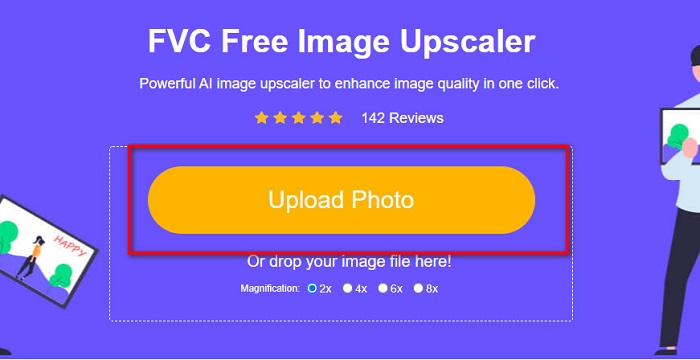
Stap 2. Klik in de hoofdinterface op de knop Upload Photo om de afbeelding te uploaden die je wilt vergroten. Je computermappen worden geopend, waar je je afbeelding van lage kwaliteit selecteert en uploadt.
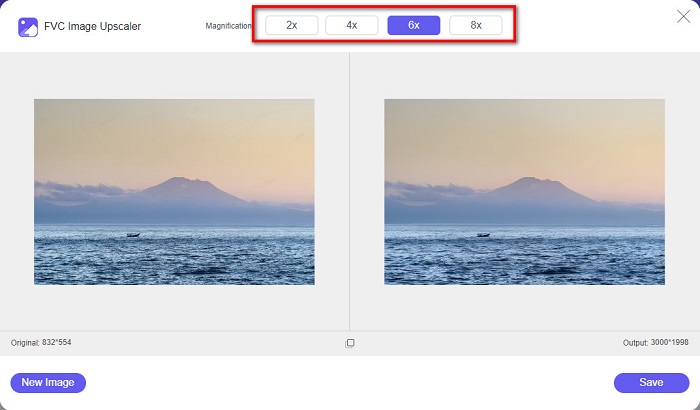
Stap 3. Selecteer vervolgens de vergroting die je voor je afbeelding wilt. Hoe groter de vergroting, hoe beter de kwaliteit. Je kunt kiezen tussen 2x, 4x, 6x en 8x.
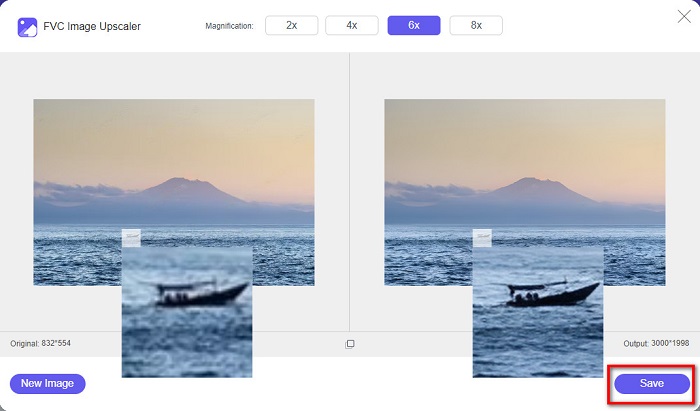
Stap 4. Klik vervolgens op de knop Save om je verbeterde afbeelding op te slaan in je computermappen.
Eenvoudig, toch? Zo makkelijk als A-B-C kun je de beeldkwaliteit verbeteren met behulp van FVC Free Image Upscaler.
Icons8.com
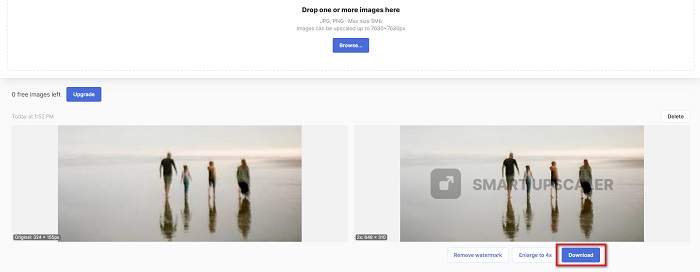
Icons8.com is een andere online beeldvergroter die toegankelijk is in vrijwel alle webbrowsers, waaronder Google, Firefox en Safari. Deze online applicatie is eenvoudig te gebruiken omdat hij een simpele gebruikersinterface heeft. Ook deze online tool gebruikt AI-technologie die automatisch de wazige delen van de afbeelding detecteert. Bovendien kunnen je afbeeldingen worden vergroot tot 7680 x 7680 px. Wel laat hij een watermerk achter op het resultaat. Desondanks is het nog steeds een effectieve tool om je afbeelding op te schalen.
Hoe een afbeelding van lage kwaliteit op Icons8.com te repareren:
Stap 1. Open je browser en zoek Icons8.com in je browser. Klik vervolgens in de hoofdinterface op de knop Browse.
Stap 2. Omdat Icons8.com ook AI-technologie gebruikt, detecteert het automatisch de wazige delen van je afbeelding.
Stap 3. Klik tenslotte op de knop Download om je afbeelding op je computer op te slaan.
Deel 2. Hoe foto's van slechte kwaliteit in Photoshop te repareren
Het is niet moeilijk om het imago van uw kwaliteit te verbeteren. Maar het gebruik van Photoshop om uw afbeelding op te schalen kan een hele uitdaging zijn vanwege de interface en functies. Maar maak je geen zorgen, want we leren je hoe je Adobe Photoshop kunt gebruiken om de kwaliteit van je afbeelding te verbeteren.
Adobe Photoshop is uitstekend voor fotobewerking en fotomanipulatie. Deze bewerkingssoftware wordt door veel professionele editors wereldwijd gebruikt. Daarnaast heeft het veel geavanceerde bewerkingstools die je kunt gebruiken om je afbeelding te bewerken. Ook is Adobe Photoshop te downloaden op alle grote platforms, waaronder Windows, Mac en Linux. Bovendien kun je met deze app banners, logo’s, brochures en meer bewerken. En wat veel gebruikers niet weten, is dat je er ook de kwaliteit van je afbeelding mee kunt verbeteren. Hoewel je het moet aanschaffen voordat je het downloadt, is Adobe Photoshop je geld waard.
Hoe foto's van lage kwaliteit in Photoshop te repareren:
In deze zelfstudie verbeteren we de kwaliteit van een afbeelding door deze te vergroten om de resolutie te zien.
Stap 1. Download Adobe Photoshop op je computer. Volg het installatieproces en start vervolgens de app op je computer.
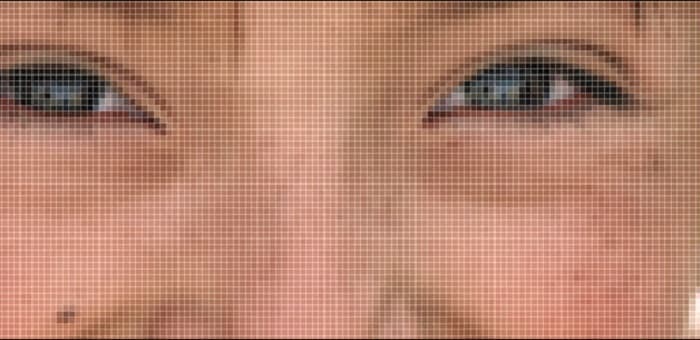
Stap 2. Open je afbeelding met lage resolutie in Adobe Photoshop. Hier is een voorbeeldafbeelding die is ingezoomd op 100%. Zoals je ziet, heeft de afbeelding een lage resolutie.
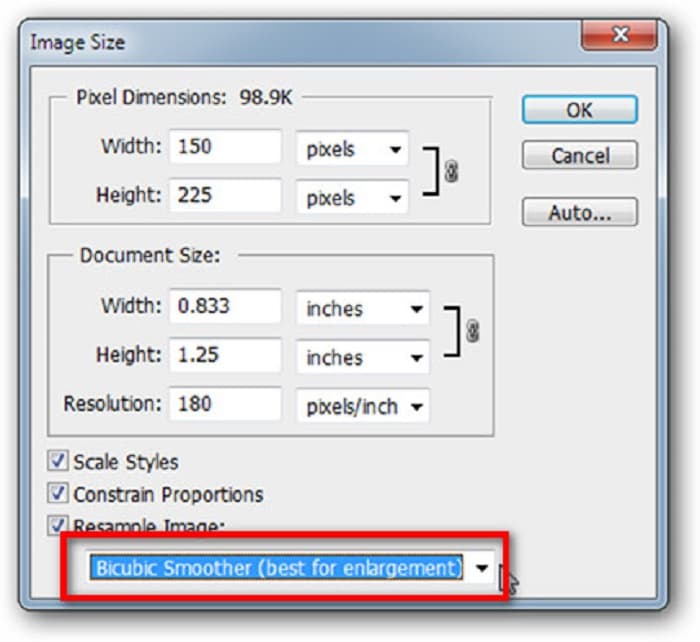
Stap 3. Ga vervolgens naar Image > Image Size. Verander daarna het type anti-aliasing bij Resample Image om je afbeelding te vergroten en te verzachten. Wijzig dit naar Bicubic Smoother, wat het beste is voor vergroting.
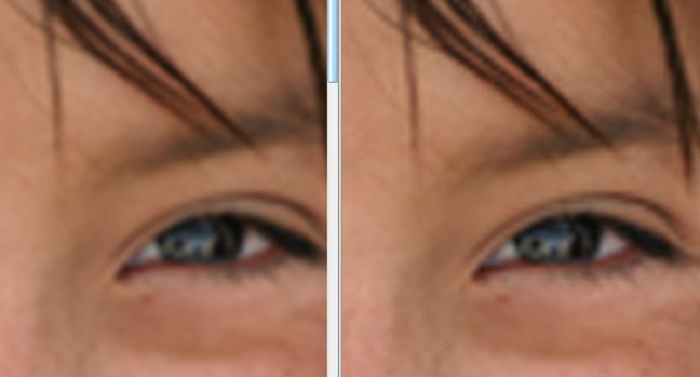
Stap 4. Je kunt het verschil tussen de twee afbeeldingen hieronder zien wanneer je overschakelt naar de Bicubic Smoother-versie. Het wijzigen van de anti-aliasing maakt een groot verschil in de zachtheid van je afbeelding.
Stap 5. Nu gaan we de vergrote afbeelding verder verbeteren door de details aan te passen. De meeste Photoshop-gebruikers gaan niet verder dan RGB en CMYK. Vandaag gebruiken we een andere kleurmodus, Lab Color. Ga naar Image > Mode > Lab Color.
Stap 6. Zorg er vervolgens voor dat je een paneel opent door naar Window > Channels > Lightness-kanaal te gaan. Je kunt ook op het pictogram voor laag verbergen naast de a- en b-kanalen klikken.
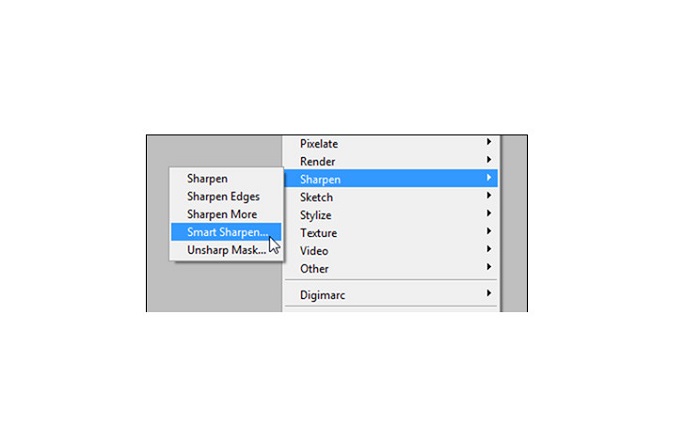
Stap 7. Wanneer je het Lightness-kanaal selecteert, ga je naar Filter > Smart Sharpen > Sharpen om het filter Smart Sharpen toe te voegen.
Stap 8. Daarna kun je de instellingen van je foto aanpassen en zo het gewenste resultaat vinden. Onthoud altijd dat je de instelling Remove op Gaussian Blur moet laten staan.
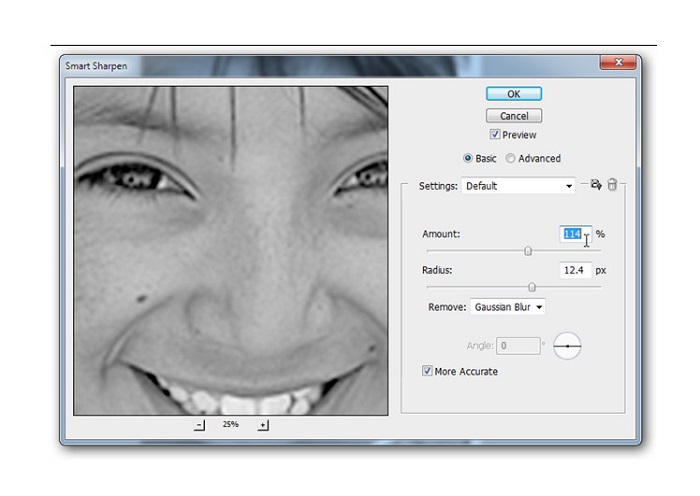
Stap 9. Je kunt ervoor kiezen je afbeelding in Lab Color te laten of terug te zetten naar RGB. En dat is het! Dit is het resultaat van je afbeelding. Je zult merken dat de beeldkwaliteit is verbeterd en een rijkere textuur heeft.
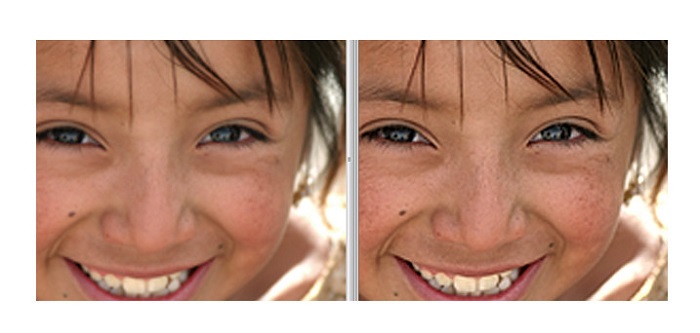
En voila! Door de bovenstaande gids te volgen over het herstellen van foto's van slechte kwaliteit in Photoshop, kunt u de kwaliteit van uw afbeelding verbeteren.
Deel 3. Veelgestelde vragen over het herstellen van de beeldkwaliteit
Kan ik foto's van slechte kwaliteit op de iPhone verbeteren?
Ja. U kunt veel apps op uw iPhone downloaden waarmee u uw beeldkwaliteit kunt verbeteren. Een van de beste apps voor het opschalen van afbeeldingen is Remini, een gebruiksvriendelijke app.
Kan ik de resolutie van JPEG-afbeeldingen wijzigen?
U kunt de resolutie wijzigen van elk afbeeldingsformaat dat u wilt opschalen. U kunt de bovengenoemde hulpmiddelen gebruiken om de kwaliteit van uw JPEG-afbeelding te verbeteren.
Hoe de beeldkwaliteit op Instagram te herstellen?
Om de kwaliteit van je foto’s op Instagram te verbeteren, wijzig je de instelling Image Resolution van de plug-in naar een grotere afbeeldingsgrootte, zodat de afbeelding met de juiste resolutie wordt weergegeven. Dit kun je doen via: Instagram Feed > Customize > Posts > Photos > Image Resolution.
Gevolgtrekking
We hopen dat we je vraag over hoe je de beeldkwaliteit kunt verbeteren hebben beantwoord. Je kunt kiezen welke van de bovenstaande tools voor jou het beste is. Adobe Photoshop is misschien een professionelere tool, maar het is niet erg gebruiksvriendelijk. Dus als je een eenvoudig te gebruiken, gratis beeldvergroter wilt, gebruik dan FVC Free Image Upscaler.
-
 Hoe u een afbeelding met een lage resolutie online kunt converteren naar een hoge resolutie
 Als u wilt leren hoe u afbeeldingen met een lage resolutie online kunt converteren naar afbeeldingen met een hoge resolutie, dan is dit artikel iets voor u. Lees volledig om te leren hoe.
-
 Verwijder het DaVinci Resolve-watermerk op geëxporteerde video's met volledige zelfstudie
 Om het Davinci Resolve-watermerk te verwijderen, moet u een tool gebruiken of de officiële versie ervan kopen. Blijf dit lezen voor meer informatie.
-
 Hoe zich te ontdoen van het Power Director-watermerk gratis [Compleet]
 Hoe kom je gratis van het Power Director-watermerk af? De beste tools om het watermerk te verwijderen zijn hier, dus leer ze door dit te lezen.
