


 Video Converter Ultimate
 Scherm opnemer
 Videoreparatie
 Beveiligde download
Ultieme instructies om Canva-watermerk te verwijderen [opgelost]
Online en professionele gebruikers die vaak hoogwaardige foto’s, presentaties en video’s moeten maken, gebruiken Canva veel. Dit programma heeft veel voordelen, waaronder een grote selectie tools, sjablonen, ontwerpen, thema’s en meer. Helaas hebben de pro-elementen nu watermerken. Voor het gebruik van de pro-elementen zonder watermerk moet je betalen. Gelukkig laat dit artikel je de beste methoden zien die je kunt proberen om Canva-watermerken te verwijderen zonder de pro‑elementen aan te schaffen. Lees dus het artikel door om een idee te krijgen hoe je Canva-watermerken kunt verwijderen.

Deel 1: Beste online tool om Canva-watermerken te verwijderen
Als je wilt leren hoe je Canva-watermerken gratis kunt verwijderen, kun je FVC Free Watermark Remover gebruiken. Met deze webgebaseerde tool kun je elk object uit je foto verwijderen zonder ook maar één cent uit te geven. Ook kan hij je Canva-watermerken eenvoudig wissen met behulp van watermerkverwijdertools zoals Brush, Polygonal en Lasso. Bovendien kun je watermerken ook verwijderen met de bijsnijdtool, vooral wanneer het watermerk zich aan de rand van je foto bevindt. Daarnaast hoef je je geen zorgen te maken over het ondersteunde afbeeldingsformaat, want het ondersteunt bijna alle formaten, zoals JPG, PNG, BMP en meer. Met de intuïtieve interface en basisfuncties kunnen we zeggen dat FVC Free Watermark Remover perfect is voor alle gebruikers, inclusief beginners. In dit deel leer je hoe je Canva‑watermerken van je foto kunt verwijderen met alle verwijdertools, zoals Brush-, Lasso- en Polygonal‑tools.
U kunt het gereedschap Penseel gebruiken als u watermerken wilt verwijderen alsof u ze gewoon aan het borstelen bent. U kunt zelfs de grootte van het penseel aanpassen aan uw voorkeur. U kunt het gereedschap Lasso gebruiken om ingesloten delen van afbeeldingen of vormen te selecteren. Ten slotte kunt u het gereedschap Veelhoek gebruiken als u de watermerken als een rechthoekige vorm wilt markeren om ze gemakkelijk te verwijderen zonder het patroon van het watermerk te volgen.
Penseel gebruiken
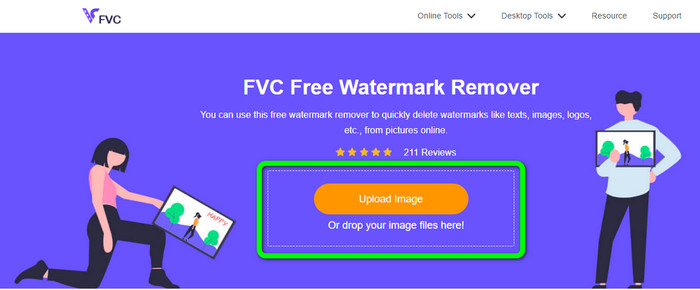
Stap 1: Ga eerst naar de website van FVC Free Watermark Remover. Klik daarna op de knop Upload Image om je afbeelding met een Canva‑watermerk te uploaden. Een andere manier om een foto te uploaden is door je afbeeldingsbestand in het vak te slepen.
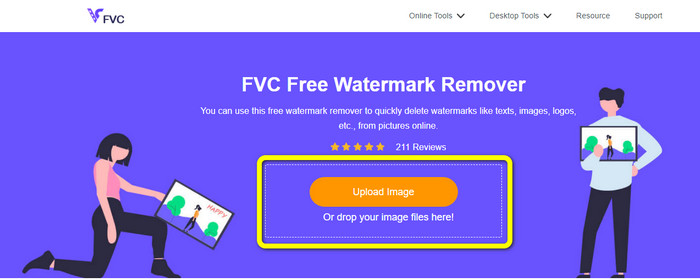
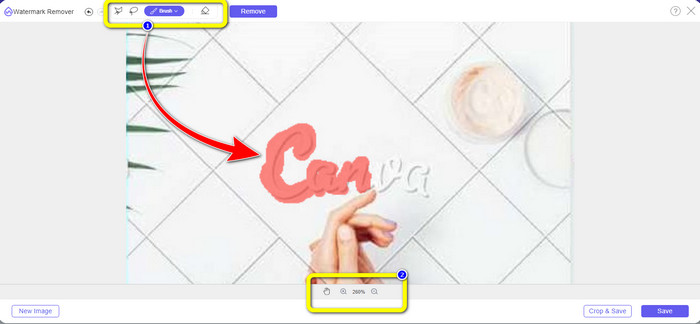
Stap 2: Selecteer in het eerste vak bovenaan de Brush-tool. Gebruik vervolgens deze tool om de Canva‑watermerken in je foto te markeren. Onder de Brush‑tool kun je de grootte van je penseel aanpassen. In het tweede vak onderaan kun je op je afbeelding in- en uitzoomen om kleine watermerken te zien.
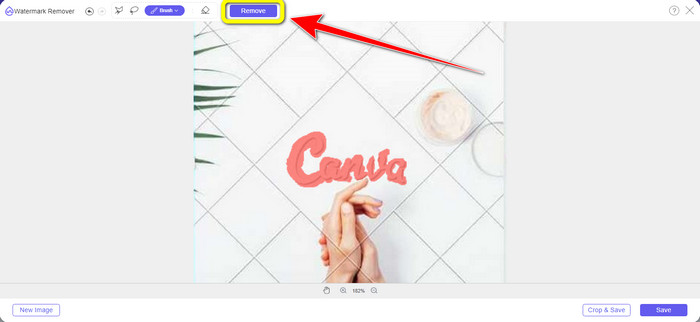
Stap 3: Wanneer je klaar bent met het markeren van de Canva‑watermerken in je foto, klik je op de knop Remove zodat het verwijderingsproces kan starten. Wacht vervolgens enkele seconden.
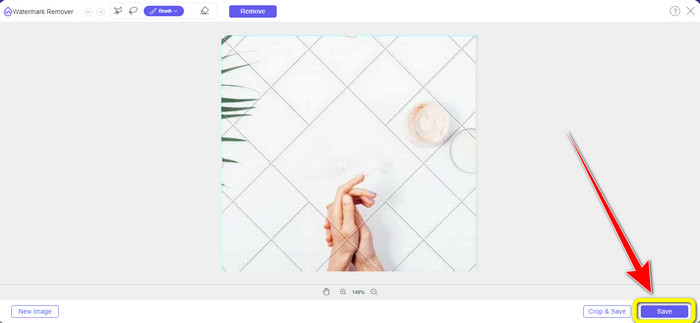
Stap 4: Na het verwijderingsproces zie je dat het Canva‑watermerk al verdwenen is. Klik op de knop Save om je foto op te slagen.
Lasso-tool gebruiken
Stap 1: Nadat je je afbeelding met een Canva‑watermerk hebt geüpload, selecteer je de Lasso-tool uit de watermerkverwijdertools. Gebruik vervolgens je muis om het Canva‑watermerk te markeren.
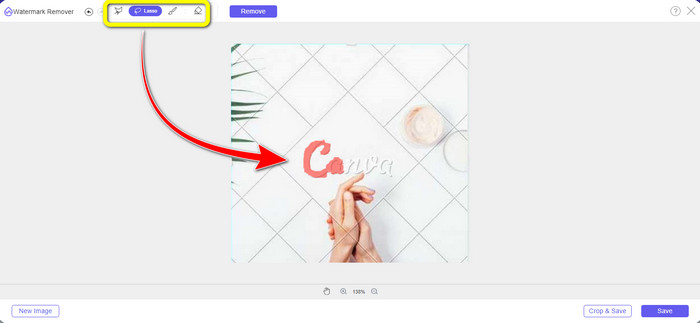
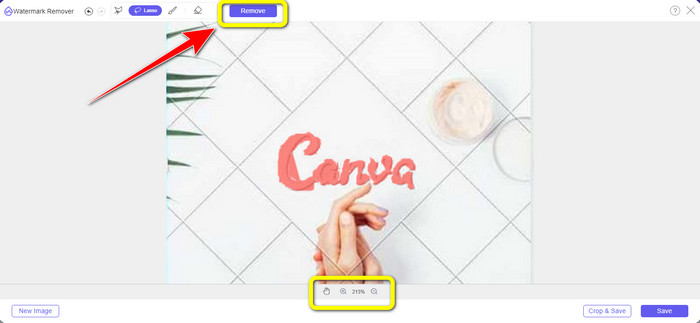
Stap 2: In het gele vak onder de foto kun je op het pictogram + of - klikken om je foto te vergroten en duidelijker te zien. Klik daarna op de knop Remove wanneer je klaar bent met het markeren van het Canva‑watermerk met de Lasso‑tool.
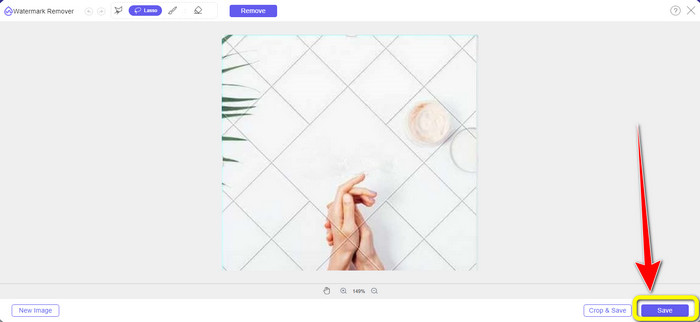
Stap 3: Na het verwijderingsproces en wanneer het Canva‑watermerk is verwijderd, klik je op de knop Save om je uiteindelijke foto op te slaan.
Veelhoekgereedschap gebruiken
Stap 1: Wanneer je klaar bent met het toevoegen van je foto in FVC Free Watermark Remover, selecteer je de Polygonal-tool uit de watermerkverwijdertools.
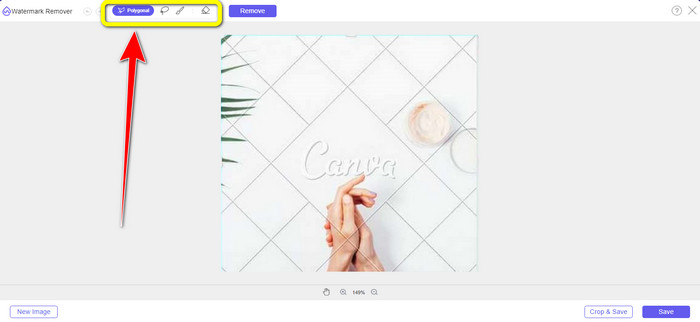
Stap 2: Markeer in dit deel met behulp van de Polygonal‑tool het Canva‑watermerk in je afbeelding.
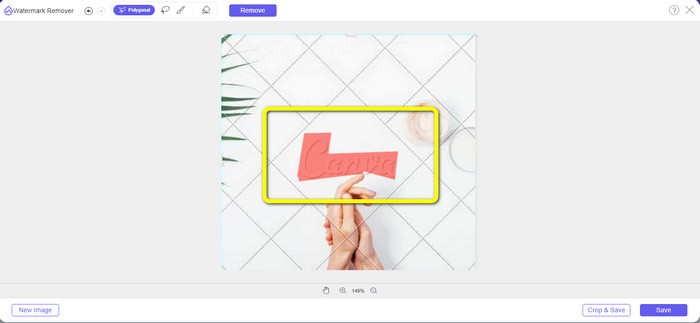
Stap 3: Na het markeerproces kun je het Canva‑watermerk al verwijderen door op de knop Remove te klikken.
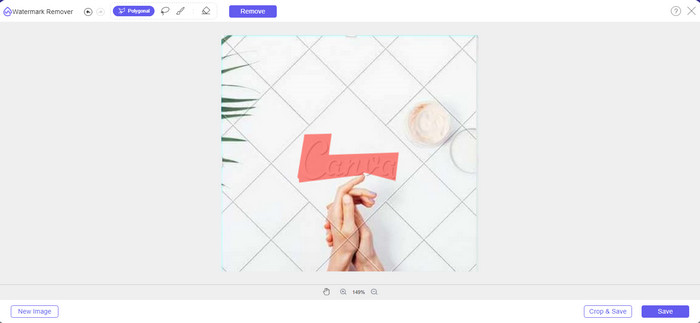
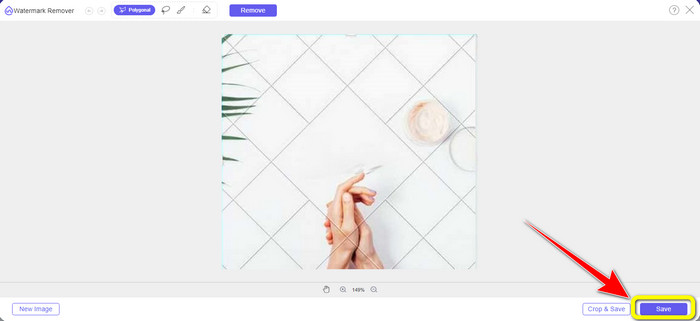
Stap 4: Na het verwijderingsproces kun je doorgaan naar de volgende en laatste stap: je foto opslaan door op de knop Save te klikken.
Met deze drie tools voor het verwijderen van watermerken kunt u snel de Canva-watermerken van uw foto verwijderen. Laten we deze keer de tool Bijsnijden gebruiken om het Canva-watermerk uit uw afbeelding te verwijderen.
Bijsnijdgereedschap gebruiken
De tool Cropping is de beste manier om watermerken weg te snijden, vooral als het watermerk zich aan de rand of in de hoek van de foto bevindt. Volg de onderstaande gids om te leren hoe je Canva‑watermerken verwijdert met behulp van de Cropping‑tool.
Stap 1: Klik op de knop Upload Image. Daarna verschijnt je map op het scherm. Kies de afbeelding met het Canva‑watermerk dat je wilt verwijderen.
Stap 2: Nadat je je afbeeldingsbestand hebt gekozen, klik je op de knop Crop&Save. Ga daarna door naar het volgende proces.
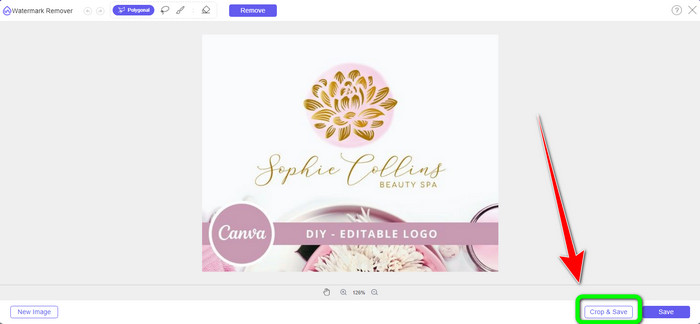
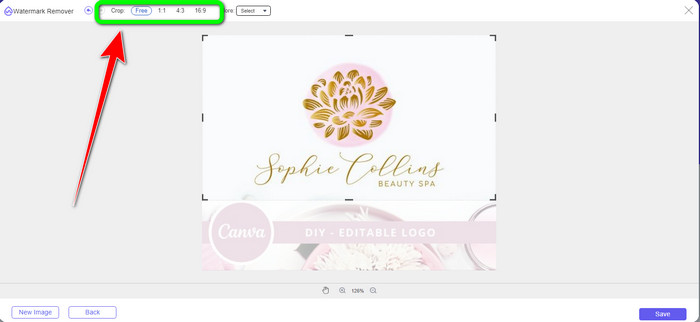
Stap 3: In dit vak kun je kiezen hoe je de foto wilt bijsnijden. Als je de optie Free selecteert, kun je je afbeelding handmatig bijsnijden zoals jij wilt.
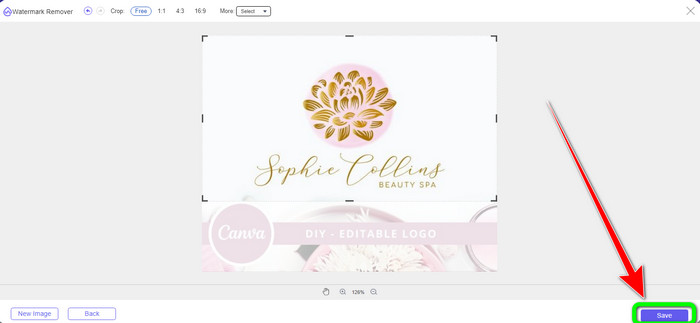
Stap 4: Nadat je de foto hebt bijgesneden om het Canva‑watermerk weg te snijden, kun je op de knop Save klikken om je uiteindelijke afbeelding op te slaan.
Deel 2: Canva-watermerken verwijderen met Photoshop
Een andere manier om het Canva-watermerk uit afbeeldingen te verwijderen, is door Adobe Photoshop te gebruiken. Het kan ook alle storende objecten van uw foto wissen, inclusief watermerken, logo's, tekst, stickers en meer. Deze tool heeft ook een snel verwijderingsproces, zodat u geen tijd meer hoeft te besteden aan het verwijderen van ongewenste objecten van uw foto. Bovendien wordt software zoals Adobe Photoshop veel gebruikt voor grafisch ontwerp, bewerking van rasterafbeeldingen en digitale kunst. Gelaagdheid voegt diepte en veelzijdigheid toe aan de ontwikkelings- en bewerkingsprocessen en biedt essentiële bewerkingstools die, wanneer gecombineerd, uitstekende resultaten kunnen opleveren. Adobe Photoshop is echter niet gemakkelijk te gebruiken, vooral als u een nieuwe gebruiker bent. Photoshop is geavanceerde bewerkingssoftware die geschikt is voor gevorderde gebruikers. Het betekent dat niet-professionele gebruikers het ingewikkeld zullen vinden bij het gebruik van de tool. Ook is Adobe Photoshop niet gratis. Het kan alleen een gratis proefperiode van zeven dagen aanbieden. Vervolgens moet u de applicatie kopen om deze continu te gebruiken.
Volg de onderstaande stappen om het Canva-watermerk te verwijderen met Adobe Photoshop.
Stap 1: Download Adobe Photoshop op je computer en installeer het. Start vervolgens de applicatie.
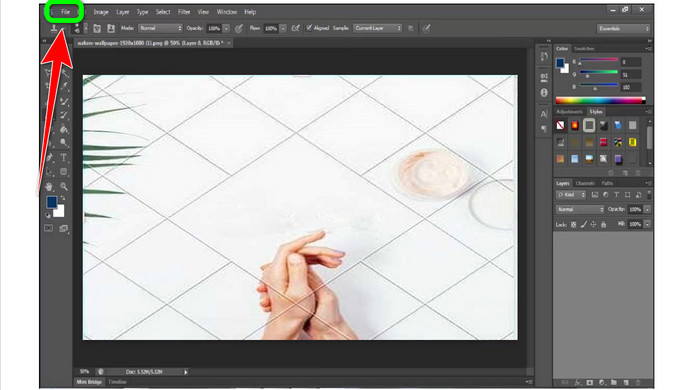
Stap 2: Ga naar File > Open om de foto met het Canva‑watermerk in te voegen.
Stap 3: Selecteer aan de linkerkant van de interface de Clone Stamp Tool.
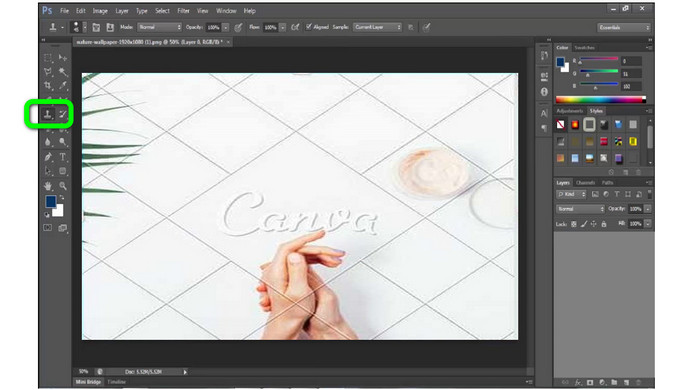
Stap 4: Nadat je de Clone Stamp Tool hebt geselecteerd, gebruik je je muis om op het Canva‑watermerk te klikken totdat je alle watermerken hebt gewist.
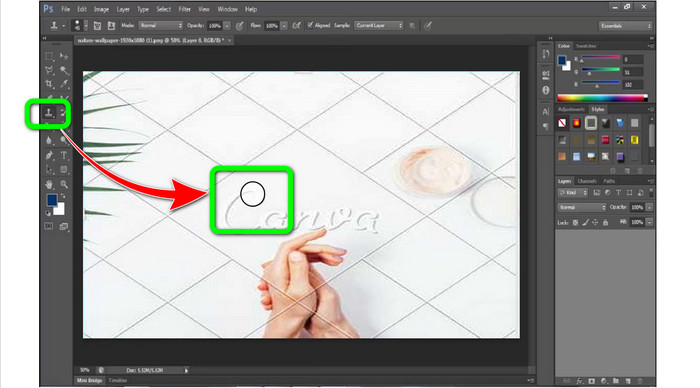
Stap 5: Wanneer het Canva‑watermerk verdwenen is, ga naar File > Save.
Gerelateerd aan:
Eenvoudige stappen om het WOW Slider‑watermerk te verwijderen [Opgelost]
Eenvoudige methoden om het Shootproof‑watermerk te verwijderen
Deel 3: Veelgestelde vragen over het verwijderen van Canva-watermerken
1. Hoe verwijder ik het gratis Canva-watermerk?
Om het watermerk van al je ontwerpen te verwijderen, moet je de Canva Pro aanschaffen. Een andere optie is om een gratis proefversie van Canva Pro te gebruiken, waarbij het watermerk wordt gewist. U kunt het watermerk ook verwijderen door uw ontwerp op te slaan als een PDF- of PNG-bestand.
2. Wat is het verschil tussen Canva en Canva Pro?
In Canva is het abonnement helemaal gratis. U kunt gratis sjablonen, lay-outs, grafische elementen, foto's en meer krijgen. Maar in de gratis versie zijn er beperkingen, zoals het ontbreken van merktools, geen filters en beperkte uitvoeropties. In Canva Pro zijn er meer geweldige functies waarvan je kunt genieten. Het biedt meer sjablonen, stockfoto's, afbeeldingen en video's. Het gebruik van Canva Pro is beter dan de gratis versie.
3. Wat is de beste manier om het Canva-watermerk te verwijderen?
Gebruik FVC Free Watermark Remover. Deze tool kan je snel helpen de Canva‑watermerken van je foto te verwijderen. Hij kan ook andere ongewenste elementen wissen, zoals logo’s, tekst, emoji’s, enzovoort.
Gevolgtrekking
Canva is een fantastisch grafisch ontwerpprogramma. Het laat echter in bijna alle foto’s watermerken achter. Maar als je Canva‑watermerken wilt verwijderen, kun je FVC Free Watermark Remover gebruiken. Het is gratis en makkelijker te gebruiken dan Photoshop.
-
 Eenvoudigste methoden voor het verwijderen van watermerk van foto's
 Ben je geïrriteerd door de watermerken op je foto's? Maak je geen zorgen! Dit artikel biedt eenvoudige en gemakkelijke methoden om watermerken van uw foto's te verwijderen
-
 Manieren om eenvoudig Reddit-watermerken van afbeeldingen te verwijderen
 Als je hier bent, ben je misschien op zoek naar een uitstekende Reddit-watermerkverwijderaar. In dat geval laten we u de eenvoudigste methode zien om Reddit-watermerken te verwijderen
-
 Watermerk verwijderen in Lightroom Mobile [opgelost]
 Wil je leren hoe je watermerken verwijdert uit foto's in lightroom? Hier zijn de eenvoudigste methoden die u kunt proberen met uw mobiele telefoons en computers
