


 Video Converter Ultimate
 Scherm opnemer
 Videoreparatie
 Beveiligde download
6 Meest effectieve manier om het formaat van een afbeelding op internet en desktop te wijzigen
Met miljarden prestigieuze foto's die we kunnen downloaden, maken de meesten van ons prachtige foto's, maar er zijn gevallen waarin hun grootte niet is wat we het liefste hebben. Gebruikers probeerden het formaat van de afbeelding die ze hadden te wijzigen door de hoogte, breedte en beeldverhouding van de afbeelding aan te passen met behulp van de editor, waardoor de PPI van de afbeelding veranderde. Het resultaat is niet wat iedereen verwachtte; high-definition beelden worden korrelig.
Waarom? Omdat de editor die ze gebruikten om het formaat te wijzigen geen nieuwe pixels kan aanmaken of de ontbrekende pixels kan opvullen in de versie met aangepast formaat. Daardoor werden vragen over dit onderwerp populair, en wij zijn hier om je te helpen het probleem op te lossen. In deze blogpost laten we je zelf ervaren hoe je een afbeelding kunt vergroten of verkleinen zonder dat er vervorming in het eindresultaat achterblijft.

Deel 1. Beste foto-resizers die u op internet kunt openen om het formaat van afbeeldingen online te wijzigen [3 gratis tools]
Deze online tools die we hier toevoegen, zijn beschikbaar in verschillende webbrowsers die u op uw apparaat heeft. Deze zijn ook gratis, maar er is een tool die u moet aanschaffen om zonder enige beperking te gebruiken. Desalniettemin zijn dit capabele online tools die u kunt gebruiken om het formaat van de afbeelding die u heeft te wijzigen. Lees de stappen om te weten hoe u ze moet gebruiken.
1. FVC Free Image Upscaler - Beste Image Resizer op internet [gunstige optie]
Met FVC Free Image Upscaler Online heb je een op kunstmatige intelligentie gebaseerde webtool die snel afbeeldingen kan vergroten of verkleinen zonder kwaliteitsverlies. De webtool past het formaat van elk afbeeldingsbestand dat je hier uploadt automatisch aan. Ondanks dat het een online tool is, is de prestatie bij het schalen snel en doeltreffend. Elke afbeelding die je hier uploadt, wordt automatisch van de server verwijderd zodra je klaar bent met het aanpassen van het formaat. Daarnaast heeft het de meest overzichtelijke en veelzijdige resizer die je maar nodig kunt hebben; zelfs als je verschillende apparaten gebruikt, kun je deze webtool openen zolang je internetverbinding hebt. Benieuwd hoe deze software presteert bij deze taak? Lees dan de stappen hieronder en volg ze om het afbeeldingsformaat snel en effectief te wijzigen.
Hoe een afbeelding vergroten of verkleinen met FVC Free Image Upscaler:
Stap 1. Klik op deze link om de webtool te openen; je wordt automatisch doorgestuurd naar de officiële website van de resizer.
Stap 2. Klik op Add Image, zodat er een map op je scherm verschijnt, selecteer het afbeeldingsbestand dat je wilt uploaden en druk op Open.
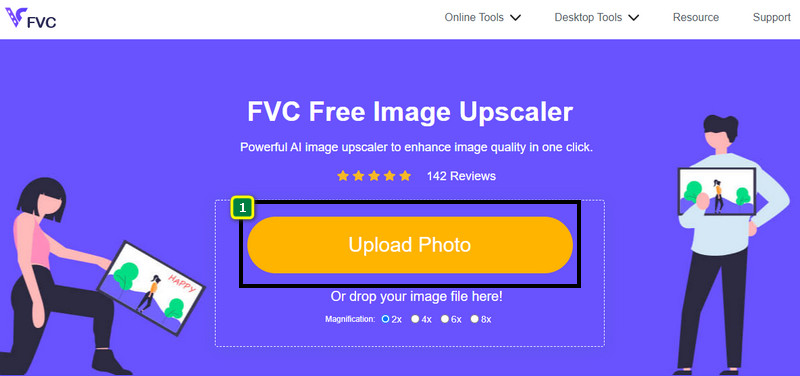
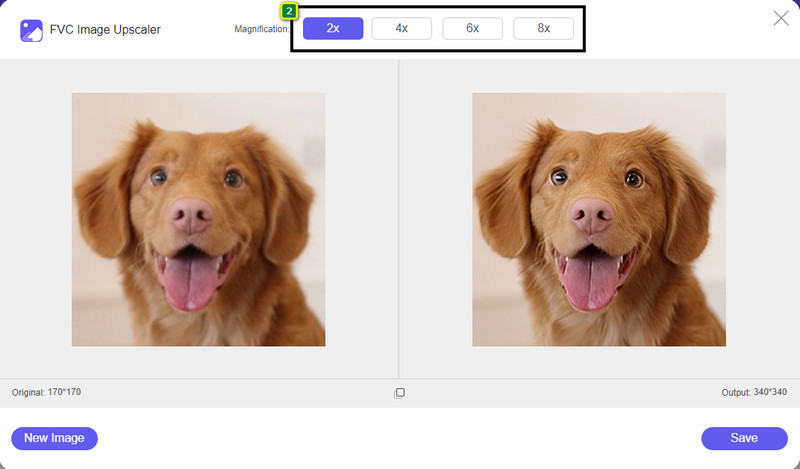
Stap 3. Om het formaat van de afbeelding te wijzigen, moet je kiezen welk type vergroting je op je afbeelding wilt toepassen. Je ziet dat de totale afmetingen van de afbeelding veranderen zodra je op 2x, 4x, 6x of 8x klikt.
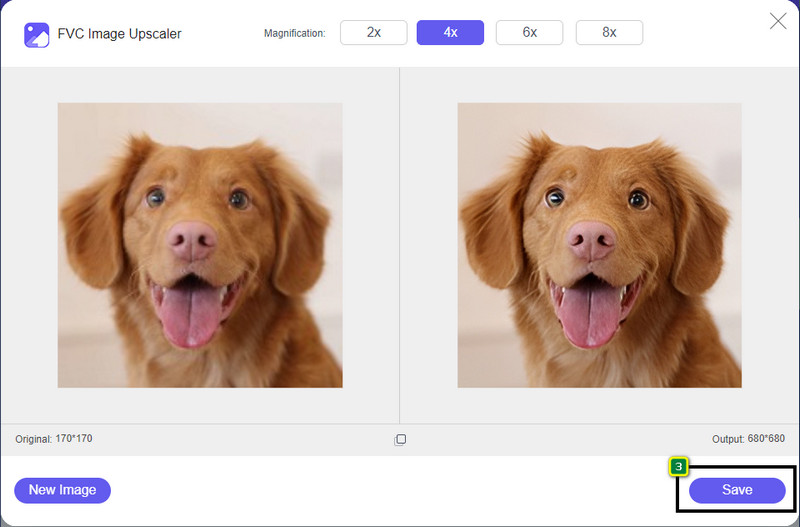
Stap 4. Nadat je de vergroting hebt geselecteerd die je wilt toepassen, kun je op Save drukken om de versie met aangepast formaat op je desktop op te slaan.
2. Wees funky - Foto-editor [gratis en betaald]
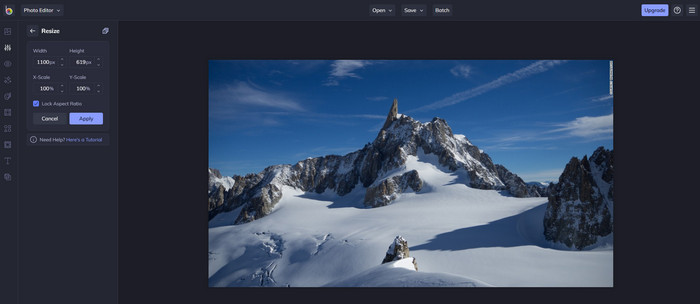
Be Funky - Photo Editor is een creatief platform waarmee je bijzondere dingen met je afbeeldingen kunt maken. Je kunt er onder andere BMP-bestanden mee schalen zonder kwaliteitsverlies. Deze tool wordt beschouwd als een van de beste online beschikbare foto-editors. Hoewel de GUI enigszins op Photoshop lijkt, zijn de functies eenvoudig en gemakkelijk te begrijpen, dus we kunnen zeggen dat het ook gebruiksvriendelijk is. Als je deze online tool wilt proberen om je afbeelding eenvoudig te schalen, volg dan de stappen die we hier hebben opgenomen.
Hoe een afbeelding vergroten of verkleinen met Be Funky:
Stap 1. Zoek de naam in je webbrowser en klik vervolgens op Get Started and Edit Photo.
Stap 2. Druk op Open om de BMP of een andere afbeelding die je hier wilt schalen te uploaden.
Stap 3. Ga naar Edit en klik op de optie Resize.
Stap 4. Hier kun je vrij de breedte en hoogte of de x- en y-schaal van de afbeelding wijzigen. Druk daarna op Apply om te zien hoe de versie met aangepast formaat eruitziet.
3. Simple Image Resizer [gratis]
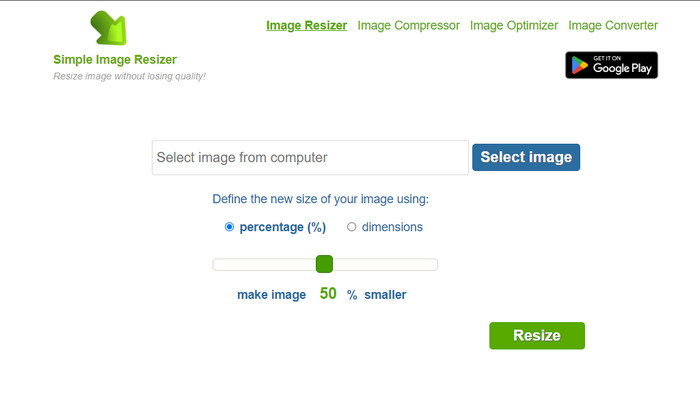
Simple Image Resizer stelt je in staat een afbeelding te schalen door de nieuwe afmetingen te definiëren via een percentage of een maatvoering. Dit is de laatste resizer die we in dit artikel hebben toegevoegd. De eenvoudige GUI en gebruiksvriendelijkheid waren de belangrijkste redenen om deze tool op te nemen. Naast de functie voor formaatwijziging kun je hier je afbeelding gratis optimaliseren, comprimeren en converteren, al staan er wel storende advertenties op de website. Als je deze online resizer wilt proberen, volg dan de onderstaande stappen.
Hoe een afbeelding vergroten of verkleinen met Simple Image Resizer:
Stap 1. Gebruik je webbrowser en zoek op de naam om deze webresizer te gaan gebruiken.
Stap 2. Druk op Select Image om de foto toe te voegen waarvan je hier het formaat wilt wijzigen.
Stap 3. Kies hoe je het formaat wilt aanpassen en wijzig het percentage of de maat. Beide opties leveren in feite hetzelfde resultaat op.
Stap 4. Klik op Resize om het uiteindelijke resultaat op je desktop op te slaan.
Deel 2. Het formaat van een afbeelding wijzigen op Windows en Mac [Betaald en gratis offline]
In tegenstelling tot de eerste 3 genoemde online tool, zijn de volgende tools die we hebben geïntroduceerd niet internetafhankelijk, wat betekent dat zelfs als je geen internet hebt, je ze zonder problemen kunt gebruiken. Ze zijn namelijk downloadbaar of al voorgeïnstalleerd op uw bureaublad. Leer hoe u ze vandaag nog kunt gebruiken door de informatie te lezen die we aan elk ervan toevoegen.
1. Adobe Photoshop [Windows & Mac]
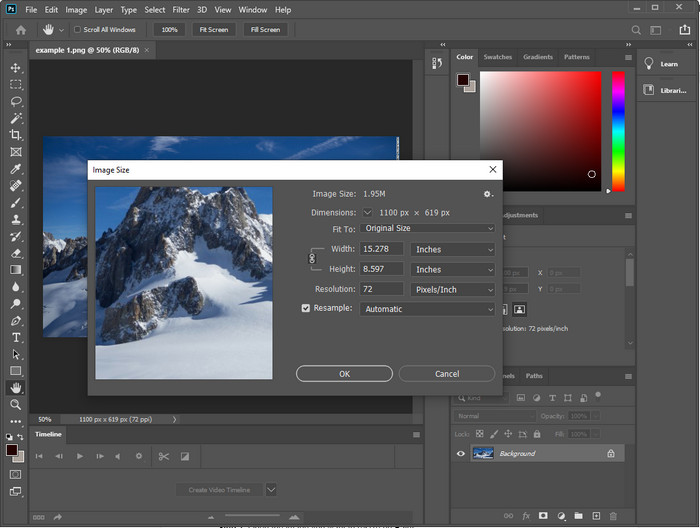
Onze eerste offline image resizer die je op je apparaat kunt downloaden, is Adobe Photoshop. Waarom? Omdat het bij het schalen nieuwe pixelgegevens aanmaakt en zo voorkomt dat je aan het einde van het proces een resultaat van lage kwaliteit krijgt. Bovendien staat deze software bekend als een professionele foto-editor die moeiteloos raster- en vectorafbeeldingen kan verwerken. Hoewel de software een professionele tool is, is het misschien wat overdreven om hem alleen voor formaatwijziging aan te schaffen. Maar als je geïnteresseerd bent in hoe je een afbeelding in Photoshop kunt schalen….
Hoe een afbeelding vergroten of verkleinen met Adobe Photoshop:
Stap 1. Download en installeer de software op je desktop via de officiële website.
Stap 2. Klik op File en zoek de afbeelding in de map nadat je op Open hebt geklikt.
Stap 3. Klik op het menu Image bovenaan en selecteer vervolgens Image Size.
Stap 4. Wijzig de maatvoering van Breedte en Hoogte naar wens en klik vervolgens op OK om de wijzigingen toe te passen.
Stap 5. Ga terug naar File en sla de afbeelding op je desktop op.
2. Paint [Standaard-app op Windows]
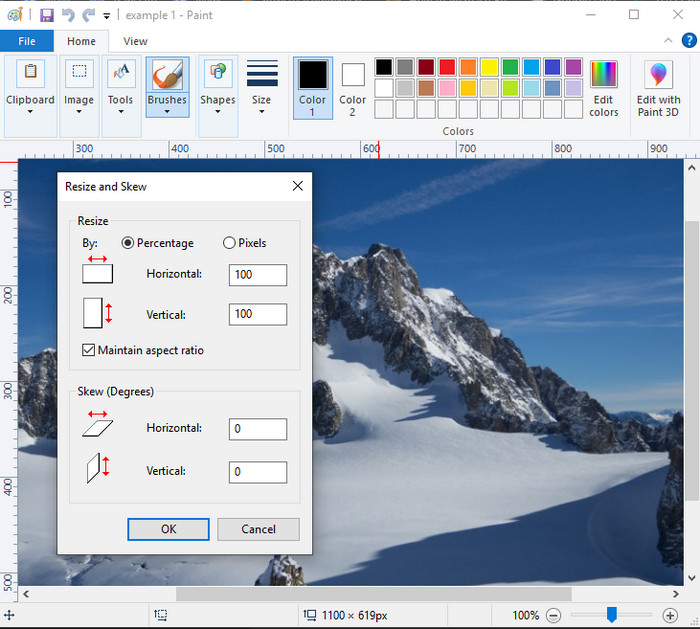
Paint staat bekend als een applicatie waarmee je op een leeg canvas kunt tekenen. Verschillende Windows-gebruikers gebruiken het doorgaans om iets op een lege pagina te maken, details aan afbeeldingen toe te voegen en ze naar wens te schalen. Hoewel het geen gespecialiseerde editor is, kan het nog steeds elk rasterafbeeldingsbestand op je lokale schijf schalen. Het voordeel is dat je de software niet op Windows hoeft te downloaden, omdat hij vooraf is geïnstalleerd. Als je wilt weten hoe je foto’s met een lage resolutie met deze app kunt vergroten of verkleinen, lees dan de tutorial hieronder.
Hoe een afbeelding vergroten of verkleinen met Paint:
Stap 1. Open de afbeelding waarvan je het formaat wilt wijzigen in Paint.
Stap 2. Klik, nadat de afbeelding is geopend, op het pictogram met de twee vierkantjes om te beginnen met het schalen van de afbeelding die je hier hebt geopend.
Stap 3. Om de afbeelding te schalen, kun je de grootte wijzigen op basis van percentage of pixels. Nadat je de waarden hebt aangepast, druk je op OK om de wijzigingen toe te passen.
Stap 4. Klik op het pictogram save om de afbeelding die je hier hebt geschaald te exporteren.
3. Voorbeeld [Standaard-app op Mac]
Preview is een standaardapp waarop je kunt vertrouwen en die je helpt te ontdekken hoe je een afbeelding op een Mac kunt schalen. Als je geen extra applicatie op je macOS wilt downloaden, kun je het beste deze app gebruiken. Het is een onderschatte oplossing, maar je kunt er wel foto’s mee schalen die op je desktop staan. Leren hoe je het gebruikt kan een groot voordeel zijn om het volledige potentieel van deze software te benutten. Als je geïnteresseerd bent in hoe deze tool werkt, ga dan verder naar de informatie hieronder.
Hoe een afbeelding vergroten of verkleinen met Preview:
Stap 1. Klik met de rechtermuisknop op de afbeelding op je Mac, klik op Open with en selecteer Preview.
Stap 2. Klik bovenaan op Tools en selecteer vervolgens Adjust Size.
Stap 3. Pas de afmetingen van de afbeelding aan op basis van je behoeften en druk vervolgens op OK om de aangebrachte wijzigingen op te slaan.
Deel 3. Extra: Top Image Resizer die u kunt downloaden op Android en iPhone
1. Resizer voor foto's en afbeeldingen [Android]
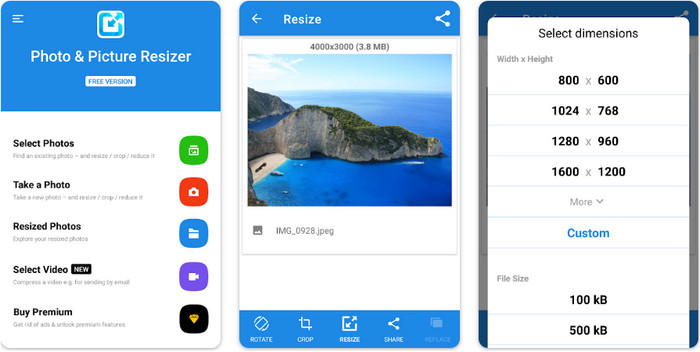
Photo & Picture Resizer is een van de snelste en eenvoudigste manieren om het formaat te wijzigen van afbeeldingen op je Android-apparaat. Zelfs onervaren gebruikers die willen schalen, kunnen deze app downloaden en als resizer gebruiken. De app is gratis; als je de extra functies wilt gebruiken, moet je wel een aankoop doen. Over het geheel genomen zijn de functies voor formaatwijziging uitstekend, en je hebt ze waarschijnlijk al bij de eerste poging onder de knie.
2. Image Resizer Gratis [iPhone]
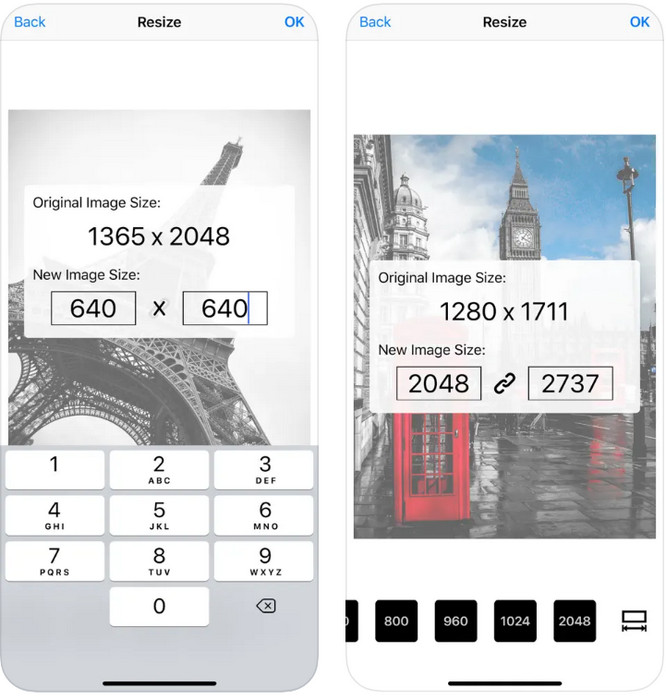
Image Resizer Free is een iOS-app die je kunt downloaden op iOS 7.0 of hoger. Deze applicatie is een directe, doelgerichte image resizer die door veel iOS-gebruikers wordt gebruikt. Het heeft geen extra functies buiten de kernfunctie: formaatwijziging. Hoewel de tool gebruiksvriendelijk is, klagen veel gebruikers dat hij het origineel niet kan overschrijven met de versie met aangepast formaat.
Deel 4. Veelgestelde vragen over het formaat van een afbeelding wijzigen
Welk formaat is beter om het formaat, raster of vector te wijzigen?
Rasterindelingen bestaan uit kleine pixels om het uiterlijk van de afbeelding te creëren, en wanneer u de grootte of afmeting wijzigt, worden deze pixels uitgerekt en worden ze zichtbaar. In tegenstelling tot het formaat van de vectorafbeelding, is deze speciaal gemaakt om de afbeelding te vergroten of te verkleinen zonder er een puinhoop van te maken.
Kan ik BMP online verkleinen?
Ja, u kunt het formaat van de BMP wijzigen met behulp van de online oplossing die we hier toevoegen. Wanneer u de afbeelding echter vergroot, heeft BMP de neiging om korrelig te worden omdat het rasterafbeeldingen zijn. Dus als u het probleem van het wijzigen van de grootte van het BMP-bestand wilt vermijden, kunt u beter de FVC Free Image Upscaler Online kiezen, omdat deze geen pixelvorming achterlaat op de uiteindelijke uitvoer van de gewijzigde BMP.
Wordt de bestandsgrootte groter na het verkleinen van de afbeelding?
Ja dat doet het. Vooral omdat de afbeelding waarvan u het formaat heeft gewijzigd, extra pixelgegevens toevoegt aan de daadwerkelijke uitvoer. Toch verschilt de bestandsgrootte niet veel van de oorspronkelijke bestandsgrootte.
Gevolgtrekking
Welke techniek voor het schalen van afbeeldingen denk je dat het beste bij je past? Kies uit de resizers die we hier hebben toegevoegd. Als je problemen hebt vanwege de internetverbinding, raden we je sterk aan de FVC Free Image Upscaler Online te gebruiken vanwege de prestaties bij het schalen. Met deze online resizer is het aanpassen van het formaat helemaal niet lastig.
-
 1440p-afbeelding – All-inclusive informatie die u nodig heeft [2022 bijgewerkt]
 Wilt u meer weten over 1440p-afbeeldingen? Of waar je die kunt krijgen? Zet je afbeelding naar 1440p? Lees dit om ze allemaal te kennen.
-
 Tutorial om een afbeelding uit de pixels te halen met behulp van de 3 beste foto-unpixelator
 Heeft u problemen met het verwerken van gepixelde afbeeldingen? Vandaag hebben we het probleem opgelost en kunt u de tools gebruiken die we hier toevoegen.
-
 Hoe de afbeelding in foto op 3 manieren te verscherpen [Snelle zelfstudie]
 Probleem met het onverscherpte beeld? Hier zullen we introduceren hoe u afbeeldingen in Photoshop kunt verscherpen met behulp van de drie manieren die we toevoegen.
