


 Video Converter Ultimate
 Scherm opnemer
 Videoreparatie
 Beveiligde download
Uitzonderlijke manieren om MOV-bestanden naar M4V op uw apparaten te converteren
Als je wilt leren hoe je het bestandsformaat MOV naar M4V kunt converteren, dan ben je hier aan het juiste adres. We laten je uitstekende en handige converters zien voor het converteren van allerlei bestanden, in het bijzonder MOV naar M4V. Ook leer je de verschillen tussen deze bestanden kennen. Als je meer wilt weten, neem dan de tijd om dit artikel te lezen.

Deel 1: verschil tussen MOV en M4V
| MOV | M4V | |
| Bestandsnaam | Apple QuickTime-film | iTunes-videobestand |
| Bestandsextensie | .mov | .m4v |
| Beschrijving | De MPEG-4-videocontainer die bekend staat als het.mov-multimediaformaat is vaak verbonden met het QuickTime-framework van Apple. Met de eerste release van QuickTime in 1991, wordt het filmbestandsformaat het meest toegeschreven aan de introductie van lange films in kleur op de Macintosh. Dit was voordat de personal computer en het Microsoft Windows-besturingssysteem iets vergelijkbaars hadden. Meerdere gegevensreeksen of tracks verdeeld in audio, video, effecten en tekstachtige ondertitels worden ondersteund door dit filmformaat. Een bronbestand eindigt op .mov. | De M4V-bestandsextensie lijkt sterk op de MP4-bestandsextensie en is speciaal door Apple gemaakt voor de inhoud die te zien is in de iTunes Store. Apple-producten zijn de enige die M4V ondersteunen. MP4- en MOV-videocodecs kunnen worden geconverteerd naar M4V om op Apple-apparaten af te spelen. Het belangrijkste onderscheid tussen M4V en MP4 is dat M4V DRM-auteursrechtbescherming biedt, wat het auteursrecht op audiovisuele inhoud verbiedt. De computer heeft toestemming nodig om een DRM-beveiligd M4V-bestand af te spelen en doet dit door in te loggen op het iTunes-account dat is gebruikt om het videobestand te kopen. Om de bestanden compatibel te maken met niet-Apple-apparaten, hoeft de gebruiker alleen de M4V-bestandsextensie te hernoemen naar MP4 als de bestanden niet DRM-beveiligd zijn. |
| Ontwikkeld door | Apple inc. | Apple inc. |
| Bestandscategorie | Video | Video |
| Bijbehorende programma's | Power-dvd Apple QuickTime-speler Roxio-maker VLC Media Speler | Zoom-speler Mediaspeler klassiek KMPlayer VLC Media Speler |
| Mime type | video/quicktime | video/x-m4v |
Deel 2: de beste manier om MOV naar M4V te converteren met Mac
Hoe converteer je MOV naar M4V op een Mac? Het beste antwoord is Video Converter Ultimate. Deze applicatie is een van de beste converters die je kunt gebruiken. Je kunt hier vrijwel alle videoformaten aan toevoegen, omdat het meer dan 100 videoformaten ondersteunt, waaronder MP4, FLV, AVI, M4V, MOV, VOB, MTS, SWF en meer. Bovendien heeft het een begrijpelijke procedure voor het converteren van je MOV‑bestand, wat geschikt is voor de niet‑professionele gebruiker. Daarnaast is deze converter niet alleen op Mac, maar ook op Windows beschikbaar. Zo kun je concluderen dat deze converter betrouwbaar is. Verder kun je nog veel meer met je MOV‑bestand doen dan alleen converteren. Je kunt deze applicatie gebruiken als je MOV‑video een vervelend watermerk heeft. Met de tools voor het verwijderen van watermerken kun je snel watermerken uit je MOV‑video’s verwijderen. En als je van plan bent filters aan je video’s toe te voegen om ze prettiger te maken voor de kijkers, kun je ook op deze applicatie rekenen. Dit betekent dat je veel kunt doen met de FVC Video Converter Ultimate.
Functies
◆ Converteer verschillende videoformaten, zoals MP4, AVI, FLV, WMV, MKV, VOB, M4V, MOV, enz.
◆ Maak een collage met beschikbare filters en sjablonen.
◆ Maak een muziekvideo.
◆ Biedt bewerkingstools om video's te verbeteren, zoals videosnelheidsregelaar, versterker, cropper, trimmer, rotator, enz.
◆ Converteer talloze afbeeldingsindelingen zoals BMP, JPG, PNG, enz.
◆ Biedt batchconversie.
Volg de onderstaande basisstappen om MOV gratis naar M4V te converteren met de Video Converter Ultimate Mac-versie.
Stap 1: Klik op de knop Downloaden hieronder om de Video Converter Ultimate te downloaden. Start vervolgens de applicatie zodra het installatieproces voltooid is.
Gratis downloadVoor Windows 7 of nieuwerVeilige download
Gratis downloadVoor MacOS 10.7 of nieuwerVeilige download
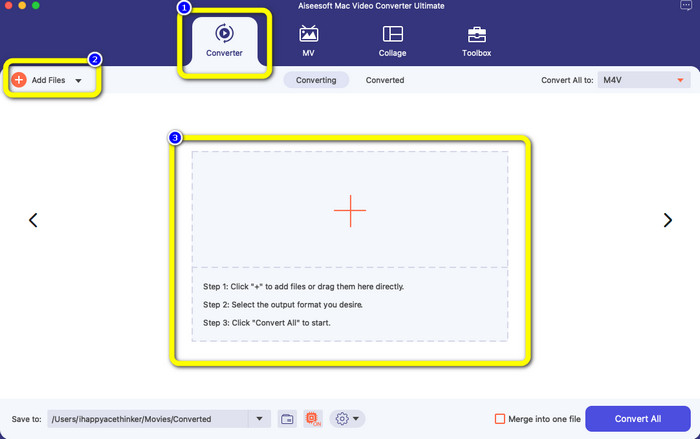
Stap 2: Selecteer in de bovenste interface de optie Converter. Klik daarna op de knop Bestand toevoegen of op het +-teken om je MOV‑bestand toe te voegen. Je kunt je MOV‑videobestand ook in het vak slepen.
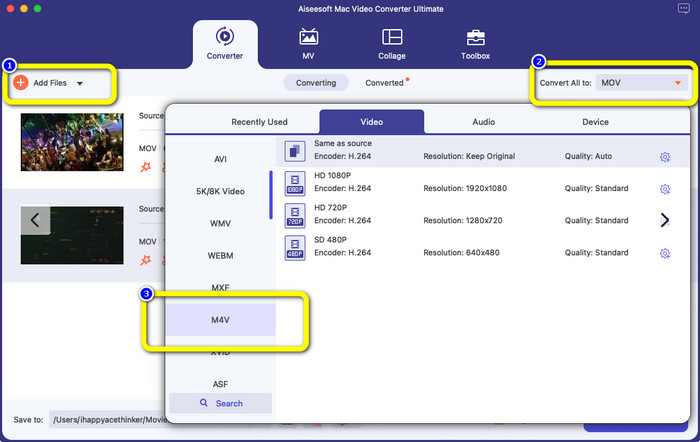
Stap 3: Je kunt nog meer bestanden toevoegen, vooral als je een batchconversie wilt. Klik op de knop Bestand toevoegen. Ga vervolgens naar de knop Alles converteren naar en selecteer het M4V‑bestandsformaat om ze naar M4V te converteren. Je kunt ook de gewenste resolutie kiezen.
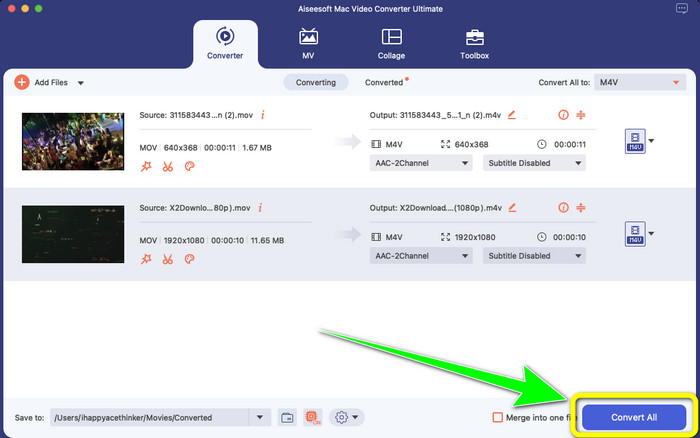
Stap 4: Klik daarna op de knop Alles converteren om je video op te slaan. Wacht op het conversieproces. En dat is alles! Je MOV‑video is geconverteerd naar een M4V‑bestand.
Deel 3: 2 Methoden om MOV naar M4V op Mac te converteren
QuickTime gebruiken
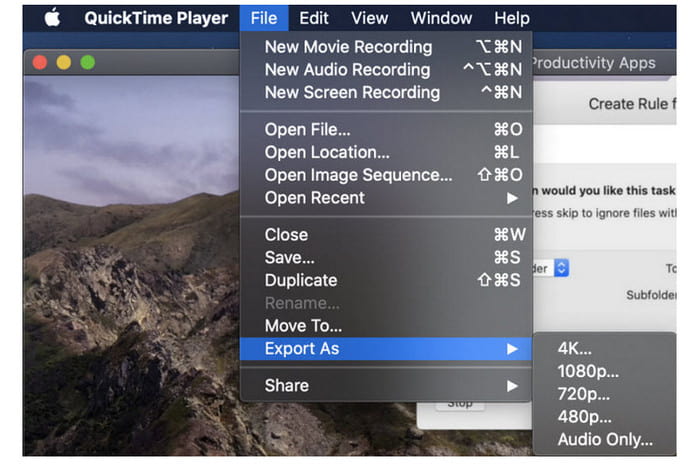
Op eerdere Mac-machines is QuickTime de ingebouwde toepassing. De optie Exporteren in QuickTime is goed voor het converteren van MOV-videobestanden naar M4V-bestanden op een Mac, wat een handig hulpmiddel is wanneer u dit moet doen om ze af te spelen op een iPhone, iPad of Apple TV. .mov-video's kunnen worden gecomprimeerd en geconverteerd naar 480p, 720p of 1080p met behulp van de optie Exporteren. Op recentere versies van macOS wordt QuickTime niet ondersteund. Voor een registratiecode om de conversiemogelijkheid te activeren, moet u Apple betalen. Volg de stappen om MOV naar M4V te converteren met QuickTime.
Stap 1: Open het MOV‑bestand in QuickTime. Selecteer vervolgens bovenaan het menu Archief en kies Exporteren.
Stap 2: Onder het menu Exporteren zijn tal van opties beschikbaar, waaronder 480p, 720p, 1080p, iPad, iPhone, iPod touch, Apple TV, iTunes en Alleen audio. Kies iPad, iPhone, iPod touch & Apple TV wanneer je MOV naar M4V converteert voor iPhone, Apple TV of andere Apple‑apparaten; er verschijnt dan een nieuw venster waarin je de grootte kunt kiezen op basis van waar je je video gaat bekijken.
Stap 3: Geef het geconverteerde videobestand een naam. De video‑bestandsextensie moet .m4v zijn. Wanneer alles klaar is, druk je onderaan op de knop Bewaar. Stel een locatie in waar je je bestand wilt bewaren.
Stap 4: Klik ten slotte nogmaals op de knop Bewaar om het .m4v‑bestand te exporteren. Om het conversieproces op elk moment te stoppen, klik je op de knop X in de voortgangsbalk. Hiermee kun je ook AVI naar M4V converteren.
iTunes gebruiken
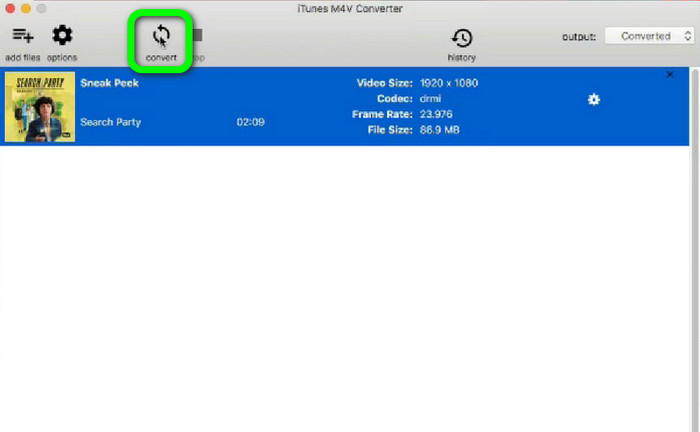
Wil je MOV naar M4V converteren met iTunes? Vervolgens kunt u de onderstaande gedetailleerde handleidingen volgen. iTunes is een andere converter waarop u kunt vertrouwen. Het heeft echter een gecompliceerd proces en de opties zijn te verwarrend.
Stap 1: Open iTunes. Selecteer Films in de bibliotheek en voeg het MOV‑bestand toe.
Stap 2: Ga naar het menu Geavanceerd en selecteer Selectie voor Mac converteren.
Stap 3: Wijzig vervolgens de video‑extensie in M4V.
Stap 4: Ga daarna naar Archief > Converteren. Wacht op het conversieproces en sla je video op in je bibliotheek.
Deel 4: uitstekende manier om MOV online naar M4V te converteren
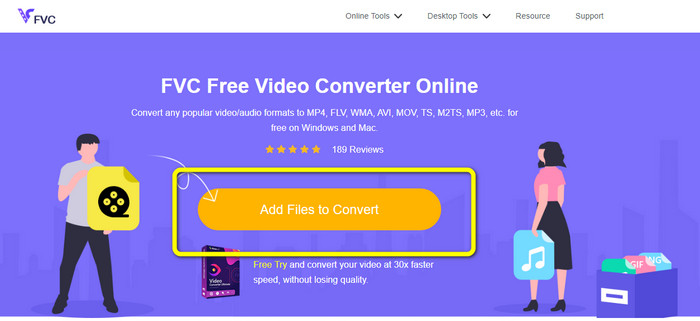
Om MOV online naar M4V te converteren, kun je FVC Free Video Converter Online gebruiken. Deze converter kan bestanden direct omzetten. Bovendien kun je met deze software meerdere bestanden tegelijk converteren. Daarnaast ondersteunt het verschillende video‑ en audiobestandsformaten, zoals AVI, VOB, MP4, 3GP, AAC, AC3, MP3, FLAC en meer. Je kunt de eenvoudige stappen hieronder volgen om MOV eenvoudig naar M4V te converteren.
Stap 1: Ga naar de website van FVC Free Video Converter Online. Klik vervolgens op Bestanden toevoegen om te converteren om je MOV‑bestand toe te voegen.
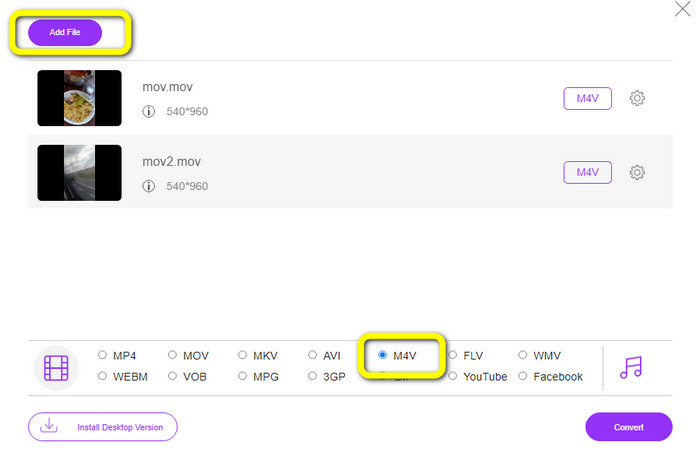
Stap 2: Klik op de knop Bestand toevoegen om meerdere bestanden toe te voegen. Ga daarna naar de formaatopties en selecteer het M4V-bestandsformaat.
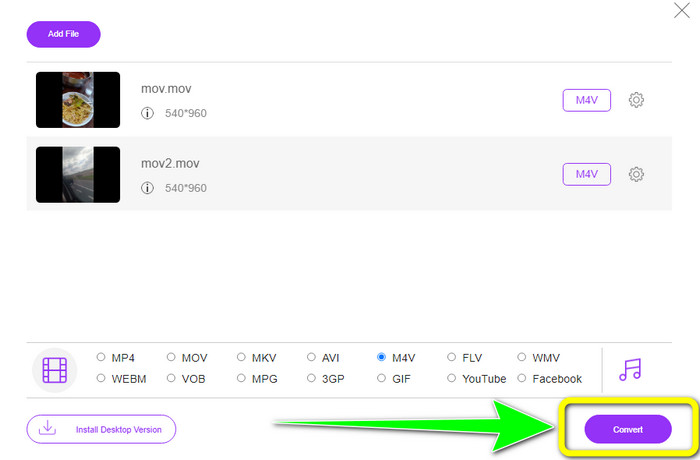
Stap 3: Klik op de knop Converteren om MOV naar M4V te converteren. Sla vervolgens je bestand op op de gewenste locatie. Je kunt deze tool ook gebruiken om MOV naar MKV te converteren.
Deel 5: Veelgestelde vragen over het converteren van MOV naar M4V
Wat is beter in kwaliteit, MOV of M4V?
M4V is beter in kwaliteit. Het M4V-formaat verdient de voorkeur als u de film bekijkt op een mobiel apparaat zoals een iPhone, iPad of iPod, omdat bijna alle mobiele apparaten dit formaat kunnen afspelen. M4V-bestanden zouden geen compatibiliteitsproblemen moeten hebben in vergelijking met MOV-bestanden.
Wat is het voordeel van een MOV-bestand?
MOV is een praktisch bestandsformaat omdat het verschillende mediacomponenten in één kleine ruimte kan opslaan, inclusief audio en video. Het bewaart informatie, zodat u het bestand indien nodig snel kunt wijzigen zonder de moeite te hoeven nemen om het te herschrijven.
Waarom is MOV zo groot?
Video's die u met uw iPhone, iPad of Mac maakt, worden opgeslagen in .mov-indeling. MOV-bestanden worden gemaakt om de details die de camera opneemt te behouden; ze zijn groter en geschikter voor bewerking.
Gevolgtrekking
Op basis van de bovenstaande informatie zijn dit de beste manieren om het bestandsformaat MOV naar M4V te wijzigen. Sommige daarvan zijn verwarrend in het gebruik en vereisen het activeren van een code. Als je een eenvoudige manier wilt om je bestanden te converteren, gebruik dan FVC Free Video Converter Online.
-
 Eenvoudige manieren om MTS moeiteloos naar M4V te converteren
 Heeft u uw MTS-bestand zonder problemen naar M4V willen converteren? Ga naar dit artikel. We hebben gedetailleerde procedures gegeven die u kunt volgen.
-
 Meer informatie over het converteren van VOB naar M4V [offline en gratis]
 Is het mogelijk om VOB naar M4V te converteren? Ken het antwoord door deze wegwijzer te lezen, aangezien u de beste methoden zult leren die u kunt proberen om VOB onmiddellijk naar M4V te converteren.
-
 Leer hoe u WMV converteert naar M4V op Windows en Mac
 We weten dat je WMV eenvoudig naar M4V wilt converteren met de beste converter. In dat geval laten we u de beste methoden zien die u kunt proberen om uw bestanden te converteren.
