


 Video Converter Ultimate
 Scherm opnemer
 Videoreparatie
WebM-bestand naar MOV-conversieproces: probleemloze methoden die u moet kennen
Als het gaat om productie en streaming, is niet elk videoformaat compatibel met elk digitaal platform. Wanneer u relevante bestanden probeert in te voeren, te produceren, te uploaden of te downloaden, kan dit grote problemen veroorzaken. Apple gebruikt bijvoorbeeld niet de traditionele browsers waar we vroeger in zijn gegroeid - het heeft zijn eigen platform genaamd Safari. Daarom zijn video-indelingen die alleen worden ondersteund door Google Chrome, Mozilla Firefox, Opera en Microsoft Edge niet altijd toegankelijk voor Mac-gebruikers in de browser.
Een daarvan is een WebM‑video, een formaat dat open videocompressie voor HTML5 biedt. Als je een Mac‑gebruiker bent, heb je een mediaspeler van derden nodig om deze te bekijken. Een MOV‑bestand is echter wat je nodig hebt als je je video’s zonder gedoe wilt afspelen, omdat dit Apple’s eigen formaat is voor Apple QuickTime Player. Je wilt je WebM‑bestanden dus omzetten van WebM naar MOV op je Mac, en in dit artikel laten we je de beste manieren zien om dat te doen.
Deel 1. Een overzicht: WebM en MOV
Als je al geruime tijd bent blootgesteld aan videoconsumptie en streaming, moet je veel video's van verschillende formaten met verschillende platforms hebben bekeken. Je hebt je misschien ooit afgevraagd wat deze bestandsextensies vertegenwoordigen of hoe ze van elkaar verschillen. Je hebt zeker geprobeerd een bepaalde video in je browser af te spelen, maar hij doet dit niet, omdat hij zegt dat het niet wordt ondersteund. WebM wordt bijvoorbeeld alleen ondersteund door verschillende moderne browsers zoals Chrome, Firefox en edge, omdat het meestal is ingebed in webpagina's met behulp van een HTML5
Deel 2. Beste converter die helpt bij het converteren van WebM naar MOV
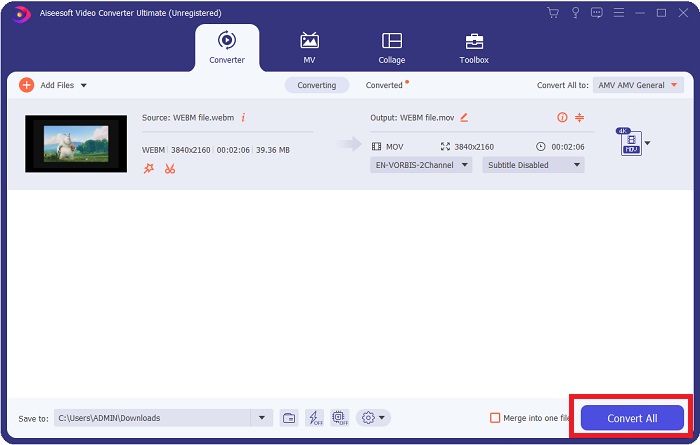
Videobestanden converteren is niet zo moeilijk als je misschien denkt. Hoewel er talloze programma’s en software zijn die je kunnen helpen, is er toch één die het werk snel en eenvoudig klaart. FVC Video Converter Ultimate is een gratis te downloaden programma dat je de tijd bespaart die je anders kwijt bent aan zoeken op internet naar de beste online converter. Wij willen je immers de beste oplossing aanbieden. Je hoeft je geen zorgen te maken over het formaat van de video die je wilt converteren, want deze software ondersteunt verschillende formaten en biedt bovendien veel opties om je video tijdens het converteren te bewerken. Dit zijn de stappen die je moet volgen om deze software te gebruiken:
Stap 1: Voor het conversieproces moet je eerst de software downloaden en dat kun je doen door op de knop Free Download te klikken. Je kunt kiezen voor Windows of Mac. Kies in dit geval voor Mac OS. Wacht tot het .exe‑bestand is gedownload en open het zodra dit voltooid is om de installatie te starten.
Stap 2: Als de software klaar is met installeren, start je deze en verschijnt er een interface. Zodra de software is gestart, kom je automatisch op het tabblad Converter. Zo niet, klik er dan op.
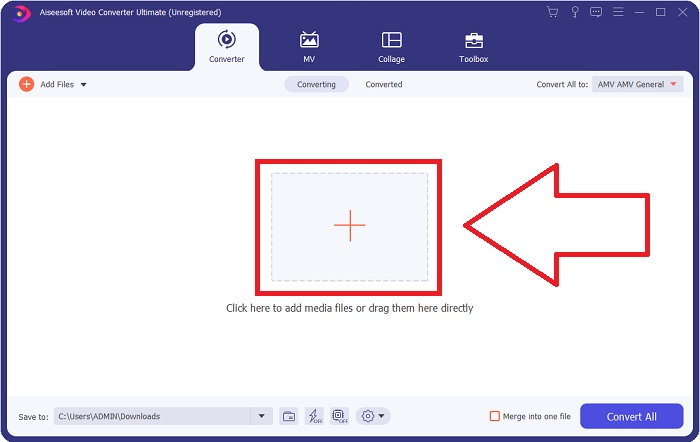
Stap 3: In het midden van de interface staat een +-knop waarop je kunt klikken om het videobestand te importeren dat je wilt converteren. Je kunt je video’s ook eenvoudig slepen en neerzetten.
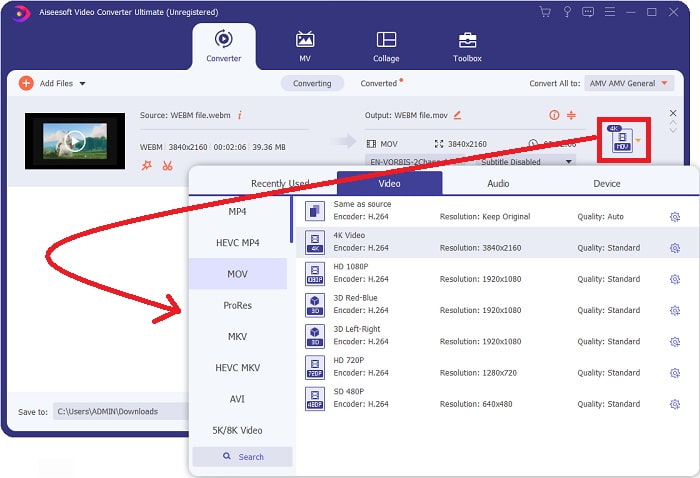
Stap 4: Er verschijnt een andere interface zodra je video succesvol is geïmporteerd. Daar kun je uiterst rechts zien in welk formaat je video zich momenteel bevindt. Er staat een pijltje omlaag naast; klik daarop en er verschijnen verschillende opties. Je kunt elk gewenst formaat kiezen waarin je je video wilt converteren, maar kies in dit geval MOV. Er zijn opties om onder andere de resolutie en geluidskwaliteit te kiezen. Voor meer instellingen klik je op het tandwielpictogram naast de kwaliteit of resolutie die je hebt gekozen en kun je je video verder bewerken, afhankelijk van je behoeften. Klik op Create New om de aangebrachte wijzigingen op te slaan.
Stap 5: Als je klaar bent en tevreden bent met de wijzigingen, kun je rechtsonder in de interface de knop Convert All vinden en daarop klikken om je geconverteerde video te exporteren.
Deel 3. Bonustips: andere online converters die WebM naar MOV converteren
Methode 1: Gebruik gratis converteren
Als u geen software meer wilt downloaden en gewoon door wilt gaan met het conversieproces, kunnen we u alternatieven hiervoor laten zien. Dit gebeurt puur online, terwijl het je nog steeds de functies biedt die je nodig hebt voor je bewerkingsbehoeften. Als u een probleemloze methode wilt, is deze webtool een goede keuze.
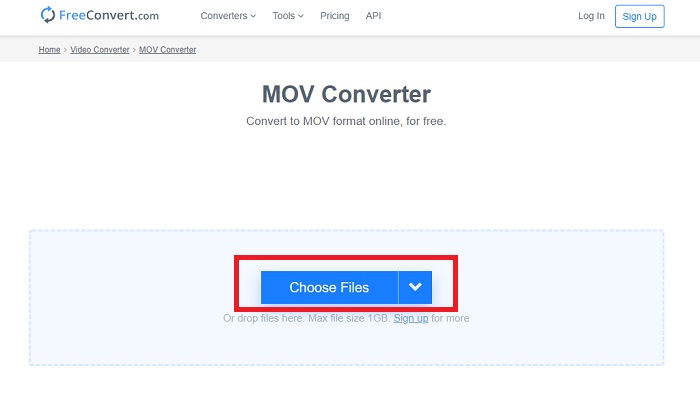
Stap 1: Ga naar de betreffende website en je komt op een interface terecht met een knop Choose Files in het midden van de pagina. Klik hierop om het videobestand te importeren dat je wilt converteren.
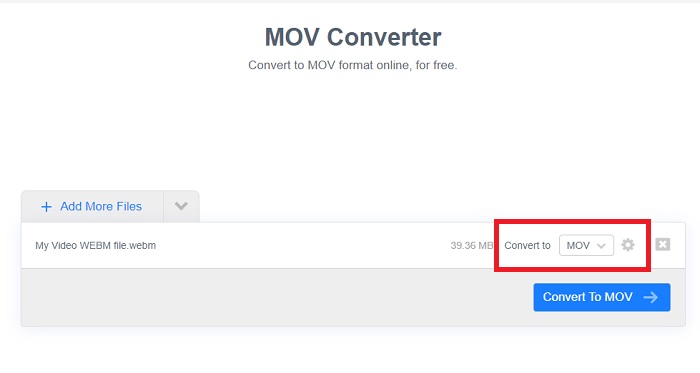
Stap 2: Net als in de software zelf kun je rechts het huidige formaat van je video zien en daarnaast een pijltje omlaag. Klik daarop en kies uit de formaten waarnaar je je video wilt converteren. Voor meer opties klik je op het tandwielpictogram om je video verder te bewerken. Klik op de knop Apply Settings om de aangebrachte wijzigingen te bewaren.
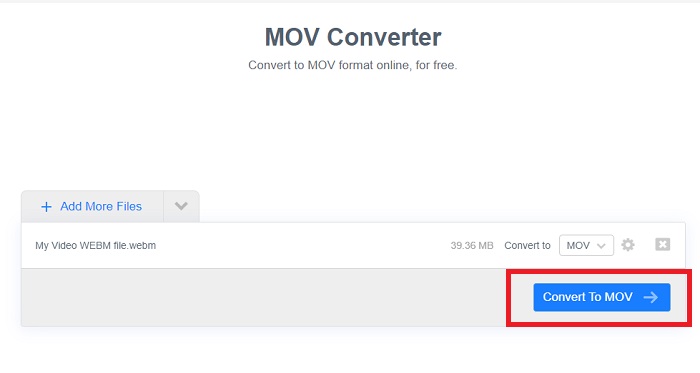
Stap 3: Als je klaar bent met alle wijzigingen, kun je de conversie starten door op de knop Convert to MOV eronder te klikken en te wachten tot het proces is voltooid. Daarna kun je je geconverteerde video exporteren door op Download MOV te klikken.
Methode 2: Gebruik Cloud Convert
Deze webtool biedt u nog een paar opties terwijl u uw WebM-bestand online naar MOV converteert. U kunt niet alleen de resolutie of audiokwaliteit bewerken, maar ook fps, ondertitels en nog veel meer. Volg deze eenvoudige stappen om deze online converter te gebruiken:
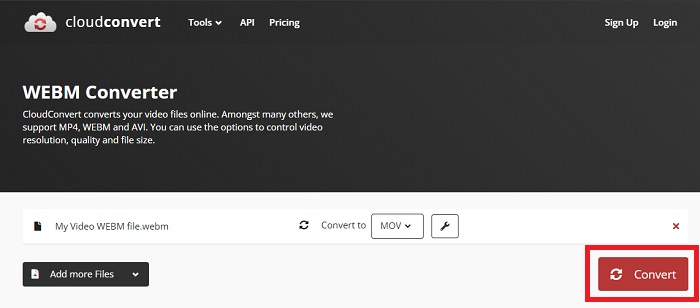
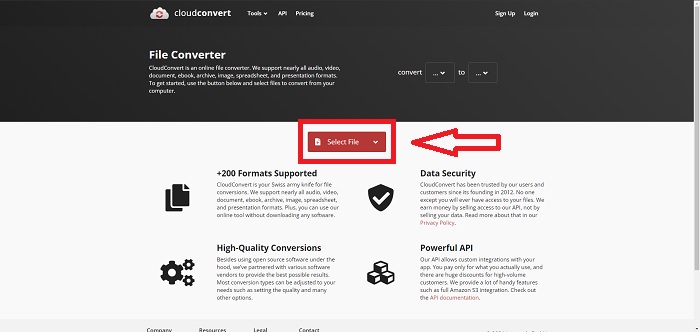
Stap 1: Importeer eerst het videobestand dat je wilt converteren door op de knop Select File in het midden van de pagina te klikken. Als je meerdere bestanden tegelijk wilt converteren, klik je op Add more Files.
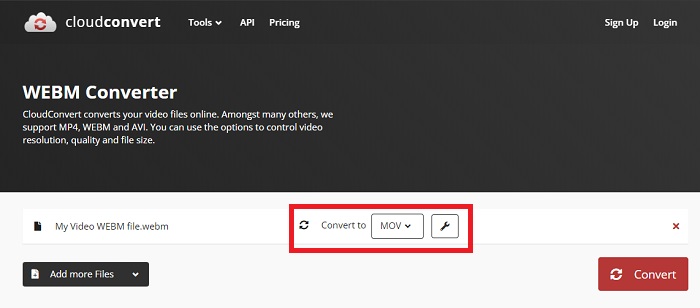
Stap 2: Naast het bestand kun je via het pijltje omlaag kiezen welk videoformaat je wilt. Klik ook op het moersleutelpictogram voor meer opties. Van daaruit kun je bepaalde aspecten van je video en audio bewerken. Klik vervolgens op OK om de wijzigingen op te slaan.
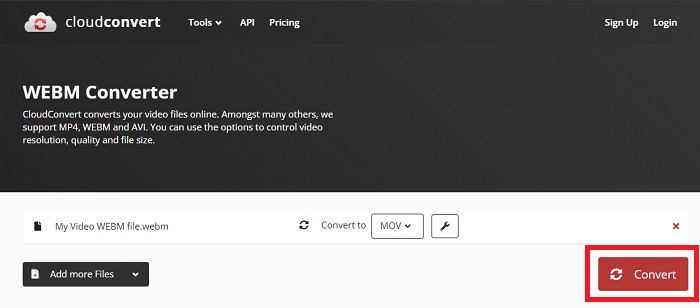
Stap 3: Als je klaar bent met alle bewerkingen, klik je op de rood gemarkeerde knop Convert en wacht je tot het proces is voltooid. Klik tenslotte op de groen gemarkeerde knop Download om je volledig geconverteerde video te exporteren.
Methode 3: Gebruik ZamZar Convert
Deze webtool biedt minder opties voor je video omdat het alleen het video- en audioformaat converteert. Het klaart de klus echter sneller dan de andere genoemde methoden. Volg de gegeven stappen om deze online converter te gebruiken:
Stap 1: In het midden van de pagina zijn er slechts drie knoppen nodig om je video te converteren. Klik eerst op Add files om je videobestand te importeren.
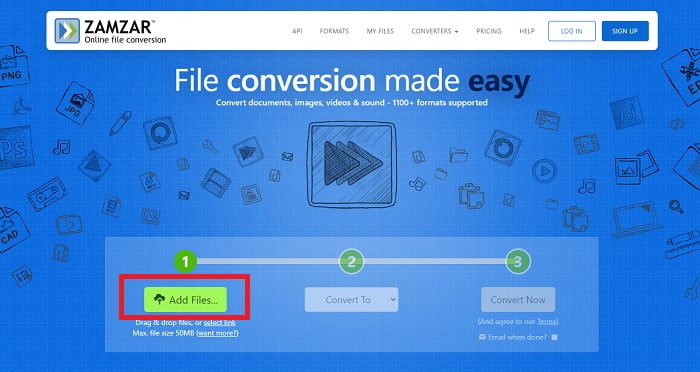
Stap 2: Met de tweede knop kun je kiezen welk video‑ en audioformaat je voor je video wilt. Kies in dit geval het MOV‑formaat.
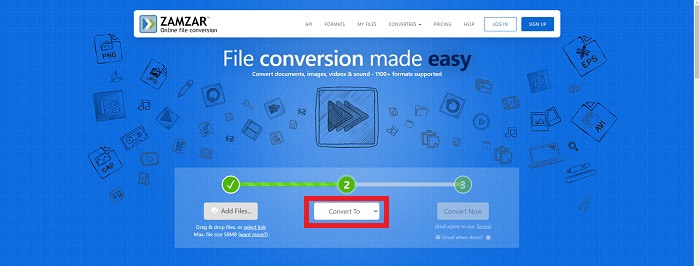
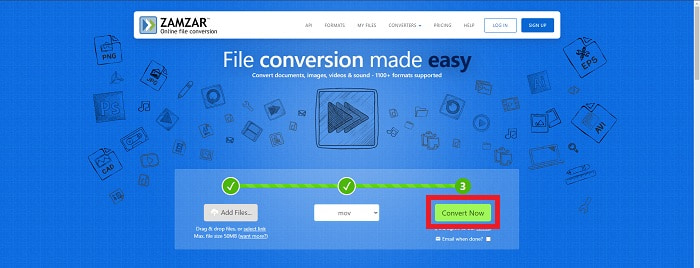
Stap 3: Klik ten slotte op de derde en laatste knop, Convert Now, om de eigenlijke conversie te starten en wacht tot deze klaar is. Zodra het proces is voltooid, klik je op Download om je video definitief naar je desktop te exporteren.
Deel 4. Veelgestelde vragen over het converteren van WebM naar MOV
Wat is precies het WebM-formaat?
WebM is een webspecifieke open-mediabestandsindeling die videostreams bevat die zijn gecomprimeerd met VP8- of VP9-videocodecs, audiostreams die zijn gecomprimeerd met Vorbis- of Opus-audiocodecs en WebVTT-teksten. WebM-bestandsstructuur is gebaseerd op de Matroska-mediacontainer. De meeste webbrowsers accepteren WebM-bestanden omdat ze soms worden gebruikt op HTML5-websites om online films af te spelen. YouTube gebruikt bijvoorbeeld het WebM Video-bestandsformaat voor alle video's op hun pagina, variërend van 360p tot andere extreem hoge kwaliteiten. Wikimedia en Skype zijn hetzelfde.
Welke mediaspelers heb ik nodig om WebM-video's af te spelen als ik het niet naar MOV wil converteren?
Er is een alternatief als je niet het hele conversieproces wilt doorlopen om je WebM‑video af te spelen. Je kunt een applicatie van derden gebruiken, ook wel cross‑platform mediaspeler genoemd. Enkele van deze mediaspelers van derden zijn VLC, KM Player, Media Player Classic, Winamp, jetAudio Basic, Moovidia, Persian en XBMC, die je op hun respectieve websites kunt downloaden om je WebM‑bestanden af te spelen.
Is MOV van hoge of lage kwaliteit?
Het afspelen van video's is van vrij hoge kwaliteit met MOV-bestanden. MOV is vooral handig omdat het gemengde media kan bevatten, zoals afbeeldingen, video's en 360-graden animaties. Het bevat ook alle video- en audio-informatie. Dit maakt het bewerken van het bestand een stuk eenvoudiger.
Gevolgtrekking
Er zijn inderdaad veel tools die je kunt gebruiken om je video van het ene formaat naar het andere te converteren, of het nu is door het gebruik van software of via een webtool die je online kunt vinden. Ze gaan echter nog steeds hand in hand in termen van de opties of het gemak dat ze bieden. Sommige klaren gewoon de klus en sommige bieden verschillende opties waaruit u kunt kiezen. Dit artikel richt zich hierop om u te helpen weten welke u moet gebruiken, afhankelijk van uw behoeften. Dat is de reden waarom we Video Converter Ultimate het meest aanbevelen, omdat het alle extra opties biedt waarvan je misschien nooit weet wanneer je het nodig hebt. Het is beter om deze software altijd aan uw zijde te hebben om u alle moeite te besparen om elke keer dat u er een nodig heeft online een converter te vinden.
-
 Hoe u GIF naar WebM-indeling kunt wijzigen zonder de kwaliteit van de bestanden te verliezen
 Converteer uw GIF's naar een WebM-videoformaat om een HTML5-videotag te hebben. Vertrouw op deze tool hieronder om te weten welke het beste is voor de klus.
-
 3 manieren om WebM naar MP3 te converteren zonder de geluidskwaliteit te verliezen
 Heeft u een probleem omdat de WebM-bestanden niet kunnen worden gebruikt om de audio af te spelen die u opslaat? Lees dan dit artikel, want we bieden een effectief hulpmiddel bij het converteren van WebM naar MP3.
-
 3 Verbluffende software die wordt gebruikt om WebM-bestanden naar AVI-indeling te converteren
 Heeft u geen idee hoe u WebM naar AVI moet converteren? Laten we dan beginnen met het lezen van dit artikel. Zoals we alle details specificeren over WebM en de drie converters die u kunt gebruiken om te converteren.
