


 Video Converter Ultimate
 Scherm opnemer
 Videoreparatie
 Beveiligde download
Hoe MP3 moeiteloos naar een beltoon op de iPhone te converteren
Do you find the default ringtones on your iPhone less of your favorite and hope that one from your MP3 files could be your iPhone ringtones instead? What if we told you that it is possible to convert MP3 to ringtone on an iPhone?
In dit artikel leert u 3 verschillende manieren om uw MP3-muziekbestanden op uw iPhone een beltoon te maken. Het converteren ervan is een beetje lastig, maar met de juiste tool en methode maken we dit zo eenvoudig en handig mogelijk voor u. Waar wacht u nog op? Laten we erin duiken!

Deel 1. Converteer MP3 naar een beltoon voor iPhone op Mac/Windows
One of the easiest and fastest ways to convert MP3 to ringtone on iPhone is by using the FVC-picked Video Converter Ultimate through your Windows or macOS computers. This all-in-one converter tool supports up to 300 various formats, including the M4R format, which makes it a reliable tool for turning MP3 music files into an iPhone ringtone. Moreover, this converter is up to 120 times faster compared to other converter tools, making the conversion process quick and hassle-free.
Here’s how to use the FVC-picked Video Converter Ultimate to convert your MP3 into a ringtone:
Step 1. First, download and install the tool on your computer, either Windows or Mac.
Step 2. Launch the tool, and once you’re on its main interface, click the Add Files button. This will allow you to import the MP3 file that you want to convert into an iPhone ringtone.
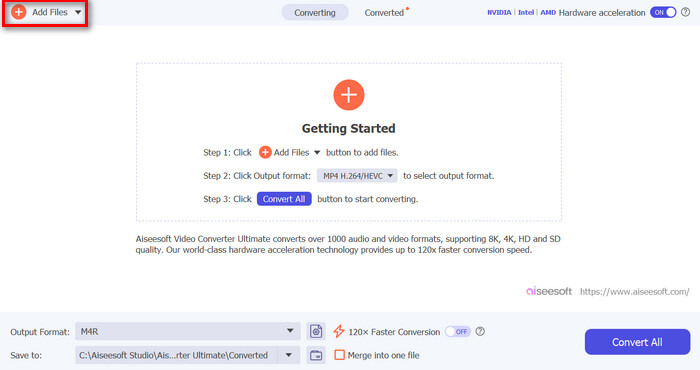
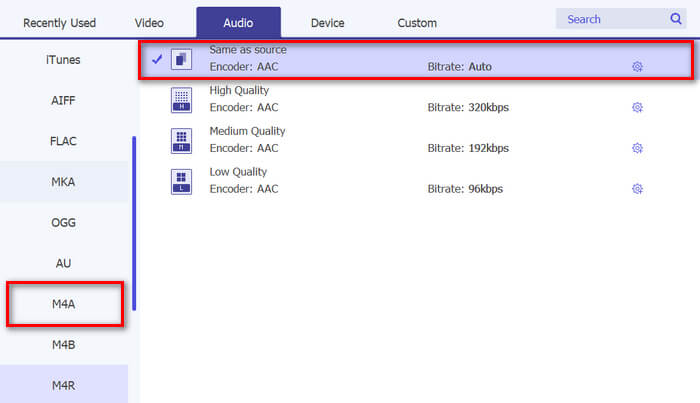
Step 3. Now, go to the Output format, and from the list of various audio formats, choose the M4R. M4R is the file format for iPhone ringtones.
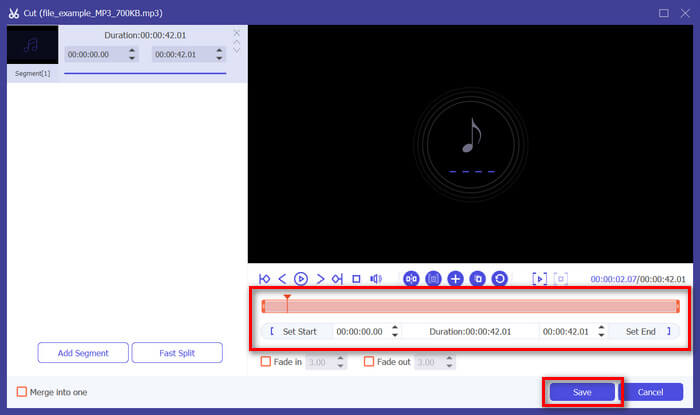
Step 4. After that, make sure that your MP3 file is only 30 seconds long. If it goes beyond that length, go to the Cut button and adjust the length of your file by simply adjusting the bar on the timeline or manually setting the end time of the file to 30 seconds.
Step 5. Now click the Convert All button to start converting your MP3 files to iPhone ringtones. Converted files are saved directly to the folder on your computer.
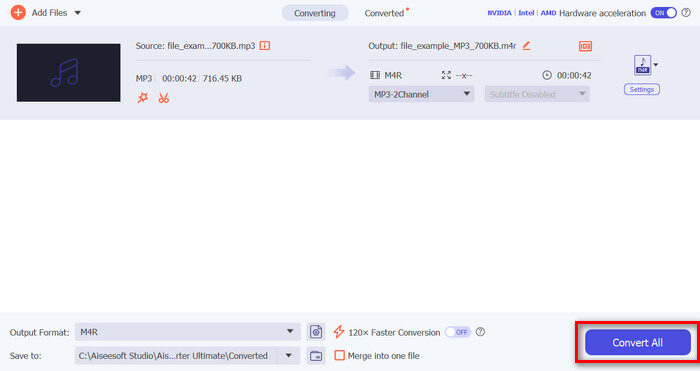
Dat is snel, toch? Het is echt ongelooflijk hoe deze door FVC gekozen Video Converter Ultimate tool de conversie van MP3 naar een iPhone-beltoon eenvoudig en snel maakt. Dus als u op zoek bent naar een convertertool die u tijd kan besparen, probeer deze tool dan nu.
Deel 2. Converteer MP3 naar een beltoon op de iPhone
Als u de voorkeur geeft aan een directe methode zonder een computer te gebruiken, biedt GarageBand een handige oplossing om MP3's rechtstreeks op uw iPhone naar ringtones te converteren. Deze tool is een krachtige app voor het maken van muziek die op de meeste iPhones vooraf is geïnstalleerd. Deze tool is niet alleen gebruiksvriendelijk, maar biedt ook verschillende functies om uw audiobestanden effectief aan te passen.
Here’s how to use GarageBand to convert your MP3 into a ringtone:
Step 1. First, launch the GarageBand app on your iPhone. If you don’t have the app installed, go to the App Store and install it.
Step 2. Tap the Project icon and then the Loop icon near the top-right corner.
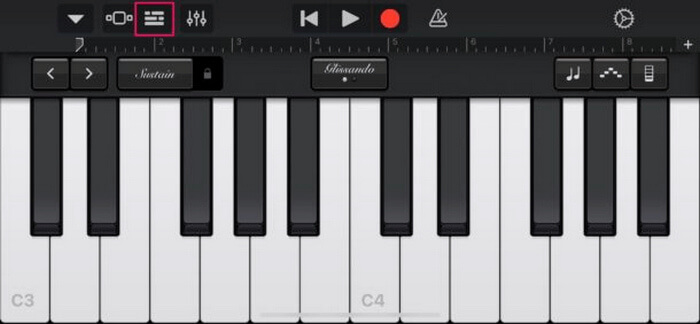
Step 3. Now, tap Music or Files to choose the MP3 file and long-press it to import it to GarageBand.
Step 4. After that, tap on the track and drag both ends to trim the audio. Ensure the ringtone is less than 30 seconds.
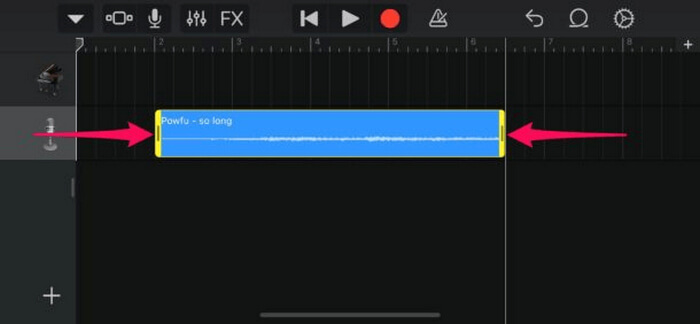
Step 5. You’ll see the Downward Arrow at the top left-hand corner. Tap it, and then choose My Songs to save the clip.
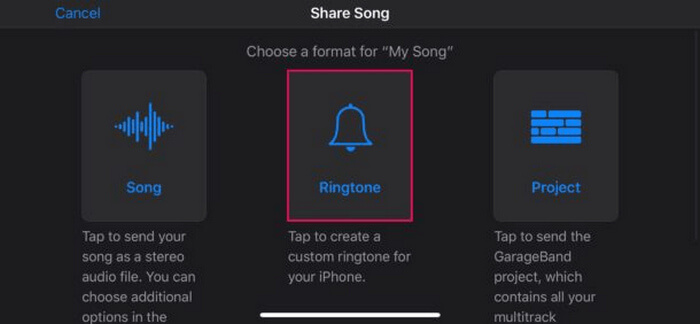
Step 6. Find the clip you made, long-press it, tap Share, and choose the Ringtone option. Don’t forget to name the ringtone and tap Export.
Step 7. To use the converted MP3 file as a ringtone on your iPhone, tap Use Sound As to set the ringtone as the default text message or for a specific contact. Alternatively, go to Settings, Sounds & Haptics, and Ringtone to change the ringtone on your iPhone.
Als u liever MP3-bestanden direct naar ringtones op uw iPhone wilt converteren, is deze methode perfect voor u. Nieuwe gebruikers hebben echter wat tijd nodig om dit te leren, omdat het complexe functies bevat die hen in het begin kunnen overweldigen.
Deel 3. Converteer MP3 naar iPhone-beltoon [online en gratis]
Meanwhile, if you prefer a free and online method to convert MP3 to iPhone ringtone, the FVC Free Audio Converter is the one for you. With this tool, you can convert any format of your audio file easily, especially MP3 to M4R, as it supports MP3, AAC, AC3, WMA, WAV, AIFF, FLAC, MKA, M4A, M4B, and M4R audio formats. Moreover, this tool is perfect for those who need an on-the-go audio converter tool because of its very intuitive and simple interface.
Here’s how to use the FVC Free Audio Converter to convert your MP3 into a ringtone:
Step 1. Click the Add Files button to import the MP3 files that you want to convert to ringtone.
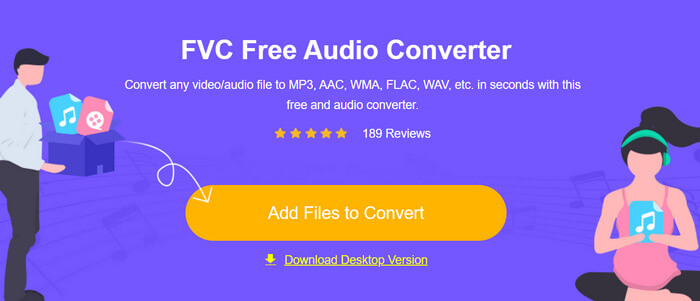
Step 2. Choose M4R as your audio output format.
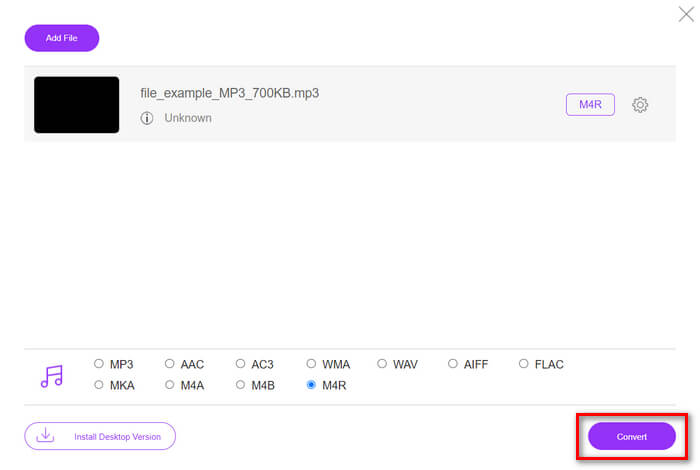
Step 3. Lastly, to process the conversion of your MP3 file to ringtone, click the Convert button. The converter file will be directly saved to your computer.
If you’re looking for a free and online alternative method to convert MP3 to M4R ringtone on an iPhone, the FVC Free Audio Converter is a perfect solution. Its intuitive interface simplifies the conversion process, and it supports a variety of audio formats, ensuring compatibility with different file types.
Deel 4. Hoe u geconverteerde beltonen van een computer naar de iPhone kunt overbrengen
Nu u uw MP3-bestanden eindelijk naar beltonen op uw computer hebt omgezet, kunt u ze het snelst overbrengen naar uw iPhone via iTunes.
Here’s how to transfer converted ringtones to iPhone using iTunes:
Step 1. Open iTunes on your computer and connect your iPhone with a USB cable.
Step 2. Drag the converted ringtone file into the iTunes library. Ensure it appears under the Tones section.
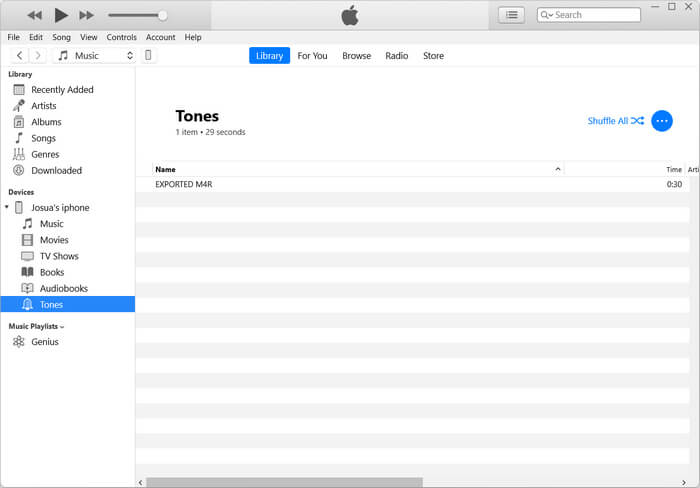
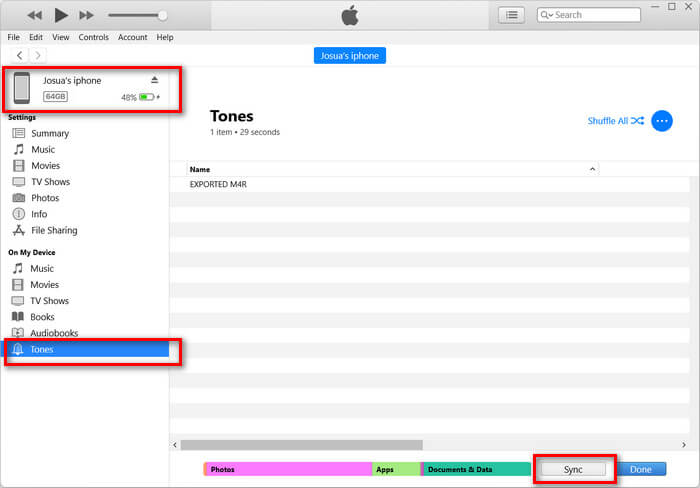
Step 3. Select your iPhone icon in iTunes, go to the Tones tab, and check Sync Tones. Then, choose the ringtone file you have imported and click Apply to sync.
Step 4. Now, on your iPhone, go to Settings, choose Sounds & Haptics, tap Ringtone, and select your new ringtone.
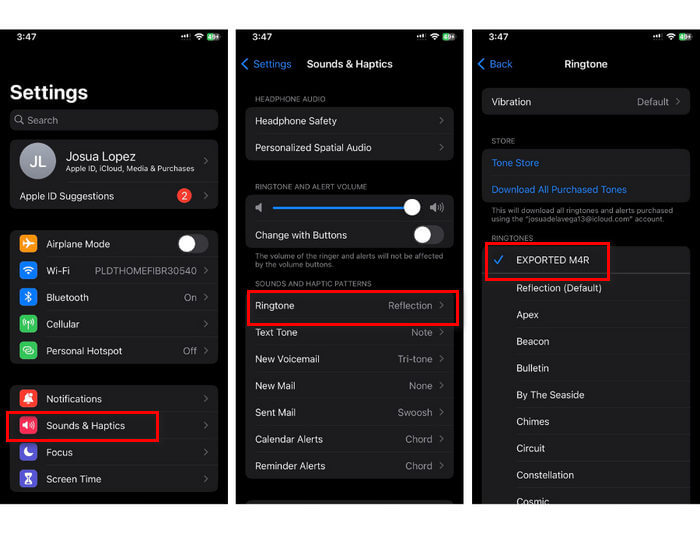
Daar heb je het. Je kunt nu eenvoudig de geconverteerde MP3 overzetten en gebruiken als beltoon op je iPhone, waardoor je je apparaat een persoonlijk tintje geeft met je favoriete geluiden.
Deel 5. Veelgestelde vragen over het converteren van MP3 naar beltoon
Wat is de beste gratis ringtone-site?
Veel websites bieden gratis ringtones aan, maar enkele populaire en betrouwbare zijn Zedge, Mobile9 en Tones7. Deze sites bieden een grote verscheidenheid aan ringtones die u kunt downloaden en gebruiken op uw telefoon.
Welk formaat heeft de MP3-naar-iPhone-beltoon?
Het iPhone-beltoonformaat is M4R. Wanneer u een MP3-bestand converteert om het als beltoon op een iPhone te gebruiken, moet u het opslaan in het M4R-formaat.
Hoe voeg ik een MP3 toe aan een iPhone-beltoon?
Om MP3 toe te voegen aan je iPhone-beltoon, moet je eerst het MP3-bestand converteren naar M4R met een convertertool zoals de door FVC gekozen Video Converter Ultimate. Nadat je het MP3-bestand hebt geconverteerd, gebruik je iTunes om het over te zetten naar je iPhone en gebruik je het als je nieuwe beltoon.
Gevolgtrekking
You can now use your favorite MP3 files and make a ringtone for your iPhone. Just choose the converter tool that best suits your needs. Each of them offers a straightforward way to convert MP3 to a ringtone on iPhones. So what are you waiting for? Start creating your unique ringtone now and make your iPhone truly yours!
-
 MOV VS MP4 - Welke kies je?
 MOV VS MP4, welke is beter? Dit bericht vertelt het verschil tussen MP4 en MOV, zodat je de betere keuze kunt krijgen om voor je videobestanden te gebruiken.
-
 FLAC versus MP3: welk audiobestandsformaat regeert
 Dit bericht vergelijkt de belangrijkste verschillen tussen FLAC en MP3. Dat omvat hun geluidskwaliteit, bestandsgrootte, compatibiliteit en meer.
-
 Hoe MP3 naar M4A te converteren voor verbeterde geluidskwaliteit
 Verbeter de kwaliteit van uw muziekbestanden door MP3 naar M4A te converteren met onze deskundige tips en trucs. Onze gids biedt stapsgewijze instructies en aanbevolen software.
