


 Video Converter Ultimate
 Scherm opnemer
 Videoreparatie
 Beveiligde download
3 beste methoden om PNG naar MP4 te converteren [snelle oplossingen]
Tegenwoordig raken mensen er helemaal aan verslingerd om hun foto’s om te zetten in video’s met effecten, tekst, overgangen en filters. Hoewel PNG een geweldig afbeeldingsformaat is voor foto’s, kunnen we er creatiever mee omgaan door ze naar MP4 te converteren. Het klinkt voor sommigen misschien ongebruikelijk, maar sommige mensen zetten deze bestanden om om een korte film of een leuke video te maken. Dus als je op zoek bent naar een conversietool die PNG naar MP4 omzet, dan ben je hier aan het juiste adres.
Daarom hebben we 3 tools voorbereid die u kunt overwegen om een afbeelding eenvoudig naar een videoformaat te converteren. Leer ze allemaal kennen en leer ze nu te gebruiken!

Deel 1: Converteer PNG naar MP4 met de beste kwaliteit op desktop
Een van de beste manieren om PNG naar MP4 te converteren is met behulp van de FVC Video Converter Ultimate. Deze converter is niet zomaar een standaard converter, want hij is uitgerust met verschillende functies, zoals MV, waarmee je PNG-bestanden kunt omzetten in een MP4‑video. Hij biedt diverse vooraf ingestelde thema’s die je vrij kunt gebruiken. Je kunt ook je eigen achtergrondmuziek toevoegen, filters en effecten toepassen en de video persoonlijk maken door er een watermerk in te plaatsen. Bovendien kun je de afbeelding eenvoudig roteren, bijsnijden en knippen op basis van je voorkeuren en je creatieve visie. Dus als je echt van het creatieve proces houdt en je beelden wilt omzetten in een dynamisch MP4‑bestand, dan is dit de perfecte conversietool voor jou.
Stap 1. Download eerst de software op je Windows‑ of Mac‑computer en installeer deze.
Gratis downloadVoor Windows 7 of nieuwerVeilige download
Gratis downloadVoor MacOS 10.7 of nieuwerVeilige download
Stap 2. Open daarna de tool en klik op het tabblad MV.

Stap 3. Voeg nu de PNG‑bestanden toe die je naar MP4 wilt converteren door op de knop Bestand toevoegen te klikken.

Stap 4. Zodra je de PNG‑bestanden in de MV‑maker hebt geïmporteerd, kun je ze toevoegen, bewerken en bijsnijden tot een video. Klik gewoon op de knop aan de bovenkant van de knop Bestand toevoegen. Je kunt ook een vooraf ingesteld thema kiezen door op het tabblad Thema hierboven te klikken.

Stap 5. Klik ondertussen op het pictogram Bewerken hieronder om filters en effecten toe te voegen en om de afbeeldingen bij te snijden en te roteren. Je kunt je MP4‑video ook personaliseren door er een watermerk aan toe te voegen.

Stap 6. Als alles is ingesteld, klik je op de knop Exporteren om de MP4‑video op te slaan. Vergeet vóór het exporteren niet de map op te geven waarin je het uitvoerbestand wilt opslaan en zorg ervoor dat het uitvoerformaat is ingesteld op MP4.

U kunt ook de framesnelheid, resolutie en kwaliteit van de video-uitvoer wijzigen.
Stap 7. Tot slot kun je de geëxporteerde video openen in de door jou gekozen map.
Wanneer u PNG naar MP4 converteert met de FVC Video Converter Ultimate, kunt u echt een kwalitatief uitvoerresultaat garanderen. De intuïtieve interface maakt de conversie eenvoudig te verwerken en de bewerkingsfuncties kunnen het visuele uiterlijk van uw video-uitvoer verbeteren. Bovendien kunt u uw favoriete videoresolutie tot 4K selecteren om compatibiliteit met uw apparaat en verschillende mediaspelers te garanderen.
Deel 2: PNG naar MP4 converteren met FFmpeg
Een andere methode die je kunt gebruiken om PNG naar MP4 te converteren is met FFmpeg. Deze tool is gratis en open‑source en biedt een uitgebreide set bibliotheken en programma’s voor het beheren van diverse multimediabestanden en ‑streams. Met FFmpeg kun je via de opdrachtregel naadloos een reeks JPG‑afbeeldingen omzetten in een MP4‑videobestand. Je hoeft alleen maar een opdracht of code in de terminal of opdrachtprompt te plakken; vervolgens verwerkt FFmpeg de conversie en maakt het overeenkomstige uitvoerbestand.
Stap 1. Download en installeer FFmpeg op je computer.
Stap 2. Open je Terminal of Opdrachtprompt.
Stap 3. Navigeer naar de map die je reeks afbeeldingen bevat.
Stap 4. Gebruik de volgende opdracht om de video te maken. Stel dat de bestandsnaam van de afbeelding happy is: ffmpeg -framerate 1 -i happy%d.png -c:v libx264 -r 30 output.mp4

Stap 5. Optioneel kun je het startnummer van je afbeeldingsreeks opgeven met de optie -start_number. Als je afbeeldingsreeks bijvoorbeeld begint bij happy3.png, voeg je -start_number 3 toe aan de opdracht.
Stap 6. Druk op Enter om de opdracht uit te voeren. FFmpeg begint vervolgens met het verwerken van de afbeeldingen en maakt de video.
Stap 7. Zodra het proces is voltooid, kun je de video terugvinden in de map die je hebt opgegeven.
Hoewel deze tool een veelbelovend conversieproces en -resultaat lijkt te hebben, is het nadeel de complexiteit van de interface. Hierdoor is het voor gebruikers lastig om het proces van het converteren van PNG naar MP4 te doorlopen.
Voordelen
- Gratis en open source.
- Krachtige opdrachtregelinterface.
Nadelen
- Steile leercurve voor beginners.
- Gebrek aan grafische gebruikersinterface.
Deel 3: PNG online naar MP4 converteren
Een andere methode om PNG naar MP4 om te zetten is door een online conversietool te gebruiken. Met online converters ben je verzekerd van compatibiliteit met verschillende apparaten, omdat je alleen een browser en een internetverbinding nodig hebt. Een van de beste online conversietools die we kunnen aanbevelen is FlexClip. Dit is een veelzijdige online tool waarmee je PNG‑afbeeldingen kunt omzetten in MP4‑video’s. Je hoeft alleen je PNG‑bestanden te importeren, waarna je via een gebruiksvriendelijke interface eenvoudig een videobestand kunt maken en exporteren.
Stap 1. Ga eerst naar het tabblad Media en klik op Bladeren om je PNG‑bestanden te importeren.
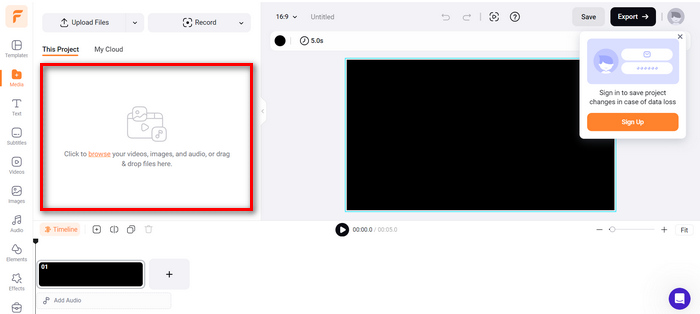
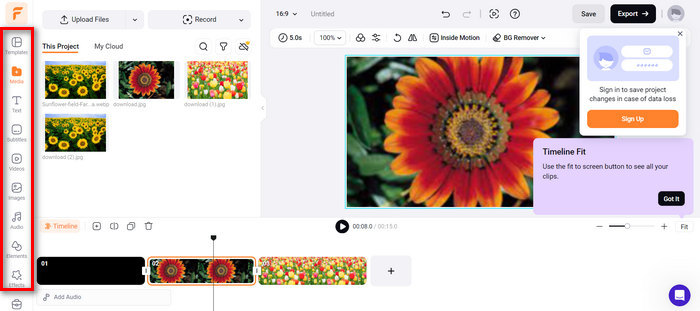
Stap 2. Sleep daarna de PNG‑bestanden naar de tijdlijn, zodat je het resultaat kunt bijsnijden en overgangen kunt toevoegen. Door vervolgens naar het linkerdeel van de interface van de software te gaan, kun je de visuele kwaliteit van je video verder verbeteren door tekst, ondertitels, audio, elementen en effecten toe te voegen.
Stap 3. Nu kun je je MP4 downloaden door op de knop Exporteren te klikken, maar vergeet niet eerst je voorkeursvideokwaliteit, resolutie en framesnelheid te kiezen.
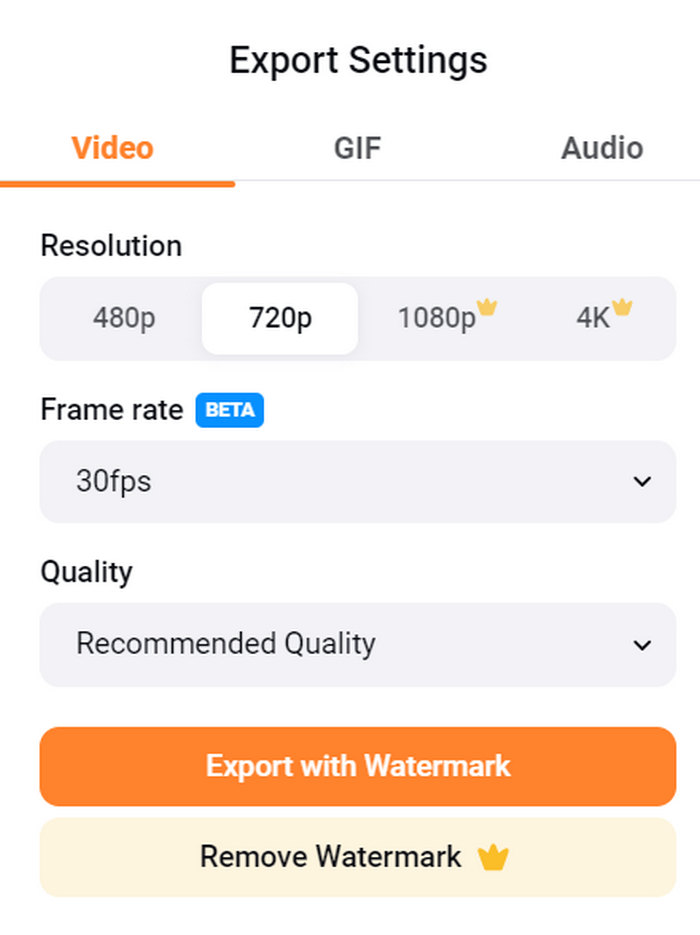
Met FlexClip kunt u PNG eenvoudig online naar MP4 converteren zonder u zorgen te maken over het opslagverbruik op uw apparaat. Als u echter de gratis versie gebruikt, kunt u niet van alle functies genieten, wat u zal belemmeren om uw voorkeursuitvoer te wijzigen.
Voordelen
- Gebruiksvriendelijke interface.
- Veelzijdige bewerkingsfuncties.
- Aanpasbare uitvoeropties.
- Snel conversieproces.
Nadelen
- Vereist een internetverbinding.
- Beperkte functies in de gratis versie.
- Geëxporteerde video's hebben watermerken.
Deel 4: Veelgestelde vragen over het converteren van PNG naar MP4
Waarom zou ik PNG naar MP4 willen converteren?
Door PNG naar MP4 te converteren kunnen gebruikers statische afbeeldingen omzetten in dynamische video’s, wat handig kan zijn voor het maken van dia‑shows, animaties of het toevoegen van audio. Het MP4‑formaat wordt bovendien breed ondersteund en is compatibel met verschillende apparaten en platforms. Daarom is het omzetten van PNG naar MP4 geschikter voor delen en streamen.
Wat is de beste methode om PNG naar MP4 te converteren?
De beste methode hangt af van de voorkeuren en behoeften van de gebruikers. Als ze de voorkeur geven aan desktopsoftware met geavanceerde bewerkingsfuncties, kunnen ze tools gebruiken zoals FVC Video Converter Ultimate. Als ze een open-sourceoplossing met een opdrachtregelinterface willen, is FFmpeg een goede optie. Als ze de voorkeur geven aan een onlineoplossing met eenvoud, wordt FlexClip aanbevolen.
Hoe verschillen PNG en MP4 van elkaar?
PNG of Portable Network Graphics is een bestandsformaat dat veel wordt gebruikt voor stilstaande beelden met verliesloze compressie, ideaal voor graphics en afbeeldingen met transparantie. Aan de andere kant is MP4 of MPEG-4 een videobestandsformaat dat bekend staat om zijn compressiemogelijkheden, waarbij zowel video- als audiogegevens worden opgeslagen.
Gevolgtrekking
Het converteren van PNG naar MP4 draait niet alleen om de conversie zelf. Het gaat ook om creativiteit en passie. Stel je voor dat je statische en stilstaande beelden verandert in dynamische video’s. Dat vergt veel creativiteit en natuurlijk ook een perfecte converter. Mis deze kans dus niet en probeer vandaag nog een van deze methoden!
-
 Volledige manieren om JPG naar PNG online en offline te converteren
 Op zoek naar handige methoden om JPG naar PNG-bestandsindeling te converteren? Deze wegwijzer heeft het antwoord dat je nodig hebt. Lees het artikel om deze methoden te ontdekken.
-
 Top 5 toonaangevende tutorials om PNG snel naar JPG te converteren
 Als u uw PNG-bestand naar JPG-indeling moet converteren, kunt u hier de beste manieren leren. U leert ook het verschil tussen PNG- en JPG-bestandsindelingen.
-
 Stapsgewijze zelfstudies over het converteren van ICO naar PNG
 Klik op deze wegwijzer voor de eenvoudigste methoden om ICO naar PNG te converteren. Laten we eens kijken naar de ICO naar PNG-converters voor online en offline procedures.
