


 Video Converter Ultimate
 Scherm opnemer
 Videoreparatie
Hoe RAR naar MP4 te converteren: RAR-bestanden correct uitpakken en wijzigen naar MP4
Als je technisch onderlegd bent, weet je dat RAR- en MP4-bestanden vaak voorkomen in het dagelijks gebruik. In wezen zijn RAR-bestanden gecomprimeerde bundels die van alles kunnen bevatten – video’s, afbeeldingen, noem maar op. Heb je je ooit afgevraagd of je een RAR-bestand kunt omzetten naar een MP4 voor meer compatibiliteit? Die vraag duikt vaak op wanneer je films met een RAR-label van het web plukt of via e‑mail met RAR verpakte video’s ontvangt, toch? Om ze om te zetten naar MP4 moet je eerst het RAR-bestand uitpakken en vervolgens de daarin aanwezige video’s naar het MP4‑formaat converteren. Blijf daarom bij dit artikel om twee eenvoudige manieren, offline en online, te ontdekken om deze RAR naar MP4-conversie uit te voeren.

Deel 1. Converteer RAR online naar MP4 met ezyZip
Te beginnen met de aanbevolen online converter die RAR-bestanden efficiënt kan verwerken. Ezyzip is uw bondgenoot wanneer u problemen heeft met bestandsconversies. Het is de beste online keuze om probleemloos MP4-bestanden uit een RAR-archief te extraheren. U hoeft uw computerapparaat niet vol te proppen met extra MP4-conversiesoftware. Dit komt omdat ezyZip rechtstreeks in uw browser werkt, waardoor u de moeite van de installatie bespaart. Bovendien is deze tool niet alleen beperkt tot het gratis online converteren van een RAR-bestand naar MP4, omdat het ook een verscheidenheid aan andere opties voor bestandsextractie en conversie ondersteunt.
Wat ezyZip onderscheidt van de rest van de online converters is de unieke aanpak. Het houdt uw bestanden veilig en gezond door het geheel lokaal in uw browser te verwerken. Dit betekent dat er geen moeizaam uploaden of downloaden naar externe servers nodig is, wat resulteert in razendsnelle conversies. Opmerkelijk is dat u de groottebeperkingen misschien vergeet als u ezyZip gebruikt, omdat deze tool geen beperkingen oplegt. Dit betekent ook dat uw privacy intact blijft, aangezien uw bestanden uw browser nooit verlaten! Nu laten we deze dia niet voorbijgaan zonder u het proces van ezyZip te leren om uw bestanden van RAR naar MP4 te converteren. Daarom wordt onderstaande handleiding gegeven.
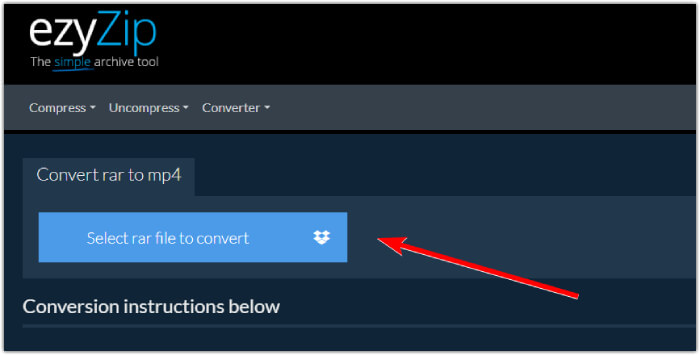
Stap 1. Ga naar de officiële website van de converter en importeer je RAR‑bestand door op de knop Select rar file to convert te klikken.
Stap 2. Zodra de bestanden zijn geladen, zal de tool ze automatisch voor je converteren binnen het RAR‑archief. Klik nu op de knop Save om elk MP4‑bestand op je gewenste bestembestemming op te slaan.
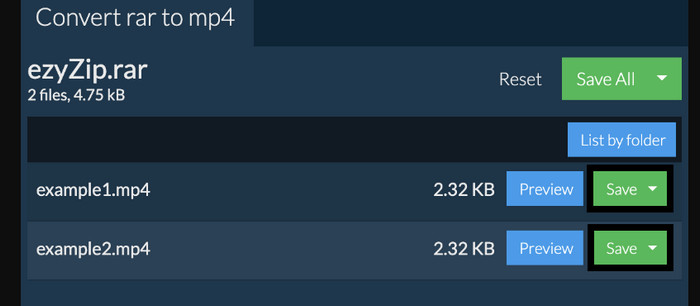
Stap 3. Mocht de knop Save om wat voor reden dan ook zijn uitgeschakeld, dan moet je weten dat de browser die je gebruikt niet door de converter wordt ondersteund. Als de bestanden daarentegen succesvol zijn opgeslagen, krijg je de optie om je geconverteerde bestanden te bekijken.
Deel 2. Converteer RAR offline naar MP4 met WinRAR
Er zijn geweldige offline manieren om RAR naar MP4 te converteren met WinRAR. WinRAR is een populaire software die speciaal is ontworpen voor Windows-gebruikers. Het is software die een reeks handige functies biedt voor het beheren van gecomprimeerde bestanden. Bovendien vereenvoudigt dit programma het proces van het uitpakken of decomprimeren van RAR-bestanden, zodat ze kunnen worden uitgepakt en geopend. Bovendien gaat WinRAR door omdat het ook de mogelijkheid biedt om RAR-bestanden naar verschillende videoformaten zoals MP4 of M4V te converteren. Deze functionaliteit blijkt van onschatbare waarde voor gebruikers die moeten werken met multimedia-inhoud die is opgeslagen in RAR-archieven. Als u dus wilt weten hoe u RAR-bestanden uitpakt en naar MP4 wijzigt met WinRar, lees dan hieronder de stapsgewijze instructies.
Stap 1. Download om te beginnen het populaire RAR‑expertprogramma op je desktop. Gebruik een betrouwbare bron om het te downloaden. Start het daarna na de installatie meteen op om het conversieproces te beginnen.
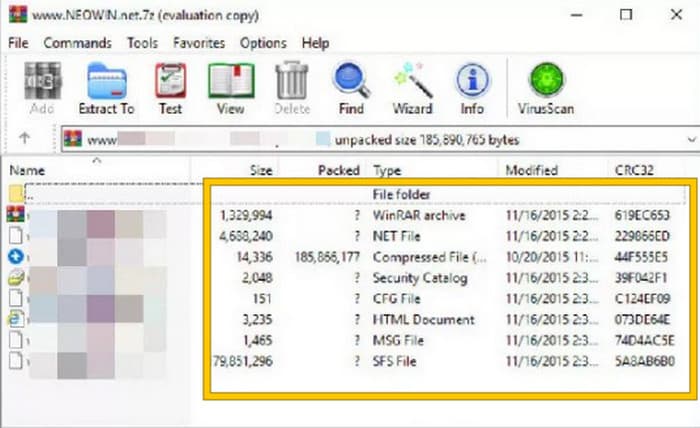
Stap 2. Zodra het programma is gestart, kun je direct het RAR‑bestand openen of uploaden dat je naar MP4 wilt converteren. Je ziet of het bestand is geladen, want het verschijnt in het midden van de interface.
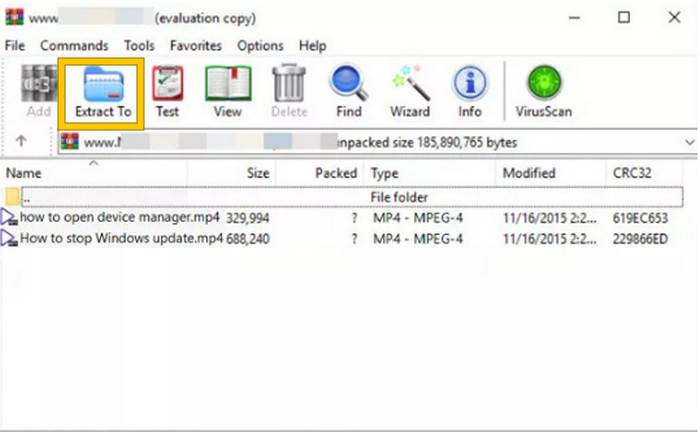
Stap 3. Klik tenslotte op de knop Extract To in de menutab-lijst om de conversie of het uitpakken te starten. Wanneer dit is voltooid, kun je de geconverteerde bestanden direct in de interface openen.
Deel 3. Bonustip: de beste manier om audio/video online naar MP4 te converteren
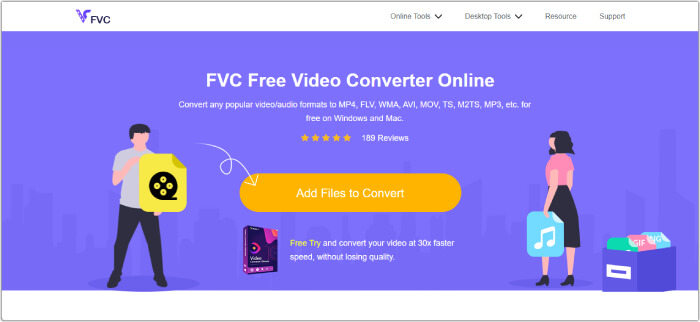
Hierbij nog een extra tip waarmee je elk video‑ en audiobestand op de beste en snelste manier naar MP4 kunt converteren! Maak kennis met deze FVC Free Video Converter Online, een converter waarmee je heel eenvoudig en volledig gratis je video‑ en audiobestanden naar verschillende formaten zoals MP4 kunt omzetten. Bovendien kun je je HD‑video’s razendsnel omzetten naar populaire formaten, terwijl hun oorspronkelijke kwaliteit en scherpte behouden blijft. Verder zul je ook dol zijn op het bliksemsnelle proces, waarmee je meerdere bestanden in een mum van tijd kunt converteren!
Er is meer! Met deze FVC gratis video-omzetter online kunt u uw video's en audio naar hartenlust aanpassen. Dit komt omdat je met deze converter zaken als de resolutie, framesnelheid, bitrate en zelfs audio-instellingen zoals volume en bitrate kunt aanpassen aan jouw voorkeursinstellingen. Dit betekent dat u uw media precies kunt aanpassen zoals u dat wilt en deze eenvoudig kunt exporteren. Dus als u zich afvraagt hoe u uw video- of audiobestanden online naar MP4 kunt converteren, volg dan de eenvoudige stappen hieronder.
Stap 1. Start het proces door de officiële website van FVC Free Video Converter Online te bezoeken. Klik, zodra je daar bent, op de knop Add Files to Convert om de launcher op te halen en het eerste bestand te uploaden.
Stap 2. Zodra het bestand is geüpload, kun je meer mediabestanden toevoegen door op de knop Add File in de hoofdwerkruimte te klikken. Stel ze vervolgens in op MP4 door de bestanden te selecteren en daarna onderaan het MP4‑formaat aan te vinken.
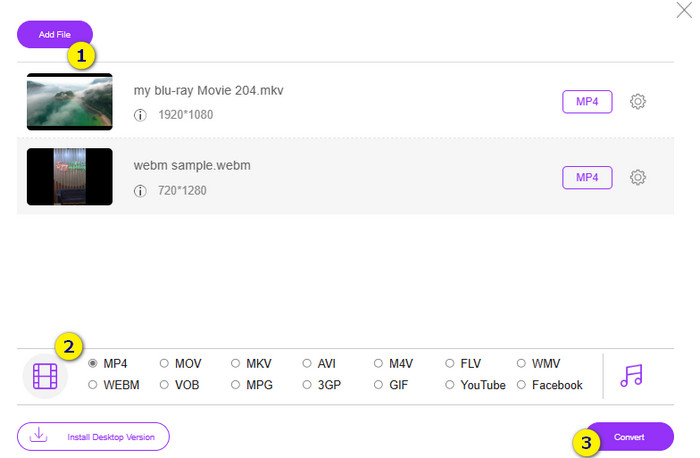
Stap 3. Daarna is het tijd om de snelle bulkconversie te starten door onderaan op de knop Convert te klikken.
Verder lezen:
De beste MP4‑editor voor Windows en Mac in 2025
Deel 4. Veelgestelde vragen over RAR- en MP4-conversie
Wat is een RAR-bestand?
RAR-bestanden worden gecomprimeerd in archiefbestandsformaat. Hiermee kunt u meerdere bestanden in één container opslaan, terwijl de totale grootte ervan wordt verkleind.
Hoe converteer ik RAR naar MP4 op Mac?
Om RAR naar MP4 op een Mac te converteren, kun je eerst een videoconversietool zoals Unarchiver gebruiken om de inhoud van het RAR‑archief uit te pakken. Vervolgens kunnen alle compatibele videobestanden in de uitgepakte map naar MP4 worden omgezet met behulp van een krachtige converter. Hiervoor kun je de FVC Video Converter Ultimate gebruiken.
Kan een RAR-bestand video's bevatten?
Een RAR-bestand is als een zip-map die elk soort bestand kan bevatten. Dus ja, het RAR-bestand kan video's bevatten.
Gevolgtrekking
Dit artikel is perfect voor je taak om RAR naar MP4 te converteren, omdat het je de beste manieren laat zien om dit op je apparaat te doen. Gelukkig is er ook de beste online video‑ en audioconverter, waarmee je kunt werken als een professional!
-
 Manieren om video online te comprimeren om de videobestandsgrootte te verkleinen
 Als u online op zoek bent naar videocompressoren, zoek dan niet meer, want wij hebben wat u zoekt! Hier zijn enkele van de handigste hulpmiddelen die u kunt gebruiken.
-
 Hoe een MP4-video naar een kleiner formaat te comprimeren
 MP4-video is te groot om te uploaden? Wilt u het videoformaat verkleinen? Hier zijn 3 efficiënte manieren om een MP4-bestand onbeperkt naar een kleiner formaat te comprimeren.
-
 Hoe video's gratis te comprimeren / probeer deze 7 online videocompressoren
 Lees en krijg 7 manieren om gratis video's te comprimeren op uw computer of telefoon. U kunt grote video's gemakkelijk verkleinen tot kleine bestandsgroottes voor e-mail, Twitter, Instagram, YouTube, WhatsApp en meer.
