


 Video Converter Ultimate
 Scherm opnemer
 Videoreparatie
 Beveiligde download
De beste 2-methoden om AVI-video's op de iPhone af te spelen door het formaat te converteren
Wanneer u enkele uren hebt besteed aan het verzenden van grote AVI-films naar uw iPhone/iPad en u wilt uw favoriete films bekijken via iPhone/iPad, kunt u alleen de foutmelding "Dit videoformaat ondersteunt afspelen niet" krijgen. Het moet erg frustrerend zijn. Dat komt omdat het iOS-systeem alleen het afspelen van MP4-, MOV- en M4V-video's ondersteunt met veel beperkingen.
Er zijn inderdaad veel videospelers van derden voor iOS die AVI-video’s eenvoudig op de iPhone kunnen afspelen, maar je moet er rekening mee houden dat AVI-videobestanden meestal erg groot zijn, waardoor ze veel opslagruimte op je iPhone innemen. Daarom kun je ervoor kiezen AVI-video’s om te zetten naar compatibele formaten om ze op je iPhone af te spelen. In dit artikel worden 2 eenvoudige manieren uitgelegd om AVI‑video’s naar MP4/MOV/M4V te converteren.

Deel 1: Wat is AVI? Waarom kunnen AVI-video's niet op de iPhone worden afgespeeld?
AVI is de afkorting van Audio Video Interleaved en bevat video-, audio- en ondertitelbestanden. Dit formaat is ontwikkeld door Microsoft en is daarom compatibel met Windows Media Player op Windows. Omdat het met een lage compressiegraad wordt gecomprimeerd, zijn AVI-bestanden meestal groot van omvang en van hoge kwaliteit. Tegenwoordig wordt het vaak gebruikt om films en tv-series op cd op te slaan.
De reden waarom je geen AVI-video's op de iPhone kunt afspelen, is dat het iOS-systeem alleen MP4-, MOV- en M4V-formaten ondersteunt. Bovendien heeft het ook enkele beperkingen voor de video's:
•-codec: H.264
• Resolutie: 1080p
• Framesnelheid: 60 fps
Deel 2: AVI-video's converteren om gratis op je iPhone te spelen
FVC Free Online Video Converter is een krachtige videoconverter die AVI-video’s naar meer dan 10 formaten kan omzetten. Bovendien ondersteunt hij het aanpassen van de video‑codec, resolutie, framesnelheid en bitsnelheid om aan de eisen van iPhone‑video’s te voldoen.
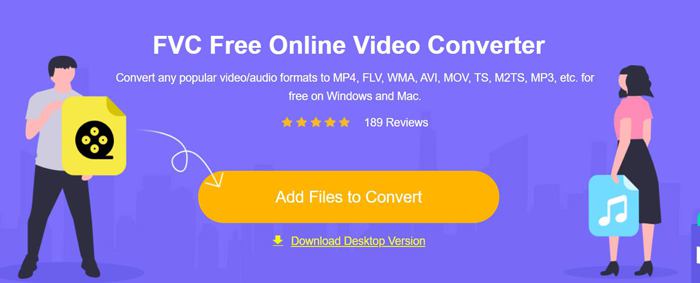
Stap 1: Ga in een willekeurige browser naar de FVC Free Online Video Converter. Klik op de knop Add Files to Convert om in enkele seconden de launcher te installeren, en klik vervolgens nogmaals op de knop om de gewenste AVI‑bestanden te kiezen en toe te voegen aan de AVI‑videoconverter.
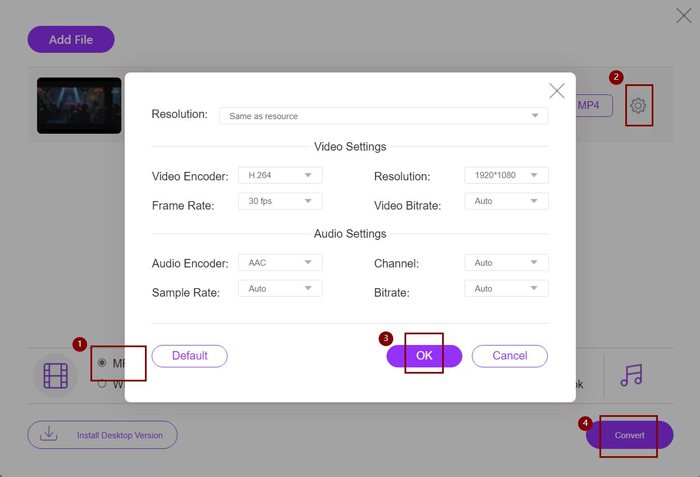
Stap 2: Vervolgens kun je onderaan in de videolijst het MP4-, M4V- of MOV-formaat kiezen. Klik op het pictogram Settings om de video‑codec in te stellen op H.264 en kies de resolutie 1920x1080p. Klik daarna op de knop OK om de instellingen op te slaan. Ga terug naar de hoofdinterface, klik op de knop Convert om het gewenste opslagpad te kiezen en start daarna de conversie van AVI‑video’s om ze op de iPhone af te spelen.
Hoewel dit een zeer gemakkelijke manier is om AVI-video's naar compatibele formaten voor iPhone te converteren, moet u nog steeds de gedetailleerde parameters wijzigen volgens de beperking van iPhone-video's. En soms merk je dat de video's nog steeds niet op je iPhone kunnen worden afgespeeld. Er is dus ook de gemakkelijkste manier om AVI-video's te converteren om ze op de iPhone af te spelen met het vooraf ingestelde iPhone-formaat. Blijf dit artikel lezen.
Deel 3: De beste manier om AVI-video's te converteren om op de iPhone af te spelen
FVC Video Converter Ultimate is de Pro-versie van de FVC Free Online Video Converter. Het ondersteunt meer dan 500 formaten om te importeren en exporteren, inclusief de voorinstelling voor iPhone, iPad en veel Android-mobiele telefoons. Bovendien biedt het de bewerkingsfunctie om ondertitels, watermerken en thema's aan de video's toe te voegen.
- 1. Converteer AVI-video's naar MP4-, MOV- of M4V-video's om op de iPhone af te spelen.
- 2. Bied meerdere vooraf ingestelde formaten voor iPhone-, iPad- en Android-mobiele telefoons.
- 3. In staat om een batch AVI-video's te converteren om op de iPhone af te spelen.
- 4. Ondersteuning voor het bewerken van AVI-video's zoals roteren, bijsnijden, filteren, collage, enz.
Gratis downloadVoor Windows 7 of nieuwerVeilige download
Gratis downloadVoor MacOS 10.7 of nieuwerVeilige download
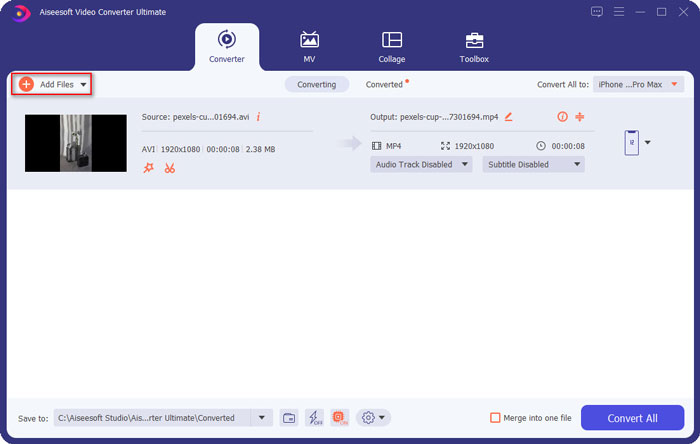
Stap 1: Download FVC Video Converter Ultimate op Windows en start het programma op de computer. Klik op de knop Add Files om de gewenste AVI‑video’s te kiezen die je op je iPhone wilt afspelen. Je kunt de bestanden ook eenvoudig slepen en neerzetten om ze aan de software toe te voegen.
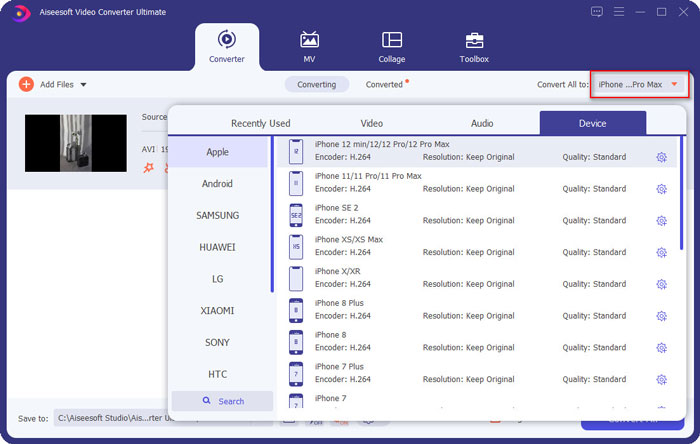
Stap 2: Klik op de uitklapoptie naast Convert All to rechtsboven en kies het tabblad Device. Klik daarna op het gewenste iPhone‑model.
Stap 3: Ga vervolgens terug naar de hoofdinterface en kies het opslagpad. Klik ten slotte op de knop Convert All om te beginnen met het omzetten van AVI‑video’s zodat je ze op de iPhone kunt afspelen.
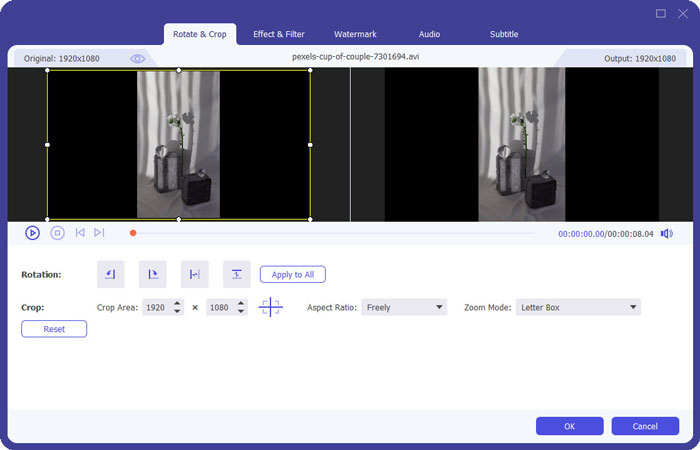
Stap 4: Als je de geëxporteerde video’s wilt bewerken, klik je vóór het converteren op het pictogram Edit. Je kunt dan effecten, filters, watermerk, ondertitels enzovoort toevoegen.
Deel 4: Veelgestelde vragen over het afspelen van AVI-video op iPhone
1. Kan ik AVI-films afspelen op iPhone/iPad zonder het formaat te converteren?
Ja, dat kan. Er zijn veel videospelers van derden voor iPhone/iPad, en u kunt direct de gewenste zoeken in de App Store of Google Play om AVI-video's op de iPhone af te spelen.
2. Wat is het beste formaat en de beste video-instellingen voor het afspelen van video's op de iPhone?
iPhone ondersteunt MP4-, MOV- en M4V-formaten. En de aanbevolen instellingen zijn H.264-codec, 1080p-resolutie en een framesnelheid van minder dan 60 fps.
3. Hoe de AVI-video's overzetten om gratis op de iPhone af te spelen?
Er worden in dit artikel twee manieren genoemd om AVI-video's te converteren om ze op de iPhone af te spelen. U kunt de gratis online video-omzetter gebruiken en de videoparameters aanpassen. En je kunt ook de gemakkelijkste manier gebruiken om AVI over te zetten naar de compatibele formaten voor iPhone via FVC Free Video Converter.
Gevolgtrekking
De meeste films en tv-series worden altijd opgeslagen in AVI-indeling, maar AVI-video's kunnen niet worden afgespeeld op iPhone of iPad. Om uw favoriete films overal op uw iPhone te bekijken, kunt u videospelers van derden kiezen. Maar de gemakkelijkste en veiligste manier is om AVI-video's te converteren om ze op de iPhone af te spelen. Je hebt uit dit artikel 2 eenvoudige manieren geleerd. Als u nog andere vragen heeft, kunt u hieronder uw reactie achterlaten.
-
 Hoe grote AVI-bestanden gratis op Windows / Mac / online te comprimeren
 Lees en krijg 3 gratis manieren om AVI-bestanden op uw computer te comprimeren. U kunt de bestandsgrootte van uw AVI-video verkleinen zonder kwaliteitsverlies. Uw AVI-videoformaat kan zo klein zijn als u zich kunt voorstellen.
-
 AVI VS MP4 - Verschillen en overeenkomsten tussen AVI- en MP4-formaten
 Wat is een beter videoformaat, AVI of MP4? Als u een gedetailleerde vergelijking wilt, kunt u dit AVI VS MP4-artikel raadplegen. U kunt de verschillen en overeenkomsten tussen AVI en MP4 in veel aspecten kennen.
-
 6 beste AVI-fusies: deelnemen aan AVI-videobestanden op Windows en Mac
 Als je AVI-video's voor een dvd wilt samenvoegen, kun je meer te weten komen over de functies van de top 6 beste AVI-deelnemers, inclusief gratis online tools, evenals de desktopprogramma's uit het artikel.
