


 Video Converter Ultimate
 Scherm opnemer
 Videoreparatie
 Beveiligde download
3 manieren om MKV-bestanden af te spelen in Windows Media Player
Kan MKV-bestand niet openen in Windows Media Player?
MKV is een populair videoformaat. Je kunt veel hoogwaardige films, tv‑series of andere video’s hebben die in MKV zijn opgeslagen. Maar als Windows‑gebruiker ondersteunt de standaard videospeler, Windows Media Player, het splitsen (openen) van MKV-containers niet standaard. Dan komen we terug op de vraag: hoe speel je MKV-bestanden af in Windows Media Center?

Zelfs nadat u Windows Media Player hebt geüpgraded naar de nieuwste versie, is er geen garantie dat u geen MKV-afspeelproblemen zult tegenkomen. Aangezien dit bericht graag 3 effectieve manieren deelt om u te helpen MKV-bestanden op uw Windows-pc af te spelen.
Deel 1. Hoe MKV-bestand te openen in Windows Media Player
Windows Media Player kan MKV-bestanden vooral niet afspelen door een codec‑incompatibiliteit. Je moet weten dat MKV eigenlijk een mediacontainer is voor videostreams, audiostreams, ondertitels en meer. Je moet WMP de juiste splitter voor MKV geven, en de benodigde codecs en filters voor het video‑ en audiobestand. In dit deel laten we zien hoe je een MKV-bestand in Windows Media Player kunt afspelen.
Stap 1. Open Windows Media Player en open daar het MKV-bestand mee. Je kunt ook met de rechtermuisknop op het MKV-bestand klikken en Openen met WMP selecteren.
Stap 2. Nu verschijnt er een foutmelding dat Windows Media Player het bestand niet kan afspelen. Klik op de optie Web Help in het dialoogvenster.
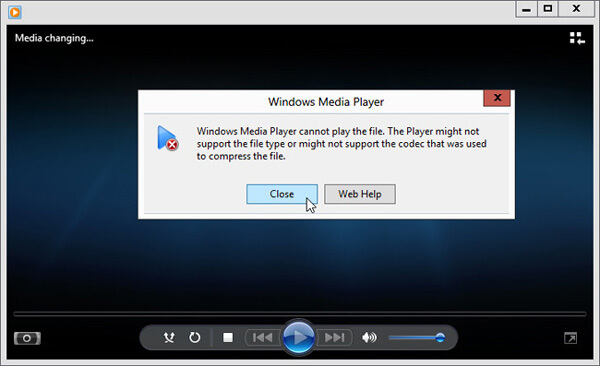
Stap 3. Klik op de codec‑link onder Codec ontbreekt. Kopieer en plak de link in je browser. Dit helpt je om de juiste Windows Media Player MKV‑codec te krijgen. Volg na het downloaden de instructies om het Windows Media Player MKV‑installatieproces te voltooien.
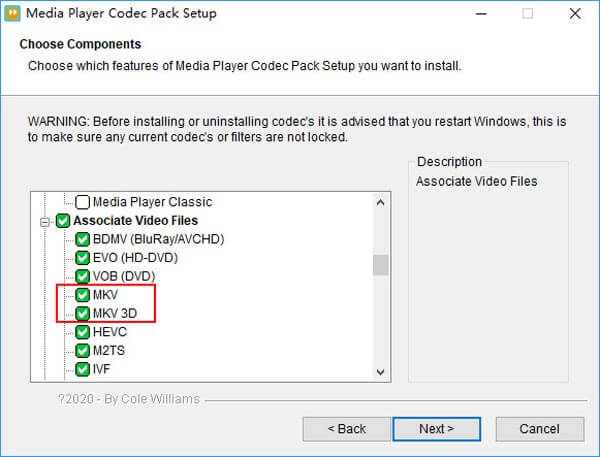
Stap 4. Start Windows Media Player opnieuw en probeer vervolgens je MKV‑bestand opnieuw af te spelen.

Deel 2. Betere manier om MKV-bestanden af te spelen in Windows Media Player Alternative
Met de juiste MKV-codec kunt u het MKV-bestand gemakkelijk openen in Windows Media Player. Veel gebruikers meldden echter dat er nog enkele andere afspeelproblemen zijn tijdens het spelen van MKV met WMP. In dat geval kunt u een alternatief voor Windows Media Player kiezen om u te helpen bij het afspelen van MKV-bestanden.
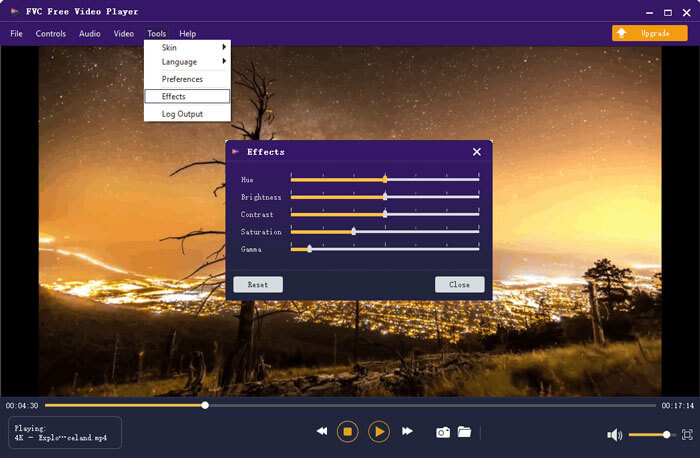
FVC Free MKV Player is een uitstekend alternatief voor Windows Media Player. Het ondersteunt standaard alle veelgebruikte video‑ en audioformaten, zoals MKV, MOV, MP4, FLV, AVI, RMVB, MPEG, AAC, MP3, M4A, WMA en meer. Je kunt erop vertrouwen om MKV‑films in hoge kwaliteit te bekijken.

Stap 1. Open je browser en ga naar de website van deze gratis MKV‑speler. Klik op de knop Play Now om een klein startprogramma voor het afspelen van MKV te installeren. Daarna verschijnt het hoofdvenster voor MKV‑weergave op het scherm.

Stap 2. Klik op de knop Open File om je MKV‑bestand te zoeken en te importeren. Vervolgens wordt de video automatisch afgespeeld. Dankzij geavanceerde video‑encoderingstechnologie kan hij MKV‑bestanden soepel en in hoge kwaliteit afspelen. Bovendien ondersteunt hij DTS‑HD en Dolby TrueHD.

U krijgt alle bedieningselementen voor het afspelen van MKV. Naast de basishandelingen zoals afspelen, pauzeren, achteruit, vooruit, volume aanpassen en meer, kunt u ook effecten aanpassen, audiotrack en ondertiteling wijzigen en andere instellingen aanpassen.
Deel 3. Converteer MKV voor afspelen op Windows Media Player
Om een MKV‑bestand in Windows Media Player af te spelen, kun je er ook voor kiezen om MKV om te zetten naar een ondersteund videoformaat zoals MP4. Hier stellen we je de Free Online Video Converter voor, waarmee je MKV naar MP4 kunt converteren zonder kwaliteitsverlies.
Stap 1. Ga in je browser naar deze gratis online MKV‑naar‑MP4‑converterpagina. Hij is compatibel met alle populaire webbrowsers, waaronder Chrome, IE, Safari en Firefox.
Stap 2. Klik daar op de knop Add File to Convert. Tijdens deze stap moet je een kleine launcher voor de MKV‑conversie installeren. Daarna verschijnt er een pop‑upvenster op het scherm waarin je je MKV‑bestand kunt selecteren.
Stap 3. Je ziet daar veel populaire videoformaten zoals MP4, MOV, AVI, MKV, FLV, enzovoort. Zorg dat de uitvoerindeling is ingesteld op MP4 en klik vervolgens op de knop Convert.
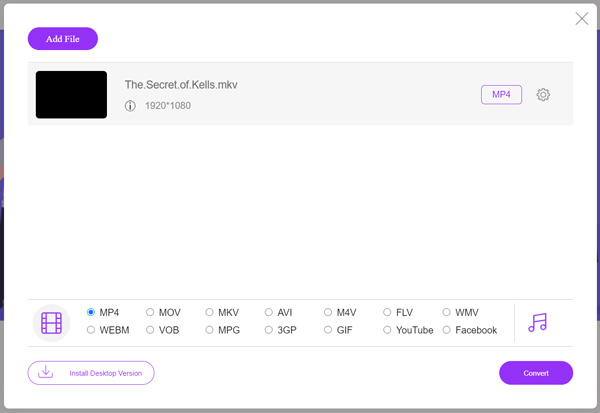
Na het converteren van MKV naar MP4 kun je het bestand afspelen met Windows Media Player. Tijdens de conversie treedt er geen verlies op van beeld- of geluidskwaliteit.
Deel 4. Veelgestelde vragen over het spelen van MKV in Windows Media Player
Vraag 1. Hoe wijzig ik het formaat van een video op Windows Media Player?
Open Windows Media Player en laad het videobestand dat u wilt converteren. Klik op de kleine pijl onder het tabblad Rip in het bovenste menu. Selecteer Meer opties en klik vervolgens op het vervolgkeuzemenu met het label Opmaak. Hier kunt u een geschikt uitvoerformaat kiezen en de conversie starten.
Vraag 2. Welk videoformaat is Windows Media Player?
De standaard bestandsindeling van Windows Media Player is WMV, Windows Media Video en WMA, Windows Media Audio. Het ondersteunt ook Advanced Systems Format en zijn eigen op XML gebaseerde afspeellijstindeling, Windows Playlist.
Vraag 3. Kan Windows 10 MKV-bestanden afspelen?
Nee. De ingebouwde Windows Media Player 12 in Windows 10 kan geen MKV-bestanden afspelen. U moet MKV-codec installeren om het afspelen te krijgen.
Gevolgtrekking
Wanneer Windows Media Player de MKV‑codec niet begrijpt, verschijnt er simpelweg een foutmelding. Om een MKV‑bestand in Windows Media Player af te spelen, moet je de juiste codec installeren. Ook kun je een externe speler gebruiken of het MKV‑formaat converteren om het af te spelen. Als je nog vragen hebt over hoe je een MKV‑bestand opent in Windows Media Player, laat ons dan gerust een bericht achter.
-
 Top 8 MKV-spelers om MKV-bestanden af te spelen met de gewenste ondertitel
 Als u de MKV-video met de gewenste ondertitel wilt afspelen, kunt u meer leren over de 8 beste MKV-bestandsspelers voor pc / Mac en de gewenste kiezen op basis van uw vereisten.
-
 MKV naar MOV - Hoe MKV naar MOV te converteren
 Hoe converteer ik MKV naar MOV op Mac? Kan iMovie MKV lezen? Wat betekent MOV-formaat? Dit bericht vertelt 2 eenvoudige manieren om u te helpen MKV naar MOV te converteren met gratis online en professionele videoconverters.
-
 AC3 Player - Overzicht van 10 beste gratis AC3-spelers van 2021
 Wat is de beste AC3-speler? Kan MX Player AC3 openen? Dit bericht maakt een lijst met 10 gratis AC3-spelers voor Mac-, Windows-pc-, iOS- en Android-apparaten.
