


 Video Converter Ultimate
 Scherm opnemer
 Videoreparatie
 Beveiligde download
Hoe u het geluid op uw iPhone kunt repareren dat niet werkt [3 eenvoudige manieren]
Heb je al ontelbare manieren geprobeerd om het geluid in je iPhone‑video’s terug te krijgen, maar werkt het nog steeds niet? Het is niet zo dat het geluid van je iPhone‑video’s niet opgelost kan worden; je hebt het probleem alleen op een manier proberen op te lossen die niet de bedoeling is. In dit artikel bekijken we daarom de 3 eenvoudigste manieren om het probleem mijn iPhone heeft geen geluid bij video op te lossen. We begrijpen dat dit probleem erg vervelend en frustrerend is. Als je dit dus herkent en niet kunt wachten om het geluidsprobleem bij je iPhone‑video op te lossen, lees dan dit artikel, begrijp waarom je audio niet wordt afgespeeld bij je video’s en los het probleem vervolgens gericht op.

Deel 1. Waarom heeft mijn iPhone geen geluid bij video's?
Waarom mijn iPhone geen geluid heeft bij video's is echt een vraag en probleem waar velen mee te maken hebben. Nou, er zijn verschillende redenen waarom dit gebeurt, maar begrijp je echt waarom dit meestal gebeurt? Dit zijn de redenen waarom de iPhone geen geluid heeft bij het afspelen van video's:
iPhone-video heeft geen geluid in foto's
Photos is een algemeen bekende fotobeheer- en bewerkingsapplicatie van Apple. Het is waar gebruikers hun foto's en video's kunnen opslaan, bekijken en bewerken, en meer! Hoewel Photos een gerenommeerd platform is voor het bekijken en afspelen van video's, is er in sommige gevallen geen geluid bij het afspelen van video's op deze applicatie. Hieronder staan enkele redenen waarom iPhone-video's geen geluid hebben in Photos:
• Het volume kan gedempt zijn of te laag staan. Zorg dat het volume van de iPhone is verhoogd en dat de bel‑/stilteschakelaar niet op stil staat.
• Het videobestand kan beschadigd zijn, waardoor het audiospoor niet goed werkt of helemaal niet wordt afgespeeld.
• Er kan sprake zijn van een softwareprobleem of bug in de Foto’s‑app, waardoor het geluid niet wordt afgespeeld.
• De Foto’s‑app kan moeite hebben om de audiocodec van de video te lezen, vooral als het formaat niet volledig wordt ondersteund.
• De iPhone kan verbonden zijn met een Bluetooth‑apparaat, zoals een headset of speaker die niet in gebruik is, waardoor het geluid wordt omgeleid.
iPhone-video heeft geen geluid in de camerarol
Wanneer u rechtstreeks op uw iPhone filmt, kunt u een voorbeeld van uw video bekijken door deze af te spelen vanaf uw camerarol. Sommige iPhone-gebruikers ervaren echter geen geluid wanneer ze hun video's afspelen vanaf hun camerarol, waardoor ze zich geïrriteerd en verbijsterd voelen over waarom hun video's geen geluid hebben. Hieronder staan enkele redenen waarom geluid op de iPhone niet werkt wanneer het wordt afgespeeld in de camerarol:
• De microfoon kan tijdens het opnemen zijn geblokkeerd of defect zijn geweest, waardoor er geen audio is vastgelegd.
• Als je iPhone in de Niet storen‑modus staat, kan dit voorkomen dat er geluid wordt afgespeeld wanneer video’s in de filmrol worden bekeken.
• De iPhone kan in de stille modus staan, waardoor de video zonder geluid wordt afgespeeld.
iPhone heeft geen geluid bij het afspelen van video's in IG
Het afspelen van video's op Instagram kan soms een probleem vormen. Sommigen ervaren dat ze de video niet kunnen afspelen; er zijn gevallen waarin alleen het geluid niet wordt afgespeeld wanneer video's op IG worden afgespeeld. Om beter te begrijpen waarom dit gebeurt, volgen hier de redenen waarom iPhone geen geluid heeft bij het afspelen van video's in IG:
• Instagram kan de video standaard hebben gedempt, waardoor gebruikers op het luidspreker‑icoon moeten tikken om het geluid in te schakelen.
• Het volume binnen de Instagram‑app kan afzonderlijk van het systeemvolume van de iPhone zijn verlaagd of gedempt.
• Er kan sprake zijn van een tijdelijke storing of bug in de Instagram‑app, waardoor een herstart of update nodig is.
• Een slechte of onstabiele netwerkverbinding kan ervoor zorgen dat de video onjuist wordt geladen, met als gevolg dat er geen geluid is.
• De iPhone kan op stil of trilstand staan, wat de geluidsweergave in de Instagram‑app kan beïnvloeden.
Deel 2. Oplossingen om het probleem met geen geluid op de iPhone op te lossen
Nu u weet waarom er op uw iPhone geen geluid te horen is bij video's, is het tijd om te leren hoe u dit probleem kunt oplossen.
Methode 1: FVC Video Repair gebruiken
Wanneer je iPhone geen geluid heeft bij video’s omdat je een beschadigde video afspeelt, is de ideale oplossing het gebruik van de FVC Video Repair‑tool. We weten allemaal dat wanneer een video beschadigd is, dit niet alleen de afspeelbaarheid van de video aantast, maar ook de audio beïnvloedt, wat kan leiden tot problemen zoals geen geluid. Beschadiging van een videobestand kan de synchronisatie tussen het audio‑ en videospoor verstoren of het audiospoor zelfs volledig verwijderen of ontregelen, met een stille weergave als gevolg. De FVC Video Repair‑tool is ontwikkeld om deze problemen op te lossen, zowel de visuele kwaliteit van de video als de bijbehorende audio te herstellen en zo een vloeiende weergave mét geluid te garanderen.
Stap 1. Ga eerst naar hun officiële website. Vervolgens Download je de tool en Installeer je deze op je apparaat.
Gratis downloadenVoor Windows 7 of hogerVeilige download
Gratis downloadenVoor macOS 10.7 of hogerVeilige download
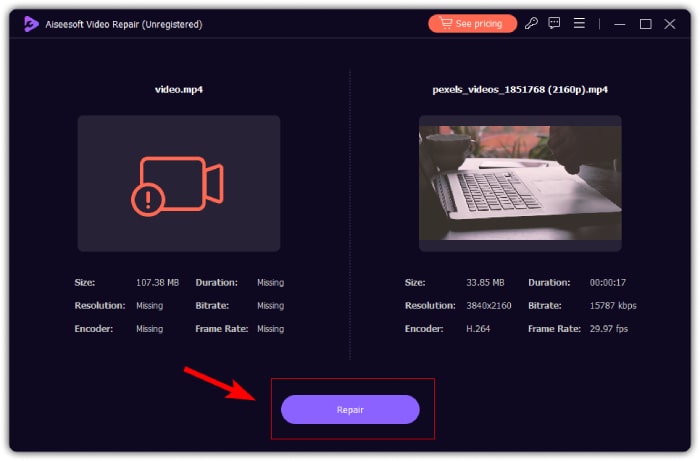
Stap 2. Voeg daarna de beschadigde video toe door op de rode plus-knop te klikken, net zoals je op de blauwe plus-knop hebt geklikt om de voorbeeldvideo toe te voegen. Klik daarna op de knop Repareren om te beginnen met het herstellen van het audioprobleem.
Stap 3. Klik ten slotte op de knop Voorbeeld om de gerepareerde video te bekijken en te controleren of het geluid nu is hersteld. Als het herstelproces is geslaagd, kun je de video opslaan door op de knop Opslaan te klikken.
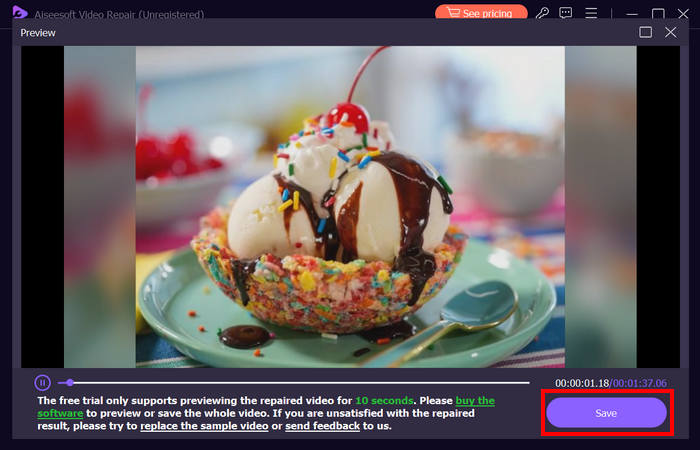
De FVC Video Repair kan het probleem dat iPhone geen geluid heeft bij video's heel eenvoudig oplossen. Met zijn nieuwste AI-algoritme en zijn automatische detectie van vitale informatie en het direct repareren ervan, kan het effectief het videogeluid op uw iPhone herstellen.
Methode 2: Gebruik FVC Picked Video Converter Ultimate
Als je probleem daarentegen wordt veroorzaakt door een ontbrekend audiospoor – wat betekent dat het audiogedeelte van je video verloren is gegaan, beschadigd is of niet correct is gecodeerd – kun je gebruikmaken van de door FVC aanbevolen Video Converter Ultimate. Met deze tool kun je het ontbrekende audiospoor herstellen door je video naar een compatibel formaat te converteren. Volg de onderstaande stappen om op deze manier op te lossen dat je iPhone geen geluid afspeelt door een ontbrekend audiospoor:
Stap 1. Als de tool nog niet op je computer is geïnstalleerd, download en installeer deze dan eerst op je computer.
Gratis DownloadVoor Windows 7 of hogerBeveiligde download
Gratis downloadenVoor macOS 10.7 of laterVeilige download
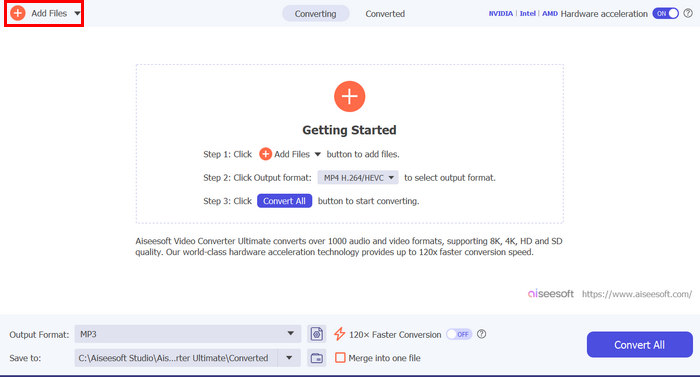
Stap 2. Voeg vervolgens de video toe waarvan het geluid niet wordt afgespeeld op je iPhone door op de knop Bestanden toevoegen te klikken.
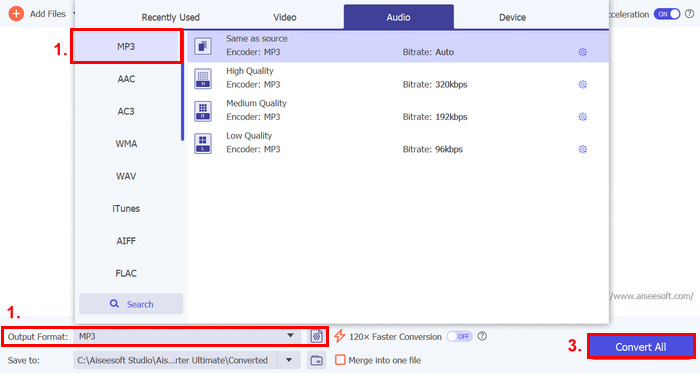
Stap 3. Klik nu op het Uitvoerformaat, kies MP3 en selecteer in het menu het audioformaat dat je voor je video wilt gebruiken. Klik tot slot op de knop Alles converteren om je bestand op te slaan.
Deze volledig uitgeruste FVC koos Video Converter Ultimate tool is echt een go-to tool voor elk video- en audiogerelateerd probleem. Ongeacht het probleem, of het nu een corrupt bestand, incorrecte codec of niet-ondersteund formaat is, deze tool kan echt helpen.
Methode 3: iPhone opnieuw opstarten
Als je iPhone een systeemprobleem heeft dat de audio beïnvloedt bij het afspelen van video's, kun je je iPhone gewoon opnieuw opstarten. Op deze manier kun je het besturingssysteem van het apparaat vernieuwen, wat tijdelijke storingen of bugs kan oplossen die het geluidsprobleem kunnen veroorzaken. Hier is hoe je je iPhone gewoon opnieuw kunt opstarten om het probleem met iPhone geen geluid bij video op te lossen:
Voor iPhones X en nieuwer
Stap 1. Om je iPhone opnieuw op te starten, houd je de zijknop en een van de volumeknoppen ingedrukt totdat de schuifknop ‘zet uit’ op het scherm verschijnt.
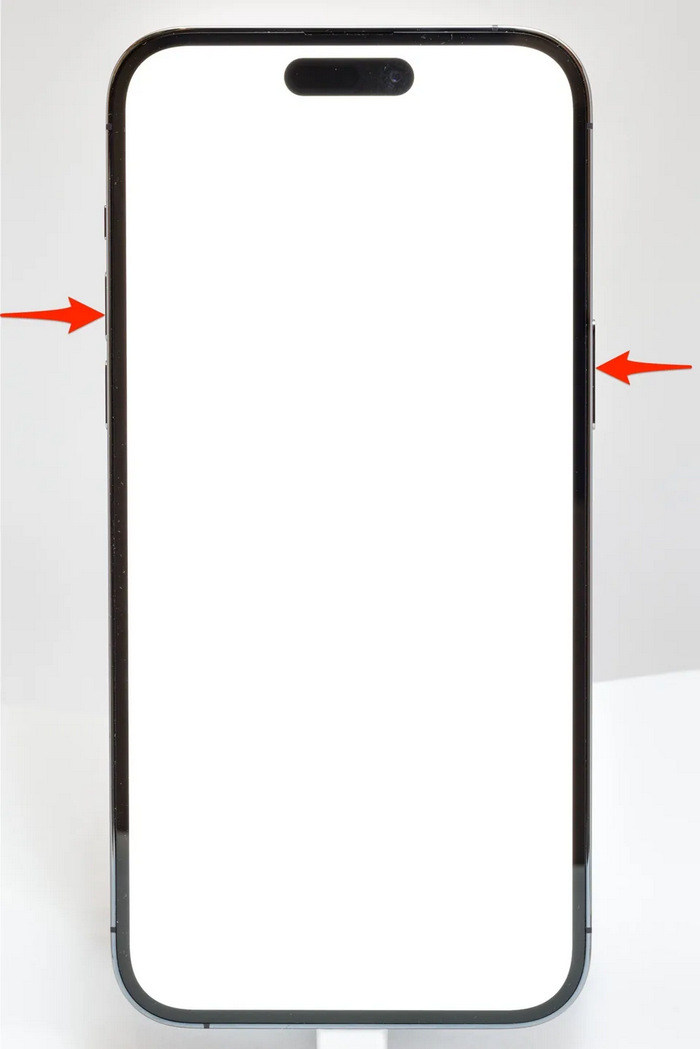
Stap 2. Veeg de schuifknop om je iPhone uit te schakelen.
Stap 3. Druk nu op de zijknop om hem weer in te schakelen.
Voor iPhone 6, 7, 8 en SE
Stap 1. Houd eerst de zijknop ingedrukt.
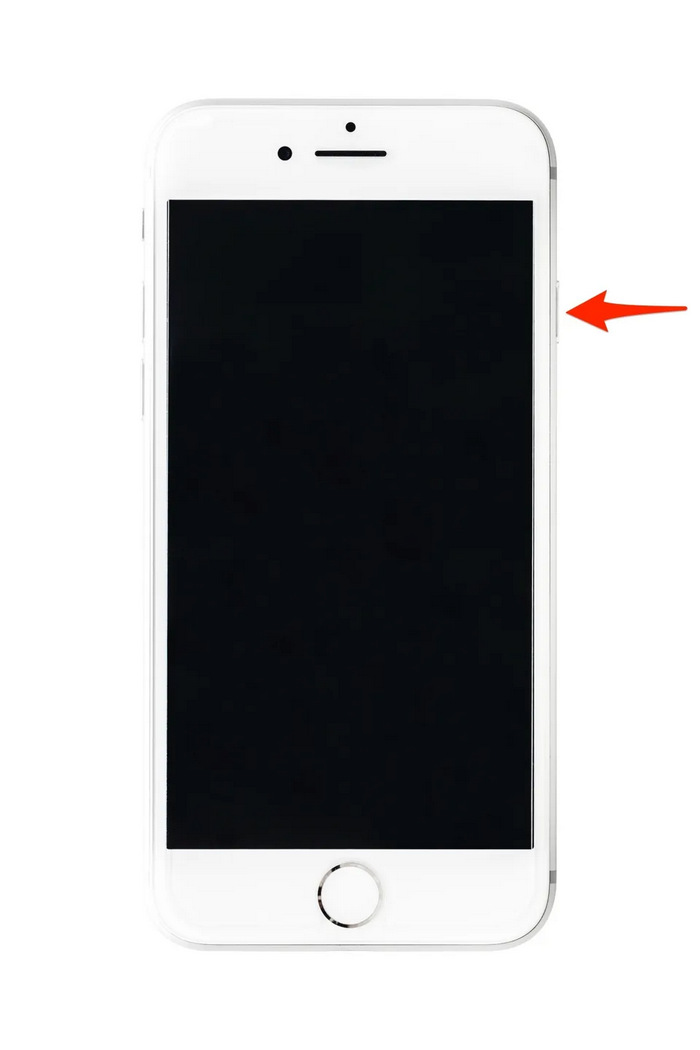
Stap 2. Wacht tot de schuifknop ‘zet uit’ verschijnt en veeg de schuifknop om het apparaat uit te schakelen.
Stap 3. Druk nu op de zijknop om hem weer in te schakelen.
Deze methoden zijn eenvoudig uit te voeren en vereisen geen gebruik van een tool van derden. Dit is echter een zeer basale en veelvoorkomende oplossing, en ze garanderen geen volledige reparatie voor dit iPhone heeft geen geluid op video probleem.
Deel 3. Veelgestelde vragen over Stellar Repair voor video
Welke iPhones ondersteunen Dolby Vision- of DTS-geluid?
iPhones uit de iPhone 12-serie en nieuwer ondersteunen Dolby Vision, wat de videokwaliteit verbetert met betere kleuren en contrast. iPhones ondersteunen echter niet direct DTS-geluid, omdat ze andere audiotechnologieën gebruiken, zoals Dolby Atmos.
Kun je FLAC auan dio op de iPhone afspelen?
Ja, u kunt FLAC-audio afspelen op uw iPhone, maar u hebt hiervoor een app van derden nodig, zoals VLC, of een gespecialiseerde audiospeler, omdat de ingebouwde Muziek-app van de iPhone geen FLAC ondersteunt.
Wordt er geluid afgespeeld bij video's in de stille modus op de iPhone?
Nee, video's spelen geen geluid af als je iPhone in de stille modus staat. Om geluid te horen, moet je de stille modus uitschakelen door de schakelaar aan de zijkant van je iPhone om te zetten.
Gevolgtrekking
De oorzaken van het probleem iPhone heeft geen geluid bij video lopen uiteen, en dat geldt ook voor de oplossingen. Nu je weet hoe je dit kunt verhelpen, laat je dan niet ontmoedigen als je hier in de toekomst opnieuw mee te maken krijgt. Maar als je het probleem nu ervaart, kun je een van de methoden proberen die in dit artikel worden beschreven.
-
 Top 2-methoden om FLV gratis naar iPhone-video te converteren
 Deze concrete gids deelt de twee beste manieren om u te helpen te leren hoe u FLV-bestanden naar iPhone-video of vele andere formaten kunt converteren zonder een cent te betalen.
-
 [Opgelost] Video's repareren die niet op iPhone worden afgespeeld met gedetailleerde stappen
 Lokale video's in de galerij kunnen niet op uw iPhone worden afgespeeld via de standaard videospeler? Online YouTube-video's die niet op de iPhone worden afgespeeld, gebeurt altijd? Hier zijn 5 oplossingen om u te helpen in dit artikel.
-
 Concrete gids voor het uploaden van uw FLV-video's naar YouTube
 Upload FLV naar YouTube maar mislukt? U kunt dit probleem zelf oplossen en FLV converteren naar door YouTube ondersteunde codecs volgens onze stapsgewijze handleiding.
