


 Video Converter Ultimate
 Scherm opnemer
 Videoreparatie
 Beveiligde download
Converteer uw dvd's moeiteloos naar ISO-bestanden [Snelle handleiding]
Dvd's zijn gevoelig voor schade die onherstelbaar kan zijn als ze eenmaal kapot zijn. De reden hiervoor is dat hun oppervlak gevoelig is voor krassen en andere fysieke schokken, die de opgeslagen gegevens kunnen verstoren. Om een back-upbestand te maken, kunt u het beste een ISO-bestand maken.
Een ISO-bestand is een volledige digitale kopie van een dvd, met alle gegevens, menu’s en de volledige bestandsstructuur in één enkel bestand. Gebruikers kunnen zo eenvoudig toegang krijgen tot de inhoud zonder zich zorgen te hoeven maken over fysieke schade die kan leiden tot permanent verlies van de mediacontent. In dit artikel lees je hoe je eenvoudig je dvd’s naar ISO kunt converteren en welk hulpmiddel je daarvoor kunt gebruiken, afhankelijk van het besturingssysteem van je computer.

| DVD naar ISO-converters | Ondersteund platform | Conversiesnelheid | DVD decoderen | Makkelijk te gebruiken | Uitvoerkwaliteit |
| AnyMP4 DVD Ripper | • Ramen • macOS | Erg snel | Ja | Heel gemakkelijk | Uitstekend |
| WinX DVD Ripper Platina | • Ramen • macOS | Snel | Ja | Eenvoudig | Goed |
| Schijfhulpprogramma | • macOS | Nee | Ja | Uitdagend | Goed |
| PowerISO | • Ramen • macOS • Linux | Snel | Ja | Gematigd | Goed |
Deel 1. Beste methode om DVD naar ISO te converteren
De beste methode om een dvd naar ISO te converteren is met AnyMP4 DVD Ripper. Met AnyMP4 DVD Ripper kunt u fysieke dvd's snel en eenvoudig omzetten naar ISO-imagebestanden. Door een exacte digitale kopie van uw dvd te maken, blijft alle originele inhoud behouden, inclusief menu's, ondertitels en audiotracks, en kunt u deze naar wens bewerken.
Belangrijkste kenmerken:
1. Ondersteuning voor meer dan 500 formaten en apparaten, zoals MP4, MKV, MOV, FLV, AVI en meer.
2. Ondersteuning voor alle soorten dvd's, zoals zelfgemaakte, commerciële, dvd's met 99 titels en andere dvd's.
3. Instelbare uitvoerinstellingen zoals de encoder, samplefrequentie, kanaal en bitrate.
4. Ondersteuning voor alle soorten dvd's, inclusief zelfgemaakte, commerciële en dvd's met 99 titels of trainingsvideo's, evenals dvd-ISO's en -mappen.
5. De ingebouwde dvd-toolkit bevat functies zoals bijsnijden, inkorten, watermerken en effecten.
Stappen om een dvd naar video te rippen en vervolgens een ISO te maken:
Stap 1. Installeer en download eerst AnyMP4 DVD Ripper op je computer. Let op: deze software is beschikbaar voor zowel macOS als Windows.
Gratis downloadenVoor Windows 7 of hogerVeilig downloaden
Gratis downloadenVoor macOS 10.7 of hogerVeilig downloaden
Voordat u verdergaat met de volgende stap, moet u de dvd in het dvd-stuurprogramma op uw computer plaatsen en een paar minuten wachten totdat de dvd wordt gedetecteerd.
Stap 2. Vervolgens zal AnyMP4 DVD Ripper je dvd automatisch analyseren. Je kunt op de knop "Output Format" klikken om een uitvoerformaat te kiezen.

Stap 3. Klik op "Rip All" om te beginnen met het converteren van je dvd naar ISO-indelingen.
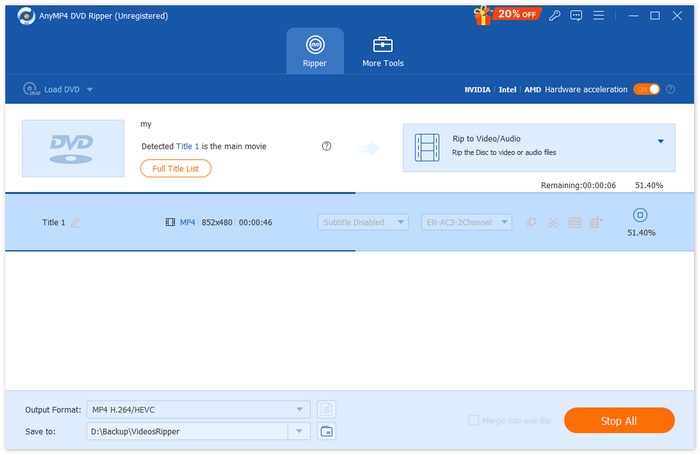
De DVD naar ISO-functie van AnyMP4 DVD Ripper biedt een eenvoudige en betrouwbare manier om exacte digitale kopieën van uw dvd's te maken. Met een eenvoudige interface en snelle verwerking is het een handige oplossing voor iedereen die zijn dvd-collectie veilig wil digitaliseren en beheren.
Deel 2. DVD naar ISO converteren op Windows
Als je Windows gebruikt, is de beste tool om dvd's naar ISO te converteren de WinX DVD Ripper Platinum. Met deze tool kunnen gebruikers media-inhoud van dvd's extraheren en converteren naar ISO-bestanden, zelfs dvd's met kopieerbeveiliging en regiocodes.
Stappen om een dvd naar video te rippen en vervolgens een ISO te maken:
Stap 1. Klik in WinX DVD Ripper Platinum op het pictogram DVD Disc om de dvd te laden waarvan je een ISO-bestand wilt maken.
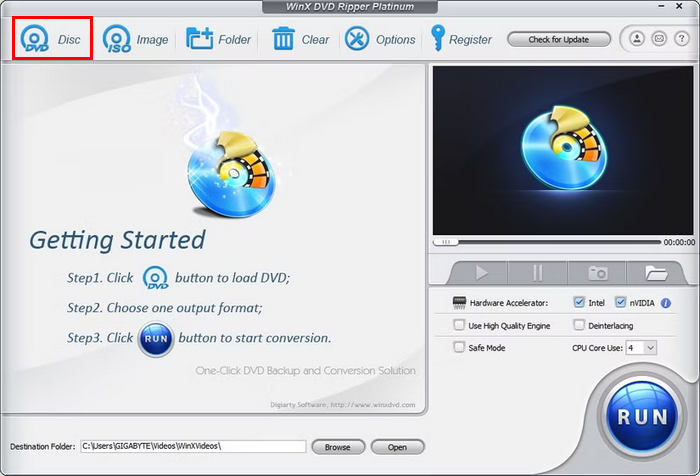
Stap 2. Zodra de dvd-informatie is geladen, verschijnt er een venster Outputprofiel. Selecteer daar het Output Profile, kies vervolgens DVD Backup Profile, klik op DVD Backup en selecteer tot slot Clone DVD to ISO Image.
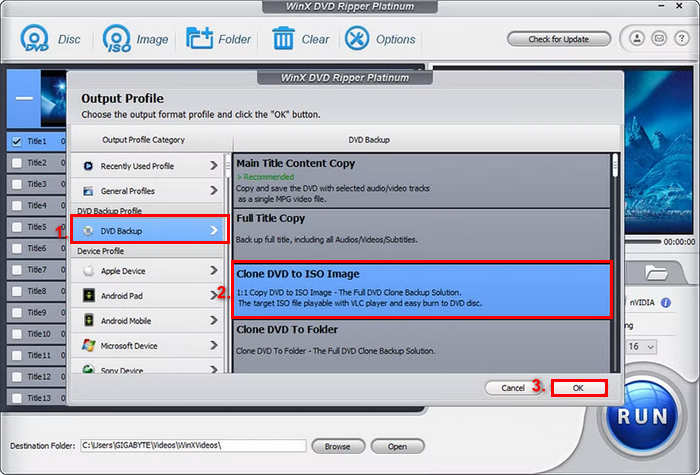
Stap 3. Kies nu de map waarin je het geconverteerde dvd-ISO-imagebestand wilt opslaan. Klik ten slotte op de knop RUN om te beginnen met het rippen van het ISO-image van de dvd.
Hoewel deze tool ISO-bestanden van dvd’s kan maken, kunnen gebruikers zich overweldigd voelen door de interface. Bovendien is een betaald abonnement nodig om optimaal van deze functie te profiteren. Of je kunt een ISO-speler gebruiken om te kijken.
Deel 3. Hoe u een dvd naar een ISO-bestand op een Mac converteert
Als je een Mac gebruikt, is Schijfhulpprogramma de beste keuze om dvd's naar ISO te converteren. Deze tool is een ingebouwde applicatie in macOS waarmee gebruikers opslagapparaten kunnen beheren en schijfkopieën kunnen maken. Een van de functies is het converteren van dvd's naar ISO-bestanden. Hiermee kunnen gebruikers exacte digitale back-ups van hun dvd's maken.
Stappen om een dvd naar ISO te converteren op een Mac:
Stap 1. Plaats op je Mac de dvd in het station en wacht tot deze is geladen.
Stap 2. Open vervolgens Schijfhulpprogramma (Disk Utility) en zoek, zodra dit is geladen, je dvd in de linkerzijbalk en selecteer deze.
Stap 3. Klik nu op het tabblad Archief (File), kies Nieuw image en selecteer Nieuw image van schijfnaam.
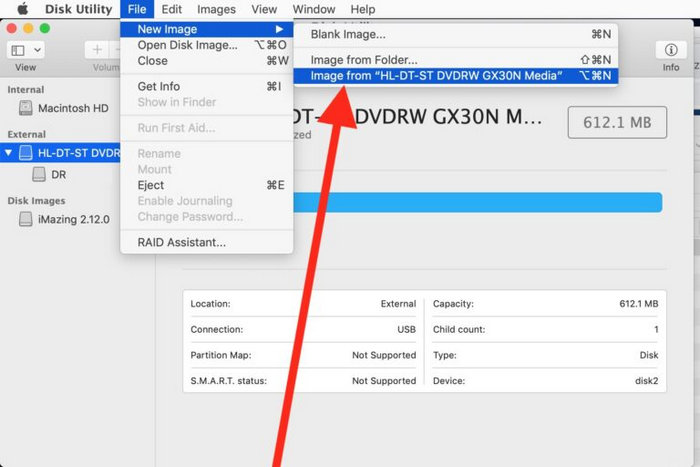
Stap 4. Kies daarna de locatie en naam waaronder je het schijfimage wilt opslaan en klik vervolgens op de knop Bewaar (Save).
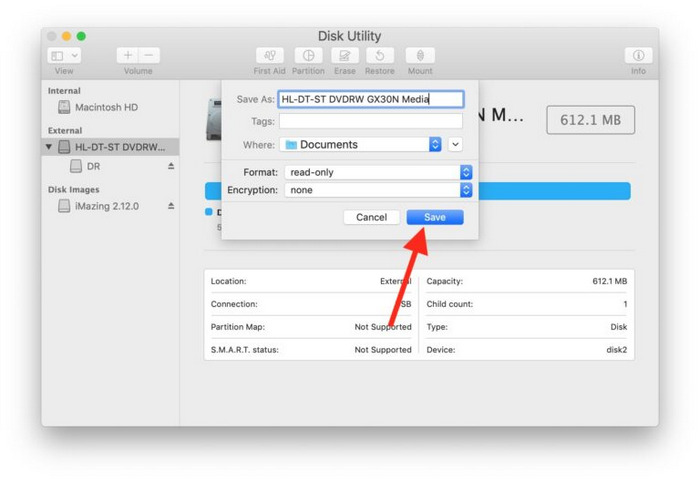
Dit proces op de Mac converteert je dvd naar een DMG-bestand in plaats van een ISO-bestand. Hiervoor moet je de Terminal gebruiken en een specifieke opdracht uitvoeren om het DMG-bestand naar een ISO-bestand te converteren.
Deel 4. DVD naar ISO converteren op Linux
PowerISO is software voor het maken van schijfkopieën en beeldverwerking. Met deze tool kunnen gebruikers eenvoudig dvd's rippen om er een ISO-bestand van te maken. Bovendien ondersteunt de applicatie diverse afbeeldingsformaten, waardoor gebruikers naast het ISO-formaat nog meer opties hebben.
Stappen om een dvd naar ISO te converteren op Linux:
Stap 1. Zorg er eerst voor dat de tool op je apparaat is geïnstalleerd.
Stap 2. Start daarna PowerISO, klik op de knop Copy op de werkbalk en kies vervolgens Make CD / DVD / BD Image File.
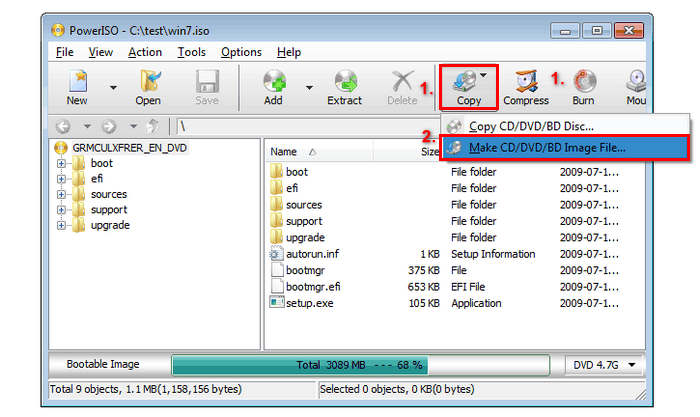
Stap 3. Kies ten slotte het dvd-station met de schijf die je wilt converteren en selecteer ISO als doelbestand. Klik tot slot op OK om een ISO-bestand te maken van de geselecteerde schijf.
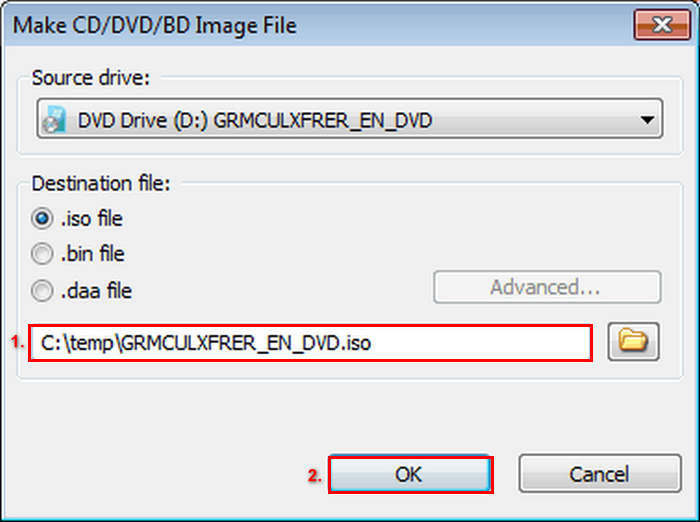
Deze specifieke ISO-bestandsmaker is echt geweldig voor het converteren van je dvd naar ISO. Het proces is heel eenvoudig en de stappen zijn gemakkelijk te volgen. De gratis versie beperkt echter de bestandsgrootte die je kunt maken.
Extra leestip: Kijk hier hoe je een ISO naar MP4 kunt converteren.
Deel 5. Veelgestelde vragen over het converteren van dvd's naar ISO
Wat is een ISO-bestand?
Een ISO-bestand is een complete digitale kopie van een dvd met alle gegevens, menu's en de bestandsstructuur in één bestand. Gebruikers hebben hierdoor toegang tot de content zonder dat ze de fysieke schijf nodig hebben, wat bescherming biedt tegen mogelijke schade.
Kan ik een beveiligde DVD naar ISO converteren?
Ja. Sommige dvd-ripsoftware, zoals WinX DVD Ripper Platinum, kan kopieerbeveiligde dvd's converteren naar ISO-bestanden. Niet alle tools ondersteunen dit echter, dus het is essentieel om software te kiezen die encryptie ondersteunt.
Welk ander formaat, naast ISO, is het beste om DVD's te rippen?
Naast ISO is MP4 een uitstekende keuze voor het rippen van dvd's vanwege de compatibiliteit op meerdere apparaten en de efficiënte compressie. De door FVC gekozen Video Converter Ultimate wordt aanbevolen voor het converteren van dvd's naar MP4, met hoogwaardige uitvoer, batchconversie en bewerkingstools.
Gevolgtrekking
Het converteren van dvd’s naar ISO-bestanden is een effectieve manier om je media te behouden: je beschermt deze tegen mogelijke fysieke schade en houdt de inhoud toch gemakkelijk toegankelijk. Met de methoden die in dit artikel zijn genoemd, kun je eenvoudig ISO-bestanden van dvd’s maken, of je nu macOS, Windows of Linux gebruikt. Kies de beste tool voor jouw besturingssysteem en ga vandaag nog aan de slag, zodat je favoriete dvd’s nog jarenlang veilig en toegankelijk blijven.
-
 DVD naar AVI rippen: 3 beste DVD-rippersoftware [recensie]
 Wilt u uw DVD's rippen naar AVI voor eenvoudiger afspelen en opslaan? Lees onze gedetailleerde review van de beste DVD naar AVI converters om de perfecte tool voor u te vinden.
-
 [Opgelost] VLC speelt geen dvd af, hoe dit te verhelpen
 Kan VLC een dvd afspelen? Waarom speelt VLC mijn dvd niet af? Hoe zorg ik ervoor dat VLC een dvd afspeelt op Windows 10? Dit bericht deelt 3 tips om het probleem met het afspelen van VLC op dvd op te lossen.
-
 Alles wat u moet weten over indelingen van dvd-spelers
 Dit is een gids die de kennis biedt over het dvd-spelerformaat, inclusief hoe u uw bestanden kunt openen met het dvd-spelerformaat en hoe u deze naar andere formaten kunt converteren.
