


 Video Converter Ultimate
 Scherm opnemer
 Videoreparatie
Uitgebreid overzicht van audio-opnamesoftware om effectief audio op te nemen
Of je nu een professional of een hobbyist bent, je hebt beslist audiobewerkingssoftware nodig om audio op te nemen, te bewerken en te verfijnen voor een bepaald gebruik. Daarbovenop komt dat het kiezen van een geschikte audiorecorder op je apparaat lastig kan zijn, omdat er zo veel opties op de markt zijn. In plaats van talloze audiorecordingprogramma’s uit te proberen, presenteren wij vier recorders die wij passend vonden voor jouw behoeften, zodat je geen schadelijke software hoeft te downloaden of te openen. De onderstaande lijst met audiorecorders is zorgvuldig samengesteld, zodat je alleen de beste opties krijgt en niet de slecht presterende recorders.

Deel 1. 4 Beste audio-opnamesoftware op Windows en macOS
1. FVC-schermrecorder
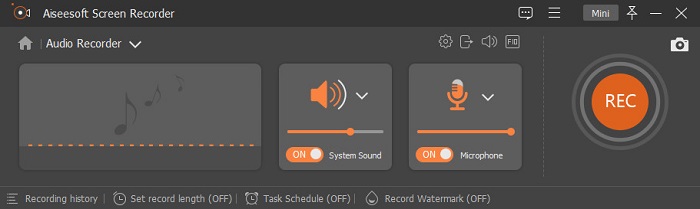
Moet je audio van de computer opnemen maar weet je niet wat je moet gebruiken? In dat geval presenteren we de beste en verreweg meest gekozen recorder op de markt, de FVC Screen Recorder. Het programma heeft een briljante gebruikersinterface waardoor je er eenvoudig mee kunt werken zonder ingewikkelde handelingen. Daarnaast hebben gebruikers vaak last van achtergrondgeluiden; met de nieuwe extra ruisonderdrukking kun je opnemen zonder dat kleine achtergrondgeluiden voor problemen zorgen. Bovendien biedt het meerdere functies die je helpen effectief op te nemen. Wil je weten welke dat zijn? Laten we dan de belangrijkste functies van de FVC Screen Recorder eens doornemen.

Scherm opnemer
4.988.518+ downloads- Het neemt geluiden op met ultrahoge geluidskwaliteit.
- Neem 24/7 audio op zolang u voldoende opslagruimte op uw computerschijf heeft.
- U kunt tegelijkertijd systeemgeluid opnemen met een microfoon.
- Microfoonverbetering is beschikbaar voor een veel betere ervaring bij het opnemen van uw stem.
- U kunt de microfoonaudio controleren als dat nodig is.
Gratis downloadVoor Windows 7 of laterVeilige download
Gratis downloadVoor macOS 10.7 of laterVeilige download
Voordelen
- Het programma laat de gebruikers een zeer opwindende ervaring ervaren om audio op te nemen op Mac of Windows.
- Er zijn basisbewerkingsfuncties beschikbaar, zoals het knippen of bijsnijden van de audio.
- Het heeft een ingebouwde opnamegeschiedenis om de opgenomen audio gemakkelijk te vinden.
Nadelen
- Het biedt geen ondersteuning voor het toevoegen van effecten aan audio tijdens het opnemen.
- Koop voor gebruik.
2. Durf
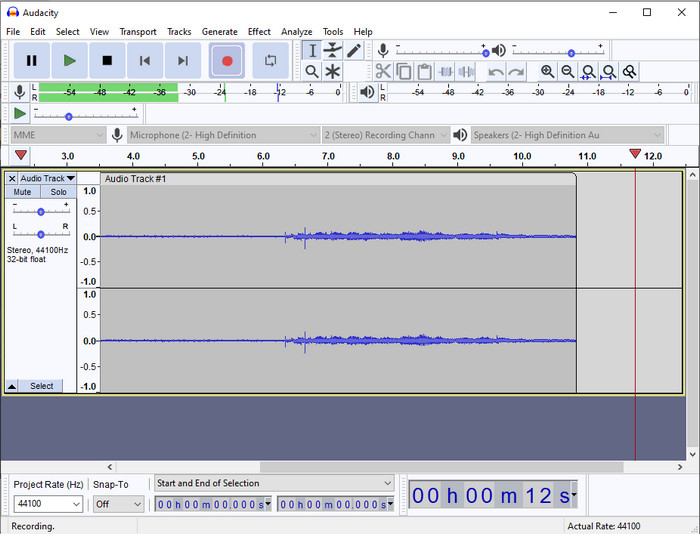
Als je een professionele tool nodig hebt voor je audio-opnames, dan is Audacity een goede hulp. Deze professionele audiorecorder heeft al miljoenen podcasters geholpen bij hun audioprojecten. Als je een geavanceerde recorder nodig hebt die gratis is, dan is dit er één van. Hoewel het professionele opnamemogelijkheden heeft, blijft het lastig om vertrouwd te raken met de tool vanwege de matige grafische interface. En hoewel het zich richt op professioneel opnemen, zijn sommige functies, zoals ruisonderdrukking, nog aan verbetering toe. Desondanks neemt Audacity computeraudio op een professionele manier op, zoals lang niet alle recorders dat kunnen.
Voordelen
- Gratis te downloaden op alle desktopplatforms.
- Het biedt deskundige bewerkingsfuncties voor de pro.
- Het heeft een aantal geavanceerde functies die je nodig hebt om een podcast te maken.
Nadelen
- GUI van de software is verouderd.
- Een upgrade heeft een aantal van zijn functies nodig.
- Niet de beste keuze voor amateurs en degenen die niet weten hoe ze moeten opnemen.
3. QuickTime-speler
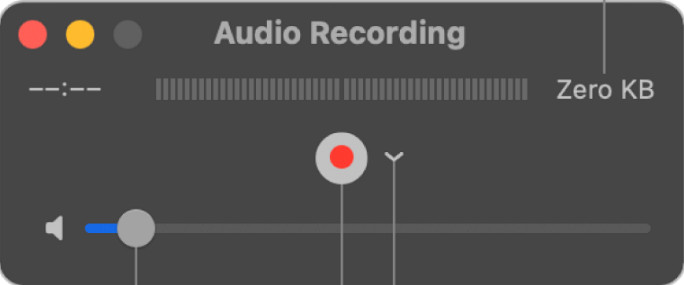
De QuickTime Player kan op de Mac ook als audiorecorder worden gebruikt als je dat nodig hebt. Hoewel de speler niet bijzonder krachtig en efficiënt is voor opnames, kun je vertragingen en mindere geluidskwaliteit in het uiteindelijke audiobestand ervaren. Heb je echter snel een eenvoudige audio-opname op je Mac nodig, dan is dit een optie, omdat je niets hoeft te downloaden en het ongetwijfeld veilig in gebruik is. Maar als je een professional bent die op zoek is naar de beste audiorecordingsoftware, dan is dit niet het ideale hulpmiddel.
Voordelen
- Het is al beschikbaar op elke macOS.
- Gratis, veilig en gemakkelijk te gebruiken.
Nadelen
- Het is niet zo effectief als de andere audiorecorder in deze lijst.
- De uiteindelijke uitvoerkwaliteit van de audio is laag.
- Niet de beste keuze voor professionele opnames en bewerkingen.
Gerelateerd:
Hoe scherm met audio opnemen op een Mac met QuickTime
Hoe QuickTime naar MP4 converteren
4. Ocenaudio
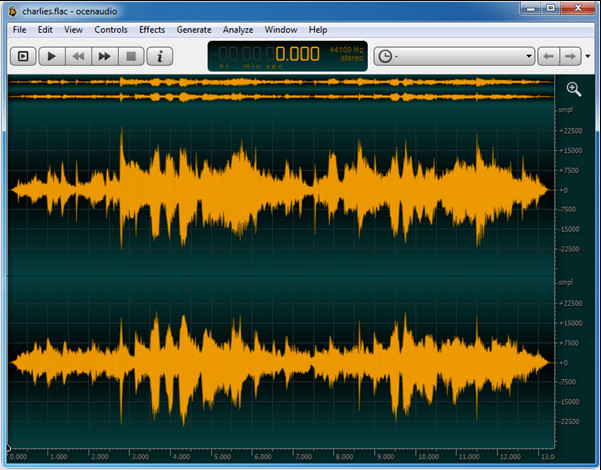
Als je een veelzijdige recorder nodig hebt om audio op te nemen op Windows 10 of hoger, dan is Oceanaudio een goede keuze. Deze tool heeft een interface die sterk lijkt op die van Audacity, maar de GUI is makkelijker te begrijpen. Meer in detail: deze recorder biedt geavanceerde opties en functies die je voor audio-opnames nodig kunt hebben. Hoewel het gebruik enigszins lastig kan zijn en je waarschijnlijk een tutorial moet bekijken, is het de moeite uiteindelijk waard. Dus, als je een editor wilt met een betere interface dan Audacity, dan is dit waarschijnlijk jouw beste optie.
Voordelen
- Het maakt gebruik van geavanceerde technologie voor het opnemen.
- Het is een deskundige keuze om audio-opnames te maken.
- U kunt tijdens het opnemen naar uw stem luisteren.
Nadelen
- Het is niet gebruiksvriendelijk.
- Beginners kunnen in de war raken tijdens het gebruik van deze tool.
Deel 2. Vergelijkingstabel over audiorecordersoftware
| Functies | FVC-schermrecorder | durf | QuickTime-speler | Ocenaudio |
| Systeemgeluid en microfoon opnemen |  | | | |
| Bewerk de opname | | |  | |
| Hardware acceleratie | | | | |
| Realtime voorbeluisteren | | | | |
| Bewaar de originele kwaliteit | | | | |
| Beste gebruikersinterface | | | | |
Deel 3. Veelgestelde vragen over audiorecordersoftware
Is Cinch Audio Recorder de beste audiorecorder?
We hebben onlangs een recensie gemaakt over de Cinch Audio Recorder. Als je dus meer over deze audiorecorder wilt weten, klik dan op deze link en lees meer gedetailleerde informatie over deze recorder.
Wat zijn de eigenschappen van een goede audiorecorder?
U moet de basisnormen kennen voordat u een goede audiorecorder kiest. Ten eerste moet het de audio op uw microfoon op uw gemak kunnen vastleggen. Ten tweede is het veilig en vrij van malware. Ten derde, als u de tool moet kopen, moet de tool zelf uitmuntendheid bieden aan de gebruikers. Ten vierde betekent de werkzaamheid dat de tool zeer effectief moet zijn in een opname. Ten vijfde moeten basis- of geavanceerde functies beschikbaar zijn om de gebruikers te helpen bij het opnemen. Voordat u een audiorecorder kiest om u te helpen, kunt u op deze normen vertrouwen.
Hoe audio opnemen op Windows 10?
Voordat je op Windows 10 gaat opnemen, moet je een goede recorder kiezen, zoals de FVC Video Recorder, door deze op je desktop te downloaden, het programma direct te installeren en te starten. Kies vervolgens de optie Audio Recorder en klik daarop. Je kunt nu eenvoudig het systeemaudio of de microfoon aan je opname toevoegen door ze in de zwevende werkbalk in te schakelen. Zodra je klaar bent om op te nemen, klik je op de ronde rode knop om te beginnen. Moet je de opname beëindigen, klik dan op de vierkante knop om te stoppen; daarna verschijnt er een nieuw venster met een lijst van de audiobestanden die je hebt opgenomen.
Gevolgtrekking
We hebben nu de audiorecordingsoftware besproken die beschikbaar is op je desktop. Al deze tools die we hier hebben gepresenteerd, helpen je bij het opnemen. Ben je echter op zoek naar een recorder die beter presteert dan de andere, dan is de FVC Screen Recorder waarschijnlijk iets voor jou. Twijfel je nog steeds over deze audiorecorder? Dan is hem downloaden de enige manier om te testen of hij inderdaad werkt zoals wij in dit artikel beschrijven.
-
 Top 4 gratis AIFF-geluidsrecorders die audio van hoge kwaliteit produceren
 Dit artikel gaat over AIFF en enkele van de meest populaire tools die u kunt gebruiken om AIFF-indelingen van hoge kwaliteit te produceren.
-
 3 van de beste technieken voor het opnemen van audio op de iPhone
 Ondervindt u problemen omdat u de audio-opname niet goed kunt doen op de iPhone? Lees dan dit artikel om te weten hoe u audio opneemt op de iPhone en wat de beschikbare tools zijn.
-
 7 van de prachtige spraakrecorders toegankelijk op alle platforms
 Wil je leren hoe je audio-opnames maakt? Ga dan naar dit artikel terwijl we het hebben over de beste audiorecorder die bij uw behoeften past.
