


 Video Converter Ultimate
 Scherm opnemer
 Videoreparatie
 Beveiligde download
Zoomopname converteren naar MP4 op Windows- en Mac-computers
Zoom is een platform waarmee je videogesprekken kunt voeren, zoals vergaderingen en online lessen. Normaal gesproken slaat het opnames op in een formaat dat op de meeste apparaten kan worden afgespeeld, zoals MP4. Als je echter per ongeluk de opname te vroeg stopt, kan het bestand vast blijven zitten in het oorspronkelijke formaat van het platform, namelijk .zoom, dat je niet direct kunt openen. Dit gebeurt omdat Zoom geen kans heeft gehad om het bestand automatisch om te zetten naar MP4. Als dit jou overkomt, moet je het Zoom-bestand naar MP4 converteren, op of buiten het platform. Gelukkig zijn er een paar manieren om Zoom dit conversieproces te laten afronden. We laten stap voor stap zien hoe je dit doet met het Zoom‑programma zelf en met een speciale tool die bij Zoom hoort. Als dat voor jou niet werkt, hebben we nog een andere tool vermeld die je in plaats daarvan kunt gebruiken. Laten we dus meteen in de inhoud duiken!

Deel 1. Zijn zoomopnamen in MP4
Eerst en vooral produceert Zoom MP4-opnames, wat de standaardinstelling is. Dit zal echter niet in één keer gebeuren. Wat we bedoelen is dat je onbewerkte beeldmateriaal tijdens de opname nog niet in het MP4-formaat is dat je denkt dat het is. Zoals hierboven vermeld, zijn de beelden van het proces trouwens nog steeds in het .zoom-formaat, het eigen formaat van het platform, en zullen ze pas naar MP4 worden omgezet zodra de opname is voltooid en de conversie is voltooid. Dit geldt vooral als u per ongeluk de opnames stopt.
Deel 2. 3 manieren om zoomopnamen naar MP4 te converteren met zoom
Laten we nu verder gaan met de effectieve tools die u zullen helpen Zoom-opnames naar MP4 te converteren als u er niet over beschikt op het platform.
1. Zoom-client (desktop)
Wist u dat Zoom al uw opnames bijhoudt binnen de desktopclientapplicatie? Je hebt niet alleen eenvoudig toegang tot je opnames, Zoom biedt ook een ingebouwde converter. Dit garandeert afspeelcompatibiliteit op de meeste apparaten. Dus als u niet zeker weet hoe u het moet gebruiken, volgt hier een gedetailleerd overzicht van hoe u uw Zoom-opnamen kunt vinden en converteren naar MP4-formaat.
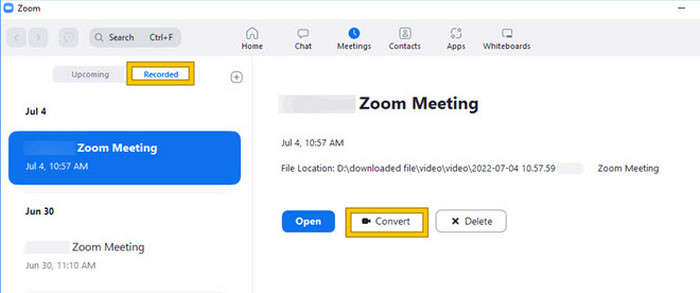
Stap 1. Start Zoom op je desktop en ga direct naar de sectie Meetings om je vergadergeschiedenis te openen.
Stap 2. Zodra deze is geopend, zie je de lijst met je opgenomen vergaderingen. Zoek de opname die je wilt converteren en klik om deze te selecteren.
Stap 3. Na selectie verschijnt er rechts op het scherm een keuzemenu. Klik op de knop Convert en wacht op het uiteindelijke geconverteerde MP4‑bestand.
2. Transcoderen (macOS)
Als u een Mac-gebruiker bent en de automatische opnameconversie van Zoom naar MP4 mislukt, dan is hier een handig hulpmiddel genaamd Transcode om u te helpen. Met deze tool kun je die .zoom handmatig naar MP4-bestanden converteren, die mogelijk niet correct worden afgespeeld vanwege de mislukte automatische conversie. In wezen biedt Transcode een handmatige oplossing voor Mac-gebruikers om ervoor te zorgen dat hun Zoom-opnamen toegankelijk en bruikbaar zijn wanneer het automatische proces niet werkt zoals verwacht.
Stap 1. Zoek je .zoom‑bestand op, dubbelklik erop en kies Choose Application in de melding. Open het bestand vervolgens met de app Transcode, die je ook kunt instellen om altijd voor je bestanden te gebruiken.
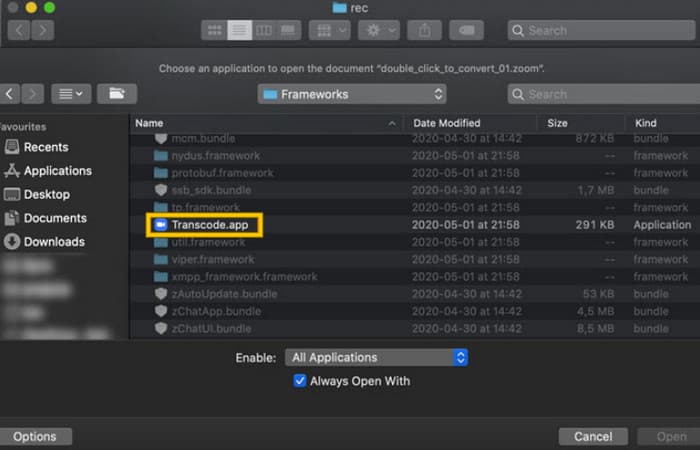
Stap 2. Direct nadat je de app hebt gekozen, wordt het conversieproces automatisch gestart.
Stap 3. Wanneer het conversieproces is voltooid, kies je de gewenste map waarin je het resultaat wilt opslaan.
3. zTcoder (bureaublad)
Als je een tool wilt die lijkt op de vorige voor je desktop, dan raden we zTcoder aan. zTcoder is de Windows-versie van Transcode, het programma waarop Mac-gebruikers vertrouwen voor soortgelijke situaties. Met beide tools kunt u uw Zoom-bestanden handmatig converteren naar het standaard MP4-formaat, dat mogelijk niet correct wordt afgespeeld. Als u nu naar uw bureaublad kijkt, volgt u daarom de onderstaande stappen.
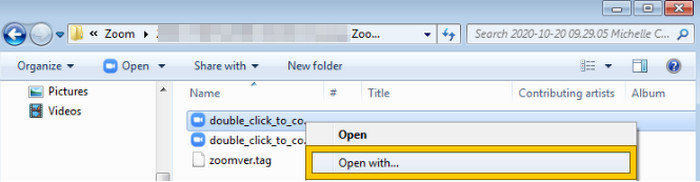
Stap 1. Zoek de map waar je Zoom‑opnamen zijn opgeslagen en kies de opname die je moet converteren. Klik met de rechtermuisknop op het bestand en open het met de zTscoder.
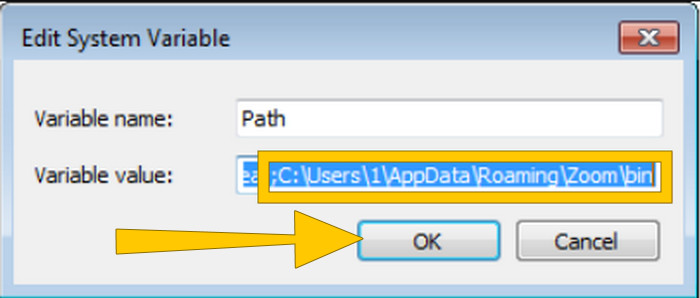
Stap 2. Als de tool niet reageert, kun je naar je Configuratiescherm gaan, naar Systeem en beveiliging > Systeem, en vervolgens Geavanceerde systeeminstellingen openen. Voeg daar C:\Users\*your username*\AppData\Roaming\Zoom\bin toe aan de variabelewaarde en klik daarna op OK.
Stap 3. Zodra het bestand is ingesteld om met de tool te worden geopend, start het conversieproces automatisch.
Deel 3. Neem zoomvergaderingen op in MP4 met maximaal 4K-kwaliteit
Wil je een goede oplossing om je Zoom‑vergaderingen in MP4 te krijgen? Neem ze dan op met FVC Screen Recorder! Deze recorder biedt een veelzijdige oplossing die verder gaat dan alleen Zoom‑vergaderingen. Met deze tool kun je je online lessen, conferenties, tutorials of alles wat er op je Zoom‑scherm gebeurt opnemen. Bovendien heb je de flexibiliteit om je volledige scherm of slechts een specifiek venster op te nemen, aangezien er instellingen voor beide opties zijn. Hij kan ook microfoongeluid, systeemaudio en zelfs je webcambeeld vastleggen, zolang je de instellingen van tevoren goed instelt. Deze software is compatibel met zowel Mac‑ als Windows‑computers en laat je je opnamen opslaan in hoogwaardige formaten, tot en met 4K‑resolutie. Een andere opmerkelijke reden om FVC te waarderen, is dat het nog een stap verder gaat met annotatietools waarmee je belangrijke punten tijdens je opname kunt markeren. Hieronder lees je hoe je Zoom‑opnamen naar MP4 converteert.
Stap 1. Installeer de recorder op je desktop. Je kunt hiervoor op de onderstaande Download‑knop klikken. Terwijl je met de installatie bezig bent, open je de Zoom‑vergadering die je in MP4 wilt opnemen.
Gratis downloadVoor Windows 7 of laterVeilige download
Gratis downloadVoor macOS 10.7 of laterVeilige download
Stap 2. Start de converter en klik op de tool Video Recorder. Vervolgens moet je de schermweergave zo instellen dat de volledige Zoom‑vergaderinterface wordt opgenomen. Je kunt ook het systeemgeluid en de microfoon instellen als je dat wilt.
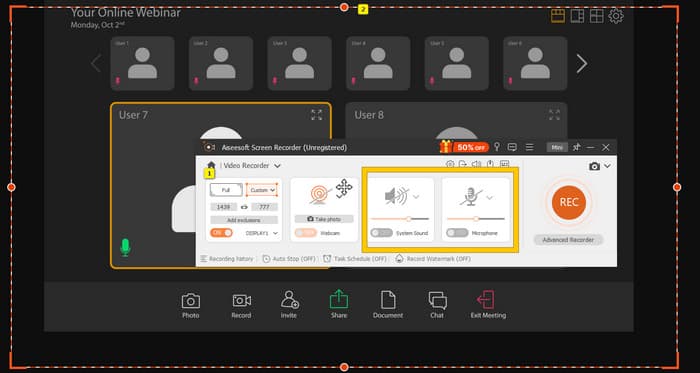
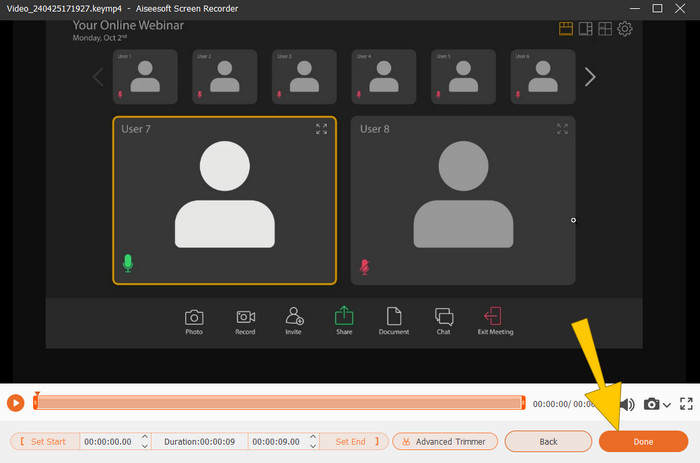
Stap 3. Klik daarna op de knop REC om de opname te starten. Wanneer de vergadering is afgelopen, klik je op de knop Stop op de zwevende werkbalk. Pas vervolgens eventueel kleine instellingen aan in het nieuwe venster. Anders klik je op de knop DONE om door te gaan met het opslaan van de opname.
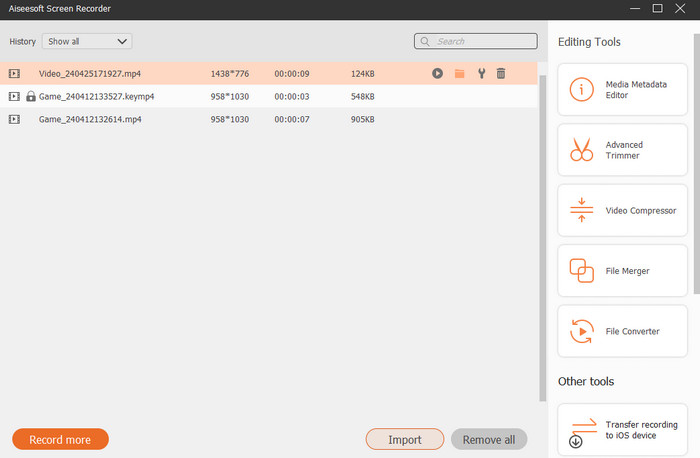
Stap 4. Voor meer bewerkingsopties brengt de tool je naar de bibliotheek, waar je de lijst met je opnamen ziet. De bewerkingstools die je vrij kunt gebruiken, zijn daar ook beschikbaar.
Uitgebreide leestips:
6 geweldige MP4‑recordertools van 2024 [Gratis & Premium]
Top 5 Zoom Meeting Recorders om vergaderingen op Zoom op te nemen [2024]
Deel 4. Veelgestelde vragen over conversie van zoomopnames
Zijn zoomopnamen MP4?
Ja. Het is echter mogelijk dat de opnames niet in MP4 zijn als ze per ongeluk zijn gestopt.
Is er een limiet aan de duur van de opnames die ik naar MP4 kan converteren?
Het hangt er van af. Gratis accounts kunnen beperkingen hebben op het gebied van opslagruimte en conversie-opties, terwijl betaalde abonnementen doorgaans meer flexibiliteit en hogere limieten bieden.
Hoe kan ik een zoomopname naar MP4 converteren?
U kunt een Zoom-opname naar MP4 converteren met de Zoom-client, omdat deze een ingebouwde conversiefunctie heeft. Wanneer u de opname opent, hoeft u alleen maar op de knop Converteren te klikken.
Gevolgtrekking
Standaard worden Zoom‑vergaderingen opgeslagen in MP4, maar als de opnamen niet goed zijn opgeslagen, moet je de Zoom‑opnamen alsnog naar MP4 converteren. Gelukkig worden in dit artikel effectieve manieren beschreven om de conversie uit te voeren. Hopelijk vind je dit nuttig.
-
 7 van de prachtige spraakrecorders toegankelijk op alle platforms
 Wil je leren hoe je audio-opnames maakt? Ga dan naar dit artikel terwijl we het hebben over de beste audiorecorder die bij uw behoeften past.
-
 CamStudio 2025 Review: Voor- en nadelen van het gebruik van CamStudio
 CamStudio is een fantastisch gratis en open-source programma voor het vastleggen van schermen voor het opnemen van uw schermweergave. Is de CamStudio-schermrecorder veilig? Welnu, deze recensie zal je helpen alle functies van CamStudio te ontdekken.
-
 Haalbare manieren om audio op te nemen met VLC Player
 Leer de beste manieren om audio op te nemen met VLC-speler en andere praktische hulpmiddelen door het artikel te lezen.
