


 Video Converter Ultimate
 Scherm opnemer
 Videoreparatie
 Beveiligde download
Hoe MP4 op iPhone op te nemen: instellingen en beste oplossingen om te ontdekken
Neemt de iPhone op in MP4? Meestal nemen iPhones video’s op in MOV-indeling, wat doorgaans prima werkt. Maar als je deze iPhone‑video’s wilt delen met apparaten die MOV niet ondersteunen, loop je al snel tegen problemen aan. Daarom is het, of je nu video’s bekijkt, opneemt of bewerkt op je iPhone, belangrijk om de video-indelingen te begrijpen. Dit inzicht helpt je afspeelproblemen te voorkomen door het juiste bestandstype en de juiste codecs te gebruiken. In dit artikel laat ik je daarom drie eenvoudige manieren zien om video’s in MP4 op je iPhone op te nemen, zodat de video’s compatibel zijn voor weergave en bewerking.

Deel 1. Neemt de iPhone video's op in MP4?
Veel mensen, vooral niet-iPhone-gebruikers, vragen zich af of een iPhone opneemt in MP4-formaat. Om dat snel te beantwoorden, kunnen iPhones video's in twee formaten opnemen. Maar dit is nog steeds afhankelijk van de instellingen. De standaardoptie is MOV, een veelgebruikt formaat voor Apple-apparaten dat op sommige apparaten goed afspeelt. iPhones bieden echter ook een ruimtebesparende optie, genaamd High Efficiency of HEVC. Deze gebruikt een ander formaat, maar je kunt die opnames nog steeds rechtstreeks op je iPhone bekijken.
Wat schermopname betreft: de ingebouwde schermrecorder van de iPhone slaat alleen opnames op in MOV-formaat. Als u dus MP4-opnamen nodig heeft en u deze MP4-video's rechtstreeks op uw iPhone wilt bewerken, zult u vanwege beperkingen in de App Store uw toevlucht moeten nemen tot een professionele schermrecorder of bewerkingssoftware op uw computer.
Deel 2. Hoe MP4 op iPhone op te nemen zonder conversie
In aansluiting op het opnemen van video in MP4 op een iPhone is er een professionele software genaamd FVC Screen Recorder die je helpt om alles op je iPhone-scherm op te nemen, ook video’s, en daar een MP4‑bestand van te maken. FVC Screen Recorder heeft verschillende opnamefuncties, waaronder eentje speciaal voor je iPhone. Het programma spiegelt je telefoonscherm en neemt vervolgens alles daarop op, inclusief het systeemgeluid. Wat het bijzonder maakt, is dat het annotatietools biedt waarmee je je opnamen kunt personaliseren. Met deze FVC Screen Recorder hoef je je iPhone‑video’s dus niet eerst te converteren om een goede MP4‑videokwaliteit te krijgen. Het enige wat je hoeft te doen is de onderstaande handleiding voor het opnemen van MP4 op een iPhone te volgen, en je bent klaar.
Stap 1. Het eerste wat je moet doen, is de recorder voor je computer downloaden. Je kunt hem voor een desktop-pc of Mac downloaden door op de onderstaande Download-knoppen te klikken. Tip: je kunt je iPhone alvast klaarmaken en verbinden met hetzelfde WLAN als waarop je computer is aangesloten.
Gratis downloadenVoor Windows 7 of laterVeilige download
Gratis downloadenVoor macOS 10.7 of laterVeilige download
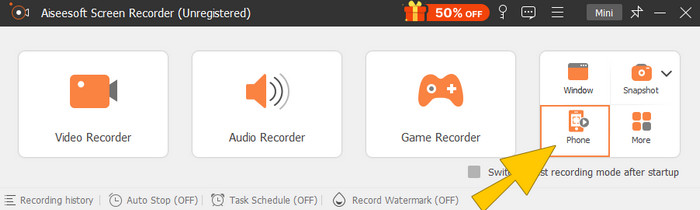
Stap 2. Start de screen recorder en klik op de opnamefunctie Telefoon. Kies daarna de optie iOS. Ga naar je Bedieningspaneel, tik op de functie Schermspiegeling (Screen Mirroring) en kies daar de optie Screen Recorder. Hiermee worden je twee apparaten met elkaar verbonden om de opname te starten.
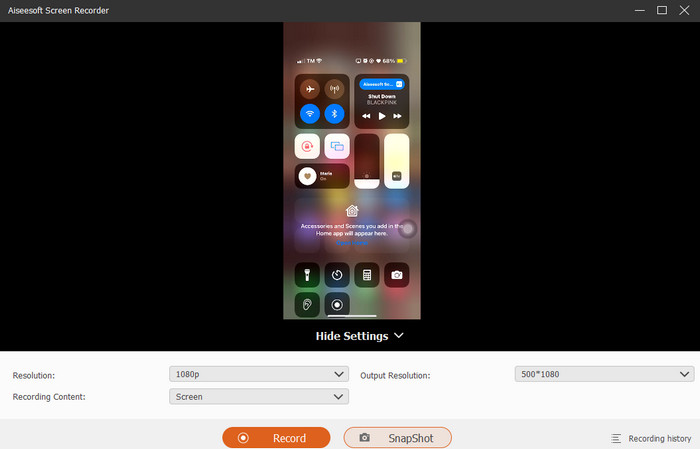
Stap 3. Als de verbinding tot stand is gebracht, kun je op de knop Opnemen klikken. Klik vervolgens op de knop Stop als je klaar bent.
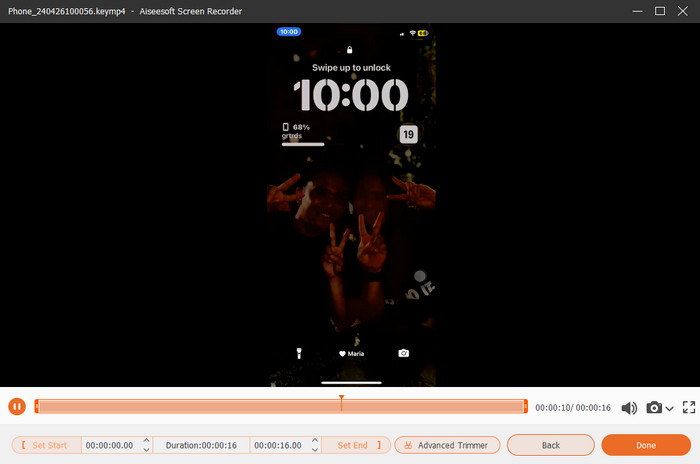
Stap 4. Na de opname brengt de tool je naar de opslagsectie, waar je de ruwe opname kunt bewerken. De bewerkingen omvatten het aanpassen van het geluidsvolume, trimmen en het maken van schermafbeeldingen. Of klik op de knop Gereed om de opgenomen MP4 op te slaan.
Deel 3. Hoe MP4 op te nemen via iPhone-instellingen
Normaal gesproken worden de video's die u met uw iPhone maakt, niet opgeslagen als MP4-bestanden. Als je ze echter in MP4-formaat wilt, moet je de instellingen aanpassen, wat waarschijnlijk de eenvoudigste manier is om dit te doen. Maar wacht, het is belangrijk op te merken dat het overschakelen naar MP4 veel opslagruimte op je telefoon kan in beslag nemen. Overweeg dus, voordat u de instellingen aanpast, of het de moeite waard is om te proberen. Bekijk anders de onderstaande stappen.
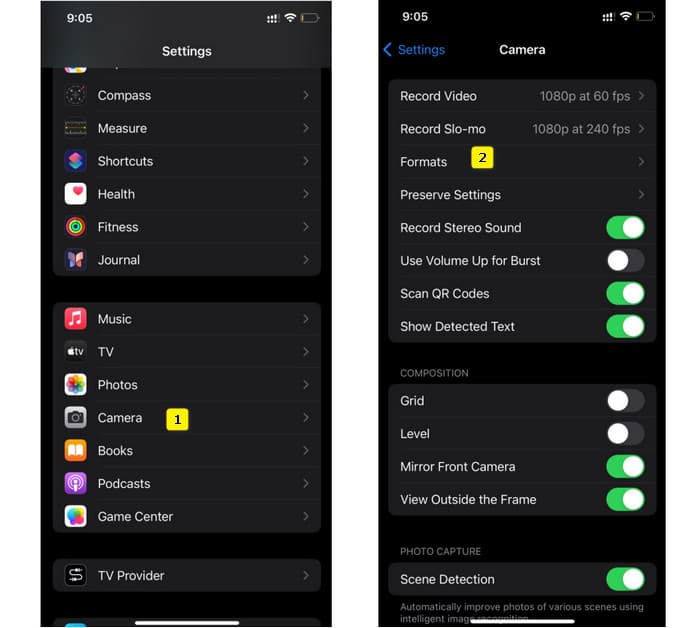
Stap 1. Ga naar de app Instellingen op je telefoon en zoek de Camera‑app, tik erop om deze te openen.
Stap 2. Ga nu naar de sectie Indeling en tik erop. Stel deze daarna in op de optie Meest compatibel om standaard MP4 te gebruiken.
Stap 3. Daarna kun je beginnen met opnemen op je iPhone met behulp van de ingebouwde schermrecorder.
Deel 4. Converteer iPhone-opnames gratis naar MP4 online
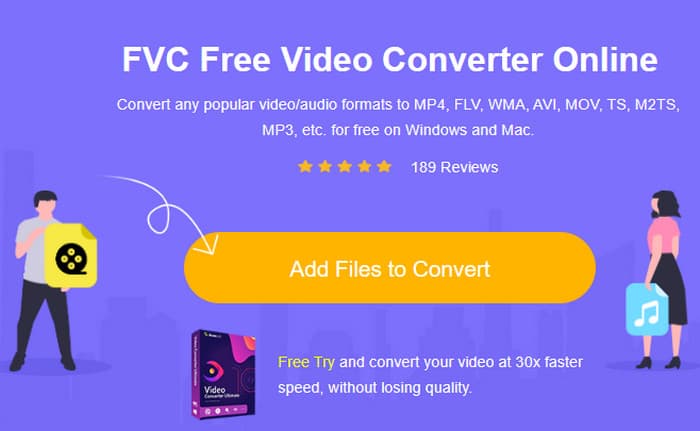
Geef het maar toe: als opnemen in MP4 niet jouw ding is, is je laatste redmiddel conversie. In dat geval kun je een gratis online converter gebruiken om sneller en makkelijker met je video aan de slag te gaan. Maak kennis met FVC Free Video Converter Online, een gratis programma waarmee je je video’s en muziek naar verschillende formaten kunt converteren. Het werkt met populaire video- en audiobestanden en kan deze omzetten naar formaten als MP4, FLV, AVI, WMV, MOV, MKV en nog veel meer. Zelfs high‑definition video’s kunnen snel worden geconverteerd zonder kwaliteitsverlies! Je kunt ook meerdere video’s tegelijk omzetten, zodat je tijd bespaart bij het converteren. Nog handiger is dat je de geconverteerde bestanden niet stuk voor stuk hoeft te downloaden: je kiest gewoon één bestandslocatie waar al je uitvoerbestanden direct worden opgeslagen! Laten we deze geweldige tool dus proberen en je iPhone‑video’s snel converteren!
Stap 1. Bezoek op de browser van je computer de officiële website van de tool. Klik vervolgens op de knop Bestanden toevoegen om te converteren om de launcher te downloaden. Klik, zodra deze is binnengehaald, nogmaals op de knop om je iPhone‑video’s te uploaden.
Stap 2. Zodra je in de hoofdinterface bent en meer iPhone‑video’s wilt toevoegen om te converteren, klik je op de knop Bestand toevoegen. Stel de bestanden vervolgens in op MP4 door erop te klikken en onderaan het formaat te selecteren.
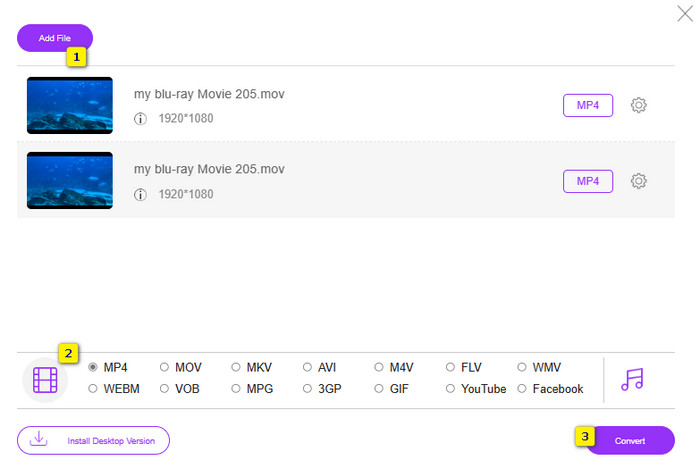
Stap 3. Als je klaar bent, klik je op de knop Converteren en kies je je bestandslocatie. Direct nadat je hebt gekozen, begint het conversieproces.
Met de bovenstaande stappen kun je iPhone‑MOV‑video’s gratis naar MP4 converteren.
Deel 5. Veelgestelde vragen over iPhone MP4-video-opnamen
Kan ik MP4-video's bewerken die op mijn iPhone zijn opgenomen?
Ja, je kunt de MP4-video's op je iPhone bewerken. Gebruik hiervoor verschillende videobewerkingsapps die beschikbaar zijn in uw App Store. Anders kunt u de video's naar uw computer overbrengen en ze bewerken met professionele videobewerkingssoftware.
Hoe kan ik MP4-video's van mijn iPhone naar een pc overbrengen?
Er zijn verschillende methoden die u kunt gebruiken om uw video's van iPhone naar pc over te zetten. U kunt een USB-kabel gebruiken, de video's uploaden naar cloudopslag of software gebruiken waarmee u ze kunt overbrengen.
Welke videokwaliteit en resolutie neemt de iPhone op in MP4?
Dit is afhankelijk van het model van uw iPhone. iPhones nemen meestal video op in MP4-formaat met verschillende resoluties en kwaliteitsopties. De opties variëren van standaarddefinitie tot hoge definitie en zelfs 4K op nieuwere modellen.
Gevolgtrekking
Dat zijn de methoden die u advies geven over hoe u eenvoudig MP4 op uw iPhone kunt opnemen. Kies wat het beste bij je past en deel het ook met je vrienden!
-
 Hoe MP4 naar MOV op Mac / pc / online te converteren
 Hoe MP4 naar MOV op Mac te converteren? Is er een gratis manier om MP4 naar MOV te converteren zonder kwaliteitsverlies? Dit bericht deelt 4 eenvoudige manieren om u te helpen bij het maken van de videoconversie van MP4 naar MOV op Mac, Windows-pc en online.
-
 Tutorial - 4 gratis manieren om video's op de iPhone samen te voegen tot een nieuwe
 Wil je video's combineren tot één op je iPhone? Lees en ontvang 4 eenvoudige manieren waarbij alle iPhone-modellen en iOS-versies worden ondersteund.
-
 [Opgelost] Video's repareren die niet op iPhone worden afgespeeld met gedetailleerde stappen
 Lokale video's in de galerij kunnen niet op uw iPhone worden afgespeeld via de standaard videospeler? Online YouTube-video's die niet op de iPhone worden afgespeeld, gebeurt altijd? Hier zijn 5 oplossingen om u te helpen in dit artikel.
