


 Video Converter Ultimate
 Scherm opnemer
 Videoreparatie
Leer opnemen op Minecraft met de beste hulpmiddelen voor schermopname
Iedereen die graag games speelt op de computer kent Minecraft. Door zijn enorme populariteit heeft het al veel streamers beïnvloed om deze game te streamen. En de meesten van hen hebben een epische highlight die hen beroemd heeft gemaakt. Zoals de boat clutch van Dream: velen van ons hebben het al talloze keren geprobeerd, maar zijn mislukt. Na het eindeloos proberen lukt het je nu eindelijk, maar er is niemand die je clutch ziet. De beste manier om je eigen Dream‑boat‑clutch te delen is daarom om hem op te nemen. Daarom presenteren we je hier verschillende tools die je kunt gebruiken om te leren hoe je Minecraft kunt opnemen. Door dit artikel verder te lezen ontdek je de beste opnamesoftware die je online kunt vinden.

Deel 1. Minecraft opnemen met een online tool
FVC gratis schermrecorder
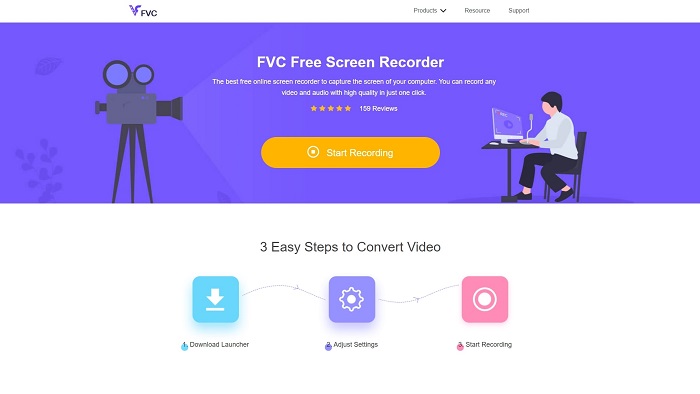
Wil je online leren hoe je een Minecraft‑video opneemt? Lees dan verder en probeer deze tool. De FVC Screen Recorder heeft geen verborgen kosten. Bovendien bevat de webtool geen vervelende of opdringerige advertenties. Daarnaast kun je hier zonder limiet opnemen. Hoewel de tool klaar lijkt voor schermopname, heeft de online versie geen speciale gameplay‑modus. Maar je kunt deze tool nog steeds gebruiken zolang je internet hebt. Volg dus beslist de onderstaande stappen om te weten hoe je deze tool gebruikt.
Stap 1. Klik eerst op deze link om de tool te openen.
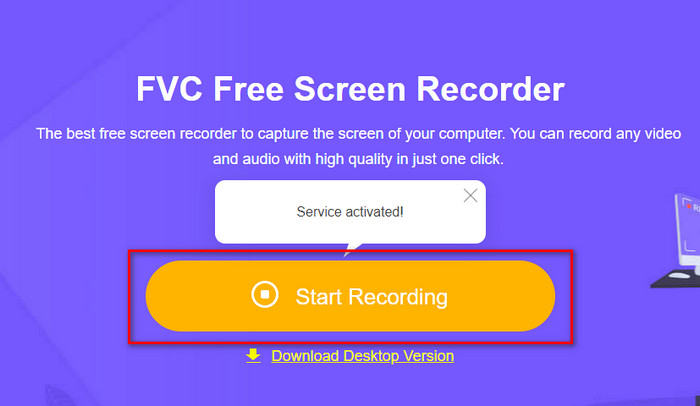
Stap 2. Klik op Start Recording, download de launcher als het je eerste keer is en installeer hem. Klik daarna opnieuw op Start Recording om de tool nu echt te starten.
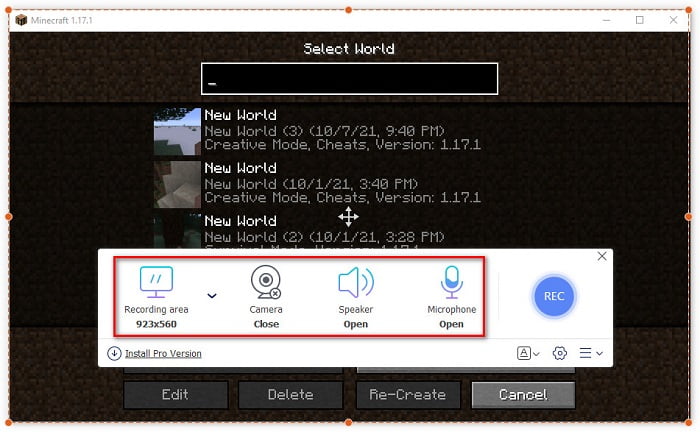
Stap 3. Pas de beeldverhouding van je scherm aan en zet vervolgens je Camera aan om je reactie toe te voegen, de Speaker om het geluid van de game op te nemen en de Microphone om je stem toe te voegen.
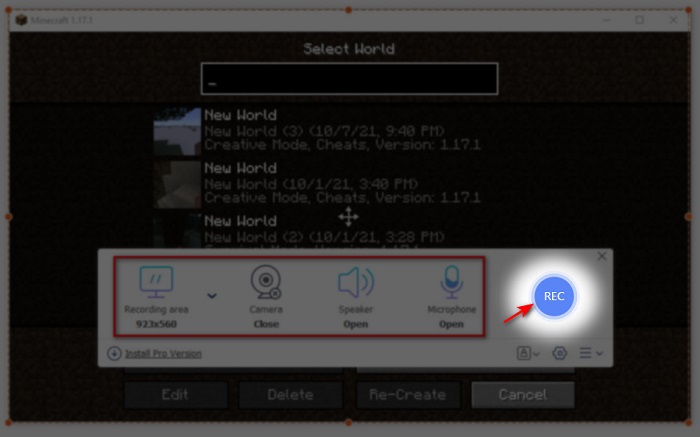
Stap 4. Klik dan op de knop REC om met opnemen te beginnen.
Stap 5. Klik op de vierkante knop om de opname te beëindigen en klik vervolgens op het eerste bestand in de Recording List om de clutch terug te kijken voordat je hem verstuurt of uploadt.
Deel 2. Minecraft opnemen met de 2 beste offline tools voor recorders
1e. FVC-schermrecorder
Wil je elk moment vastleggen van de stunts die je in Minecraft uitvoert? Dan is FVC Screen Recorder de beste keuze voor jou. Deze tool is qua algehele prestaties en gebruiksvriendelijkheid beter dan zowel de online versie als OBS. De tool ondersteunt een Game Recorder‑functie waarmee je je gameplay zo snel en soepel mogelijk kunt opnemen. Ook kun je de sneltoetsen instellen en aanpassen om de tool makkelijker te bedienen. Je kunt non‑stop opnemen, zelfs als het 24/7 doorgaat. Volg de stappen hieronder zorgvuldig om te leren hoe je Minecraft op Windows 10 of Mac kunt opnemen.
Stap 1. Download en installeer de software op je schijf. Voer vervolgens snel de basisinstellingen uit en klik op Finish om deze instellingen op te slaan.
Gratis downloadenVoor Windows 7 of nieuwerVeilig downloaden
Gratis downloadenVoor macOS 10.7 of nieuwerVeilig downloaden
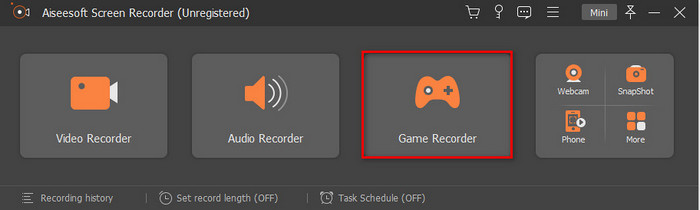
Stap 2. Klik op Game Recorder en geef de tool toestemming om als administrator te draaien, klik daarna op OK. Klik opnieuw op Game Recorder om verder te gaan.
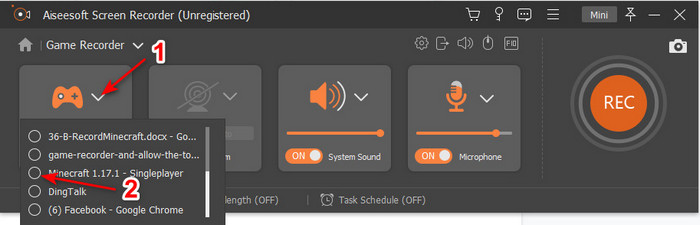
Stap 3. Start eerst Minecraft en wacht tot het volledig is geladen. Klik op Select Game en kies Minecraft.
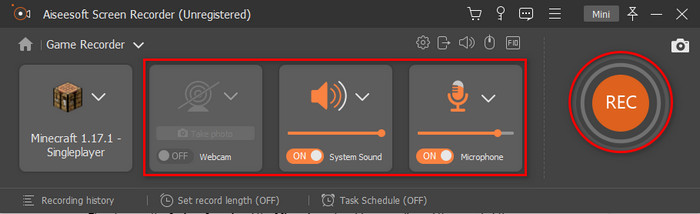
Stap 4. Zet voordat je begint met opnemen de Webcam aan om je reactie toe te voegen tijdens het opnemen. Zet vervolgens System Sound en de Microphone aan om zowel je eigen audio als het geluid van de game op te nemen. Klik op de knop REC om de opname te starten; de game wordt dan automatisch op je scherm weergegeven. Nu kun je de epische stunts uitvoeren die je wilt vastleggen.
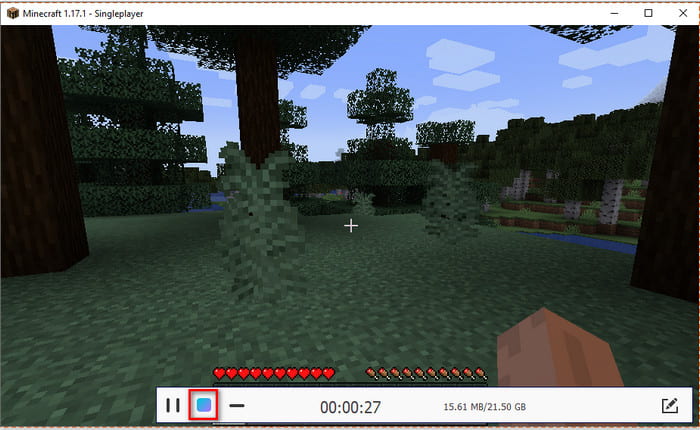
Stap 5. Als je de opname wilt beëindigen, klik je op de kubus‑knop om te stoppen. Klik op Save en Next om verder te gaan met het opslaan van de video. Het venster History verschijnt op je scherm; klik op het eerste bestand om je epische stunts terug te kijken en ze later te delen.
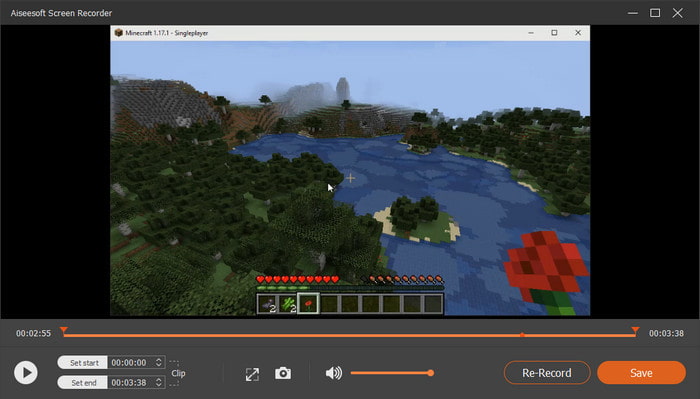
2e. OBS
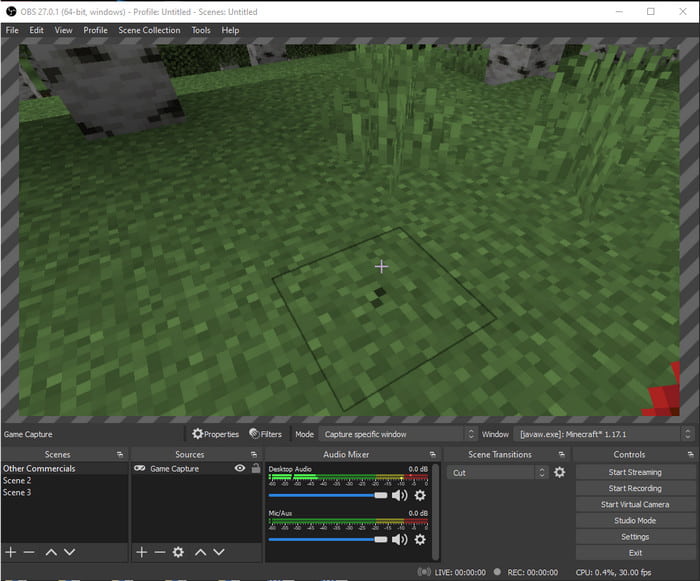
OBS staat erom bekend een van de ingewikkeldere tools te zijn die veel gebruikers gebruiken. Maar ondanks dat het lastig is in het gebruik, levert het altijd uitstekende kwaliteit. Wil je leren hoe je Minecraft met OBS opneemt, zorg er dan voor dat je ruim de tijd hebt. Deze tool is namelijk een stuk complexer dan hij lijkt. Als je geen idee hebt hoe je ermee moet werken, volg dan de onderstaande stappen.
Stap 1. Download eerst OBS naar je schijf.
Stap 2. Open vervolgens eerst Minecraft, ga naar het paneel Source en klik op Game Capture. Wijzig de modus in Capture Specific Window, klik daarna op de drop‑down‑knop bij Window en kies de bestandsnaam van Minecraft. Klik vervolgens op OK om verder te gaan.
Stap 3. Klik op Start Recording om de opname te starten. Om te stoppen klik je op Stop Recording; de schermopname wordt dan automatisch op je opslagmedium opgeslagen.
Deel 3. Veelgestelde vragen over het opnemen van Minecraft
Wat zijn momenteel de populaire games op pc?
Er zijn veel populaire games op pc, maar dit zijn de eerste 5 games die altijd bovenaan elke recensie staan. De eerste is de Minecraft gepubliceerd door Mojang in 2011, de volgende op de lijst is de League of Legend of bekend als LOL gecreëerd door de Riot Games in 2009, Counter Strike Global ontwikkeld door Valve Corporation in 2012, Grand Theft Auto Five gepubliceerd door de Rockstar Games en ontwikkeld door de Rockstar North in 2013, en tot slot is de Valorant gemaakt door de Riot Games in 2020.
Is Bandicam de beste tool om de opname te doen?
Veel mensen hebben een verschillende mening over Bandicam, maar laten we bekijken en beoordelen of deze tool de moeite waard is om te gebruiken. Wil je meer weten over Bandicam, klik dan op deze link om naar het nieuwe artikel te gaan dat over Bandicam gaat.
Hoe upload je een video met een groot bestand op YouTube?
Omdat YouTube bekendstaat als een videodeelplatform, proberen veel gebruikers er video’s op te uploaden. Maar wanneer we een video met een groot bestandformaat uploaden, kost dat veel tijd. De beste manier om toch snel te kunnen posten, is daarom de video te comprimeren zonder kwaliteitsverlies. Ontdek hoe je een videobestand comprimeert en het eenvoudig op YouTube plaatst.
Gevolgtrekking
Om deze uitleg af te ronden: het is nu een stuk eenvoudiger voor je om te begrijpen hoe je Minecraft op de pc opneemt. Misschien heb je inmiddels al een schermrecorder gekozen, maar om er nog één aan toe te voegen: de FVC Screen Recorder is de juiste keuze. Je kunt deze tool namelijk heel eenvoudig bedienen, zelfs als beginner. Leren werken met deze onovertroffen schermrecorder is helemaal niet moeilijk. Zorg er dus voor dat je deze software al hebt gedownload voordat je begint met het opnemen van je Dream‑boat‑clutch.
Gratis downloadenVoor Windows 7 of nieuwerVeilig downloaden
Gratis downloadenVoor macOS 10.7 of nieuwerVeilig downloaden
-
 Beste XviD-schermrecorder voor starter in 2021 [Online & Offline]
 XviD staat bekend om het comprimeren van videobestanden. Het is open-source software die het ISO MPEG-4-formaat uitvoert. Ga verder om te lezen en meer in detail te treden.
-
 [Go-To-Guide] Blu-ray opnemen in OBS Studio en alternatieve tools
 Weet hoe u Blu-ray opneemt in OBS-studio en andere alternatieven met deze handige eenvoudige stappen en tips. Lees verder en laten we in details duiken.
-
 Proces om dvd's te rippen en op te nemen met VLC om het afspeelbare formaat te digitaliseren
 VLC ondersteunt tal van gecomprimeerde audio-videobestandsindelingen, waaronder opnemen op dvd's. Houd de bal aan het rollen voor meer discussie en details tot het einde.
