


 Video Converter Ultimate
 Scherm opnemer
 Videoreparatie
 Beveiligde download
Web Launch Recorder - 4 gratis manieren om activiteiten op het scherm vast te leggen zonder te downloaden
Is er een gemakkelijke manier om video's, zoals populaire gamevideo's, video-oproeplogboeken, conferentievideo's op te nemen en op te slaan als uw verzameling? Gratis webstartrecorders zijn altijd de eerste keuze om schermvideo's vast te leggen, dit zijn webgebaseerde services om activiteiten op het scherm vast te leggen. Leer meer over de uitstekende webstartrecorders om de schermopnamefunctie online te starten.

Deel 1: Top 4 gratis online weblanceringsrecorders
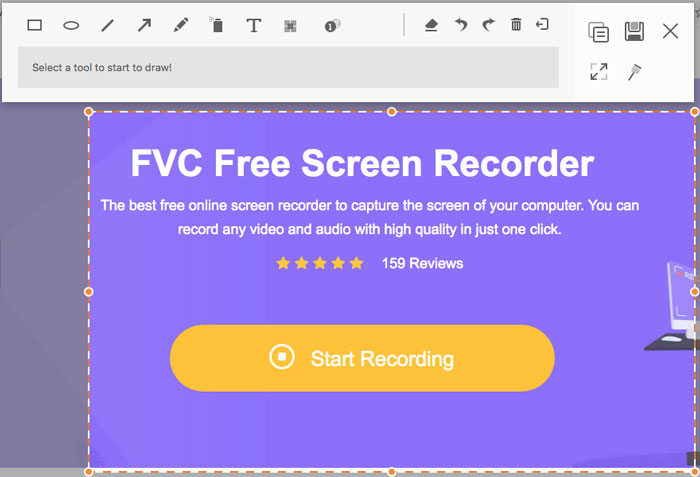
Top 1: FVC gratis schermrecorder
FVC Free Screen Recorder is een gratis webgebaseerde recorder die in elke webbrowser beschikbaar is. Hiermee kun je elke video en elk audiobestand opnemen zonder watermerken toe te voegen. Je kunt het opnamegebied aanpassen, zoals volledig scherm of slechts een deel van het scherm voor video-opnamen. Bovendien kun je de opnamen exporteren naar verschillende bestandsindelingen, zoals MP4 en WMV.
1. Gratis online schermrecorder zonder registratie of andere limieten.
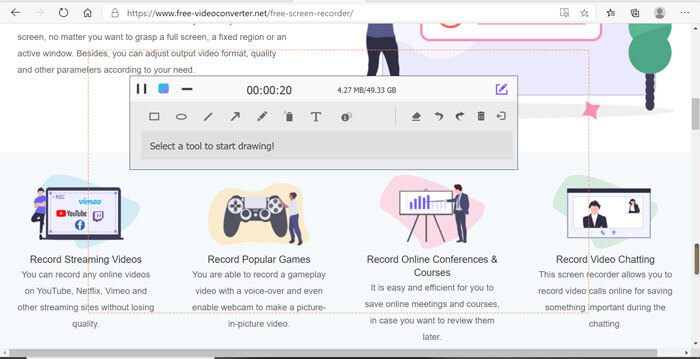
2. Voeg real-time lijnen en tekst toe om de schermopname te annoteren.
3. Zet de webcam en microfoonaudio in uw screencast.
4. Bekijk alle vorige opnamebestanden uit de opnamegeschiedenislijst.
Top 2: Screencast-O-Matic
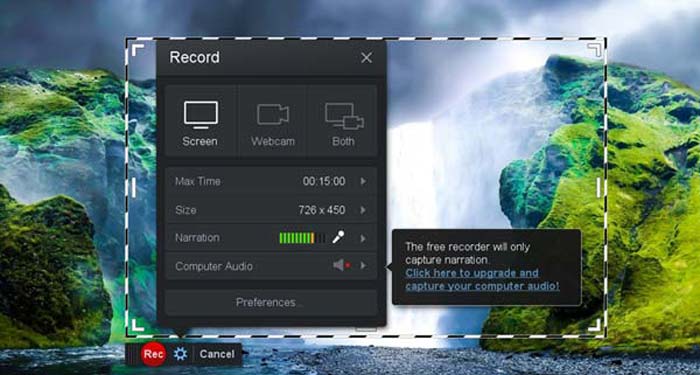
Screencast-O-Matic is een webgebaseerde schermrecorder waarmee je eenvoudig elk willekeurig deel van je scherm kunt opnemen. Je kunt de video rechtstreeks uploaden naar een videohostingplatform. Bovendien kun je gebruikmaken van scripttools, automatische ondertiteling en nog veel meer functies.
Voordelen
- 1. Pas het opnamegebied aan, zoals het hele scherm of een deel ervan.
- 2. Upload de opnames naar Screencast-O-Matic, Google Drive, etc.
- 3. Voeg gesproken tekst, standaardmuziek en bijschriften toe, en gemakkelijker.
Nadelen
- 1. De kwaliteit van de opname is niet goed genoeg.
- 2. Deze online schermrecorder heeft een tijdslimiet.
Top 3: Clipchamp
Clipchamp is een zeer handige gratis online webgebaseerde recorder. Je kunt het gebruiken om video’s op te nemen en te uploaden, en je kunt video comprimeren zonder de oorspronkelijke kwaliteit te verliezen. Het is ook uitgerust met veel functies, zoals een externe microfoon, verschillende resoluties, enzovoort.
Voordelen
- 1. Neem het hele scherm op, een vooraf ingesteld opnamegebied of een aangepast opnamegebied.
- 2. Hiermee kunt u opgenomen video's converteren naar andere populaire videoformaten.
- 3. Het kan video opnemen met commentaar en voice-over van een microfoon.
Nadelen
- 1. Moet upgraden naar de Pro-versie om volledige functionaliteiten te hebben.
- 2. Kan de opname niet rechtstreeks in de online mediabibliotheek bewerken.
Deel 2: Scherm vastleggen met Web Launch Recorder
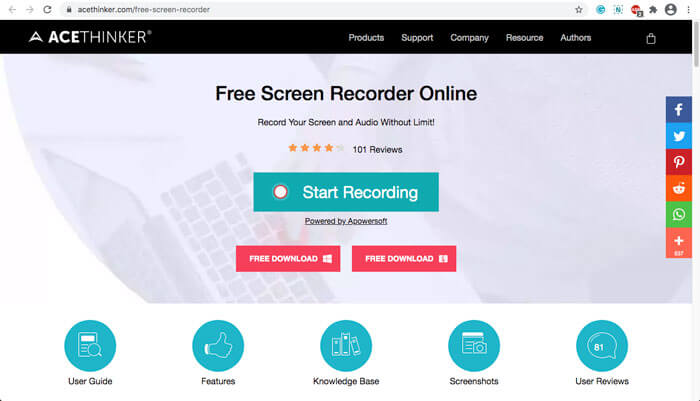
Als het gaat om het vastleggen van schermvideo’s met een webgebaseerde recorder, nemen we FVC Free Screen Recorder als voorbeeld. Leer hieronder meer over het gedetailleerde proces.
Stap 1: Wanneer je het scherm gratis wilt opnemen, ga je naar de webgebaseerde recorder en klik je op de knop Start Recording op de startpagina. Er wordt dan een launcher voor de webgebaseerde recorder gedownload. Installeer het programma en start het op je computer.
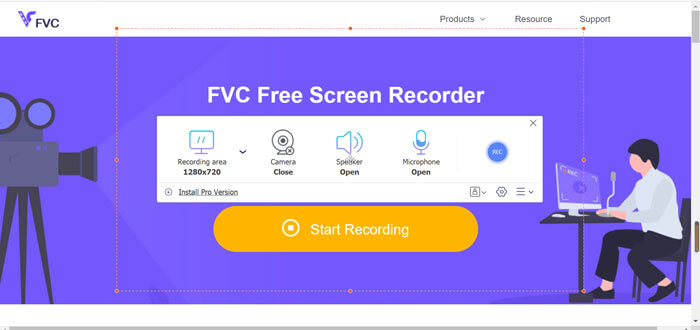
Stap 2: Na het starten van de applicatie zie je de opnamemogelijkheden van het programma. Hier kun je op de optie Recording area klikken om volledige scherm- of deelschermopname te selecteren, of het menu Speaker inschakelen om audiobestanden op te nemen. Om een video met commentaar op te nemen, schakel je gewoon de optie Webcam in.
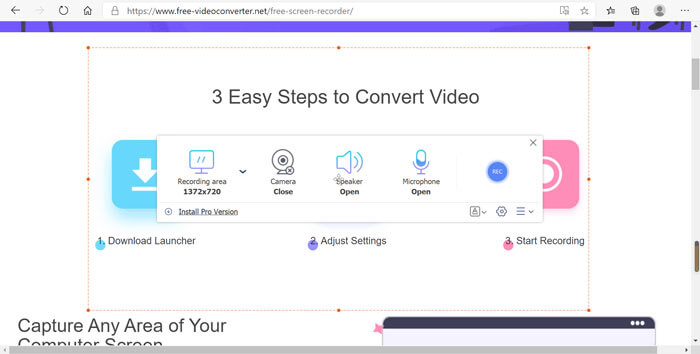
Stap 3: Als je meer bestandsinstellingen moet wijzigen, klik je op het Gear-pictogram rechtsonder in de webgebaseerde recorder om de opties aan te passen. In het pop-upvenster met instellingen kun je de opslaglocatie van het opgenomen bestand en de indeling van het uitvoerbestand wijzigen.
Stap 4: Klik vervolgens op de knop REC om met opnemen te beginnen. Wanneer de opname is voltooid, klik je op de knop Stop om het hele proces te beëindigen. Klik op het pictogram met drie lijnen onderaan de webgebaseerde recorder om de lijst met opgenomen video’s te openen en te beheren.
Deel 3: Veelgestelde vragen over Web Launch Recorder
1. Hoe kan ik een scherm opnemen met een webcam?
Wanneer de webgebaseerde recorder is geactiveerd, kun je de webcamfunctie in de interface vinden en inschakelen, vervolgens de grootte van het webcamvenster aanpassen, terugkeren naar de hoofdinterface en op het REC-pictogram klikken, zodat je de beelden via de ingebouwde webcam kunt opnemen.
2. Waarom heeft mijn schermopname geen geluid?
Er zijn opties voor systeemgeluid en microfoon op de hoofdinterface van het programma. Mogelijk vergeet u ze in te schakelen voordat u begint met opnemen. Zorg ervoor dat deze optie is ingeschakeld voordat u opneemt, zodat u opgenomen video met geluid kunt krijgen.
3. Hoe upload ik mijn video's naar YouTube?
Start de gratis webstartrecorder, zoek en klik op het pictogram met drie lijnen in de rechterbenedenhoek van de interface. Zoek vervolgens de video die u wilt uploaden in de pop-upopnamelijst en klik op het pictogram voor delen hieronder. Selecteer ten slotte de video van het mediaplatform en de opgenomen video kan eenvoudig worden gedeeld met elk platform.
Gevolgtrekking
Als samenvatting introduceert dit artikel de 4 meest populaire gratis online weblanceringsrecorders op de markt, en introduceert in detail de video-opnamemethode van FVC Free Screen Recorder, een van de beste online apps. Het kan u helpen gratis video en audio op te nemen zonder de kwaliteit te schaden.
-
 6 beste WAV-recorders die u niet mag missen op desktop en online
 De beste WAV-opnamesoftware die we in dit artikel delen, heeft een aantal handige functies waarmee u audio en spraak als professionals kunt vastleggen.
-
 QuickTime-schermopname - Video opnemen met audio op Mac en pc
 Opnamescherm met audio op Mac komt goed van pas. De ingebouwde speler, QuickTime Player, kan het. Lees zijn bericht en weet hoe je een scherm met geluid kunt vastleggen op Mac en pc.
-
 DU Recorder Review 2021: Veiligheid & prijs & functies & gebruik & beoordelingen
 DU Recorder is een scherm- en audiorecorder voor iPhone en Android. Is het de moeite waard om te downloaden? Is het veilig? Lees de volledige recensie om te zien of de app geschikt voor u is.
