


 Video Converter Ultimate
 Scherm opnemer
 Videoreparatie
 Beveiligde download
Top 5 WebM-recorders om WebM-video in hoge kwaliteit op te nemen
De bestandsextensie WEBM wordt meestal gebruikt door webbrowsers. De meeste daarvan zijn moderne browsers zoals Google Chrome, Opera, Firefox, Safari en Edge. Gewoonlijk gaat het om HTML5‑websites die live videostreaming ondersteunen. Een goed voorbeeld hiervan zijn YouTube, Twitch en andere mediaplatforms. Dit formaat ondersteunt videoresoluties van 360p tot de hoogste resolutie. Als we dit formaat vergelijken, is het een gecomprimeerd formaat, vergelijkbaar met MKV, MOV en MP4. Het verschil zit in de inhoud van het bestand in het formaat. Zowel Windows als Mac kunnen dit specifieke bestand afspelen, op voorwaarde dat de speler over de juiste codecs en plug‑ins beschikt. Ondertussen, als je op zoek bent naar een betere manier om WebM‑bestanden op te nemen of te verkrijgen, bekijk dan de onderstaande lijst met beste WebM‑recorders.

Deel 1. Beste WebM-recorder: FVC-schermrecorder
Krijg de gemakkelijkste manier om snapshots te maken, uw scherm op te nemen en de WebM-videobestanden op te nemen in drie eenvoudige stappen met FVC Screen Recorder. Deze .webm-schermrecorder voor Windows en Mac kan WebM-sites zoals YouTube, Skype-oproepen en livestreaming opnemen, en andere sites ondersteunen het WebM-formaat. Leg uw gameplay livestreaming vast zonder afbreuk te doen aan de videokwaliteit. Plus de mogelijkheid om de video, audio en microfoon op te nemen. Gegarandeerd geen achtergrondgeluid omdat het de systeemgeluiden opneemt. Ervaar dus naadloze opname en uitstekende bewerkingsfuncties voor uw videozelfstudie met FVC Screen Recording. Aan de andere kant, hier is hoe u de tool gebruikt.
Stap 1. Download FVC Screen Recorder via de downloadknoppen hieronder.
Gratis downloadenVoor Windows 7 of nieuwerVeilig downloaden
Gratis downloadenVoor macOS 10.7 of nieuwerVeilig downloaden
Stap 2. Installeer en start de app na het volgen van de installatiewizard.
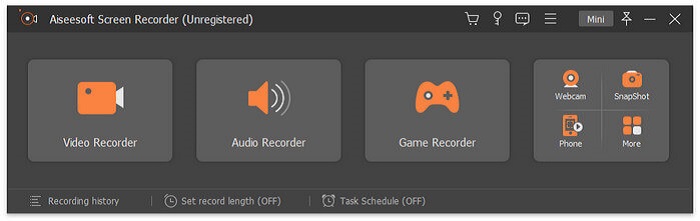
Stap 3. Zodra de zwevende balk verschijnt, klik je op Video Recorder.
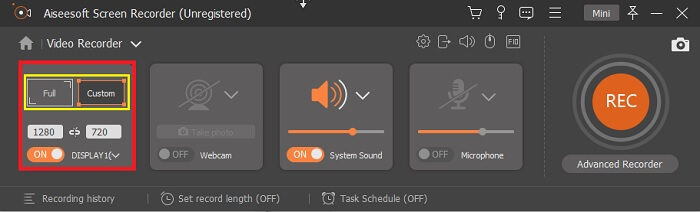
Daar verschijnt een nieuw venster. Klik deze keer op Custom of Full Screen. Als je voor Custom kiest, pas je het kader aan tot de gewenste grootte.
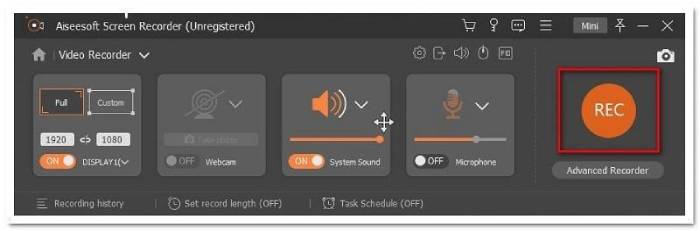
Stap 4. Klik op de knop REC om met opnemen te beginnen en ga gewoon verder met je gebruikelijke handelingen.
U kunt vervolgens annoteren, pijlen toevoegen en de opname een tekst geven.
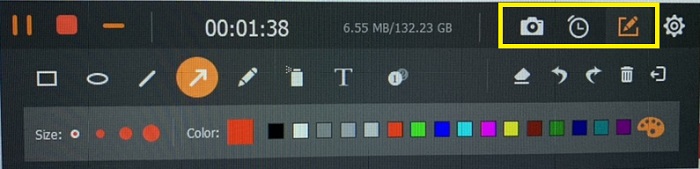
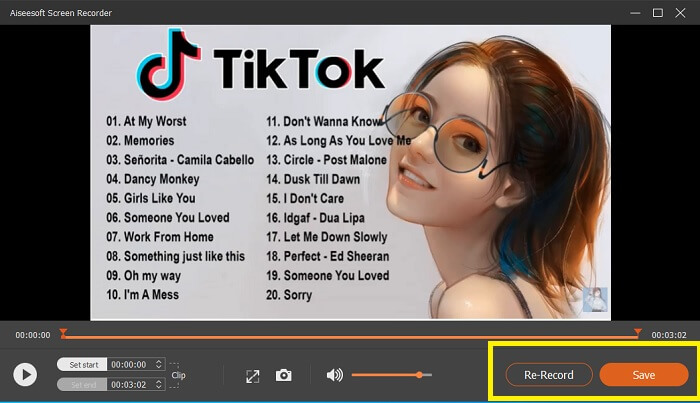
Stap 5. Klik vervolgens op de rode vierkante knop om de opname te stoppen. Er verschijnt dan een nieuw venster waarin je kunt kiezen tussen opslaan of opnieuw opnemen. Om de opname te controleren, kijk je in de lijst onderaan de zwevende balk.
Deel 2. Andere populaire WEBM-recorders voor uw computer
1. FVC gratis schermrecorder
Opvallende eigenschap: Vrij van malware. 100% veilig
Als de eerste tool je niet heeft overtuigd, ben je mogelijk op zoek naar een praktischer alternatief. FVC Free Screen Recorder is jouw ideale tool als je uitgebreide functies wilt benutten zonder geld uit te geven. Hoewel gratis tools erom bekendstaan dat ze lagere kwaliteit leveren dan premiumversies, legt deze tool de lat wat hoger. Hij kan video’s in hoge kwaliteit produceren en zorgt voor kraakheldere audio, ondanks dat hij gratis is. Bovendien is hij eenvoudig te gebruiken. Volg de onderstaande stappen om er meer over te leren.
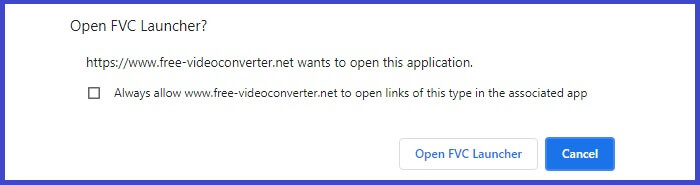
Stap 1. Start de app op je pc via de webbrowser. Het maakt niet uit welke browser je gebruikt, deze tool is flexibel genoeg om overal te worden geopend. Klik op de link om direct op de officiële webpagina terecht te komen.
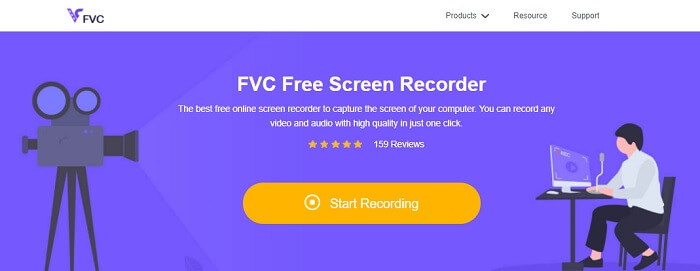
Stap 2. Start de tool door op de knop Start Recording te klikken.
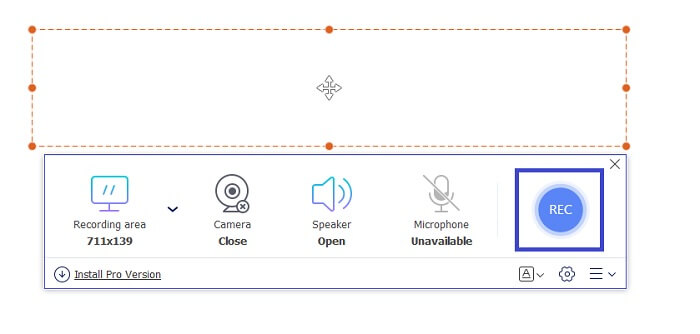
Stap 3. Nadat je de tool hebt gestart, verschijnt de zwevende balk. Pas het kader aan om de beeldverhouding te wijzigen en begin vervolgens met opnemen door op de knop REC te klikken.
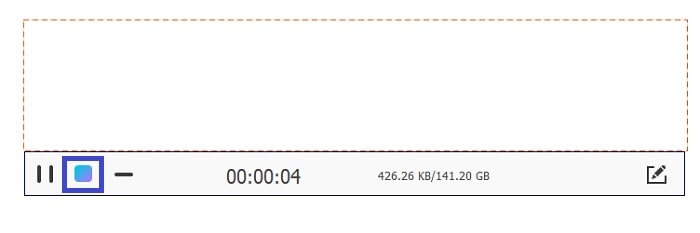
Stap 4. Klik ondertussen op de vierkante knop die in de afbeelding hieronder wordt weergegeven om de opname te stoppen.
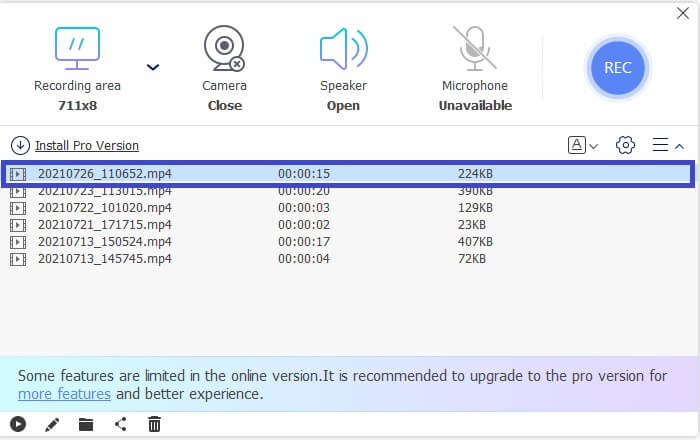
Stap 5. Om het bestand dat je hebt opgenomen te bekijken, controleer je de lijst onder de zwevende werkbalk.
Voordelen
- 100% veilig tegen malware.
- Het is flexibel in het aanpassen van de beeldverhouding, bitrate en framesnelheid.
- Beeld in beeld ondersteund.
Nadelen
- Het ondersteunt geen hardwareversnelling.
2. Kleine take
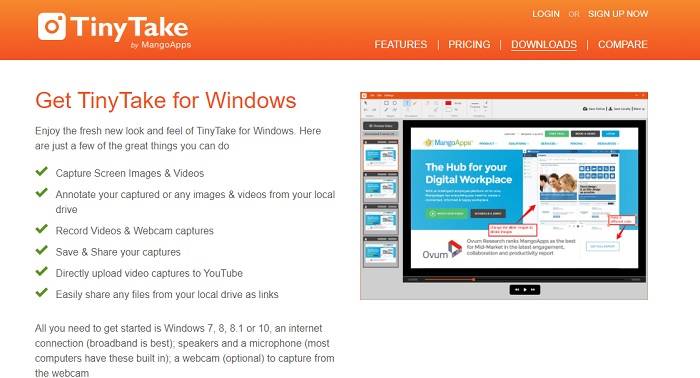
Opvallende eigenschap: Samenwerking of werken op afstand wordt ondersteund.
TinyTake is een tool voor video-opname en gratis schermopname, ontwikkeld door Mango Apps. Tiny Take biedt geweldige oplossingen voor het eenvoudig vastleggen van schermen of het opnemen van professionele of persoonlijke vergaderingen. Wat deze tool populair maakte, is de samenwerkingsfunctie waarmee u op afstand kunt werken, bestanden in bulk kunt delen, annotatiefuncties en langetermijnopslag en Galerij (online) kunt gebruiken.
Voordelen
- Het kan afbeeldingen en video's vastleggen vanaf uw lokale schijf.
- Deel het direct op YouTube.
- Maak aantekeningen tijdens het opnemen.
Nadelen
- Geen lock-in venster functie.
3. Screencast-O-Matic
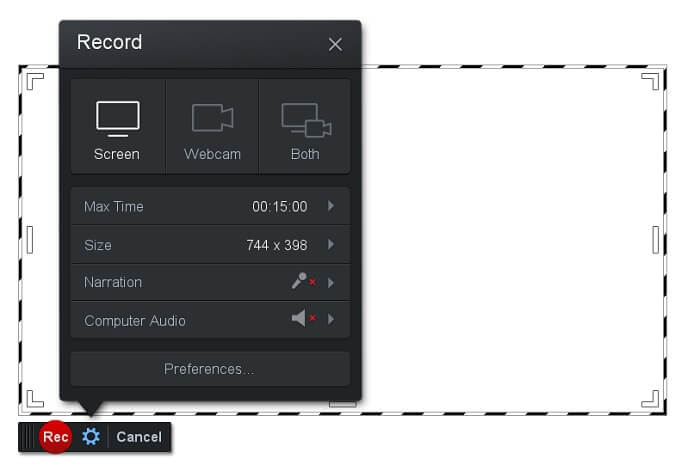
Opvallende eigenschap: De tool heeft een gebruiksvriendelijke en makkelijk te navigeren interface. Heel eenvoudig in gebruik.
Screencast-O-Matic is een van de meest gebruikte softwareprogramma’s. Wat het kan doen, is het computerscherm gratis opnemen na registratie. Het wordt aangeraden een account aan te maken om de gratis tool te gebruiken. Daarnaast heeft de ontwikkelaar een functie geïntegreerd waarmee je je video direct kunt bewerken voordat je deze exporteert. Je kunt inspiratie opdoen in de ingebouwde stockbibliotheek van de tool en zo je video’s blijven verbeteren. Maak ook schermafbeeldingen en deel alle inhoud via je sociale‑mediaaccount.
Voordelen
- Het heeft een Cloud Hosting-functie.
- Upload een video om te bewerken.
- Inhoud hosten.
Nadelen
- Registratie nodig.
4. Screencastify
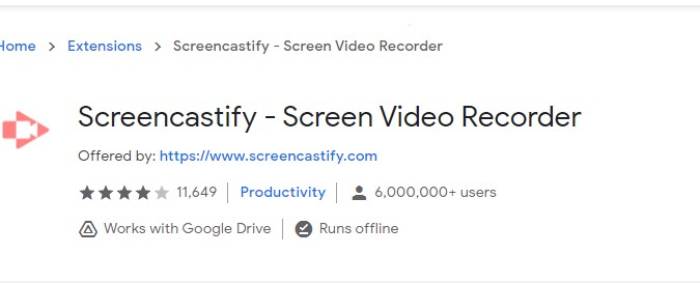
Opvallende eigenschap: Extensie voor webbrowsers
Laten we een beetje diversiteit aan de lijst geven. Screencastify is een webafhankelijke tool die specifiek een extensie is voor de Chrome-browser. Dit wordt meestal gebruikt door docenten en studenten. Vooral vanwege de eenvoud van de tool en de mogelijkheid om aantekeningen te maken, waardoor de docent en de leerling zich in de klas kunnen concentreren. De meeste mensen die studeren via Udemy en dergelijke leersites gebruiken deze schermrecorder. Als u hetzelfde doet, kunt u overwegen het te gebruiken. Ondertussen is hier meer gedetailleerde informatie over de tool.
Voordelen
- Compatibel met alle mediaplatforms.
- Inhoud hosten.
- Upload een video om te bewerken.
Nadelen
- Hoewel het een gemakkelijke toegang is omdat het browserafhankelijk is, kan het ook nadelig zijn.
- Het heeft veel rechten nodig om het te gebruiken.
Deel 3. Veelgestelde vragen over WebM Recorder
Waarom wordt mijn WebM-bestand niet geopend?
Ik begrijp de verwarring; je denkt misschien dat je een moderne browser gebruikt en toch wordt de video niet afgespeeld. Heb je al gecontroleerd of je de nieuwste versie van de browser gebruikt? Zo niet, werk deze dan bij. Dit is een van de meest voorkomende redenen waarom een video niet wordt afgespeeld. Let wel, dit zijn enkele van de versies die door het WebM‑bestand worden ondersteund: Chrome 6, Firefox 4 en Internet Explorer 9 en hoger. Of je kunt proberen WebM‑spelers te gebruiken om het bestand te openen.
Waarom kan ik geen WebM-video afspelen op mijn Mac?
Ik zou het ten zeerste aanbevelen om de VLC-speler of VLC voor Mac OS X-plug-in te downloaden. Het moet een 64-bits Intel-processor hebben.
Deel 4. Vergelijkingstabel
| Functie | FVC Schermrecorder (Premium) | FVC-schermrecorder gratis | TinyTake | ScreenCast-O-matic | SchermCastify |
| Audio- en video-opname |  | | | | |
| Videobewerkingsfunctie | | |  | | |
| Vergrendelingsvensterfunctie | | | | | |
| Annotatiefunctie | | | | | |
| WebM ondersteund | | | | | |
| Malware Veilig | | | | | |
| Instelbare bitrate en beeldverhouding | | | | | |
Gevolgtrekking
Alle WebM-opnametools die in dit artikel worden besproken, zijn betrouwbaar en efficiënt. U hoeft alleen maar te kijken welke tool past bij de vereisten van uw pc en uw besturingssysteem. De meeste mensen gaan op veilig terrein door een webgebaseerde app te gebruiken. Maar het is nog steeds aan jou om te beslissen.
-
 De onbevooroordeelde Cinch Review-audiorecorder en het beste alternatief
 Cinch Audio Recorder is de beste manier om muziek van streaming-sites te downloaden. Lees gewoon meer over de onbevooroordeelde recensie en het beste alternatief uit het artikel.
-
 Top 5 beste muis- en toetsenbordrecorders voor Windows en Mac
 Hier zijn de vijf beste muis- en toetsenbordrecorderprogramma's die uw muisbewegingen en toetsenbordklikken kunnen opslaan en de gebeurtenissen kunnen herhalen.
-
 Top 4 gratis AVI-schermrecorders om schermvideo vast te leggen als AVI-bestanden
 Om een scherm op te nemen in AVI-bestanden van hoge kwaliteit, identificeert en deelt het artikel de top 4 gratis AVI-schermrecorders in dit bericht. Leer meer details om de gewenste dienovereenkomstig te vinden.
