


 Video Converter Ultimate
 Scherm opnemer
 Videoreparatie
 Beveiligde download
Hoe je een Facebook-screenshot maakt: 6 bruikbare manieren om dit te doen
As an avid user of social media platforms like Facebook, I know that sharing information has become an integral part of the overall social media experience. As always, when looking for something interesting, you need to be able to share news from your mutual friends, and the best way to do it is by taking a Facebook screenshot. Regardless of the context of the screenshot, doing it is very easy. Through this guide, we will delve into different ways to take a screenshot on Facebook using different devices, varying from mobile to desktop devices. In the process of knowing how to do it, we also included the use of a reliable third-party software tool that can do all screenshot-type regardless of the device you are using. To find more information on the software tool, read this article until the end and take Facebook screenshots like a pro.

Deel 1. Methoden om een screenshot van Facebook te maken op verschillende apparaten
Voordat je je verdiept in de methoden voor het maken van screenshots van Facebook-berichten, moet je eerst bepalen welk apparaat je gaat gebruiken. Voor deze stapsgewijze handleiding hebben we elk apparaat apart behandeld, beginnend bij Windows, Mac, iPad/iPhone, Samsung Galaxy en Android. Verschillende apparaten kunnen kleine verschillen hebben wat betreft het maken van screenshots, wat nog belangrijker is bij gebruik op een sociaalmediaplatform zoals Facebook.
ramen
Voor Windows zijn er meerdere manieren om een screenshot te maken op Facebook, ongeacht of je Windows 7 of later gebruikt. Door de onderstaande stappen te volgen, zorg je ervoor dat je effectief en eenvoudig een screenshot maakt. Bovendien maken de onderstaande stappen gebruik van het knipprogramma van Windows om een screenshot te maken op Facebook.
Step 1. From your Windows Start Menu, search and open the Snipping Tool software.
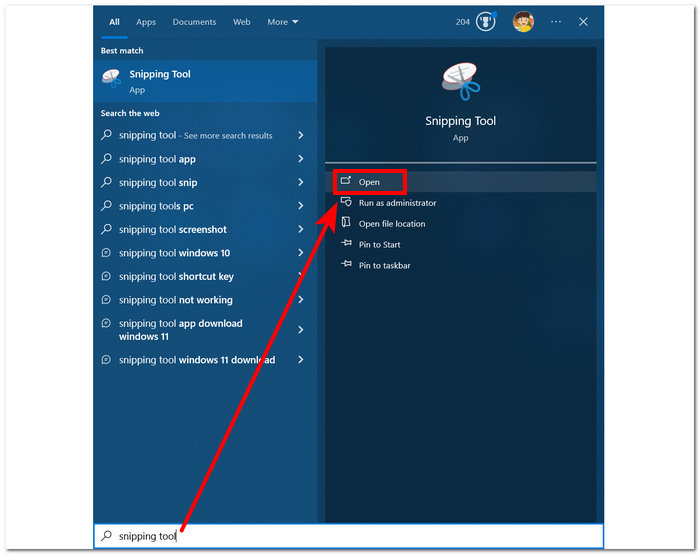
De Snipping Tool-software is al op uw Windows geïnstalleerd.
Step 2. Once the Snipping Tool software is open, proceed to click on the Mode drop-down button to access the snipping features. For this case, you can select the Rectangular Snip.
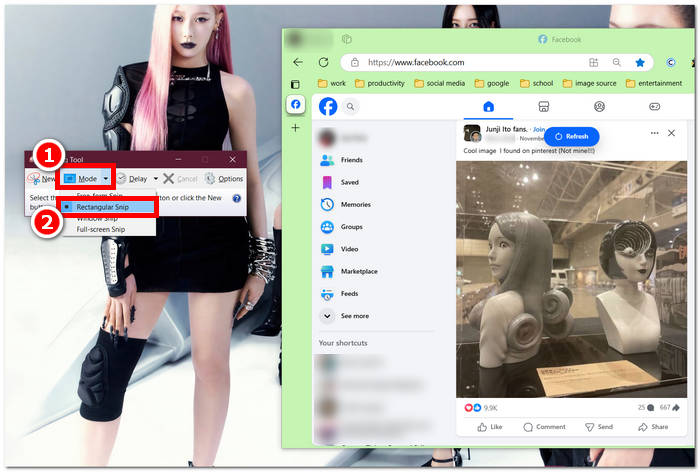
Als u een gebied met een aangepaste vorm in uw momentopname wilt, selecteert u Vrije-vormknipsel. Als u een rechthoekig schermopnamegebied wilt, selecteert u Rechthoekig knipsel. Als u een schermopname van een specifiek venster of tabblad wilt maken, selecteert u Vensterknipsel. Om een momentopname van uw volledige Windows-scherm te maken, selecteert u Volledig schermknipsel.
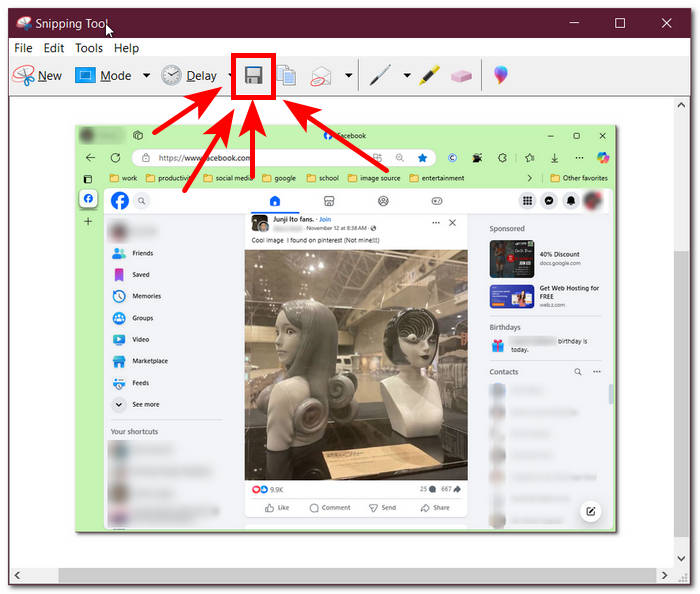
Step 3. Once you click on the Rectangular Snip, you can select the area on your Facebook web that you want to include in your screenshot. Once you've done this, a Snipping Tool window will appear containing your selected screenshot. Within that, you can customize your screenshot by adding text, highlights, annotating words, and more.
Step 4. To finish the process, click the Save button in the upper part of the Snipping Tool window.
Mac
Het maken van een screenshot van Facebook-content kan op Mac-apparaten anders zijn dan op Windows-apparaten. In dit geval vragen we gebruikers echter alleen om de basissneltoetsen op hun Mac-toetsenbord te gebruiken.
Step 1. Using your Mac devices, open your Safari web browser and proceed to the Facebook website.
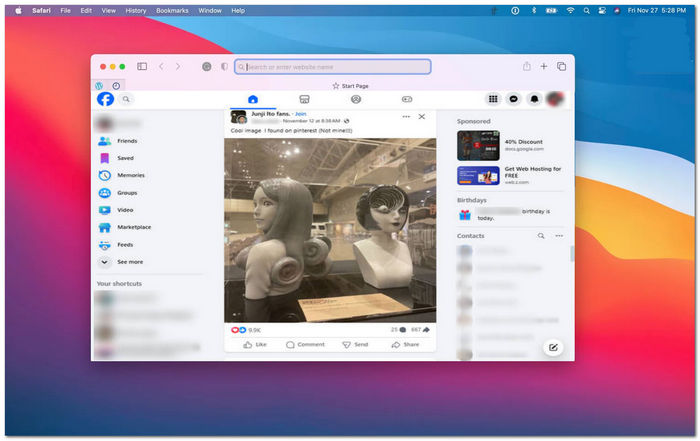
Step 2. On your Mac keyboard, to screenshot your Facebook webpage, hold down the following command + shift + 4.
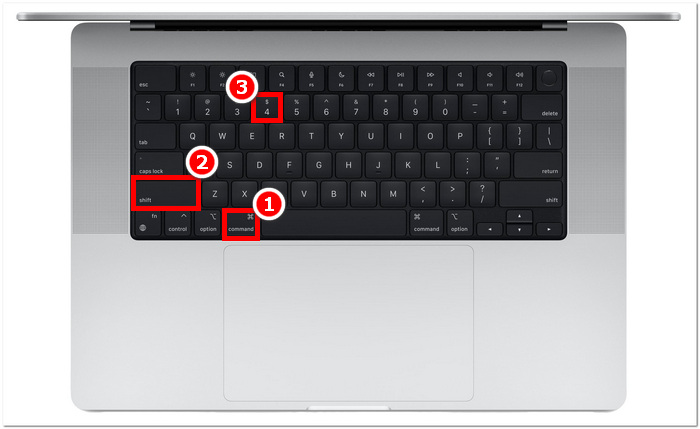
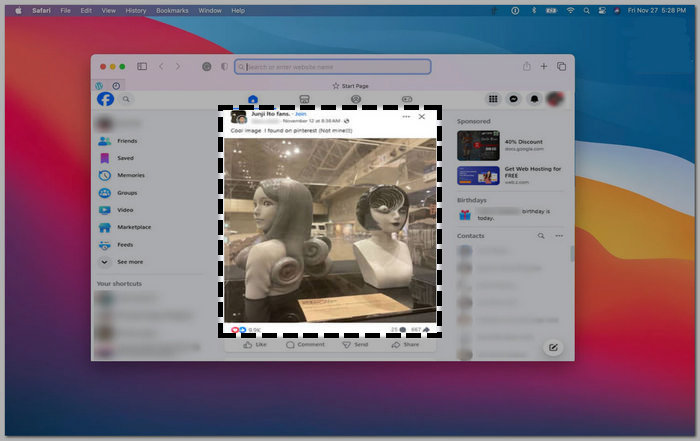
Step 3. Using your cursor, click, hold, and drag onto the area you want to capture.
Step 4. Release the cursor to instantly screenshot the Facebook consent using your Mac’s Safari web browser.
iPad/iPhone
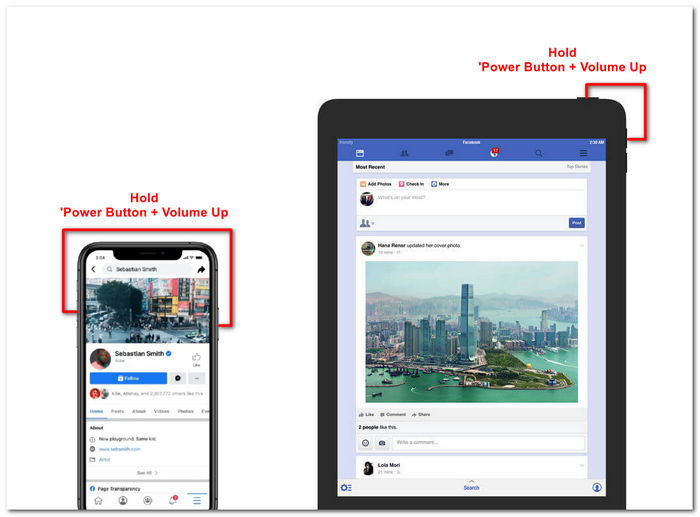
Een screenshot maken is eenvoudig op een draagbaar apparaat zoals een iPad of iPhone, omdat beide apparaten alleen de gecombineerde aan/uit-knop en volume omhoog gebruiken. Of u nu een iPad of iPhone gebruikt, u kunt de onderstaande stappen volgen.
Step 1. Open your iPhone or iPad’s Facebook App and browse through your feed to find a post or perhaps a screenshot of Facebook story content.
Step 2. Once you are all set, take a screenshot of Facebook content; hold your device's Power Button + Volume Up button to capture it and have it saved in your Photos App.
Samsung Galaxy
Als je een Samsung Galaxy-apparaat gebruikt en niet weet hoe je een screenshot maakt in je Facebook-app, dan kunnen de onderstaande stappen je helpen.
Step 1. Through your Samsung Galaxy device, open your Facebook App and look for content within the platform you want to save as a screenshot to your device.
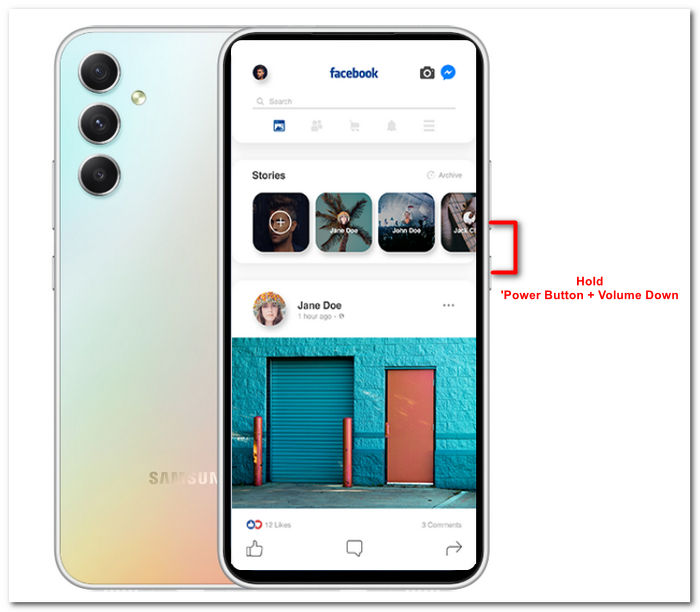
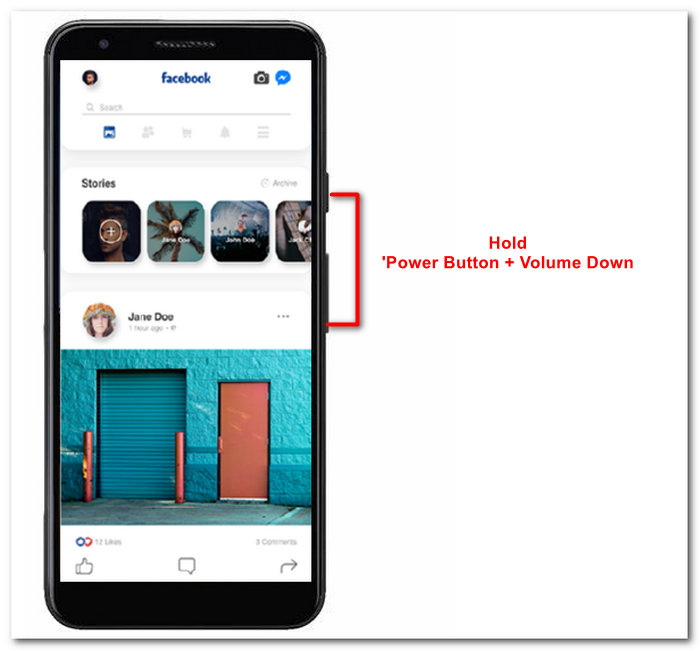
Step 2. Once you find the Facebook content you want to capture, hold your Power Button + Volume Down to screenshot it effectively.
It can also help you how to screenshot Samsung-specific models, like S23. You can use it to solve all your screenshot problems.
Android
Het proces voor het maken van een screenshot verschilt per Android- of iOS-apparaat, omdat Android de knop Volume omlaag gebruikt in plaats van de knop Volume omhoog. Volg het onderstaande proces om eenvoudig een Facebook-scherm vast te leggen.
Step 1. Open the Facebook mobile app on your Android device and browse your timeline for content you want to save as a screenshot in your Gallery.
Step 2. Once you find one, hold your mobile’s Power Button and Volume Down to screenshot it and save it directly in your Gallery App.
Deel 2. Een geweldige schermrecorder om alles op uw desktop vast te leggen
If you are looking for a more convenient way to take screenshots on your Facebook with a feature that allows you to instantly make edits, annotate, highlight, crop, and more in the screenshot, then you might like using the FVC-picked screen recorder. This free-to-use screen record tool can double function as a tool to record your screen in real time and take a snapshot for easy and quick sharing of content. Moreover, this comprises four screenshot settings to cater to all types of screen capture needs, no matter whether you want to screenshot on Mac or Dell. and using it in the likes of Facebook is beneficial. To learn more about these screenshot features offered by FVC-picked screen record, it is best to show you how to do it.
Step 1. On your desktop, download and install the FVC-picked screen recorder software, then start the application.
Gratis downloadenVoor Windows 7 of nieuwerVeilig downloaden
Gratis downloadenVoor macOS 10.7 of nieuwerVeilig downloaden
Step 2. Access your Facebook web using any of your preferred web browsers. In the screen recording tool, click on the Snapshot drop-down menu, then select a screenshot type to capture your Facebook screen.
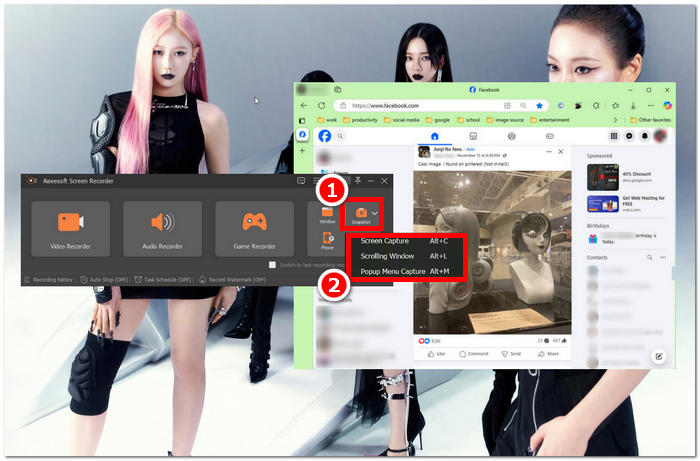
U kunt een screenshot van de volledige homepage maken met Screen Capture. De Scrolling Window-functie maakt een snapshot van de volledige homepage, van boven naar beneden. Gebruikers kunnen een deel van de webpagina selecteren terwijl ze een screenshot maken met Popup Menu Capture.
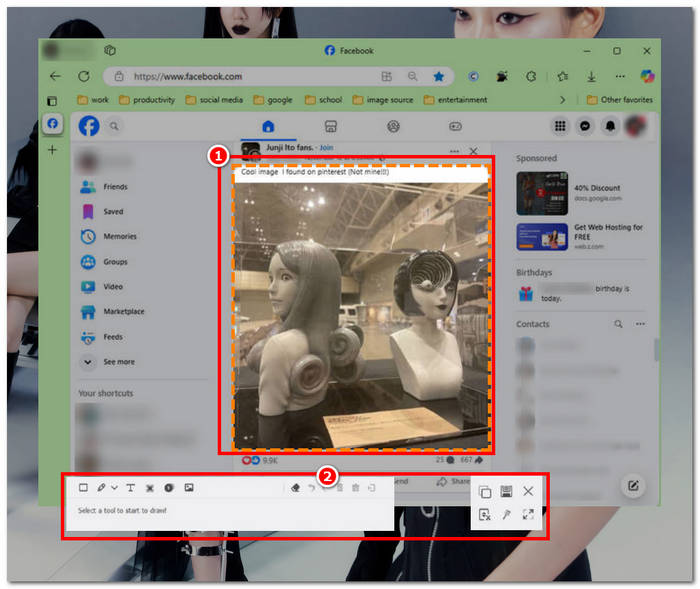
Step 3. In your Facebook timeline, click, hold, and drag your cursor on the area of the Facebook content you wish to capture as a screenshot.
Step 4. Once done, you can utilize the tools below to edit your screenshots before you can download them to your desktop download folder.
Deel 3. Veelgestelde vragen over Screenshot op Facebook
Kunnen mensen zien of ik een screenshot maak van hun profiel, bericht of foto?
Nee, andere gebruikers krijgen geen melding als je een screenshot van hun Facebook-profiel maakt. Alleen jij kunt het zien, tenzij je de screenshot met hen deelt.
Zijn Messenger-screenshots detecteerbaar?
Nee, omdat het een beveiligingsrisico en een datalek oplevert, informeert Facebook de andere gebruiker er niet over dat je zojuist een screenshot van jullie gesprek hebt gemaakt.
Is het legaal om screenshots te maken van Facebook-inhoud?
Screenshots van Facebook-content zijn niet illegaal, aangezien openbare berichten openbaar en voor iedereen zichtbaar zijn. Het is echter wel illegaal om iemands content te gebruiken of te posten voor eigen gewin zonder diens toestemming.
Gevolgtrekking
Taking screenshots of Facebook content is a great way to store and quickly share it with another user. While it is greatly helpful, learning how to do it, especially using other devices, from desktop to mobile, is also helpful. Through this guide, you learn different approaches to taking a Facebook screenshot using any available device you may have. While it is very convenient, the ability to edit and highlight instantly the screenshot using the FVC-picked screen recorder is the best way to take when you want to crop or highlight a certain part of the screenshot so that you won’t have to edit them later.
-
 Hoe u een screenshot kunt maken op Alcatel om het moment te grijpen
 Heeft u moeite om schermafbeeldingen te maken op uw Alcatel-apparaat? Probeer deze softwareoplossing voor mobiele telefoons en desktops en zorg ervoor dat uw scherm wordt opgeslagen voor offline weergave.
-
 Screenshots maken in Minecraft: eenvoudigste gameschermopname
 Leer de eenvoudigste manier om schermafbeeldingen te maken in Minecraft. Probeer de ingebouwde tools en schermrecordersoftware om uw Minecraft-creatie op te slaan.
-
 Schermafbeeldingen maken op een Chromebook [Stapsgewijze handleiding]
 Ontdek hoe u eenvoudig schermafbeeldingen kunt maken op uw Chromebook met deze uitgebreide stapsgewijze handleiding. Laat je leiden en krijg nu die perfecte screenshot!
