


 Video Converter Ultimate
 Scherm opnemer
 Videoreparatie
 Beveiligde download
4 eenvoudige manieren om screenshots op te slaan in JPG [2025-gids]
Screenshotafbeeldingen worden meestal opgeslagen in PNG-indeling. Daarom kost het je wat tijd om ze om te zetten naar je voorkeursformaat, vooral wanneer ze al zijn opgeslagen. Als je dit ervaart en je je screenshots als JPG wilt opslaan, dan is dit artikel voor jou. In dit artikel behandelen we verschillende methoden en tools die je kunt gebruiken, van software van derden tot de ingebouwde opties van je apparaat. Zo kun je de methode kiezen die het beste voor jou werkt. Laten we beginnen!

Deel 1: Gemakkelijkste manier om screenshot op te slaan in JPG op Windows en Mac
Als je op zoek bent naar een eenvoudige manier om screenshots als JPG op zowel Windows als Mac op te slaan, is FVC Screen Recorder de perfecte oplossing voor jou. Deze schermopnametool is ontworpen om het proces van het vastleggen en opslaan van screenshots in elk gewenst formaat te vereenvoudigen. Met de intuïtieve interface kun je moeiteloos screenshots maken van het volledige scherm van je Mac of Windows-pc, specifieke vensters of aangepaste gebieden en ze vervolgens met slechts een paar klikken als JPG of een ander gewenst formaat opslaan. Bovendien, als je je screenshot wilt verbeteren of aanpassen, beschikt het over tal van geavanceerde functies waarmee je je screenshot kunt bewerken voordat je deze als JPG opslaat.
Stap 1. Download en installeer eerst de FVC Screen Recorder op je Windows- of Mac-computer.
Gratis downloadenVoor Windows 7 of nieuwerVeilig downloaden
Gratis downloadenVoor macOS 10.7 of nieuwerVeilig downloaden
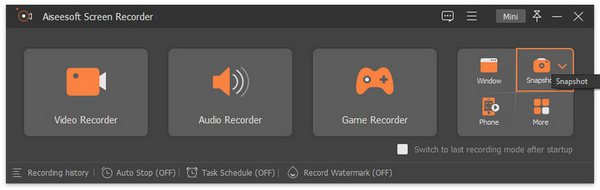
Stap 2. Klik, nadat je de tool hebt gestart, op het pictogram Snapshot in de rechterhoek.
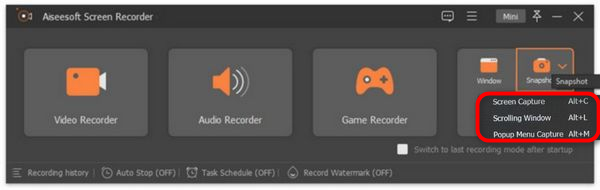
Stap 3. Nadat je op het Snapshot-pictogram hebt geklikt, heb je drie opties voor het maken van een screenshot. Je kunt kiezen uit Screen Capture, Scrolling Window of Pop-up Menu Capture.
Stap 4. Sleep nu de cursor naar het gebied op het scherm van je Windows-apparaat om het deel te selecteren dat je wilt vastleggen.
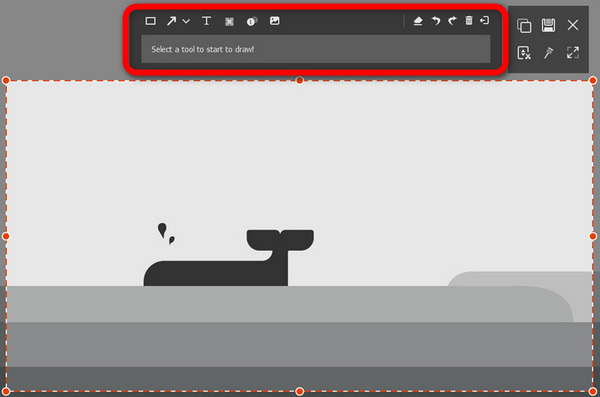
Stap 5. Klik daarna op de knop Save, ga naar Save as Type en selecteer in het vervolgkeuzemenu JPG.

Met zijn gebruiksvriendelijke interface voor het maken van schermafbeeldingen en het opslaan ervan in JPG of een ander formaatbestand naar keuze, is FVC Screen Recorder inderdaad de beste keuze voor iedereen die op zoek is naar een probleemloze manier om schermafbeeldingen vast te leggen en op te slaan in JPG-formaat op zowel Windows als Mac-platforms.
Deel 2: Screenshot opslaan als JPG op Windows met knipprogramma
Snipping Tool is een van de meest voorkomende ingebouwde applicaties die tegenwoordig beschikbaar zijn op Windows-besturingssystemen en is ontworpen om schermafbeeldingen te maken. Met behulp van de Snipping Tool kunnen gebruikers hun schermafbeeldingen opslaan in JPG nadat ze zijn vastgelegd.
Stap 1. Ga eerst naar Start op je Windows-computer.
Stap 2. Ga daarna naar de zoekbalk en zoek naar de Knipprogramma (Snipping Tool). .
Stap 3. Je ziet nu de knop New. Klik erop om een screenshot te maken.
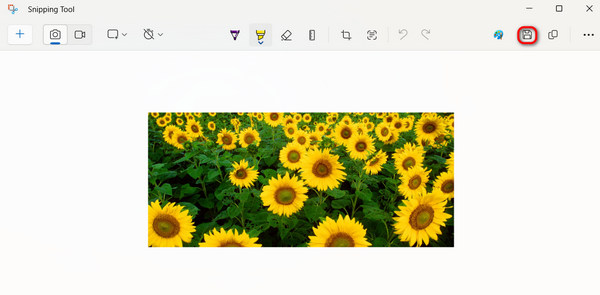
Stap 4. Klik ten slotte op de knop Save om de screenshotafbeelding op te slaan en naar JPG te converteren, en kies JPG in het vervolgkeuzemenu Save as Type.
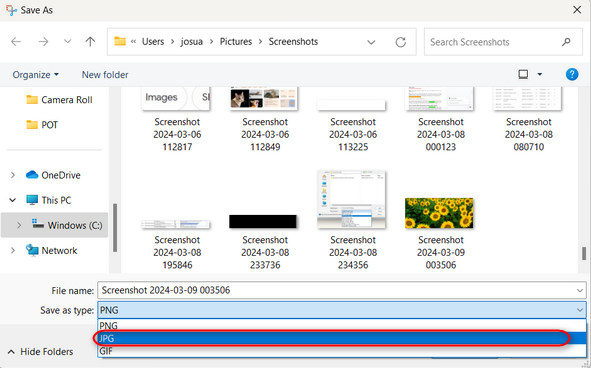
Dus als u een Windows-gebruiker bent en schermafbeeldingen in JPG wilt opslaan, is het gebruik van de Knipprogramma zeker een handige optie. Houd er echter rekening mee dat het de geavanceerde functies van tools van derden mist en voor sommige gebruikers verouderd kan aanvoelen.
Deel 3: Screenshot opslaan als JPG op Mac met Preview
Als je een Mac-gebruiker bent, kun je de Voorvertoning‑tool (Preview) gebruiken om screenshots als JPG op te slaan en screenshots op de Mac te maken als JPG. Deze tool is ingebouwd in macOS, dus je hoeft niets te installeren om hem te gebruiken. Je hoeft alleen de screenshotafbeelding met de app te openen en deze vervolgens als JPG op te slaan.
Stap 1. Maak eerst een screenshot met behulp van de ingebouwde sneltoetsen voor screenshots op je Mac.
Screenshot van het hele scherm: druk op Command + Shift + 3.
Screenshot van een geselecteerd gebied op het scherm: druk op Command + Shift + 4.
Screenshot van een specifiek venster: druk op Command + Shift + 4 en vervolgens op de spatiebalk.
Stap 2. Zodra je een screenshot hebt gemaakt, klik je op de miniatuur om deze te openen in Preview, die rechtsonder op je scherm verschijnt.
Stap 3. Ga nu in Preview naar het menu File.
Stap 4. Selecteer in het menu File de optie Export of druk op Command + Shift + S.
Stap 5. Kies tot slot JPG als bestandsindeling in het vervolgkeuzemenu en klik vervolgens op Save.
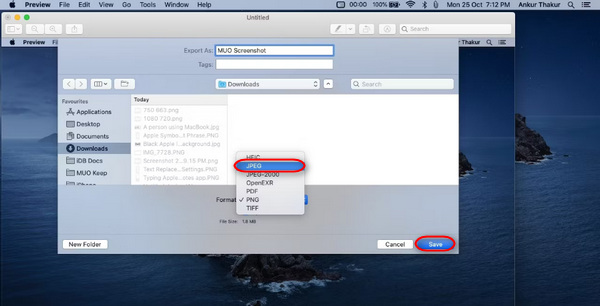
Hoewel dit misschien gemakkelijk en snel klinkt, is het maken van een screenshot en het handmatig wijzigen van het formaat naar JPG in Preview nog steeds lastig en kost het enige tijd. Als dit echter geen probleem voor u is, kunt u deze methode gebruiken om schermafbeeldingen op te slaan in JPG op uw Mac.
Deel 4: Tip: een screenshot online naar JPG converteren
Als je op zoek bent naar een online convertor om screenshots naar JPG te converteren, is FVC Free Image Converter een uitstekende keuze. Met deze tool kun je afbeeldingsindelingen, zoals JPG, JPEG, PNG, GIF, BMP, TIFF, WEBP, ICO en SVG, converteren naar JPG, PNG en GIF. Het is bovendien snel en eenvoudig, en de gebruiksvriendelijke interface maakt het toegankelijk voor elk type gebruiker.
Stap 1. Bezoek de officiële website van FVC Free Image Converter.
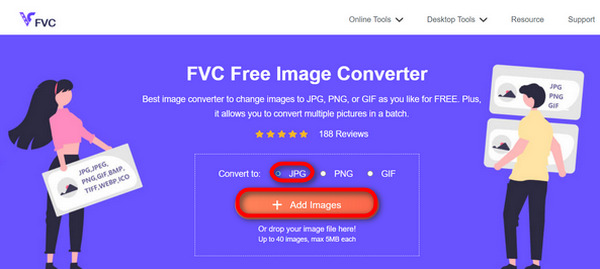
Stap 2. Klik op Add Images en kies in de optie Convert To de indeling JPG.
Stap 3. Zodra het proces is voltooid, klik je op de knop Download All om je geconverteerde screenshot als JPG op te slaan.
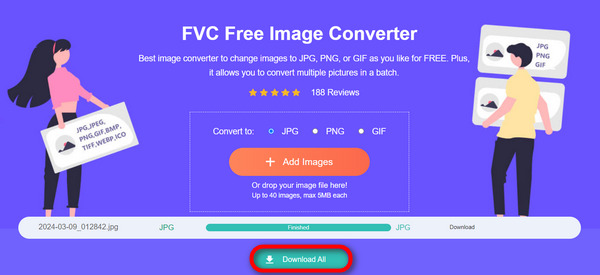
Met FVC Free Image Converter is het converteren van schermafbeeldingen naar JPG snel en eenvoudig. Het is het beste alternatief als u problemen ondervindt met andere hierboven genoemde methoden.
Deel 5: Veelgestelde vragen over het converteren van screenshot naar JPG
Kan ik meerdere schermafbeeldingen tegelijkertijd naar JPG-formaat converteren?
Ja. U kunt meerdere schermafbeeldingen tegelijkertijd naar JPG-formaat converteren met behulp van conversietools die een batchconversiefunctie hebben, zoals de FVC Free Image Converter. Met deze tool kunt u meerdere schermafbeeldingen selecteren en deze in één keer naar JPG-formaat converteren, waardoor u tijd en moeite bespaart.
Heeft het converteren van schermafbeeldingen naar JPG invloed op de kwaliteit ervan?
Ja, maar niet zoveel. Het converteren van schermafbeeldingen naar JPG zal slechts een minimale kwaliteitsvermindering hebben, maar het is iets dat aanvaardbaar is. Zorg er bij het kiezen van de JPG-compressie voor dat u de bestandsgrootte en de beeldkwaliteit in evenwicht houdt om bevredigende resultaten te bereiken.
Kan ik de beeldkwaliteit aanpassen wanneer ik schermafbeeldingen opsla in JPG?
Ja. Er zijn verschillende beeldbewerkingssoftware en online converters die functies hebben om de beeldkwaliteitsinstellingen aan te passen bij het opslaan van schermafbeeldingen naar JPG. Hierdoor kunnen ze het compressieniveau regelen dat op de afbeelding wordt toegepast.
Gevolgtrekking
Daarmee ben je klaar. Of je nu Windows of Mac gebruikt, er zijn meerdere eenvoudige manieren om ze naar JPG-indeling te converteren. Met deze methoden kun je je screenshots nu gemakkelijk beheren en in JPG-formaat opslaan. Dus de volgende keer dat je een screenshot moet opslaan, onthoud dan deze eenvoudige methoden, vooral wanneer je je screenshot als JPG wilt opslaan.
-
 Top 5 toonaangevende tutorials om PNG snel naar JPG te converteren
 Als u uw PNG-bestand naar JPG-indeling moet converteren, kunt u hier de beste manieren leren. U leert ook het verschil tussen PNG- en JPG-bestandsindelingen.
-
 Hoe u het probleem oplost dat een screenshot niet werkt op de iPhone [2025]
 Heeft u problemen met het maken van schermafbeeldingen op uw iPhone? We hebben je! Lees onze uitgebreide gids om u te helpen snel en eenvoudig schermafbeeldingen te repareren die niet werken op iPhones.
-
 Moeiteloze methoden voor het converteren van SVG naar JPG-indeling
 De beste manier vinden om SVG naar JPG te converteren? Dit bericht geeft een aantal trefzekere tutorials die je kunt proberen. U zult ook de SVG naar JPG-converter voor u ontdekken.
