


 Video Converter Ultimate
 Scherm opnemer
 Videoreparatie
3 Effectieve manieren om M4V in MKV te veranderen op Mac/Windows/Linux zonder kwaliteitsverlies
Ik moet de M4V-video's draaien die ik op iTunes heb gedownload. Heb je enig idee hoe je M4V naar MKV op Mac kunt converteren en later op mijn tv kunt gebruiken?
Dit probleem komt veel voor, vooral bij M4V‑video’s die via iTunes zijn gedownload, omdat deze indeling onder Apple’s Fair Play‑beleid valt en is beveiligd. Daarom kun je .m4v‑video’s niet direct op andere apparaten afspelen zonder ze eerst te converteren. Dit artikel geeft je informatie over converters die je kunt gebruiken en die erin slagen het M4V‑formaat om te zetten. Zonder verdere vertragingen, laten we beginnen met het leren van de efficiënte methode om M4V naar MKV op Mac of Windows te converteren.

Deel 1. Converteer iTunes M4V naar MKV op Mac en Windows [Meest gekozen]
Er zijn veel gratis M4V‑naar‑MKV‑converters op de markt die je kunt downloaden, en een daarvan is de FVC Video Converter Ultimate. Maar deze ultieme tool biedt een effectievere conversie dan andere converters dankzij de razendsnelle conversiesnelheid, onbeperkt uploaden om te converteren en de intuïtieve interface. Ben je onder de indruk van deze ultieme converters? Of wil je meer weten over de converter? In dat geval vind je hieronder de belangrijkste functies die je zult zien als je deze converter aanschaft.

FVC Video Converter Ultimate
2.999.368+ downloads- Het kan meerdere iTunes M4V naar MKV converteren of naar meer dan 200 mediaformaten zoals MOV, AVI, MP4, enz.
- Met de ultrasnelle conversie, uw proces van het converteren van uw M4V in een handomdraai
- Er zijn geavanceerde bewerkingsfuncties beschikbaar om je video nog beter te maken.
- Stel geweldige functies in om te comprimeren, het formaat te wijzigen, GIF-maker, enz., Onder de Toolbox.
Gratis downloadVoor Windows 7 of nieuwerVeilige download
Gratis downloadVoor MacOS 10.7 of nieuwerVeilige download
Is het niet verbazingwekkend hoe al deze functies op één tool kunnen zitten? Laten we geen tijd meer verspillen en bepalen hoe deze tool uw iTunes M4V effectief naar MKV converteert door de onderstaande stappen te volgen.
Stap 1. Download eerst de ultieme converter op je schijf door op de onderstaande downloadknop te klikken. Kies het platform dat je momenteel gebruikt, volg het installatieproces en klik op Start Now om verder te gaan. Vergeet niet dat je vertrouwd moet raken met de interface van de tool om problemen te voorkomen.
Gratis downloadVoor Windows 7 of nieuwerVeilige download
Gratis downloadVoor MacOS 10.7 of nieuwerVeilige download
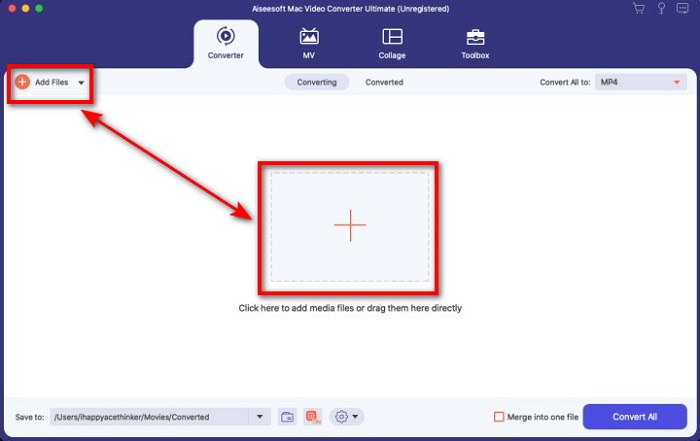
Stap 2. Upload het M4V‑bestand in de interface door op Add Files of de +‑knop te klikken. Daarna wordt een computermap op je scherm geopend; zoek het .m4v‑bestand op en klik op Open.
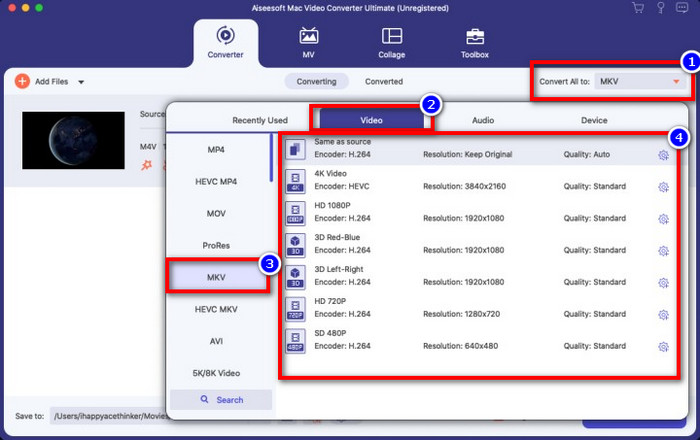
Stap 3. Kies het MKV‑formaat onder Convert All to en klik erop.
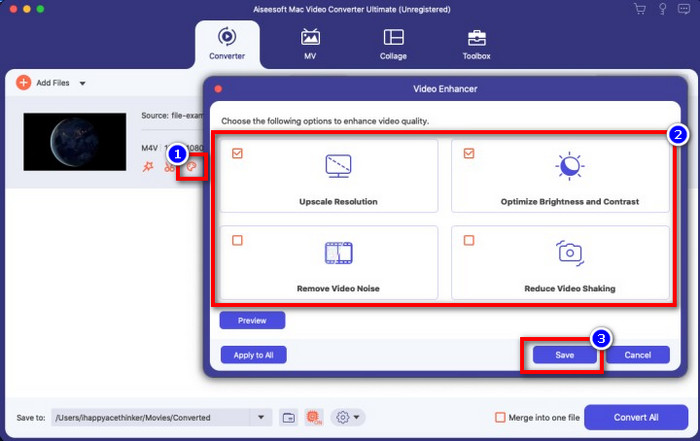
Optioneel. De effectiviteit hiervan is ongetwijfeld tot nu toe uitstekend. Maar wist je dat deze tool ook video‑verbeteraars biedt? Als je op de optie enhance video klikt, verschijnt er een dialoogvenster; vink het vakje aan van wat je in je video wilt verbeteren en klik op Save om het toe te passen.
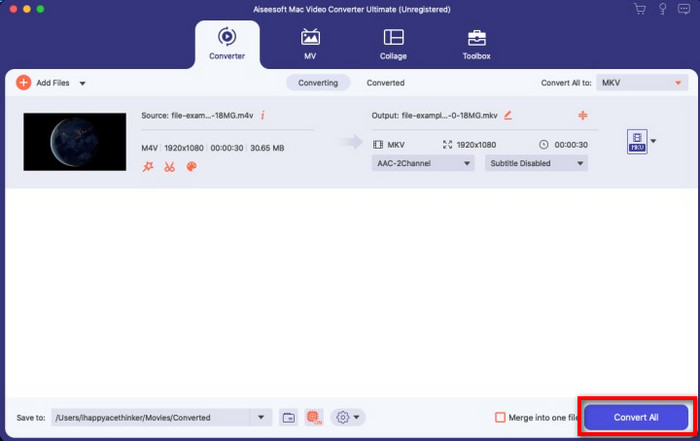
Stap 4. Door op de knop Convert All te klikken, begint de conversie binnen korte tijd. En daar is het; hiermee heeft je video nu de bestandsextensie .mkv.
Deel 2. Converteer M4V online naar MKV
Wil je niet betalen om M4V‑bestanden te converteren en in plaats daarvan M4V online naar MKV omzetten? In dat geval is de FVC Free Video Converter Online een online converter die je conversieproces ook op het web efficiënt laat verlopen. Deze converter kan de klus klaren zonder dat je de converter zelf hoeft aan te schaffen of zelfs maar te downloaden. Bovendien zijn er geen advertenties en is er geen registratie nodig om hem te gebruiken. Hoewel de converter gratis is, richten de functies die hier worden aangeboden zich uitsluitend op het converteren. In tegenstelling tot de ultieme tool, die grootschalige en geweldige functies biedt. Als je je M4V‑bestanden online moet converteren, gebruik dan deze converter en volg de onderstaande stappen.
Stap 1. Klik op deze link om de FVC Free Video Converter Online te openen.
Stap 2. Klik op de optie Add Files to Convert om de M4V‑bestanden die je wilt converteren te openen en te uploaden.
Download de desktopversie om bestanden in batches te converteren.
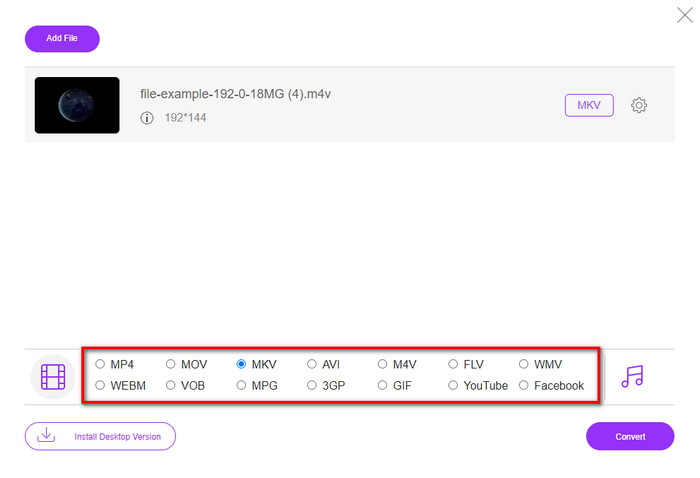
Stap 3. Selecteer het MKV‑formaat onderaan of een ander formaat dat je wilt hebben.
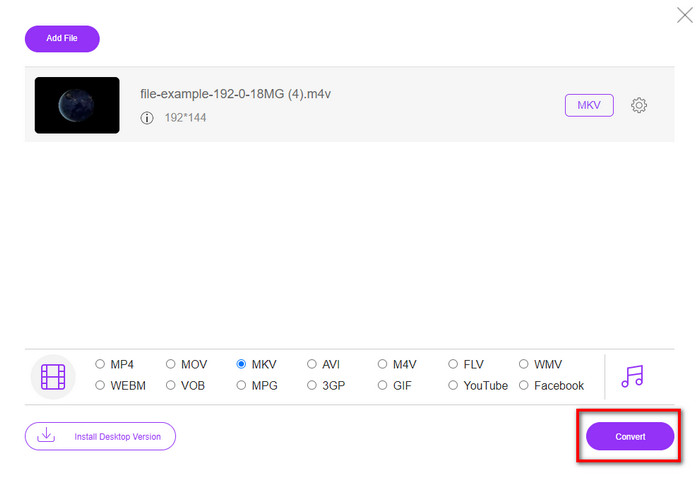
Stap 4. Klik op Convert om het proces te starten.
Deel 3. Converteer M4V gratis naar MKV
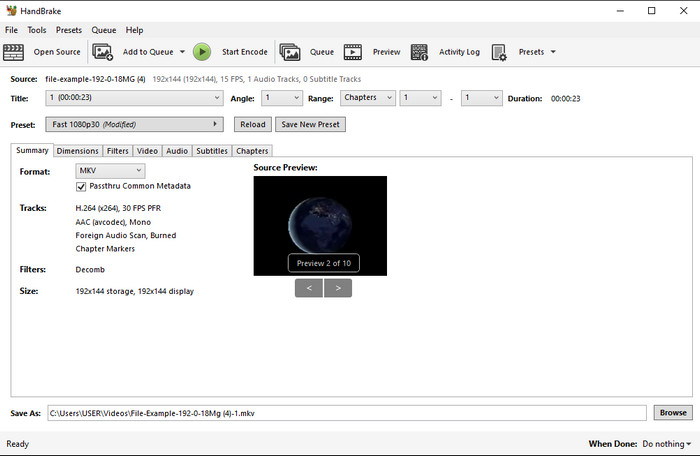
Handbrake biedt een snel en efficiënt conversieproces, net als de andere hier gepresenteerde converters. De indelingen die deze tool ondersteunt zijn echter beperkt, wat betekent dat je minder keuzemogelijkheden hebt voor het gewenste formaat. Maar als je M4V naar MKV in Handbrake wilt converteren, volg dan de onderstaande stappen.
Stap 1. Download Handbrake op je desktop. Upload het .m4v‑bestand door het te slepen en neer te zetten in de interface. Je kunt ook op File klikken, het bestand in de computermap opzoeken en op Open drukken.
Stap 2. Klik op Format en kies MKV.
Stap 3. Klik op Start Encode om het conversieproces te starten.
Deel 4. Wat zijn de overeenkomsten en verschillen tussen M4V en MKV
Laten we, voordat we M4V en MKV vergelijken, eens kijken naar de overeenkomsten tussen deze twee formaten. M4V en MKV zijn beide containers voor media-inhoud en elementen. Het is ook bekend dat deze twee formaten een van de beste videokwaliteit opslaan, zoals HD-video's of 4k. En ze zijn ook groot om elementen zoals metadata te bevatten. Bovendien zijn de volgende details hieronder het verschil tussen de twee formaten.
M4V lijkt erg op het MP4-formaat; dit formaat valt echter onder DRM-kopieerbeveiliging, wat betekent dat u het niet vrij kunt gebruiken. Maar niet alle M4V-bestanden hebben Apple-bescherming omdat sommige van de downloadbare M4V een niet-geautoriseerde licentie hebben, dus zorg ervoor dat u het .m4v-bestand downloadt op iTunes om te voorkomen dat het schadelijke virus uw systeem infecteert. Hoewel het formaat een beperking heeft, kun je dit formaat nog steeds op verschillende mediaspelers gebruiken om de video te bekijken die je downloadt op iTunes. Bovendien, als je een beschermd ontwerp op Mac nodig hebt, is dit formaat de beste keuze.
Integendeel, MKV is specifiek om meerdere media-inhoud en elementen in één bestand te bevatten. Deze mogelijkheid is alleen beschikbaar op MKV, omdat dit formaat gratis te gebruiken is en flexibeler is dan M4V. Bovendien zijn er veel redenen om M4V in MKV op Mac of Windows te veranderen, en een daarvan is om het videobestand onbeperkt te maken.
M4V versus MKV
De M4V is ontwikkeld door Apple, dat ook MPEG 4 gebruikt. M4V-bestanden worden vaak gebruikt om video's op te slaan die zijn gedownload van de Apple iTunes Store, zoals muziekvideo's, tv-afleveringen, enz. Sommige M4V-bestanden zijn mogelijk beveiligd tegen kopiëren omdat Apple's FairPlay DRM-auteursrechtbescherming.
Het Matroska multimedia containerformaat, uitgebracht in 2002, is een open-source formaat dat een aantal video-, audio-, beeld- en ondertiteltracks kan bevatten. U kunt het dus gebruiken om eenvoudig korte videoclips, tv-programma's en films op te slaan. Het is vrij populair voor het ondertitelen van anime-fans.
Deel 5. Veelgestelde vragen over M4V naar MKV-conversie
Wat is beter voor bewerking, M4V of MOV?
De twee genoemde indelingen zijn allebei Apple‑formaten, dus je zult merken dat er geen groot verschil is tussen M4V en MOV. MOV is echter veel beter geschikt voor bewerking, omdat dit formaat vaak een reeks videoweergaven bevat en daardoor de beste keuze is voor professionele montage. Misschien denk je dat je je M4V om moet zetten naar een MOV voor bewerkingsdoeleinden. Is dat zo, klik dan op deze link om meer te leren over het converteren van M4V naar MOV met een uitgebreide toelichting.
Zijn M4V en MP4 hetzelfde?
M4V en MP4 zijn qua structuur en videokwaliteit zeer identiek. Maar vanwege de Apple Plays-beveiliging heeft M4V een klein aantal ondersteuningen en kun je niet zomaar een video afspelen of bewerken in de .m4v-extensie.
Wat zijn de mediaspelers die M4V ondersteunen?
Niet veel mediaspelers ondersteunen dit type formaat vanwege de DRM‑beveiliging. Dus als je op zoek bent naar een MKV‑speler, zul je veel tijd kwijt zijn aan uitproberen, wat veel tijd kost. Maar als je dit artikel leest, kun je de top 5 MKV‑mediaspelers die op alle platforms beschikbaar zijn downloaden of gebruiken.
Gevolgtrekking
De drie tools die in dit artikel worden gepresenteerd, zullen je zeker de effectieve conversie bieden die je wilt, zolang je de stappen volgt. Hoewel de converters veel gemeen hebben, zijn er ook flinke verschillen. Als je de bovenstaande details leest, zul je veel leren over deze drie tools. Stel dat je in één keer een uitstekende conversie wilt uitvoeren en toch de efficiëntie van de conversie wilt behouden; dan raden wij de FVC Video Converter Ultimate aan. Klinkt ongelooflijk? Dat is het zeker, dus download hem op je desktop om het zelf te proberen.
-
 M4V naar MP3 Converter - 4 beste methoden om MP3 uit M4V-bestanden te extraheren
 Als u de MP3-audio met gemak uit M4V-video's wilt extraheren, kunt u meer leren over de 4 beste M4V naar MP3-converters om de gewenste audiobestanden uit het artikel te halen.
-
 [Gids] M4V-video's converteren naar geanimeerde GIF's op Windows/Mac
 Als je geanimeerde GIF-bestanden wilt maken van je favoriete M4V-video's, kun je leren over 2 eenvoudige en efficiënte manieren om M4V-video's naar GIF's te converteren met aangepaste instellingen.
-
 3 Video Converter-programma dat wordt gebruikt om iTunes M4V naar AVI op Mac te converteren
 Heb je geen idee hoe je MKV naar een AVI-formaat moet converteren? Terwijl we dit artikel blijven lezen, zullen we de 3 tools kennen die u kunnen helpen bij het converteren van dit bestandsformaat.

